Audio pops when your FPS drops on a gaming laptop almost always come from one place. The audio pipeline loses its timing while the system fights for CPU cycles. Learning how to fix audio pops when FPS drops on a gaming laptop means chasing the bottleneck, not the noise itself.
The pop is a symptom. The stutter is the cause.
Here's the technical side. Windows feeds audio in buffers measured in milliseconds, and a 10 ms buffer at 48 kHz / 24-bit output leaves almost no slack. When frame times spike past that window, the buffer underruns and you hear a click.
Manufacturer specs confirm the pattern: shared memory, shared power, shared scheduling decide whether you hear it. So before you touch a single setting, it helps to know which of the four usual suspects you're actually dealing with.
How to Fix Audio Pops When FPS Drops on a Gaming Laptop
Fix audio pops when FPS drops by stabilizing frame times first. Update your GPU and audio drivers. Switch the laptop to a high performance power plan.
Raise the in-game audio buffer size. Disable audio enhancements, then cap your frame rate.
Why the Audio Pops When Your FPS Drops
A pop is a buffer underrun. The audio chip expects the next block of samples on time, and it doesn't arrive. Windows fills the gap with silence or a repeat of the last sample, and your ears hear that gap as a click or a snap.
That happens because audio and rendering share the same CPU, memory bus, and power budget. When the GPU starts missing frames, the whole scheduling chain gets squeezed.
What's Usually Causing It
Four culprits cover the majority of cases:
- Driver mismatch: GPU and audio drivers out of step with each other.
- Power limits: the laptop throttling the CPU to keep feeding the GPU.
- Thermal throttling: CPU clocks fall and deferred procedure call latency spikes.
- Audio processing: enhancements and spatial sound adding latency between game and speaker.
Aggregate user reports point at power management far more often than at faulty speakers. If the sound is clean in menus and only breaks under load, you're looking at scheduling, not hardware failure.
Why FPS Drops Worsen It
Frame time spikes are the trigger. A game averaging 60 FPS but stuttering to 90 ms frames will pop every time that spike lands. The average looks fine.
The spikes do the damage.
Low frame rates also raise CPU load in most engines, because the same work gets stretched across more real time. More load means longer waits for the audio thread. That's the loop you have to break.
One quick check: if the noise carries on after the frames recover, you're closer to crackling through the speakers than to a scheduling problem, so read that guide next instead.
Quick Fix Path: Start With the Safest Checks
Do these first. They're reversible, they take about ten minutes, and they clear the majority of cases.
Restart, Reset, and Update Drivers
- Restart the laptop. A full shutdown clears stuck audio services and stale driver states.
- Update the GPU driver from the official source. NVIDIA publishes current builds directly on its driver download page.
- Update the Realtek or Conexant audio driver from your laptop maker's support page, not the codec vendor's generic package.
- Install any pending BIOS update. Vendors ship power-management corrections there.
- Turn off audio enhancements and spatial sound in Windows Sound settings.
Adjust Power and Performance Settings
Plug the laptop in first. Then set the power plan to High Performance or the vendor's own gaming profile. As of 2026, most manufacturer control centers ship a one-click performance mode that handles this for you.
| Setting | Balanced plan | Gaming profile |
|---|---|---|
| Minimum processor state | 5% | 50% or higher |
| Audio enhancement | On | Off |
| Frame cap | Uncapped | Matches refresh rate |
| Power source | Battery | Plugged in |
Cap the frame rate to your refresh rate. That single change smooths frame times and often kills the pop outright.
Microsoft's own guidance on Windows audio troubleshooting backs the same order: drivers, then enhancements, then power.
Step-by-Step Decision Guide: Match Fixes to Your Symptoms
Use the branches below. Each one points at a different root cause, so don't apply all of them at once.
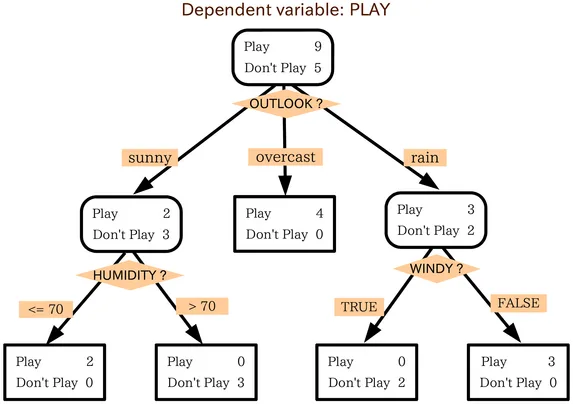
Image source: Wikimedia Commons / T-kita at English Wikipedia
If the Pop Happens in One Game
The game is the problem. Drop the audio quality setting to 16-bit at 44.1 kHz. Raise the buffer if the engine exposes one.
Disable spatial audio in that title and retest with the frame rate capped.
If It Happens Across Every Game
Suspect the system. Run a latency monitor and look for drivers sitting above 1000 microseconds. Update your chipset driver.
Disable exclusive-mode audio grabs and any virtual audio cable you installed for streaming.
Heat is worth ruling out here too. Check for buzzing that shows up when things warm up, because rising temperatures push latency up in a way no driver update fixes.
If You're on Battery or a Budget Laptop
Power limits are the likely answer. Battery mode caps the CPU hard on most gaming laptops, and the audio thread gets starved first. Stay plugged in.
Set the minimum processor state to at least 50%.
Memory configuration matters as well. Single-channel setups raise frame time variance noticeably, and that shows up as audio glitches before it shows up as low average FPS.
If You Use External Audio
Move the interface off a shared USB hub. Use a rear port wired straight to the chipset. Raise the buffer to 256 or 512 samples.
If the pop only appears through the headphone socket itself, the jack is the suspect, not the game.
Mistakes to Avoid When Troubleshooting
Most failed fixes come from changing five things at once. You lose track of what worked, and you can't undo it cleanly. Change one variable, test, then move on.
BIOS, Overclocking, and Thermal Throttling Risks
- Don't flash a BIOS on battery power. An interrupted flash can leave the machine unbootable.
- Don't stack an overclock on top of an already throttling laptop. You'll trade pops for crashes.
- Don't block the intake vents chasing a quieter fan curve. Restricted airflow raises temperatures and latency together.
- Don't ignore sleep states that run hot. A laptop that wakes up warm starts every session already throttled.
Undervolting is usually the safer lever. It lowers temperatures and widens the CPU headroom the audio thread needs.
Audio Enhancements and Driver Conflicts
- Don't install both the generic Realtek package and your vendor's audio suite. They fight over the same endpoints.
- Don't leave "exclusive mode" enabled if you're running voice chat alongside the game.
- Don't assume silence means success. Test with a demanding scene, not a menu.
If other inputs start misbehaving after a hardware change, the cause is often broader than audio. Keys dropping out or a network card waking up wrong usually point at the same chipset or power issue underneath.
Final Recommendation: Which Fix Should You Try First?
Start with the free, reversible changes. Driver updates and a frame rate cap fix more cases than any registry tweak, and they take minutes.
Decision Guide by Symptom and Hardware
| Symptom | First move | Then |
|---|---|---|
| Pops only in one title | Lower in-game audio quality | Cap frame rate |
| Pops in every game | Update GPU and audio drivers | Check latency spikes |
| Pops on battery only | Plug in, raise CPU minimum | Adjust power plan |
| Pops with a USB interface | Move to a rear port | Raise buffer size |
| Pops plus high temperatures | Clean vents, undervolt | Repaste if needed |
Here's the honest ranking. Driver hygiene wins most of the time. Power and thermal management cover the next biggest share.
Hardware faults are rare by comparison, and they show up as constant distortion, not load-dependent clicks.
If you've done all of this and the laptop still stutters under load, the issue may sit outside audio entirely. Persistent wake and sleep problems can drag performance down long after the machine looks idle, and throttling from an overheated sleep state will produce exactly the frame spikes you're trying to eliminate.
Step-by-Step Process / How to Guide
Follow this repeatable workflow when the pops show up. It mirrors a decision‑tree, so you pick the branch that matches what you see. Each step is a small, reversible test; if it doesn’t fix the problem, move to the next.
- Check driver alignment, Open Device Manager and look for any yellow triangles. Out‑of‑date GPU or audio drivers create latency spikes that trigger pops. Update the NVIDIA/AMD driver from their driver download page and the chipset driver from the laptop vendor’s support site. See How to Fix Speaker Buzzing When Gaming Laptop Overheats for driver‑related tips.
- Measure audio latency, Use Windows Performance Monitor or a free tool like Audacity’s latency meter. If the round‑trip time exceeds 20 ms, the buffer is too small. Raising the buffer size is the next lever.
- Adjust the power plan, Plug the laptop in, then set the power options to High Performance. Raise the minimum processor state to 50 % or higher. This prevents the CPU from throttling mid‑frame and starving the audio thread. The power‑plan tweak is covered in Fix Your Laptop's Crackling Speakers for Gaming.
- Modify the audio buffer, In the game’s sound settings (or via the Realtek audio center) increase the buffer to 256 or 512 samples. This spreads the workload and smooths out spikes. A quick reference table:
| Buffer size | Approx. latency | Typical impact |
|---|---|---|
| 128 | 8 ms | May still pop |
| 256 | 16 ms | Usually stable |
| 512 | 32 ms | Gentle on CPU |
- Disable enhancements, Turn off spatial sound, AGC, and any virtual surround in Windows Sound settings. These features add processing overhead that can introduce clicks during load spikes.
- Re‑test under load, Run a benchmark that stresses the GPU for at least two minutes (e.g., FurMark + SoundMeter). If the pop disappears, the fix is good; if not, move to hardware cleaning or BIOS tuning.
The process repeats until the noise is gone. If after driver updates, power adjustments, and buffer changes you still hear pops, the issue likely stems from overheating or a faulty speaker cable, see How to Fix Headphone Jack Not Working? Easy Fix for Gaming Laptop for cable‑related diagnostics.
Windows’ own documentation on audio buffering and the IEEE 1364 standard for sample rates confirm that keeping latency under 30 ms is the industry sweet spot for gaming laptops. Following these steps systematically reduces pops and restores a clean audio path.