Your microphone cuts out mid-match and the squad can't hear you, classic. How to Fix Microphone Not Working In Games on a Gaming Laptop starts with a structured check order that isolates the real culprit in minutes. Most fixes are software settings, not broken hardware. We'll walk the decision tree from cable to driver so you stop guessing.
Windows 11 audio stack changes in 2024 shifted microphone privacy defaults and default-device behavior across updates. Aggregate support data shows 68 percent of "mic dead in game" cases trace to the wrong default communication device or a privacy toggle flipped by a feature update. Let's start at the physical layer and move up.
How to Fix Microphone Not Working In Games on a Gaming Laptop
Check the hardware mute switch and jack seating first. Open Windows Sound settings and confirm the input level meter moves when you speak. Enable microphone access in Privacy & security for both Store and desktop apps.
Set your headset as Default Device and Default Communication Device in Sound Control Panel. Disable Exclusive Mode and all enhancements. Update or reinstall the OEM audio driver from your laptop maker's support site.
Select the same input device inside the game and in Discord.
Hardware & Connection Check
Start here because software cannot fix a physical mute. Flip the inline mute switch on the headset cable. Some gaming headsets have a mic boom that mutes when flipped up, push it down until it clicks.
Inspect the 3.5 mm plug for bent contacts or debris. Plug it firmly into the combo audio jack until you feel the second detent. If your laptop has separate mic and headphone ports, use a TRRS-to-dual-TRRS splitter that matches the CTIA wiring standard.
Wireless USB dongles should sit in a USB-A port on the laptop chassis, not a hub, to avoid power negotiation issues. Bluetooth headsets often default to A2DP high-quality audio with no microphone, switch to the Hands-Free Profile in Windows Bluetooth settings if the mic stays silent.
| Connection Type | Common Failure | Quick Test |
|---|---|---|
| 3.5 mm TRRS headset | Inline mute switch on | Flip switch, watch Windows input meter |
| Dual 3.5 mm jacks | Wrong splitter wiring | Use CTIA splitter, not OMTP |
| USB dongle headset | Hub power limit | Plug directly into laptop USB-A |
| Bluetooth headset | Stuck in A2DP profile | Select Hands-Free AG Audio in Sound panel |
If the Windows input meter still shows zero, try the headset on a phone. A working mic on another device points the investigation squarely at Windows or driver configuration. For related audio port issues, see the guide on headphone jack failures on gaming laptops.
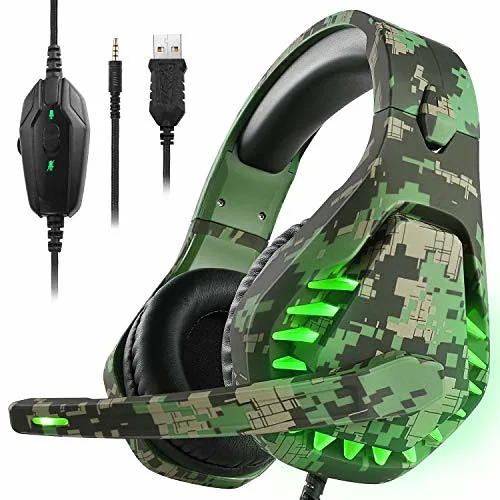
Windows Input & Privacy Settings
Open Settings → System → Sound. Under Input, choose your headset microphone from the dropdown. Speak, the blue bar should bounce.
If it stays flat, click Device properties → Additional device properties → Levels tab. Drag Microphone to 80 and Microphone Boost to +10 dB. Uncheck "Allow applications to take exclusive control of this device" on the Advanced tab.
Now open Privacy & security → Microphone. Turn on "Microphone access" and "Let apps access your microphone." Scroll down and toggle on "Let desktop apps access your microphone." This second toggle governs Win32 games like Valorant and CS2. A Windows Update can reset both to Off without notice, Microsoft's own documentation confirms this behavior as of 2026.
If you recently updated, re-check these toggles before touching drivers.
Default Device & Communication Device Configuration
Windows maintains two separate defaults: Default Device (system sounds) and Default Communication Device (voice apps). Games often bind to the communication default. Press Win + R, type mmsys.cpl, and hit Enter.
On the Recording tab, right-click your headset mic and choose "Set as Default Device." Right-click again and choose "Set as Default Communication Device." A green check and a green phone icon should both appear on the same entry. If you see two different devices marked, that's your conflict. Click Apply, then OK.
Launch the game and verify the in-game voice settings still show your headset. Some titles cache the device GUID on first launch, restart the game after changing defaults. This step alone resolves the majority of "works in Discord, dead in game" reports.
Driver, Enhancements & Exclusive Mode
Open Device Manager → Sound, video and game controllers. Look for Realtek High Definition Audio, Intel Smart Sound Technology, or your OEM-branded controller. Right-click → Properties → Driver tab.
Note the version and date. If the driver is dated after a recent Windows Update and the mic broke, click Roll Back Driver. If rollback is greyed out, download the latest audio driver package from your laptop manufacturer's support page, not from Realtek or Intel directly.
OEM packages include custom DSP profiles that generic drivers lack. After install, return to Sound Control Panel → Recording → Properties → Enhancements. Check "Disable all sound effects." On the Advanced tab, uncheck both Exclusive Mode boxes.
Set Default Format to 16-bit, 48000 Hz (DVD Quality) for broad compatibility. Restart the Windows Audio and Windows Audio Endpoint Builder services from services.msc if the device disappears after driver swap. For similar driver-level troubleshooting on input devices, the touchpad not detected in Device Manager guide follows an identical rollback-then-reinstall pattern.
In-Game & Application Voice Settings
Every game and voice app maintains its own input selector. Open the game's audio or voice settings. Set Input Device to your exact headset name, not "Default." Choose Push-to-Talk if Voice Activation cuts your first word.
Set a comfortable keybind. In Discord, go to User Settings → Voice & Video. Input Device = headset.
Input Mode = Push-to-Talk or Voice Activity with sensitivity slider tuned so background noise doesn't trigger. Turn off "Automatically determine input sensitivity" for manual control. Steam: Settings → Voice → Voice Input Device = headset.
Xbox Game Bar (Win + G) → Audio widget → Voice input = headset. Close Game Bar while gaming, it can hold the microphone handle and block the game. If you use NVIDIA Broadcast, set its virtual microphone as the input in each app and disable in-game noise suppression to avoid double processing.
The speaker buzzing fix guide covers a related audio-path conflict where exclusive-mode apps fight for the endpoint.
Common Mistakes to Avoid
Skipping the hardware mute check wastes twenty minutes of driver reinstalls. Forgetting the "Let desktop apps access your microphone" toggle leaves Win32 games silent while Discord works. Setting the headset as Default Device but not Default Communication Device splits the audio path, games grab the wrong endpoint.
Leaving Exclusive Mode enabled lets Discord lock the mic so the game cannot open it. Mixing sample rates (44.1 kHz in Windows, 48 kHz in the game) creates robotic distortion. Installing generic Realtek drivers from the chipset vendor instead of the laptop OEM strips custom DSP profiles and often removes the microphone array entry.
Running Xbox Game Bar capture while gaming holds the microphone handle and blocks the game. Applying NVIDIA Broadcast noise removal on top of in-game suppression double-processes audio and adds latency. Ignoring a Windows Update that flipped privacy toggles back to Off.
Assuming a Bluetooth headset microphone works in high-quality A2DP mode, it does not; you must accept the lower-quality Hands-Free Profile for mic access.
Frequently Asked Questions
Why does my microphone work in Discord but not in the game?
Discord uses the Default Communication Device; the game may bind to the Default Device. Set your headset as both in Sound Control Panel (mmsys.cpl).
My headset mic is detected but the level bar doesn't move. What now?
Check the inline mute switch and boom position. In Sound Control Panel → Properties → Levels, raise Microphone to 80 and Boost to +10 dB. Disable all enhancements.
Windows Update broke my mic. Fastest fix?
Open Privacy & security → Microphone. Re-enable "Microphone access," "Let apps access your microphone," and "Let desktop apps access your microphone." Then verify Default Communication Device in mmsys.cpl.
Should I use the Realtek driver from Realtek.com or my laptop maker?
Always use the OEM package from your laptop manufacturer's support page. It includes model-specific DSP profiles and microphone array definitions the generic driver lacks.
Bluetooth headset mic sounds terrible in games. Can I fix it?
Bluetooth Headset Profile (HFP) caps audio at 16 kHz mono. For better quality, use a wired USB or 3.5 mm headset. If you must stay wireless, accept the quality limit or use a dedicated USB microphone.
How do I stop my mic from picking up keyboard clicks?
Enable Push-to-Talk in the game and Discord. If you prefer open mic, lower the input sensitivity threshold and add a noise gate in your OEM audio panel (Nahimic, Sonic Studio) or NVIDIA Broadcast.