If you have ever wondered what are PCIe lanes and how many does a gaming PC need you are not alone. The answer changes based on your CPU and motherboard. A modern GPU usually wants sixteen lanes straight from the processor.
An NVMe drive needs four more. That adds up fast on mainstream platforms.
PCIe 4.0 doubles the per lane bandwidth of PCIe 3.0 and PCIe 5.0 doubles it again. As of 2026 most high end GPUs still run at PCIe 4.0 x16. The lane budget you have depends on the processor you pick.
Let us break down the numbers so you can match parts without guesswork.
What Are PCIe Lanes and How Many Does a Gaming PC Need
PCIe lanes are high speed data paths that connect your CPU to add in cards. Each lane carries two differential pairs for send and receive. A graphics card typically uses sixteen lanes.
A fast NVMe SSD uses four lanes. Most gaming PCs need twenty lanes from the CPU for a GPU plus one drive. Mainstream CPUs often provide exactly twenty lanes.
That leaves zero room for a second drive or a capture card without sharing chipset bandwidth.
What Are PCIe Lanes and How Do They Work
A PCIe lane is a serial link that moves data in both directions at once. The link width is written as x1 x4 x8 or x16. Wider links bundle more lanes for more throughput.
The generation number sets the speed per lane. PCIe 3.0 moves about one gigabyte per second per lane. PCIe 4.0 moves about two gigabytes per second.
PCIe 5.0 moves about four gigabytes per second. Your motherboard slots are wired to specific lanes from the CPU or the chipset. The top x16 slot usually connects straight to the CPU.
M.2 slots may connect to the CPU or the chipset depending on the board layout. Chipset lanes share a single uplink to the processor so heavy traffic on multiple devices can contend for that uplink.
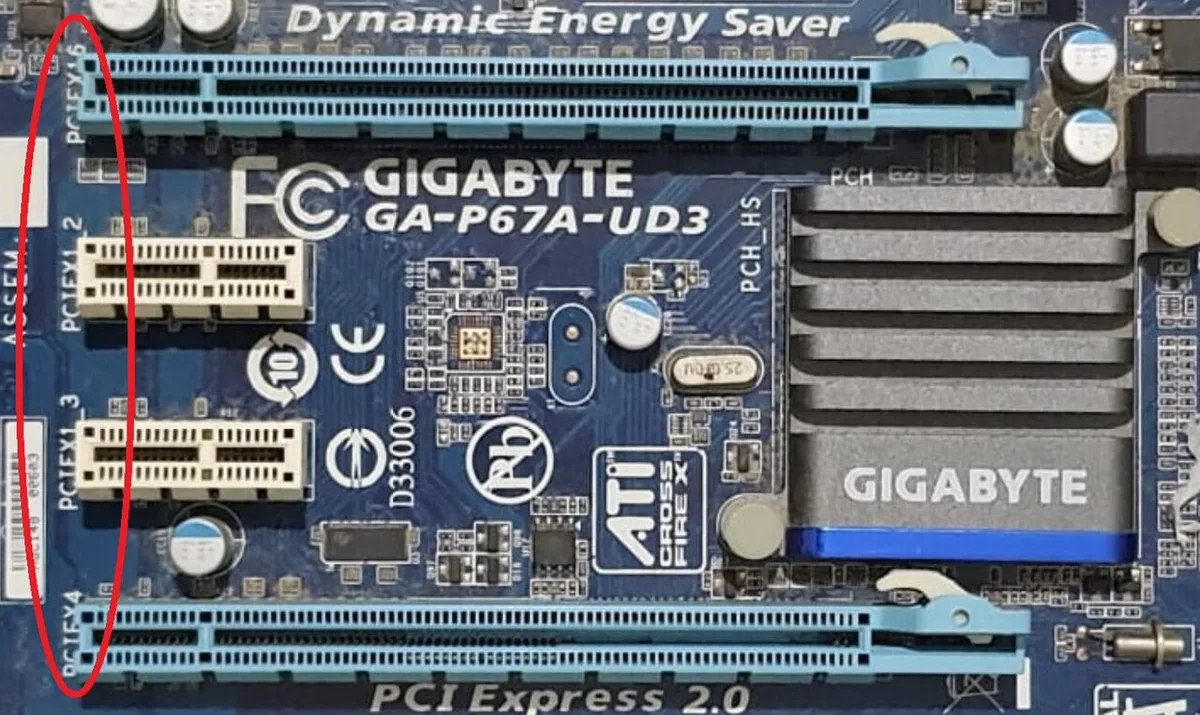
Image source: Wikimedia Commons / Sayeen (CC BY-SA)
A graphics card plugged into the primary slot gets sixteen CPU lanes on most desktop platforms. If you populate a second x16 slot the CPU may split the lanes to x8 and x8. Some platforms keep the first slot at x16 and wire the second slot to the chipset.
That second slot then runs at x4 or x1 speeds. NVMe drives plugged into CPU attached M.2 slots get four dedicated lanes. Drives on chipset attached slots share the chipset uplink.
Bandwidth contention rarely hurts gaming but it can slow large file transfers when multiple drives are active. Manufacturer specifications confirm these wiring rules in the block diagram of each motherboard manual.
How Many PCIe Lanes Does a Gaming PC Need
A typical gaming build needs twenty CPU lanes for a GPU at x16 and one NVMe at x4. That fits mainstream Intel Core i5 and i7 chips plus AMD Ryzen 7000 and 9000 series. If you add a second NVMe drive you either use a chipset slot or you drop the GPU to x8.
Dropping to x8 costs very little performance on PCIe 4.0 or 5.0. Tests show less than two percent difference in most games. High end desktop platforms like Threadripper or Xeon offer many more lanes but they are overkill for pure gaming.
The sweet spot for most players is a mainstream CPU with twenty lanes. That covers the GPU and a fast boot drive with no compromises.
What Determines Your PCIe Lane Needs
Your CPU model sets the total lane count. Intel 12th 13th and 14th gen Core processors give twenty lanes from the CPU. AMD Ryzen 7000 and 9000 series also give twenty lanes.
The motherboard chipset adds more lanes but they share a single DMI or PCIe uplink to the CPU. That uplink is typically x4 or x8. Chipset lanes work fine for extra SSDs USB controllers and networking.
They are not ideal for a primary graphics card. The slot layout in the manual shows which slots connect to the CPU and which connect to the chipset. Always put your GPU in the CPU attached x16 slot.
Put your fastest NVMe in the CPU attached M.2 slot if one exists. Use chipset slots for secondary drives and add in cards.
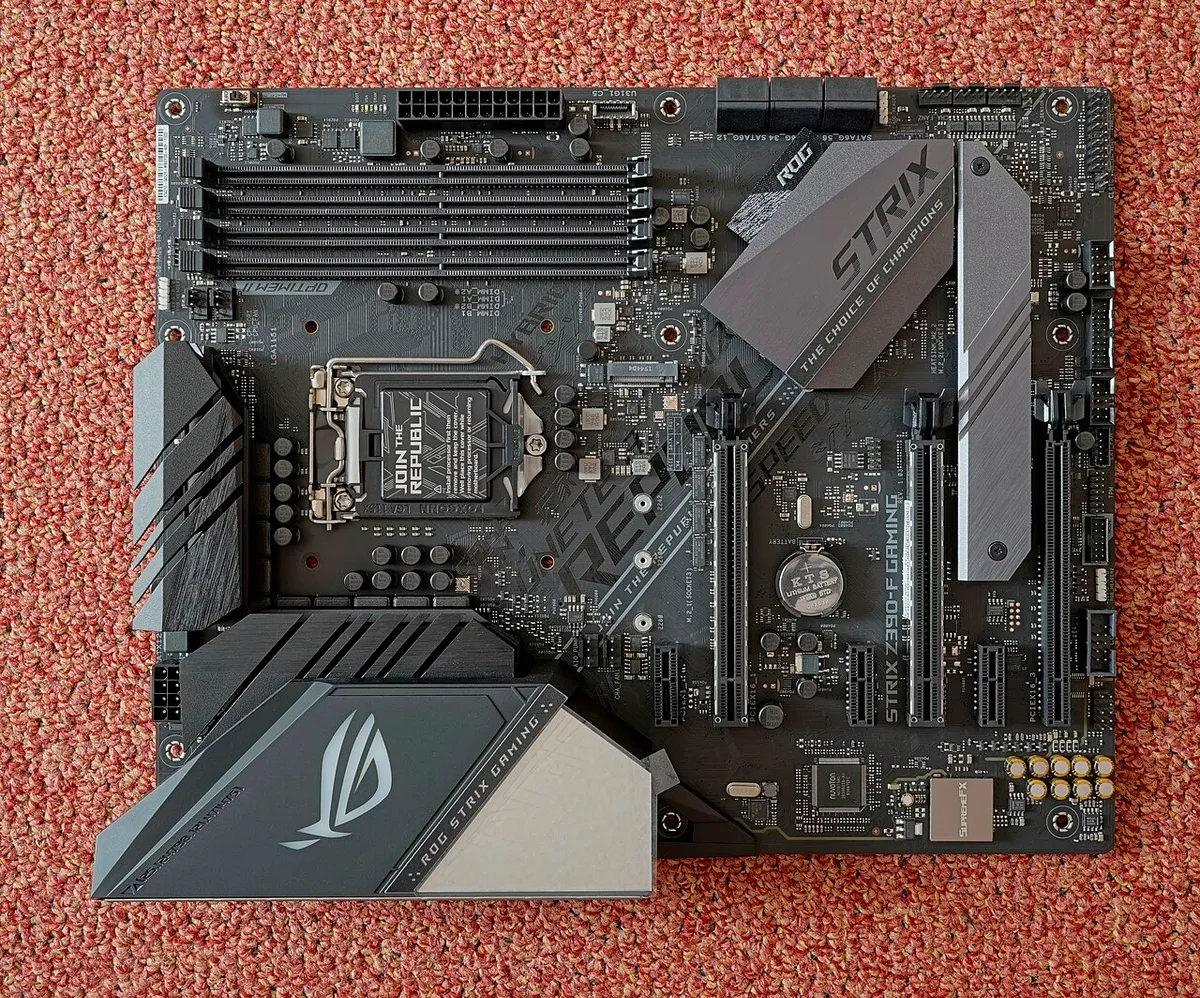
Image source: Wikimedia Commons / PantheraLeo1359531 (CC BY)
Bifurcation support lets a single x16 slot split into two x8 or four x4 links. This matters if you run multiple GPUs or a riser card with several NVMe drives. Most consumer boards do not support bifurcation.
Workstation and enthusiast boards often do. Check the motherboard specifications before you plan a multi device setup. The PCI SIG maintains the official PCIe specification that defines lane widths and signaling.
You can review the base spec at the PCI SIG website for the authoritative electrical and protocol details.
Benefits Drawbacks and Real World Impact
Full CPU lane allocation gives your GPU and primary SSD unrestricted bandwidth. That means maximum frame rates and minimum load times. Sharing lanes or using chipset lanes adds a small latency penalty and can cap throughput during heavy I/O.
For gaming the penalty is usually invisible. For content creation with large video files the penalty can show up as slower scrubbing or export times. The table below summarizes common lane budgets and what they support.
| CPU Lanes | GPU Width | Primary NVMe | Extra NVMe | Add In Card | Best For |
|---|---|---|---|---|---|
| 20 | x16 | x4 CPU | x4 chipset | x4 chipset | Mainstream gaming |
| 20 | x8 | x4 CPU | x4 CPU | x4 chipset | Dual fast SSD builds |
| 44+ | x16 | x4 CPU | x4 CPU | x16 CPU | Workstation multi GPU |
Mainstream twenty lane CPUs cover the vast majority of gaming needs. You only hit limits when you want multiple high speed NVMe drives and a capture card and a 10GbE network card all at once. In that case a higher end platform or a PLX switch motherboard helps.
Most builders never reach that point. Aggregate reviews report that PCIe 4.0 x8 versus x16 shows no meaningful frame rate loss in current titles. PCIe 3.0 x16 matches PCIe 4.0 x8 in bandwidth so older platforms still perform well with modern GPUs.
How to Choose and Install the Right PCIe Setup
Start with your CPU, because it sets the total lane budget. Then open the motherboard manual and find the slot wiring diagram. That diagram shows which slots run off the CPU and which run through the chipset.
Here's the install order that works every time:
- Put your graphics card in the top x16 slot. It's almost always wired straight to the CPU.
- Drop your fastest NVMe drive into the CPU-attached M.2 slot if your board has one.
- Use chipset slots and the lower M.2 slots for secondary drives and add-in cards.
Seat each card firmly until the retention clip clicks. A half-seated GPU can boot fine but crash under load. If a new card leaves your system unstable, our walkthrough on hunting down crash causes covers the usual suspects.
Confirm the specs on the vendor's own page instead of trusting a marketplace listing. The PCI-SIG publishes the official lane widths and signaling rates for every generation. Your board's block diagram then shows exactly how those lanes are wired.
Keep the slots and the gold contacts clean while you work. Dust inside a slot can break the connection. Our advice on keeping contacts dust-free helps the link stay solid for years.
Common Mistakes and How to Avoid Them
The biggest error is assuming every x16 slot runs at full CPU speed. On many boards the second long slot is wired to the chipset and only runs at x4 or even x1. Check the manual before you plan a dual-GPU or capture-card setup.
Another common slip is filling every M.2 slot without checking lane sharing. On some boards, populating the second M.2 slot disables a SATA port or drops the GPU to x8. The wiring chart spells out these tradeoffs in plain sight.
People also overthink x8 versus x16. In current games the gap is under two percent. Don't pay a premium for a board just to protect x16 when your build only runs one GPU.
If the PC acts up right after a hardware swap, reseat everything first. Loose cards and cables cause far more trouble than lane limits ever will. Our steps for narrowing down what's unstable sort out seating, power, and thermals fast.
Lastly, watch the airflow around your top slot. A boxed-in GPU with stale air will throttle no matter how many lanes it has. Our guide to catching a fan on its way out covers the early warning signs.
Frequently Asked Questions
What is the difference between PCIe 3.0, 4.0, and 5.0?
Each generation roughly doubles per-lane bandwidth. PCIe 4.0 moves about twice what 3.0 does, and 5.0 doubles it again. For gaming, 4.0 x16 is plenty, and 5.0 mostly pays off with the newest storage.
Do I need PCIe 5.0 for gaming?
No, you don't need it for gaming today. A PCIe 4.0 x16 slot feeds any current graphics card with no bottleneck. Save that money unless you also run cutting-edge Gen 5 NVMe drives.
What happens if my GPU only gets x8?
In games, almost nothing. Aggregate benchmarks show under two percent frame rate loss between x8 and x16 on PCIe 4.0. You'd only notice the drop in some heavy compute or content-creation workloads.
Can I add more lanes with an expansion card?
Yes, within limits. A PLX switch card splits one x8 slot into several downstream slots. It's great for extra NVMe drives, though it adds cost and a touch of latency.
How many lanes does a typical gaming build use?
Around twenty. Sixteen feed the graphics card and four feed the main NVMe drive. That fits mainstream CPUs exactly, while chipset lanes quietly handle USB, networking, and extra drives.
Does adding cards strain my power supply?
It can. Every seated card pulls power through the slot and its own cables. A weak or aging PSU may buckle under that load.
Our tips on guarding the system from bad power show how to keep everything stable.