If you're asking what is the difference between pcie 3.0 and pcie 4.0 ssds, the short answer is bandwidth. PCIe 4.0 doubles the per-lane data rate of PCIe 3.0. That difference matters most for large transfers, not every everyday task.
PCI-SIG defines PCIe 3.0 at about 985 MB/s per lane and PCIe 4.0 at about 1.97 GB/s per lane. A common four-lane M.2 drive can reach roughly 3.94 GB/s on Gen3 and roughly 7.88 GB/s on Gen4. The real choice depends on your motherboard, cooling, and workload.
Why PCIe 3.0 vs PCIe 4.0 SSDs Actually Matters
This comparison matters because both drives can feel identical in normal use. Web browsing, office work, and many games do not push sequential speed hard enough. The gap shows up when you move large files, install big games, or run heavy creative work.
A good buying decision starts with your platform. A fast Gen4 drive in an older Gen3 slot runs at Gen3 speed. That means you may pay for speed you cannot use.
It also means your motherboard and cooling matter as much as the SSD label.
Think about the whole system, not just the drive. Your CPU, chipset, M.2 slot, and heatsink all affect the final result. Before comparing models, check your motherboard manual and your storage plan.
What PCIe 3.0 SSDs Still Do Well
PCIe 3.0 SSDs are still strong choices for budget builds and older systems. Many quality Gen3 drives deliver around 3,000 to 3,500 MB/s sequential reads. That is far faster than a SATA SSD or hard drive.
They also tend to run cooler in tight spaces. Lower heat can help in small-form-factor PCs and laptops. If your system only supports Gen3, a good Gen3 drive is the practical match.
For gaming, Gen3 often remains enough. Load times improve compared with HDDs, but the jump from Gen3 to Gen4 is usually smaller than the jump from HDD to SSD. If you are still comparing SSD and HDD differences, that bigger change matters more.
What PCIe 4.0 SSDs Add Beyond the Speed Spec
PCIe 4.0 SSDs add more than a bigger headline number. The best models offer stronger sustained writes and better performance under heavy load. That helps with video editing, large game installs, and workstation tasks.
Gen4 drives can also be useful for console storage. A compatible PlayStation 5 expansion drive needs PCIe 4.0 and proper cooling. In that case, the generation requirement is not optional.
There is also a future-proofing angle. As of 2026, Gen4 is common on mainstream platforms. A Gen4 drive can move to a newer system later and still use its full speed.
That does not make Gen3 obsolete, but it can extend the useful life of a purchase.
Side-by-Side Specs, Speeds, and Real-World Performance
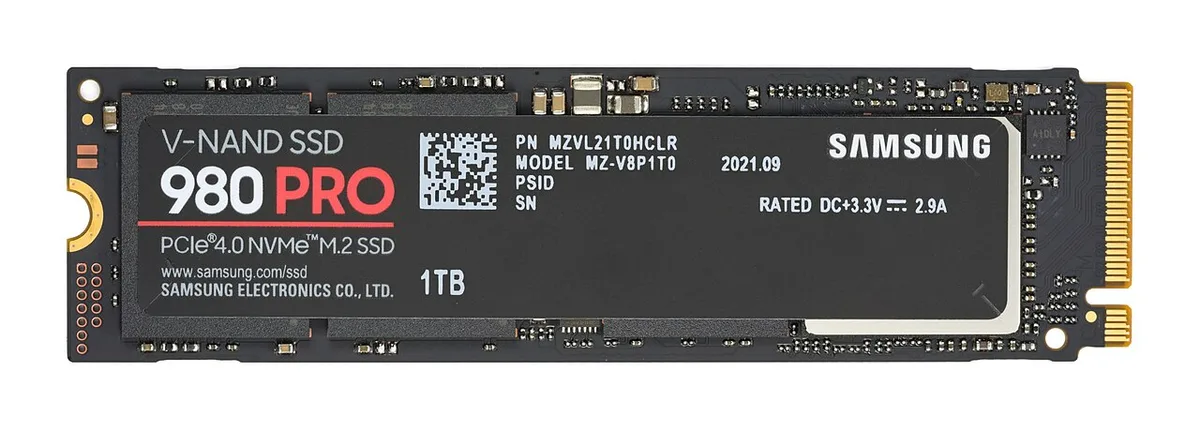
Image source: Wikimedia Commons / D-Kuru (CC BY-SA)
The table below shows the basic bandwidth difference. Real drives rarely hit the theoretical maximum, but the ratio is useful.
| Feature | PCIe 3.0 x4 SSD | PCIe 4.0 x4 SSD |
|---|---|---|
| Per-lane bandwidth | About 985 MB/s | About 1.97 GB/s |
| Four-lane theoretical bandwidth | About 3.94 GB/s | About 7.88 GB/s |
| Typical sequential read range | About 3,000-3,500 MB/s | About 5,000-7,400 MB/s |
| Common use case | Budget and older systems | Newer platforms and consoles |
Sequential Throughput vs Random IOPS
Sequential speed is the number most ads show. It measures large, continuous reads and writes. That matters for copying files, installing games, and loading big assets.
Random 4K performance matters more for everyday responsiveness. It reflects how quickly a drive handles small files scattered across storage. A strong Gen3 drive can feel close to a midrange Gen4 drive in light desktop tasks.
Sustained Writes, Thermals, and Throttling
Sustained writes are where some Gen4 drives separate themselves. A large SLC cache can make a drive look fast for a short burst. Once that cache fills, write speed may drop sharply.
Heat is the other major variable. Faster signaling creates more heat, and thin M.2 drives can throttle. A proper heatsink or motherboard M.2 shield can help maintain speed.
Manufacturer specifications and PCI-SIG details are good places to verify interface limits and thermal guidance.
Best Use Cases: Gaming, Workstations, Consoles, and Laptops
For gaming, Gen3 is often enough, while Gen4 helps most with large installs and some supported titles. If you want to understand real game loading gains, look at actual game benchmarks rather than only sequential speed claims.
For workstations, Gen4 is easier to justify. Video editors, 3D artists, and database users can benefit from faster transfers and stronger sustained writes. A Gen4 drive also makes more sense if you move large project files often.
For consoles, check the exact compatibility rules. PlayStation 5 storage expansion requires a PCIe 4.0 M.2 SSD with adequate speed and cooling. For laptops, Gen4 can be limited by cooling, power, and slot support.
As of 2026, many thin laptops still favor efficiency over peak SSD speed.
For upgrades, match the drive to the platform. If you are considering motherboard upgrade timing, a Gen4 drive may be part of a larger platform change. You can also review compatible motherboard parts before buying storage for a new build.
Compatibility, Heat, and Bottlenecks You Need to Check
Start with the motherboard manual before you compare prices. A PCIe 4.0 SSD only reaches Gen4 speed in a Gen4 slot with enough lanes. Many boards have one fast CPU-linked M.2 slot and another slower chipset-linked slot.
Some slots also share bandwidth with SATA ports or expansion cards.
CPU-linked lanes usually give the most consistent result for a primary drive. Chipset-linked slots can still be fast, but they may add small latency under heavy load. For a boot drive or active project drive, the primary slot is usually the better choice.
Heat is the other bottleneck. Faster signaling creates more heat, and a thin M.2 drive can throttle during long writes. A motherboard heatsink, thermal pad, or low-profile aftermarket cooler can help.
In laptops, cooling and power limits may matter more than the SSD generation.
| Check | Why it matters |
|---|---|
| M.2 lane count | Four lanes are needed for full x4 speed |
| CPU or chipset routing | Affects peak and consistency |
| Heatsink clearance | Helps prevent thermal throttling |
| Laptop support | Cooling and power limits may reduce gains |
PCI-SIG publishes the PCIe specifications that define these interface limits. Manufacturer documentation is the best place to confirm slot behavior, lane sharing, and cooling guidance.
Costs, Price-per-TB, and When the Upgrade Pays Off
PCIe 4.0 drives usually cost more per terabyte than similar PCIe 3.0 models. The gap has narrowed, but budget Gen3 drives still offer strong value. The right choice depends on whether your system can actually use Gen4 bandwidth.
Gen4 is easier to justify for large file transfers, video editing, 3D work, and console expansion. It is harder to justify for basic office work, web browsing, or older platforms. If the drive will sit in a Gen3 slot, a quality Gen3 model often makes more sense.
Capacity planning matters as much as speed. A storage capacity planning guide can help you decide how much space you need before paying for a faster drive.
| Scenario | Better value |
|---|---|
| Older Gen3-only board | Quality PCIe 3.0 SSD |
| New desktop platform | Quality PCIe 4.0 SSD |
| PS5 expansion | Certified PCIe 4.0 SSD |
| Tight laptop | Efficient Gen3 or Gen4 model |
Price per terabyte also changes by region, NAND type, and warranty terms. QLC drives can lower cost, but they may reduce sustained write performance. Always check TBW, sustained write specs, and warranty length before buying.
Common Buying Mistakes and How to Avoid Them
- Buying a Gen4 drive for a Gen3-only motherboard
- Ignoring heatsink clearance or airflow
- Trusting peak sequential speed alone
- Choosing a QLC drive for heavy write workloads
- Skipping firmware updates after installation
- Buying too little capacity for your actual library
Benchmark results should focus on your real workloads, not only synthetic tests. A real game load benchmarks comparison can show whether Gen4 changes your actual load times.
NVMe.org explains the protocol behind modern SSDs, while manufacturer datasheets show controller, NAND, and thermal details. Use both when comparing drives that look similar on store pages.
How to Choose the Right Drive for Your Setup
- Check your motherboard manual for M.2 slot generation and lane count.
- Match the drive generation to the slot you will actually use.
- Confirm cooling, clearance, and airflow.
- Compare sustained write speed, TBW, and warranty.
- Check firmware support and update tools.
- Choose enough capacity for your files, games, and projects.
A motherboard compatibility checks guide can help you understand slot routing before you buy storage. If your platform is aging, platform upgrade signs can help you decide whether to upgrade the board first.
For most buyers, the best drive is not the fastest one. It is the drive that matches your slot, stays cool, and fits your workload. That approach avoids paying for speed you cannot use.
FAQs: PCIe 3.0 vs PCIe 4.0 SSD Questions Answered
Is PCIe 4.0 always faster than PCIe 3.0?
Yes on a compatible slot. Gen4 doubles interface bandwidth per lane. Real-world gains depend on workload, cooling, and drive quality.
Can a PCIe 4.0 SSD work in a PCIe 3.0 slot?
Yes. It runs at Gen3 speed. You lose the Gen4 benefit, but the drive remains usable.
Does PCIe 4.0 improve gaming FPS?
No directly. It can reduce load times in some games. FPS depends more on GPU, CPU, and RAM.
Do I need a heatsink for a PCIe 4.0 SSD?
Often yes for sustained loads. Many motherboards include one. Check clearance and airflow before installation.
Is PCIe 3.0 still worth buying in 2026?
Yes for budget builds and Gen3-only systems. A good Gen3 drive still beats SATA and HDDs for responsiveness.