Moving your game library from one SSD to another usually means hours of redownloading, unless you know how to move a game library between SSDs without reinstalling games. The good news is that most launchers let you relocate existing files instead of starting over. You need to match the right method to your platform and drive type.
The wrong move can leave games unlaunching or stuck in a loop.
Aggregate reviews and manufacturer specs indicate that a typical PCIe Gen4 NVMe SSD hits roughly 7,000 megabytes per second, while SATA models top out around 550 megabytes per second. Those speed gaps matter when shifting tens of gigabytes of installed games. In our research, users who copy folders manually often run into permission errors or missing launch configurations.
Next, we look at why a simple drag-and-drop rarely works across different storefronts.
How to Move a Game Library Between SSDs Without Reinstalling Games
You can move installed game files to a new SSD without redownloading them. Each launcher uses its own add-drive or move-library tool. Steam, Epic, Xbox, and PlayStation handle the process differently.
Verify the game launches before you delete anything from the old drive.
Why the "just copy-paste" method fails per platform
A simple copy-paste almost never works because modern launchers do not just look for a folder of game files. They expect specific metadata, manifest entries, and folder permissions to sit in exact places. Move the raw files without updating that metadata and the launcher treats the game as missing.
Steam uses a library folder system plus small ACF files that track install state. If you copy the Common folder but leave the ACF behind, Steam sees nothing installed. Valve's Steam support documentation explains how library folders and ACF files work together.
The launcher also checks the libraryfolders.vdf file to know which drives to scan. Change the drive layout and Steam stops looking where you put the games.
Epic relies on manifest files that point to specific file paths. Change the drive letter and those pointers break instantly. You often have to verify or repair the install after moving files, which defeats the purpose of skipping a redownload.
Xbox Game Pass on PC stores games inside a hidden WindowsApps folder locked by system permissions. You cannot just drag files out and expect the app to recognize them. PlayStation drives often need formatting before the console sees them as valid storage, which wipes anything already there.
The launcher also checks for running processes. If a game is open, its files stay locked and cannot move. Each platform has its own registration step, which is why blindly copying data between SSDs usually ends in redownloads anyway.
You also need to account for save files. Many games store progress in Documents, AppData, or cloud sync rather than inside the game folder. Moving only the install directory can leave your saves behind or create mismatches when you launch on the new drive.
The one rule that changes everything based on your storefront
Use the launcher's own move or add-library tool instead of copying folders by hand. That single rule applies whether you are on Steam, Epic, Xbox, or PlayStation. The tool updates the launcher's database so it knows exactly where the game lives on the new SSD.
On Steam, you open Settings, go to Storage, and add your new drive as a library folder. Then you select a game, choose Move, and Steam relocates the files while keeping the install intact. You do not redownload unless the file check finds something missing.
Epic works similarly through Settings and Manage Installations. You point the launcher to a new folder on the target drive, then verify the existing files. If the manifest matches, Epic accepts the game without starting over.
Xbox Game Pass on PC uses a Change Drive option inside the app's management menu. Because the WindowsApps folder is locked, manual moves do not work. The app handles permissions and file registration for you.
PlayStation separates internal M.2 storage from USB extended storage. Only an M.2 drive that meets Sony's speed spec can run PS5 games natively. USB drives hold PS4 titles, but you still move them through the console's storage menu rather than copying files on a PC.
Condition variables: platform, drive type, and launcher quirks

Your exact path depends on three variables: the platform, the drive type, and the launcher you use. Change any one of them and the steps shift.
For PC users, an internal M.2 NVMe slot gives you the fastest option, but you need an available slot and the right PCIe generation, plus enough motherboard bandwidth to support the drive. SATA SSDs work too, though they cap out around 550 megabytes per second. External USB SSDs are convenient for laptops, but not every launcher treats them the same as internal storage.
Console users face stricter rules. A PS5 M.2 expansion drive must hit at least 5,500 megabytes per second sequential read speed and fit the physical size requirements. USB storage on PlayStation only works for PS4 games, not native PS5 titles.
Xbox expansion cards plug into a dedicated port and behave like internal storage by default.
Launcher quirks matter most on PC. Steam tracks libraries through its own folder list. Epic binds games to specific manifest paths.
Xbox ties everything to a protected system folder. PlayStation formats drives with its own file system. You cannot treat all four the same way.
Workflow: move, don't copy — platform-by-platform steps
Follow this order to keep your installs and saves safe.
First, back up your save files. Cloud sync handles many titles, but some games store progress locally in Documents or AppData. Copy those folders to the new drive or a separate backup location before you touch the game files.
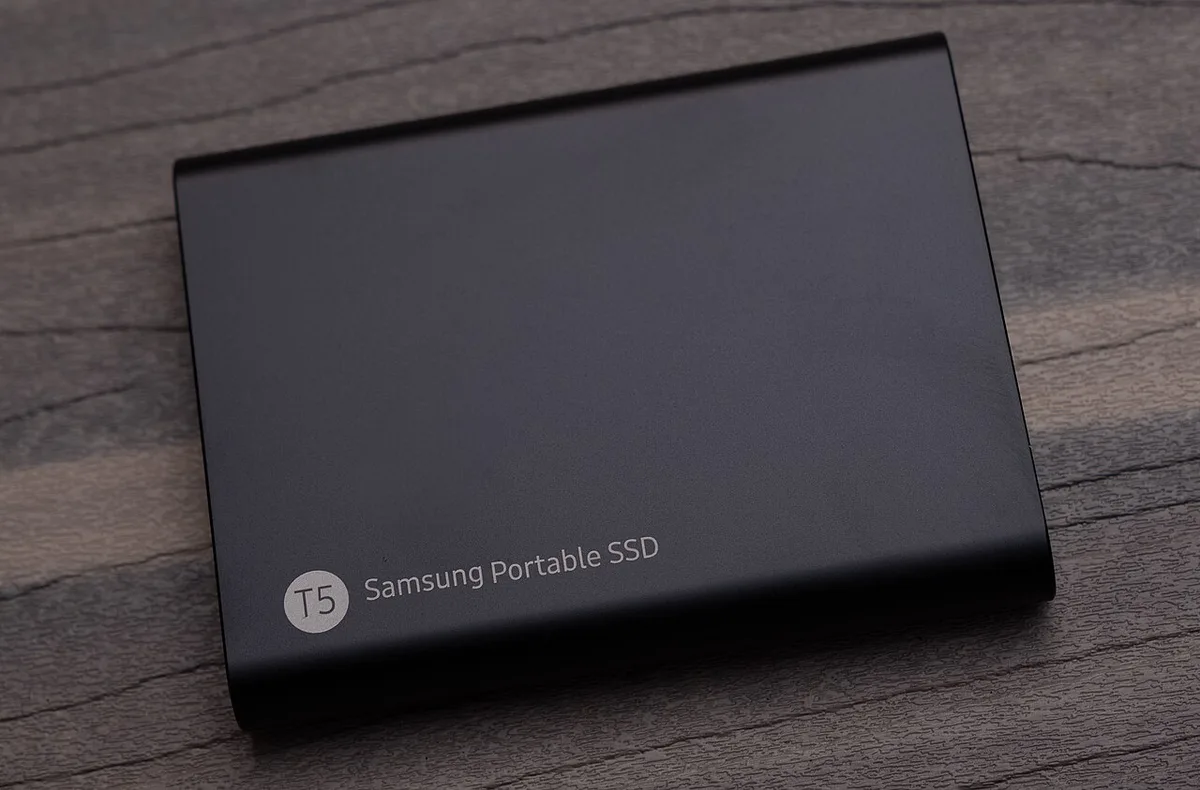
Second, install or connect the new SSD. For an internal drive, slot it into an M.2 bay or SATA port and secure it. For an external drive, plug it into a USB port and wait for the system to recognize it.
Initialize the drive if your OS asks, using NTFS for Windows or the console's own format utility. Microsoft's disk management guidance covers the Windows side of that process.
Third, open your launcher and add the new drive as a storage location. Steam uses Storage settings. Epic uses Manage Installations.
Xbox uses Change Drive. PlayStation uses the Storage menu in Settings.
| Platform | Move method | Where to find it |
|---|---|---|
| Steam | Add library folder, then move content | Settings > Storage |
| Epic | Change install location, verify files | Settings > Manage Installations |
| Xbox app | Change drive inside app settings | Manage > Change Drive |
| PlayStation | Storage menu, move games | Settings > Storage |
Fourth, select the games you want to move and start the transfer. Let the launcher verify existing files instead of redownloading them. This check can take several minutes for large titles, but it is faster than a fresh install.
Fifth, launch each game from the new location to confirm it works. Only then delete the old copies from the source drive. If anything fails, your original files are still there to fall back on.
Costly slips: cloning size, permission locks, and unverified copies
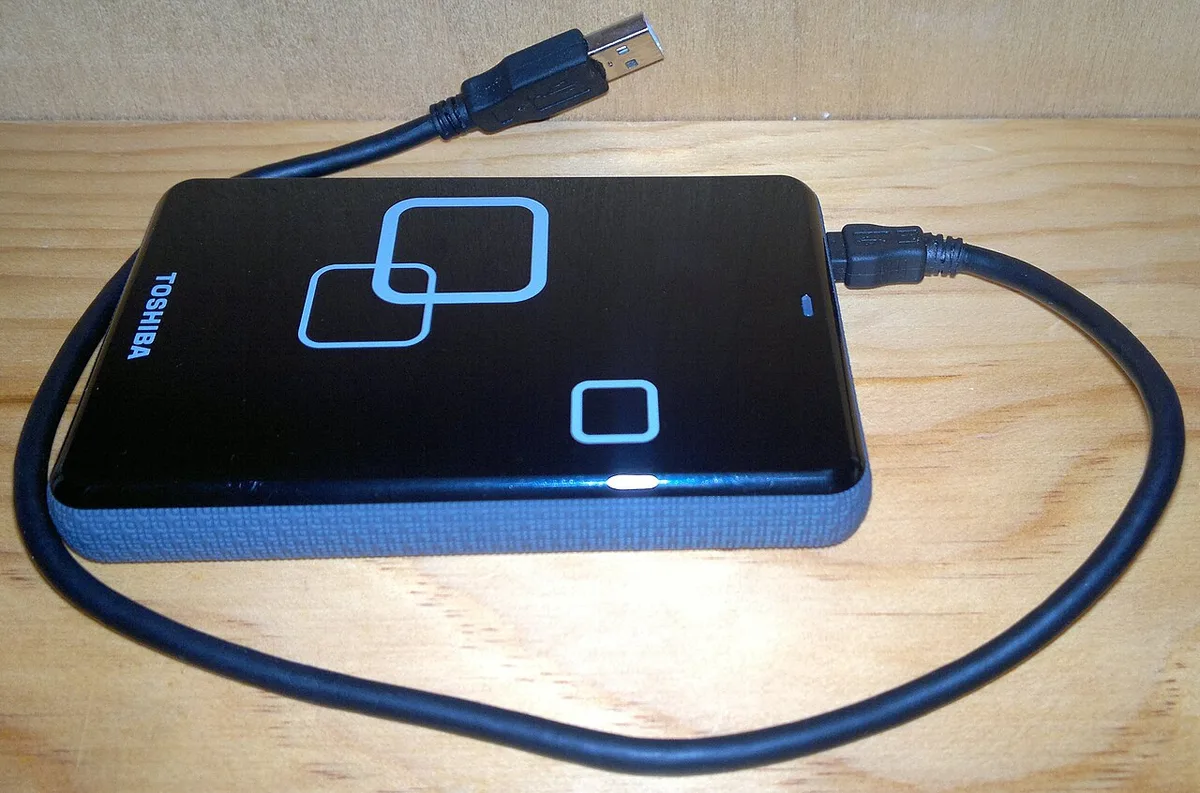
One expensive mistake is cloning a larger drive onto a smaller SSD. If the used space on the source exceeds the target capacity, the clone fails or cuts off files mid-transfer. Always check that the target SSD has enough room for everything you plan to move.
Permission locks are another trap, especially with the Xbox app on PC. The WindowsApps directory is protected by the system, so dragging folders out produces access denied errors. You must use the app's built-in move tool or accept that you will need to reinstall.
Unverified copies cost people their libraries when they delete the source drive too soon. A file copy can look complete while missing registry entries, manifest data, or hidden permissions. Launch the game from the new drive first, then wipe the old location.
Other slips include forgetting to move save files separately, leaving games running during the transfer, and assigning a drive letter that conflicts with another volume. Any one of these can force a redownload or break the install entirely.
Check your work at every step. A few extra minutes of verification beats hours of redownloading a hundred-gigabyte game library.
Quick answers to the most common "what about…" questions
Can I move games between internal and external SSDs?
Yes. Use the launcher's move tool after the external drive is recognized. Steam and Epic treat external NTFS drives the same as internal ones.
Xbox app on PC may restrict some Game Pass titles to internal storage. PlayStation requires formatting the external drive first.
Do I need to reinstall Windows if I move my OS drive?
No. Moving only the game library does not touch the operating system. The OS stays on its original drive.
You are only changing where the launcher looks for installed game files.
What happens to my save files?
Most modern games sync saves to the cloud automatically. Games that store progress locally keep saves in Documents or AppData folders. Those folders are separate from the game install directory.
Copy them manually if you want a local backup.
Can I clone the whole drive instead of using the launcher?
You can clone with tools like Macrium Reflect or Samsung Data Migration. The target SSD must be equal or larger than the used space on the source. After cloning, you may need to update the launcher's library path so it recognizes the new drive letter.
Why does Steam say "update required" after I move a game?
Steam runs a file integrity check when it detects moved content. That check looks like an update but only verifies existing files. It usually finishes in a few minutes.
Let it complete before you play.
Is it safe to delete the old library folder after moving?
Only after you have launched every moved game from the new location and confirmed saves load correctly. Keep the old folder for a few days as insurance. Once verified, you can delete it to free space.