If you're wondering how to reduce gaming pc temperatures without losing performance, you're not alone. Most rigs run hotter than they need to, and the fix is rarely a new cooler. Dust, poor fan placement, and default settings cause most of the heat.
Fix those first.
Intel and AMD list thermal junction maximums around 90 to 100 degrees Celsius for current chips. Exceed that and the chip throttles on its own, cutting clocks and frames. The sections below walk you through diagnosis first, then the fixes that keep your performance intact.
how to reduce gaming pc temperatures without losing performance
Clean dust from heatsinks and filters. Reapply thermal paste if it's older than two years. Tune fan curves to ramp earlier.
Undervolt the CPU and GPU by a small offset. Add or reposition case fans for balanced airflow. Test stability after each change.
Most rigs drop 5 to 15 degrees Celsius without losing a single frame.
Why Gaming PC Temperatures Spike in the First Place
Heat is simple physics. Your CPU and GPU turn electrical power into heat. The cooler moves that heat into the air.
The case moves that air out of the box. Break any link in that chain and temps climb.
Several things break the chain at once. Dust clogs heatsink fins and blocks airflow. A cooler mounted with uneven pressure loses contact with the chip.
Cable clutter sits in front of intake fans. A glass front panel restricts intake where a mesh panel would breathe freely. Hot rooms raise every number by the same amount, roughly one degree Celsius per degree of ambient air.
Power settings matter too. Modern chips boost aggressively by default. They chase the highest clock the cooler can sustain, then throttle when they hit the thermal limit.
That behavior is called thermal throttling, and it's the direct cause of mid-session FPS drops. The chip isn't broken. It's protecting itself.
Age is the quiet culprit. Thermal paste dries out over two to four years. AIO pumps slow down.
Fan bearings wear. A PC that ran cool at launch can run hot two summers later with no other changes.
Which Component Is Actually Overheating: CPU, GPU, or VRM?
Image source: Wikimedia Commons / Multicherry (CC BY-SA)
Don't guess. Measure. The component that's actually hot determines the fix, and the wrong fix wastes time and money.
CPU temperatures usually spike during CPU-heavy games, streaming, or rendering. GPU temperatures spike during graphically intense games. VRM temperatures, the voltage regulators on the motherboard, spike when both CPU and GPU pull heavy power at once.
VRAM, the memory on the graphics card, runs hot in texture-heavy titles.
Use HWiNFO64 to log per-sensor data during a real gaming session. MSI Afterburner covers GPU metrics well. Ryzen Master or Intel XTU show CPU core and package temps.
Log for 15 to 30 minutes of actual gameplay, not a synthetic benchmark, since real games stress components differently.
Read the numbers against manufacturer specs. Most modern CPUs throttle near 95 to 100 degrees Celsius. Most GPUs throttle near 83 to 90 degrees Celsius.
VRMs vary by board, but sustained readings above 100 to 110 degrees Celsius on entry-level boards are a warning. VRAM above 95 degrees Celsius is worth addressing.
The pattern tells you the story. CPU hot, GPU cool means your CPU cooler or its mounting is the problem. GPU hot, CPU cool means case airflow or the GPU cooler needs attention.
Both hot means the case itself isn't moving enough air. CPU and VRMs hot together often points to a budget motherboard with weak power delivery.
Planning airflow before adding fans helps here. Our guide on planning airflow in a gaming PC case covers intake and exhaust layout in detail.
The Cooling Decision Tree: Match the Fix to Your Situation
The right fix depends on what your monitoring shows. Use if/then logic and work top to bottom.
If Temps Are High but Fans Are Quiet
Your fans aren't ramping. Check the fan curve in BIOS or in software like FanControl. Many motherboards ship with conservative default curves that keep fans low until 70 degrees Celsius.
Raise the ramp point to start at 50 degrees. Test again. This single change fixes a surprising number of rigs.
If Temps Are High and Fans Are Already Screaming
Fans at 100 percent and temps still high means the cooler can't move heat fast enough. Either the cooler is undersized, poorly mounted, or the case isn't exhausting hot air. Reapply thermal paste first since it's cheap.
If that fails, the cooler needs an upgrade. Our comparison of air cooling vs liquid cooling helps you decide which path fits.
If Temps Jumped Suddenly After Months of Fine Running
Something changed. Dust is the likely cause. Clean the heatsink, filters, and case interior with compressed air.
Check that all fans still spin. Check that the AIO pump still runs if you have one. A pump failure shows up as sudden CPU spikes under light load.
If You're in a Hot Room or Small Space
Ambient temperature sets your floor. A PC in a 30 degree Celsius room cannot hit 50 degree load temps no matter the cooler. Improve room ventilation, add AC, or move the PC.
Also check how case size affects gaming PC airflow, since compact cases amplify hot rooms.
Step-by-Step Fixes That Don't Cost You Frames
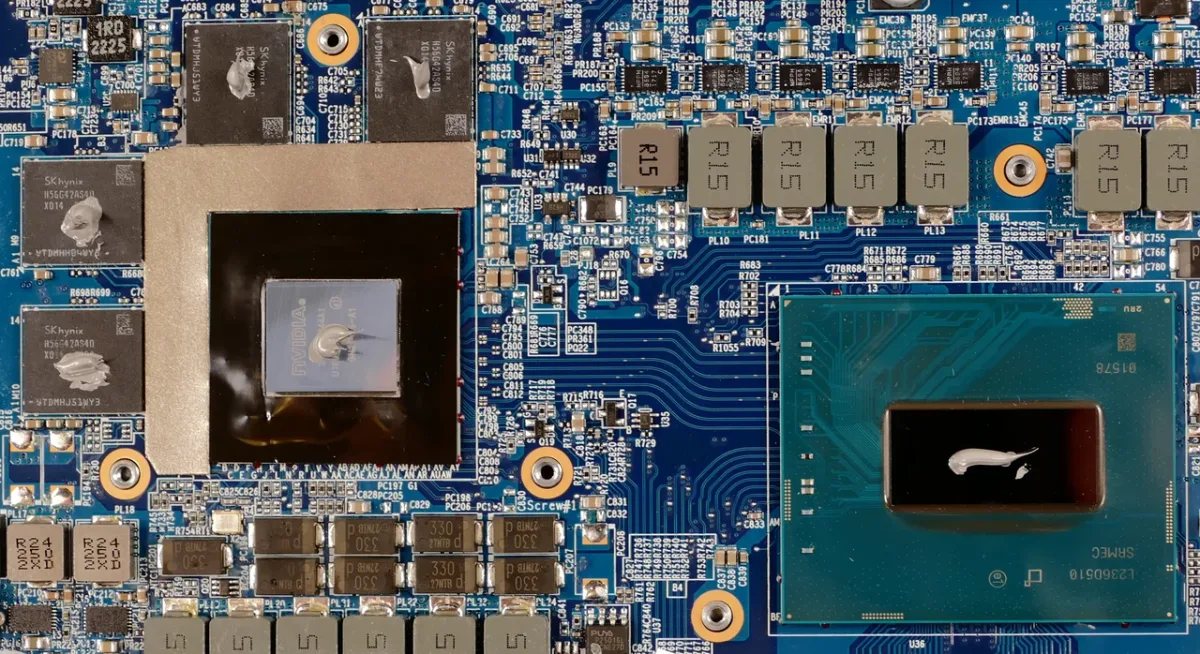
Image source: Wikimedia Commons / System76 (CC BY-SA)
Work through these in order. Each one preserves performance. None requires buying parts.
Clean Dust and Restore Airflow
Power down and unplug. Remove the side panel. Blow compressed air through heatsink fins, fans, and filters from the inside out.
Wipe fan blades with a microfiber cloth. Vacuum the exterior filters. Reassemble and test.
Do this every three to six months.
Reapply Thermal Paste the Right Way
Remove the cooler. Clean old paste from both surfaces with isopropyl alcohol at 90 percent or higher. Apply a pea-sized dot in the center of the CPU.
Remount with even pressure, tightening screws in a crisscross pattern. Let it cure for 24 to 72 hours before judging temps. Thermal paste cures and improves contact over that window.
Tune Fan Curves for Better Cooling per Decibel
Open your BIOS or FanControl. Set intake fans to ramp at 45 degrees Celsius and exhaust fans to follow. Aim for positive or neutral pressure, meaning more intake than exhaust.
This pushes dust out through gaps instead of pulling it in. Our breakdown of positive vs negative case pressure explains why this matters.
Add or Reposition Case Fans
Front intake, top and rear exhaust is the standard layout. If you have empty slots, add intake fans first. Check how many case fans a gaming PC really needs before buying.
Cable management matters here too, since managing cables in a gaming PC case keeps intake paths clear. Dust filters help long term, and how dust filtration works in a gaming PC case covers the details.
Undervolting Without Losing Performance
Undervolting lowers the voltage your chip requests at a given frequency. Less voltage means less heat and less power, at the same clock speed. Done right, you lose zero performance.
Done wrong, you get crashes.
CPU Undervolting: Curve Optimizer and Power Limits
On AMD Ryzen, use Curve Optimizer in BIOS. Start with a negative offset of 10 to 15 on all cores. Test stability with Cinebench and a 30-minute Prime95 run.
On Intel, set PL1 and PL2 power limits slightly below stock, or use Intel XTU to reduce core voltage by 50 to 100 millivolts. Test each change.
GPU Undervolting: Core Offset and Power Target
Open MSI Afterburner. Lower core voltage by 50 to 100 millivolts. Raise core clock by 50 to 100 megahertz to compensate.
Set power limit to 80 to 90 percent. The GPU runs cooler and often faster, since it sustains boost longer. Test with 3DMark and a real game.
Stability Testing Before You Call It Done
Never trust a change after one game session. Run a 30 to 60 minute stress test. Watch for crashes, driver resets, or artifacting.
If any appear, back off the offset by 5 millivolts and retest. Stability beats peak numbers every time. Manufacturer documentation from Intel and AMD covers safe voltage ranges for each chip family.
Air Cooling vs. Liquid Cooling: Which Upgrade Actually Makes Sense
Air cooling uses a heatsink and fans. Liquid cooling uses a pump, fluid, and a radiator. Both can work well.
The right choice depends on your chip, case, and budget.
Air coolers are cheaper and more reliable. There is no pump to fail and no leak risk. A good tower cooler handles most gaming CPUs under 150 watts.
Liquid cooling helps with high-power chips, compact cases, and heavy sustained loads. It costs more and adds maintenance.
| Factor | Air Cooling | Liquid Cooling (AIO) |
|---|---|---|
| Typical price | Lower | Higher |
| Reliability | Very high | High, pump dependent |
| Best for | Mid-range CPUs, open cases | High-TDP CPUs, SFF builds |
| Noise at load | Fan dependent | Pump hum plus fans |
| Maintenance | Dust cleaning | Dust plus pump life check |
If your CPU runs under 150 watts and your case has decent intake, a quality air tower is often enough. If you run a 200-watt-plus chip or a small case, an AIO makes sense. Custom loops are for enthusiasts who want full control.
Our guides on choosing an air cooler and choosing an AIO break down sizing.
Common Mistakes That Make Gaming Temps Worse
Wrong Fan Orientation and Negative Pressure Traps
Front fans should pull air in. Top and rear fans should push air out. Reversing that recirculates hot air back over components.
Negative pressure, meaning more exhaust than intake, also pulls dust through every gap. Aim for positive or neutral pressure instead.
Thermal Paste Errors and Over-Tightened Mounts
Too much paste acts as insulation. Too little leaves gaps. Clean both surfaces with isopropyl alcohol and apply a pea-sized dot.
Tighten mounting screws in a crisscross pattern. Stop when snug. Over-tightening can warp the board or crack the cooler base.
Ignoring VRM and VRAM Temperatures
Stock thermal pads on budget boards are often thin and low quality. Replace them with better pads if VRM temps climb past 100 degrees Celsius. GPU VRAM runs hot in texture-heavy games.
A vertical GPU mount can restrict airflow, so check our notes on vertical GPU mount tradeoffs before using one.
Real-World Scenarios and What Temps to Expect
Ambient room temperature sets your baseline. A PC cannot run cooler than the air around it. Use these ranges as a sanity check during a real gaming session.
| Ambient Room Temp | CPU Load Temp | GPU Load Temp |
|---|---|---|
| 20 degrees C | 65 to 78 C | 65 to 75 C |
| 24 degrees C | 70 to 82 C | 70 to 80 C |
| 28 degrees C | 76 to 88 C | 76 to 86 C |
| 32 degrees C | 82 to 95 C | 82 to 92 C |
Small cases and streaming setups run hotter. A compact build in a warm room can sit 5 to 10 degrees above these ranges. Long sessions also raise temps over time as the case heats up.
If your numbers exceed the top of the range by more than a few degrees, recheck airflow and paste.
Long-Term Maintenance and Monitoring
Cooling degrades slowly. Dust builds up. Paste dries.
Fans wear out. A maintenance routine keeps temps stable for years.
Clean dust every three to six months. Replace thermal paste every two to four years. Check AIO pump speed and listen for changes.
Replace fans when bearings get noisy or RPM drops. Keep room ventilation steady, especially in summer.
Monitor with HWiNFO64 during real gameplay. Log CPU, GPU, VRM, and VRAM temps. Set alerts for sustained spikes.
Do not obsess over idle temps. Load temps during actual games are what matter.
As of 2026, most modern CPUs throttle near 95 to 100 degrees Celsius and GPUs near 83 to 90. Staying 10 to 15 degrees below those limits leaves headroom for boost clocks and longer component life. Our guide on how PC cooling affects gaming performance explains why that headroom matters for frame rates.
Frequently Asked Questions
Can I lower gaming PC temps without buying new parts?
Yes. Clean dust, reapply thermal paste, tune fan curves, and undervolt. These steps cost little or nothing and often drop temps by 5 to 15 degrees Celsius.
Does undervolting reduce gaming performance?
No, when done correctly. Undervolting lowers voltage at the same clock speed. It reduces heat and power draw while keeping performance intact.
Test stability after each change.
How often should I replace thermal paste?
Every two to four years for most gaming PCs. Replace sooner if temps rise unexpectedly or the cooler was removed. Paste cures over 24 to 72 hours after application.
Is liquid cooling always better than air cooling?
No. Air cooling handles most mid-range builds reliably and cheaply. Liquid cooling helps with high-power CPUs and compact cases.
Choose based on your chip and case, not hype.
What temps are too high for a gaming PC?
Sustained CPU temps above 90 degrees Celsius or GPU temps above 85 degrees Celsius need attention. Brief spikes are normal. Consistent high temps risk throttling and shorter component life.