A new GPU driver can turn a smooth gaming laptop into a stuttering, crashing mess overnight. If you're wondering how to roll back GPU drivers on a gaming laptop, you're not alone. The fix is usually simpler than you think, but the right path depends on your hardware and software setup.
Manufacturer specifications from NVIDIA, AMD, and Intel all confirm that previous driver versions can restore stability after a bad update. The process takes 10 to 30 minutes depending on your laptop's setup. Let's walk through the decision process step by step.
how to roll back GPU drivers on a gaming laptop
Start by checking your current driver version in Device Manager or GPU-Z. If Windows offers a "Roll Back Driver" button, use it first. Otherwise, download the previous driver from your laptop maker's support page or the GPU vendor's site.
For stubborn cases, use Display Driver Uninstaller in Safe Mode. Always back up your data before starting.
Why a GPU Driver Update Breaks Gaming Laptops
A driver update changes how your GPU communicates with Windows and your games. Sometimes that change introduces bugs. New code paths may conflict with specific game engines or laptop power profiles.
Gaming laptops add another layer of complexity. Most use hybrid graphics, switching between an integrated chip (like Intel Iris Xe) and a dedicated GPU (like NVIDIA GeForce RTX). A driver that works fine on a desktop may mishandle this switching on your laptop.
OEM customization makes things worse. Laptop makers like ASUS, MSI, and Lenovo often ship modified drivers with custom power limits and thermal profiles. A reference driver from NVIDIA's site may override these settings and cause instability.
Common symptoms include black screens on boot, BSODs, TDR errors, and sudden FPS drops. Some users see artifacting or overheating. Others lose external display output.
If you've already seen game freezes mid-match, that's often an early warning sign.
The good news is that rolling back is usually straightforward. You're not reinstalling Windows or replacing hardware. You're just restoring a known-good driver version.
Check Your Laptop's GPU and Current Driver First
Before touching anything, identify what's actually inside your laptop. Open Device Manager by right-clicking the Start button. Expand "Display adapters" to see your GPU name.
For detailed info, GPU-Z is a free tool that shows your exact GPU model, driver version, and whether it's a DCH driver.
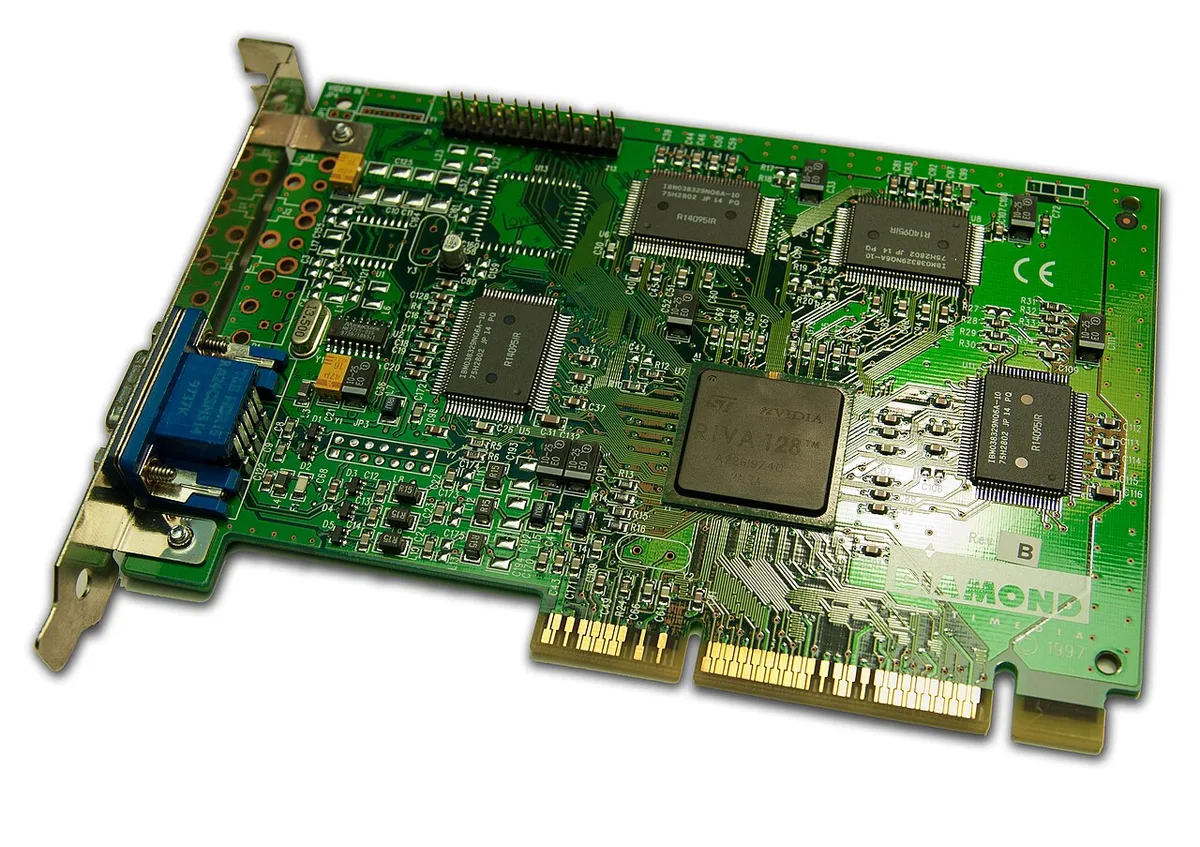
Image source: Wikimedia Commons / Timothy Borkowski (CC BY-SA)
Note your driver version number and install date. You'll need this to find the previous version. Check your laptop maker's support page for model-specific drivers.
Also check if your laptop has a MUX switch. Some gaming laptops let you toggle between hybrid and discrete GPU modes. A driver rollback may require matching the MUX setting.
If you're unsure whether the problem is software or hardware, try diagnosing the real culprit first. Driver issues and hardware faults can look similar.
Decision Tree: Which Rollback Path Should You Use?
The right path depends on your situation. Use this decision tree to pick the safest and fastest option.
Branch 1: Windows Roll Back Driver Is Available
If Device Manager shows a "Roll Back Driver" button that isn't greyed out, start here. This is the fastest and safest option. Windows keeps a copy of the previous driver in its driver store.
Click the button, confirm, and reboot. Windows handles the swap automatically. This works best when the update happened recently and no other changes were made.
Branch 2: OEM Driver Package Is Safer
If the rollback button is greyed out, download the previous driver from your laptop maker's support site. OEM drivers include laptop-specific optimizations for power management and thermal control.
ASUS, MSI, Lenovo, Dell, HP, Acer, and Razer all maintain driver archives. Search by your exact model number. Install the older version over the current one.
Branch 3: DDU Clean Install Is Required
If you're dealing with black screens, BSODs, or leftover driver conflicts, use Display Driver Uninstaller in Safe Mode. This wipes all driver traces before reinstalling.
DDU is the nuclear option. It's slower but thorough. Use it when simpler methods fail or when you've mixed reference and OEM drivers.
Before any of these paths, back up your files first. A driver change rarely causes data loss, but it's smart to be prepared.
Step-by-Step: Roll Back GPU Drivers Safely
Follow these steps in order. Don't skip the preparation.
- Back up important files to cloud storage or an external drive.
- Create a System Restore point in Windows.
- Download the previous driver version from your OEM or GPU vendor.
- Disconnect from the internet to prevent Windows from auto-updating.
- Uninstall the current driver via Device Manager or DDU.
- Install the older driver and reboot.
- Verify the driver version in Device Manager.
- Test your games and apps for stability.
If you hit a BSOD during this process, check our BSOD recovery steps for additional troubleshooting. Most rollback failures come from skipping step 4 or installing the wrong driver architecture.
After the rollback, reconnect to the internet. Windows Update may try to reinstall the newer driver. You can pause updates temporarily or use a tool to block specific driver versions.
What To Do When Rollback Is Greyed Out
The rollback button is greyed out when Windows doesn't have a previous driver stored. This happens if you did a clean install or used DDU before.
In this case, download the older driver manually. Use your laptop maker's support page first. If they don't have it, try NVIDIA, AMD, or Intel's driver archives.
Another option is Windows System Restore. If you have a restore point from before the update, this can roll back the entire system including drivers. This is slower but handles cases where manual download fails.
If all else fails, use DDU in Safe Mode. This is the nuclear option but works when nothing else does. Boot into Safe Mode, run DDU, then install the older driver.
For black screen troubleshooting after a failed rollback, disconnect external monitors and try booting with just the laptop screen. Some driver issues only affect external display routing.
OEM vs Reference Drivers on Gaming Laptops
OEM drivers are modified by laptop makers. Reference drivers come straight from NVIDIA, AMD, or Intel. Both have pros and cons.
OEM drivers include custom power limits, thermal profiles, and fan curves. They're tested for your specific chassis. This matters on gaming laptops where cooling is tight.
Reference drivers are newer and more feature-complete. They often have better game support. But they may ignore laptop-specific power settings.
Which should you use? It depends.
If your laptop was working fine before the update, stick with OEM drivers. If you need the latest game optimization and your maker is slow to update, try reference drivers. You can check your maker's driver archive on their official support page for the latest OEM release.
Some gaming laptops let you switch between both. Others lock you to OEM only. Check your maker's documentation.
A hybrid approach works for many users. Use OEM drivers for daily stability. Switch to reference drivers only for specific games that need them.
The risk with reference drivers is overheating. They may run the GPU at higher power without adjusting fan curves. Monitor your temps after switching.
If temps climb, roll back. For help with thermal diagnosis, check our overheating guide.
As of 2026, most major OEMs update drivers within two to four weeks of a reference release. The gap has narrowed compared to previous years.
| Factor | OEM Driver | Reference Driver |
|---|---|---|
| Power limits | Laptop-specific | Desktop defaults |
| Thermal profiles | Custom-tuned | Generic |
| Game support | Slower updates | Day-one optimization |
| Stability | Higher | Variable |
| Overheating risk | Lower | Higher |
Mistakes That Make Driver Rollbacks Worse
Skipping the backup is mistake number one. Driver changes rarely delete files, but BSODs can corrupt data. Back up before you start.
Using the wrong driver is mistake number two. A driver for a desktop RTX 4090 won't work on a laptop RTX 4090. Laptop and desktop GPUs have different power and thermal profiles.
Not disconnecting from the internet causes Windows to reinstall the new driver mid-rollback. Always go offline first.
Mixing OEM and reference drivers creates conflicts. Pick one source and stick with it.
Running DDU without Safe Mode leaves driver remnants. DDU needs Safe Mode for a clean wipe.
Ignoring BitLocker can lock you out. If BitLocker is enabled, suspend it before major driver work.
Rushing the reboot is common. Wait for the installer to finish completely before restarting.
Installing an unsigned or modified driver is risky. Stick to WHQL-certified releases from trusted sources.
Real Scenarios: Black Screens, Crashes, and FPS Drops
Black screen on boot after a driver update. This usually means the driver failed to initialize the display. Boot into Safe Mode, run DDU, and reinstall the older driver.
For more on this, see our black screen troubleshooting guide.
Game crashes to desktop during loading. This often points to a shader cache conflict. After rolling back, delete the shader cache folder in your game's directory.
FPS drops in one specific game. The new driver may have broken a game profile. Roll back, then check if the game has a profile override in NVIDIA Control Panel.
External monitor not detected. The driver may have reset display output routing. Roll back, then reconfigure display settings.
Overheating after driver update. Reference drivers sometimes increase power limits. Roll back to OEM and check fan curves.
BSOD with error code 0x116 or 0x119. These point to display driver timeouts. Roll back immediately and check event logs for the faulting module.
Stuttering in previously smooth games. This can come from a driver's new power management profile. Roll back and test again.
If you're seeing freezes during gameplay, that's another sign the driver isn't handling your game's load pattern correctly.
Frequently Asked Questions
Can I roll back GPU drivers without internet?
Yes. Download the older driver first, disconnect from the internet, then install. Windows won't auto-update if you're offline.
How long does a driver rollback take?
About 10 to 30 minutes. DDU clean installs take longer, up to 45 minutes including reboots.
Will rolling back delete my games?
No. Driver changes don't affect game files. Your saves and settings stay intact.
What if the rollback makes things worse?
Boot into Safe Mode and run DDU. Then try a different older driver version. You can also use System Restore.
Should I use NVIDIA Studio drivers instead?
Studio drivers prioritize stability over performance. They're a good fallback for creative work but may reduce gaming FPS.
Can I block Windows from updating my GPU driver?
Yes. Use the Windows Update troubleshooter to hide specific driver updates. Or pause updates temporarily.
Final Decision Guide: Which Path Fits Your Situation
If rollback is available, use Windows Roll Back Driver. It's fastest.
If rollback is greyed out, download from your OEM. This keeps laptop-specific optimizations.
If you have black screens or BSODs, use DDU in Safe Mode. It's thorough but slow.
If you need the latest game support, try reference drivers. Watch your temps.
If all else fails, use System Restore. It's your safety net.
The key is matching the method to the problem. Start simple. Escalate only when needed.
For hardware-related issues that persist after driver work, consider deeper diagnosis. Sometimes what looks like a driver problem is actually hardware.
Manufacturer documentation from Microsoft Learn covers driver management and rollback procedures in detail. Check there for official guidance on Windows driver store behavior.