If your gaming laptop is starting to struggle with newer games, upgrading the graphics card sounds like an obvious solution. After all, desktop gamers replace their GPUs all the time. So, can you upgrade a gaming laptop GPU in the same way?
In most gaming laptops, you cannot upgrade the internal GPU because the graphics chip is soldered directly to the motherboard. Unlike desktop graphics cards, laptop GPUs are usually designed as a permanent part of the system. However, there are exceptions, including a small number of modular laptops, older MXM-based machines, and laptops that support an external GPU, or eGPU.
Before spending money on new hardware, it is worth checking exactly what your laptop supports. In some cases, an eGPU, RAM upgrade, SSD upgrade, cooling improvement, or simply replacing the laptop may make more sense than trying to replace its internal graphics processor.
Can You Upgrade a Gaming Laptop GPU?
For the vast majority of modern gaming laptops, the answer is no.
Laptop manufacturers typically solder the GPU directly onto the motherboard using a BGA, or Ball Grid Array, connection. There is no removable PCIe graphics card inside the laptop like you would find in a desktop computer.
That design allows manufacturers to build thinner machines while tightly controlling heat, power consumption, and physical space. The downside is that the graphics processor usually cannot be removed and replaced with a newer model.
There are three notable exceptions:
- Some older high-end laptops use removable MXM graphics modules.
- A few modern modular laptops are specifically designed for GPU upgrades.
- Compatible laptops may be able to use an external desktop graphics card through an eGPU connection.
So while a conventional internal GPU upgrade is usually impossible, improving a laptop’s graphics performance isn’t always out of the question.
Integrated GPU vs Dedicated GPU: Can Either Be Upgraded?
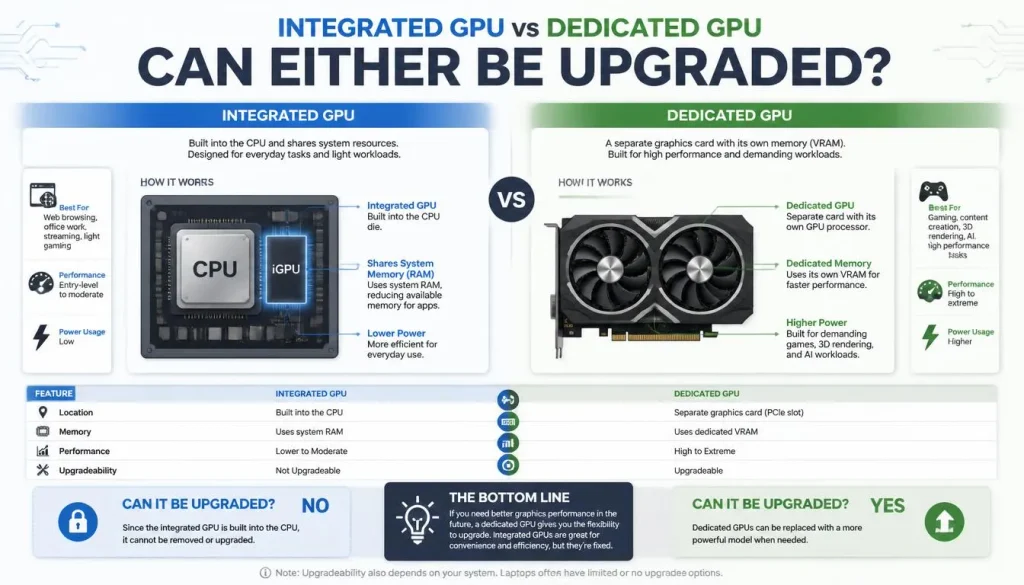
Gaming laptops can contain both integrated and dedicated graphics, and it helps to understand the difference.
Can Integrated Graphics Be Upgraded?
Integrated graphics are normally built into the processor or processor package. Examples include Intel integrated graphics and AMD Radeon graphics included with Ryzen processors.
You generally cannot remove the integrated GPU and install a better one.
Upgrading integrated graphics would normally require replacing the processor or motherboard, which is not practical on most modern laptops because the processor itself is commonly soldered to the motherboard.
Can a Dedicated Laptop GPU Be Upgraded?
A dedicated GPU has its own graphics processing hardware and usually its own dedicated VRAM.
Examples include NVIDIA GeForce RTX laptop GPUs and AMD Radeon discrete laptop GPUs.
Although these are separate graphics processors, they are still usually soldered to the motherboard rather than installed as removable graphics cards.
That’s why seeing “RTX 4060 Laptop GPU” in Device Manager does not mean there is a small RTX 4060 graphics card inside your laptop that you can pull out and replace.
Why Are Most Gaming Laptop GPUs Not Upgradeable?
Several design limitations make laptop GPU upgrades much more difficult than desktop GPU upgrades.
The GPU Is Usually Soldered to the Motherboard
This is the main problem.
Most modern laptop GPUs are permanently attached to the motherboard. Manufacturers use this approach because it saves physical space and lets them design the motherboard, cooling system, and power delivery around specific components. Acer and ASUS both note that modern laptop GPUs are generally soldered rather than designed as removable upgrade parts.
Removing a BGA graphics processor requires specialized rework equipment. Even if a technician could physically remove the chip, simply soldering a newer GPU onto the motherboard would not make it compatible.
Cooling Is Designed Around a Specific GPU
A gaming laptop’s heatsinks, heat pipes, vapor chamber, fans, and vents are designed around a particular heat output.
Suppose your laptop originally came with a lower-power GPU. Installing a significantly more powerful graphics processor could overwhelm the cooling system even if the hardware somehow fit.
The result could be:
- Higher temperatures
- Thermal throttling
- Excessive fan noise
- Reduced performance
- System instability
- Component damage
Power Delivery Has Limits
A more powerful GPU may require considerably more electrical power.
Laptop motherboards have voltage regulation and power delivery components designed for a specific range. The laptop’s AC adapter is also sized according to the expected system power consumption.
A GPU upgrade could exceed those limits.
BIOS and Firmware Compatibility Matter
A laptop’s BIOS must recognize and support its hardware.
Even removable GPU modules aren’t automatically interchangeable. The laptop may need the correct BIOS, firmware, vBIOS, drivers, and power configuration before a different GPU can operate properly.
There Isn’t Enough Physical Space
Desktop graphics cards have plenty of space for large PCBs and cooling systems.
Gaming laptops do not.
Even two laptop GPUs with similar specifications can require different motherboard layouts, memory configurations, heatsinks, mounting points, and power components.
Laptop GPU vs Desktop GPU: Why Upgrading Is So Different
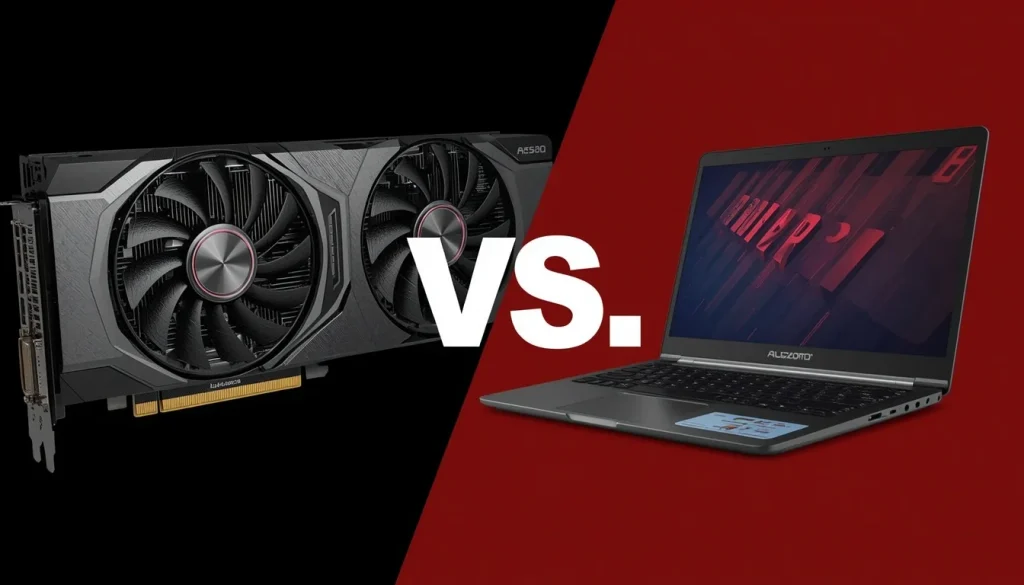
A desktop GPU is usually an entire removable graphics card.
It includes:
- The GPU chip
- VRAM
- Voltage regulation
- Cooling hardware
- PCB
- PCIe connector
- Display outputs
You insert that card into a standard PCIe slot.
A laptop GPU usually isn’t packaged this way. The graphics processor and memory are commonly installed directly onto a custom motherboard designed specifically for that laptop.
This is why you cannot normally open a gaming laptop, remove an RTX 3050 Laptop GPU, and insert an RTX 4060 Laptop GPU in its place.
The product names may sound similar to desktop GPUs, but the physical implementation is completely different.
How to Check Which GPU Your Gaming Laptop Has
Before researching upgrades, identify your exact GPU and laptop model.
Check Task Manager
On Windows:
- Press Ctrl + Shift + Esc.
- Open the Performance tab.
- Select GPU.
- Look for the GPU model name.
A gaming laptop with hybrid graphics may show both an integrated GPU and a dedicated GPU.
Check Device Manager
Right-click the Start button and select Device Manager.
Expand Display adapters.
Your installed graphics processors should appear there.
Use DirectX Diagnostic Tool
Press Windows + R, type:
dxdiag
Then press Enter.
Open the Display or Render tabs to see information about your graphics hardware.
Check Your Exact Laptop Model
This is even more important than checking the GPU.
Two laptops with similar marketing names can have completely different internal designs.
Look for the full model number on:
- The bottom label
- Windows System Information
- The manufacturer’s support software
- The original box
- Your purchase receipt
For example, knowing that you own an “ASUS ROG” or “Lenovo Legion” isn’t enough. You need the exact model and configuration.
How to Tell If Your Gaming Laptop GPU Is Upgradeable
Once you know your model, check the following.
Read the Manufacturer’s Specifications
Search the manufacturer’s official support pages for your exact laptop.
Look for information about:
- GPU type
- Motherboard
- Expansion modules
- Serviceable components
- Thunderbolt
- USB4
- Expansion bays
Check the Service Manual
A service manual often reveals whether the GPU is part of the motherboard or installed as a separate module.
If the instructions only show removable SSDs, RAM, Wi-Fi cards, batteries, and fans, the GPU is probably not intended to be upgraded.
Look for MXM Support
Older high-end gaming laptops occasionally used MXM graphics modules.
If your system supports MXM, a GPU replacement may be technically possible, although compatibility can still be complicated.
Check for a Modular Graphics System
A small number of laptops use proprietary upgradeable graphics modules.
These systems should have official manufacturer documentation describing compatible modules.
Check for eGPU Connectivity
If the internal GPU cannot be replaced, external graphics may still be an option.
Look for interfaces such as:
- Thunderbolt 3
- Thunderbolt 4
- Thunderbolt 5
- Compatible USB4 implementations
- OCuLink on systems that explicitly support it
Do not assume that every USB-C port can run an eGPU. USB-C describes the connector shape, not the capabilities of the connection.
Which Gaming Laptops Have Upgradeable GPUs?
True upgradeable laptop graphics remain rare, but they do exist.
Framework Laptop 16
Framework Laptop 16 is one of the clearest modern examples of a laptop designed around replaceable graphics modules.
Framework introduced the system with a removable Graphics Module and later released a GeForce RTX 5070 Laptop GPU module that is designed to work with the original Framework Laptop 16 generation. This makes it a genuine example of generational laptop graphics upgradeability rather than a conventional soldered-GPU design.
The important lesson is that this works because the entire laptop was designed around modular graphics from the beginning.
It does not mean an RTX 5070 module can be installed in a normal ASUS, Acer, MSI, Lenovo, HP, or Dell gaming laptop.
Older MXM Gaming Laptops
MXM, or Mobile PCI Express Module, was used in some older workstation and enthusiast-class laptops.
In theory, an MXM GPU can be removed and replaced.
In practice, you may encounter problems involving:
- Different MXM board designs
- BIOS compatibility
- vBIOS compatibility
- Heatsink alignment
- Power limits
- Different mounting points
- Driver support
- High prices for old modules
MXM is therefore an exception rather than a reliable upgrade path for today’s average gaming laptop.
What Determines Laptop GPU Compatibility?
Finding a physically removable GPU does not guarantee that an upgrade will work.
You need to consider several variables.
Physical Compatibility
The GPU module needs to match the laptop’s connector, dimensions, mounting system, and cooling hardware.
Motherboard Compatibility
The motherboard has to support the graphics hardware electrically.
BIOS and vBIOS Support
Unsupported firmware can prevent the laptop from booting or recognizing the GPU correctly.
TGP and Power Limits
TGP, or Total Graphics Power, affects how much power the GPU is allowed to use.
A laptop designed around a lower-power graphics processor may not be able to supply or cool a much higher-power GPU.
Power Adapter Capacity
Higher-performance GPUs may require a more powerful charger.
Replacing the charger alone doesn’t solve motherboard power-delivery limitations, however.
Cooling Compatibility
The heatsink needs to contact the GPU and its surrounding memory and power components properly.
Poor contact can quickly cause overheating.
Can You Upgrade an RTX 3050 Laptop GPU to an RTX 4060?
Usually, no.
If your gaming laptop came with an RTX 3050 Laptop GPU, that GPU is most likely soldered directly to its motherboard.
You cannot simply purchase an RTX 4060 Laptop GPU and install it.
The same principle generally applies to upgrades such as:
- RTX 3050 to RTX 4050
- RTX 3050 to RTX 4060
- RTX 3060 to RTX 4070
- RTX 4050 to RTX 5070
- RTX 4060 to RTX 4080
- RTX 4070 to RTX 5080
The specific numbers aren’t the issue. The laptop’s physical architecture is.
If the laptop has a manufacturer-supported modular graphics system, upgrades may be possible. Otherwise, the internal GPU should be considered fixed.
Can You Upgrade VRAM on a Gaming Laptop?
Usually not.
Dedicated VRAM is typically installed on the motherboard around the GPU and is designed as part of the graphics subsystem.
You can’t normally add another RAM stick and turn an 8GB GPU into a 12GB GPU.
Does Adding System RAM Increase VRAM?
Not for a dedicated GPU in the way most gamers mean.
Installing more system RAM can improve overall performance if your laptop is memory-limited, but it doesn’t increase the physical GDDR memory installed with an NVIDIA or AMD dedicated GPU.
Integrated graphics are different because they may use a portion of system memory as shared graphics memory.
Even then, shared system RAM isn’t equivalent to dedicated high-bandwidth VRAM.
Can You Replace a Gaming Laptop GPU If It Breaks?
This is where “replace” and “upgrade” need to be separated.
If a soldered GPU fails, an experienced board-repair technician may sometimes repair the motherboard or replace damaged components.
However, that is a repair procedure—not a normal upgrade.
In many cases, manufacturers replace the entire motherboard because the CPU and GPU are attached to it.
If the motherboard replacement costs a large percentage of the laptop’s current value, buying another laptop may be more sensible.
Can You Replace the Entire Motherboard to Get a Better GPU?
Sometimes a gaming laptop family uses several motherboard configurations inside a similar chassis.
That raises an interesting question: could you install the motherboard from a higher-end version of the same laptop?
Technically, it may be possible in a few models. Practically, it can become complicated quickly.
A different motherboard may require:
- A different cooling assembly
- A stronger AC adapter
- Different display cables
- Different connectors
- Different speakers or ports
- BIOS compatibility
- Different chassis components
The cost of the motherboard itself can also be extremely high.
For most users, replacing the entire motherboard solely to get a faster GPU is not worth the cost or risk.
Can You Use an External GPU With a Gaming Laptop?
An external GPU is the most realistic graphics upgrade for a laptop whose internal GPU cannot be replaced.
An eGPU setup places a desktop graphics card in an external enclosure or dock and connects it to the laptop through a high-speed interface.
The operating system then uses the external graphics card for supported workloads.
Thunderbolt 3 and Thunderbolt 4 eGPU
Thunderbolt has traditionally been one of the most common ways to connect an eGPU.
However, performance is limited by the connection between the laptop and external graphics card.
That means a powerful desktop GPU running externally may not deliver the same performance it would provide when connected directly to a desktop motherboard.
Thunderbolt 5 eGPU
Thunderbolt 5 is particularly interesting for high-performance external devices.
Intel specifies 80 Gbps of bidirectional bandwidth for Thunderbolt 5 and states that it doubles PCIe data throughput compared with Thunderbolt 4, which can benefit high-speed storage and external graphics applications. Its Bandwidth Boost mode can provide up to 120 Gbps in one direction for display-heavy workloads.
That doesn’t eliminate every eGPU bottleneck, but newer high-bandwidth connections give external graphics more room to work.
USB4 eGPU
Some USB4-equipped laptops can support external PCIe devices and eGPUs.
But this is an area where checking specifications matters.
Seeing a USB4 or USB-C logo does not automatically guarantee that a particular eGPU enclosure will work correctly. Check the laptop and enclosure manufacturer’s compatibility information before buying anything.
OCuLink eGPU
OCuLink provides a PCIe-based connection that has become popular in some enthusiast systems, mini PCs, and handheld gaming devices.
When properly implemented, it can provide a strong connection for external graphics.
The catch is availability. Most mainstream gaming laptops still do not have an OCuLink port.
Can You Connect an eGPU Through an M.2 Slot?
Technically, yes, on some laptops.
Adapters exist that can connect a desktop graphics card to a PCIe interface exposed through an internal M.2 slot.
But this is very different from plugging in a Thunderbolt enclosure.
You may need to:
- Remove the bottom cover
- Leave cables running outside the laptop
- Give up an SSD or wireless slot
- Use an external power supply
- Modify the chassis
- Deal with BIOS or compatibility problems
It can be an interesting project for hardware enthusiasts, but it is not a practical recommendation for most people who simply want better gaming performance.
What Do You Need for an External GPU?
A typical eGPU setup requires:
- A compatible laptop
- A supported high-speed connection
- An eGPU enclosure or dock
- A compatible desktop graphics card
- Adequate power delivery
- Correct GPU drivers
- Appropriate cables
An external monitor is optional, but some eGPU setups perform better when the monitor is connected directly to the external graphics card rather than sending rendered frames back to the laptop’s internal display.
How Much Performance Do You Lose With an eGPU?
There is no single percentage that applies to every setup.
Performance varies according to:
- Connection bandwidth
- GPU model
- Laptop CPU
- Game
- Resolution
- Frame rate
- Driver behavior
- Internal vs external display
- eGPU enclosure
This is why you should be cautious when someone says an eGPU always loses a specific percentage of performance.
A modest GPU may be less restricted, while an extremely powerful card can be more likely to run into connection or CPU limitations.
Will Your CPU Bottleneck a GPU Upgrade?
Potentially.
A faster graphics card cannot solve every performance problem.
Games also rely on the CPU for tasks such as:
- Physics
- AI
- Game logic
- Draw calls
- Background processing
If your laptop has an older or relatively weak CPU, connecting a very powerful eGPU may produce smaller improvements than expected, especially in CPU-heavy games or when targeting very high frame rates.
This is one reason to evaluate the entire laptop rather than focusing only on the graphics card.
Is an eGPU Worth It for a Gaming Laptop?
It depends on your setup.
An eGPU makes the most sense when:
- You already own a compatible laptop.
- You mainly game at a desk.
- You need better graphics but still want laptop portability.
- You already own a desktop GPU.
- The rest of your laptop is still fast enough.
An eGPU may not make sense when:
- You need portable GPU performance.
- Your laptop has an old CPU.
- You need to buy both an expensive enclosure and GPU.
- Your laptop lacks an appropriate high-speed connection.
- A new gaming laptop costs only slightly more.
- A desktop would provide better value.
Calculate the total cost before committing.
An eGPU can be a clever solution, but it isn’t automatically the cheapest one.
How Much Does It Cost to Upgrade a Gaming Laptop GPU?
There is no universal price because the available options are completely different.
| Upgrade Option | Typical Upgrade Potential | Difficulty | Relative Cost |
|---|---|---|---|
| Replace soldered GPU | Not practical | Extremely high | Usually not worth it |
| MXM GPU upgrade | Limited | High | Medium to high |
| Official modular GPU | Good on supported laptops | Moderate | Medium to high |
| eGPU setup | Good | Moderate | Medium to high |
| New gaming laptop | Excellent | Easy | High |
| Gaming desktop | Excellent and upgradeable | Moderate | Varies |
Instead of looking only at the GPU price, calculate the complete cost.
For an eGPU, that means including the enclosure, graphics card, cables, and possibly an external monitor.
For a motherboard swap, include the board, labor, heatsink, charger, and other model-specific parts.
Is It Better to Upgrade the GPU or Buy a New Gaming Laptop?
If your laptop has a soldered GPU and is already several years old, replacing the laptop is often the simpler choice.
A new laptop makes more sense when:
- The CPU is also becoming outdated.
- The GPU has too little performance for the games you play.
- The laptop doesn’t support a practical eGPU connection.
- Battery health is poor.
- Repair costs are high.
- You want gaming performance away from your desk.
An eGPU may be worth considering if the laptop is otherwise excellent and you spend most of your gaming time at a desk.
A desktop is also worth considering if upgradeability is your priority. Desktop PCs give you far more flexibility to change the GPU, CPU, cooling, storage, RAM, and power supply later.
What Can You Upgrade in a Gaming Laptop Instead of the GPU?
Even when the GPU is fixed, other upgrades may improve your experience.
Upgrade the RAM
More RAM can help if your system frequently runs out of memory.
For modern gaming and multitasking, moving from a low-memory configuration to a higher one can reduce stuttering caused by memory pressure.
However, more RAM will not magically turn a weak GPU into a faster GPU.
Upgrade the SSD
A faster or larger SSD can improve:
- Game loading times
- File transfers
- Available storage
- Windows responsiveness
It usually won’t increase average GPU frame rates significantly.
Improve Cooling
If the CPU or GPU is overheating, performance may drop because of thermal throttling.
Useful maintenance can include:
- Cleaning vents
- Cleaning fans
- Improving airflow
- Using the laptop on a hard surface
- Replacing worn thermal interface material when appropriate
Do not disassemble a laptop unless you understand the risks and your manufacturer’s service requirements.
Check Dual-Channel Memory
On systems where memory configuration affects performance, running an appropriate dual-channel setup can help, particularly when integrated graphics are heavily used.
How to Increase Gaming Performance Without Upgrading the GPU
Before spending money, make sure you’re getting the performance your existing hardware can deliver.
Update Your Graphics Driver
Install the appropriate NVIDIA, AMD, or Intel graphics driver.
Driver updates can fix compatibility problems and improve performance in newer games.
Use Performance Mode
Many gaming laptops include software that offers modes such as:
- Silent
- Balanced
- Performance
- Turbo
Use the appropriate high-performance mode while gaming, especially when the laptop is plugged into AC power.
Make Sure Games Use the Dedicated GPU
Hybrid-graphics laptops can sometimes launch applications on integrated graphics.
Check Windows graphics settings or your GPU software to ensure demanding games use the high-performance graphics processor.
Use the MUX Switch If Available
A MUX switch can allow the dedicated GPU to connect more directly to the laptop display instead of routing frames through integrated graphics.
Depending on the laptop and game, this can improve gaming performance or latency.
Use DLSS, FSR, or XeSS
Modern upscaling technologies can significantly improve frame rates in supported games by rendering at a lower internal resolution and reconstructing the final image.
Adjust Graphics Settings
You don’t always need to set everything to Low.
Settings that often have a large performance impact include:
- Ray tracing
- Shadows
- Volumetric effects
- Reflections
- Ambient occlusion
- Resolution
- Anti-aliasing
Reducing the most demanding settings can improve frame rates while preserving good image quality.
Keep the Laptop Plugged In
Gaming laptops usually reduce performance substantially when running on battery power.
For demanding gaming, use the proper AC adapter unless your manufacturer specifically recommends otherwise.
Common Mistakes When Trying to Upgrade a Laptop GPU
Avoid these expensive mistakes.
Assuming a Desktop GPU Fits Inside a Laptop
It doesn’t.
Desktop graphics cards are much larger and use a completely different installation method.
Assuming Every USB-C Port Supports an eGPU
USB-C is only the connector.
The laptop still needs the appropriate underlying interface and external PCIe support.
Buying an MXM GPU Without Checking Compatibility
An MXM connector alone does not guarantee compatibility.
Firmware, cooling, power, and physical design still matter.
Expecting More RAM to Replace a Weak GPU
RAM can solve memory limitations, but it does not increase the shader performance, ray-tracing capability, or dedicated VRAM of your GPU.
Attempting a BGA GPU Swap as a DIY Upgrade
BGA rework is specialized motherboard repair work.
Even successfully soldering another graphics chip onto the board would not guarantee that the laptop’s firmware, power delivery, cooling system, or memory configuration supports it.
Spending Too Much on an Old Laptop
Before investing hundreds of dollars into an unusual upgrade, compare the total cost with a newer gaming laptop or desktop.
Will Opening or Modifying Your Laptop Affect the Warranty?
Warranty rules vary by manufacturer and region.
Simply opening a laptop does not have the same legal or warranty implications everywhere, especially across the United States, United Kingdom, Canada, and Australia.
What matters most is whether the modification is permitted and whether damage occurs during the work.
Before modifying expensive hardware:
- Read your manufacturer’s warranty terms.
- Check the service manual.
- Keep original components.
- Use supported replacement parts.
- Avoid damaging seals, connectors, screws, cables, or the motherboard.
- Contact authorized support if you are unsure.
Damage caused by an unsupported modification may not be covered even when other parts of the laptop remain under warranty.
Gaming Laptop GPU Upgrade Checklist
Before deciding what to do, run through this checklist:
- Find the exact laptop model number.
- Identify your current GPU.
- Check whether the GPU is soldered or modular.
- Look for an official service manual.
- Check for MXM or manufacturer-specific Graphics Module support.
- Check Thunderbolt, USB4, OCuLink, or other eGPU connectivity.
- Confirm BIOS and driver compatibility.
- Check cooling and power requirements.
- Consider whether your CPU would bottleneck a faster GPU.
- Calculate the total upgrade cost.
- Compare that cost with a new gaming laptop.
- Consider a desktop if future GPU upgrades are important to you.
For most people, reaching step three will reveal that the internal GPU isn’t replaceable. At that point, the decision becomes much easier: optimize the existing laptop, consider an eGPU, or move to a newer system.
Frequently Asked Questions
Can You Change the Graphics Card in a Gaming Laptop?
Usually not. Most gaming laptop GPUs are soldered directly to the motherboard rather than installed as removable graphics cards. Modular laptops and some older MXM systems are exceptions.
Can I Upgrade My Laptop GPU From RTX 3050 to RTX 4060?
Normally, no. If the RTX 3050 Laptop GPU is soldered to the motherboard, it cannot simply be removed and replaced with an RTX 4060 Laptop GPU.
Can You Upgrade an ASUS ROG Laptop GPU?
Most ASUS ROG laptop internal GPUs are not designed for replacement. Some ASUS systems can use external graphics solutions, but compatibility depends on the exact model and connection available.
Can You Upgrade an MSI Gaming Laptop GPU?
Most modern MSI gaming laptops use soldered GPUs. Always check the service documentation for your exact model rather than assuming upgradeability based on the brand.
Can You Upgrade an Alienware Laptop GPU?
It depends on the specific generation and model. Some older enthusiast-class systems offered more modular components, while many modern designs use soldered GPUs.
Can You Upgrade a Lenovo Legion Laptop GPU?
The internal dedicated GPU in most modern Lenovo Legion laptops is not a normal user-upgradeable component. RAM and storage are much more commonly serviceable, depending on the model.
Can You Upgrade an Acer Nitro or Predator GPU?
Most modern Acer Nitro and Predator models use GPUs soldered to the motherboard rather than removable graphics cards.
Can You Upgrade an HP Omen Laptop GPU?
Usually not internally. Upgrade options depend on the exact Omen model, so the manufacturer’s service manual should be checked before buying hardware.
Can You Upgrade a Razer Blade GPU?
The internal GPU in typical Razer Blade gaming laptops is not designed as a removable desktop-style graphics card.
Can You Add a Dedicated Graphics Card to a Laptop?
You generally cannot add one internally unless the laptop was specifically designed for modular graphics. A compatible eGPU is the more realistic option.
Can I Use a Desktop GPU With My Laptop?
Yes, but normally only as an external GPU. You need a compatible connection, enclosure or adapter, power supply, and graphics card.
Does USB-C Support an External GPU?
Not automatically. USB-C describes the physical connector. Your laptop needs compatible high-speed data and external PCIe capabilities for the eGPU solution you intend to use.
Does Thunderbolt 4 Support an eGPU?
Thunderbolt 4 systems can support external PCIe devices, and many eGPU enclosures use Thunderbolt. However, always verify the specific laptop and enclosure compatibility.
Does Thunderbolt 5 Support External Graphics?
Thunderbolt 5 offers higher PCIe data throughput than Thunderbolt 4 and is designed to support high-performance external devices, including external graphics applications.
Can You Upgrade Laptop VRAM?
Not in the normal sense. Dedicated graphics memory is typically installed as part of the GPU subsystem and cannot be upgraded like laptop RAM.
Does Adding RAM Improve GPU Performance?
It can improve overall gaming performance if your laptop is short on system memory or has an inefficient memory configuration. It does not directly make the GPU more powerful or increase dedicated VRAM.
Can a Laptop GPU Be Desoldered and Replaced?
Technically, specialized technicians can perform BGA rework, but this is a repair procedure rather than a practical consumer GPU upgrade. Compatibility problems make upgrading to an entirely different GPU extremely difficult.
What Is an MXM GPU?
MXM stands for Mobile PCI Express Module. It is a removable graphics module standard used in some older high-end laptops and mobile workstations.
Are There Gaming Laptops With Upgradeable GPUs?
Yes, but they are rare. Framework Laptop 16 is a current example of a system intentionally designed with replaceable Graphics Modules, while some older enthusiast laptops used MXM graphics modules.
Is an eGPU Worth It for Gaming?
It can be if you already own a compatible laptop and mainly game at a desk. If you need to buy both an expensive graphics card and enclosure, comparing the total cost with a new gaming laptop or desktop is important.
Final Verdict: Should You Upgrade Your Gaming Laptop GPU?
So, can you upgrade a gaming laptop GPU?
For most gaming laptops, you cannot upgrade the internal GPU. The graphics processor is normally soldered to the motherboard and is tied closely to the laptop’s cooling system, power delivery, BIOS, and physical design.
There are exceptions. Some older laptops use MXM modules, a few modern systems such as the Framework Laptop 16 have deliberately modular graphics, and compatible laptops can potentially use an external GPU.
For the average gamer, the decision is fairly straightforward.
If your laptop still has a capable CPU and supports an appropriate high-speed external graphics connection, an eGPU may extend its useful life. If the entire machine is becoming outdated, putting a large amount of money into workarounds rarely makes sense.
In that situation, upgrading to a newer gaming laptop—or choosing a desktop if future GPU upgrades matter to you—is usually the cleaner long-term solution.
And if your current GPU is still reasonably capable, don’t replace the laptop immediately. Check temperatures, drivers, performance modes, RAM configuration, game settings, and upscaling features first. Sometimes the best “GPU upgrade” is simply getting the hardware you already own to perform the way it should.