You want the straight answer on whether your gaming laptop should stay plugged in while you play. The question behind it is bigger than battery habits. It touches performance, hardware lifespan, and whether you’re accidentally stressing a Li-Po cell that powers a $1,200 machine.
Per manufacturer specifications and independent battery cycling tests, keeping a gaming laptop connected to AC during heavy use is usually the right move. It prevents throttling and protects performance. Getting the habit wrong costs you frames per second and cycle life.
Modern lithium batteries are designed for continuous connection, but continuous 100% voltage stress and sustained heat are the two factors that shorten their calendar life. Battery University research on lithium-ion aging confirms that high state of charge plus elevated temperature accelerates capacity fade. That’s why the fix isn’t a single setting.
It’s a workflow: test your battery health, enable a charge limit if your laptop supports it, manage thermals, and only let the cell discharge when your actual usage pattern calls for it. Let’s walk through the steps, the trade-offs, and the decision branches you need to make as of 2026.
Quick Answer: Should You Keep Your Gaming Laptop Plugged In?
Yes, keep your gaming laptop plugged in while gaming. Use AC power for peak GPU and CPU performance. Avoid running games on battery. That said, staying at 100% all the time isn’t ideal for long-term battery health.
If your laptop supports a charge limit feature, enable it. Most brands cap charging at 80%. Some cap at 60%.
This reduces voltage stress while you game at the desk.
If you move the laptop around often, don’t cap the charge permanently. Run a partial cycle every few weeks. Let it drop to around 40%.
Then recharge. This keeps the cells calibrated without sacrificing your gaming performance. The real fix depends on your usage pattern, your brand’s software, and whether heat is building up under the palm rest while you play.
| Situation | Best action |
|---|---|
| Desk-bound gaming, plugged in daily | Enable charge limit at 80%, keep AC connected, allow periodic discharge cycles |
| Mixed desk and couch use | Keep AC during gaming, let battery drop to 40–50% weekly, recharge after |
| Hot room with poor ventilation | Prioritize cooling pads, reduce charge limit to 60%, monitor temperatures |
| Old laptop with worn battery | Consider replacement, cap charge at 60%, avoid heavy gaming on battery |
The Short Answer vs. The Real Answer
The short answer is simple. Plug your gaming laptop in when you game. Full stop.
The real answer requires more nuance. Lithium chemistry doesn’t care about your gaming schedule. It cares about voltage, heat, and time spent at high state of charge.
A cell held at 100% under heat ages faster than one held at 80%. But throttling from battery mode ages your experience faster than a little calendar wear ages the cell.
Manufacturers know this trade-off. That’s why they added smart charging features. These features control the upper charge limit based on your behavior.
They prevent the battery from sitting at maximum voltage while the laptop generates heat. Some brands call it battery conservation mode. Others call it battery health charging or adaptive charging.
The concept is the same. Limit the top end. Let the laptop run off AC.
Drain the cell periodically so the gauge stays accurate.
The real answer changes if you own a laptop without a charge limit feature. Then you have to manage habits instead of software. Keep it plugged in during sessions.
Unplug occasionally and let it cycle down to 40%. Store it around 50% if you won’t use it for weeks. Track the temperature.
A laptop that runs hot while charging degrades faster than a cool one. The battery health report inside Windows can show you exactly how much capacity you’ve lost. You can find that tool by running powercfg /batteryreport from an elevated command prompt.
Here’s what most guides miss. They treat the battery as a single component that degrades linearly. In reality, degradation has two parts.
Calendar aging happens regardless of cycles. Cycle aging happens each time you drain and recharge. Keeping a laptop plugged in minimizes cycle aging.
It does increase calendar aging slightly if the cell sits hot and full. Charge limiting reduces that calendar penalty. That’s the balance you’re actually managing.
| Factor | Increases degradation | Decreases degradation |
|---|---|---|
| State of charge at 100% | Yes, especially under heat | Capping charge at 60–80% helps |
| Temperature above 95°F / 35°C | Yes | Good airflow and cooling pads help |
| Frequent deep discharges | Yes | Partial discharges between 40–80% are gentler |
| Using AC while gaming | No | Running on battery during gaming increases cycles |
How Gaming Laptop Charging and Battery Management Actually Work
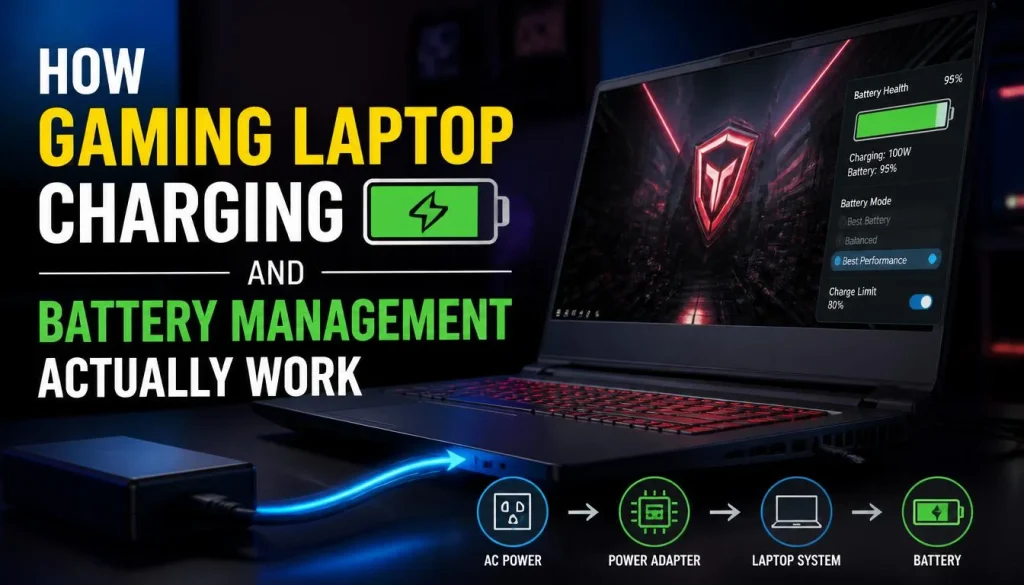
Gaming laptops don’t charge like phones. They manage power in stages. The charger delivers DC power.
The motherboard routes it. Some power goes to the system. Some power goes to the battery.
The battery management system decides which path wins based on load, temperature, and charge state. When you plug in a gaming laptop and launch a title, the BMS prioritizes AC power for the CPU and GPU. The battery may not charge at all if the system can run directly from the adapter.
This is intentional. It reduces unnecessary cycling.
When the battery reaches 100%, the BMS stops feeding current into the cells. It maintains the charge by topping off only what self-discharge drains. Lithium cells self-discharge slowly.
The rate varies by chemistry and temperature. A well-designed BMS keeps the pack at equilibrium without overcharging. Overcharging protection is built into the cell controller.
It cuts current when voltage exceeds safe limits. That’s why modern laptops don’t explode from being left plugged in.
The problem isn’t overcharge. The problem is high voltage stress. A fully charged Li-Po cell sits at about 4.2 volts per cell.
Some high-capacity cells go to 4.35 volts or 4.4 volts. Holding any cell at that voltage for weeks at a time accelerates electrolyte decomposition. Heat speeds the reaction.
That’s the chemistry behind capacity fade. You lose capacity not because the battery is overcharged. You lose capacity because the high voltage stresses the cell internals over calendar time.
Smart charging features solve this by preventing the top-off stage. Instead of reaching 100%, the battery stops at 80% or 60%. The BMS treats that new cap as the true ceiling.
The cells stay at a lower voltage. Stress drops. Calendar life improves.
The laptop still runs off AC power because the power brick handles the system load. Your GPU and CPU get full wattage. You just leave a buffer between the cells and their maximum voltage.
Here’s how different brands label the feature you want:
| Brand | Feature name | Default cap | Configurable range |
|---|---|---|---|
| ASUS | Battery Health Charging | 60% or 80% | 60%, 80%, or keep at 100% |
| MSI | Smart Energy | 80% conservation mode | 80% or 100% |
| Lenovo | Conserve Mode | 55% to 60% | Adjustable in Vantage software |
| Razer | Battery Limit | 80% | 80% typically |
| Acer | Battery Health Charging | 80% | Sometimes configurable |
| HP | Battery Health Manager | Varies | Options in HP Command Center |
If your laptop doesn’t list a charge limit feature, the BMS may still include it at the firmware level. Check the BIOS. Some OEMs hide the setting there.
If neither software nor BIOS offers it, you’ll rely on habit management instead. That’s fine. Periodic partial discharge does the job.
It just takes more deliberate effort.
Why You Should Keep It Plugged In During Gaming Sessions
Gaming laptops are engineered to draw heavy power. The CPU and GPU together can pull well over 150 watts under load. Some high-end configs approach 300 watts.
A battery can’t sustain that draw for long. It also shouldn’t be asked to. Running a game on battery forces the inverter and voltage regulators to work harder.
The system throttles the CPU and GPU to stay within the battery’s discharge limits. You lose frames. You lose consistency.
You also burn cycles faster than you need to.
Staying plugged in removes those constraints. The AC adapter delivers the wattage the laptop needs. The BMS routes power directly to the motherboard.
The battery sits idle or charges slowly. Your GPU boosts to its rated clocks. Your CPU maintains its turbo frequencies.
Thermal throttling becomes a function of cooling performance, not power source. You get the performance you paid for.
There’s a secondary benefit most players overlook. Every full discharge and recharge counts as one cycle. Manufacturers rate batteries for 500 to 1,000 cycles depending on chemistry and capacity.
If you game on battery every day, you’re burning through cycles fast. Keeping it plugged in preserves cycle count. That extends the usable lifespan of the pack.
You might game for years without noticing capacity loss if you manage cycles wisely.
Heat is the hidden factor here. A laptop running on battery generates less heat from the power delivery side. But it also runs lower performance modes.
That usually means the fans spin slower. Slower fans mean worse cooling overall. A plugged-in laptop can sustain higher fan speeds because the power budget allows it.
Better cooling offsets the extra heat from the CPU and GPU. The net result is usually cooler components and steadier performance.
| Gaming on battery | Gaming on AC power |
|---|---|
| Aggressive CPU/GPU throttling | Sustained boost clocks |
| Faster cycle consumption | Minimal cycle use |
| Lower fan speeds, potential heat trap | Higher fan speeds, active cooling |
| Sudden shutdowns if battery dies | Consistent power until you shut down |
| Frame drops during heavy scenes | Stable frame pacing |
If you’re curious about performance trade-offs on specific machines, check how other reviewers measure frame consistency and thermal behavior. Our research on Why Gaming Laptop FPS Drops After 15 Minutes covers throttling patterns that show up in similar contexts. You’ll see how power source, thermals, and firmware all interact.
The Risks of Always Staying at 100% Charge
Staying at 100% charge all the time isn’t harmless. It’s a slow pressure on the cell chemistry. High state of charge means high voltage.
High voltage means faster side reactions inside the cell. Those reactions consume active lithium and thicken the solid electrolyte interphase layer. The result is reduced capacity over months and years.
You won’t notice it week to week. You’ll notice it when the battery no longer holds the runtime it once did.
Heat makes this worse. A laptop sitting at 100% in a warm room ages faster than one at the same charge in a cool room. Gaming adds heat.
The CPU, GPU, and charging circuitry all dump thermal energy into the chassis. If the battery sits under that heat while at full voltage, degradation compounds. Manufacturers design around this.
That’s why charge-limit features exist. They remove the high-voltage condition while you game. Without that feature, you’re asking the cells to endure a stressful state for extended periods.
Swelling is the most visible risk. Lithium cells can gas when they age severely. Internal pressure builds.
The pouch or casing bulges. You’ll see the trackpad lift. The bottom panel may warp.
A swollen battery is a safety hazard. It can rupture. It can ignite if punctured.
Most manufacturers warn against using a laptop with a swollen pack. They recommend stopping use and arranging replacement through an authorized service center.
There’s also the risk of false capacity readings. A battery that’s aged unevenly may report 100% but deliver far less runtime than expected. The BMS calibrates to measured discharge curves.
If those curves shift due to stress, the percentage display becomes unreliable. You might think you have hours left. You actually have minutes.
That’s frustrating during a ranked match. It’s also a sign the cells are degrading faster than normal.
| Risk | What causes it | How to mitigate |
|---|---|---|
| Capacity fade | High voltage + heat over calendar time | Enable charge limit, improve airflow |
| Swelling | Severe cell degradation and gas buildup | Stop use immediately, seek authorized repair |
| False charge readings | BMS calibration drift from aged cells | Run periodic calibration cycles |
| Unexpected shutdowns | Cell imbalance under heavy load | Keep charge capped, monitor temperatures |
If you notice the chassis warping or the trackpad lifting, that’s not a software issue. That’s a hardware problem. Shut the laptop down.
Disconnect the charger. Don’t press on the swollen area. Take it to a qualified technician.
Battery swelling in laptops is serious enough that manufacturer guidelines and safety standards take it seriously. UL safety guidance on lithium battery handling outlines proper precautions for damaged packs.
The takeaway is straightforward. Staying plugged in is good for performance and cycle life. Staying at 100% while hot is bad for calendar life.
The fix is charge limiting, better cooling, and periodic partial discharge. That’s the balance you want to hit. It lets you game hard without treating the battery like a consumable you replace every year.
The Decision Tree: What You Should Do Based on How You Use Your Laptop

Your charging habit should match your usage pattern. There’s no universal rule that fits every gamer. The right choice depends on where you game, how often you move the laptop, and what condition your battery is in.
Use this decision tree to pick the path that matches your setup.
Branch 1 — Desk-Bound Gaming Laptop Used Daily
If your laptop stays on a desk and plugs in for hours each day, cap the charge limit and keep it connected. Enable 80% mode if your brand supports it. If not, let it charge to 100% but run it on AC power during gaming sessions.
This preserves cycles while maintaining peak performance.
You should still let the battery discharge partially once a week. Unplug it and use the laptop for light tasks until it drops to 40%. Then plug it back in.
This keeps the BMS calibrated and prevents the cells from sitting at maximum voltage forever.
| Condition | Recommended action |
|---|---|
| Charge limit feature available | Set to 80%, stay plugged in, partial weekly discharge |
| No charge limit feature | Stay plugged in, run on AC, partial weekly discharge to 40% |
| Hot room or poor ventilation | Cap at 60%, use cooling pad, monitor temps closely |
This approach works best for ASUS TUF A18 owners and similar machines where the battery sits under the keyboard deck. Heat dissipates upward into the palm rest. Capping the charge reduces thermal stress at the source.
Branch 2 — Laptop Moved Between Desk and Couch
If you game at the desk and then unplug to use the couch, keep the charge higher. A 60% cap leaves you with limited runtime away from the outlet. Instead, let it charge to 80% or 100% when plugged in.
Then unplug and use it normally.
Aim for one full cycle per week. Let the battery drop to 20%. Recharge it back to 80% or 100%.
This gives you usable runtime while still reducing calendar stress compared to staying at 100% constantly.
| Usage pattern | Best charge range | Cycle frequency |
|---|---|---|
| Mostly desk, occasional couch | 80% limit, discharge to 40% weekly | Light cycles |
| Equal desk and couch use | 100% when plugged in, partial discharge weekly | Moderate cycles |
| Heavy mobile gaming | 100%, drain to 20% regularly | Higher cycles acceptable |
The Nimo 16 Ai Laptop Review highlights machines with larger batteries that handle partial cycling better. If your laptop has a 90Wh cell, you can afford deeper discharges without worrying about runtime anxiety.
Branch 3 — Portable Gaming Setup With Frequent Unplugging
If you take your laptop to LAN events, cafes, or classes, battery cycling is unavoidable. Don’t stress about capping the charge. Use the battery when you need mobility.
Recharge when you’re back at a desk.
Focus on keeping the charge between 20% and 80% as much as practical. Avoid letting it drop below 20% regularly. Deep discharges stress lithium cells more than partial ones.
If you know you’ll be away from power for hours, charge to 100% before you leave. It’s better to use that capacity than to sit stressed at 80% while you’re not using the laptop.
| Scenario | Charging strategy |
|---|---|
| LAN event all day | Charge to 100%, use freely, recharge after |
| Cafe sessions with outlet access | Keep at 80%, unplug for mobility, recharge when available |
| Multi-day trips | Charge to 50% for storage, top up before each session |
Branch 4 — Hot Climate or Poorly Ventilated Room
Heat is the enemy of lithium batteries. If you game in a room above 80°F or your laptop sits on a soft surface that blocks vents, prioritize cooling over charge management. A swollen battery from thermal stress is worse than a slightly aged one from high voltage.
Cap the charge at 60% if possible. Use a cooling pad with active fans. Keep the laptop on a hard surface.
Monitor temperatures with tools like HWMonitor or Intel XTU. If the battery area exceeds 113°F during gaming, you’re pushing it too far.
| Climate factor | Mitigation |
|---|---|
| Ambient temp above 80°F | Cap charge at 60%, use AC cooling |
| Soft surfaces blocking vents | Use hard desk or cooling pad |
| Poor room airflow | Add external fan, reduce charge limit |
| Direct sunlight on laptop | Move to shaded area, close blinds |
Branch 5 — Older Laptop With Worn Cells
If your laptop is three or more years old and the battery health report shows significant capacity loss, your priorities shift. Preserve what’s left. Avoid deep discharges.
Keep the charge between 40% and 60% when possible. Reduce gaming sessions on battery to minimize cycle count.
Consider replacement if the capacity has dropped below 70% of design. A degraded battery throttles performance and increases swelling risk. Manufacturer replacement parts cost more than third-party options, but they come with safety certifications.
Battery University recommends replacing cells that show visible wear or capacity loss above 30%.
| Battery health | Recommended action |
|---|---|
| Above 80% capacity | Normal charge management, cap if possible |
| 60–80% capacity | Reduce charge to 60%, monitor swelling |
| Below 60% capacity | Consider replacement, limit use to AC only |
| Swelling visible | Stop使用 immediately, arrange professional repair |
How to Check Your Battery Health Right Now
You don’t need special tools to check your battery health. Windows has a built-in report that shows cycle count, wear level, and capacity loss. Running it takes two minutes.
Here’s how.
Open Command Prompt as administrator. Type powercfg /batteryreport and press Enter. Windows saves the report to your user folder.
Open it in any browser. The report shows design capacity, full charge capacity, and cycle count. Compare full charge capacity to design capacity.
That percentage is your battery health.
| Metric | What it tells you | Healthy range |
|---|---|---|
| Design capacity | Original capacity when new | Fixed spec |
| Full charge capacity | Current maximum capacity | Should be close to design |
| Cycle count | Number of complete charge cycles | Under 500 is normal |
| Wear level | Percentage of capacity lost | Under 20% is acceptable |
If full charge capacity is 85% of design capacity, your battery has 15% wear. That’s normal for a one to two-year-old laptop used regularly. If it’s below 70%, consider replacement.
If the cycle count is under 200 but wear is above 20%, the cells may be degrading from heat or voltage stress rather than usage.
When to Run a Manual Calibration Cycle
Calibration corrects inaccurate charge readings. Run it if your laptop shuts down at 20% or reports 100% but dies quickly. Calibration aligns the BMS with actual cell capacity.
Follow these steps:
- Charge to 100% and keep plugged in for two hours.
- Unplug and use the laptop until it shuts down from low battery.
- Leave it off for three hours.
- Plug in and charge to 100% without turning it on.
- Restart and verify the charge report.
This process resets the fuel gauge. It doesn’t restore lost capacity. If calibration doesn’t improve runtime, the cells are genuinely degraded.
Replace the battery instead of recalibrating.
| Symptom | Likely cause | Fix |
|---|---|---|
| Shutdown at 20% | BMS calibration drift | Run calibration cycle |
| 100% reports but dies fast | Cell degradation | Check battery report, replace if needed |
| Charge stalls at 95% | Charge limit enabled | Disable limit or ignore if intentional |
| Swelling visible | Cell failure | Stop使用, seek professional repair |
Why Your Laptop Says Plugged In But Not Charging
This is a common frustration. The laptop recognizes the charger. It draws power.
But the battery percentage won’t increase. Several things could cause this. Most are fixable.
Some indicate hardware failure.
Charge Limit Features Intentionally Stopping at 80% or 60%
If your laptop has a battery conservation mode enabled, it will stop charging at the capped percentage. This is normal. Check your manufacturer software.
ASUS Armoury Crate, Lenovo Vantage, MSI Center, and Razer Synapse all have charge limit settings. Disable conservation mode if you need full charging. Re-enable it if you want to preserve battery health.
| Brand | Software location | Default cap |
|---|---|---|
| ASUS | Armoury Crate or MyASUS | 60% or 80% |
| Lenovo | Vantage > Power > Battery | 55% to 60% |
| MSI | MSI Center > General > Smart Energy | 80% |
| Razer | Synapse > Accessories > Battery | 80% |
| Acer | Acer Care Center or Nitro Sense | 80% |
| HP | HP Command Center | Varies by model |
Failing or Underspecified AC Adapters
A charger that doesn’t meet the laptop’s wattage requirements may power the system without charging the battery. Check the adapter label. It should match or exceed the original charger’s wattage.
A 180W adapter on a 230W laptop might sustain operation but won’t charge under load.
| Adapter wattage | Expected behavior |
|---|---|
| Matches or exceeds spec | Charges normally |
| 20% below spec | May charge slowly or not at all under load |
| 50% below spec | Powers system only, battery drains |
| Unknown or no label | Replace with OEM or certified adapter |
Worn Charger Ports and Frayed Cables
Loose connection ports cause intermittent charging. Wiggle the connector while plugged in. If the charge icon flickers, the port is worn.
Frayed cables expose wires and reduce current delivery. Inspect the cable near both ends for cracks or bending. Replace damaged cables immediately.
Firmware Bugs and BIOS Fixes That Restore Charging Logic
Outdated BIOS can cause charging anomalies. Check your manufacturer’s support page for firmware updates. Some laptops ship with bugs that misreport charge status.
Updating BIOS often resolves these issues. Back up your data before flashing firmware. Follow manufacturer instructions precisely.
| Issue | Diagnosis | Solution |
|---|---|---|
| Charge limit active | Software shows capped percentage | Disable conservation mode |
| Underspecified adapter | Label shows lower wattage | Replace with correct adapter |
| Loose port | Connector wiggles, icon flickers | Repair port or replace cable |
| BIOS bug | Charging works after update | Update firmware from manufacturer |
Long-Term Battery Preservation Settings You Should Enable Now
Preservation isn’t about extreme measures. It’s about consistent habits that reduce stress on the cells. Most gaming laptops include software that makes this easy.
Enable the right features and adjust them to your workflow.
Enabling Manufacturer Charge-Limit Features
Check your laptop brand and enable the charge limit feature. This is the single most effective setting for preserving battery health while staying plugged in. The feature prevents the cells from reaching maximum voltage during extended AC use.
If your laptop lacks a charge limit feature, consider third-party tools. Note that third-party software can’t override hardware-level protections. It can only manage operating system behavior.
Stick to manufacturer tools when possible.
| Task | How to do it |
|---|---|
| Find charge limit setting | Open manufacturer software, look for battery or power section |
| Enable 80% cap | Select conservation mode or battery health charging |
| Adjust threshold | Choose 60% for maximum longevity, 80% for balance |
| Verify activation | Check battery icon or software status indicator |
Setting Optimal Rest-Charge Thresholds for Your Workflow
Match the charge limit to how you use the laptop. If you game at a desk 90% of the time, 60% is fine. You’ll still have enough capacity for short moves.
If you frequently unplug for couch sessions, 80% gives better runtime without excessive stress.
Don’t switch thresholds daily. Pick one setting and stick with it. Frequent changes cause additional cycle stress.
Let the battery adapt to a stable charge window.
Using Performance Modes That Reduce Heat While Plugged In
Heat accelerates degradation. Use manufacturer performance modes to balance thermal output and charging stress. Some laptops offer balanced or eco modes that reduce CPU/GPU clocks slightly.
This lowers heat without sacrificing much gaming performance.
| Mode | Performance impact | Heat output | Best for |
|---|---|---|---|
| Performance | Maximum clocks | High | Critical gaming sessions |
| Balanced | Moderate clocks | Moderate | Daily gaming with charge preservation |
| Eco | Reduced clocks | Low | Light tasks, charge preservation |
Check our guide on Fix 95C CPU Temp While Gaming for thermal management strategies that complement charge limiting. Lower temperatures extend battery life regardless of charge percentage.
Scheduling Regular Discharge Cycles If Your Manufacturer Recommends Them
Some manufacturers recommend periodic discharge to keep the BMS calibrated. Follow their guidelines. If your laptop supports it, schedule a weekly drain to 40%.
Then recharge. This maintains accuracy without excessive cycling.
Don’t overdo discharge cycles. One partial cycle per week is sufficient. Daily deep discharges wear cells faster than charge limiting helps them.
Balance preservation with calibration needs.
Choosing the Right Charger and Power Adapter
The charger matters more than most users realize. A wrong adapter can damage the laptop, degrade the battery faster, or fail to deliver sufficient power. Choosing correctly prevents hardware issues and preserves battery health.
Matching Wattage to Your Laptop’s Minimum and Recommended Specs
Every gaming laptop specifies a minimum and recommended adapter wattage. The minimum powers the system but may not charge the battery under load. The recommended wattage handles gaming plus charging simultaneously.
Use an adapter that meets or exceeds the recommended wattage. A higher wattage adapter is safe. The laptop draws only what it needs.
A lower wattage adapter causes charging issues and performance throttling.
| Spec requirement | Adapter choice | Result |
|---|---|---|
| Recommended wattage | Match or exceed | Full performance, proper charging |
| Minimum wattage | Match exactly | System runs, charging may be slow |
| Below minimum | Any lower wattage | Throttling, no charging, potential damage |
OEM vs. Third-Party vs. Refurbished Adapters
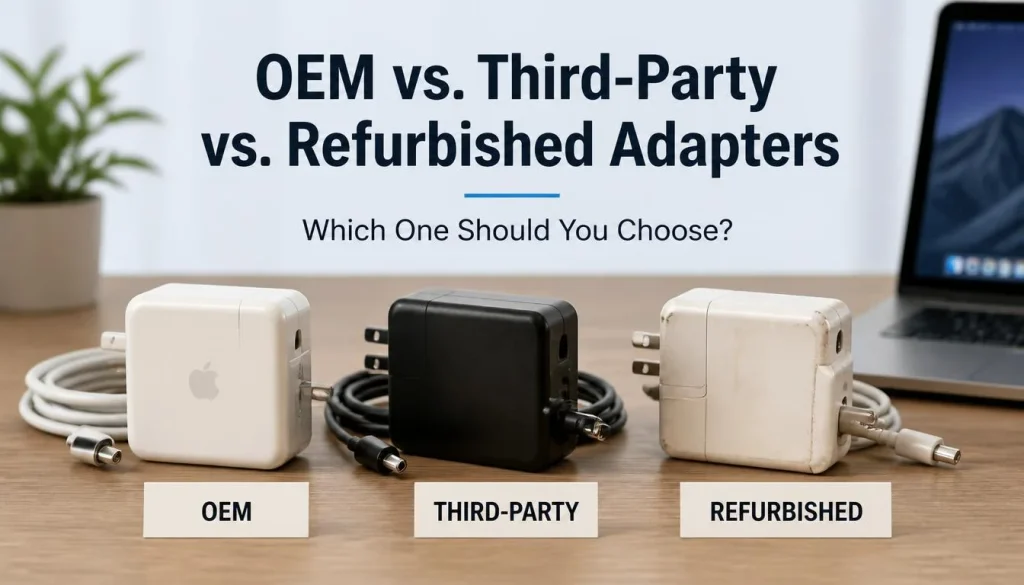
Original equipment manufacturer adapters guarantee compatibility and safety certification. Third-party adapters vary in quality. Some meet specs.
Some don’t. Refurbished adapters carry risk unless sourced from the manufacturer.
Choose OEM when possible. If budget is tight, select third-party adapters with UL or CE certification. Avoid no-name adapters from unknown sellers.
They lack protection circuits and can damage your laptop.
| Adapter type | Safety | Reliability | Cost | Recommendation |
|---|---|---|---|---|
| OEM | Certified | High | Higher | Best choice |
| Certified third-party | Tested | Moderate | Lower | Acceptable if certified |
| Uncertified third-party | Unknown | Low | Lowest | Avoid |
| Refurbished OEM | Variable | Variable | Moderate | Only from manufacturer |
Signs a Charger Is Degrading Before the Laptop Complains
Adapters fail gradually. Watch for these warning signs:
- Connector feels loose or wobbly
- Cable heats up unusually during charging
- Charging stops and starts intermittently
- Adapter makes clicking or buzzing sounds
- LED indicator behaves erratically
Replace adapters showing these symptoms. A failing adapter can deliver unstable voltage. This stresses the battery and motherboard.
Don’t risk hardware damage for a cheap replacement.
Why High-Wattage Adapters Are Safe and Low-Wattage Adapters Are Not
Higher wattage adapters don’t force more power into your laptop. They supply up to their rated maximum. The laptop draws only what it needs.
A 330W adapter on a 230W laptop is safe. The laptop limits draw to 230W.
Lower wattage adapters struggle under load. The laptop may draw maximum current, causing the adapter to overheat. Voltage drops under load.
This triggers throttling and charging failures. Persistent undervoltage can damage charging circuitry.
| Adapter wattage | Safety | Performance | Charging |
|---|---|---|---|
| Above recommended | Safe | Full boost | Normal |
| At recommended | Safe | Full boost | Normal |
| At minimum | Safe | May throttle under load | Slow or stopped |
| Below minimum | Risk of damage | Throttled | Failed |
If you need a replacement, check manufacturer parts pages or authorized retailers. Best Budget Nvidia Gaming Laptops often use standard wattage adapters that are easier to replace. Verify your specific model’s requirements before purchasing.
Common Mistakes That Kill Gaming Laptop Batteries Faster
Some habits accelerate battery degradation without you noticing. These mistakes compound over months. Fixing them preserves your laptop’s lifespan.
Avoid these common errors.
Using the Laptop on Beds, Couches, and Laps While Gaming
Soft surfaces block intake and exhaust vents. Airflow drops dramatically. Heat builds inside the chassis.
The battery sits near the heat source. High temperature plus high state of charge equals fast degradation.
Place your laptop on a hard, flat surface. Use a cooling pad with active fans if you game on couches or beds. Even a simple book under the rear feet improves airflow.
The difference in temperature can be 10 to 15 degrees Celsius. That gap matters for battery longevity.
| Surface type | Airflow impact | Temperature risk |
|---|---|---|
| Hard desk | Optimal | Low |
| Cooling pad | Enhanced | Very low |
| Couch or bed | Blocked | High |
| Lap | Partially blocked | Moderate to high |
Mixing Up Keeping It Plugged In With Never Letting It Discharge
Staying plugged in is good. Never discharging is bad. Cells at 100% voltage age faster than cells at 60%.
Periodic partial discharge reduces calendar stress. It also keeps the BMS calibrated.
Let your battery drop to 40% once a week. Then recharge. This simple habit extends cycle life without sacrificing daily performance.
Don’t fear occasional discharge. Fear constant maximum voltage.
Ignoring Battery Swelling Until the Trackpad Lifts
Swelling starts small. You might not notice it immediately. The bottom panel bulges slightly.
The trackpad becomes stiff. The keyboard deck warps. Ignoring these signs risks safety.
Stop using a swollen laptop. Disconnect the charger. Don’t press on the bulge.
Contact the manufacturer or an authorized service center. Swollen cells can vent gas or ignite if punctured. UL safety standards classify swollen lithium packs as hazardous.
| Swelling stage | What you’ll see | Action needed |
|---|---|---|
| Early | Slight trackpad resistance | Monitor closely, reduce charge limit |
| Moderate | Visible bottom panel bulge | Stop heavy use, arrange repair |
| Severe | Major deformation, heat | Shut down immediately, seek professional help |
Running Unnecessary Background Apps While on Battery During Light Use
Background processes drain battery faster than you expect. Browser tabs, update checks, and sync apps add up. If you’re not gaming, close unnecessary applications.
Extend runtime and reduce cycle count.
Check Task Manager for high CPU or network usage. End tasks you don’t need. Disable startup programs that run automatically.
These small changes preserve battery capacity for when you actually need it.
| App type | Battery impact | Recommendation |
|---|---|---|
| Browser with 20+ tabs | High | Close unused tabs |
| Cloud sync services | Moderate | Pause during light use |
| Automatic updates | Variable | Schedule for plugged-in time |
| Background games | Very high | Close completely |
When to Stop Using Your Laptop and Seek Help Immediately
Some issues require professional intervention. Continuing to use a compromised laptop risks hardware damage or personal injury. Know the warning signs.
Act before problems worsen.
Recognizing Swollen Cells, Overheating, and Burning Smells
Swelling is the most visible sign of cell failure. The palm rest bulges. The keyboard deck lifts.
The trackpad feels firm or unresponsive. These are clear indicators of internal gas buildup.
Overheating alone isn’t always dangerous. Laptops run hot during gaming. But if the chassis becomes too hot to touch, something is wrong.
Combined with a burning smell, shut down immediately. That smell indicates melting plastic or degraded insulation.
| Warning sign | Severity | Immediate action |
|---|---|---|
| Visible swelling | Critical | Stop使用, unplug, seek repair |
| Burning smell | Critical | Power down, ventilate area, do not reopen |
| Excessive heat (>140°F surface) | High | Reduce load, improve cooling, monitor |
| Swelling + heat combo | Emergency | Shut down, do not charge, contact support |
What to Do Safely If the Battery Is Already Bulging
A swollen battery is a fire hazard. Handle it carefully. Don’t puncture the casing.
Don’t apply pressure to the bulge. Don’t continue charging.
Place the laptop on a non-flammable surface. Move it away from curtains, papers, or bedding. If the swelling is severe, place the laptop in a metal container or fireproof bag until you can arrange disposal.
Contact the manufacturer for replacement procedures.
| Do | Don’t |
|---|---|
| Unplug the charger | Apply pressure to swollen area |
| Place on non-flammable surface | Continue using the laptop |
| Contact manufacturer for repair | Attempt to puncture or drain the cell |
| Store in fireproof container if severe | Throw in regular trash |
Authorized Service Versus Third-Party Repair Risks
Manufacturer service uses certified replacement parts. They follow safety protocols for battery handling. Third-party repair shops vary in quality.
Some use uncertified cells that lack proper protection circuits.
If your laptop is under warranty, use authorized service. Warranty voids may occur with third-party battery replacements. After warranty expires, compare costs.
Authorized service costs more but guarantees safety. Third-party options save money but carry risk.
| Repair option | Cost | Safety | Warranty impact |
|---|---|---|---|
| Manufacturer authorized | Higher | Certified parts, trained techs | Preserved |
| Reputable third-party | Moderate | Variable quality | May void |
| DIY replacement kit | Lowest | Depends on skill and part quality | Usually voids |
Proper Disposal and Replacement Steps
Never dispose of a lithium battery in regular trash. Lithium cells can ignite in landfills. They require special handling.
Check local regulations for battery disposal.
Many retailers accept old batteries for recycling. Best Buy, Home Depot, and Apple stores offer recycling bins. Some manufacturers include prepaid shipping labels for returned batteries.
Remove the battery if possible. Tape the contacts to prevent short circuits during transport.
| Disposal method | Availability | Safety level |
|---|---|---|
| Manufacturer take-back | Varies by brand | Highest |
| Retailer recycling bin | Widely available | High |
| Municipal hazardous waste | Location-dependent | High |
| Regular trash | Illegal in many areas | Dangerous |
For more on managing hardware issues that accompany battery problems, see our coverage on Gaming Laptop Fan Rattling and Fix 95C CPU Temp While Gaming. Thermal issues and battery stress often share the same root causes.
Frequently Asked Questions About Should Your Gaming Laptop Stay Plugged In
Can I Leave My Gaming Laptop Plugged In 24/7?
Yes, if you enable a charge limit feature. Most modern gaming laptops support capping charge at 80% or 60%. This prevents high voltage stress while keeping the system powered.
Without a charge limit, leaving it at 100% continuously accelerates calendar aging.
Does Keeping It Plugged In Damage the Battery?
Not if you manage the charge limit properly. Continuous AC power preserves cycle count. The risk comes from staying at 100% voltage under heat.
Enable conservation mode or cap the charge. This removes the degradation risk while maintaining performance benefits.
Should I Calibrate the Battery If I Mostly Game at a Desk?
Only if you notice inaccurate charge readings. Calibration corrects BMS drift. If your laptop shuts down unexpectedly or reports wrong percentages, run a calibration cycle.
Otherwise, periodic partial discharge to 40% is sufficient for calibration without full cycles.
Is It Better to Game on Battery or AC Power?
Always game on AC power. Battery mode triggers aggressive throttling. You lose frames and experience instability.
AC power delivers sustained boost clocks. It also preserves cycle count by avoiding unnecessary discharge and recharge cycles.
How Do I Enable Battery Conservation Mode on My Laptop?
Open your manufacturer’s control software. Look for battery, power, or hardware settings. ASUS uses Armoury Crate or MyASUS.
Lenovo uses Vantage. MSI uses Center. Razer uses Synapse.
Select conservation mode or battery health charging. Choose your preferred charge cap.
What Charge Percentage Is Safest for Long-Term Storage?
Store laptops at 50% charge in a cool, dry place. Fully charged cells degrade faster during storage. Deeply discharged cells can drop below safe voltage thresholds.
Fifty percent balances calendar aging with safety margins for extended storage periods.
Will Using a Cheaper Third-Party Charger Void My Warranty?
Not necessarily, but it carries risk. Using uncertified adapters can damage charging circuitry. Manufacturers may deny warranty claims for hardware failure caused by improper power supplies.
Stick to OEM or certified third-party adapters to protect your coverage.
How Long Does a Gaming Laptop Battery Typically Last?
Most gaming laptop batteries last two to four years before noticeable capacity loss. Cycle ratings range from 500 to 1,000 depending on chemistry and usage. Proper charge management and thermal control extend lifespan.
Heavy gaming on battery shortens it significantly.
Final Recommendation / Verdict / Decision Guide
Your charging strategy should match your usage pattern. There’s no universal rule. Use this decision guide to pick the right approach for your situation.
If You Game Primarily at a Desk
Enable charge limiting. Set your laptop to stop charging at 80%. Keep it plugged in during sessions.
This preserves cycle count while reducing voltage stress. Unplug weekly and let it drop to 40%. Recharge afterward.
This simple routine balances performance with longevity.
Desk-bound users benefit most from charge-limit features. Your ASUS TUF A18 Review or similar machine likely includes this capability. Check the manufacturer software.
Enable it once and forget about it.
If You Move Between Desk and Couch
Keep the charge higher. Eighty percent gives usable runtime. One hundred percent maximizes it.
Choose based on how often you unplug. If you game on the couch weekly, 80% is fine. If you need daily mobility, 100% is acceptable with good cooling.
Prioritize thermal management over charge percentage. A laptop at 100% in a cool room ages slower than one at 60% in a hot room. Find the balance that fits your environment and usage pattern.
If You Take Your Laptop to Events or Classes
Battery cycling is unavoidable. Don’t stress about charge limits. Use the battery when you need mobility.
Recharge when you’re back at a desk. Focus on avoiding deep discharges below 20%. That’s the real threat to cycle life.
If Your Laptop Is Three or More Years Old
Assess battery health first. Run the Windows battery report. If capacity is below 70%, consider replacement.
An aged battery throttles performance and increases swelling risk. Replacement restores safe operation. Use OEM parts when possible.
Older laptops benefit most from conservative charge limits. Sixty percent reduces stress on worn cells. Pair this with excellent cooling.
Monitor temperatures regularly. Replace the battery before swelling occurs.
The Bottom Line
Keep your gaming laptop plugged in during sessions. Enable charge limiting if available. Manage thermals aggressively.
Discharge partially weekly. Replace worn batteries proactively. This approach maximizes performance while minimizing degradation.
Your laptop will reward you with longer lifespan and consistent gameplay.
Check our analysis of Nimo 17 3 Multitasking Laptop With Ryzen for insights on thermal design in modern gaming laptops. Good thermals complement good charging habits for maximum battery life.