A gaming laptop that is plugged in but not charging can be confusing, especially when the charging icon appears normal or the laptop continues running from the adapter.
Sometimes the problem is simple. A battery protection feature may have intentionally stopped charging at 60% or 80%. In other cases, the charger may not provide enough power, the charging port may be damaged, Windows may be misreporting the battery status, or the battery itself may be nearing the end of its useful life.
Gaming laptops also introduce one extra complication: powerful CPUs and GPUs can consume a lot of energy. Under a heavy gaming load, some laptops can use more power than a low-wattage charger can provide. Certain gaming models may even intentionally draw a small amount of power from the battery while connected to AC power.
The good news is that you can usually narrow down the cause without immediately opening the laptop or replacing parts.
Quick Answer: Why Is My Gaming Laptop Plugged In but Not Charging?
The most common reasons a gaming laptop is plugged in but not charging are:
- A battery charge limit is enabled
- The charger wattage is too low
- The wrong or incompatible charger is being used
- The laptop is consuming more power than the charger supplies
- The charging cable or adapter is damaged
- The charging port is loose or dirty
- The battery is overheating
- Windows has a battery or power-management problem
- The BIOS is not detecting the charger correctly
- The battery is degraded or faulty
- The charging circuit on the motherboard has a problem
Before buying a new battery or charger, work through the troubleshooting steps below in order.
First, Check the Battery Percentage
The percentage where charging stops can tell you a lot about the problem.
If your gaming laptop consistently stops at exactly 60% or 80%, there is a good chance a battery protection setting is enabled rather than the battery being defective.
If the battery remains at 0% or 1% for a long time, that is more concerning.
If the battery says it is charging but the percentage barely moves while you are playing a demanding game, power consumption may simply be too high.
Also check whether the battery starts charging again when the laptop is idle or turned off. That single test can help separate a charger-capacity problem from a more serious charging failure.
Check Whether a Battery Charge Limit Is Enabled
Modern laptops often include battery-health features that deliberately prevent the battery from charging to 100%.
Windows calls this type of feature Smart Charging, while manufacturers may use names such as Battery Care, Conservation Mode, Battery Health Charging, or Battery Master.
When Smart Charging is active, Windows may show the computer as plugged in even though the battery remains below 100%. Microsoft confirms that this behavior can be intentional and is designed to help reduce long-term battery wear.
For example, ASUS Battery Health Charging can limit charging to levels such as 60% or 80% on supported models.
Check your laptop manufacturer’s control software and BIOS for battery-related settings.
Common places include:
- ASUS MyASUS
- Lenovo Vantage
- MSI Center
- Dell battery or BIOS settings
- HP power or battery management settings
- Acer Care Center or manufacturer utilities
If the battery always stops at the same percentage, check this before trying anything more complicated.
Gaming Laptop Plugged In but Not Charging at 80%
If your battery stops at exactly 80%, it is often normal.
Many manufacturers provide an 80% charging limit because keeping a lithium-ion battery continuously at 100% can accelerate long-term battery aging.
Try temporarily switching the battery mode to full-capacity charging. If the battery then continues beyond 80%, there is probably nothing wrong with the charger or battery.
You may want to leave the limit enabled if the laptop spends most of its life connected to a desk charger. Turn it off when you need maximum battery runtime away from an outlet.
Gaming Laptop Plugged In but Not Charging at 0% or 1%
A battery stuck at 0% or 1% deserves more attention.
First, leave the laptop connected to the correct charger while it is turned off. Check it again after some time.
If the percentage still does not increase, possible causes include:
- A deeply discharged battery
- A failed battery
- A charger that cannot provide enough power
- An adapter detection problem
- A charging-circuit problem
- An embedded-controller issue
A battery that has remained fully discharged for an extended period can sometimes deteriorate to the point where it no longer charges normally. MSI, for example, warns that severe over-discharge can make a battery unusable.
Make Sure You Are Using the Correct Charger
This is one of the most important checks for a gaming laptop.
Gaming laptops frequently require much more power than ordinary notebooks. Depending on the model, the original adapter may be rated for well over 100 watts and sometimes several hundred watts.
A smaller adapter may physically fit and may even power the laptop, but that does not mean it can charge the battery correctly.
Check the output rating printed on your charger and compare it with the power requirements listed for your laptop model.
If your laptop originally shipped with a high-wattage power brick, replacing it with a much smaller USB-C or third-party adapter can cause:
- Slow charging
- No charging under load
- Battery drain while plugged in
- Performance throttling
- A slow-charger warning
Microsoft notes that a charger that does not meet the computer’s power requirements can cause a PC to charge slowly or discharge while it remains plugged in.
Whenever possible, test the laptop with the original manufacturer-approved charger.
Check Whether the Battery Drains Only While Gaming
Close the game and leave the laptop sitting at the Windows desktop for several minutes.
Watch the battery percentage.
If the battery begins charging normally when the game is closed but stops charging or starts losing power when gaming begins, the charger or system power demand becomes a prime suspect.
A gaming laptop can place the CPU and dedicated GPU under heavy load at the same time. Add a high-refresh-rate display, RGB lighting, external monitor, gaming mouse, keyboard, headset, cooling pad, and other USB devices, and power demand increases further.
If the charger cannot supply enough power for everything, the system may supplement the adapter with battery power.
Is It Normal for a Gaming Laptop Battery to Drain While Plugged In?
Sometimes, yes—but only on certain systems.
Some gaming laptops use a feature often described as hybrid power or battery assist. Under extreme workloads, the laptop may temporarily combine AC adapter power with battery power to maintain performance.
Dell documents this behavior on several Alienware and Dell G-series systems. On supported models, the battery can intentionally provide additional power during heavy workloads even while the AC adapter is connected.
That does not mean continuous battery drain is normal on every gaming laptop.
A slight drop during an unusually demanding game may be expected on a system specifically designed for hybrid power. A battery that falls rapidly during ordinary use, however, should be investigated.
Stop Gaming and Test Charging Again
This is one of the easiest diagnostic tests.
- Save your game and close it.
- Disconnect unnecessary USB devices.
- Switch from Turbo or Performance mode to Balanced mode.
- Leave the laptop idle.
- Check the battery percentage after several minutes.
If charging resumes, your power adapter may be reaching its limit during heavy workloads.
If the laptop still refuses to charge while idle, continue troubleshooting.
Try a Different Wall Outlet
Do not overlook the power source.
Temporarily connect the charger directly to another wall outlet.
If you normally use a:
- Power strip
- Extension lead
- Surge protector
- Travel adapter
- Docking station
remove it from the equation for testing.
A loose or unreliable AC connection can cause intermittent charging that looks like a laptop problem.
Inspect the Charger and Cable
Unplug the charger and examine it closely.
Look for:
- Frayed insulation
- Bent connectors
- Damaged pins
- Cuts in the cable
- Burn marks
- A loose cable entering the power brick
- Unusual buzzing
- A burning smell
- Excessive heat
A power adapter normally becomes warm during use, especially on a gaming laptop. However, extreme heat, electrical smells, cracking sounds, or visible damage are reasons to stop using it.
If the charger’s indicator light flickers or turns off when connected to the laptop, that can also point toward an adapter, connector, or charging-circuit problem.
Check the Charging Port
Turn off the laptop and inspect the charging port.
Look for lint, dust, foreign objects, or visible damage.
The plug should normally sit securely. If charging starts and stops when you move the cable, there may be wear inside the connector or DC jack.
Do not force tools into the charging port. If debris is visible, clean it carefully using an appropriate electronics-safe method.
A charging port that physically moves inside the chassis usually requires professional repair.
What Does the Charging Light Tell You?
Many gaming laptops have an LED near the charging connector.
The exact colors and blink patterns vary by manufacturer, so your laptop’s manual is the best reference. Still, the behavior itself can provide useful clues.
Charging Light Is On but the Battery Is Not Charging
This may indicate that the laptop is receiving external power but charging has been stopped by:
- A battery limit
- Battery temperature
- Firmware
- A degraded battery
- A charging-system fault
Charging Light Is Blinking
A repeating blink pattern may indicate a battery or power error on some models.
For example, MSI provides troubleshooting specifically for certain flashing battery indicators and recommends checking battery calibration, EC reset, and BIOS updates.
No Charging Light
If there is normally a charging LED and it remains completely off, investigate the outlet, charger, cable, connector, and DC-in circuit.
Perform a Basic Power Reset
Temporary power-management problems can sometimes be cleared with a power reset.
- Shut down the laptop completely.
- Disconnect the charger.
- Disconnect USB devices and accessories.
- If the laptop has an easily removable battery, remove it. Do not open a laptop with an internal battery solely for this step unless the manufacturer’s instructions specifically tell you to.
- Hold the power button for about 20 to 30 seconds.
- Reconnect the charger.
- Start the laptop and check charging again.
This process clears residual electrical charge and can reset some temporary power-management states.
Reset the Embedded Controller if Your Manufacturer Recommends It
Gaming laptops contain an Embedded Controller, commonly shortened to EC, that can be involved in functions such as power management, battery behavior, keyboards, and fans.
An EC problem can occasionally interfere with charging.
However, EC reset procedures vary by laptop.
For example, MSI’s documented procedure for supported notebooks involves shutting the computer down, removing external power, holding the power button for 30 seconds, reconnecting power, and starting the computer again.
Do not assume that the same procedure applies to every ASUS, Lenovo, Acer, Dell, HP, Razer, or other gaming laptop.
Search the support documentation for your exact model and follow the manufacturer’s EC-reset instructions.
Check Windows Battery Drivers
If the hardware looks normal but Windows is showing an incorrect charging state, reinstalling the battery device driver may help.
On Windows:
- Right-click the Start button.
- Open Device Manager.
- Expand Batteries.
- Look for Microsoft ACPI-Compliant Control Method Battery.
- Right-click it and choose Uninstall device.
- Restart Windows.
Windows normally attempts to reinstall removed device drivers after a restart. Microsoft documents this general driver-reinstallation behavior and also uses battery-driver reinstallation in some battery troubleshooting procedures.
If your laptop manufacturer provides specific power-management or chipset drivers, install the versions recommended for your exact model.
Install Windows and Manufacturer Updates
Charging behavior depends on more than the battery itself.
Power management can involve:
- BIOS/UEFI firmware
- Embedded-controller firmware
- Chipset drivers
- USB-C firmware
- Manufacturer control software
- Windows components
Check Windows Update, then visit the support page for your exact laptop model.
Avoid downloading random BIOS or firmware files from third-party websites.
Check Whether the Charger Is Detected in BIOS
This is particularly useful when the laptop powers on but refuses to charge.
Restart the computer and enter the BIOS or UEFI setup. The key varies by manufacturer and may be F2, Delete, Esc, or another key.
Look for information related to:
- AC adapter
- Adapter wattage
- Battery health
- Battery status
Some Dell laptops, for example, display the detected AC adapter wattage in BIOS.
If the system shows the adapter as Unknown or reports the wrong wattage, Dell says possible causes include an incompatible charger, faulty charger, or connection problem at the charging port.
That is an important clue because Windows is no longer the main suspect—the laptop itself is failing to identify the incoming power correctly.
Update the BIOS Carefully
A BIOS or firmware bug can occasionally affect charging.
There are manufacturer-documented cases where BIOS updates resolve specific battery-charging problems.
However, BIOS updates should be handled carefully.
Use only the BIOS intended for your exact laptop model and follow the manufacturer’s instructions. Do not interrupt the update process.
If your battery is completely dead and the manufacturer requires a minimum battery percentage before updating, do not attempt to bypass that safety requirement unless official support provides an approved method.
Gaming Laptop Says Charging but Percentage Is Not Increasing
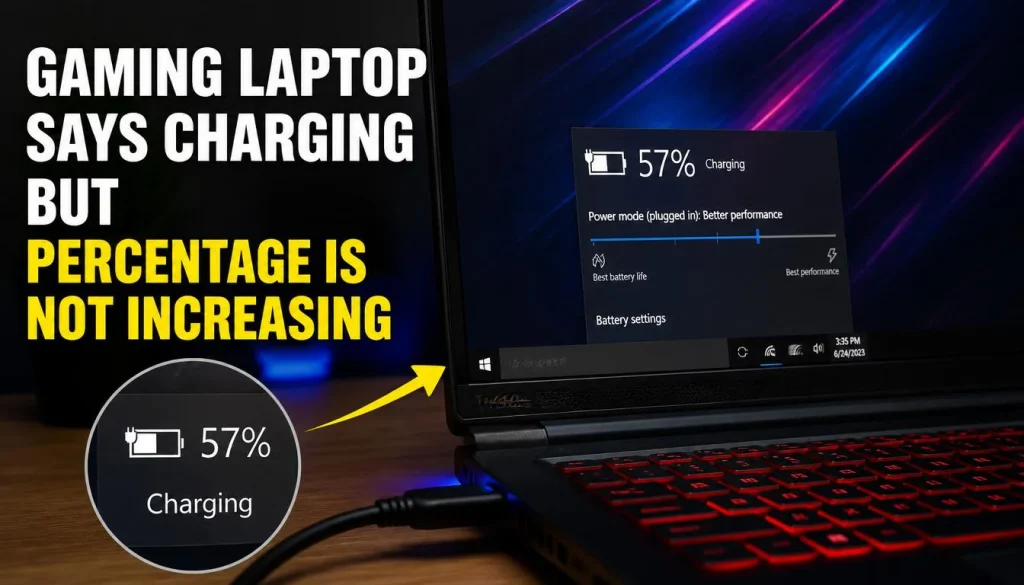
A charging icon does not always mean the battery is actually gaining energy.
Check what happens in different conditions.
Battery Percentage Increases When the Laptop Is Off
This strongly suggests that the charger can charge the battery, but it may not have enough spare output while the laptop is running.
Battery Percentage Increases at Idle but Not While Gaming
High system power consumption or insufficient adapter wattage becomes more likely.
Battery Never Increases
The issue could involve:
- Battery failure
- Charge limit settings
- Adapter detection
- Charging circuit
- EC or firmware
- Charging port
Battery Percentage Jumps or Behaves Erratically
The battery gauge may need calibration, or the battery may be degraded.
Why Does My Gaming Laptop Only Charge When Turned Off?
If the laptop charges normally when powered off but stops charging after Windows starts, think about power demand first.
Possible explanations include:
- The adapter is underpowered
- The adapter is failing under load
- The laptop consumes almost all available charger output while running
- The EC or firmware is behaving incorrectly
- Power-management software is interfering with charging
Try the correct original charger before replacing the battery.
If the laptop only charges while completely shut down even with the proper adapter, continue with EC, BIOS, battery-health, and hardware diagnostics.
Gaming Laptop Plugged In but Not Charging Through USB-C
USB-C charging creates another layer of troubleshooting.
A USB-C port existing on the laptop does not automatically mean that port accepts charging.
Even when charging is supported, the charger and cable must be capable of delivering enough power.
Microsoft notes that slow USB-C charging can occur when:
- The charger is incompatible
- The charger does not provide enough power
- The cable cannot handle the required power
- The charger is connected to the wrong USB-C port
- Dirt prevents a proper connection
- Charging is routed through a hub or dock
Check the USB-C Port
Some gaming laptops have multiple USB-C ports but support charging through only one of them.
Look for charging or Power Delivery markings and confirm the feature in the user manual.
Check the Charger Wattage
A small phone or tablet charger is unlikely to meet the requirements of a high-performance gaming laptop.
Even a USB-C charger that works well for an ultrabook may be insufficient for gaming.
Check the Cable
The USB-C cable matters too.
A high-wattage charger cannot deliver its full capability if the cable does not support the required level of USB Power Delivery.
Bypass the Dock
If you normally charge through a USB-C dock or monitor, connect the charger directly to the laptop.
This quickly reveals whether the dock is limiting available power.
Pay Attention to “Slow Charger” Warnings
Some manufacturers display warnings when USB-C power is below the laptop’s preferred charging wattage.
ASUS, for example, notes that insufficient USB-C charging wattage can reduce charging efficiency and may allow battery drain while the device is being used.
Check Battery Health in Windows
If the laptop is several years old, battery degradation becomes increasingly likely.
Windows 11 includes a useful battery-report feature.
Open Command Prompt as administrator and enter:
powercfg /batteryreport
Press Enter.
Windows will save an HTML battery report and show you its location. Microsoft recommends looking at information such as the installed battery and battery usage data.
Two useful figures are:
Design Capacity: How much energy the battery was designed to hold when new.
Full Charge Capacity: Approximately how much it can hold now.
It is normal for Full Charge Capacity to decrease as a battery ages.
A large difference between the two, combined with poor runtime or charging problems, can indicate significant battery wear.
Should You Calibrate the Battery?
Battery calibration can help when the reported percentage is inaccurate.
You might consider calibration if the laptop:
- Suddenly jumps between percentages
- Shuts down while Windows still reports remaining charge
- Displays obviously inaccurate capacity
- Has not been calibrated for a long time and the manufacturer recommends it
Calibration does not repair physically worn battery cells. It mainly helps the battery-management system estimate available capacity more accurately.
Some manufacturers provide built-in calibration tools. MSI Center, for example, includes battery calibration on supported models.
Follow the procedure for your specific manufacturer rather than repeatedly draining the battery to zero on your own.
What If the Battery Is Not Detected?
“Battery not detected” and “battery not charging” are different problems.
If Windows or BIOS cannot see the battery at all, possible causes include:
- Battery connection failure
- Battery electronics failure
- Firmware problems
- Motherboard issues
Check the BIOS first.
If the battery does not appear there either, Windows is unlikely to be the root cause.
Some manufacturer troubleshooting procedures recommend a hard reset or model-specific controller reset before moving to hardware repair.
Run the Manufacturer’s Hardware Diagnostics
Many gaming laptop brands include preboot or Windows-based diagnostic software.
Run tests for:
- Battery health
- AC adapter
- Charging system
- Motherboard
- Power components
A hardware diagnostic can save time because it helps separate Windows problems from physical charging faults.
Dell, for example, provides hardware tests for AC adapters and battery-related problems on supported systems.
If your diagnostic produces an error code, write it down before contacting support.
How to Tell Whether the Charger, Battery, or Laptop Is Faulty
| Symptom | More Likely Cause |
|---|---|
| Stops charging at exactly 60% or 80% | Battery charge limit |
| Charges when off but not while gaming | Insufficient power or high system load |
| Battery drains only during demanding games | High power demand or supported hybrid-power behavior |
| BIOS shows adapter as Unknown | Charger, connector, or charging circuit |
| Battery remains at 0% | Battery, adapter, or charging hardware |
| Charging starts when cable is moved | Damaged connector or charging port |
| Windows percentage behaves erratically | Battery gauge or degraded battery |
| No charger light or power response | Charger, outlet, port, or motherboard |
| USB-C shows Slow Charger warning | Insufficient charger/cable power |
| Laptop instantly shuts down when unplugged | Severely degraded or disconnected battery |
Use the table as a starting point, not a final diagnosis. Several faults can produce similar symptoms.
When Should You Replace the Charger?
Consider replacing or professionally testing the charger if:
- It has visible physical damage
- Charging repeatedly disconnects
- The laptop does not recognize its wattage
- A known-good compatible charger works correctly
- The adapter is much lower wattage than the laptop requires
- It makes unusual electrical noises
- The cable or connector becomes excessively hot
Use a manufacturer-approved or properly certified replacement with the correct voltage, connector, and wattage.
Do not choose a charger simply because the plug fits.
When Should You Replace the Battery?
Battery replacement becomes more likely if:
- Battery runtime has become extremely short
- The laptop shuts down immediately when unplugged
- Full Charge Capacity has fallen substantially
- Battery diagnostics report poor health
- The battery remains at 0% despite a verified good charging system
- Charging percentage behaves unpredictably
- The battery is physically swollen
Battery capacity naturally declines with age and charge cycles, so an older battery can fail even when the charger and laptop are working correctly.
Stop Using the Laptop If the Battery Is Swollen
A swollen battery is a safety issue, not just a performance problem.
Signs can include:
- Trackpad lifting
- Bottom cover bulging
- Keyboard or chassis distortion
- Screen or case separating
- Laptop no longer sitting flat
Microsoft advises stopping use of a device if a battery has expanded beyond its enclosure and warns against applying pressure to or puncturing a swollen battery.
Power the laptop down and arrange proper battery service or replacement.
Do not puncture, bend, squeeze, or attempt to flatten the battery.
When Is Professional Repair Necessary?
If you have tested the correct charger and the battery still will not charge, the problem may be inside the laptop.
Possible hardware faults include:
- Damaged DC jack
- USB-C charging circuitry
- Charging controller
- Motherboard power circuit
- Battery connector
- Power MOSFET or related board-level components
Board-level troubleshooting requires tools and experience that most users do not have.
Professional repair makes sense when:
- BIOS cannot detect a known-good charger
- The charging connector is physically loose
- The laptop has liquid damage
- You smell burning or see electrical damage
- Multiple chargers fail
- The battery is not detected in BIOS
- The laptop is still covered by warranty
Opening the laptop yourself can also affect warranty coverage depending on the manufacturer and region.
How to Prevent Gaming Laptop Charging Problems
A few habits can reduce charging problems and unnecessary battery wear.
Use the charger designed for your laptop whenever possible.
Avoid extremely cheap replacement adapters with questionable specifications.
Do not repeatedly bend the charging cable sharply near the connector.
Keep ventilation openings clear because excessive heat is bad for both the battery and charging electronics.
Use battery charge limits if your laptop stays plugged in most of the time.
Keep BIOS, chipset, and manufacturer power-management software reasonably up to date.
And when buying a USB-C charger, check the laptop’s actual Power Delivery requirements instead of assuming that every USB-C charger provides the same amount of power.
Frequently Asked Questions
Why is my gaming laptop plugged in but not charging?
The most common causes are a battery charge limit, insufficient charger wattage, damaged charging equipment, battery degradation, a charging-port problem, or a firmware/power-management issue. Start by checking whether the battery always stops at the same percentage and whether the original charger is being used.
Why is my gaming laptop battery draining while plugged in?
If it happens mainly during gaming, the laptop may be consuming more power than the charger can provide. Some gaming laptops also use hybrid-power designs that intentionally supplement adapter power with battery power during extreme workloads.
Why does my gaming laptop stop charging at 80%?
An 80% charge limit is commonly used as a battery-health feature. Check your manufacturer utility, BIOS, or battery-care settings before assuming there is a fault.
Why is my gaming laptop charging but the percentage is not increasing?
The charger may only be supplying enough power to run the laptop, leaving little or no power available to charge the battery. A charge limit, degraded battery, high workload, or charging-system problem can produce the same symptom.
Why does my gaming laptop only charge when turned off?
The adapter may not have enough spare power to charge the battery while the system is running. Test the original charger and see whether charging begins when the laptop is idle. Firmware, EC, battery, or charging-circuit problems are also possible.
Can a charger power a laptop without charging the battery?
Yes. An underpowered charger may provide enough energy to keep the laptop running but not enough to operate the computer and recharge the battery at the same time.
Can I use a lower-wattage charger with my gaming laptop?
It depends on the laptop, but it is generally a poor choice for gaming. A lower-wattage charger may cause slow charging, battery drain, warnings, or reduced performance. Use the wattage recommended by the manufacturer.
Why does my gaming laptop say “Slow Charger”?
The laptop may have detected that the connected charger, cable, USB-C port, or dock cannot provide the preferred charging power. Use the original charger or another properly rated compatible charger.
Can overheating stop a gaming laptop from charging?
Battery-management systems can reduce or pause charging when temperatures are outside safe operating conditions. If the laptop is extremely hot, stop gaming, let it cool, and test charging again.
Is it safe to game while a laptop is plugged in?
Yes. Gaming laptops are generally designed to deliver their best performance while connected to AC power. Use the proper charger and keep the laptop adequately cooled.
Should I keep my gaming laptop plugged in while gaming?
Usually, yes. Dedicated gaming GPUs and high-performance CPUs can demand far more power than the battery alone can comfortably provide. Plugged-in operation usually enables better and more consistent gaming performance.
How do I know if my gaming laptop charger is bad?
Signs include intermittent charging, physical cable damage, an adapter that is not detected correctly in BIOS, unusual heat or electrical smells, and successful charging with another known-good compatible adapter.
How do I know if my gaming laptop battery is bad?
Very short runtime, sudden percentage changes, failure to run without the charger, poor diagnostic results, major loss of full-charge capacity, or physical swelling can indicate battery failure.
Final Verdict
If your gaming laptop is plugged in but not charging, do not start by replacing the battery.
Start with the simplest clues.
If charging always stops at 60% or 80%, check the battery charge limit.
If the battery drains only while gaming, verify charger wattage and determine whether your laptop uses hybrid power.
If charging works only when the laptop is turned off, investigate power demand and the adapter.
If BIOS cannot recognize the charger, focus on the adapter, charging port, or charging circuitry.
If the charger is recognized but the battery remains at 0%, check battery health, perform the manufacturer’s recommended reset procedures, and run hardware diagnostics.
Most importantly, use the charger designed for your gaming laptop. Powerful gaming hardware can place far greater demands on a power adapter than an ordinary laptop, and a charger that seems to “work” may still be unable to provide enough power for both gaming and battery charging.