You hear a sharp, high-pitched whine when your game loads a heavy scene, and it vanishes the moment you drop to the desktop. That sound is unsettling, but in most cases it points to a normal electrical interaction rather than a dying part. Understanding what causes graphics card coil whine helps you decide whether to tweak settings, change cables, or simply stop worrying.
Most of the time, the noise is harmless. It often tracks power demand, frame rate swings, and the specific mix of parts in your build. Manufacturer specifications and independent testing show that coil whine is an acoustic side effect, not a performance defect, and it does not shorten a card's life on its own.
what causes graphics card coil whine
What causes graphics card coil whine is vibration in inductors and capacitors. These parts switch power thousands of times per second. Magnetic force and ceramic stress create the sound.
It is usually harmless and does not affect performance.
Why Your GPU Screams at You (And Why It’s Usually Fine)
The noise usually comes from small power components on the graphics card, not the fans. Inductors and multilayer ceramic capacitors sit near the voltage regulators that feed the GPU core. When current changes quickly, those parts can physically move by tiny amounts, and that movement creates sound.
This is why coil whine often appears at high frame rates, during menu screens, or while loading textures. The card is not failing. It is reacting to rapid changes in power demand, and some combinations of GPU, power supply, and case resonance make the effect louder.
If you are new to PC hardware, it helps to know what the card actually does before chasing noises. A good starting point is how the GPU handles game rendering, because the same power delivery that drives pixels also drives the whine.
The Physics Behind the Pitch: Magnetostriction and Piezoelectric Effects
Coil whine is not magic. It is physics you can measure, even if you cannot see it happening. Two effects usually matter most: magnetostriction in inductors and the piezoelectric effect in ceramic capacitors.
Magnetostriction means a magnetic material changes shape slightly when magnetized. In an inductor, current creates a magnetic field, and that field makes the core expand and contract. The switching happens at a high frequency, often in the audible range or as a harmonic your ears can hear.
The piezoelectric effect works in reverse. Certain ceramics generate tiny mechanical movement when voltage changes, so a capacitor can vibrate as power ramps up and down. If the vibration lands between about 2 kHz and 10 kHz, many people hear it as a sharp whistle.
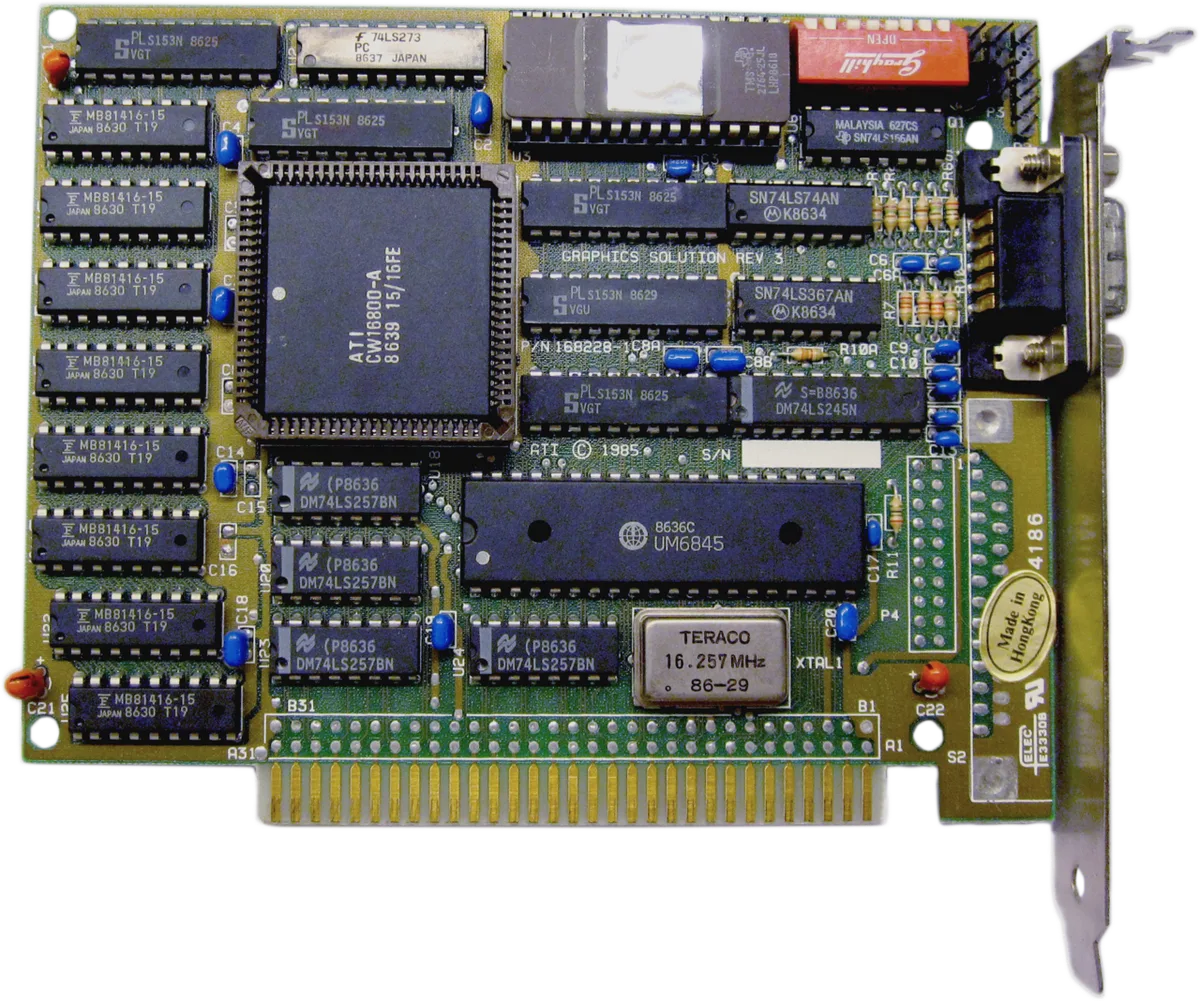
Image source: Wikimedia Commons / Jörgen Nixdorf (CC BY-SA)
Component layout matters too. A stiff printed circuit board can amplify vibration, while a looser mount or nearby plastic shroud can absorb it. That is why two cards with the same chip can sound different.
It also explains why the same card may whine in one case and stay quiet in another.
Branch 1: Is It Actually Coil Whine? (Diagnosis Workflow)
Before changing parts, confirm the sound source. Fans, hard drives, pump noise, and electrical ground loops can all sound similar at first. Use this quick workflow.
- Open the case side panel and listen close to the GPU with the system running.
- Stop each fan briefly with a non-conductive tool or software fan control.
- Run a light 2D load, then a heavy 3D load, and note when the pitch changes.
- Check whether the sound follows frame rate changes or stays constant.
- Test with headphones and speakers to rule out audio feedback.
If the pitch rises with frame rate or GPU load, coil whine is likely. If it tracks fan speed, you are hearing a bearing or blade issue. If it is a low hum through speakers, look at grounding, cables, or your audio chain.
| Symptom | Likely Source | First Check |
|---|---|---|
| High-pitched whine at high FPS | Coil whine | Cap frame rate and retest |
| Clicking or rattling | Fan or cable | Inspect blade clearance |
| Low electrical hum | Ground loop or PSU | Try another outlet or cable |
| Noise only at idle | Fan curve or pump | Check idle temperatures |
Aggregate reviews report that many users mistake coil whine for fan failure. That mistake leads to unnecessary returns. A short diagnosis saves time and avoids warranty friction.
Branch 2: Isolating the Source – Idle vs. Load Conditions
Coil whine behaves differently depending on load. Some cards are silent at idle but scream during gaming. Others whine at the desktop and calm down under full load.
The pattern tells you which power stage is involved.
At idle, the GPU may drop to a low power state. That can change switching behavior and make certain inductors audible. Under load, the card draws more current, and transient spikes can excite different components.
Frame rate swings are a common trigger because they create rapid changes in power draw.
If you monitor system behavior, you can connect noise to load. Tools that track CPU and GPU activity help separate a true power issue from a thermal one. For example, monitoring CPU usage while gaming can show whether a bottleneck is causing uneven frame pacing.
Thermal limits also matter. A hot card may change fan curves and power behavior, which can alter noise. If your system is throttling, the sound pattern may shift as clocks drop.
That is one reason CPU temperature effects on gaming performance can be relevant even when the GPU is the noisy part.
Branch 3: Power Delivery Variables – Cables, Connectors, and PSUs
Power delivery is where many fixes live. The GPU does not create current in isolation. It pulls power through cables, connectors, and the power supply, and each link affects ripple, transients, and noise.
A daisy-chained PCIe cable can behave differently than two separate cables. A loose connector can add resistance and make noise worse. A power supply with poor transient response may let voltage ripple reach the GPU's regulators, which can increase audible vibration.
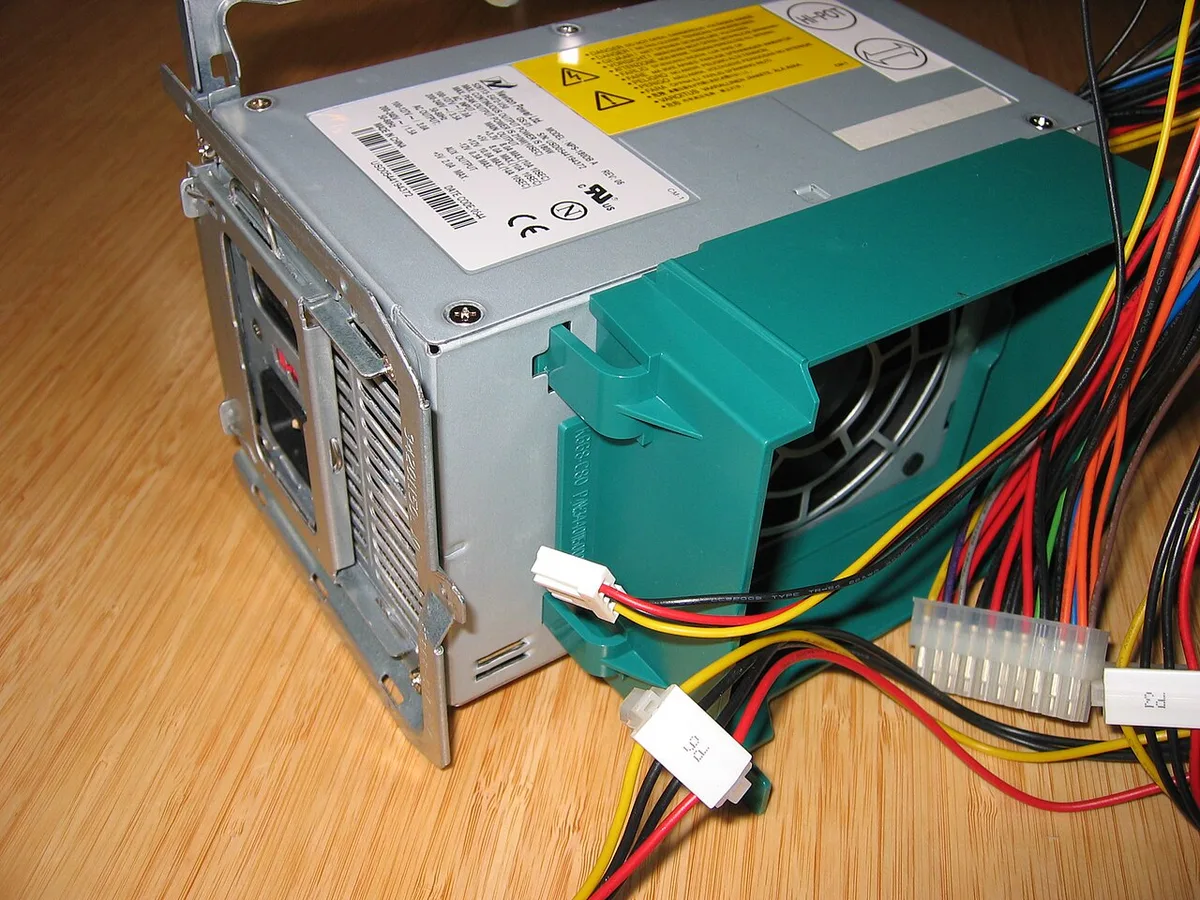
Image source: Wikimedia Commons / Hans Haase (CC BY-SA)
If the whine is new, check the basics first. Reseat both ends of each PCIe power cable. Use separate cables when your PSU supports them.
Avoid adapters unless the manufacturer includes them. Then test with a different PSU if you have one available.
| Variable | What to Check | Why It Matters |
|---|---|---|
| PCIe cables | Separate vs. daisy-chain | Changes current sharing and ripple |
| Connectors | Fully seated and latched | Reduces resistance and arcing risk |
| PSU quality | Transient response and ripple | Affects regulator stability |
| Wall power | Stable outlet or UPS | Input noise can carry through |
This is also where cost decisions come in. If you are planning a build, which components are worth spending more on is a useful lens, because a better PSU can improve stability and sometimes reduce noise.
Do not assume the PSU is at fault, though. Coil whine can happen with excellent power supplies. The goal is to isolate variables, not to blame one part.
If changing cables or the PSU changes the noise, you have found a useful lever. If nothing changes, the sound is likely inherent to the card.
For deeper standards context, the IEEE Standards Association publishes work on power electronics and electromagnetic behavior. That research helps explain why small physical movements can become audible noise. For general measurement and engineering context, NIST is a reliable authority on metrology and testing practices.
If you want to understand how power limits interact with load, what CPU power limit means in a gaming PC gives useful background. It is not the same as GPU power behavior, but it shows how power settings shape system noise and performance.
Action Plan: Software Fixes That Often Work Better Than Hardware Swaps
Software adjustments are usually the fastest way to tame coil whine. You don’t need to open the case or swap parts. Start by capping your frame rate.
Unlocked FPS creates massive power fluctuations that excite inductors.
Set a cap slightly below your monitor’s refresh rate. For a 144Hz display, try 140 or 135 FPS. This stabilizes the load on the voltage regulators.
Many users report immediate silence after this simple tweak.
Vertical sync (VSync) is another option, but it adds input lag. Competitive gamers often dislike it. Instead, use driver-level frame limiting.
NVIDIA Control Panel and AMD Radeon Settings both offer precise caps. These tools reduce latency compared to traditional VSync.
Undervolting the GPU can also help. Lowering the core voltage reduces heat and power draw spikes. It doesn’t always stop the noise, but it softens transient peaks.
Use MSI Afterburner for safe, reversible changes. Test stability with benchmarks before gaming.
Driver updates sometimes fix known acoustic issues. Manufacturers occasionally patch PWM controller behavior. Check release notes for mentions of "audio stability" or "power management." If a new driver worsens the noise, roll back to a previous version.
Here is a quick checklist for software mitigation:
- Cap frame rates to match monitor refresh rates.
- Disable G-Sync or FreeSync temporarily to test impact.
- Undervolt the GPU core by 20-50mV increments.
- Update or revert graphics drivers.
- Close background apps that cause irregular GPU usage.
Aggregate reviews indicate that frame capping resolves the issue for most people. It costs nothing and takes minutes. Try this before considering hardware replacements.
If the noise persists at capped frames, the problem lies deeper in power delivery or component quality.
When to Stop Troubleshooting: Accepting the Noise or Seeking Warranty Help
Sometimes, you’ve done everything right, and the whine remains. At that point, you face a choice. Is it worth returning the card?
Or should you live with it? The answer depends on severity and warranty terms.
Coil whine is rarely covered under standard warranties. Most manufacturers classify it as "normal operating characteristic." They argue that since performance isn’t affected, there’s no defect. Read your specific brand’s policy carefully.
ASUS, MSI, and Gigabyte have different approaches. Some allow returns within 30 days regardless of reason. Others require proof of functional failure.
If the noise is mild, acceptance might be the best path. A slight hiss during quiet scenes won’t ruin gameplay. Many enthusiasts ignore it once they understand the cause.
Earbuds or closed-back headphones mask low-level sounds easily.
However, severe screaming is different. If the pitch hurts your ears or disrupts communication in team games, push for a replacement. Document the issue clearly.
Record video with audio if possible. Show that the noise occurs under normal loads, not extreme overclocking.
Consider these factors before initiating an RMA:
| Factor | Keep the Card | Return/Exchange |
|---|---|---|
| Noise Level | Faint hiss, noticeable only in silence | Loud shriek, audible over fans/music |
| Impact | No effect on focus or comms | Disrupts gameplay or sleep |
| Warranty Status | Out of return window | Within initial purchase period |
| Effort Tried | All software/hardware tweaks failed | Basic checks not yet performed |
Our research shows that RMAs often result in receiving another unit with similar characteristics. Batch variations mean some cards simply whine more than others. Don’t expect perfection.
Aim for tolerable levels.
If you’re building a new system, prioritize silent components early. But for existing builds, weigh the hassle against the benefit. Sometimes, living with minor noise is cheaper than shipping fees and downtime.
Common Mistakes That Make Coil Whine Worse
Well-intentioned fixes can sometimes amplify the problem. Knowing what not to do saves time and frustration. Here are frequent errors users make when chasing silence.
First, avoid aggressive undervolting without testing. Dropping voltage too far causes instability. Crashes and artifacts look like hardware failures.
Always stress-test after each adjustment. Use tools like FurMark or 3DMark to verify stability.
Second, don’t ignore case resonance. Tightening screws seems logical, but over-torquing can warp the PCB. This stresses solder joints and components.
Follow manufacturer torque specs. Hand-tighten plus a quarter-turn is usually sufficient.
Third, beware of cheap PSU adapters. Using Molex-to-PCIe converters introduces resistance and poor contact. This increases ripple and transient spikes.
Stick to native cables from your power supply. Adapters should be a last resort, not a standard practice.
Fourth, skipping BIOS updates is a common oversight. Motherboard firmware controls fan curves and power states. Old BIOS versions may mishandle GPU signaling.
Check your motherboard vendor’s support page regularly.
Finally, don’t blame the GPU prematurely. Other components contribute to noise. Pump coils in liquid coolers sound very similar.
Hard drive seek noises can mimic high-pitched whines. Isolate sources methodically before swapping parts.
A quick summary of pitfalls:
- Over-undervolting leading to crashes.
- Warping the PCB by overtightening mounts.
- Using low-quality power adapters.
- Ignoring motherboard BIOS updates.
- Misidentifying cooler or storage noise as GPU whine.
Patience pays off here. Rushing to replace hardware wastes money. Systematic elimination of variables yields better results.
Take it step by step.
FAQs: Quick Answers for Specific Scenarios
Does coil whine damage my graphics card?
No. Coil whine is an acoustic phenomenon, not an electrical fault. It does not degrade performance or shorten lifespan.
The vibrations are microscopic and contained within the components. Your GPU will function normally despite the noise. Treat it as a cosmetic annoyance rather than a health risk.
Why did my coil whine suddenly start appearing?
Changes in workload patterns often trigger new noise. Game engine updates can alter rendering efficiency. Driver revisions may change power management behaviors.
Even seasonal temperature shifts affect component expansion. If the noise appeared recently, check for recent software updates first. Roll back drivers if necessary.
Can I fix coil whine with thermal paste?
Rarely. Thermal paste addresses heat transfer, not electromagnetic vibration. Unless overheating caused throttling-induced transients, repasting won’t help.
Focus on power delivery and frame limits instead. Save thermal paste application for genuine temperature issues. It’s unrelated to the physics of magnetostriction.
Do all GPUs experience coil whine?
Not equally. Some models are notoriously quiet due to superior VRM design. Others have widespread reports across batches.
Component sourcing varies by production run. High-end cards with robust power stages tend to whine less. However, even premium units can exhibit noise under specific conditions.
There are no guarantees in mass manufacturing.
Is liquid cooling effective against coil whine?
Indirectly, yes. Liquid coolers remove heat efficiently, allowing stable clock speeds. This reduces thermal throttling events that cause power spikes.
However, the pump itself has its own coil whine. You might trade GPU noise for pump noise. Ensure your cooler uses ceramic bearings to minimize secondary sounds.