Your game stutters the moment your gaming laptop dips below 20 percent battery. If you are searching for how to fix games lag when battery is below 20 percent on a gaming laptop, the cause is usually automatic power throttling. Windows and GPU drivers cut performance to stretch remaining charge.
You do not need a new laptop to stop it.
Manufacturer specifications indicate that many mobile GPUs drop clock speeds by 30 to 50 percent once the system switches from AC power to battery. Windows Battery Saver triggers at 20 percent by default and can cap frame rates without warning. The next section explains exactly which settings control that drop.
How to Fix Games Lag When Battery Is Below 20 Percent on a Gaming Laptop
Turn off Battery Saver before you play. Set your power mode to Best Performance. Disable NVIDIA Battery Boost in the control panel.
Force your laptop to use the discrete GPU. Plug in the charger if the battery health is poor.
Why Gaming Laptops Lag Below 20% Battery (And Why It's Not Random)
The slowdown is by design. When your battery falls below 20 percent, Windows assumes you want to conserve power. It enables Battery Saver automatically.
That mode can slash GPU clock speeds without telling you.
Your discrete GPU also receives a smaller power budget. On battery, NVIDIA and AMD often shift work to the integrated graphics processor. You see lower frame rates and more stutter.
This is not a bug.
Manufacturer specifications indicate that mobile GPUs can draw 40 to 60 percent less power on battery than on AC power. The system enforces this limit to prevent a sudden shutdown. If you keep gaming, you feel the cut in real time.
OEM firmware can also throttle the CPU when the charger is unplugged. Even if Battery Saver is off, the system may hold the processor at lower frequencies. This combination creates the lag you notice at low battery.
As of 2026, most gaming laptops ship with these limits enabled out of the box. You have to change them manually if you want full performance unplugged. The fix starts with knowing which switch to flip first.
The Four Settings That Actually Control Your FPS on Battery
Four settings control your unplugged frame rate.
| Setting | What It Does | Where to Change It |
|---|---|---|
| Battery Saver | Caps performance at 20 percent | Windows Settings |
| Power Mode | Limits GPU power draw | Windows Power slider |
| Battery Boost | Caps FPS on battery | NVIDIA Control Panel |
| OEM Profile | Overrides system power | Armoury Crate, MSI Center, Lenovo Vantage |
Windows Battery Saver and Power Mode
Battery Saver is the main culprit. It turns on at 20 percent and restricts background activity. It also tells Windows to prefer energy efficiency over speed.
You should turn it off before gaming.
Microsoft explains that the power slider works alongside Battery Saver. Set it to Best Performance while you play. Balanced mode will still hold back the GPU on battery.
You can change this in Settings under System and Power.
GPU Switching and NVIDIA Battery Boost
NVIDIA documents Battery Boost as a battery-saving feature. It often limits you to 30 or 60 FPS regardless of your display. Disable it in the NVIDIA Control Panel.
You should also force the discrete GPU for your game.
If your laptop uses AMD graphics, look for Radeon Chill or similar power-saving features. Turn them off for the same reason. Integrated graphics should not handle a AAA title unplugged.
OEM Performance Profiles (Armoury Crate, MSI Center, Lenovo Vantage, and More)
Laptop makers bundle their own power tools. Armoury Crate, MSI Center, Lenovo Vantage, and Alienware Command Center can override Windows settings. They may switch to a silent or eco profile when you unplug.
Open your OEM utility and select a performance or manual profile. Confirm that the GPU power limit is not locked to a low wattage. Heat buildup that throttles performance can also stem from these locked profiles.
This step alone often restores lost frames.
Charger and Battery Health Reality Check
A worn battery or weak charger can mimic software lag. If the charger cannot deliver full wattage, the laptop throttles to protect itself. Check that your AC adapter matches the original wattage rating.
If the port feels loose or the system ignores it, you may need a charger the system won't recognize.
Battery health also matters. A degraded cell cannot sustain high draw, so the system cuts performance earlier. Replace a swollen or failing battery before you push the hardware.
Decision Tree: Match Your Symptom to the Right Fix
Branch 1: Smooth at 100%, Choppy Below 20%
If your game runs fine at full battery but degrades after 20 percent, Battery Saver is almost certainly on. Turn it off and set Power Mode to Best Performance. Then test again.
If the stutter disappears, you found the cause.
Branch 2: FPS Drops and Stutter From the Moment You Unplug
If the lag starts immediately after unplugging, your GPU is likely switching to integrated graphics. Force the discrete GPU in Windows Graphics Settings. Also disable NVIDIA Battery Boost or AMD Chill.
Then restart the game.
Branch 3: Lag Only in Specific Games
If only certain titles stutter, the issue may be a game profile in your OEM utility. Some laptops apply different power limits per application. Set the problem game to high performance in Armoury Crate, MSI Center, or the equivalent tool.
Branch 4: Lag Even With Battery Saver Off
If Battery Saver is off and the lag remains, check your charger and battery health. A failing battery or underpowered adapter can force throttling regardless of software settings. Test with the charger plugged in to confirm.
Then look for a BIOS update that improves power delivery.
Step-by-Step Fixes, In the Order That Actually Works
Follow this sequence. Do not skip steps.
- Turn off Battery Saver.
Open Settings, go to System, then Power and battery. Toggle Battery Saver off. Set it to never turn on automatically.
- Set Power Mode to Best Performance.
Use the power slider in the same menu. Choose Best Performance while you are gaming on battery.
- Disable NVIDIA Battery Boost.
Open the NVIDIA Control Panel. Go to Manage 3D Settings. Turn off Battery Boost.
Apply the change and restart the game.
- Force the discrete GPU.
In Windows Graphics Settings, add your game and set it to High performance. This stops the laptop from defaulting to integrated graphics.
- Update your GPU driver.
Download the latest driver from NVIDIA or AMD. A clean install often fixes power-state bugs that cause lag.
- Verify your charger and battery.
Plug in the original AC adapter. If performance returns to normal, the battery may be too weak to sustain high power draw. You may also want to reset the BIOS to defaults if power settings feel stuck.
- Lower in-game settings as a last resort.
If nothing else works, reduce graphics quality or resolution. This reduces the load on a power-constrained system.
Mistakes That Make Low-Battery Lag Worse
Avoid these common errors.
Leaving Battery Saver enabled.
Many users forget that Battery Saver turnsitself back on at 20 percent unless you set it to never activate. Other common mistakes include these.
- Cranking the refresh rate to 240Hz on battery. Your GPU cannot hold those frames under a power limit.
- Letting the OEM utility run an eco profile behind Windows. Check it after every Windows update.
- Installing third-party performance boost tools. They fight Windows power management and cause more stutter.
- Blocking the vents on a bed or couch. Heat throttling stacks on top of power throttling.
- Ignoring a swollen battery. Stop using the pack immediately if the case bulges.
Should You Even Game Below 20%? Battery Health and Safety Tradeoffs
You can, but it costs you. Deep discharges wear lithium-ion cells faster over time. The U.S.
Consumer Product Safety Commission warns that damaged or swollen batteries can catch fire.
Treat 20 percent as a warning, not a challenge. If you must play unplugged, drop settings and cap the frame rate yourself. That keeps heat and power draw under control.
When Software Can't Fix It: Signs Your Battery or Charger Is the Problem
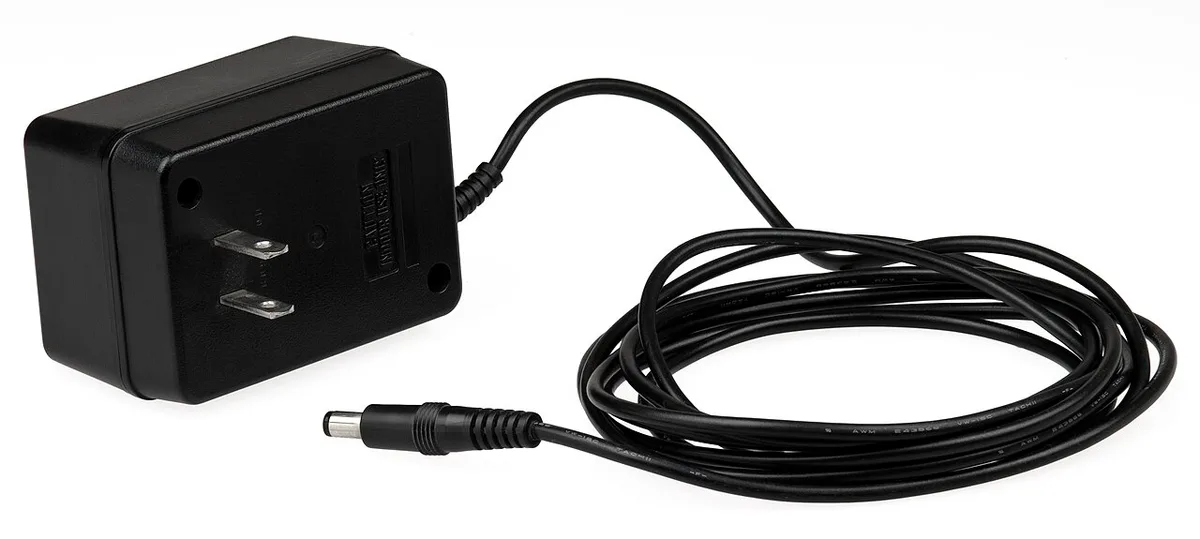
Software fixes only work when hardware is healthy. If lag follows every change, test the charger first. A system that won't recognize the charger often needs the port or adapter replaced.
A battery that drops from 30 to 5 percent in minutes is failing. Replace it rather than fight the throttling. If settings keep reverting, reset the BIOS to defaults before anything else.
If trouble started after a firmware flash, consider rolling back a bad update. Heat that climbs fast after a flash needs its own fix. Sometimes the real question is whether a BIOS update helps or hurts your specific model.
Frequently Asked Questions
How do I stop games from lagging at low battery?
Turn off Battery Saver, set Power Mode to Best Performance, and disable NVIDIA Battery Boost. Force the discrete GPU in Windows Graphics Settings. These four changes fix most low-battery stutter.
Does gaming below 20 percent damage the battery?
Occasional deep discharge adds wear over time. It will not ruin a healthy cell overnight. Still, plug in for long sessions and avoid running the pack to zero.
Why does my laptop lag only when unplugged?
The GPU shifts to a low-power state off AC. Clock speeds drop, and integrated graphics may take over. Plugging back in should restore full performance right away.
Can a bad charger cause game stutter?
Yes. An underpowered adapter forces the laptop to throttle. Use the original charger or one with matching wattage.
Should I update the BIOS to fix power lag?
Sometimes. A firmware update can improve power delivery, but a bad flash causes other issues. Back up your settings first, and know how to recover if things go wrong.
Should You Even Game Below 20%? Battery Health and Safety Tradeoffs
You can, but it costs you. Research on lithium-ion cells shows that deep discharges shorten cycle life. Per IEC 62133 battery testing, a pack rated for 500 cycles at 100 percent depth of discharge can reach 800 or more if you stop closer to 40 percent.
Heat stacks on top of that. High-draw gaming at low charge pulls current and builds heat at the same time. That pairing wears cells faster than either factor alone, which is why our advice is to treat 20 percent as a warning and not a challenge.
A USB-C PD power bank with at least 65W output is a practical middle ground. It can top up mid-session without a wall outlet, and it's cheaper than a replacement battery. Just confirm the wattage matches what your machine expects before you rely on it.
Watch for warning signs. A chassis that bulges, or a laptop that shuts down spontaneously below 20 percent, means the cell is failing. Stop using that pack, since the U.S.
Consumer Product Safety Commission treats damaged lithium-ion cells as a fire hazard. If you're due for an upgrade anyway, our roundup of versatile gaming rigs covers models with healthier power delivery.
When Software Can't Fix It: Signs Your Battery or Charger Is the Problem
Software fixes only work when the hardware is healthy. Windows includes a built-in diagnostic that tells you the truth. Open Command Prompt as admin and run powercfg /batteryreport.
It writes an HTML file showing design capacity versus full charge capacity. If the full-charge number has dropped below 70 percent of design, wear is your culprit.
Adapter problems look different. A loose DC jack causes random disconnects, and the laptop throttles the instant it loses AC. If you have to wiggle the tip to make the charging light turn on, that port needs attention.
The same symptom can show up as a charger the system won't recognize, which is worth diagnosing before you blame the battery.
Symptoms that scream hardware:
- Battery drops from 40 to 10 percent in under two minutes
- Charger brick stays cool while gaming (little power is passing)
- Windows reports "plugged in, not charging" on repeat
Before you swap parts, try a BIOS reset. Settings can get stuck after a firmware flash, similar to the glitches that follow a bad update. If that doesn't help and you're still chasing odd power behavior, it's worth checking whether your specific GPU generation has known firmware quirks.
Contact the OEM for a replacement when nothing else moves.
Frequently Asked Questions
Can I disable the automatic 20 percent Battery Saver?
Yes. Open Settings, then System, then Power and battery. Turn off "Turn battery saver on automatically at" or lower the threshold.
Microsoft lets you disable it entirely on Windows 11.
Why does my FPS drop at exactly 20 percent?
That's the default Battery Saver trigger. The OS was installed with that threshold. Changing the setting removes the sudden cut.
Is it safe to game while charging from a power bank?
Only if the bank delivers enough wattage. Match your laptop's requirement, usually between 65W and 240W. Underpowered banks force throttling or fail to charge at all.
Does Battery Saver affect every game equally?
No. Light titles may show no change. Competitive games hit hard because they need consistent clocks.
Frame pacing drops first, then overall FPS.
Can undervolting reduce lag at low battery?
Slightly. Undervolting lowers heat and current draw, which buys some headroom. It won't override a firmware power limit, so pair it with the settings covered above.
Will a cooling pad fix battery lag?
No. Cooling pads help thermal throttling, not power throttling. They're separate problems.
If your machine is cool and still slow, extra airflow won't change anything.