You pull the charger, and your frame rate falls off a cliff. The fans barely react. Nothing is broken, and no part needs swapping.
Learning how to fix performance drops when unplugged on a gaming laptop usually comes down to limits your laptop enforces on purpose.
Manufacturer specs make the gap obvious: a gaming laptop that pulls 130 W from the wall often gets held near 60 W on battery. That's a firmware ceiling, not a Windows quirk, and no settings page can fully erase it. Here's how to find which ceiling is capping you.
How to Fix Performance Drops When Unplugged on a Gaming Laptop
You fix unplugged gaming laptop performance by raising four limits. Switch the power mode to Best performance first. Then update BIOS, chipset, and GPU drivers.
Check battery wear level and adapter wattage next. Even done right, battery power rarely matches the wall.
Why Your Gaming Laptop Loses FPS the Moment You Unplug It
Your laptop runs two completely different power profiles. On AC, the embedded controller hands the CPU and GPU their full budget. Unplug, and firmware cuts that budget hard to protect the battery and the adapter.
As of 2026, nearly every gaming laptop still locks a separate battery profile in firmware. Windows can shape it, but it can't erase it. Vendor software can, at least partly.
Here's what actually changes the second the plug comes out:
- CPU sustained power (PL1) can drop from 45 or 55 W down to 25 W.
- GPU power limits shrink, so boost clocks fall first.
- Many laptops route frames through the integrated graphics on battery, which adds latency.
- Panel refresh rate and brightness can quietly step down too.
Does it feel different from a failing part?
Yes, and that's your first clue. FPS falls in tidy, repeatable steps every single time you unplug.
Hardware faults behave differently. You'd get crashes, visual artifacts, or clocks collapsing at random moments instead. Neither a driver reinstall nor Windows Settings changes firmware power behavior, which is why so many people chase the wrong fix.
Competitive players notice it in frame pacing before raw FPS. That's why staying smooth in a sim rig stings more once you're off the wall.
The 3-Minute Diagnostic: Which Branch Are You On?
Before changing anything, watch one game for two minutes plugged in, then two minutes unplugged. Log CPU package power, GPU board power, both temperatures, and average FPS. Any monitoring tool works, including HWiNFO64 or your vendor's utility.
Branch A: FPS drops but temps stay cool
Clocks fall while the CPU sits at 50 to 65 °C. Nothing is hot, so nothing is throttling thermally. You're looking at a Windows power plan or a firmware power cap.
Branch B: FPS drops and CPU or GPU temps hit 85 to 95 °C
Heat is the limiter. Fans ramp, noise climbs, and clocks sawtooth up and down. This is thermal throttling, and it usually got worse while plugged in too.
Branch C: Performance dies fast and the battery drains hard
You lose 20 percent charge in twenty minutes, or the drop worsens the longer you play. Check one more thing: does BIOS still detect your charger? If not, the adapter or battery is the real story.
| What you see | Likely cause | Go to |
|---|---|---|
| FPS down, temps under 70 °C | Power plan or firmware cap | Branch A |
| FPS down, temps 85 °C and up | Thermal throttling | Branch B |
| Fast drain, charger not detected | Battery wear or adapter wattage | Branch C |
Quick extra step for Branch C: run powercfg /batteryreport in an admin terminal. It prints design capacity next to full charge capacity.
Fix Branch A: Windows Power Plans, Core Parking, and PCIe Link State
Start with the power mode. Go to Settings, then System, then Power and battery, and set Power mode to Best performance. Microsoft documents how each mode changes processor power policy in its power policy reference.
Then work through these:
- Open Control Panel, then Power Options, and make High performance active.
- Expand Processor power management and set Minimum processor state to 50 or 70 percent.
- Set Processor performance core parking min cores to 100 percent.
- Set PCI Express Link State Power Management to Off.
- Turn off USB selective suspend if your ports quit after standby.
- Open your vendor app (Armoury Crate, MSI Center, Alienware Command Center) and pick Performance or a custom profile.
That last step matters most. Vendor software writes to the embedded controller, and only the EC can raise battery-mode power limits. Note that Turbo modes often require AC power, so Performance is your realistic ceiling unplugged.
Expect a real gain here, just not a full recovery. Most laptops land somewhere between 70 and 85 percent of plugged-in frame rates.
Fix Branch B: BIOS Limits, Fan Curves, and Thermal Throttling

Image source: Wikimedia Commons / Junyu-K (CC BY-SA)
Update in this order: BIOS from the vendor's support page, then chipset drivers, then a clean GPU driver install. Vendor firmware releases are where battery power limits and fan tables get tuned. If a flash went sideways, our guide on a clean BIOS reset walks you back to defaults.
Only install firmware your exact model number calls for. Before you flash, check whether a firmware update is even worth it for your machine.
Then attack heat:
- Build a fan curve that hits 80 to 90 percent speed by 80 °C.
- Clear the intake vents and, if you're comfortable, the fan blades.
- Repaste if the laptop is three or more years old.
- Undervolt in ThrottleStop or with AMD Curve Optimizer, aiming for 80 to 100 mV off.
Intel publishes base and turbo power ratings for every mobile chip on its spec database, so look up your processor before assuming 45 W is normal.
If temperatures climbed only after a BIOS update, our writeup on extra heat after a flash covers the rollback path.
Fix Branch C: Battery Health, Charger Wattage, and Power Delivery
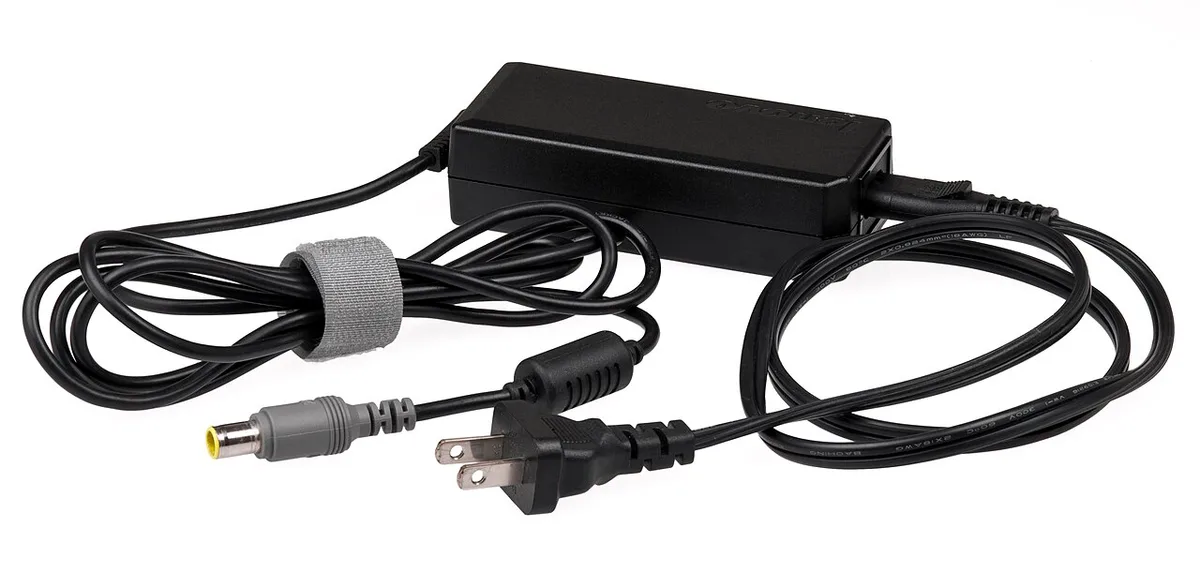
Image source: Wikimedia Commons / Evan-Amos
Battery wear decides everything else. Divide full charge capacity by design capacity in your battery report. Below 80 percent, no amount of tuning will hold clocks.
Then match your adapter to the laptop:
- A 65 W brick cannot feed a machine that wants 150 W under load.
- USB-C PD 3.0 caps at 100 W. PD 3.1 EPR reaches 240 W, but few laptops accept it for gaming.
- Undersized chargers make the battery drain while you play, then charge slowly after.
If BIOS stops reporting your adapter, that's a hardware fault, not a settings problem. Work through our steps for when the firmware won't spot your charger.
Docks and eGPUs help only sometimes. They add a display path that can break, and external screen dropouts over USB-C are a separate fix from power delivery. Rule of thumb: a dock solves port and screen problems, not watt problems.
In-Game Settings That Hold FPS on Battery — and Mistakes That Kill It
Lower the resolution if frames dip below your target. A drop from 1440 p to 1080 p often restores 20 fps on battery without sacrificing playability. Enable V‑sync only if screen tearing becomes distracting; otherwise it adds input lag.
Reduce texture quality and turn off heavy post‑process effects like ray tracing or DLSS quality modes when unplugged. Many laptops clock the GPU lower the moment they switch to battery, so dropping preset “Ultra” to “Medium” can keep clocks higher.
Avoid the common mistake of leaving “Maximum performance” selected in‑game while on battery; the game may still try to push full clocks and drain power faster. Don’t rely on auto‑detect settings, because they often default to the AC profile. Check each slider individually, shadow distance, anti‑aliasing level, and particle count all impact power draw.
If you use a third‑party overlay (MSI Afterburner, HWInfo), disable any real‑time logging while gaming unplugged; the overhead adds CPU load.
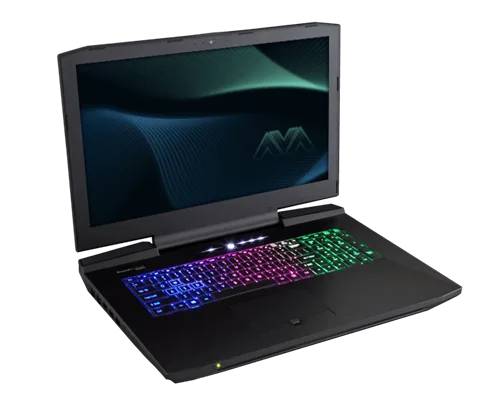
Image source: Wikimedia Commons / Nikitarama (CC BY-SA)
Maintenance, Safety, and When to Stop Tuning
Calibrate the battery once every few months: fully discharge to ~5 %, then charge to 100 % without interruption. This resets the fuel‑gauge algorithm and can improve runtime accuracy. Monitor cycle count; most laptop batteries start showing capacity loss after 300, 500 cycles.
If full charge capacity falls below 80 % of design capacity, consider a replacement rather than pushing the existing cell beyond its limits.
Avoid undervolting beyond what the silicon can stably handle. Aggressive voltage drops can cause crashes, especially when the laptop switches between AC and battery modes. Keep an eye on temperature thresholds in your monitoring tool; if the CPU consistently hits 95 °C even with a fan curve, the thermal paste may need refreshing or the cooling path blocked.
Never ignore warning prompts from vendor software, they often enforce factory‑set limits for warranty compliance.
When a battery report shows design capacity far below full charge capacity, stop tuning and replace the pack. Continuing to draw high wattage from a worn cell can stress the motherboard’s power delivery circuitry. Always use the manufacturer‑specified adapter wattage; a 65 W brick on a laptop designed for 130 W will cause the system to throttle heavily or shut down under load.
FAQs and Final Decision Guide: Which Fix Applies to You
How do I know if my FPS drop is a power‑limit issue?
If temperatures stay below 70 °C and the drop repeats every time you unplug, the cause is likely a firmware power cap, not thermal throttling.
Can a Windows power plan fix all performance loss?
No. Windows can raise minimum processor state, but the embedded controller often enforces a separate battery‑only limit that Windows cannot override.
Should I undervolt my CPU to gain battery FPS?
Undervolting may help, but only if temperatures are the limiting factor. If clocks already drop due to power caps, undervolting won’t restore them.
Is it safe to use a higher‑wattage USB‑C charger while gaming on battery?
Using a charger with higher wattage than the laptop’s designed input will not increase battery power; the laptop will still draw from the battery and may display “unknown charger” in BIOS.
When should I stop tuning and replace the battery?
Replace the battery when the battery report shows full charge capacity below 80 % of design capacity, or when the system can no longer sustain the charger’s wattage under load.
1 thought on “How to Fix Gaming Laptop Performance Drops When Unplugged”
Comments are closed.