You're hitting 200 FPS in a competitive shooter but the screen still tears every time you flick. That is the exact frustration behind How to Fix Screen Tearing Even With High FPS on a Gaming Laptop. High frame rates alone do not guarantee a clean image.
The panel refresh cycle and GPU output must stay locked together.
Most tearing happens because Windows defaults to 60 Hz or the game runs in borderless mode which blocks adaptive sync. Manufacturer specifications indicate a 144 Hz panel still tears if the frame rate crosses the refresh ceiling without a sync method. Let's walk through the diagnostic steps that actually work.
How to Fix Screen Tearing Even With High FPS on a Gaming Laptop
Enable G-Sync or FreeSync in the GPU control panel. Set Windows display to the panel's maximum refresh rate. Cap the frame rate three to five frames below that maximum.
Run games in fullscreen exclusive mode. Verify the discrete GPU is driving the display.
Why High FPS Can Still Cause Screen Tearing on a Gaming Laptop
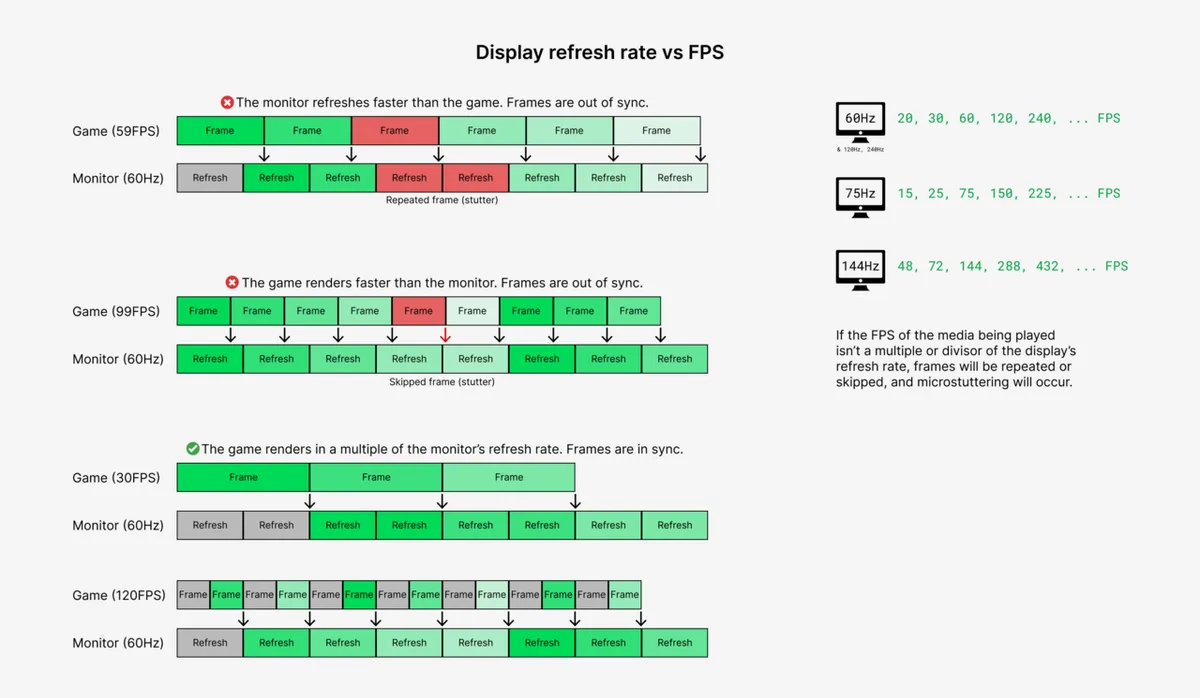
Screen tearing appears when the GPU sends a new frame mid-refresh. The monitor shows the top of the old frame and the bottom of the new one at the same time. High FPS makes this worse because frame delivery gets more erratic.
A 240 Hz panel refreshing every 4.16 ms still tears if frames arrive at random intervals.
Variable refresh rate (VRR) solves this by letting the panel wait for the next frame. G-Sync and FreeSync are the two main VRR implementations. Both require the display and GPU to support the same standard.
NVIDIA cards use G-Sync. AMD cards use FreeSync. Intel Arc supports both through the VESA Adaptive-Sync standard.
A frame cap alone can reduce tearing but does not eliminate it. Standard V-Sync removes tearing but adds input lag. Fast Sync and Enhanced Sync reduce lag but can introduce microstutter.
The cleanest result comes from VRR plus a frame cap just below max refresh.
How to Check Adaptive Sync, Refresh Rate, and Display Mode
Start by confirming Windows sees the correct refresh rate. Right-click the desktop and open Display settings. Scroll to Advanced display.
Choose the laptop panel or external monitor. Set the refresh rate to the highest value listed. Many laptops ship at 60 Hz out of the box even when the panel supports 144 Hz or higher.
Next open the GPU control panel. For NVIDIA open NVIDIA Control Panel. Navigate to Set up G-Sync.
Check Enable G-Sync for fullscreen mode. For AMD open Radeon Software. Go to Display.
Toggle FreeSync Premium or FreeSync on. Intel users open Intel Graphics Command Center and enable Adaptive Sync.
Verify the game runs in fullscreen exclusive. Borderless windowed forces the desktop compositor to manage frames. That blocks VRR on most laptops.
Check the in-game video settings. Choose Fullscreen not Borderless or Windowed. Some titles label this Exclusive Fullscreen.
Confirm the discrete GPU is active. Open Task Manager. Go to the Performance tab.
Select GPU 0 and GPU 1. The discrete GPU should show 3D activity while gaming. If only the integrated GPU works the MUX switch may be in hybrid mode.
See the next section for that fix.
Fix Screen Tearing With a Frame Cap, V-Sync, or Adaptive Sync
The most reliable fix combines VRR with a frame cap. Set the cap three to five frames below the panel maximum. A 144 Hz panel gets a 140 FPS cap.
A 165 Hz panel gets a 160 FPS cap. This keeps frames inside the VRR range at all times.
In NVIDIA Control Panel go to Manage 3D Settings. Find Max Frame Rate. Turn it on and enter the target number.
AMD users open Radeon Software. Go to Graphics. Set Frame Rate Target Control to the same logic.
Intel users use the Frame Rate Limit in Graphics Command Center.
Enable V-Sync in the GPU control panel only when using G-Sync. This keeps frames from exceeding the refresh rate at the top end. Do not enable in-game V-Sync at the same time.
Double V-Sync adds latency.
If VRR is not available use a frame cap alone. Set it to the exact refresh rate or slightly below. Standard V-Sync works as a last resort but expect added input lag.
Fast Sync on NVIDIA or Enhanced Sync on AMD reduces that lag but can stutter when FPS dips.
Test with the UFO tearing test in a browser. Search "TestUFO tearing" and run the animation. A clean pass shows no horizontal splits.
If tearing remains re-check the display mode and GPU selection.
Choose the Right GPU Mode and Display Setup for Tear-Free Play
Modern gaming laptops use a MUX switch or Advanced Optimus. These control whether the discrete GPU or integrated GPU drives the display. Hybrid mode routes frames through the iGPU.
That adds latency and often disables VRR. Switch to Discrete GPU Mode or enable Advanced Optimus in the laptop control center.
ASUS uses Armoury Crate. Lenovo uses Legion Toolkit. Razer uses Synapse.
MSI uses Center. Acer uses PredatorSense. HP uses Omen Gaming Hub.
Each has a GPU switch or graphics mode setting. Choose Discrete Only or DGPU Mode. Reboot when prompted.
External monitors add another layer. The laptop HDMI or USB-C port may be wired to the iGPU. Check the manufacturer spec sheet.
Some USB-C ports support DisplayPort Alt Mode from the dGPU. Others only carry iGPU output. If the external monitor tears but the laptop screen does not the port wiring is the cause.
Run the external monitor at its native refresh rate. Use a certified DisplayPort or HDMI 2.1 cable for high refresh. Cheap cables drop to 60 Hz.
Set the external as the primary display in Windows. Disable the laptop panel while gaming on the external if VRR still fails.
HDR can limit refresh rate on some panels. Turn off Windows HDR for competitive titles. The panel may drop from 165 Hz to 120 Hz with HDR active.
That mismatch reintroduces tearing.
Mistakes That Keep Screen Tearing Happening After the Fix
Leaving Windows at 60 Hz is the most common oversight. The setting reverts after driver updates. Check it monthly.
Running games in borderless windowed blocks VRR. Always select fullscreen exclusive. Forgetting the frame cap lets frames spike above refresh.
The top of the VRR range tears just like no sync.
Using the wrong V-Sync combination creates double buffering lag. Enable V-Sync in the GPU panel or in-game, not both. With G-Sync use the control panel V-Sync only.
With FreeSync use the in-game V-Sync toggle if the driver option is missing.
Ignoring the MUX switch leaves the iGPU in charge. Hybrid mode saves battery but kills VRR. Switch to discrete mode before competitive sessions.
Switch back for battery life afterward.
External monitor cables that lack bandwidth cap the refresh rate. A 240 Hz monitor on an HDMI 2.0 cable maxes at 144 Hz. Use the cable included with the monitor or a VESA certified replacement.
Driver updates can reset control panel settings. Re-verify G-Sync or FreeSync after every GPU driver install. Clean installs via DDU are not required but they clear legacy profiles that conflict.
Final Fix Path: Which Tearing Fix Should You Try First?
Fix the refresh rate first, then VRR, then the frame cap. That order clears most cases in under five minutes.
Work down the list and stop the moment the tear line disappears.
- Windows stuck at 60 Hz? Raise it to the panel maximum.
- VRR switched off? Enable G-Sync or FreeSync in the vendor control panel.
- Game running borderless? Force fullscreen exclusive.
- FPS spiking past refresh? Cap it three to five frames under the max.
- Still tearing? Flip the MUX switch to discrete GPU only.
If only one title misbehaves, fix that game's display mode and leave the rest alone. If everything tears, the problem sits in Windows or the driver.
| What you're seeing | Do this first |
|---|---|
| Tear line sits in the same spot | Cap FPS below the refresh ceiling |
| One game tears, others are clean | Force fullscreen exclusive in that title |
| Laptop panel fine, external tears | Check port wiring and cable bandwidth |
| Started after a driver update | Re-enable VRR, then recheck refresh rate |
Frame caps are the cheapest reliable band-aid. Set the number and forget it. VRR handles the range, and the cap keeps you inside it.
Two standards bodies matter here. VESA publishes the Adaptive-Sync certification list, and AMD's support portal documents FreeSync behaviour per driver branch. When a panel claims VRR support, those are the pages that confirm it.
One warning on driver updates. They reset control panel profiles more often than people expect, which is the same reason a panel suddenly acts up after a fresh driver install. Recheck your sync settings after every update.
Frequently Asked Questions
Does V-Sync fix screen tearing at high FPS?
Yes, but it costs input lag. Standard V-Sync holds each frame until the next refresh cycle, so tearing stops cold. With G-Sync or FreeSync active, enable V-Sync in the control panel only as a top-end frame cap.
Why does my laptop screen stay clean while the external monitor tears?
The two displays run through different pipelines. Many gaming laptops wire HDMI and USB-C to the integrated GPU, which blocks adaptive sync on that output. Use the dGPU port if your chassis has one, and rule out a dropped external signal while you're in there.
Can a bad cable cause screen tearing?
Bandwidth limits cause it, not physical damage. A 240 Hz panel on an older HDMI cable quietly falls back to a lower refresh rate. Use a certified DisplayPort or HDMI 2.1 cable rated for your resolution and refresh.
Does screen tearing damage the laptop?
No. It's a timing mismatch between GPU and panel, not a hardware fault. Sustained high frame rates do push heat, so keep the intakes clear with routine fan cleaning and watch for a chassis still running hot.
Should I turn off HDR to stop tearing?
Often, yes. HDR forces a lower refresh ceiling on plenty of laptop panels, and that gap brings tearing straight back. Switch it off for competitive sessions and re-enable it for single-player games.
Will capping my FPS make the game feel sluggish?
Not if the cap is small. Three to five frames under max refresh usually trims input lag, since frames land inside the sync window. Dropping to 60 FPS on a 240 Hz panel will feel slower, so avoid overcapping.
Is tearing the same thing as screen flicker?
No. Tearing is a split frame. Flicker is the whole panel pulsing or blanking, and it usually points at refresh rate or browser hardware acceleration.
A panel showing an odd tint or banding is a third, separate issue.