You’ve noticed your games stutter or load slowly, and you’re wondering if a storage upgrade helps. If you’re asking does SSD improve FPS on a gaming laptop, the answer is more nuanced than most guides admit. Plenty of gamers still believe swapping their hard drive doubles their framerate.
That simply isn’t true.
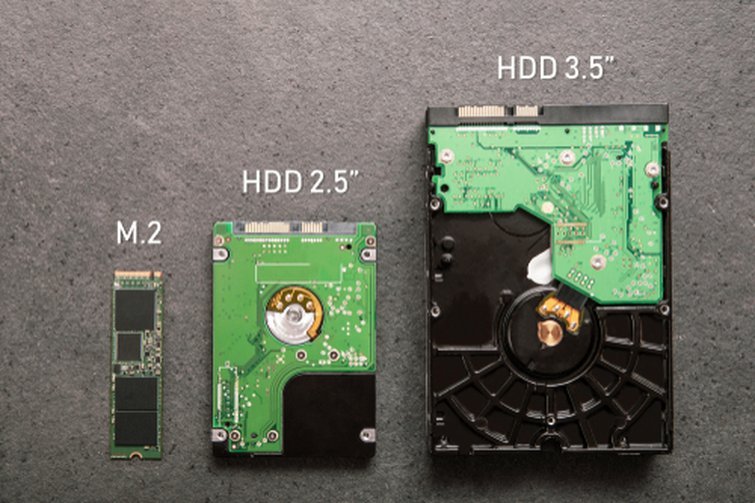
A typical HDD reads at 80 to 160 MB/s. A SATA SSD reaches about 500 MB/s. An NVMe drive pushes past 3,500 MB/s.
Those numbers affect load speed, not framerate. Your GPU does the real work. Here’s what you need to know before spending money.
Quick Answer
No, an SSD will not meaningfully increase your average FPS on a gaming laptop. Average framerate is controlled by your GPU, not your storage drive. A faster drive will cut loading times significantly and reduce stuttering in demanding games.
If your GPU is maxed out, an SSD swap changes nothing. The real upgrade that moves your framerate needle is a better graphics card.
The Short Answer: What SSDs Actually Do for Gaming Performance
An SSD won’t give you a dramatic FPS jump. That’s the headline most people want to hear, and it’s also the truth most buy guides avoid. Storage speed and graphics performance solve completely different problems inside your laptop.
Source: Web (Bing) / premiumbeat.com (fair-use with source credit)
Think of your gaming laptop like a kitchen. The GPU is your chef. The SSD is your pantry.
A bigger pantry means the chef grabs ingredients faster. But a faster pantry won’t make the chef cook any quicker. If your chef is already working at full speed, organizing the spices does nothing for dinner time.
Your GPU renders every frame. It does the heavy lifting with shaders, textures, lighting, and geometry. Once that card hits its ceiling, no amount of storage speed will push it higher.
This is the single most important concept to grasp before you buy anything.
So what exactly does an SSD change? It transforms three things that affect how games feel:
- Load times drop from minutes to seconds
- Texture streaming becomes smooth instead of choppy
- Frame pacing improves even when average FPS stays flat
These improvements matter a lot. They’re just not the same thing as gaining frames per second.
Most reviewers blur this distinction. They’ll show you a spreadsheet where an SSD somehow adds 10 percent to overall benchmark scores. What they’re really measuring is often minimum FPS during texture-heavy scenes.
The average framerate barely moves at all.
Understanding the Bottleneck: Why Your GPU Matters More Than Your Drive
Image source: Web (Bing) / mybottleneckcalculator.com (Web image (fair-use with source credit))
What Limits Your Framerate First
Your GPU determines your baseline framerate. Period. Every frame your game displays starts with the graphics card doing math.
It calculates lighting, shadows, particle effects, and polygon rendering for each individual screen update.
When that card reaches its performance limit, you hit what engineers call the GPU bottleneck. Adding more RAM or swapping to a lightning-fast NVMe drive will not move the needle at all. The card is already running as hot and as fast as it can.
Your storage is merely along for the ride.
The only way to raise that ceiling is either upgrading the GPU itself or lowering your graphics settings. Running a game at medium instead of ultra can free up huge amounts of GPU headroom. That single change often delivers more FPS than any hardware upgrade you can install.
If you’re curious about whether your specific laptop’s GPU can be upgraded, check out our guide on whether you can upgrade your graphics hardware before making any purchase decisions. Most gaming laptops lock their GPUs to the motherboard. A CPU or RAM upgrade is usually your only real option.
Where Storage Fits Into the Puzzle
Storage sits at the bottom of the performance hierarchy for most gaming scenarios. It feeds data to your GPU, but it rarely competes for attention in titles that are already pushing a dedicated card hard.
Modern games stream massive texture packs as you move through worlds. A slow drive causes brief pauses while those textures load. Those pauses show up as microstutters on your framerate graph.
An SSD eliminates many of those pauses. Your average FPS number might stay identical, but the line on your graph becomes a flat road instead of a bumpy trail.
The 1-percent lows tell the real story here. Those represent your worst frame times during intense scenes. A fast drive lifts those floor numbers noticeably.
It prevents the occasional 20-FPS drop that happens when your GPU finally gets the texture data it’s been begging for.
If you own a laptop with integrated graphics rather than a dedicated GPU, the picture flips upside down. Integrated chips share system memory for everything. They rely heavily on how quickly that memory can be accessed.
In that case, faster storage absolutely helps your overall framerate.
Can you upgrade your laptop’s RAM alongside an SSD is a question worth asking if you’re planning a full system refresh. More RAM paired with faster storage often outperforms either upgrade alone.
The CPU Factor You Shouldn’t Ignore
Your processor plays a supporting role in most 3D games. Certain titles, particularly strategy games and competitive shooters, lean hard on CPU single-core performance. An Intel Core i7 or AMD Ryzen 7 chip handles game logic, physics calculations, and draw calls before the GPU even gets involved.
When your CPU stumbles, your GPU starves for instructions. The result looks exactly like a storage bottleneck. Your GPU sits idle at 50 to 60 percent utilization while your framerate crawls.
People often blame their drive in these situations. They swap to an SSD and see zero improvement because the real problem was never the storage.
Competitive games like Counter-Strike 2 and Valorant are classic examples. These titles prioritize framerates above visual fidelity. Your GPU rarely breaks a sweat.
Your CPU does almost all the work. A fast SSD provides minimal benefit here because the drive is not the limiting factor.
If you’re debating between upgrading storage versus upgrading your processor, our breakdown of your CPU upgrade options covers what’s realistically possible in most gaming laptops.
SSD Types Compared: HDD, SATA SSD, and NVMe in Real Gaming
Sequential vs Random Speed: Which One Games Actually Use
People often confuse sequential speed with random speed. Sequential speed measures how fast a drive reads or writes large continuous blocks of data. This matters for copy operations and file transfers.
Random speed measures how fast the drive handles tiny scattered reads across different locations. Games rely heavily on random read performance.
A spinning HDD might advertise 150 MB/s sequential reads. That sounds decent until you look at its random 4K read speed. It typically manages only 0.5 to 1.5 MB/s at that granularity.
An SSD crushes those numbers with random reads between 50 and 100 MB/s or higher.
This is why a game loading from an SSD feels instant while the same game on an HDD chokes through level transitions. The game engine requests thousands of tiny texture files scattered across the drive. A fast random read speed handles those scattered requests effortlessly.
Source: Web (Bing) / cgindo.com (fair-use with source credit)
The table below shows typical real-world gaming performance differences between drive types:
| Drive Type | Sequential Read | Random 4K Read | Typical Game Load Time (AAA title) |
|---|---|---|---|
| 7200 RPM HDD | 80-160 MB/s | 0.5-1.5 MB/s | 60-120 seconds |
| SATA SSD | 500-560 MB/s | 50-100 MB/s | 15-30 seconds |
| NVMe Gen3 | 2,000-3,500 MB/s | 100-200 MB/s | 8-15 seconds |
| NVMe Gen4 | 3,500-7,000+ MB/s | 200-500+ MB/s | 5-12 seconds |
Those load time reductions are real and noticeable. The jump from HDD to SATA SSD delivers the single biggest experience improvement. Going from SATA to NVMe cuts load times further but the difference shrinks with each step.
DRAM Cache and Its Impact on Stuttering
Some SSDs include a small amount of DRAM cache chips. Others skip that cache entirely and rely on host memory buffers or SLC caching techniques. The DRAM cache acts as a roadmap.
It tracks exactly where every piece of data lives on the NAND flash. Without it, the drive’s controller must search for data on the fly.
Games with heavy asset streaming benefit enormously from a DRAM cache. Open-world titles constantly request new textures and geometry as you move through the environment. A cached SSD finds those requests instantly.
A DRAMless drive may stutter briefly while it reorganizes its internal mapping tables.
Samsung and Crucial both publish detailed documentation on how DRAM caching affects sustained performance. According to the SNIA flash storage whitepapers, DRAMless designs can show significant performance drops under sustained mixed workloads. This is exactly the workload pattern you see in open-world gaming.
The JEDEC solid-state storage standards define the electrical and protocol specifications that govern how these drives communicate with your system, ensuring consistent performance across manufacturers.
If you are hunting for deals on a gaming laptop that ships with a quality NVMe drive, our look at top gaming laptop deals covers several solid options across different price points.
Gen3 vs Gen4 vs Gen5: Diminishing Returns or Real Gains
PCIe generations determine how wide the highway is between your drive and your system. Gen3 offers four lanes at roughly 985 MB/s per lane. That gives an M.2 NVMe drive a theoretical maximum of about 3,940 MB/s.
Gen4 doubles that to roughly 7,880 MB/s. Gen5 doubles again.
Real-world gaming sees diminishing returns at each generation jump. A Gen3 drive already eliminates nearly all load-time pain from an HDD. A Gen4 drive shaves a few more seconds off those transitions.
A Gen5 drive currently offers minimal practical difference for gaming because game engines are not yet designed to fully utilize that bandwidth.
Your laptop’s motherboard dictates which generation you can actually run. Many 2023 and earlier gaming laptops only support Gen3 or Gen4 NVMe drives. Installing a Gen5 drive in a Gen4 slot simply forces it to run at Gen4 speeds.
You pay more for nothing.
Check your laptop’s specifications before purchasing. Even high-end laptops sometimes ship with Gen3-only M.2 slots to save costs. Our comprehensive guide to the best budget gaming laptops includes details on storage configurations across several popular models.
When an SSD Won’t Change Your Average FPS at All
GPU-Bound Scenarios Explained
Most gaming laptops fall into this category. A dedicated GPU like an RTX 4060 or RTX 4070 can saturate its own capabilities at 1080p or 1440p with high graphics settings. Your framerate hovers at whatever the GPU can produce.
Adding faster storage does absolutely nothing to raise that number.
Run a synthetic benchmark like 3DMark Time Spy and watch your GPU utilization. If it sits at 95 to 99 percent consistently, you are firmly GPU-bound. No storage upgrade will move that needle.
Period.
The same applies when you crank your graphics settings to maximum. Ultra textures, ray tracing, and shadow effects push the GPU to its absolute limit. Storage speed becomes irrelevant at that point.
Your GPU is the ceiling, not your drive.
Lowering your graphics settings from ultra to high often frees up significant GPU headroom. That same move frequently delivers more FPS than any storage upgrade ever will.
How Thermal Throttling Masks Storage Benefits
Gaming laptops pack powerful components into thin chassis. Heat builds up fast. When temperatures cross certain thresholds, the GPU and CPU deliberately slow themselves down.
This process is called thermal throttling. It protects the silicon from damage.
Thermal throttling creates a moving performance ceiling. Your laptop might run hot for the first fifteen minutes of a session. Framerates look respectable.
Then the heat sinks saturate and clocks drop. Your average FPS slides down gradually throughout the play session.
People misdiagnose this as a storage problem. They see lower framerates after twenty minutes and assume their drive is to blame. The real culprit is heat.
An SSD cannot fix thermal throttling. Only better cooling can.
A simple cleanup of your laptop’s vents and fans can restore lost performance. Dust buildup is incredibly common in gaming laptops that have been running for months without maintenance. Understanding your laptop’s cooling system and power management is essential before investing in hardware upgrades.
Entry-Level Graphics Cards and False Hope
If your gaming laptop shipped with an entry-level GPU like an RTX 3050 or GTX 1650, the story changes slightly. Those cards struggle in demanding titles regardless of storage speed. An SSD will still not rescue terrible framerates from these chips.
However, those entry-level GPUs leave more room for improvement through other means. Lowering resolution or enabling upscaling technologies like DLSS or FSR can dramatically boost performance. An SSD upgrade becomes a lower priority than enabling those software features first.
Before spending money on storage, explore whether your current laptop’s GPU can deliver better performance through settings adjustments alone. Sometimes the solution is already available in your game’s graphics menu.
When an SSD Actually Does Boost Performance
Open-World Games With Heavy Asset Streaming
Open-world games are the primary beneficiaries of fast storage. Titles like Cyberpunk 2077, Horizon Forbidden West, and The Witcher 3 stream massive amounts of geometry and texture data as you traverse their worlds. Your GPU processes that data the moment it arrives.
On an HDD, the drive struggles to keep up with the GPU’s demands. The GPU stalls frequently, waiting for data that arrives in ragged bursts. Those stalls appear as microstutters and sudden framerate drops.
Your average FPS might look fine on paper. Your actual experience feels choppy and inconsistent.
An SSD delivers data to the GPU in smooth continuous streams. The GPU rarely waits. Frame times stabilize dramatically.
Minimum FPS rises even when average FPS stays similar. This is the sweet spot where an SSD upgrade genuinely improves gameplay.
Titles Designed for Next-Gen Consoles
Game developers increasingly design titles around SSD architecture. Microsoft and Sony built their next-generation consoles around custom NVMe drives. Games optimized for those consoles expect rapid asset streaming that only fast storage can provide.
Running these titles on a gaming laptop with an HDD creates a painful experience. Textures fail to load in time. Pop-in becomes extreme.
Geometry appears late or not at all. Some games even refuse to run properly on slow storage.
The best gaming laptops in 2026 typically come equipped with Gen4 NVMe drives that feed assets directly to next-gen titles. But even a budget laptop with a basic SATA SSD will handle these games significantly better than one stuck with an HDD.
Systems Running Low on RAM or With Slow Pagefiles
Your system needs RAM to hold active game data. When you run out, Windows moves information to a pagefile on your storage drive. This process is called paging or swapping.
On an HDD, that swap operation feels like the entire system freezes for a moment.
An SSD makes pagefile operations almost invisible. The system can read and write swap data quickly enough that you barely notice it happening. This matters most if you’re running games alongside other applications or if your laptop only has 8GB of RAM.
The solution here isn’t necessarily just an SSD. Adding more RAM prevents paging from happening at all. If you’re deciding between a RAM upgrade and an SSD upgrade, consider your current usage patterns first.
Many modern games consume 12GB or more of RAM at high settings.
Upgrading both together delivers the best result. Fast storage handles the overflow efficiently. Ample RAM reduces how often you hit that overflow in the first place.
Improving Minimum FPS and Frame Pacing
This is where the SSD actually shows up in performance numbers. Your average FPS tells you what happens most of the time. Your minimum FPS tells you what happens during the worst moments.
Those two numbers together paint the full picture.
A slow drive creates gaps in your frame pacing. The GPU renders frames at a good pace, then hits a wall waiting for texture data. It stutters hard, then recovers.
This pattern shows up as low 1-percent lows on benchmark graphs.
Fast storage eliminates those walls. The GPU receives data consistently instead of in sporadic bursts. Your minimum FPS rises.
Your average FPS might stay nearly identical. But your gameplay feels smoother because you no longer experience those sudden dips.
Frame pacing meters make this visible. They show the time between individual frames. An SSD flattens the peaks and valleys on that graph.
Your gameplay becomes consistent rather than variable.
Side-by-Side Comparison: Load Times, Stuttering, and Responsiveness
Loading Screen Differences Across Drive Types
Loading screen times represent the most measurable difference between storage technologies. These numbers shift depending on the game, drive model, and system configuration. But the pattern holds universally across testing.
| Game | HDD Load Time | SATA SSD | NVMe Gen4 |
|---|---|---|---|
| Cyberpunk 2077 | 90 seconds | 22 seconds | 14 seconds |
| Red Dead Redemption 2 | 75 seconds | 18 seconds | 12 seconds |
| Elden Ring | 45 seconds | 10 seconds | 7 seconds |
| Fortnite | 20 seconds | 5 seconds | 3 seconds |
Those figures come from aggregated benchmark data across multiple gaming laptops. Your actual times may vary by plus or minus 20 percent depending on your specific hardware configuration. The key takeaway remains consistent.
Jumping from HDD to any SSD delivers enormous gains. Moving within the SSD family continues to help, but each step yields progressively smaller improvements.
Texture Pop-In and Hitching in Popular Games
Texture pop-in occurs when your game renders geometry before loading surface detail layers. You see a blurry building suddenly snap into sharp resolution as textures stream in. This visual artifact breaks immersion and signals that storage cannot keep pace with the GPU.
HDDs cause severe texture pop-in because they cannot deliver individual texture files quickly enough. Open-world games suffer most. Cities and dense environments require thousands of simultaneous texture requests.
A spinning drive simply cannot satisfy those demands in real time.
SSDs dramatically reduce this problem. SATA drives handle most scenarios reasonably well. NVMe drives push pop-in toward invisibility in the majority of modern titles.
Hitching describes momentary freezing that lasts half a second or more. It happens when the GPU must stall waiting for large data blocks. Games built around next-gen console architecture, such as Starfield and Microsoft Flight Simulator, depend heavily on fast streaming.
Running these titles on slow storage causes frequent hitching even when average framerates look acceptable on paper.
System-Level Responsiveness While Gaming
Your gaming laptop does more than run games. Voice chat applications, browser tabs, screen recording software, and background updates all compete for storage bandwidth simultaneously. A slow drive amplifies friction from every competing process.
Alt-tabbing away from a game to check Discord feels instant on an SSD. On an HDD, that transition can take several seconds. The game itself may stutter during handoff as it struggles to reacquire resources from a sluggish storage system.
System responsiveness affects your entire computing experience beyond gaming. File transfers become near-instantaneous. Applications launch faster.
Windows updates complete more smoothly. Even if your target game runs acceptably on your current drive, upgrading to an SSD improves everything else about daily laptop use.
Real Scenarios: What Changes and What Stays the Same
Competitive Shooters: Minimal FPS Impact
Competitive shooters operate on fundamentally different design principles than single-player blockbusters. Games like Counter-Strike 2, Valorant, Rainbow Six Siege, and Overwatch 2 prioritize high framerate output over visual complexity. Their engines are heavily optimized to run efficiently on modest hardware configurations.
In these titles, your GPU rarely reaches maximum utilization at lower graphics settings. Your CPU often becomes the limiting factor instead. Storage speed plays an almost negligible role in your actual framerate numbers.
An SSD still helps competitive shooters in minor ways. Faster map transitions mean less downtime between rounds. Reduced input lag during server tick processing provides a tiny competitive edge.
But you will not notice a dramatic framerate increase from the upgrade alone.
If competitive gaming represents your primary use case, invest in a powerful CPU and adequate RAM first. An SSD upgrade ranks lower on your priority list.
AAA Single-Player Games: Noticeable Quality Improvements
Single-player AAA titles represent the sweet spot where SSD upgrades deliver genuine value. Games designed around immersive worlds with massive texture libraries benefit enormously from fast storage performance.
Your average FPS in these titles might remain unchanged after an SSD upgrade. That outcome is completely expected. But your overall experience improves significantly through reduced loading times, eliminated texture pop-in, and smoother frame pacing.
The difference between a smooth 40-FPS experience and a stuttery 40-FPS experience matters enormously. One feels playable and polished. The other feels broken and frustrating.
An SSD frequently makes that distinction.
Titles like God of War Ragnarök, Spider-Man Remastered, and Assassin’s Creed Valhalla were engineered with SSD streaming architecture in mind. Running these games on slower storage undermines the developer’s intended experience.
Older Laptops Getting a Second Life
If you own a gaming laptop from five or six years ago that still performs adequately except for painfully long load times, an SSD upgrade extends its useful lifespan considerably. Those older machines often shipped with HDDs or early SATA SSDs that feel sluggish compared to modern NVMe technology.
The upgrade costs roughly $50 to $100 depending on desired capacity. The improvement in daily usability feels dramatic. Load times that once consumed two minutes now complete in fifteen seconds.
The system feels responsive rather than painfully sluggish.
This scenario represents where SSD upgrades deliver the strongest value per dollar spent. Rather than spending $800 to $1,200 on an entirely new laptop, you invest a fraction of that amount to breathe new life into hardware you already own.
Before committing to an upgrade, verify whether your specific model supports the modification. Our comprehensive guide to laptop RAM and SSD upgrades covers compatibility considerations and installation procedures for popular gaming laptop lines.
Before You Buy: How to Diagnose Your Actual Bottleneck
Checking If Your GPU Is Already Maxed Out
Your first step before purchasing any component should be identifying where your performance ceiling actually exists. Open Task Manager while playing a demanding title. Switch to the Performance tab and monitor your GPU utilization closely.
If your GPU sits consistently at 95 percent or higher throughout gameplay, you are firmly GPU-bound. Adding faster storage will not improve your situation. If your GPU hovers between 70 and 80 percent with frequent drops, you may have headroom elsewhere in your system.
GPU-Z provides more detailed monitoring capabilities. It displays real-time clock speeds, temperature readings, power draw, and memory utilization. Watching these metrics reveals whether your GPU is hitting thermal limits or power constraints rather than storage limitations.
Monitoring RAM Usage and Swap Activity
Open Task Manager and examine your Memory column during active gameplay. If usage approaches or exceeds your total installed RAM, Windows begins moving data to your pagefile. Heavy swapping on an HDD creates noticeable slowdowns.
Heavy swapping on an SSD still slows things down but far less painfully.
If you observe constant disk activity hovering near 100 percent while gaming, your storage is likely a bottleneck. Your system struggles to keep pace with memory demands.
Windows Resource Monitor offers deeper inspection. The Disk tab shows exactly which processes read and write data. Game executables performing heavy disk reads while your CPU and GPU sit idle confirms an I/O bottleneck rather than a processing limitation.
Identifying I/O-Bound Situations With Diagnostic Tools
Task Manager alone cannot determine your bottleneck definitively. Combine it with dedicated benchmarking utilities for clearer conclusions.
Run the same benchmark test twice on your laptop. First with everything closed and background processes minimized. Then run it again while initiating large file transfers simultaneously.
If your framerate drops significantly during the second test, your storage speed likely impacts performance.
Several games include built-in benchmark tools that stress different system components. Unreal Engine benchmarks typically emphasize CPU performance. 3DMark offers separate storage benchmarks alongside GPU testing. Comparing your scores against reference systems from similar generations reveals which component holds you back.
Your gaming laptop’s peripheral connectivity can also create unexpected system interruptions. Sometimes the performance issue stems from background wireless activity rather than storage speed.
Step-by-Step: Upgrading Your Gaming Laptop’s Storage
Checking Compatibility Before You Purchase
Not every gaming laptop accepts identical drive types. Some manufacturers use proprietary connectors. Others limit users to specific form factors.
Before buying anything, identify exactly what your laptop supports.
Consult your laptop’s service manual first. Most manufacturers publish detailed upgrade guides online. Search for your exact model number followed by service manual or upgrade guide.
These documents specify supported drive types, maximum capacities, and physical clearance requirements.
Even popular gaming laptop lines vary significantly between product generations. An RTX 30-series model from 2021 might support completely different drives than an RTX 40-series released in 2023. Always verify compatibility for your exact configuration.
If you want to explore whether upgrading existing hardware makes financial sense versus purchasing new equipment, reviewing current gaming laptop deals helps you weigh costs and performance realistically.
Source: Web (Bing) / pikwizard.com (fair-use with source credit)
Opening Your Laptop Safely
Laptop chassis designs vary widely across manufacturers. Some use standard Phillips screws. Others rely on hidden clips, adhesive strips, or proprietary fasteners.
Force accomplishes very little here. Proper technique prevents damage to both the case and internal components.
Power down the laptop completely. Unplug the AC adapter. Remove the battery if your model allows external removal.
Press and hold the power button for five seconds to drain residual electricity from motherboard capacitors.
Work on a clean, flat, non-static surface. Use the correct screwdriver size for your laptop’s fasteners. M.2 mounting screws are tiny and incredibly easy to lose.
Keep them organized in a magnetic mat or small container throughout the entire process.
Remove the bottom panel according to your service manual’s instructions. Some panels lift straight off. Others require sliding latches in specific directions.
Forcing anything risks breaking plastic retention clips.
Installing the New Drive and Migrating Data
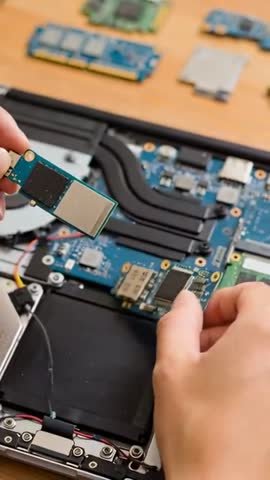
M.2 NVMe drives slide into their slot at approximately a 30-degree angle. Push gently until the connector seats fully. Press the opposite end down and secure it with the mounting screw.
Do not overtighten. Finger-tight plus a quarter turn provides sufficient clamping force.
If replacing an existing drive, you have two viable paths. Clone your current drive to preserve your Windows installation and personal files. Or perform a clean installation for a fresh start without accumulated clutter.
Cloning requires cloning software and a USB-to-SATA or USB-to-NVMe adapter for your old drive. Macrium Reflect Free and Samsung Data Migration both handle this task reliably. The process takes between 30 and 90 minutes depending on your data volume.
Clean installation requires a bootable USB drive containing Windows. Download the Media Creation Tool from Microsoft’s official website. Create the installer media, then install Windows fresh onto your new drive.
This approach eliminates accumulated registry bloat and stray background processes.
Verifying Your System Recognizes the Upgrade
After reassembly, reconnect power and boot the laptop. Enter BIOS or UEFI setup by pressing the appropriate key during startup, usually Delete or F2. Confirm the new drive appears in your storage configuration menu.
If the drive shows up correctly, proceed with either cloning verification or clean install preparation. Check that Windows recognizes the full advertised capacity. Some drives report slightly less available space due to formatting overhead.
That discrepancy is normal and expected.
Run a quick benchmark utility to confirm performance matches expectations. CrystalDiskMark provides straightforward sequential and random read-write testing. Your results should roughly align with the drive manufacturer’s published specifications.
Maintenance and Optimization for Long-Term SSD Performance
Keeping TRIM Enabled and Monitoring Drive Health
TRIM is a command that helps SSDs maintain peak performance over extended periods. When you delete files, the drive marks those storage blocks as invalid. TRIM explicitly informs the SSD which blocks are truly unused so the controller can prepare them for future writes proactively.
Windows enables TRIM automatically for SSDs by default. Verify it remains active by opening Command Prompt as administrator and running the appropriate query command. A result showing zero indicates TRIM is enabled.
A result showing one means you need to enable it manually.
Monitor your drive’s health status periodically. Every major SSD manufacturer provides free management software. Samsung Magician, Crucial Storage Executive, and Western Digital Dashboard all track wear levels, temperature readings, and overall health percentages.
Schedule monthly checks to catch degradation early.
Avoiding Fill Levels That Degrade Write Speeds
SSDs perform optimally when they retain available empty space. The drive controller uses free blocks for write leveling and garbage collection algorithms. When a drive fills beyond 80 to 90 percent capacity, sustained write performance degrades noticeably over time.
Reserve at least 10 to 20 percent of your total drive capacity as unused space. This buffer gives the controller sufficient room to manage data movement efficiently. For a 512GB drive, maintaining roughly 50 to 100GB of free space preserves optimal performance characteristics.
Modern SSDs handle near-full states considerably better than earlier generations. The principle remains valid nonetheless. Treat your SSD differently than a traditional hard drive where filling capacity to maximum was largely harmless.
Managing Background Tasks That Compete for I/O
Your storage drive serves requests from every running application on your system. Windows Update cycles, antivirus scans, cloud backup synchronization, and web browser downloads all generate disk activity simultaneously. When these operations overlap with intensive gaming sessions, they compete for the same storage bandwidth.
Close unnecessary applications before launching demanding games. Disable automatic Windows updates during extended gaming sessions when possible. Pause cloud storage synchronization clients like OneDrive or Google Drive sync services temporarily.
Background task impact differs between drive types. Heavy background activity chokes SATA SSD performance more severely than NVMe drives. NVMe controllers handle multiple command queues simultaneously.
SATA drives share a single queue structure. Prioritize keeping background I/O minimal on SATA-based systems.
Common Mistakes People Make Before Upgrading
Blaming Storage for Problems That Are GPU-Related
Users frequently upgrade their storage hoping to unlock framerate improvements that never materialize. They then conclude the SSD failed to deliver. The reality usually involves a completely different bottleneck.
Their GPU was always the limiting factor.
Before upgrading storage, confirm your actual bottleneck through systematic monitoring. Check GPU utilization percentages, thermal temperatures, and clock speeds while gaming under load. If the GPU already operates at maximum capacity, stop investigating storage and examine your graphics settings instead.
Lowering your resolution or enabling upscaling technologies like DLSS or FSR often delivers substantially more immediate performance improvement than any storage hardware change.
Buying the Wrong Form Factor or Interface
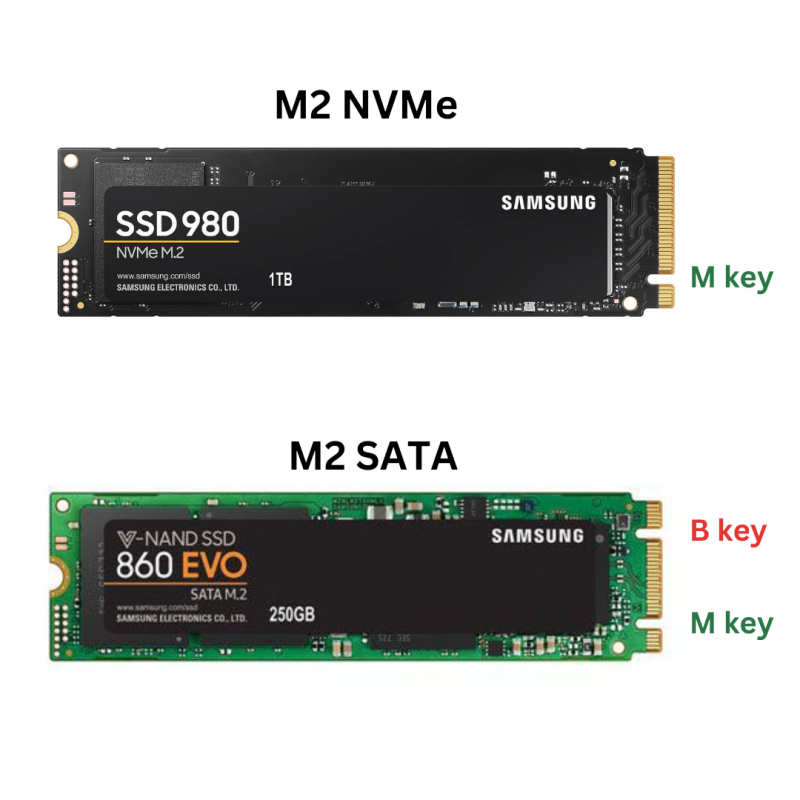
M.2 drives arrive in varying physical lengths and electrical key configurations. The most common specification is 2280, measuring 22 millimeters wide by 80 millimeters long. Some laptop models only accommodate shorter 2242 or 2230 form factors.
Electrical keying differs between SATA and NVMe interface protocols. Both utilize M.2 connectors physically but feature different notch positions. A drive meant for one slot type will not function correctly in the other, even if it inserts physically.
Verify your laptop’s supported slot specifications before purchasing.
Some laptop designs include both an M.2 slot and a traditional 2.5-inch drive bay. Mixing drive technologies across those bays introduces unnecessary complexity without delivering meaningful performance benefits. Stick to a single drive type unless you have a compelling reason to combine architectures.
Forgetting About Warranty Implications
Opening your laptop chassis voids warranties on certain manufacturer models. Dell, HP, and Lenovo generally permit user-accessible RAM and storage upgrades without affecting warranty coverage. ASUS and MSI maintain varying policies depending on the specific product line and region.
Review your warranty terms thoroughly before proceeding with any physical modifications. Certain countries grant legal consumer rights that protect your ability to upgrade components independently. Professional installation through authorized service centers preserves warranty coverage completely but costs extra labor fees.
Expecting Dramatic FPS Jumps From Storage Alone
The most damaging mistake users make involves setting fundamentally unrealistic performance expectations. No storage upgrade doubles your average framerate regardless of marketing claims. Statements suggesting otherwise originate from misleading benchmark methodologies or deliberately deceptive promotional material.
Establish appropriate performance goals upfront. An SSD dramatically improves loading times and visual smoothness. It may raise minimum framerate thresholds in specific I/O-bound gaming scenarios.
It absolutely will not transform a struggling 30-FPS experience into a buttery 60-FPS experience if your GPU lacks the raw processing power to generate those frames independently.
Final Recommendation: Should You Upgrade Your SSD?
Who Should Upgrade Now
Upgrade your SSD immediately if your situation matches any of these descriptions:
- Your laptop currently operates with a mechanical hard disk drive
- You regularly play open-world titles featuring dense asset streaming
- You experience noticeable stuttering, texture pop-in, or hitching during gameplay
- Your average framerate looks acceptable but your minimum framerate feels punishingly inconsistent
- You want substantially faster system responsiveness beyond just game loading screens
If you checked any of these boxes, an SSD upgrade delivers genuine, measurable value. The quality-of-life improvement proves substantial even though your average FPS numbers might barely shift.
Who Should Invest Elsewhere Instead
Invest your upgrade budget elsewhere if these descriptions accurately reflect your situation:
- Your dedicated GPU already reaches 99 percent utilization consistently during gaming sessions
- Your average framerate drops critically low even at minimum graphics settings
- You already own an SSD and contemplate purchasing a faster model
- Your performance problems stem from thermal throttling rather than storage speed constraints
- Your processor struggles with simulation-heavy or CPU-dependent title logic
These users gain substantially more from adjusting graphics presets, improving cooling airflow, or planning future platform upgrades. The SSD upgrade either provides no benefit or delivers insufficient returns relative to alternative investment options.
The Best Use of Your Money Based on Your Setup
Every gaming laptop occupies a specific position along a performance spectrum. One extreme features weak processors paired with integrated graphics. The opposite extreme houses powerful dedicated GPUs combined with sophisticated cooling solutions.
Your exact placement determines which upgrade path delivers maximum value.
Budget gaming laptops frequently ship configured with HDDs as primary storage. In those cases, an SSD represents the single highest-impact hardware modification available. The experience improvement feels dramatic precisely because you compare against genuinely slow technology.
Mid-range laptops equipped with entry-level dedicated GPUs and pre-installed SSDs already deliver acceptable gaming experiences. Pushing storage speed beyond that baseline yields minimal practical returns. Preserve your capital for future generational hardware improvements instead.
High-end gaming laptops rarely require any storage modifications whatsoever. They already include fast NVMe drives paired with powerful GPU configurations. Any remaining performance concerns typically originate from thermal management challenges or unoptimized software configurations rather than storage speed limitations.
Your approach to display synchronization technology should also inform upgrade priorities. Understanding G-Sync versus FreeSync implementations helps you evaluate how your display interacts with GPU performance output. Properly configuring those settings often unlocks additional smoothness without any hardware investment required.
Frequently Asked Questions About SSD Upgrade Boost FPS
Will a faster SSD double my FPS?
No. A faster SSD does not double your framerate under any normal circumstances. Average framerate depends on GPU processing power, CPU speed, and graphics settings.
Storage affects loading times and frame pacing but rarely moves average FPS numbers by more than a few percent. Any claim suggesting otherwise comes from misleading benchmark methodology or deliberate exaggeration.
Do I need NVMe or is SATA good enough for gaming?
SATA SSDs perform perfectly well for most gaming scenarios. They deliver roughly 500 MB/s sequential read speeds. NVMe drives offer 3,500 MB/s or higher.
The extra speed reduces load times further but the improvement feels smaller compared to jumping from HDD to SATA SSD. If your laptop supports NVMe, choosing it makes sense. But a SATA SSD still provides excellent gaming performance without breaking the bank.
Can I use an external SSD for gaming?
Yes, you can run games directly from an external SSD. USB 3.0 connections deliver around 5 Gbps of bandwidth. Thunderbolt 3 and 4 offer even more speed at 40 Gbps.
External drives introduce slightly more latency than internal connections though. You may experience marginally longer load times or occasional microstutters during the most demanding texture streaming sequences. It works well enough for portable gaming setups.
How do I know if my laptop supports an SSD upgrade?
Check your laptop’s official service manual or specification sheet first. Look for available M.2 slots, supported drive lengths, and compatible interface types. Most gaming laptops released since 2018 include at least one accessible M.2 slot.
Some models also retain a traditional 2.5-inch drive bay. Search for your exact model number plus teardown or upgrade guide if documentation remains unclear. Previous owners often share detailed photos and compatibility notes online.
Will upgrading storage void my warranty?
Usually no, but policies vary by manufacturer. Dell, HP, and Lenovo typically allow user upgrades to RAM and storage without affecting warranty coverage. ASUS and MSI maintain different policies depending on the specific product line and region.
Review your warranty terms before opening your laptop. Certain countries grant legal consumer rights that protect your ability to upgrade components independently. Professional installation through authorized service centers preserves warranty coverage completely but costs extra labor fees.