Upgrading a gaming PC for streaming starts with knowing which component actually limits your broadcast quality. Most streamers chase a new graphics card when the real bottleneck is often the CPU encoder or insufficient RAM. A balanced upgrade path saves money and prevents wasted purchases.
We’ll walk through the decision logic so you spend on the right parts.
The typical 1080p60 stream at 6000 Kbps needs about 15 percent GPU headroom for NVENC encoding on a modern NVIDIA card. If your current GPU sits at 95 percent usage in-game you have no room for the encoder. Let’s start by auditing what you already have.
How to Upgrade a Gaming Pc for Streaming
Identify your current CPU GPU RAM and PSU. Choose an encoding path GPU hardware encoder preferred. Upgrade GPU first if encoding is the bottleneck.
Add RAM to 32 GB for headroom. Ensure PSU has 20 percent overhead. Configure OBS to match your hardware.
1. Check Your Current Hardware Before Buying Anything
Open Task Manager and note CPU model GPU model RAM capacity and speed. Write down PSU wattage and 80 Plus rating. Check motherboard chipset and PCIe slot layout.
Measure case clearance for GPU length and radiator size. This baseline tells you which upgrades are even possible.
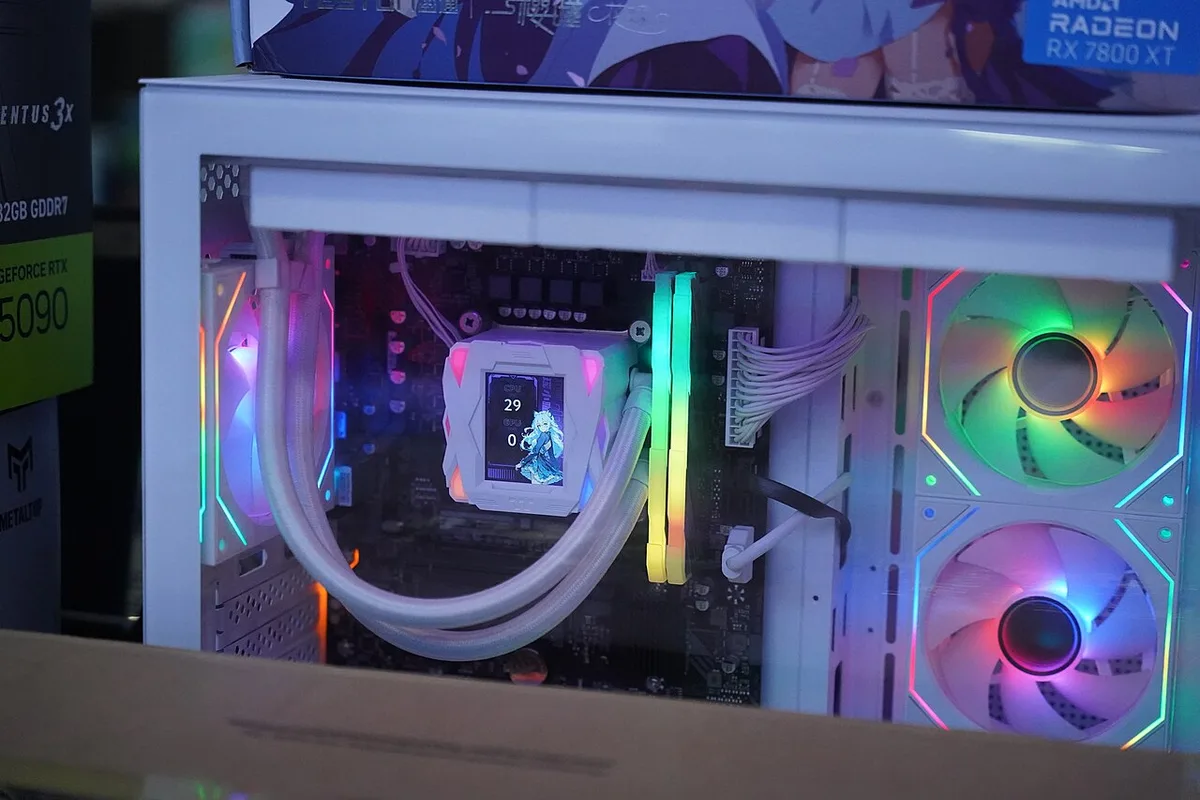
If your CPU is older than 6 cores consider a platform swap. A 6 core 12 thread chip can handle x264 veryfast but will limit game FPS. Modern 8 core 16 thread CPUs like the Ryzen 7 7700X or Core i7 13700K handle both game and stream comfortably.
platform swap considerations often reveal hidden costs like new RAM and motherboard.
GPU encoding relies on dedicated silicon. NVIDIA Turing or newer supports NVENC HEVC with B frames. AMD RDNA 2 or newer supports AMF HEVC.
Intel 12th gen or newer offers Quick Sync. If your GPU lacks these you must upgrade the graphics card first. graphics card upgrade guide covers the steps.
RAM should be 32 GB dual channel at 3600 MT/s or faster. 16 GB fills quickly with game browser Discord and OBS. Check your motherboard QVL before buying kits. RAM upgrade steps show the installation process.
PSU must cover peak GPU plus CPU plus 100 W system draw with 20 percent margin. An RTX 4080 320 W plus a 125 W CPU needs at least 850 W Gold. Reusing an old unit risks instability.
PSU reuse checklist helps you decide.
2. Choose Your Encoding Method: GPU, CPU, or Dedicated Capture Card
Hardware encoding offloads video compression from the CPU. NVENC on RTX 30 series and 40 series delivers excellent quality at P5 preset. AMD AMF on RX 6000 and 7000 series works well at balanced preset.
Intel Quick Sync on 12th 13th 14th gen provides a capable backup encoder.
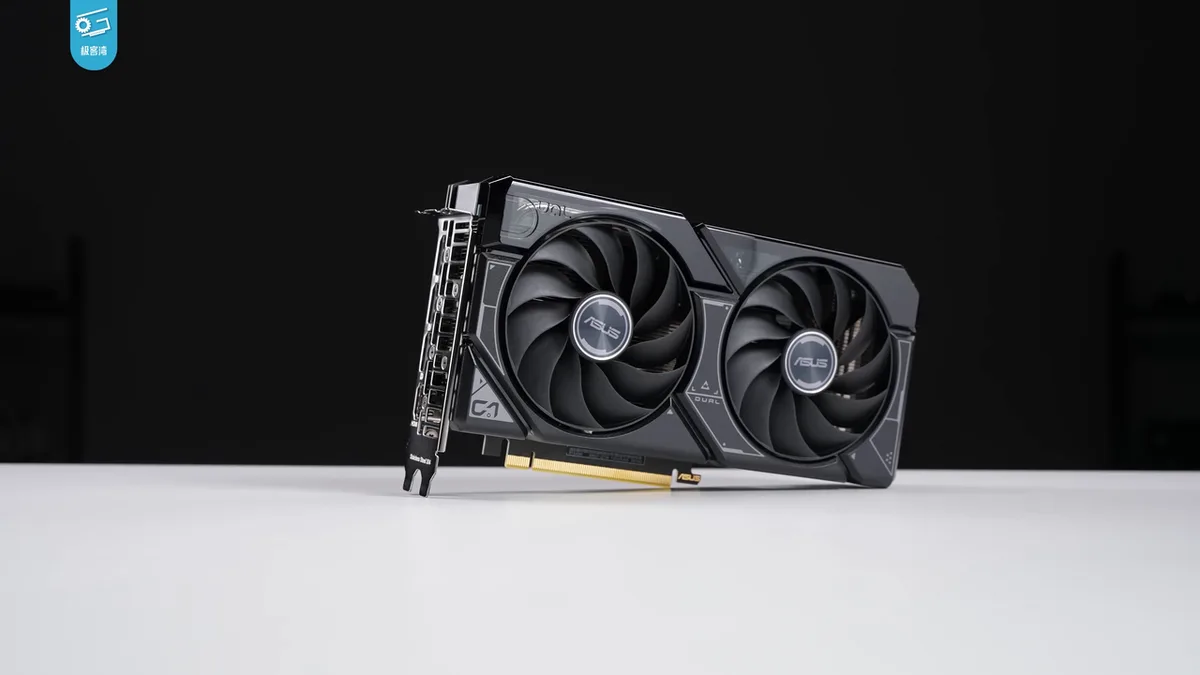
If you already own a modern NVIDIA card use NVENC. Set OBS to Advanced output mode. Choose H.264 for Twitch HEVC for YouTube if ingest allows.
Set rate control to CBR. Keyframe interval 2 seconds. Preset P5 or P6.
Profile High. Enable look ahead and psycho visual tuning.
CPU encoding with x264 is a fallback only. Use veryfast preset on 8 core or higher. Medium preset costs 30 percent more CPU for minimal visual gain.
Avoid slow preset unless you have a dedicated streaming PC. CPU encoding impact shows real world numbers.
Dual PC setups use a capture card in the streaming PC. The gaming PC outputs clean HDMI. Capture card ingests 1080p60 or 1440p60.
Internal PCIe cards like Elgato 4K60 Pro MK.2 add near zero latency. External USB 3.0 cards like Elgato HD60 X add 1 to 2 frames latency. Choose based on space and budget.
3. Upgrade Order: GPU, CPU, RAM, PSU, and Storage
Start with the GPU if your current card lacks hardware encoding or runs at 95 percent in game. A mid range RTX 4060 8 GB or RX 7600 8 GB handles 1080p60 NVENC or AMF easily. For 1440p60 or high bitrate local recording step up to RTX 4070 Super or RX 7800 XT.
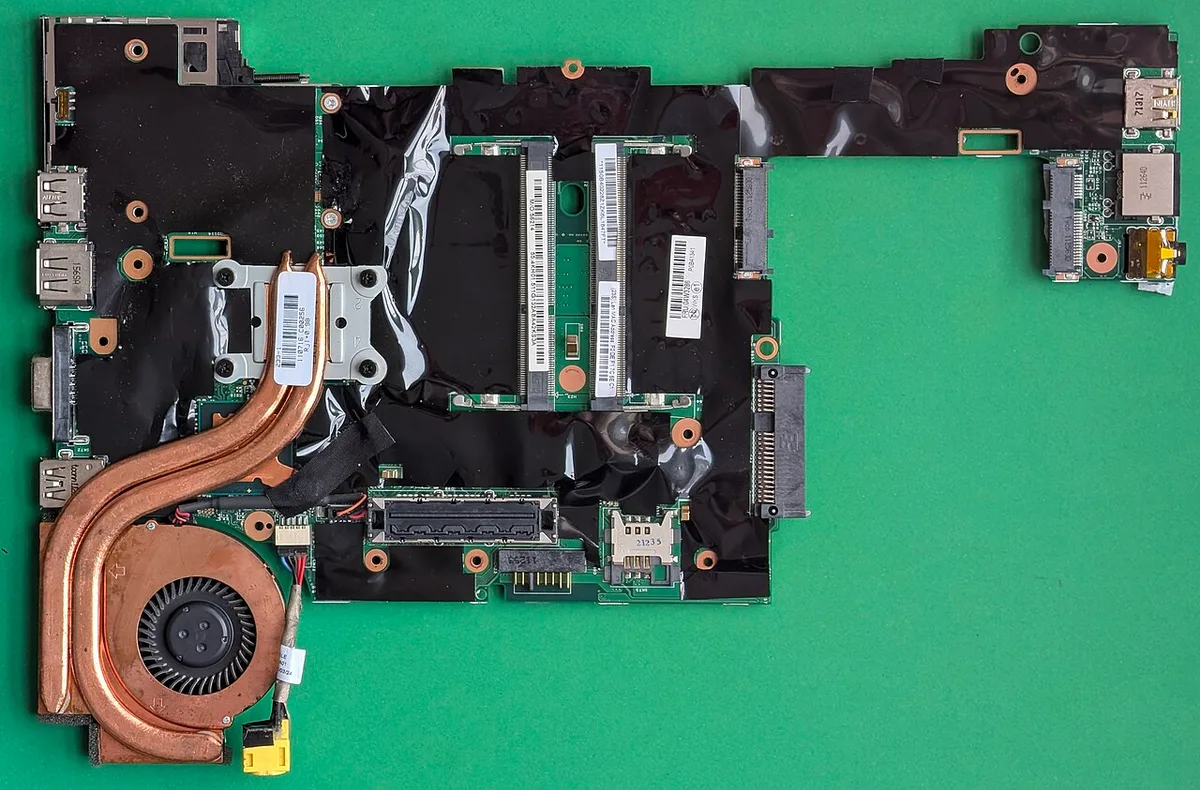
Next upgrade CPU and motherboard together if core count is below 8. AM5 platform with Ryzen 7 7700X or LGA1700 with Core i7 14700K gives strong single thread and multi thread. Ensure motherboard has enough PCIe lanes for GPU x16 capture card x4 and NVMe x4.
motherboard compatibility check prevents lane starvation.
Add RAM to 32 GB dual channel DDR5 6000 CL30 or DDR4 3600 CL16. Four sticks can lower max frequency on some boards. Two 16 GB sticks is ideal.
storage upgrade guide covers adding a second NVMe for recording scratch disk.
PSU upgrade comes before or with GPU if wattage is insufficient. Choose ATX 3.0 unit with 12VHPWR connector for 40 series cards. 1000 W Platinum covers most single GPU builds. PSU upgrade steps details cable routing.
Finally add a dedicated 1 TB or 2 TB NVMe for OBS local recordings. Writing high bitrate MP4 to the OS drive causes stutters. A separate drive isolates I/O.
Set OBS recording path to this drive. Use CQP 15 to 20 for visually lossless local files.
4. Configure OBS for Your New Hardware
Open OBS and go to Settings Output. Set Output Mode to Advanced. Streaming tab: Encoder choose your hardware encoder.
Rate Control CBR. Bitrate 6000 Kbps for Twitch 8000 Kbps for Kick 9000 Kbps for YouTube. Keyframe Interval 2.
Preset P5 for NVENC balanced for AMF. Profile High. Tune look ahead psycho visual tuning.
Recording tab: Type Standard. Encoder same as streaming or use a second NVENC if available. Rate Control CQP.
CQ Level 15 to 20. Preset P5. Profile High.
Recording Format MKV then remux to MP4. This protects files if OBS crashes.
Audio tab: Sample Rate 48 kHz. Channels Stereo. Desktop Audio Device your monitor or headset.
Mic Device your microphone. Apply noise suppression and compressor filters on mic. Sync offset usually zero but test with a clap.
Video tab: Base Canvas Resolution your monitor native. Output Scaled Resolution 1920×1080 for 1080p60 2560×1440 for 1440p60. Downscale Filter Lanczos 36 samples.
Common FPS Values 60. Integer FPS Value 60.
Run a test stream to Twitch Inspector or YouTube Live Control Room. Watch OBS stats dock for dropped frames render miss encode miss. Dropped frames mean network or bitrate too high.
Render miss means GPU maxed. Encode miss means encoder overloaded. Adjust preset or bitrate accordingly.
5. Common Streaming Upgrade Mistakes to Avoid
Buying a capture card before checking PCIe lanes. Consumer platforms have 20 lanes. GPU takes 16 NVMe takes 4 leaving zero for capture card.
You need a chipset lane card or a platform with more lanes. PCIe lane guide explains the math.
Ignoring PSU transient spikes. RTX 40 series can spike 2x to 3x rated TDP for microseconds. A 750 W Gold may trip on a 4080.
Choose 1000 W Platinum or higher. PSU tier list validates real world performance.
Running single channel RAM. Dual channel doubles memory bandwidth. 16 GB single stick hurts 1 percent lows in game and stream. Always buy matched kits.
Setting x264 preset to medium or slow on a 6 core CPU. This starves the game thread. Use veryfast or switch to GPU encoding.
The quality difference at 6000 Kbps is negligible.
Forgetting to update BIOS for new CPU support. AM5 and LGA1700 often need latest BIOS. Flash before installing CPU.
Follow manufacturer sequence exactly.
Overlooking audio sample rate mismatch. Windows default 44.1 kHz OBS default 48 kHz. Set both to 48 kHz.
Resampling adds latency and drift.
Skipping a local test recording. Always record a 5 minute gameplay session first. Check for stutter audio sync and encoder overload.
Fix before going live.
6. Final Upgrade Path by Budget and Goal
Entry tier, under $500. Skip GPU replacement entirely. Buy 32 GB DDR4 dual channel at 3600 MT/s. Your existing card's Quick Sync handles encoding well at 1080p60.
Avoid x264 medium preset which limits FPS. Use native game audio passthrough or a simple mic setup. Test stream after adding memory only.
This keeps costs low while producing stable broadcast quality. entry tier resources help prebuilt owners save money there.
Mid range, $700 to $1,200. GPU upgrade pays off immediately. A RTX 4060 Super 8 GB or RX 6750 XT 12 GB delivers NVENC with B frames. Add 32 GB DDR5 5600 CL16 and an 850 W Gold ATX 3.0 PSU.
Streaming 1080p60 on Twitch at 6000 Kbps becomes painless. YouTube permits up to 9000 Kbps with an efficient upload pipeline. Verify motherboard supports required PCIe lanes before buying.
comparison guidance prevents lane starvation.
Premium, $1,500 plus. Target 1440p60 and aggressive local recording. Select RTX 4070 Super or RX 7900 XT. Upgrade to AM5 Ryzen 7 7700X or LGA1700 Core i7 14700K.
Push 64 GB DDR5 6000 CL30 and a 1000 W Platinum unit with 12VHPWR cable. This path enables simultaneous 1440p gameplay plus 20 Mbps local captures without stutter. Futureproofing choices matter deeply here.
futureproofing framework explains why those choices defer upgrades longer.
| Budget tier | Priority | Recommended parts | Result |
|---|---|---|---|
| Under $500 | RAM + software | 32 GB DDR4, no GPU change | Stable 1080p60 stream |
| $700-$1,200 | GPU first | RTX 4060 Super + 32 GB DDR5 | Painless 1080p60 Twitch/Kick |
| $1,500+ | Full platform | RTX 4070 Super + AM5/LGA1700 + 64 GB | 1440p60 + 20 Mbps local record |
7. Frequently Asked Questions
Is an older GPU enough for 1080p60 streaming?
RTX 3060 and RX 6600 deliver NVENC at P5 preset cleanly at 6000 Kbps. Stable upload remains your main constraint. Test in your actual game first because gameplay profiles vary wildly.
research confirms practical limits there.
Can I reuse my old power supply?
Wattage must exceed peak demand by 20 percent. Modern GPUs spike to double TDP momentarily. Overlook this rule and your PSU trips randomly.
Cable type mixing also risks connector damage. safe conditions clarify proper criteria.
What RAM capacity fits a small budget?
Twenty-four GB minimum handles basic streams. Thirty-two GB dual channel suits most hobbyists. Sixty-four GB covers heavy mods.
Single channel loses performance fast. Dual channel doubles bandwidth. selection guide details capability tiers clearly.
When does dual PC become necessary?
Only when one PC cannot sustain concurrent 60 FPS plus stable encoding. External capture cards add latency and cost money. Internal PCIe options fit compact builds better.
Dual isolation removes shared thermal stress entirely. evaluation notes weigh cost against separation honestly.