Dust and heat kill gaming PC performance faster than any obsolete part. Learning how to maintain a gaming pc keeps frame rates stable and hardware alive for years. Most builders ignore upkeep until crashes or throttling appear.
A simple routine prevents both.
Manufacturer specifications indicate that a 10°C rise above design temperature can cut component lifespan by half. Aggregate reviews report that clogged filters and dried thermal paste cause the majority of overheating tickets. The fix starts with knowing what your build actually needs.
Let's match the plan to your hardware.
How to Maintain a Gaming Pc
Clean dust monthly. Check fan curves quarterly. Repaste CPU and GPU annually.
Monitor temperatures under load. Replace failing fans immediately.
Why Gaming PCs Need Regular Maintenance
Heat degrades silicon. Dust acts as insulation on heatsinks and radiators. Fans spin faster to compensate which increases noise and bearing wear.
Thermal paste dries out and loses conductivity over time.
A clogged intake filter can reduce airflow by 40 percent according to case manufacturer testing. GPU junction temperatures climb past 100°C in extreme neglect. CPU boost clocks drop to protect the die.
Consistent maintenance keeps temperatures in spec and boost clocks high.
Match Your Maintenance to Your Build
Not every rig needs the same attention. Your cooling type, case design, and usage pattern set the schedule. A decision tree avoids wasted effort and missed steps.
| Build Variable | Maintenance Focus | Typical Interval |
|---|---|---|
| Air cooled tower | Dust filters, fan blades, heatsink fins | Monthly |
| AIO liquid cooler | Radiator dust, pump noise, tube permeability | Quarterly |
| Custom loop | Coolant clarity, block corrosion, pump speed | Quarterly |
| Small form factor | Restricted airflow, dense component packing | Monthly |
| Gaming laptop | Vent dust, repaste, fan curve | Semi-annually |
| High dust environment | All filters, all intakes, all exhausts | Bi-weekly |
If you game four hours daily in a carpeted room with pets, clean monthly. If the PC sits on a desk in a filtered room with light use, quarterly works. Adjust based on what you see inside the case.
Desktop Maintenance Workflow
Shut down Windows. Flip the PSU switch. Unplug the power cord.
Hold the power button for ten seconds to drain residual charge. Ground yourself on the case metal before touching components.
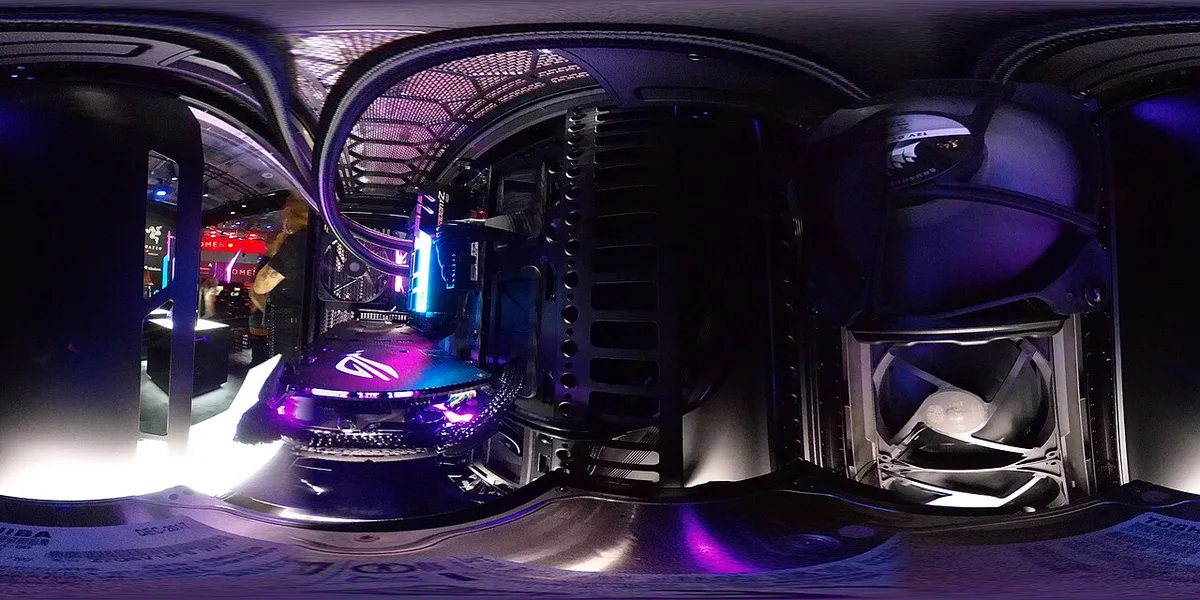
Remove side panels. Take the case outside or to a garage. Use short bursts of compressed air on filters, fans, heatsinks, and radiator fins.
Hold fan blades still while blowing to prevent overspin. Brush stubborn dust with an anti-static brush.
Reattach panels. Plug in power. Boot to BIOS.
Set fan curves so intake fans ramp at 40°C and hit 100 percent at 70°C. Save and exit. Run a GPU stress test for ten minutes.
Watch peak temperatures. They should sit below 80°C for GPU and 85°C for CPU under load.
Laptop Maintenance Workflow
Power off completely. Unplug the charger. Remove the bottom screws.
Track screw lengths in a magnetic tray. Pry the panel gently with a plastic spudger.

Disconnect the battery cable first. Blow compressed air through exhaust vents toward the fan intake. Hold fan blades stationary.
Clean heatsink fins with a soft brush. Remove old thermal paste with isopropyl alcohol and lint-free cloth.
Apply a pea-sized dot of quality paste on CPU and GPU dies. Reconnect battery. Reassemble in reverse order.
Boot and run a combined CPU and GPU stress test. Temperatures should drop 5 to 15°C versus pre-maintenance numbers. Fan noise often decreases at the same RPM.
Mistakes That Kill Performance or Damage Parts
Common errors shorten component life and waste money. Knowing them helps you avoid costly repairs.
Using Vacuum Cleaners Inside the Case
Vacuum cleaners generate static electricity that can fry sensitive chips. The suction also pulls dust deeper into fan bearings. Use compressed air instead.
Hold the can upright and spray in short bursts. Keep the nozzle at least two inches from surfaces.
Skipping Static Protection
Static discharge can destroy a motherboard in a second. Touch the metal case frame before touching parts. Wear an anti-static wrist strap if you have one.
Work on a non-carpeted surface. These steps cost nothing but prevent hundreds in damage. For more on safe handling, see the ESD Association guidelines at https://www.esd.org.
Over-Tightening Cooler Mounts
Excessive force cracks CPU dies and deforms motherboard PCBs. Tighten mounting screws in an X pattern until the cooler contacts the IHS evenly. You should feel resistance but not need a wrench.
A quarter-turn past snug is enough. If you ever need to check motherboard compatibility before a new build, that guide walks through matching sockets and chipsets.
Ignoring Laptop Thermal Throttling
Laptops throttle to prevent damage. Frequent throttling signals dust buildup or dried paste. Ignoring it reduces performance and stresses the battery.
Clean vents and repaste before the problem worsens. Over time, throttling can also mask the need for cooling upgrades in an older gaming PC.
Using the Wrong Thermal Paste
Some pastes are designed for high heat, others for general use. A paste rated for CPU junction temperatures above 100°C lasts longer under load. Cheap paste dries out within a year.
Replace it annually if you game heavily. For step-by-step help, extending the life of your rig covers repaste intervals and tool choices.
Maintenance Schedule and Final Decision Guide
A calendar beats memory. Match tasks to how often you game and your environment.
Monthly Tasks
Blow dust from intake filters and fan blades. Check that case fans spin freely. Verify no cables block airflow.
This takes ten minutes and prevents heat buildup.
Quarterly Tasks
Clean the CPU cooler and GPU heatsink. Inspect AIO tubes for cracks or leaks. Test fan curves in BIOS.
If you added more storage, recheck cable routing after each addition.
Annual Deep Clean
Remove the motherboard for thorough cleaning. Repaste CPU and GPU. Replace thermal pads on VRM and M.2 heatsinks.
For custom loops, flush the system and swap coolant. Check PSU capacitors for bulging.
Quick Decision Tree
If you game daily in a carpeted room with pets, clean monthly. If the PC sits on a desk in a filtered room with light use, quarterly works. Air cooling needs more frequent dusting than AIOs.
Small form factor cases trap heat, so shorten intervals. Laptops need semi-annual cleaning and yearly repaste.
| Task | Frequency | Tools Needed |
|---|---|---|
| Dust filters and fans | Monthly | Compressed air, anti-static brush |
| Clean heatsinks | Quarterly | Compressed air, isopropyl alcohol |
| Repaste CPU/GPU | Annually | Thermal paste, lint-free cloth |
| Check fan curves | Quarterly | BIOS or software |
| Inspect PSU and cables | Annually | Multimeter (optional) |
Frequently Asked Questions
How often should I clean my gaming PC?
Monthly for heavy use in dusty environments. Quarterly for light use in clean rooms. Laptops need cleaning every six months.
Can I use a vacuum cleaner to dust my PC?
No. Vacuum cleaners create static electricity that can damage components. Use compressed air in short bursts instead.
When should I replace thermal paste?
Annually for high-performance CPUs and GPUs. Every two years for low-power chips. Dry paste causes higher temperatures and throttling.
Is it safe to open my PC for maintenance?
Yes, if you unplug the power supply and discharge static first. Never open the PSU itself. Follow manufacturer guides for your specific case and components.
What tools do I need for basic maintenance?
Compressed air can, anti-static brush, microfiber cloth, isopropyl alcohol, and a screwdriver set. A magnetic tray helps track screws.
How do I know if my fans are failing?
Listen for grinding or rattling noises. Check fan curves in BIOS. If RPM drops under load or the fan stops intermittently, replace it.
1 thought on “Easy Steps to Maintain Your Gaming PC”
Comments are closed.