You’ve probably seen two laptops both labeled “RTX 4060” and wondered why one costs $900 and the other $1,300. The difference isn’t just branding; it’s engineering. Understanding what is a gaming laptop GPU means looking past the nameplate to see the silicon reality underneath.
As of 2026, mobile graphics processing units are complex systems defined by power limits, thermal envelopes, and memory configurations. A generic definition misses the point because performance varies wildly based on chassis design. Let’s break down exactly how these components work together so you know what you’re actually buying.
What Is a Gaming Laptop GPU?
A gaming laptop GPU is a discrete graphics processor designed specifically for portable computers. It handles rendering tasks that integrated chips cannot manage efficiently. Unlike desktop cards, mobile GPUs operate within strict power and heat constraints.
This impacts their clock speeds and overall throughput significantly.
Manufacturers tune these chips differently for each laptop model. Two devices with identical GPU names can have vastly different Total Graphics Power (TGP) ratings. Higher TGP allows for better sustained performance but generates more heat.
Lower TGP saves battery life but reduces frame rates. Always check the specific wattage rating for your device.
Why the Same GPU Name Can Perform Very Differently in Laptops
The label on the box tells you the architecture, not the capability. NVIDIA and AMD release mobile variants of their chips with flexible power targets. Laptop manufacturers then decide how much power to feed those chips.
This decision drives the performance gap between budget and premium models.
Consider the RTX 4060 Mobile. In a thin ultrabook, it might run at 65W. In a thick gaming rig, it could hit 140W.
That extra 75 watts translates to roughly 20-30% higher FPS in demanding titles. The silicon is the same, but the electrical supply differs.
Thermal design plays a huge role here too. A powerful GPU needs cooling. If the heatsink pipes are small or fans are weak, the chip throttles down to protect itself.
You end up paying for a high-TGP spec sheet but getting low-TGP real-world results. Aggregate reviews consistently show that chassis quality dictates actual performance as much as the GPU tier does.
This variability confuses buyers who assume "RTX 4060" equals a fixed level of speed. It doesn’t. It equals a family of capabilities bounded by power and thermals.
Knowing this helps you evaluate specs critically rather than relying on marketing names alone. For deeper insights into optimizing your setup, see our guide on boosting FPS without hardware upgrades.
How Mobile GPUs Work and How They Differ From Desktop GPUs
Mobile GPUs are built for efficiency first, raw power second. Desktop cards plug directly into a motherboard with unlimited airflow and stable 12V power delivery. Laptops rely on batteries and compact cooling solutions.
This fundamental constraint shapes every aspect of mobile GPU design.
Power Delivery Constraints
Desktop GPUs draw power from the PSU via PCIe slots. Mobile GPUs often share power rails with the CPU. This creates contention.
When the CPU spikes during compilation or physics calculations, the GPU may receive less voltage temporarily. Modern architectures mitigate this, but the shared nature remains a key difference.
Total Graphics Power (TGP) is the maximum wattage the GPU can consume. On desktops, this number is static per card model. On laptops, it’s dynamic per SKU.
A 100W TGP limit means the GPU stops boosting once it hits that threshold. Exceeding it risks system instability or shutdown.
Thermal Throttling Behavior
Heat is the enemy of performance. Mobile GPUs integrate closely with the CPU die on some designs, sharing heat pipes. As temperatures rise, clocks drop.
This is thermal throttling. It prevents damage but kills frame rates.
Desktop cards use large vapor chambers and triple-slot coolers. They sustain boost clocks longer. Mobile cards reach their thermal limit faster.
Consequently, average FPS over an hour-long session is lower on laptops than peak burst FPS suggests. Manufacturers publish peak stats, but sustained performance matters more for competitive play.
If your laptop struggles with heat, check out our tips on fixing sudden performance drops. Proper ventilation and undervolting can help maintain closer-to-desktop performance levels.
The Specs That Decide Real-World Gaming Performance
Raw TFLOPS numbers don’t tell the whole story. Several secondary specs dictate whether a game feels smooth or stuttery. Ignoring these leads to poor purchasing decisions.
Focus on these critical attributes instead.
VRAM Capacity and Type
Video RAM stores textures, geometry, and frame buffers. Insufficient VRAM forces data swapping to system RAM, causing massive lag spikes. As of 2026, 8GB is the minimum for 1080p AAA titles. 12GB provides headroom for 1440p. 16GB+ is ideal for future-proofing and creative workloads.
Memory type also matters. GDDR6 offers high bandwidth. Newer GDDR7 standards increase throughput further.
Bandwidth determines how quickly the GPU accesses data. Low bandwidth bottlenecks even powerful cores. Check the memory bus width alongside capacity.
A narrow bus with fast memory still lags behind a wide bus with slower memory in heavy scenes.
Clock Speeds and Boost Technology
Base clock indicates guaranteed frequency. Boost clock shows potential maximum under light loads. However, sustained boost depends on temperature and power.
Dynamic Boost technology shifts power between CPU and GPU automatically. This optimizes allocation based on workload demands.
Don’t obsess over MHz numbers. Architecture improvements yield bigger gains than minor clock bumps. Ada Lovelace and RDNA 3 architectures deliver more instructions per cycle than previous generations.
A slower-clocked modern GPU often beats a faster-clocked older one due to efficiency gains.
| Spec | Impact on Gaming | Recommended Minimum (1080p) | Ideal for 1440p |
|---|---|---|---|
| VRAM | Texture loading, scene complexity | 8 GB | 12 GB |
| TGP | Sustained clock stability | 100 W | 140 W+ |
| Bus Width | Data transfer speed | 128-bit | 192-bit+ |
| Architecture | Efficiency, feature set | Latest Gen | Latest Gen |
Understanding these metrics helps you decode spec sheets accurately. For troubleshooting driver issues related to these settings, refer to our fix for missing NVIDIA Control Panel.
How to Check Your Laptop's GPU, TGP, and Thermal Limits
You need concrete data, not guesses. Software tools reveal hidden specifications buried in firmware. Follow this workflow to audit your current machine or validate a new purchase.
Step 1: Identify the Exact Model
Open Device Manager in Windows. Expand Display Adapters. Note the full name.
Example: "NVIDIA GeForce RTX 4070 Laptop GPU." Generic names hide specifics. Cross-reference this with the manufacturer’s product page. Look for the specific SKU code if available.
Step 2: Verify TGP Using Specialized Tools
Standard OS info rarely displays TGP. Use HWInfo64 or GPU-Z. These utilities read sensor data directly from the BIOS and EC (Embedded Controller).
In HWInfo64, look for "GPU Board Power Draw" and "GPU Chip Temperature." Run a stress test like FurMark or Heaven Benchmark. Monitor the max power consumption. If it plateaus at 80W despite being labeled a 140W card, your unit is capped.
This discrepancy happens frequently in mid-range laptops.
Step 3: Assess Thermal Headroom
Check temperatures during the same stress test. Idle temps should sit below 40°C. Load temps ideally stay under 85°C.
Above 90°C triggers aggressive throttling. Listen for fan noise patterns. Constant screaming fans indicate insufficient cooling capacity.
If you suspect power limiting issues, consult our guide on fixing low GPU power limits. Sometimes BIOS updates restore intended wattage caps that were erroneously lowered.
Knowing your true specs empowers you to optimize settings correctly. Don’t assume default profiles are best. Custom tuning often yields better balance between noise and frames.
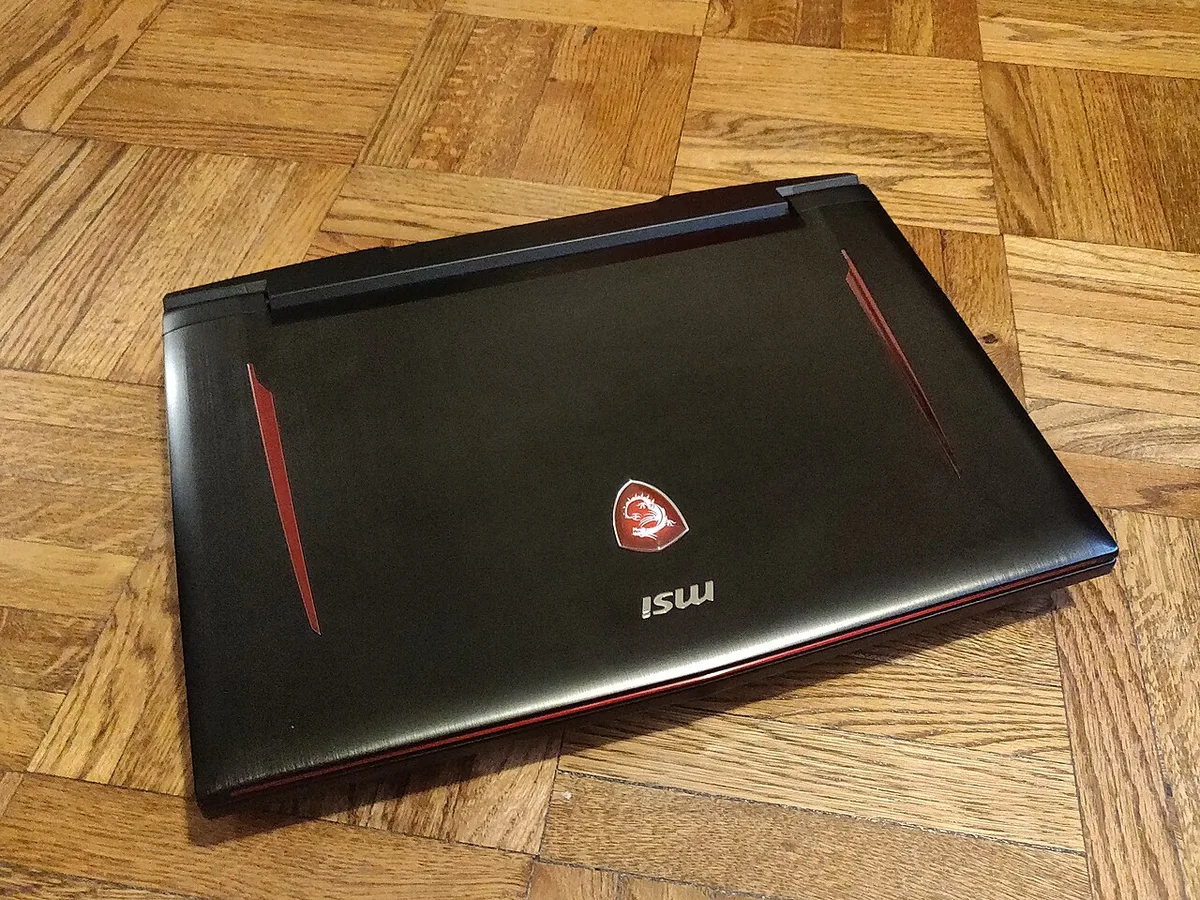
Image source: Wikimedia Commons / Kurt Kaiser

Image source: Wikimedia Commons / Alec Wilson from Khon Kaen, Thailand (CC BY-SA)
Mobile GPU vs Desktop GPU vs Integrated Graphics
Desktop GPUs prioritize sustained power over portability. They use larger coolers, higher wattage, and full-size PCIe slots. You get more frames per dollar, but the machine stays on a desk.
Mobile GPUs trade some of that power for battery life and portability.
Integrated graphics live inside the CPU. They share system memory and handle light tasks well. For casual games or esports at low settings, they can work.
For modern AAA titles at high settings, they fall short.
If you want maximum frames and never move your PC, choose desktop. If you need one machine for work, travel, and gaming, choose mobile. If you only play older or indie titles, integrated graphics may be enough.
Our guide on gaming on integrated graphics explains where that line sits.
A MUX switch can blur the lines. It lets the discrete GPU drive the display directly, reducing latency. Not every laptop includes one.
Check before buying if you care about competitive responsiveness.
Which GPU Tier Fits Your Games, Resolution, and Workload
Match the GPU to the hardest task you run weekly. Buying too high wastes money. Buying too low forces compromises.
Start with resolution, then refresh rate, then game type.
For 1080p esports, entry mobile GPUs are often enough. They hit high frame rates in lighter titles. For 1080p AAA gaming, mid-tier mobile GPUs offer better stability.
They handle heavier textures and effects. For 1440p or 4K, you need stronger mobile GPUs and higher TGP.
Content creators should weigh VRAM heavily. Video editing and 3D rendering consume memory fast. A 12GB or 16GB card prevents slowdowns during exports.
AI workloads also benefit from extra memory and tensor acceleration.
| Use Case | Suggested Tier | Resolution Target | VRAM Priority |
|---|---|---|---|
| Esports and indie games | Entry mobile GPU | 1080p | Medium |
| AAA single-player | Mid mobile GPU | 1080p to 1440p | High |
| Creator and AI work | High mobile GPU | 1440p | Very High |
As of 2026, newer mobile architectures improve efficiency. A current mid-tier chip may beat an older high-tier chip. Always compare generation and TGP, not just model numbers.
Common Mistakes, Costs, and Long-Term Optimization
The biggest mistake is trusting the GPU name alone. Two laptops can share a label but differ by 50 watts. Always verify TGP and cooling before purchase.
Another mistake is ignoring CPU balance. A weak CPU bottlenecks a strong GPU.
Costs vary by tier and chassis quality. Entry mobile gaming laptops often start around $800. Mid-tier models commonly range from $1,200 to $1,600.
High-end rigs can exceed $2,500. Premium cooling and display upgrades add cost quickly.
Long-term optimization starts with airflow. Keep vents clear and elevate the rear if needed. Clean dust every few months.
Repasting helps older machines, but check warranty terms first. Undervolting can reduce heat without losing much performance.
Use the right power mode for the task. Silent mode suits browsing. Balanced mode works for mixed use.
Performance mode helps gaming. Turbo mode is loud and hot, so reserve it for heavy sessions. If your system behaves oddly after updates, see our guide on fixing stutter after driver updates.
Frequently Asked Questions
Is a gaming laptop GPU the same as a desktop GPU?
No. A mobile GPU shares the same architecture family but runs at lower power. It also fits a compact cooling system.
Desktop GPUs sustain higher clocks and use larger coolers. The name may match, but performance usually does not.
Can you upgrade a gaming laptop GPU?
Usually no. Most mobile GPUs are soldered to the motherboard. Some niche laptops use modular MXM cards, but they are rare.
Plan your purchase around the GPU you need long-term.
How much VRAM do you need for gaming?
For 1080p gaming, 8GB is the practical minimum today. For 1440p or creator work, 12GB is safer. For 4K or AI tasks, 16GB or more helps.
More VRAM does not boost FPS directly, but it prevents stutter.
Why is my gaming laptop GPU underperforming?
Common causes include low TGP, thermal throttling, outdated drivers, or wrong power settings. Background apps can also steal resources. Check TGP with monitoring tools.
Then improve cooling and update drivers carefully.
Does TGP matter more than GPU model?
Often yes. A lower-tier GPU with high TGP can beat a higher-tier GPU with low TGP. TGP determines sustained clocks and real frame rates.
Model names matter, but power limits decide the outcome.
Should I force the dedicated GPU in every game?
Not always. Forcing it wastes battery on light tasks. Let Windows choose automatically for efficiency.
Force the dedicated GPU only when a game runs poorly or uses the wrong chip. Our guide on forcing a dedicated GPU in Windows 11 covers the steps.
Final Verdict: Which Gaming Laptop GPU Should You Choose
Choose based on constraints, not hype. If you travel often, prioritize efficiency and cooling. If you play demanding games, prioritize TGP and VRAM.
If you create content, prioritize memory and architecture.
If your budget is tight, a mid-tier mobile GPU with solid cooling beats a flagship chip in a weak chassis. If you want desktop-class power, expect weight, noise, and cost. If you only need light gaming, integrated graphics may be enough.
The right choice is the one that matches your games, resolution, and daily use. Verify specs, check sustained performance, and plan for cooling. That approach delivers better long-term value than chasing the highest model number.
2 thoughts on “What Is a Gaming Laptop GPU? Simple Explainer”
Comments are closed.