Dual channel memory is one of those specs that sounds technical but comes down to a simple idea: your CPU can read from two memory sticks at once instead of one. If you've ever wondered why a 2x8GB kit costs about the same as a single 16GB stick yet feels faster in games, this is the reason. The short answer is that dual channel roughly doubles memory bandwidth, which helps most in CPU-bound games and multitasking.
The longer answer is that the real-world FPS gain is smaller than marketing implies, and it depends heavily on resolution, CPU, and how you populate your slots.
Per JEDEC memory standards, dual channel works by interleaving data across two matched DIMMs on separate memory channels. That means your system can fetch game assets, textures, and physics data in parallel rather than waiting in line. As of 2026, nearly every modern gaming motherboard supports it, but enabling it correctly is where most builders stumble.
what is dual channel memory in a gaming pc
Dual channel memory is a motherboard feature that lets the CPU access two RAM sticks simultaneously across separate memory channels. It effectively doubles memory bandwidth compared to single channel. The gain shows up most in CPU-bound games and heavy multitasking.
It does not automatically double your FPS. You enable it by installing matched sticks in the correct slots.
What Dual Channel Memory Actually Does (and Doesn't)
Dual channel is a data pathway trick, not a speed boost in the traditional sense. Your motherboard has two independent memory channels, usually labeled A and B. When you install two matched sticks, one per channel, the integrated memory controller (IMC) inside your CPU reads and writes to both at the same time.
Think of it like two checkout lanes at a grocery store instead of one. The cashier (your CPU) can process twice as many customers per minute. But if the store only has one cashier working, the second lane doesn't help.
That's why dual channel helps most when the CPU is the bottleneck, not the GPU.
What it does not do is double your frame rate. Aggregate benchmarks show typical gains of 5 to 15 percent in CPU-bound titles at 1080p. At 1440p or 4K, the gain often drops to 2 to 5 percent because the GPU becomes the limiting factor.
It also does not fix stuttering caused by a slow GPU or poor game optimization.
The key takeaway is simple. Dual channel improves bandwidth and 1 percent lows. It does not magically transform a budget build into a high-end one.
Single Channel vs Dual Channel: The Real Difference
Single channel means one stick handles all memory traffic. Dual channel splits that load across two sticks on separate channels. The hardware difference is the number of active memory channels, not the speed of the RAM itself.
Here is how they compare in practice.
| Factor | Single Channel | Dual Channel |
|---|---|---|
| Memory bandwidth | ~25-50 GB/s (DDR4/DDR5) | ~50-100 GB/s (DDR4/DDR5) |
| Typical 1080p FPS gain over single | Baseline | +5 to 15% in CPU-bound games |
| 1% lows / frame pacing | Weaker | Noticeably smoother |
| Multitasking (game + browser + Discord) | More stutter | Smoother |
| Cost for same total capacity | Often cheaper (1 stick) | Slightly more (2 sticks) |
| Upgrade flexibility later | Easy to add a second stick | May require replacing both |
The bandwidth number is the headline. A DDR5-6000 dual channel kit delivers roughly 96 GB/s of theoretical bandwidth. The same kit in single channel delivers half.
That matters when your CPU is feeding the GPU frames fast enough that memory becomes the choke point.
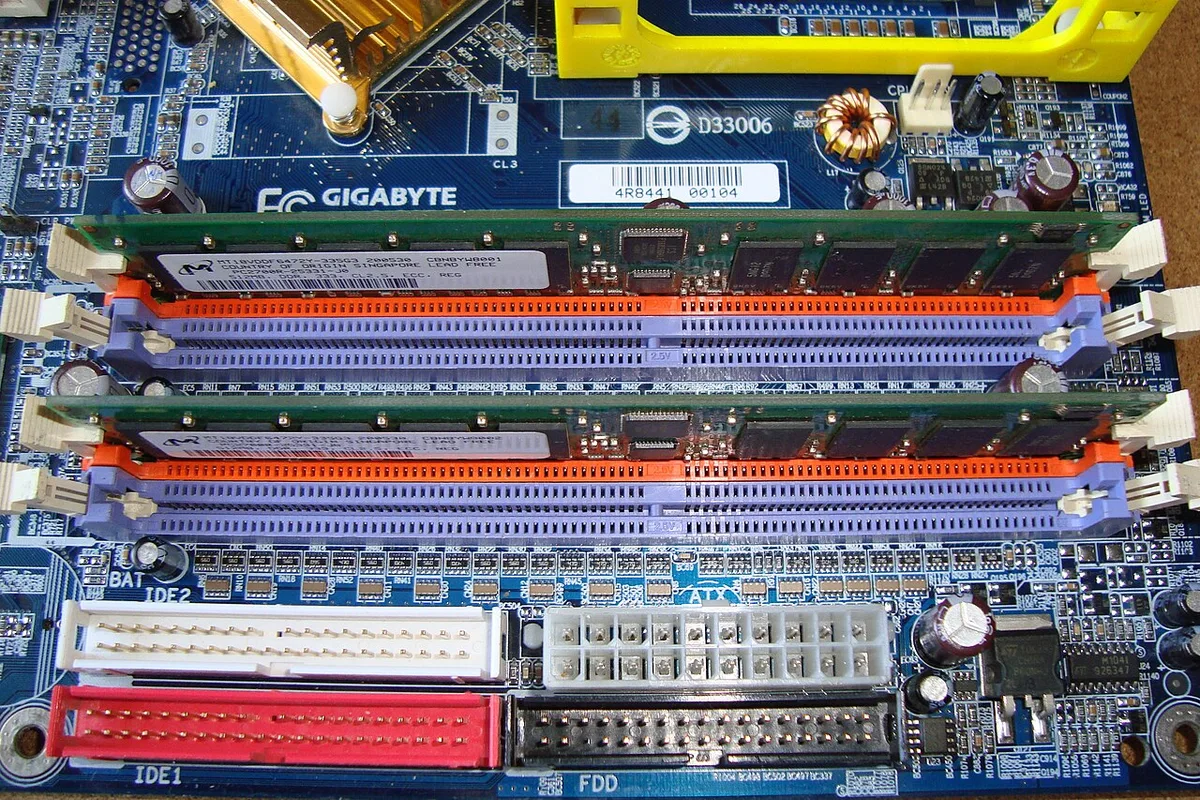
Image source: Wikimedia Commons / Mixabest
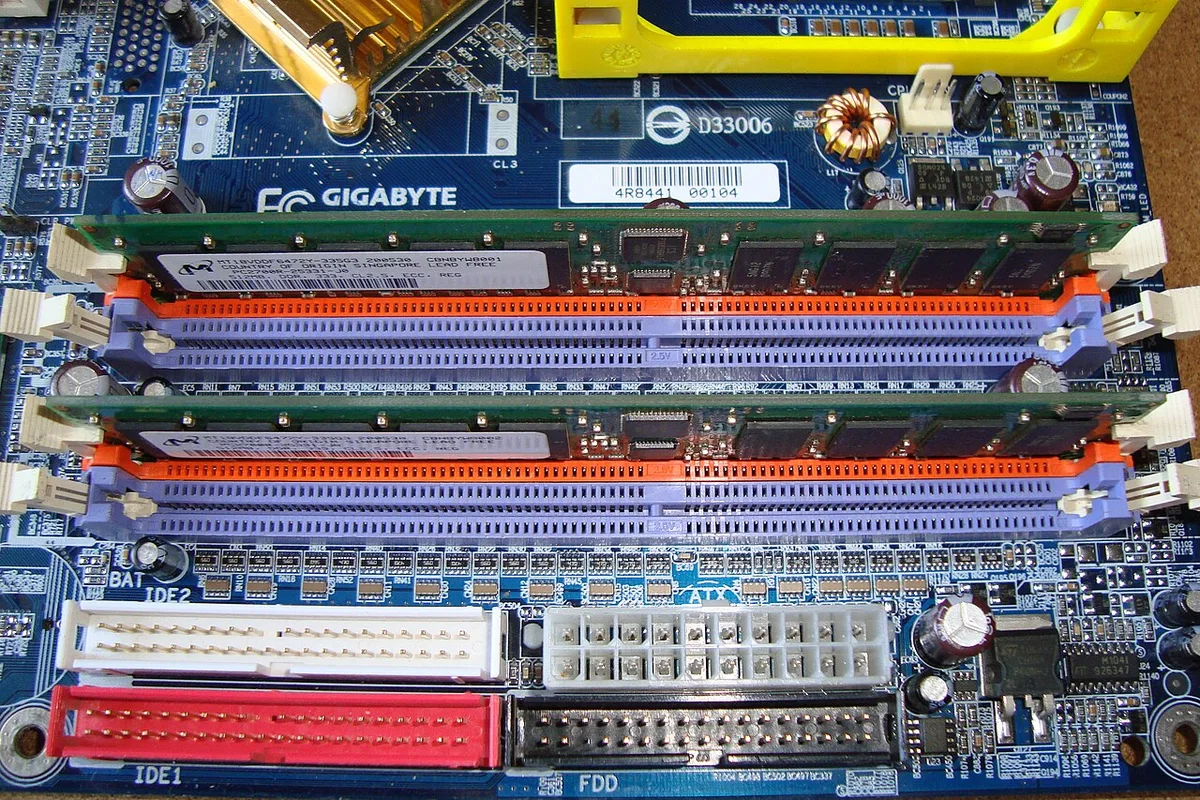
Image source: Wikimedia Commons / Mixabest
In real games, the difference shows up as smoother 1 percent lows rather than higher average FPS. You feel it as fewer stutters during firefights and loading. Aggregate user reviews and benchmark compilations consistently report this pattern across modern titles.
If you are checking whether your motherboard supports dual channel, our guide on how to check motherboard compatibility before a build walks through the slot layout and QVL process. For broader context on memory needs, see how much RAM a gaming PC actually needs.
The Configs You're Actually Choosing Between (1x16GB vs 2x8GB)
This is the decision most builders face. One 16GB stick or two 8GB sticks. The total capacity is identical.
The difference is channel count, upgrade path, and price.
2x8GB runs in dual channel out of the box. You get the bandwidth benefit immediately. 1x16GB runs in single channel until you add a second stick. The upside is a cheaper entry point and an easy upgrade later.
Here is how to think about it.
- 2x8GB is the better gaming choice today. You get dual channel bandwidth now, matched timings, and no compatibility guesswork.
- 1x16GB makes sense if your budget is tight and you plan to add a second identical stick within a year. Just verify the exact model is still available.
- 2x16GB is the sweet spot for most gamers as of 2026. It gives 32GB total in dual channel with room for heavy multitasking and future games.
- 1x32GB suits workstation-style use but wastes gaming bandwidth. Skip it unless you need the capacity now.
The hidden trap is mixing. If you buy 1x16GB today and a different 16GB stick later, you may end up in asymmetric dual channel mode. That works but often runs at the slower stick's speed and timings.
Matched kits avoid this entirely.
Manufacturer specifications indicate that matched kits are validated together for stability. That matters more than most people realize, especially when enabling XMP or EXPO profiles. If you want to understand those profiles, our guides on what XMP support means for Intel gaming motherboards and what EXPO support means for AMD gaming motherboards cover the details.
How Much FPS Dual Channel Actually Adds in Games
Let's set realistic expectations. Dual channel is a bandwidth upgrade, not a miracle. The FPS gain depends on three things: whether the game is CPU-bound, your resolution, and your CPU's memory sensitivity.
Aggregate benchmark data shows these patterns.
- Esports titles at 1080p (Valorant, CS2, Apex): +8 to 15% average FPS, with noticeably better 1% lows.
- AAA open-world games at 1080p (Cyberpunk, Starfield): +5 to 10% average, mostly in frame pacing.
- Same games at 1440p: +2 to 5%, often within margin of error.
- Same games at 4K: negligible, usually under 2%.
- Strategy and simulation games (Cities: Skylines, Total War): +10 to 20%, because they hammer the CPU and memory.
The pattern is clear. The more CPU-bound the game and the lower the resolution, the more dual channel helps. At 4K with a strong GPU, you will not notice the difference in average FPS.
What you will notice is smoother frame delivery. 1 percent lows improve because the CPU can stream assets faster. That is the real benefit, and it is why competitive players care about dual channel even when average FPS barely moves.
One more nuance. DDR5 platforms show smaller dual channel gains than DDR4 in some titles because DDR5 already delivers high bandwidth per channel. So on a modern DDR5 build, the jump from single to dual is less dramatic than it was on DDR4.
When Dual Channel Matters Most — and When It Barely Does
Not every build benefits equally. Here is where dual channel earns its keep and where it is wasted effort.
It matters most when:
- You play CPU-bound games at 1080p or 1440p.
- You run a mid-range CPU paired with a strong GPU.
- You multitask heavily while gaming (streaming, browser tabs, Discord).
- You play simulation, strategy, or open-world games with large asset streaming.
- You want the best 1 percent lows for competitive play.
It barely matters when:
- You game at 4K with a powerful GPU. The GPU is the bottleneck.
- You use an entry-level CPU that cannot feed frames fast enough to stress memory.
- You only run lightweight indie or 2D games.
- Your motherboard only has two slots and you are maxing capacity with one stick.
The practical advice is this. If you are buying RAM today, get a matched dual channel kit. The price gap between 1x16GB and 2x8GB is small, and you lock in the bandwidth benefit immediately.
If you already own a single 16GB stick and it works fine, do not panic. Add a matched second stick when budget allows, and you will feel the difference in CPU-bound titles.
For builders weighing motherboard features that affect memory, our article on what motherboard chipset features matter for gaming explains how chipset choice interacts with memory support. And if you are deciding between board sizes, how motherboard size affects your PC case choice covers slot counts and layout differences.
Common Mistakes That Quietly Kill Dual Channel Performance
The most common mistake is installing two sticks in the wrong slots. Most motherboards want you to use slots A2 and B2, not A1 and B1. Populating the wrong pair silently drops you into single channel mode.
You still get 16GB, but you lose the bandwidth benefit entirely.
Mixing sticks is the second trap. Combining a 16GB stick with an 8GB stick creates asymmetric dual channel. The system matches the smaller size across both channels and treats the extra 8GB as single channel.
It works, but performance is unpredictable.
Speed mismatches cause similar headaches. If one stick runs at 3200 MT/s and the other at 3600 MT/s, the system downclocks both to the slower speed. Timings may also loosen.
You end up paying for speed you never use.
Forgetting to enable XMP or EXPO is another silent killer. Your kit ships at 4800 MT/s or 5200 MT/s by default. The faster rated speed only activates when you turn on the profile in BIOS.
Many builders never check.
Finally, some people buy a second stick months later without verifying availability. The exact model may be discontinued. A close replacement can work but may need manual timing tweaks.
Our guide on how to check motherboard compatibility before a build covers QVL verification for this exact scenario.
How to Set Up Dual Channel the Right Way
Setting up dual channel takes about ten minutes if you follow the manual. Here is the reliable process.
- Power off and unplug the PC. Ground yourself with an anti-static strap or touch the case.
- Open the side panel and locate the RAM slots. Check the motherboard manual for the recommended dual channel pair, usually A2 and B2.
- Press the retention clips outward. Align the notch on the DIMM with the slot key. Press firmly until both clips snap shut.
- Reconnect power and boot into BIOS. Verify both sticks appear at their rated capacity.
- Enable XMP or EXPO in the BIOS memory settings. Save and exit.
- Boot into Windows and confirm the speed in Task Manager or CPU-Z.
- Run a stability test like MemTest86 or Karhu for at least 30 minutes.
If the system fails to post, reseat both sticks. Check that the notch alignment is correct. Some boards need a CMOS reset after a failed memory training attempt.
Slot population order matters more than most people think. On four-slot boards, the second and fourth slots from the CPU are usually the dual channel pair. On two-slot boards, both slots are the pair.
When in doubt, the manual wins.
Memory training can take longer on first boot, especially with DDR5. Give it 60 to 90 seconds before assuming something is wrong. If training fails repeatedly, update the BIOS.
Our article on what BIOS flashback is on a gaming motherboard explains how to recover if a bad flash leaves you stuck.
Costs, Value, and the Smart Buy
Dual channel does not cost extra in a meaningful way. You are buying two sticks instead of one, but the price per gigabyte is nearly identical. A 2x8GB DDR5-6000 kit runs around $55 to $75 as of 2026.
A single 16GB stick of the same speed runs around $45 to $60.
The real cost difference is the upgrade path. Buying 1x16GB now and adding a second stick later risks model discontinuation and mismatched timings. Buying the matched kit upfront locks in compatibility and XMP stability.
Here is a quick value breakdown.
| Config | Typical Price (as of 2026) | Channel Mode | Best For |
|---|---|---|---|
| 1x8GB | $25-35 | Single | Budget entry, temporary |
| 2x8GB | $50-70 | Dual | 1080p gaming, esports |
| 1x16GB | $45-60 | Single | Tight budget, planned upgrade |
| 2x16GB | $85-120 | Dual | Sweet spot for most gamers |
| 1x32GB | $90-130 | Single | Workstation, not gaming |
| 2x32GB | $170-240 | Dual | Heavy multitasking, future-proof |
The smart buy for most gamers is 2x16GB of DDR5-6000 with tight timings. That gives 32GB in dual channel with headroom for future games and multitasking. If your platform is DDR4, aim for 2x16GB at 3600 MT/s CL16 or better.
Do not overspend on ultra-low latency kits unless you are chasing benchmark scores. The FPS difference between CL30 and CL36 is small in real games. Spend the savings on a better GPU instead.
For a deeper look at memory needs by use case, our article on how much RAM a gaming PC actually needs breaks down capacity by game type and workflow.
FAQs
Is dual channel memory worth it for gaming?
Yes, for most gamers. Dual channel improves bandwidth and 1 percent lows, especially in CPU-bound games at 1080p and 1440p. The FPS gain is modest, usually 5 to 15 percent, but frame pacing improves noticeably.
The cost difference between single and dual channel kits is small.
Can I mix different RAM brands in dual channel?
You can, but it is not recommended. Mixed brands often have different speeds and timings, forcing the system to downclock to the slower stick. For best results, use a matched kit from one manufacturer with identical part numbers.
How do I know if my RAM is running in dual channel?
Open Task Manager in Windows and check the memory section. It displays "Channels: 2" or "Channels: 1". You can also use CPU-Z, which shows the channel count under the Memory tab.
If it says single, check your slot population and BIOS settings.
Does dual channel work with 3 RAM sticks?
Most consumer motherboards support only dual channel, not triple channel. Three sticks usually run in asymmetric dual channel mode. Two sticks operate in dual channel while the third runs in single channel alongside them.
Performance is inconsistent and not recommended.
Will dual channel fix stuttering in games?
Sometimes. If stuttering comes from memory bandwidth limits, dual channel helps. If stuttering comes from a weak GPU, driver issues, or storage bottlenecks, dual channel will not fix it.
Check your 1 percent lows before and after upgrading to measure the impact.
Is DDR5 dual channel better than DDR4 dual channel?
DDR5 delivers higher bandwidth per channel, so the single-to-dual jump is less dramatic than on DDR4. However, dual channel still improves 1 percent lows and multitasking on DDR5. For a new build, DDR5 is the better platform.
For an existing DDR4 system, dual channel remains worthwhile.
Final Verdict: What You Should Actually Buy
Buy a matched dual channel kit. That is the single most important takeaway. Whether you choose 2x8GB or 2x16GB, the matched kit guarantees compatibility, stable XMP or EXPO profiles, and the bandwidth benefit from day one.
For most gamers as of 2026, 2x16GB of DDR5-6000 is the sweet spot. It delivers 32GB in dual channel with enough headroom for heavy multitasking and future titles. DDR4 builders should aim for 2x16GB at 3600 MT/s CL16.
Avoid mixing sticks. Avoid single-stick configurations unless budget forces your hand. And always check your motherboard manual for the correct slot pair before installing.
Dual channel is not a magic FPS booster. It is a bandwidth and smoothness upgrade that costs almost nothing extra when done right. Done wrong, it silently wastes half your memory bandwidth.
Done right, it makes every CPU-bound game feel a little smoother. For more on building a balanced system, our guide on how to choose the right motherboard for your gaming PC covers memory support alongside other key features.