If you've ever wondered what is pcie x16 and why does it matter for a gpu, you're really asking how fast your graphics card can talk to the rest of the PC. The short answer is that PCIe x16 gives a GPU its widest normal lane connection to the CPU. That wider path can reduce bottlenecks in heavy workloads, but it is not always the main limit.
PCI-SIG defines the PCIe standard, and a PCIe 4.0 x16 link carries about 31.5 GB/s in each direction. That number sounds huge, yet the real benefit depends on your GPU, CPU, motherboard, and task. Let's walk through the parts that actually change the answer.
what is pcie x16 and why does it matter for a gpu
PCIe x16 is a motherboard slot with 16 data lanes. It gives a GPU its main path to the CPU. It matters most for high-bandwidth tasks.
Gaming often sees smaller gains. AI and rendering can use all of it.
How PCIe Lanes and Bandwidth Actually Work
PCIe stands for Peripheral Component Interconnect Express. It is the standard connection between a graphics card and the motherboard. A lane is a two-way data path, and x16 means sixteen lanes are available to that slot.
Think of lanes like highway lanes. More lanes usually mean more traffic can move at once. But the speed of each lane also matters, and that is where PCIe generations come in.
PCIe 3.0, 4.0, and 5.0 each raise the per-lane speed. A fast GPU on an older generation can still be limited even if the slot is x16. That is why lane count and generation work together.
Here is a simple bandwidth view for one direction.
| Connection | Approx. bandwidth |
|---|---|
| PCIe 3.0 x16 | 15.75 GB/s |
| PCIe 4.0 x16 | 31.5 GB/s |
| PCIe 5.0 x16 | 63 GB/s |
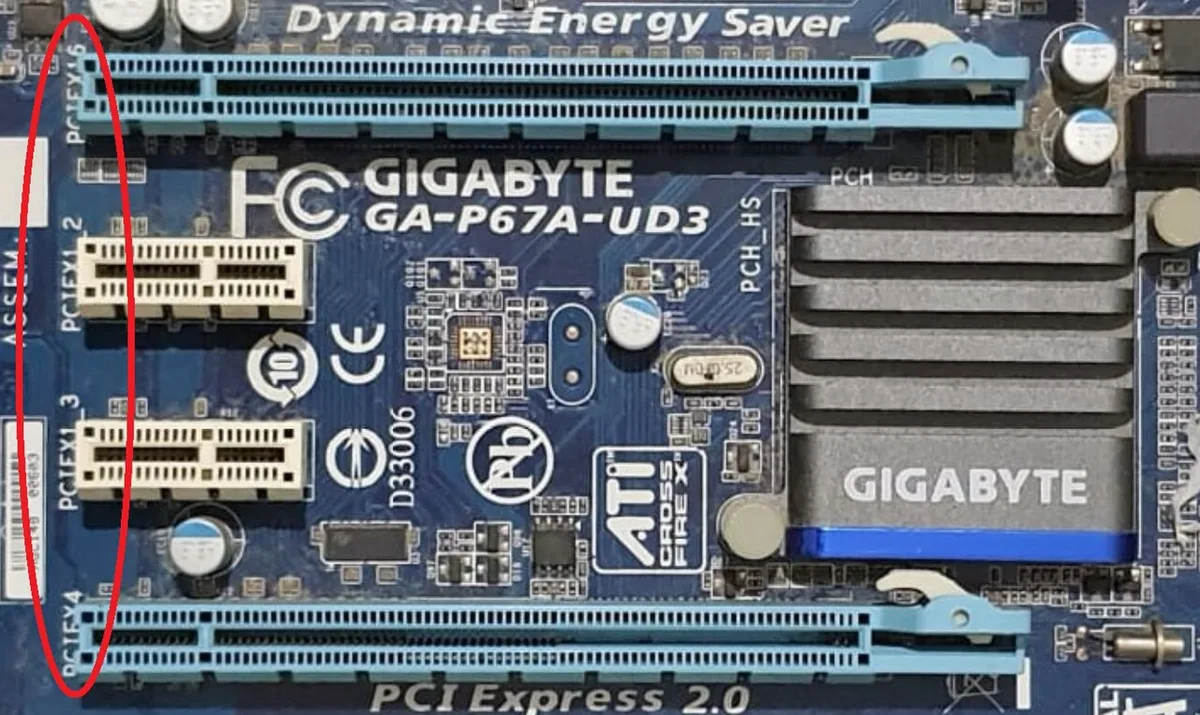
Image source: Wikimedia Commons / Sayeen (CC BY-SA)
CPU lanes are direct. Chipset lanes share a link back to the CPU. So a slot can be physically x16 while only using x8 or x4 electrically.
Always check the motherboard manual, not just the slot length.
If you are comparing cards, compare benchmark results with the same CPU and resolution. That keeps the test fair.
When PCIe x16 Actually Matters (and When It Doesn't)
If you run a high-end GPU for AI, rendering, or 4K gaming, x16 matters more. If you play lighter games at 1080p, x8 often performs close to x16.
Use this quick decision logic.
- If your GPU is mid-range or older, x8 is often enough.
- If your GPU is high-end and your CPU is strong, x16 helps more.
- If your workload moves huge textures or model data, bandwidth matters more.
- If your slot drops to x4 because of M.2 or SATA use, expect a bigger hit.
- If you are upgrading only for gaming, check benchmarks before chasing x16.
Real-world gaming gaps between x16 and x8 are often small. Aggregate reviews and manufacturer specs show that many games lose only a few percent. That can be hard to notice at high frame rates.
The gap grows in bandwidth-heavy tasks. Video editing, 3D rendering, and machine learning can use the extra lanes. In those cases, x16 is not just a nice label.
It is usable headroom.
Before buying, what a graphics card actually does should guide your expectations. A faster card still needs a good CPU and enough RAM.
PCIe x16 vs PCIe x8 vs PCIe x4: Real-World Differences
The number after x is the lane count. More lanes mean more bandwidth, but not always more real-world performance. The gap depends on the GPU and task.
| Link width | Best for | Watch out for |
|---|---|---|
| x16 | High-end GPUs, pro workloads | Slot sharing on some boards |
| x8 | Most gaming builds | Small loss in heavy tasks |
| x4 | Low-power cards, capture cards | Can bottleneck fast GPUs |
x16 is the safest default for a strong discrete GPU. x8 is often the practical choice on budget or compact boards. x4 is usually for smaller cards or secondary devices.
Do not assume a long slot means x16 electrically. Some boards use a physical x16 slot wired for x8. That is not a defect if the manual says so.
It is a cost and lane-layout choice.
If you see GPU bottlenecking signs, check lane width before blaming the CPU. A low link speed can look like a weak processor.
How to Check Your Motherboard and CPU Lane Setup
Start with the motherboard manual. Look for slot specs, lane sharing, and M.2 rules. Then check the CPU spec for direct PCIe lanes.
Use these steps.
- Find your motherboard model.
- Read the PCIe slot section in the manual.
- Check which slots share lanes with M.2 or SATA devices.
- Check your CPU's PCIe lane count from the manufacturer.
- Install the GPU in the top primary slot unless the manual says otherwise.
- Boot and use GPU-Z or a similar tool to confirm link speed and width.

Image source: Wikimedia Commons / D-Kuru (CC BY-SA)
In the BIOS, some boards let you set bifurcation or lane allocation. Only change those settings if you know the board supports it. Wrong settings can drop the link width or cause boot issues.
If a card runs at x8, ask why. It may be normal for that board. It may also mean the wrong slot, a disabled lane, or a shared M.2 drive.
case clearance for long GPUs is separate from lane count. A card can fit perfectly and still run at x8.
Power matters too. power draw and thermals can limit performance even when lanes are perfect. Check your PSU and connectors before chasing bandwidth.
For official standards, see PCI-SIG. For CPU lane details, check the manufacturer's spec page.
Common Mistakes That Cost You Performance
A common mistake is assuming every long slot is a full x16 slot. Some boards use a physical x16 slot wired for x8. That can be fine, but only if you know it before buying the board.
Another mistake is ignoring M.2 lane sharing. Adding a fast NVMe drive can disable or reduce PCIe lanes. The manual usually shows which slots are affected.
Check that before installing everything.
BIOS settings can also reduce the link. Bifurcation, lane allocation, or compatibility modes may change the negotiated width. If the GPU reports x8 or x4, check the BIOS and slot choice first.
Power and heat can hide bandwidth gains. If the PSU is weak or the CPU is overheating, performance drops for other reasons. A hot CPU may throttle and make a fast GPU look slow.
Fix cooling before chasing PCIe changes.
Specs and Bandwidth Data Worth Knowing
PCIe bandwidth depends on both generation and lane count. Higher generations move more data per lane. A fast card on an older generation can still be limited.
| Connection | Approx. bandwidth |
|---|---|
| PCIe 3.0 x4 | 3.94 GB/s |
| PCIe 3.0 x8 | 7.88 GB/s |
| PCIe 3.0 x16 | 15.75 GB/s |
| PCIe 4.0 x8 | 15.75 GB/s |
| PCIe 4.0 x16 | 31.5 GB/s |
| PCIe 5.0 x16 | 63 GB/s |
As of 2026, PCIe 5.0 x16 is still rare on mainstream gaming boards. Most builders will see PCIe 4.0 or 5.0 on newer platforms. That is enough for most current GPUs.
CPU lane counts vary by model. Many mainstream desktop CPUs offer 16 to 24 direct PCIe lanes. Workstation and high-end desktop chips can offer more.
Chipset lanes are shared and connect back through a DMI link.
For official standards, see PCI-SIG. For CPU lane details, check the processor maker's specification page.
Frequently Asked Questions
Does a GPU need PCIe x16 to run well?
No. Many GPUs run well at x8, especially in gaming. The difference is often small at 1080p or 1440p.
High-end cards and pro workloads benefit more from x16.
Can a PCIe x16 slot run at x8?
Yes. A slot can be physically x16 but electrically x8. Motherboards do this to save CPU lanes or support more devices.
Check the manual for the exact slot behavior.
Is PCIe 4.0 x8 enough for a high-end GPU?
Often yes for gaming. Aggregate benchmarks show small frame rate losses in many titles. AI, rendering, and large texture workloads are more likely to feel the limit.
Does PCIe x16 affect FPS in gaming?
Sometimes, but usually by a small amount. The CPU, RAM, and game engine often matter more. If your card is already maxed out, bandwidth is less likely to be the main limit.
Should I upgrade my motherboard for PCIe x16?
Not just for x16. Upgrade if you also need a newer CPU, more lanes, or better connectivity. If your current board already gives your GPU enough bandwidth, keep it.
Final Decision Guide: Should You Care About x16?
Care about x16 if you use a high-end GPU for AI, rendering, or very high-resolution gaming. In those cases, extra bandwidth can reduce bottlenecks. It is real headroom, not just a spec.
Do not chase x16 if your GPU is mid-range and your games run well. x8 is often close enough for gaming. Spend money on VRAM, cooling, or a better CPU first.
Use this simple decision path.
- If your GPU is high-end and your CPU is strong, prefer x16.
- If your GPU is mid-range, x8 is usually fine.
- If your slot drops to x4, check the cause before upgrading.
- If your workload is rendering or AI, favor maximum bandwidth.
- If your gaming FPS is low, check the CPU and RAM before blaming PCIe.
Before buying, review how to choose a GPU and match it to your board. A balanced PC matters more than one perfect spec.