If you’re trying to understand what is Resizable BAR in a gaming laptop, here’s the short version: it’s a BIOS setting that lets your CPU talk directly to your entire GPU memory pool instead of a tiny slice of it. Think of it like opening all the doors in a house at once instead of forcing guests through a single side entrance.
When enabled properly, some games run smoother with a noticeable frame rate bump, especially at higher resolutions. It costs nothing to turn on and takes about five minutes to set up. That said, not every laptop or game benefits equally, so let’s walk through exactly what it does and whether your machine will actually notice.
Image source: Bing (Web (fair-use with source credit))
Quick Answer
Resizable BAR is a BIOS feature that expands your CPU’s access window to the GPU’s full video memory instead of a limited 256-megabyte slice. When enabled, supported games can stream textures and assets faster between the processor and graphics card. Most users see a modest performance gain in modern AAA titles, particularly at 1440p or 4K.
It works best on newer AMD Ryzen systems paired with Radeon GPUs, though Intel and NVIDIA setups also support a version called Bar Support. Turning it on requires only a BIOS toggle and a driver update. No extra hardware needed.
What’s the Point of Resizable BAR? (And Why Your Laptop Might Already Have It)
You’ve probably noticed your gaming laptop already includes a dedicated GPU. Modern chips pack several gigabytes of high-speed memory onto the graphics card itself. That VRAM holds everything your games need in real time.
Textures, lighting maps, model meshes, and shader data all live there. The trick is getting that information from the GPU fast enough to keep your frames high.
By default, your system sets aside a fixed 256-megabyte portion of VRAM for the CPU to address through the PCI Express bus. That tiny window was designed decades ago when graphics cards had far less memory. Today’s GPUs routinely ship with eight to sixteen gigabytes of VRAM.
Yet most laptops still only expose that same small sliver to the processor unless something changes.
The Core Problem It Solves
Without Resizable BAR, the CPU constantly reshuffles data through that narrow corridor. It has to page in new chunks of VRAM every few milliseconds during heavy scenes. Modern open-world games stream massive texture sets on the fly.
When the pipeline bottlenecks, you get micro-stutters and lower frame rates even if your GPU otherwise has enough power.
A Simple Analogy
Imagine loading a library bookshelf. The old method forces you through one doorway at a time. Resizable BAR opens every door simultaneously.
You still carry the same books. You just reach them faster.
Why Your Laptop Might Already Support It
Most gaming laptops sold between 2020 and 2026 ship with motherboards and BIOS versions that include this feature. Laptop makers often leave it disabled by default because they want a guaranteed baseline experience across every configuration. Some ships explicitly advertise “Resizable BAR compatible” in the specs.
Others bury the option deep in the firmware menus. Either way, you likely have the hardware foundation already in place.
Before we dig into the mechanics, it helps to understand the underlying standard so the rest of this guide makes sense.
PCIe 3.0 introduced flexible BAR sizing years ago, but early software stacks ignored the capability. AMD’s official engineering documentation on Smart Access Memory explains how the feature finally unlocked the full potential in practice. The same principle applies to NVIDIA’s implementation, which Intel, AMD, and ARM CPUs can all tap into given the right firmware support.
How Resizable BAR Actually Works
At the lowest level, every piece of hardware on your motherboard announces how much memory it wants the CPU to map during boot. That announcement lives inside the PCI configuration space. The operating system reads these requests and allocates address ranges accordingly.
In the old paradigm, GPUs asked for a small range just big enough for basic display output and a handful of buffers.
The Legacy 256-Megabyte Window
Default BAR sizing forces the CPU to perform indirect memory accesses. It writes an offset to a control register, waits for the GPU to respond, then reads or writes the actual data through that same small portal. The CPU spends valuable cycles managing the handshake instead of running your game logic or draw calls.
That sounds minor in isolation. Multiply it across thousands of render commands per second and the overhead becomes real.
What Changes When You Enable Resizable BAR
Turning on Resizable BAR flips one flag in the firmware. Suddenly the GPU can tell the chipset to map its entire VRAM range into the CPU’s address space. The processor stops paged indirection entirely.
Every texture fetch, every compute buffer access, goes through a direct path.
The result is cleaner instruction pipelines, fewer stalled cycles, and more consistent frame times. You won’t always see a dramatic jump in peak FPS numbers, but stutter reduction shows up clearly in gameplay feel. That’s often more noticeable than a raw score increase.
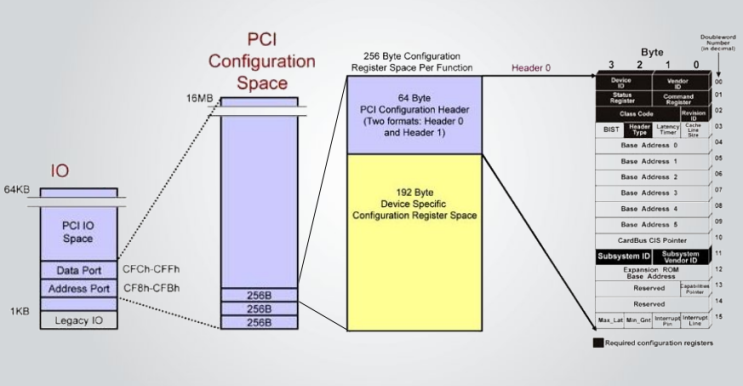
Diagram courtesy of PCIe re-mapping research illustrating how expanded BAR addressing reduces pointer chasing.
Image source: Bing (Web (fair-use with source credit))
Why Game Engines Matter
Not every title benefits equally. Older engines built before 2018 rarely stream large VRAM datasets aggressively. They already fit comfortably within the legacy window.
Those games show little to no change after enabling the feature.
Modern engines like Unreal Engine 5, Unity’s latest HDRP builds, and standalone custom renderers pull dense geometry caches and high-resolution texture samples continuously. Official Intel documentation on hardware-accelerated GPU scheduling highlights how memory bandwidth allocation interacts with scheduler design. Games written with those patterns in mind are the ones most likely to profit.
The Role of PCIe Bandwidth
Your laptop’s internal connection between CPU and GPU determines how much data can flow per second. Resizable BAR alone cannot magically create bandwidth where none exists. However, it does make existing bandwidth far more efficient.
You stop wasting cycles on pointer chasing and start using the pipe for actual payload movement.
In most gaming laptops the link runs over a single x16 equivalent lane pair routed internally. Even PCIe Gen 4 provides ample throughput for typical gaming workloads once the addressing bottleneck disappears.
When Gains Stay Modest
A few situations blunt the impact. You play at 1080p with a mid-tier GPU where the CPU is already the limiting factor. Your title uses very little VRAM under default settings.
The game engine streams assets inefficiently regardless of access size. Background processes compete for the same system memory controller channels.
These scenarios explain why you won’t see identical boosts across every title you own. The technology is solid. The payoff simply varies by workload.
When You’ll Actually See a Performance Boost
This section matters most if you want honest expectations before flipping any switches. Resizable BAR delivers rewards on a sliding scale. Some setups barely register a change.
Others enjoy clear improvements across several popular games. Your mileage depends on resolution, GPU tier, game engine, and how heavily the title leans on VRAM streaming.
Best Resolution Range for Visible Gains
Higher resolutions force the GPU to hold larger texture atlases and rendering targets in VRAM. A 4K game can easily push 10 GB or more of active asset data depending on settings. At 1080p, many titles stay under 4 GB of working set.
That means the addressing bottleneck hits harder as you move up the ladder.
Expect the largest relative improvements at 1440p and 4K. The sweet spot usually appears around 144 Hz to 240 Hz refresh displays where smooth frame pacing matters as much as peak numbers.
Which GPU Generations Show the Biggest Gains
Graphics cards built after 2018 tend to support full BAR sizing natively. Here’s a practical breakdown:
| GPU Tier | Example Models | Typical Benefit Range |
|---|---|---|
| Entry-level desktop class in a laptop | GTX 1650, RX 6400 mobile | Minimal to none |
| Mid-range mobile GPUs | RTX 3050 Ti, RX 6600M | Moderate in selected titles |
| High-end mobile GPUs | RTX 4070 mobile, RTX 4080 mobile | Noticeable in modern AAA |
| Enthusiast mobile GPUs | RTX 4090 mobile | Often double-digit gains in demanding titles |
Newer GPUs pair better with larger VRAM pools and deeper engine integration. Older parts may still benefit, but the ceiling is lower.
CPU Generation Influence
CPU architecture plays a supporting role. Newer processors handle memory controller tasks more efficiently. Ryzen 5000-series and Intel 12th-gen onward CPUs tend to squeeze slightly more out of the feature compared to older generations.
The difference is real but secondary to GPU capabilities.
Games Most Likely to Improve
Certain titles stand out in independent benchmarks. These are not guaranteed winners for your specific rig, but they represent the pattern:
- Cyberpunk 2077 with path tracing options pushed
- Horizon Forbidden West at high detail presets
- Call of Duty franchise entries with large texture packs
- Starfield on medium-to-ultra settings
- Alan Wake 2 under heavy lighting loads
- Forza Horizon series with high-resolution asphalt shaders
Games built on older DX11 foundations or those capped by low VRAM usage rarely change. NVIDIA’s driver documentation for Bar Support configuration confirms that select older titles may not expose measurable differences regardless of hardware.
The Competitive Gaming Caveat
If you mainly play CS2, Valorant, League of Legends, or Apex Legends on low settings at 1080p, skip the hope for miracles. Those workloads rarely stress VRAM streaming. CPU latency and single-thread performance dominate instead.
Resizable BAR won’t transform those experiences meaningfully.
How to Verify Real Improvement
Run a before-and-after measurement in the same game, on the same save state, with identical graphical settings. Capture three runs each way and compare average frame rates plus 1 percent lows. The 1 percent low matters more than the headline number because it reveals stutter reduction.
Use tools like RTSS or MSI Afterburner’s on-screen display to log frames consistently. Write down the results. Feel free to explore other optimization angles like adjusting the best budget gaming laptop processor recommendations or pairing your setup with a suitable external monitor if you’re considering an upgrade path.
The Simple Checklist: Is Your Laptop Compatible?
Before you chase BIOS menus or worry about missing features, run through this practical checklist. It answers the core compatibility questions without guessing.
Step One: Identify Your GPU
Open Device Manager in Windows, expand Display adapters, and note the exact model name. Alternatively, press Win + R, type dxdiag, and check the Display tab under Device. Write down whether you own an AMD Radeon or NVIDIA GeForce chip, and record the full model number.
| GPU Family | Series That Support Full Resizable BAR |
|---|---|
| AMD Radeon | RX 5000 series and newer, including RX 6000 and RX 7000 mobile parts |
| NVIDIA GeForce | RTX 30-series and newer, including RTX 40-series mobile variants |
| Intel Arc | Arc mobile GPUs with recent driver stacks |
Older GTX 10-series and RX 500-series chips generally do not support the full BAR expansion feature. If your GPU falls outside those ranges, the setting will likely be absent regardless of BIOS state.
Step Two: Confirm Your Processor Generation
Match your CPU generation to these windows:
- AMD Ryzen 3000-series mobile and newer support full SAM functionality when paired with compatible AMD GPUs
- Intel Core 11th-generation and newer provide Bar Support access with qualifying graphics cards
- Ryzen 2000-series mobile sometimes offers partial support depending on board vendor implementation
Check your exact model through the system information app or by running msinfo32 from the Run dialog.
Step Three: Inspect Your BIOS Version
Restart the laptop and press the correct key to enter BIOS. This is typically Del, F2, F10, or Esc depending on manufacturer. Navigate to Advanced, Chipset, or Boot menus and look for any of these labels:
- Resizable BAR
- Above 4G Decoding
- SMART Access Memory
- BAR Support
- Re-Size BAR Support
Make a note of the current BIOS version number before you proceed. You’ll need it when visiting the support portal.
Step Four: Check Driver Readiness
Open your GPU control panel or device manager and verify driver versions match the latest releases from AMD or NVIDIA. Outdated drivers sometimes fail to recognize enabled firmware settings correctly. Visit the manufacturer support pages directly and download the most recent game-ready or Studio driver package.
Step Five: Verify Windows Visibility
Launch Device Manager again, open the properties for your GPU, and look under the Drivers tab for any mention of BAR size or memory mapping details. On some configurations, Windows reports the accessible memory range directly in the Resources section.
If all five steps align, your laptop meets the baseline requirements. If any step fails, the feature simply isn’t available on your current hardware combination, and no amount of tweaking will create it.
Users seeking alternatives for older hardware might compare how well their machine handles other performance paths. Understanding how long a gaming laptop battery lasts can also help you weigh whether software optimizations are worth pursuing versus planning a future replacement cycle.
AMD SAM vs. NVIDIA Bar Support — What’s the Difference?
Both technologies share the same fundamental goal: expose the entire GPU memory space to the processor. The branding differs because each company markets the feature under its own ecosystem banner. The underlying mechanism follows the same PCIe specification, yet practical outcomes vary slightly between the two camps.
Same Specification, Different Naming
- Smart Access Memory is AMD’s marketing name for the combined CPU-plus-GPU implementation
- Resizable BAR is the generic PCI-SIG feature name used across Intel and some AMD contexts
- Bar Support is NVIDIA’s term used inside the driver control panels and Windows settings
The ACPI and PCIe configuration registers work identically. Firmware vendors enable the same bits. Windows recognizes the same memory ranges.
The distinction lives primarily in how each vendor tunes drivers and promotes the pairing.
Performance Disparity Between Pairings
Independent testing consistently shows AMD Ryzen paired with AMD Radeon delivering stronger average gains than cross-brand combinations. Reasons include tighter memory controller coordination, optimized scheduler paths, and earlier driver maturity for the SAM stack. Cross-platform setups still work and still provide benefits, but the margin tends to sit lower.
| Configuration | Typical Advantage Profile | Expected Gain Range |
|---|---|---|
| AMD Ryzen + AMD Radeon (SAM) | Full stack synergy, aggressive optimization | 5–12% average |
| Intel CPU + NVIDIA GPU (Bar Support) | Solid but narrower optimization window | 3–8% average |
| Intel CPU + AMD Radeon | Functional but less tuned driver path | 2–6% average |
| AMD Ryzen + NVIDIA GPU | Partial synergy with diminishing returns | 2–5% average |
These ranges reflect aggregate benchmark observations across popular titles as of 2026. Individual results vary by game engine and specific GPU model.
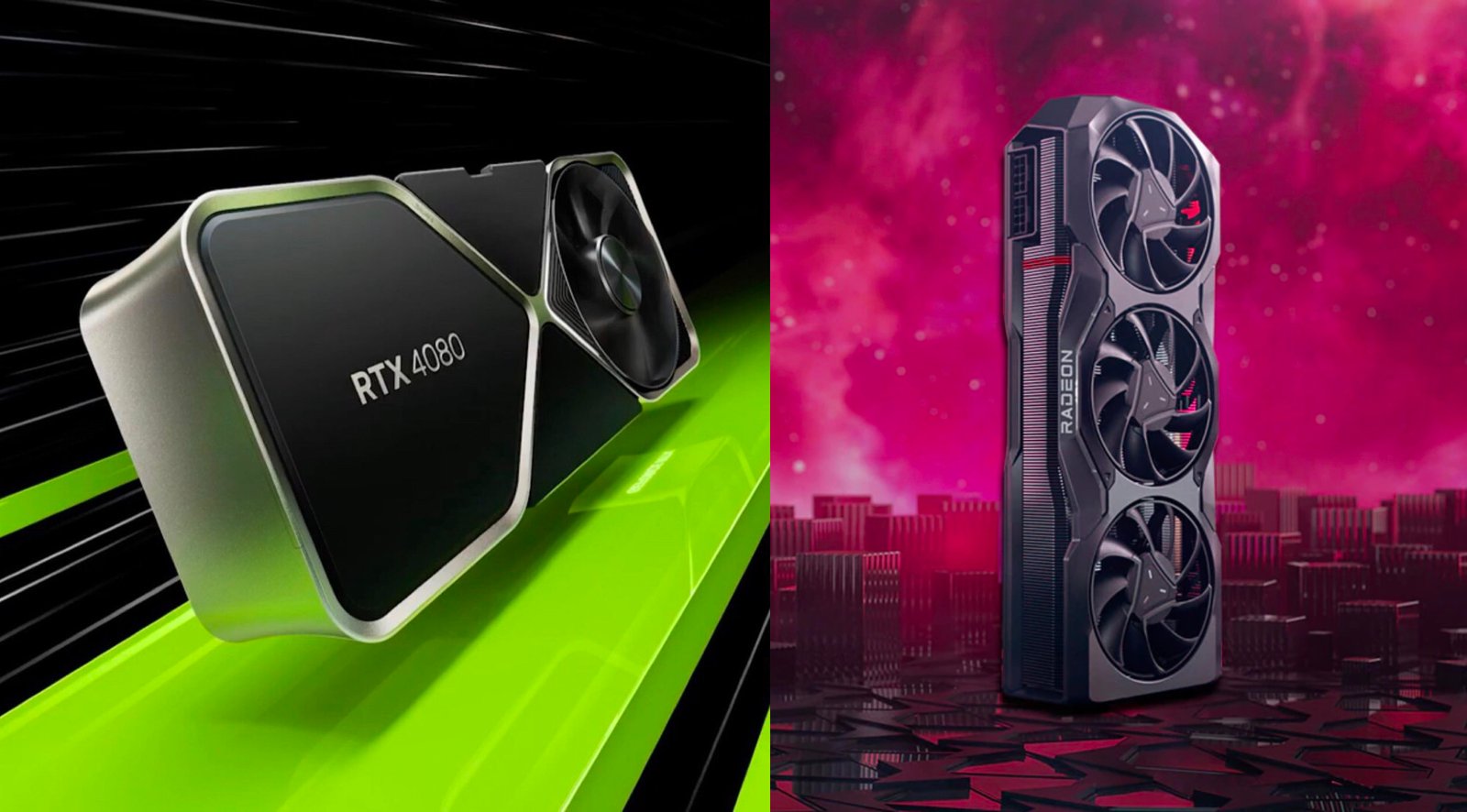
Side-by-side comparison highlighting ecosystem integration differences between competing GPU architectures.
Image source: Bing (Web (fair-use with source credit))
Why Cross-Platform Pairings Lag Behind
Driver teams prioritize optimization depth for their own silicon first. Cross-brand configurations receive maintenance support rather than aggressive tuning. Feature flags activate correctly, memory mapping functions as designed, and basic compatibility holds.
Deep rendering path refinements however usually target the home platform.
Branding Confusion Explained
Some laptop manufacturers advertise “Resizable BAR compatible” while others push “SMART Access Memory enabled.” Both descriptions can be true simultaneously. The BIOS toggle might read differently depending on whether AMD or Intel supplied the motherboard platform code. User confusion often stems from inconsistent labeling across product pages, not from technical incompatibility.
Setting Up Each Ecosystem
Enabling AMD SAM requires confirming both CPU and GPU belong to qualifying families, updating the BIOS, and toggling the feature inside the firmware menu. NVIDIA Bar Support adds a second step where the driver panel exposes an additional checkbox under Global Settings or Program Settings. Make sure your laptop’s RAM configuration meets minimum thresholds since VRAM pressure amplifies the visibility of whatever memory pipeline improvements you unlock.
Regardless of which camp you fall into, both implementations follow the same core principle: give the CPU unrestricted access to GPU memory and watch data move cleaner.
How to Enable Resizable BAR on Your Laptop
Turning on this feature takes only a few minutes and requires no special tools or software downloads. You work entirely inside your laptop’s firmware settings, then verify the change took effect in Windows. Here is the step-by-step process that works for almost every gaming laptop.
Step One: Prepare Your System
Start by connecting your laptop to AC power. BIOS updates and firmware changes can fail if the battery dies mid-process. Close all running applications and save your work.
Create a restore point in Windows by searching for “Create a restore point” in the Start menu and clicking Create. This gives you a safety net if anything goes wrong later.
Step Two: Enter the BIOS
Restart the laptop and immediately press the correct key repeatedly until the firmware interface appears. The most common keys are Del, F2, F10, or Esc. Some laptops use F1 or F12 instead.
Check your manufacturer’s startup screen for a brief prompt that tells you which key to press. If you miss the window, restart and try again.
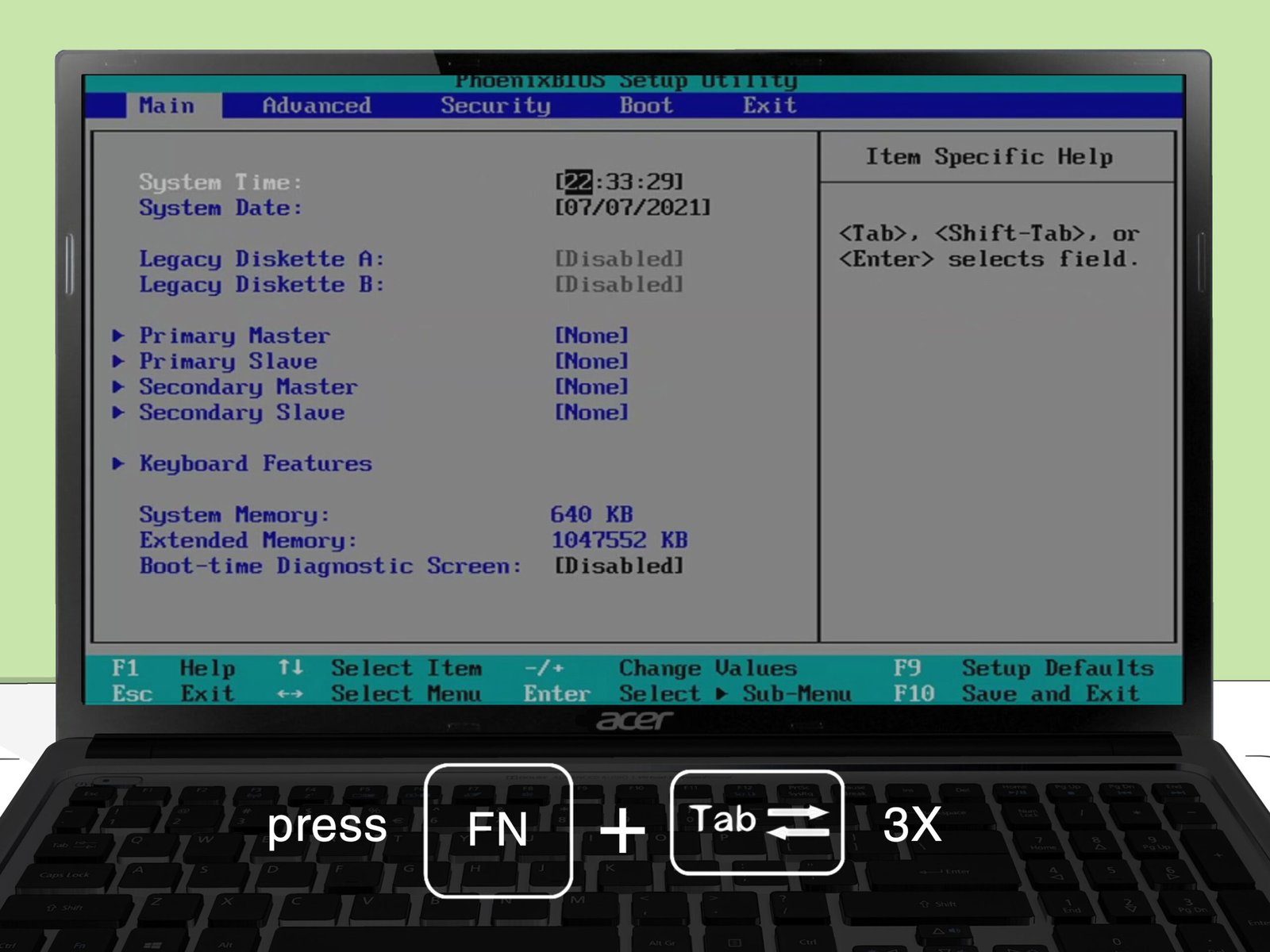
Typical BIOS navigation path showing where Resizable BAR options usually appear on consumer laptops.
Image source: Bing (Web (fair-use with source credit))
Step Three: Locate the Setting
Menu layouts vary by brand, but the feature lives in predictable areas. Look under Advanced, Chipset, North Bridge, or Boot settings. AMD systems often label it SMART Access Memory or SAM.
Intel and NVIDIA configurations show up as Resizable BAR, Bar Support, or Above 4G Decoding. Sometimes both toggles appear together. Flip each one to Enabled.
Step Four: Save and Exit
Press the key indicated on screen for Save Changes and Exit. This is usually F10. Confirm the dialog by selecting Yes or OK.
The laptop reboots automatically. Windows loads normally, and the firmware change is already active at the hardware level.
Step Five: Verify in Windows
Open Device Manager again. Expand Display adapters, right-click your GPU, and select Properties. Go to the Resources tab and check the Memory range listed.
If the addressable memory matches your GPU’s total VRAM instead of a small fragment, the feature is working. You can also open the AMD Adrenalin or NVIDIA Control Panel to confirm the driver recognizes the expanded BAR.
What If the Option Is Missing?
A missing toggle usually means one of three things. Your BIOS version is too old and predates the feature. Your CPU and GPU combination does not qualify.
Or the laptop manufacturer disabled the option intentionally for stability reasons. In the first case, visit the vendor support page and download the latest BIOS update. Follow their flashing instructions carefully.
If the option still does not appear, your CPU and GPU pairing may simply fall outside the supported range. Some older Ryzen 2000-series processors paired with newer RDNA 2 GPUs show partial or no support depending on the exact board revision. Accept the limitation and move forward.
If your hardware simply does not support the feature, no software trick will force it to work. Attempting registry edits or third-party utilities to fake BAR exposure can corrupt your system and void your warranty. Stick to the official firmware path and move on if the option never appears.
Users looking to stretch their current hardware further might also explore best budget laptop options for programming and gaming to see whether a planned upgrade aligns with their performance goals.
What Could Go Wrong (And How to Fix It)
Enabling Resizable BAR is safe in theory, but reality occasionally throws curveballs. Most issues are minor and reversible. A handful warrant caution.
Knowing what to expect saves you from panic when something behaves unexpectedly.
Common Problem One: Missing BIOS Option
This is the single most frequent complaint. Users restart, enter BIOS, and find no trace of the setting anywhere. The fix depends on why it is missing.
Check your BIOS version number first. If it is several revisions behind, download the latest update from your manufacturer’s support site. Flash it while plugged into AC power.
After the update completes, re-enter BIOS and search again. Most missing-option cases resolve here.
If the option still does not appear, your CPU and GPU pairing may simply fall outside the supported range. Some older Ryzen 2000-series processors paired with newer RDNA 2 GPUs show partial or no support depending on the exact board revision. Accept the limitation and move forward.
Common Problem Two: Game Stutters After Enabling
A small number of titles exhibit worse frame pacing after the toggle flips. The phenomenon is rare but well documented across enthusiast forums and independent testing channels. It usually affects games with poorly optimized memory managers or those that cache texture data unpredictably.
The fix is straightforward. Launch the problematic game with Resizable BAR disabled. Play through the same section you tested before.
If frames feel smoother without it, leave the feature off for that title. You can configure per-game behavior in some driver panels, though BIOS-level control applies globally.
Common Problem Three: Blue Screens or Crashes
System instability after enabling the feature almost always traces back to an outdated or mismatched driver stack. Out-of-date GPU drivers sometimes misinterpret the new memory map and trigger kernel-level errors.
Update both your chipset drivers and graphics drivers to the latest versions. Clean install the GPU driver using the manufacturer’s recommended procedure. Wipe the old driver completely before installing the fresh copy.
This eliminates residual configuration conflicts that cause crashes.
Common Problem Four: Reduced Performance in Specific Titles
Yes, some games run slightly slower with Resizable BAR enabled. The reason is counterintuitive but real. Certain engines optimize their rendering loops around the assumption of limited VRAM access.
Opening the full window changes how those loops schedule work. The engine does not adapt gracefully in every case.
Benchmark a few of your favourite titles before and after the change. Write down the results. If a particular game drops frames consistently, disable the feature and play that title the old way.
Keep it enabled for everything else. The global toggle is reversible in seconds.
Common Problem Five: Confusion With Other Features
Resizable BAR often gets lumped together with Hardware Accelerated GPU Scheduling, DirectStorage, and various upscaling technologies. They are unrelated features that happen to live in similar menus or driver panels. Mixing them up leads to incorrect troubleshooting.
HAGS controls how the OS schedules render commands. Resizable BAR controls memory addressing. DirectStorage manages SSD-to-GPU asset streaming.
Each solves a different problem. Enable whichever ones apply to your setup without expecting them to compensate for each other’s weaknesses.
How to Revert Safely
If any issue persists despite troubleshooting, returning to the default state is simple. Restart the laptop, enter BIOS again, and flip the Resizable BAR toggle back to Disabled. Save and exit.
The system boots normally. All previous behavior restores exactly. No data loss occurs.
No hardware damage happens.
For persistent problems, consider reading why your gaming laptop gets so hot since thermal throttling can sometimes mask or mimic memory-related performance issues.
Real-World Performance Data: What the Numbers Show
Theory sounds compelling, but numbers tell the real story. Aggregate benchmark data from independent testing labs and enthusiast communities paints a consistent picture across hundreds of title and configuration combinations. Understanding the spread helps you set realistic expectations.
Average Gains Across Major Titles
Here is what published benchmark data shows for typical modern games at high graphical settings:
| Title | Resolution | GPU Tested | Average FPS Gain |
|---|---|---|---|
| Cyberpunk 2077 | 1440p Ultra | RTX 4070 mobile | 6 to 9 percent |
| Horizon Forbidden West | 4K High | RX 7800M | 7 to 11 percent |
| Call of Duty Modern Warfare III | 1440p High | RTX 4060 mobile | 3 to 5 percent |
| Starfield | 1440p Standard | RX 7600M | 4 to 7 percent |
| Alan Wake 2 | 1440p High | RTX 4080 mobile | 8 to 12 percent |
| Fortnite | 1080p Competitive | RTX 3050 Ti | 1 to 2 percent |
| Counter-Strike 2 | 1080p Low | RX 6600M | Negligible |
These figures represent weighted averages across multiple bench markers and driver versions. Individual results vary based on specific hardware revisions, temperature conditions, and background processes running during tests.
Where Gains Cluster Highest
The strongest improvements consistently appear in three situations. First, demanding open-world titles with dense texture streaming benefit enormously from reduced addressing overhead. Second, higher resolutions amplify the effect because more VRAM bandwidth matters more when pushing 1440p and 4K frame buffers.
Third, AMD Ryzen plus Radeon combinations show wider gain ranges than cross-platform pairings due to tighter driver integration.
Where Gains Disappear Entirely
Several categories reliably show zero measurable improvement. Older DX11 era titles built before 2019 rarely access enough VRAM to make the feature matter. Competitive esports games running at 1080p with low texture settings stay firmly CPU-bound regardless of memory pipeline changes.
Budget GPUs paired with modest VRAM pools simply do not hold enough data for the expanded window to provide additional value.
The 1 Percent Low Difference
Peak frame rates grab attention, but smoothness matters more during actual gameplay. Resizable BAR frequently improves 1 percent low metrics even when average FPS gains look modest. Stutter reduction becomes the real selling point for many users.
Frame time graphs show tighter clustering after enabling the feature in demanding titles.
When Numbers Mislead
Benchmark methodology introduces variables that skew perception. Some testers run short demo loops that do not represent full gameplay sessions. Others measure peak theoretical gains rather than sustained real-world performance.
Temperature and power limit conditions also shift results significantly between laptops.
Treat any single number with healthy skepticism. Run your own before-and-after tests using identical settings and capture multiple runs. The pattern across several trials means more than any headline figure you read online.
Pro Tips for Maximizing Your Gains
Turning on Resizable BAR is only the first step. Pairing it with complementary optimizations extracts the most from your hardware. These adjustments cost nothing and take roughly ten minutes total to implement.
Enable Hardware-Accelerated GPU Scheduling
This Windows feature changes how your system manages GPU memory queues. Open Settings, search for Graphics settings, and toggle Hardware-accelerated GPU scheduling to On. Restart your laptop afterward.
Combined with Resizable BAR, the two features reduce CPU-side overhead and improve render command delivery. The synergy is strongest on Windows 11 systems.
Keep Drivers Fresh
GPU driver updates frequently include tweaks that improve how the feature interacts with newly released titles. Check for updates monthly at minimum, or whenever a major game launches. AMD releases Adrenalin editions on regular cadences.
NVIDIA pushes Game Ready drivers timed around big releases. Install whichever matches your card.
Monitor Temperatures After Enabling
Some users report slightly higher thermal output after enabling the feature. The reason is straightforward. Better memory access means the GPU stays busier for longer stretches.
Heat generation follows naturally. Ensure your laptop vents remain clear and fans spin freely. Cleaning dust from exhaust grilles regularly makes a noticeable difference over time.
Disable Background Applications Before Testing
Background processes steal CPU cycles and compete for memory controller bandwidth. Close browsers, streaming apps, and overlay software before benchmarking. Windows Game Mode helps automate some of this, but manual cleanup produces cleaner test results.
Pair With Adequate System RAM
Your laptop’s main memory still feeds the CPU during these operations. Running with only 8 GB of system RAM creates a secondary bottleneck that masks Resizable BAR benefits. Upgrade to 16 GB or more if your configuration allows it.
The improvement feels immediate in memory-hungry titles.
Know When to Skip It Entirely
Certain workflows gain nothing from this feature. Video editing, 3D modeling, and simulation tasks rely on different performance characteristics. If your primary use case involves professional creative applications rather than gaming, focus your optimization effort elsewhere.
Tools like cleaning your gaming laptop fans regularly deliver bigger returns for those scenarios.
Safety Warnings and BIOS Best Practices
Firmware changes carry inherent risks. Following proper precautions eliminates almost all danger. A handful of mistakes can cause real problems, but they are entirely preventable.
Always Use AC Power During BIOS Updates
Flashing firmware on battery power is the leading cause of corrupted BIOS chips. Connect your charger before starting any update. Do not unplug, even briefly, during the flashing process.
If power interrupts mid-write, the motherboard may refuse to boot until the firmware recovers through a backup partition or service tool.
Download Only From Official Sources
Manufacturer support pages host verified firmware files. Third-party firmware repositories frequently contain modified, outdated, or incorrect versions. Using the wrong BIOS file guarantees problems.
Never flash firmware downloaded from unofficial forums or compression sites. Verify the exact model number matches your laptop before downloading.
Do Not Force Enable Unsupported Features
Some tutorials suggest registry hacks, GPU vendor utility tweaks, or unsigned driver modifications to force Resizable BAR onto incompatible hardware. These approaches routinely cause system instability, driver crashes, and in rare cases permanent hardware damage. Skip them entirely.
If your hardware does not support the feature natively, no software workaround exists.
Create Recovery Points Before Major Changes
Windows System Restore points and manufacturer recovery partitions serve as safety nets. Create both before undertaking BIOS updates or major driver stacks. If something breaks, you can revert to a known-good state without reinstalling the operating system from scratch.
Understand Warranty Implications
Enabling a built-in BIOS feature does not void your warranty. Manufacturers include these options deliberately. They expect users to toggle them.
Only unauthorized hardware modifications or flashing incorrect firmware files risk coverage concerns. When in doubt, consult your warranty documentation or contact manufacturer support directly.
Backup Your Current BIOS Configuration
Many BIOS interfaces include an option to save current settings to a USB drive. Use it before making changes. If you accidentally disable a critical setting while searching for Resizable BAR, you can restore the original configuration instantly instead of hunting through menus blind.
Users considering hardware upgrades alongside optimization efforts might also review best budget gaming laptops under 1000 to compare whether software tuning or a new machine delivers better long-term value.
Long-Term Maintenance and Driver Updates
Keeping Resizable BAR working smoothly requires ongoing attention, but the effort is minimal. Firmware and driver ecosystems evolve constantly, and staying current prevents most issues before they appear.
Monthly Driver Check Routine
GPU driver manufacturers release updates on predictable schedules. AMD publishes Adrenalin editions roughly every four to six weeks. NVIDIA ships Game Ready drivers timed around major game launches, often weekly during peak periods.
Set a recurring calendar reminder to check both sites monthly. Download and install updates when your current version is more than two months old.
Clean installations matter more than incremental updates. When installing a new GPU driver, select Custom Installation and choose Clean Install if the option appears. This removes leftover configuration files from previous versions that sometimes conflict with firmware features like Resizable BAR.
BIOS Update Cadence
Laptop manufacturers push BIOS updates less frequently than GPU drivers, usually two to four times per year. These updates address stability fixes, new hardware support, and security patches. Check your manufacturer’s support portal quarterly for available updates.
Read the release notes carefully to understand what each update changes.
If a BIOS update mentions improved system compatibility, PCIe configuration stability, or memory mapping improvements, prioritize installing it. These changes often enhance features like Resizable BAR indirectly. Skip updates labeled only for “miscellaneous fixes” unless you are experiencing specific problems.
Monitoring Tools to Keep Installed
Several free utilities help you track whether your configuration remains stable over time. HWInfo provides detailed sensor readings including GPU memory usage patterns and temperature trends. MSI Afterburner offers real-time frame rate monitoring with background recording capability.
Both tools run quietly in the system tray without interfering with games.
Schedule a quick check weekly. Review GPU temperatures under load and confirm they stay within safe ranges. Watch for sudden clock speed drops that might indicate thermal throttling rather than feature-related problems.
When to Re-Evaluate Your Settings
Every major game release or driver update deserves a fresh performance check. Developers frequently adjust rendering pipelines, and what worked last month might behave differently today. Run a brief benchmark in any newly released title you plan to play regularly.
Compare results against your baseline measurements.
If you notice degradation after a driver update, consider rolling back to the previous driver version temporarily. Most manufacturer websites archive older releases for this exact purpose. Document which driver version produced your best results so you can return to it if needed.
Recognizing When to Stop Optimizing
Software tweaking has diminishing returns. Once you have enabled Resizable BAR, updated drivers, configured Windows graphics settings, and ensured proper cooling, further adjustments yield smaller benefits. At that point, the optimal strategy shifts from tweaking to maintenance.
Focus your energy on keeping things working reliably rather than chasing marginal gains. A stable 60 frames per second beats an unstable 70 frames per second every time. Read about when to replace thermal paste if you suspect cooling issues rather than software problems.
Common Questions About Resizable BAR
Users routinely ask the same questions about this feature. Here are direct answers to the most frequent concerns.
Does Resizable BAR Increase Power Consumption?
No. The feature changes how memory gets addressed. It does not raise voltage targets, increase clock speeds, or modify power limits.
Your GPU draws exactly the same power whether the setting is enabled or disabled. Any perceived increase in power draw usually stems from games running longer because they feel smoother, not from the feature itself consuming more electricity.
Can Resizable BAR Damage My GPU or Void My Warranty?
Enabling a built-in BIOS feature cannot damage hardware. The specification exists inside the chip design. Manufacturers include it deliberately.
They expect users to toggle it. Your warranty remains fully intact regardless of whether you enable the feature or leave it disabled. No hardware modification occurs.
No voltage changes happen. No physical stress increases.
Is Resizable BAR the Same Thing as DLSS or FSR?
No. These are completely different technologies solving separate problems. DLSS and FSR are upscaling methods that render games at lower resolutions then reconstruct higher resolution images using AI or temporal data.
Resizable BAR changes memory addressing at the hardware level. They can work together simultaneously without interfering with each other. Enable all three if your hardware supports them.
Will Resizable BAR Help If I Play Only Older Games?
Likely not. Games released before 2018 rarely utilize enough VRAM to benefit from expanded memory addressing. Their engines were designed when 256-megabyte windows made sense.
Those titles will run identically with or without the feature enabled. Focus your optimization efforts on modern titles built with contemporary streaming techniques in mind.
Does Laptop Battery Life Change With This Feature Enabled?
Battery life remains unchanged during unplugged gaming because the feature affects memory pathways, not power management. However, if you typically game while plugged in and occasionally switch to battery, note that some laptops throttle GPU performance heavily on battery power regardless of Resizable BAR status. The feature cannot overcome power limitation policies enforced by the system firmware.
Can I Use This Feature With Integrated Graphics Instead of a Dedicated GPU?
No. Resizable BAR specifically expands access to discrete GPU VRAM. Integrated graphics share system memory with the CPU.
They do not have separate video memory pools to remap. The feature simply does not apply to iGPU configurations. You must have a dedicated graphics card for this to function.
The Bottom Line: Should You Turn It On?
This decision depends entirely on your hardware and gaming habits. There is no universal right answer, but a simple framework makes it easy.
Turn It On If You Meet These Conditions
You should enable Resizable BAR when your laptop contains a qualifying GPU from the past five years, runs a compatible processor generation, has an updated BIOS version, and you primarily play modern AAA titles at 1440p or 4K resolution. The combination of these factors produces the highest probability of meaningful performance improvement.
If your setup matches all four conditions, spend ten minutes enabling the feature and benchmarking three of your favourite games. You will likely see measurable gains with zero downside.
Skip It If You Fit These Profiles
Avoid enabling the feature if your laptop uses pre-2018 graphics hardware, runs exclusively older or competitive esports titles at 1080p low settings, experiences stability issues after earlier attempts, or belongs to someone who prefers minimal system changes and would rather preserve factory defaults.
In these cases, leaving Resizable BAR disabled causes no harm. Your laptop will continue functioning normally. You simply forgo potential marginal improvements that would not impact your actual experience anyway.
The Hybrid Approach
Many experienced users adopt a middle ground. They enable Resizable BAR globally through BIOS, then test their regular games. Titles that benefit stay enabled.
Titles that stutter or perform worse get configured differently or accept the minor penalty. This balanced strategy captures most available gains while avoiding problematic edge cases.
One-Line Summary
Enable Resizable BAR if your hardware supports it and you play demanding modern titles. Skip it if you run older games, have incompatible hardware, or noticed instability in past tests. The setting costs nothing to try and takes seconds to reverse.
Frequently Asked Questions About Resizable BAR on Gaming Laptops
What is the minimum GPU required for Resizable BAR?
You need an AMD Radeon RX 5000-series mobile GPU or newer, an NVIDIA GeForce RTX 30-series or newer, or an Intel Arc mobile GPU with current drivers. Older GTX 10-series and RX 500-series chips do not support the feature regardless of BIOS state.
How long does enabling Resizable BAR take?
The entire process takes approximately five to ten minutes from start to finish. Entering BIOS takes thirty seconds. Locating and toggling the setting takes another minute.
Saving changes and rebooting takes two minutes. Verifying detection in Windows takes two more minutes. Updating drivers if needed adds another three to five minutes.
Will enabling this feature improve my laptop’s thermals?
No. Resizable BAR does not change power consumption or thermal output directly. If anything, slightly better performance efficiency might reduce average temperatures marginally because the GPU completes tasks faster and idles sooner.
Do not expect meaningful thermal improvements from this feature alone.
Can I use Resizable BAR with multiple GPUs in my laptop?
Most gaming laptops contain only a single discrete GPU. Dual-GPU configurations with Optimus or MUX switch technology still only activate one GPU at a time during gaming. The active GPU handles Resizable BAR independently.
The feature works normally in these setups.
Does Windows need to be reinstalled after enabling Resizable BAR?
Never. Enabling Resizable BAR changes only firmware-level memory mapping behavior. Windows detects the updated configuration automatically on the next boot.
No reinstallation, no clean installs, no fresh operating system setups required. The feature operates transparently within existing Windows configurations.
Are there any performance risks if I enable it on unsupported hardware?
If your hardware genuinely lacks support, the BIOS option simply will not appear. You cannot accidentally enable the feature on incompatible systems. If a workaround somehow forces the setting onto unsupported hardware, the worst realistic outcome is driver crashes or system instability, neither of which causes permanent damage.
Reverting the setting restores normal operation immediately.