What is a dedicated graphics card in a laptop? It is a separate GPU with its own memory and processing hardware, built to handle graphics workloads independently from the CPU. That separation matters because it frees the processor for other tasks and improves performance in demanding apps.
As of 2026, many gaming and creator laptops pair an integrated GPU with a discrete GPU, and NVIDIA Optimus or AMD Switchable Graphics can move work between them. The practical question is not just what it is, but whether your workload justifies the extra cost, heat, and battery use. Let's walk through that decision step by step.
what is a dedicated graphics card in a laptop
A dedicated graphics card is a separate GPU with its own VRAM. It handles graphics workloads instead of relying only on the CPU. Many laptops use hybrid graphics and switch between the two.
It helps with gaming, 3D work, and heavy creative apps. It also adds cost, heat, and battery use.
What a Dedicated Graphics Card Actually Does in a Laptop
A dedicated graphics card, also called a discrete GPU or dGPU, is its own processor with its own memory. It renders images, video frames, 3D scenes, and AI workloads without borrowing system RAM for graphics. That is the big difference from an integrated GPU, which lives inside or beside the CPU and shares memory.
In a laptop, the dGPU often sits on the same motherboard as the CPU, but it has its own silicon, cooling, and power path. NVIDIA GeForce RTX laptop GPUs, AMD Radeon RX laptop GPUs, and Intel Arc laptop GPUs are common examples. They can handle heavier textures, more effects, and smoother frame rates than basic integrated graphics.
| Term | Meaning |
|---|---|
| Dedicated GPU | Separate graphics processor with its own memory |
| Integrated GPU | Graphics built into the CPU package |
| VRAM | Memory used for textures, frames, and render data |
The main benefit is focus. The CPU can manage game logic, physics, and background tasks while the GPU handles pixels and 3D work. That split is why a laptop with a dGPU can feel far smoother in demanding software.
If you are comparing machines, remember that a dGPU is not magic. It still depends on cooling, power limits, and driver support. A weak cooling system can hold back even a strong chip.
Integrated vs. Dedicated: How the Two Systems Split the Work
Most modern laptops use hybrid graphics. The integrated GPU handles light tasks, while the dedicated GPU wakes up for heavier work. This setup saves battery and keeps the laptop cooler during normal use.
NVIDIA Optimus and AMD Switchable Graphics are common switching systems. They decide which GPU runs an app. A MUX switch can also change how the display connects, which can reduce latency in some gaming setups.
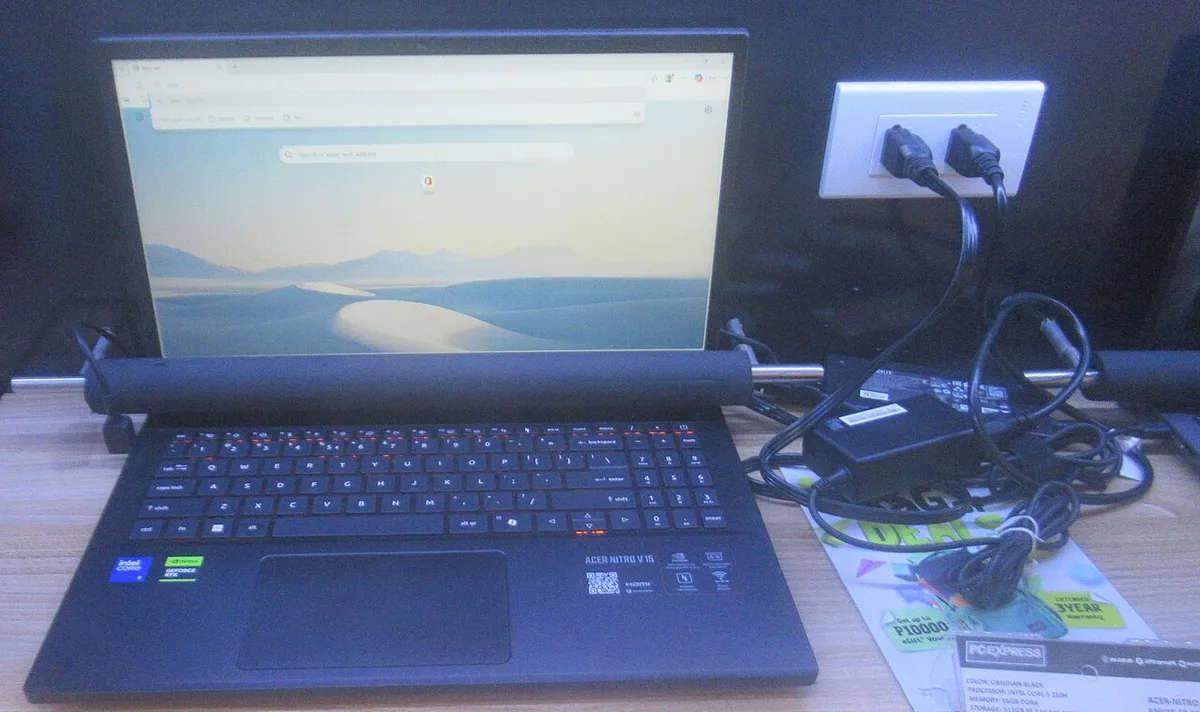
Image source: Wikimedia Commons / P1898 (CC BY)
The two systems do not always behave the same way. The integrated GPU is usually better for battery life, web browsing, video calls, and light editing. The dedicated GPU is better for gaming, 3D rendering, and complex creative work.
Here is the practical split:
- Integrated graphics: better battery life, less heat, lighter laptops.
- Dedicated graphics: better frame rates, faster renders, stronger 3D performance.
- Hybrid mode: switches based on app demand.
- Direct display mode: can reduce overhead in some games.
If you are wondering about running games without a dGPU, our guide on running games on integrated graphics alone shows where that line usually sits. It is a useful reality check before you pay for extra graphics power.
The Conditions That Decide Whether You Need One
You need a dedicated GPU when your work regularly stresses graphics. You probably do not need one if your laptop is mainly for documents, browsing, streaming, and light photo edits. The answer changes with your tasks, not just your budget.
If you play modern AAA games, edit 4K video, model in 3D, or run local AI tools, a dGPU becomes useful. If you mostly use office apps and browser tabs, integrated graphics is often enough. Battery life may matter more than raw graphics power.
Ask these questions before buying:
- Do you need high frame rates in modern games?
- Do you edit video or render 3D scenes often?
- Will you use multiple external monitors?
- Are you willing to accept more heat and fan noise?
- Is battery life a top priority?
- Will you plug in most of the time?
If the answer is yes to the first three, a dGPU makes sense. If the answer is yes to the last two, integrated graphics may be the smarter choice. There is no universal winner, only a better fit for your routine.
Sometimes the dGPU is present but not used. If a game ignores the dedicated chip, our guide on when a game ignores the dedicated GPU can help you trace the problem. It is a common issue, especially after driver or Windows updates.
Decision Branches by Real-World Use Case
The best way to decide is to match the laptop to your main task. Gaming, creative work, and everyday use place very different demands on the GPU. A dGPU helps most where the workload is visual and sustained.

Image source: Wikimedia Commons / See-ming Lee from Hong Kong SAR, China (CC BY-SA)
Use these branches as a starting point:
- AAA gaming: choose a dedicated GPU with enough VRAM and cooling.
- Esports gaming: a mid-range dGPU is often enough at 1080p.
- Video editing: a dGPU with strong encoders can speed up exports.
- 3D modeling: more VRAM and stable cooling matter more than peak clocks.
- Office and school: integrated graphics is usually fine.
- Travel and battery-first use: lean toward integrated or a lower-power dGPU.
For gaming, the exact chip matters less than the total package. A laptop with a strong cooler and a well-tuned power limit can beat a hotter model with a bigger name. Manufacturer specifications from NVIDIA and AMD are useful starting points, but real thermal design decides sustained performance.
If your laptop seems to ignore the dGPU, forcing a game onto the dedicated chip may be necessary. Our guide on forcing a game to use the dedicated GPU in Windows 11 covers that step. It is especially relevant when hybrid graphics makes the wrong choice.
Specs That Actually Matter: VRAM, TGP, and Cooling
Spec sheets can look impressive, but only a few numbers change real performance. VRAM, total graphics power, and cooling are the big three. Clock speed matters, but sustained heat and power limits often matter more.
VRAM is the GPU's own memory. More VRAM helps with large textures, high resolutions, and complex scenes. TGP tells you how much power the GPU can use, which affects speed and heat.
Cooling decides whether the chip can hold that speed for more than a few minutes.
| Spec | Why it matters | Common range |
|---|---|---|
| VRAM | Texture and frame capacity | 4GB to 16GB |
| TGP | Sustained GPU power | 35W to 175W |
| Cooling | Prevents throttling | Dual fans, vapor chamber, heat pipes |
A laptop with 8GB VRAM and a 100W TGP can be a strong gaming machine. A laptop with the same chip at 60W may be much slower. That is why two laptops with the same GPU name can feel very different.
Cooling also affects comfort. More power usually means more fan noise and warmer surfaces. If the laptop runs hot, performance can drop even when the specs look good.
Aggregate reviews often show this gap better than marketing pages.
If your GPU seems stuck at low usage, low GPU usage while gaming is a common troubleshooting path. It can point to power limits, drivers, or a game using the wrong chip. Those issues can make a good dGPU feel broken.
The Hidden Costs: Battery Life, Heat, and Weight
A dedicated GPU costs more than money. It also costs battery life, cooling capacity, and sometimes portability. That trade-off is easy to ignore when shopping, but it shows up every day in real use.
On battery, many laptops switch to integrated graphics to save power. That is why a gaming laptop can feel fast on a charger and much slower unplugged. If you work away from a wall outlet often, battery-first use should matter as much as frame rates.
Heat is the other big cost. A dGPU can push more power into a small chassis, which means warmer surfaces, louder fans, and more thermal throttling. Aggregate reviews often show that a cooler laptop with a slightly lower chip can feel better over long sessions.
Weight and size follow the same pattern. Bigger cooling, larger batteries, and stronger power adapters add bulk. If you carry the laptop daily, a thin-and-light machine with integrated graphics may be the better fit.
| Trade-off | What you gain | What you give up |
|---|---|---|
| Dedicated GPU | Better graphics performance | Battery life, heat, weight |
| Integrated graphics | Cooler, lighter, longer battery | Lower gaming and 3D power |
| Hybrid switching | Flexibility | Driver and mode complexity |
If your frame rates drop when you plug in, check power adapter limits before blaming the GPU. A weak or mismatched charger can cap performance even when the hardware is fine.
How to Check What Your Laptop Has and Switch Modes
You do not need to guess what GPU is inside. Windows shows it in a few places, and the manufacturer software usually gives more detail. Start simple, then move to deeper checks if something seems wrong.
Open Task Manager and look at the Performance tab. You should see both the integrated GPU and the dedicated GPU if the laptop has one. Device Manager can confirm the exact chip name, while the manufacturer control app shows driver and mode settings.
Use this quick check order:
- Open Task Manager and check GPU usage.
- Open Device Manager and confirm the GPU name.
- Check NVIDIA, AMD, or Intel graphics software.
- Look for a MUX switch or hybrid graphics setting.
- Test with a game or benchmark and watch which GPU spikes.
If the dedicated chip is missing, our guide on when a dedicated GPU is not detected can help you rule out driver, BIOS, and connection issues. It is a common problem after updates or hardware changes.
Mode switching matters too. Some laptops use automatic hybrid graphics, while others let you force a setting. If the control panel is missing, our guide on fixing a missing NVIDIA Control Panel can help restore the normal settings path.
Mistakes People Make When Buying or Using a dGPU Laptop
The biggest mistake is buying by GPU name alone. Two laptops with the same RTX or Radeon chip can perform very differently because of power limits and cooling. Always compare the full configuration, not just the graphics brand.
Another mistake is ignoring VRAM. A GPU with too little memory can struggle in newer games, high-resolution textures, and creative apps. More VRAM is not always better, but too little can become a hard limit.
Common errors include:
- Assuming all laptops with the same GPU perform the same.
- Ignoring total graphics power and cooling design.
- Forcing high settings on a low-power chip.
- Expecting desktop-level performance from a thin laptop.
- Buying extra graphics power for light everyday tasks.
- Not checking battery behavior before purchase.
If a laptop feels capped at a fixed frame rate, our guide on why a gaming laptop is stuck at 60 FPS on a 144Hz display can help you spot display, power, or refresh-rate limits. That kind of issue is often settings-related, not hardware failure.
Best Fit by User Type
The right choice depends on what you do most often. A gamer, a video editor, and a student have very different needs, even if they all want a fast laptop. Match the GPU to the workload, not the marketing.
| User type | Best fit | Why |
|---|---|---|
| AAA gamer | Strong dGPU with good cooling | Sustained frame rates matter |
| Esports player | Mid-range dGPU | High FPS at 1080p is enough |
| Video editor | dGPU with strong encoder | Faster export and playback |
| 3D artist | dGPU with more VRAM | Large scenes and textures |
| Student or office user | Integrated graphics | Better battery and lower cost |
| Frequent traveler | Lower-power dGPU or iGPU | Less heat and weight |
If you already own a dGPU laptop and want more speed without new hardware, our guide on boosting gaming laptop FPS without upgrading can help with settings, power modes, and cleanup. Small changes often matter more than people expect.
For RTX owners, our guide on why an RTX gaming laptop still has low FPS can help separate chip limits from driver, power, and game settings. It is a useful reminder that the GPU is only one part of the system.
Frequently Asked Questions
What is a dedicated graphics card in a laptop?
A dedicated graphics card is a separate GPU with its own memory and cooling. It handles graphics work instead of relying only on the CPU. That improves gaming, 3D work, and creative performance.
It can also reduce battery life and increase heat.
Do I need a dedicated GPU for everyday use?
No. Integrated graphics is usually enough for browsing, documents, video calls, and streaming. A dedicated GPU helps when you play modern games or run heavy creative software.
If battery life matters most, integrated graphics is often the better choice.
Is a dedicated GPU better than integrated graphics?
It is better for demanding graphics tasks. It is not better for battery life, heat, or portability. The right choice depends on your main workload.
Many people benefit more from a balanced laptop than from the strongest GPU.
Can a laptop have both integrated and dedicated graphics?
Yes. Many laptops use hybrid graphics and switch between the two. The integrated GPU handles light tasks, while the dedicated GPU handles heavier work.
Switching can be automatic or controlled by software.
Why does my dedicated GPU not get used?
The app may be set to integrated graphics, or hybrid switching may choose the wrong chip. Driver issues, power settings, and game profiles can also cause this. Checking Task Manager and graphics settings is the first step.
Does more VRAM always mean better performance?
No. More VRAM helps with large textures, high resolutions, and complex scenes. It does not fix weak cooling or low power limits.
A well-cooled GPU with enough VRAM is usually the better real-world choice.
1 thought on “What Is a Dedicated Graphics Card in a Laptop?”
Comments are closed.