Figuring out what to look for in a gaming laptop feels impossible when every brand promises the world. Specs like "RTX 4090" suggest raw power, but that is often misleading. The real trick is matching hardware capabilities to your specific usage habits.
A high-end chip inside a thin chassis might throttle under load, giving less performance than a mid-range card in a cooler body. As of 2026, thermal design matters more than peak clock speeds. Let’s walk through the decision tree step by step so you don’t waste money on features you’ll never use.
what to look for in a gaming laptop
Start with your primary use case. If you travel frequently, prioritize weight and battery life over maximum frame rates. For stationary play, focus on cooling efficiency and port selection.
Always check the Total Graphics Power (TGP) rating, not just the GPU model name. Match resolution targets to hardware limits to avoid overspending on unused pixels.
Start With Your Usage Pattern, Not the Spec Sheet
Most buyers make the mistake of starting with a budget or a favorite brand. That approach ignores physics. You need to define how you actually play before looking at any component list.
Are you sitting at a desk with an external monitor? Or are you balancing the machine on your knees during commutes? These scenarios demand completely different hardware configurations.
The Desk-Bound Player
If you rarely move your laptop, ignore weight penalties. Focus entirely on thermal headroom and connectivity. A heavier chassis allows for larger vapor chambers and multiple heat pipes.
This keeps temperatures low during long sessions. You also gain access to more ports without sacrificing internal space. Look for models marketed as "desktop replacements." They often feature higher TGP ratings because they aren't constrained by slim profiles.
Your priority shifts to screen size and refresh rate stability. Since you’re plugged in constantly, battery capacity becomes irrelevant. Invest in better hinges and sturdier builds instead.
Check if the laptop supports daisy-chaining monitors via Thunderbolt 4. This reduces cable clutter significantly.
The Commuter and Student
For those moving between locations, weight is king. Anything over 2.3kg starts feeling burdensome after a few months. You need a balance between performance and portability.
Thin-and-light gaming laptops have improved drastically since 2024. Modern designs pack decent GPUs into sub-1.8kg frames. However, this comes at a cost: reduced cooling capacity.
You must accept some thermal throttling. The goal is sustained performance, not peak bursts. Look for efficient CPUs like AMD Ryzen HS series or Intel Core U-series variants.
These chips draw less power while maintaining adequate frame rates for esports titles. Battery life becomes critical here. Aim for at least six hours of mixed usage.
| Feature Priority | Desk-Bound Player | Commuter / Student |
|---|---|---|
| Chassis Weight | Irrelevant (<3.5kg ok) | Critical (<2.3kg ideal) |
| Cooling System | Maximize (Vapor Chamber) | Balanced (Heat Pipes) |
| Battery Life | Low Priority | High Priority (>6 hrs) |
| Port Selection | Extensive (HDMI 2.1, TB4) | Essential Only (USB-C PD) |
| GPU TGP Rating | Highest Available | Moderate (Efficiency Focus) |
The Hybrid User
Many gamers fall into neither extreme. You might work from home three days a week and game on weekends. Or perhaps you attend classes but want to play AAA titles at night.
This group needs versatility. Choose a mid-weight chassis around 2.0–2.2kg. Prioritize USB-C Power Delivery charging.
This lets you use a smaller charger for travel and swap to the brick only when needed.
Hybrid users should scrutinize keyboard quality heavily. You’ll type documents and code alongside gaming. Mechanical switches offer tactile feedback but add height and noise.
Membrane keys are quieter and thinner. Test both if possible. Aggregate reviews suggest hybrid users prefer low-profile mechanical options for the best compromise.
Don’t overlook webcam quality either. Remote work demands clear video calls. Many gaming laptops still ship with 720p sensors.
Insist on 1080p minimum. Some newer models include infrared cameras for Windows Hello facial recognition. This adds convenience for logging in quickly between tasks.
Define your pattern clearly before browsing retailers. Write down your average session length. Note where you sit most often.
This simple exercise filters out half the market immediately. It prevents impulse buys driven by shiny RGB lights rather than actual utility.
The GPU Trap: Why TGP Matters More Than Model Number
Marketing teams love big numbers. Seeing "RTX 4080" on a box implies elite performance. But that label tells you nothing about actual capability.
The silicon is identical across brands. What varies wildly is the power delivered to it. This metric is called Total Graphics Power, or TGP.
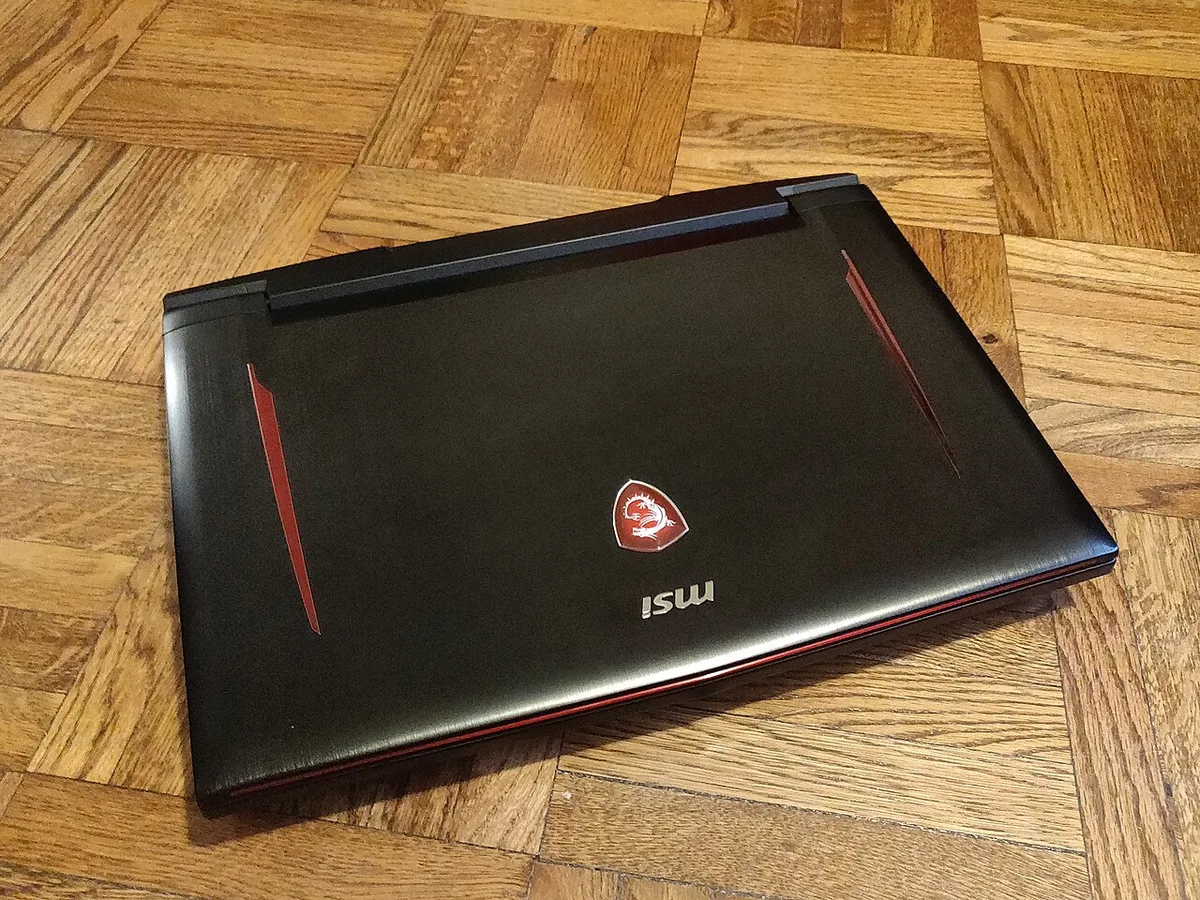
Image source: Wikimedia Commons / Kurt Kaiser
Understanding Wattage Variance
NVIDIA allows partners to set custom TGP levels within a specified range. An RTX 4070 might run at 60W in one laptop and 140W in another. The difference isn't marginal.
It can swing performance by 30% or more. Higher wattage feeds more electricity to the cores, allowing them to boost clocks further and longer.
Always check the manufacturer spec sheet for the exact TGP value. Don’t rely on retailer summaries. They often omit this crucial detail.
If the site lists "Up to 140W," verify if that includes Dynamic Boost. Dynamic Boost shifts power from the CPU to the GPU during gaming loads. This helps maintain frame rates but complicates thermal management.
Consider the implications for longevity. Running a GPU at max TGP generates significant heat. Over time, this stresses components.
Lower-TGP versions run cooler and quieter. They may sacrifice some FPS but offer better reliability. For esports players, consistency beats peak speed.
Stable 120fps is preferable to fluctuating 140–160fps spikes.

Image source: Wikimedia Commons / Alec Wilson from Khon Kaen, Thailand (CC BY-SA)
Diminishing Returns on High-End Cards
Buying top-tier graphics cards often yields poor value in laptop form factors. Physical constraints limit cooling effectiveness. Even with advanced vapor chambers, dissipating 175W+ of heat in a portable device is challenging.
Manufacturers push frequencies until thermal limits hit. Then they throttle.
Mid-range cards like the RTX 4060 or RX 7600S operate comfortably within standard cooling envelopes. They deliver excellent 1080p and solid 1440p performance. Upgrading to an RTX 4080 or 4090 increases price exponentially.
Yet, real-world gains depend heavily on the chassis quality. A poorly cooled 4090 performs worse than a well-cooled 4070 Ti Super.
Smart buyers skip the flagship tier unless they have unlimited budgets. The sweet spot lies in upper-mid range GPUs paired with robust cooling solutions. This combination offers the best price-to-performance ratio.
It ensures you get usable FPS without paying for unattainable theoretical peaks.
Integrated Graphics Reality Check
Some ultra-thin laptops lack dedicated GPUs entirely. They rely on integrated Radeon or Arc graphics. Can you game on these?
Yes, but only lightly. Titles like League of Legends or Valorant run fine at medium settings. AAA games struggle even at low resolutions.
If you choose this route, manage expectations strictly. These machines serve productivity first, entertainment second. Ensure your workload aligns with their limits.
Otherwise, frustration sets in quickly. For serious gaming, always insist on discrete silicon. No amount of software optimization replaces physical CUDA cores or Stream Processors.
Check driver support status too. Integrated graphics sometimes lag behind dedicated counterparts in update frequency. New game releases might crash or perform poorly initially.
Dedicated GPU vendors prioritize day-one patches. This ecosystem advantage shouldn't be underestimated by casual observers.
Screen Realities: Matching Resolution to Hardware Limits
The display defines your visual experience. But pairing the wrong panel with insufficient GPU power creates bottlenecks. A 4K screen looks stunning until framerate drops below 30fps.
Then it becomes unplayable. Balance is essential.
Resolution Sweet Spots
Full HD (1920×1080) remains the baseline for competitive gaming. It minimizes GPU strain. This allows high refresh rates, often exceeding 240Hz.
Esports professionals favor FHD panels for clarity and speed. Textures appear sharper relative to pixel count. Motion blur decreases due to faster response times.
QHD (2560×1440) strikes the best balance for modern AAA titles. It doubles pixel density compared to FHD. Visual fidelity improves noticeably.
Ray tracing effects become viable without crushing performance. Most mid-range GPUs handle QHD well at 60–100fps. This resolution future-proofs your investment slightly better than FHD.
UHD (3840×2160) belongs exclusively to enthusiast desktop replacements. Few mobile GPUs sustain playable framerates at native 4K. Upscaling technologies like DLSS help bridge the gap.
But artifacts remain visible. Unless you primarily watch movies or edit video, skip 4K screens. They drain batteries faster and generate excess heat.
Refresh Rate and Response Time
Higher refresh rates reduce input latency. 144Hz has become standard. Competitive players seek 240Hz or 360Hz. These panels require powerful GPUs to feed frames consistently.
If your system outputs 80fps on a 240Hz screen, you won’t benefit fully.
Response time measures how fast pixels change color. Look for GtG (Gray-to-Gray) ratings under 3ms. Slow responses cause ghosting trails behind moving objects.
IPS panels typically offer good color accuracy but slower transitions. TN panels react fastest but suffer from poor viewing angles. VA panels provide deep blacks but exhibit smearing in dark scenes.
Choose technology based on genre preference. RPGs shine on OLED or Mini-LED for contrast. Shooters demand IPS or TN for speed.
Understand trade-offs before committing. Manufacturer specifications indicate typical values, but individual units vary. Read independent benchmarks for specific models whenever possible.
Color Accuracy for Creators
Gamers who stream or edit content need calibrated displays. sRGB coverage above 100% ensures vibrant colors. DCI-P3 gamut exceeds 90% for cinema-grade hues. Factory calibration reports should accompany premium models.
Without verification, screens may show inaccurate tones. This affects post-production workflows significantly.
Budget laptops often skimp here. Colors look washed out or oversaturated. Test images reveal discrepancies easily.
If precision matters, invest in external monitors. Connect via HDMI 2.1 or DisplayPort over USB-C. External panels usually surpass built-in screens in quality per dollar spent.
Remember that brightness impacts visibility. Indoor gaming requires 300 nits minimum. Outdoor use demands 500+.
Anti-glare coatings help mitigate reflections. Matte finishes reduce eye strain during long sessions. Glossy surfaces pop colors but mirror room lighting annoyingly.
Pick finish according to environment conditions.
Thermal Physics in Thin Chassis: Where Performance Dies
Heat kills performance. Every electronic component generates warmth during operation. Gaming pushes processors harder than normal tasks.
Without proper dissipation, systems slow down automatically. This phenomenon is known as thermal throttling.
Cooling Mechanisms Explained
Traditional heat pipes transfer energy away from hotspots. Copper conducts efficiently. Airflow removes accumulated heat through vents.
Vapor chambers improve upon this method. They spread liquid across flat surfaces rapidly. This handles concentrated hot spots better than cylindrical pipes alone.
Fan design plays a role too. Larger blades move more air quietly. Smaller fans spin faster but create whine.
Dual-fan setups distribute load evenly. Single-fan designs risk bottlenecking airflow paths. Check vent placement carefully.
Exhausting towards hinges blocks cables. Side exhaust interferes with mouse movement. Rear-only output requires desk clearance.
Liquid metal thermal interface materials enhance conductivity. Standard paste degrades over time. Liquid metal maintains contact pressure effectively.
However, application errors cause shorts. Professional assembly mitigates risks. DIY replacement voids warranties usually.
Stick to factory-applied solutions unless experienced technically.
Identifying Throttling Signs
Symptoms include sudden FPS drops during intense battles. Fans roar unexpectedly loud. Keyboard areas grow uncomfortably warm.
Surface temperatures exceed 45°C near WASD keys. This disrupts comfort and control. Monitor stats using overlay tools regularly.
Track core clocks against expected boosts. Deviations signal cooling failures early.
Ambient temperature influences results significantly. Summer months raise baseline heats. Elevating the laptop aids circulation.
Standoffs lift devices off desks. This opens intake vents underneath. Rubber feet compress blocking airflow partially.
Use accessories designed specifically for ventilation improvement. Cheap plastic stands suffice mostly. Avoid fabric covers trapping dust inside intakes.
Dust accumulation obstructs fins gradually. Monthly cleaning prevents buildup. Compressed air blasts debris safely.
Disassembly required for thorough maintenance. Warranty terms restrict user intervention often. Seek authorized service centers for deep cleans.
Preventative care extends lifespan considerably. Neglect leads to permanent damage eventually.
Noise Levels and Comfort
Acoustic engineering separates premium models from budget ones. Decibel meters quantify output objectively. Idle states should remain silent (<30dB).
Light loads stay barely audible (<40dB). Heavy gaming reaches noticeable levels (45–55dB). Above 60dB becomes distracting rapidly.
Headsets mask fan noise effectively though.
Variable pitch drives adjust RPM dynamically. Fixed-speed fans run constantly inefficiently. Smart controllers optimize curves per scenario.
BIOS updates refine algorithms periodically. Install latest firmware provided by OEMs. Community forums share tweaked profiles occasionally.
Proceed cautiously modifying defaults blindly. Incorrect settings induce instability potentially.
Bear in mind that louder doesn't mean hotter necessarily. Efficient coolers move air quietly. Inefficient ones scream trying to compensate.
Judge silence relative to performance achieved. Compare similarly specced rivals directly. Data tables assist objective evaluation processes greatly.
Subjective impressions bias judgments unfairly otherwise. Trust metrics over marketing claims solely.
Portability vs. Power: The Battery and Trade-off
Carrying heavy bricks ruins mobility benefits promised earlier. Chargers add bulk significantly. Wall adapters transform lightweight rigs into cumbersome bundles.
Solution involves smarter power delivery standards universally adopted now.
USB-C Power Delivery Advantages
Modern laptops support charging via USB-C ports rated appropriately. GaN (Gallium Nitride) chargers shrink footprint dramatically. They convert AC to DC efficiently reducing waste heat.
One compact block powers phone, tablet, and laptop interchangeably. Simplifies packing logistics immensely for travelers globally.
Verify wattage requirements match adapter output capacities accurately. Underpowered supplies trigger warnings slowing operations intermittently. Full-speed functionality needs sufficient amperage delivered consistently throughout sessions.
Check manual specifics regarding compatible protocols supported officially by manufacturers.
Lithium-ion cells degrade chemically over cycles. Keeping charge between 20–80% prolongs health.
Deep discharges stress chemistry unnecessarily. Software limiting caps prevent full saturation. Enable these features in OS settings.
They extend usability years ahead. Replaceables become rare nowadays. Soldered packs dominate market trends currently prevailing industry wide adoption rates rising steadily.
Connectivity Checkpoints: Ports That Actually Impact Gameplay
Ports dictate your peripheral ecosystem. Modern gaming requires specific bandwidths. HDMI 2.1 enables 4K at 120Hz on external monitors.
DisplayPort 1.4 offers similar capabilities over USB-C. Thunderbolt 4 provides versatile expansion. It supports eGPUs, docks, and high-speed storage.
Not all USB-C ports carry video signals. Verify DisplayPort Alt Mode support. Ethernet (RJ45) remains essential for stable online play.
Wi-Fi introduces latency spikes occasionally. A wired connection eliminates jitter. USB-A ports still matter for legacy mice and headsets.
At least two USB-A 3.2 Gen 1 ports are ideal. Audio jacks should support separate mic and headphone inputs. Combo jacks sometimes cause buzzing.
Check port placement carefully. Side-mounted ports interfere with mouse movement. Rear placement keeps cables tidy.
Front ports collect dust easily. Prioritize rear or left-side placement for power cables. This keeps the right side clear for mouse sweeps.
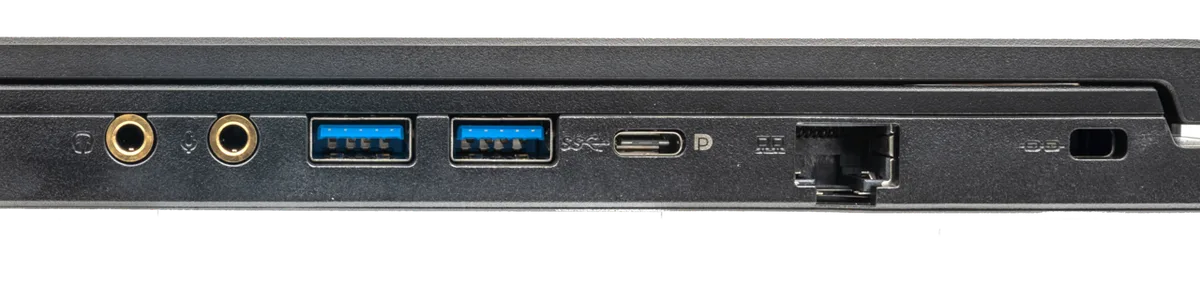
Image source: Wikimedia Commons / PantheraLeo1359531 (CC BY)
Upgrade Paths and Longevity: Soldered RAM and Dead Ends
Manufacturers increasingly solder components to save space. This limits future upgrades. Soldered RAM cannot be replaced or expanded.
If you buy 16GB now, that's permanent. For gaming, 32GB is becoming standard. Ensure dual-channel configuration at minimum.
Single-channel halves memory bandwidth. This impacts CPU-bound games significantly. Storage usually remains upgradeable via M.2 slots.
Check how many slots exist. Two slots allow future expansion without replacing the primary drive. Some models use proprietary Wi-Fi cards.
Standard M.2 2230 modules are preferable. Battery replacement difficulty varies. Some require disassembly.
Others use pull tabs. Verify service manuals availability online. Brands like Lenovo and ASUS publish detailed guides.
This indicates better long-term support. Avoid models with glued batteries. They complicate repairs and replacements.
Upgradeability extends laptop lifespan by years. Plan for at least a 5-year ownership cycle. Initial savings on low-spec models often cost more later.
Budget Breakdown: Where Money Buys FPS vs. Diminishing Returns
Price tiers dictate component quality. Under $1,000 buys entry-level 1080p gaming. Expect RTX 4050 or 4060 cards.
Build quality uses plastic chassis. Cooling remains basic. These suit esports and older AAA titles. $1,000 to $1,800 represents the value sweet spot.
You get RTX 4060 Ti or 4070 GPUs. Displays upgrade to 1440p with 165Hz. Aluminum lids improve rigidity.
Cooling systems add heat pipes. $1,800 to $2,500 delivers high-end performance. RTX 4070 Ti Super or 4080 cards appear. OLED screens become available.
Vapor chambers replace heat pipes. Above $2,500 enters enthusiast territory. RTX 4090 mobile chips dominate.
Mini-LED displays with 1000+ nits brightness. However, diminishing returns hit hard. Spending $3,000 rarely doubles performance over $1,800.
The 4090 mobile performs closer to a desktop 4070. Physical constraints limit power delivery. Allocate budget toward cooling and display quality over raw GPU power.
A well-cooled 4070 outperforms a throttling 4080 in most scenarios.
Decision Matrix: Which Laptop Fits Your Specific Profile?
Use this framework to finalize your choice. Match your profile to the recommended specifications. Students and travelers need under 2.3kg weight.
Prioritize battery life over GPU wattage. 16GB RAM suffices for most. Competitive FPS players demand 240Hz+ panels. Low response times under 3ms.
High single-core CPU performance. AAA gamers benefit from QHD resolution. 32GB RAM for texture streaming. OLED or Mini-LED for contrast.
Content creators need color accuracy. DCI-P3 coverage above 90%. Thunderbolt 4 for external storage.
Budget buyers should target previous generation models. RTX 30-series laptops still perform well. They often drop below $800.
Ensure warranty coverage remains valid. Avoid refurbished units without return policies. Your specific profile determines the right balance.
No single laptop excels at everything. Compromise based on primary use. Secondary features become bonuses, not requirements.
Frequently Asked Questions
How much RAM does a gaming laptop need in 2026?
16GB is the absolute minimum for modern gaming. 32GB provides headroom for multitasking and future games. Dual-channel configuration matters more than capacity. Single-channel memory halves bandwidth.
This causes stuttering in CPU-heavy titles. Upgrade to 32GB if your budget allows. Soldered RAM limits future expansion.
Verify upgrade slots before purchase.
Is a 4K screen worth it on a gaming laptop?
Rarely for gaming. Mobile GPUs struggle to render native 4K at playable framerates. Upscaling helps but introduces artifacts. 4K excels for content creation and media consumption.
Most gamers prefer QHD for the balance of clarity and performance. FHD remains optimal for competitive esports. Choose 4K only if you primarily create content or watch movies.
How long should a gaming laptop last?
Expect 4 to 6 years of useful life. Battery degradation occurs after 500 charge cycles. Thermal paste dries out within 2 to 3 years.
Fans accumulate dust requiring cleaning. Upgradeability extends lifespan. Replaceable RAM and storage help.
Soldered components reduce longevity. Regular maintenance prevents premature failure. Budget for battery replacement around year three.
Do I need an RTX 4090 for gaming?
No. The RTX 4090 mobile costs disproportionately more than mid-range cards. It performs similarly to a desktop RTX 4070.
Physical cooling limits its potential. Most games run excellently on RTX 4070 or 4080 mobile. The price difference buys minimal real-world gains.
Allocate funds toward better cooling and display instead. Only enthusiasts with unlimited budgets should consider it.
Can gaming laptops overheat and catch fire?
Modern laptops include thermal cutoffs. They shut down before dangerous temperatures. Lithium-ion batteries can ignite if damaged.
Never use swollen or punctured batteries. Avoid blocking vents during operation. Use hard surfaces only.
Liquid metal TIM requires professional application. DIY modifications risk shorts. Follow manufacturer guidelines strictly.
Safety certifications like UL listing ensure baseline protection.
Should I buy a gaming laptop or build a desktop?
Desktops offer better price-to-performance and upgradeability. Laptops provide portability and all-in-one convenience. If you never move your machine, build a desktop.
If you travel or lack space, choose a laptop. Desktops last longer due to modular repairs. Laptops depreciate faster.
Consider your living situation carefully. Hybrid options include eGPU setups with thin laptops.
Connectivity Checkpoints: Ports That Actually Impact Gameplay
Ports shape your daily setup. HDMI 2.1 supports high-refresh external displays. DisplayPort over USB-C offers similar flexibility.
Thunderbolt 4 adds docking and storage options. Ethernet reduces wireless latency. At least two USB-A ports help legacy gear.
Side-mounted ports can block mouse movement.
Upgrade Paths and Longevity: Soldered RAM and Dead Ends
Soldered RAM limits future upgrades. Dual-channel memory matters for smooth frame pacing. Two M.2 slots allow storage expansion.
Check battery replacement access before buying. Service manuals indicate long-term support quality. Upgradeable parts extend ownership value.
Budget Breakdown: Where Money Buys FPS vs. Diminishing Returns
Under $1,000 suits esports and older titles. $1,000 to $1,800 is the value sweet spot. $1,800 to $2,500 improves cooling and displays. Above $2,500 brings diminishing returns. Spend on thermals before chasing flagship GPUs.
A cooler mid-range card often beats a throttling flagship.
Decision Matrix: Which Laptop Fits Your Specific Profile?
Students need light weight and battery life. Competitive players need fast refresh rates. AAA gamers need QHD resolution and strong cooling.
Creators need color accuracy and fast ports. Budget buyers should consider last-generation GPUs. Match the machine to your primary task first.
Frequently Asked Questions
Is a gaming laptop good for everyday work?
Yes, if you accept extra weight and fan noise. Many models offer quiet modes for office use. Battery life is usually shorter than ultrabooks.
A 14-inch model can balance both needs.
Do gaming laptops need a cooling pad?
Not always. A good chassis handles normal loads. Cooling pads help older or thin models.
They also raise the screen slightly. Use one if surface temperatures climb.
Can you upgrade the GPU in a gaming laptop?
No. The GPU is soldered to the motherboard. You can only improve cooling or lower settings.
External GPU docks exist but add cost and bulk.
How often should you clean a gaming laptop?
Clean vents monthly with compressed air. Deep clean fans and heatsinks yearly. Dust buildup raises temperatures quickly.
Follow warranty rules before opening the chassis.