What refresh rate should a gaming laptop have depends on the games you play, the GPU inside, and whether your screen can keep up with your frame rate. Chasing the biggest number on the box can waste money and still feel worse than a well-matched 144Hz setup. The right target is the refresh rate your hardware can hold steady in the games that matter to you.
Manufacturer specifications and panel standards matter here. VESA Adaptive-Sync certification, for example, sets the baseline for tear-free variable refresh rate support, while response time is usually measured in milliseconds gray-to-gray. As of 2026, most gaming laptops ship with 120Hz, 144Hz, 165Hz, or 240Hz panels, so the real work is matching one of those tiers to your GPU and game genre.
The Refresh Rate Trap: Why Chasing the Highest Hz Backfires
Chasing 360Hz or 480Hz sounds smart. It often is not. A gaming laptop only feels smoother when the GPU can feed the panel enough stable frames.
If the graphics chip cannot hold that pace, you paid for motion clarity you never see.
The trap starts with marketing. Brands sell the panel number, not the power behind it. A mid-range GPU paired with a 240Hz screen can spend most of its time below 120 FPS.
That mismatch creates uneven frame pacing and wasted battery. If your laptop has a low power limit, the gap gets worse fast. Fixing that bottleneck matters more than buying extra hertz, and a guide on fixing a low GPU power limit on gaming laptops can help you check that first.
There is also a diminishing-returns wall. Moving from 60Hz to 120Hz is a big jump. Moving from 240Hz to 360Hz is much harder to notice.
Aggregate user reviews report that many players cannot tell the difference in normal play. Competitive shooters are the exception, and even there the gain depends on skill level and aim style.
The smartest first move is simple. Match the refresh rate to the FPS your GPU can hold in your main games. Then check whether VRR is supported.
A stable 144Hz setup with good frame pacing beats a shaky 300Hz setup almost every time. If your laptop is stuck at 60 FPS on a 144Hz display, the refresh rate is not the problem. The fix is usually graphics settings, driver behavior, or a power limit.
How Refresh Rate, FPS, and Response Time Actually Interact
Refresh rate is how many times the screen updates each second. FPS is how many frames the GPU renders each second. Response time is how fast a pixel changes from one color to another.
These three numbers work together, and a weak one can ruin the others.
If FPS is lower than refresh rate, the screen shows the same frame twice. That can feel stuttery even on a fast panel. If FPS is higher than refresh rate, the panel cannot show every frame, and tearing can appear.
VRR fixes much of this by syncing the panel to the GPU. NVIDIA G-Sync and AMD FreeSync are the common forms, and NVIDIA documents the certification requirements for its G-Sync displays.
Response time is separate but just as important. A 240Hz panel with a slow pixel transition can smear fast motion. That smear looks like blur, not smoothness.
Manufacturer specifications often list 1ms, 3ms, or 5ms gray-to-gray, but real-world results depend on overdrive settings. Too much overdrive can cause inverse ghosting, which looks like bright trails behind moving objects.
A good test is simple. Run a game at a stable FPS near your refresh rate. Watch fast camera pans.
If motion looks clean and inputs feel tight, the setup is working. If it looks smeared or jumps, lower the graphics load or adjust overdrive. Frame time spikes can also make a fast screen feel broken, so it helps to know how to fix gaming laptop frame time spikes fast.
Image source: Wikimedia Commons / P1898 (CC BY)
| Term | What it means | Why it matters |
|---|---|---|
| Refresh rate | Screen updates per second | Sets the motion ceiling |
| FPS | Frames rendered per second | Must feed the panel |
| Response time | Pixel transition speed | Prevents blur and ghosting |
| VRR | Syncs panel to GPU | Reduces tearing and stutter |
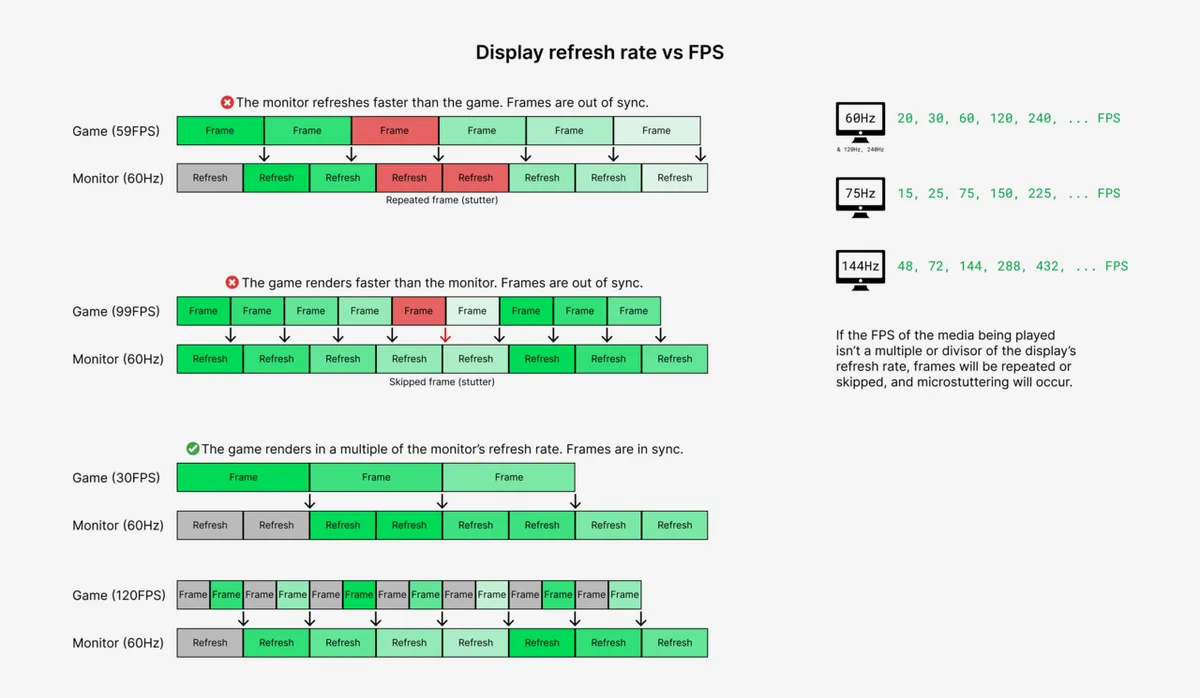
Image source: Wikimedia Commons / Rotocoasa (CC BY)
The Hardware Variables That Decide Your Real Refresh Rate
The panel label is only half the story. Your real refresh-rate experience depends on GPU power, CPU speed, resolution, thermals, and power mode. A 300Hz screen with a weak GPU will not feel like 300Hz.
It will feel like a fast display showing slow frames.
GPU Total Graphics Power is a big deal. Two laptops with the same RTX name can have very different TGP limits. One may run at 80W, another at 140W.
That changes how high the FPS can climb. If your GPU usage is low, the bottleneck may be CPU, memory, or a driver issue. A guide on fixing low GPU usage and FPS drops on gaming laptops is worth checking before you blame the screen.
Resolution also changes the target. A 1080p panel is easier to drive at 240Hz. A 1440p panel asks more from the GPU.
A 4K panel usually pushes you toward 60Hz or 120Hz unless you have very high-end hardware. If your laptop uses integrated graphics instead of the dedicated GPU, performance drops even harder, so that setting is worth verifying.
Thermals and power mode matter just as much. High performance mode only helps if the cooling system can keep up. If the laptop gets hot, it may throttle and drop FPS.
Battery power often limits GPU output too. The best refresh rate is the one your laptop can hold without thermal throttling or power cuts.
Refresh Rate Tiers Compared: 60Hz to 480Hz
Different tiers fit different users. There is no universal winner. A 60Hz panel is still fine for slow, story-driven games.
A 144Hz panel is the sweet spot for most players. Higher tiers make sense mainly for competitive esports and strong GPUs.
| Tier | Best for | Typical tradeoff |
|---|---|---|
| 60Hz | Story games, budget laptops | Cheapest, least smooth |
| 120Hz | Mixed gaming and portability | Good balance |
| 144Hz | Most PC gamers | Strong value |
| 165Hz | Mid-range esports | Slightly smoother than 144Hz |
| 240Hz | Competitive shooters | Needs strong GPU |
| 300Hz+ | Top-tier esports | Diminishing returns |
| 480Hz | Pro-level play only | Very niche |
A 60Hz screen can still look good. It just cannot hide motion stutter as well. For RPGs, strategy games, and single-player adventures, the difference is smaller than many people expect.
If your budget is tight, spending on GPU power may help more than chasing a higher panel number.
144Hz is the practical default. It gives a clear smoothness boost without demanding extreme hardware. 165Hz is close, so treat it as a nice bonus rather than a must-have. 240Hz is where competitive players start to feel a real edge, but only if FPS stays high.
300Hz and 480Hz are specialty tiers. They suit fast shooters with low graphics settings and strong aim skills. For most players, those tiers are overkill.
If you want more FPS from existing hardware, a guide on boosting gaming laptop FPS without upgrading can help you tune settings before spending more.
Decision Branches by Game Genre and Play Style
The best refresh rate depends on what you play. Use these branches as a starting point, then adjust for your GPU and budget.
- If you play CS2, Valorant, or Apex Legends, aim for 240Hz or higher only if your GPU holds 200+ FPS.
- If you play Fortnite or Rocket League at high settings, 144Hz or 165Hz is usually the better target.
- If you play Cyberpunk 2077, Baldur's Gate 3, or Red Dead Redemption 2, 120Hz or 144Hz is often enough.
- If you use the laptop for school or work too, favor 120Hz or 144Hz for battery life and heat.
- If you play on battery often, lower the refresh rate to save power.
Competitive players should prioritize frame stability over peak numbers. A steady 180 FPS on a 240Hz panel feels better than spikes between 120 and 260. Use low settings, enable VRR, and test input feel.
If the dedicated GPU is not being used, fix that first. A guide on forcing a game to use the dedicated GPU in Windows 11 can help.
Casual players should prioritize image quality and comfort. A 144Hz IPS or OLED panel with good color is often a better buy than a 240Hz panel with weak colors. If you stream or create content, stable frame pacing matters more than ultra-high refresh.
Check whether your GPU can hold the target before you chase a higher tier.
How to Match Refresh Rate to Your GPU and Resolution
Start with the FPS your laptop holds in your main games. If most titles run at 60 to 80 FPS, a 120Hz or 144Hz panel is a smart match. If you hold 120 to 160 FPS, 144Hz or 165Hz makes sense.
If you hold 200 FPS or more, 240Hz can help.
Resolution changes the target fast. 1080p is easier to drive at high refresh. 1440p needs stronger GPU power. 4K usually pushes you toward 60Hz or 120Hz unless the hardware is very strong.
GPU power matters as much as the GPU name. Two laptops with the same RTX chip can run at very different TGP levels. Check the wattage before you judge the panel.
If GPU usage stays low, the bottleneck may be software or power. A guide on forcing a game to use the dedicated GPU in Windows 11 can help you check that.
| GPU class | Resolution | Sensible refresh target |
|---|---|---|
| Entry level | 1080p | 120Hz or 144Hz |
| Mid range | 1080p or 1440p | 144Hz or 165Hz |
| High end | 1440p | 240Hz |
| Top tier | 4K | 120Hz or higher |
If your laptop is stuck at 60 FPS on a 144Hz display, the refresh rate is not the problem. The fix is usually graphics settings, driver behavior, or a power limit. A guide on why your gaming laptop is stuck at 60 FPS on a 144Hz display can help you trace it.
If your RTX laptop still feels slow, check for thermal or power limits. A guide on why your RTX gaming laptop has low FPS can help you spot hidden bottlenecks. Fix those first, then judge the panel.
Common Mistakes That Waste a High-Refresh Display
The biggest mistake is buying hertz you cannot use. A 240Hz panel with a GPU that averages 90 FPS will not feel like 240Hz. It will feel like a fast screen showing slow frames.
Another mistake is ignoring frame pacing. Big FPS swings can make motion feel rough even on a premium panel. Stable frames matter more than peak frames.
If your laptop drops FPS when the fan gets loud, the cooling system may be the real issue.
Some players cap games at 60 FPS by accident. V-Sync, battery saver, or a wrong power mode can do this. Check Windows settings, NVIDIA settings, and the laptop power profile.
If performance drops on charger, power delivery may be limiting the GPU.
Overdrive is another trap. Pushing it too high can cause inverse ghosting. That looks like bright trails behind moving objects.
Use the middle setting first, then test fast camera pans. If the image looks worse, lower it.
Do not ignore driver changes either. A new driver can help or hurt. If stutter appears after an update, roll back or reinstall.
A guide on fixing gaming laptop stutter after an NVIDIA driver update can help you recover quickly.
Tuning and Maintaining Peak Motion Clarity
Start with the basics. Set the display to its native refresh rate in Windows. Then enable G-Sync or FreeSync if supported.
VRR reduces tearing when FPS dips below the panel limit.
Next, tune graphics settings for stable frames. Lower shadows, reflections, and ray tracing first. Those settings often cost the most FPS.
Then test motion with a fast camera pan. Clean motion means the setup is working.
Overdrive needs care. Use the manufacturer's recommended level. Too little causes blur.
Too much causes ghosting. If you see trails, step down one level and retest.
Keep drivers and firmware updated, but not blindly. Read release notes when possible. If a driver causes stutter, roll back.
A guide on fixing micro stutter on gaming laptops in Windows 11 can help if motion feels uneven.
Thermals affect clarity too. Hot laptops throttle and drop FPS. Clean vents and use a hard surface.
If FPS drops when the fan gets loud, cooling may be the issue. A guide on why your gaming laptop drops FPS when fans get loud can help you check that.
Battery mode also changes behavior. Many laptops limit GPU power on battery. For best motion clarity, plug in and use high performance mode.
A guide on why your gaming laptop lags on battery power explains why this happens.
FAQs About Gaming Laptop Refresh Rates
Is 144Hz enough for a gaming laptop?
Yes, for most players. 144Hz gives a clear smoothness boost over 60Hz without needing extreme hardware. It works well for mixed gaming, streaming, and daily use. If your GPU holds 120 to 160 FPS, 144Hz is a strong and practical target.
Do I need 240Hz for competitive games?
Only if your GPU can hold very high FPS. 240Hz helps in fast shooters when motion stays stable. If your FPS swings a lot, the benefit drops. Many players do better with a steady 144Hz setup than an unstable 240Hz one.
Does refresh rate affect battery life?
Yes. Higher refresh rates use more power. The difference can be noticeable during travel or school use.
If battery life matters, drop to 60Hz or 120Hz when you are not gaming. You can raise it again when plugged in.
What is the difference between refresh rate and FPS?
Refresh rate is how often the screen updates. FPS is how many frames the GPU renders. A 144Hz screen can only show 144 updates per second.
If the GPU renders 80 FPS, the screen repeats frames and motion feels less smooth.
Should I enable G-Sync or FreeSync?
Yes, if your laptop supports it. VRR syncs the panel to the GPU and reduces tearing. It helps most when FPS dips below the refresh rate.
It does not fix low FPS, but it makes dips feel smoother.
Can a slow response time ruin a high refresh rate?
Yes. A fast panel with slow pixel transitions can smear motion. That blur can make 240Hz feel worse than a slower panel with clean response.
Check reviews for real-world ghosting, not just the advertised millisecond number.
Your Final Decision Guide
Use this simple path. First, name your main games. Second, check the FPS your GPU holds at your chosen resolution.
Third, pick the refresh tier that matches that FPS.
If you play competitive shooters and hold 200 FPS or more, choose 240Hz. If you play mixed genres and hold 120 to 160 FPS, choose 144Hz or 165Hz. If you play story games or use the laptop for work, 120Hz is usually enough.
Before you spend more, fix bottlenecks. Check GPU power, thermals, drivers, and power mode. A guide on boosting gaming laptop FPS without upgrading can help you get more from current hardware.
If the panel is stuck at 60 FPS, fix that first with a guide on gaming laptop FPS capped at 30 or 60 issues.
The best refresh rate is the one your laptop can hold cleanly. Match the screen to the GPU, not the other way around. That is how you get smooth motion without wasting money.
1 thought on “What Refresh Rate Should a Gaming Laptop Have?”
Comments are closed.