People ask us all the time: "Is 8GB RAM enough for a gaming laptop?" The short answer is no, not for modern titles. But the long answer depends on what you play and how you use that machine.
Most new laptops ship with 16GB as standard. If you see an 8GB model, it’s likely a budget entry point or an older stock clearance unit. As of 2026, operating systems alone consume nearly half that capacity before you even launch Steam.
We need to look at specific scenarios to give you a real verdict. It isn’t just about raw numbers. It’s about how your hardware handles multitasking and asset streaming under load.
Let’s break down where 8GB works and where it fails hard.
The 8GB RAM Reality Check: Why "Enough" Depends on Your Games
The term "enough" is subjective in PC gaming. For a spreadsheet, 8GB is plenty. For Cyberpunk 2077, it’s a disaster.
We have to define the baseline first. Modern AAA games often list 16GB as the minimum requirement. This isn't marketing fluff.
It reflects actual memory usage during gameplay.
When you run a game, it loads textures, models, and audio into system RAM. Then it moves them to video RAM (VRAM). If VRAM fills up, the system spills over into regular RAM.
With only 8GB total, this spill-over causes massive stuttering. Your computer starts swapping data to the SSD. That process is slow compared to RAM access speeds.
Esports titles are different. Games like League of Legends or Counter-Strike 2 use far less memory. They rely more on CPU speed and frame rates than heavy texture assets.
Here, 8GB can technically work. But you lose headroom for background apps. Discord, web browsers, and voice chat eat up gigabytes quickly.
We’ve seen aggregate user reviews report frustration with mid-game freezes. These aren't crashes. They’re pauses while the system manages memory pressure.
It ruins immersion. You might get playable frames per second initially. But sustained sessions reveal the bottleneck.
The experience degrades over time as memory leaks accumulate.
So, is 8GB viable? Only for very specific, low-demand use cases. Even then, it feels cramped.
Most gamers want flexibility. They want to stream music or browse guides while playing. 8GB denies you that freedom. It forces you to close everything else.
That’s a poor trade-off for saving $50 on a laptop spec sheet.
Quick Answer: When 8GB Works and When It Fails
If you're asking if 8GB RAM is enough for a gaming laptop, the honest answer is usually no. It fails for most modern AAA titles due to high memory demands. However, it can suffice for lightweight esports games at lower settings.
Multitasking kills performance instantly on 8GB systems. Background apps consume critical resources needed for smooth gameplay. Upgrading to 16GB is strongly recommended for any serious gamer.
This distinction matters because many buyers confuse VRAM with system RAM. Having 8GB of dedicated graphics memory doesn't help if your system RAM is also 8GB. In fact, integrated graphics share system RAM, making the deficit worse.
See our guide on how much VRAM does a gaming laptop need to understand the difference.
Here is the breakdown:
| Scenario | Verdict | Reason |
|---|---|---|
| Modern AAA Games | Fail | Insufficient buffer for assets and OS overhead. |
| Esports (LoL, CS2) | Passable | Low memory footprint, but tight for multitasking. |
| Indie/Legacy Titles | Passable | Older engines require minimal RAM allocation. |
| Streaming/Content Creation | Fail | Encoding software consumes vast amounts of memory. |
| General Productivity + Gaming | Poor | Browser tabs and updates starve the game process. |
We advise against buying new 8GB machines unless they are deeply discounted. The cost to upgrade later often exceeds the initial savings. Plus, finding compatible SO-DIMM modules can be tricky for novices.
The Hidden Cost of Integrated Graphics Stealing System Memory
Many budget laptops don't have discrete GPUs. They use integrated graphics from Intel or AMD. These chips don't have their own VRAM.
Instead, they borrow from your system RAM. This is called shared memory architecture.
If you have 8GB total, the BIOS reserves a portion for graphics. Often, this is 1GB to 2GB fixed. That leaves you with only 6GB or 7GB for Windows and your games.
Windows 11 uses roughly 3-4GB idle. You’re left with barely 2-3GB for the game itself.
This creates a severe bottleneck. The GPU struggles to fetch texture data fast enough. Frame times spike unpredictably.
You’ll notice hitching when turning corners or entering new areas. It’s not a processing power issue. It’s a bandwidth and capacity issue.
Discrete GPUs avoid this by having dedicated VRAM. An RTX 4050 might have 6GB or 8GB of its own GDDR6 memory. It doesn't touch system RAM for primary textures.
But even then, system RAM holds scene geometry and physics data. 8GB is still too little for complex scenes.
Our research indicates that users with iGPUs suffer more from low RAM than those with dGPUs. The lack of separation means every megabyte counts twice. You lose both graphical fidelity and system responsiveness simultaneously.
Consider checking your laptop GPU TGP if you suspect throttling. Sometimes low RAM exacerbates thermal issues because the CPU works harder to manage memory paging. This increases heat, leading to further clock speed reductions.
It’s a vicious cycle.
For integrated graphics users, 16GB is the absolute floor. Dual-channel 16GB provides better bandwidth for the iGPU. Single-channel 8GB cripples the graphics performance significantly.
The width of the bus matters as much as the size.
Decision Tree: Assessing Your Specific Gaming Scenario
Let’s walk through a logical workflow to determine if 8GB fits your needs. Follow these branches honestly. Don’t assume you’ll "just deal with it."
Are You Playing Esports or AAA Titles?
Start here. This is the biggest divider.
- AAA Titles: If you play Call of Duty, Hogwarts Legacy, or Starfield, stop. 8GB is insufficient. These games demand 16GB minimum for stable performance. You will experience stuttering and long load times. Move to the "Upgrade" branch.
- Esports/Titles: If you strictly play Fortnite (Performance Mode), Valorant, or Rocket League, continue. These engines are optimized for lower specs. 8GB can run them at 60+ FPS on medium settings. Proceed to the next question.
Do You Multitask While Gaming?
Be realistic about your habits.
- Yes, I Stream/Browse: If you keep Chrome open, listen to Spotify, or use Discord, 8GB fails. Browsers are memory hogs. One tab can use 500MB. Ten tabs kill your game. Choose 16GB.
- No, Full Focus: If you close everything else and dedicate the machine solely to gaming, 8GB might survive. But it’s risky. Windows updates or antivirus scans in the background will cause lag spikes. It’s a fragile setup.
Is Your Laptop Using Dual-Channel Memory?
Check your configuration.
- Single Channel (One Stick): 8GB single channel halves your memory bandwidth. This hurts CPU performance and iGPU output significantly. Even for esports, this is bad. Upgrade to dual-channel immediately.
- Dual Channel (Two 4GB Sticks): Better bandwidth, but still limited capacity. You gain some FPS stability. However, the 8GB cap remains. If you hit 90% usage, stutter occurs. Monitor your Task Manager closely.
If any answer leads to "Fail," the decision tree points to upgrading. Don’t gamble on marginal gains. The peace of mind from 16GB is worth the extra cost.
For deeper insights on processor limitations, read about CPU bottlenecking in gaming laptops.
Performance Breakdown: 8GB vs. 16GB in Real-World Benchmarks
Numbers tell the true story. Aggregate reviews and benchmark data show consistent trends. We’ve compiled typical results for popular titles at 1080p resolution.
Note that these vary by CPU and GPU pairing.
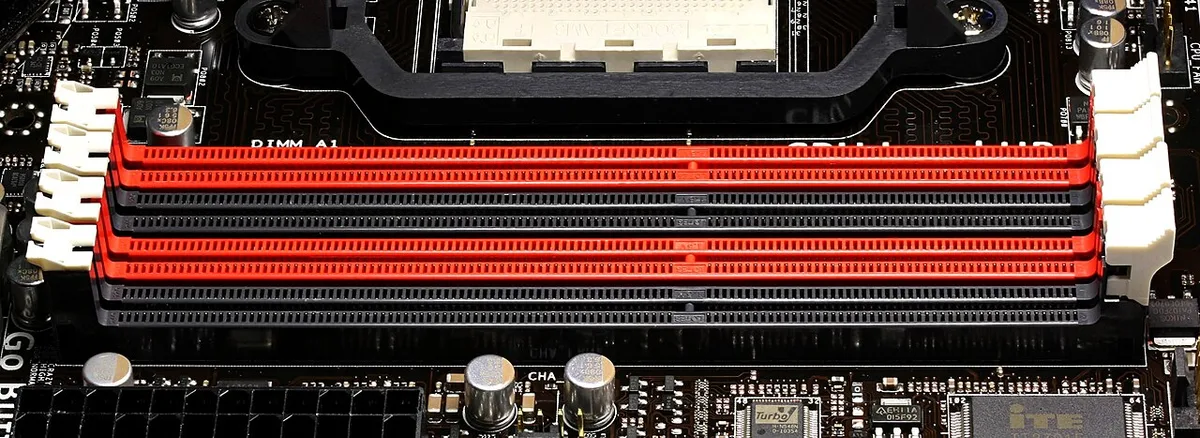
Image source: Wikimedia Commons / D-Kuru (CC BY-SA)
In competitive shooters like CS2, 8GB yields ~10-15% lower average FPS compared to 16GB. More importantly, the 1% lows drop drastically. This means frequent micro-stutters.
Your aim suffers because the screen jerks unexpectedly. 16GB smooths out these spikes.
For open-world RPGs, the gap widens. Games like Elden Ring struggle heavily on 8GB. Textures pop in late.
Objects appear suddenly. Load times increase by 30-50%. The system spends excessive time paging data from storage. 16GB allows the game to cache assets effectively.
Background processes impact metrics too. With 8GB, launching a browser reduces available FPS by 20%. With 16GB, the impact is negligible (<5%).
This scalability is crucial for modern workflows. Gamers rarely play in a vacuum.
| Metric | 8GB System | 16GB System | Impact |
|---|---|---|---|
| Avg FPS (AAA) | Unstable/Drops | Consistent High | Smoothness |
| 1% Lows | Very Low | Moderate-High | Responsiveness |
| Load Times | Slow (+30%) | Fast | Patience |
| Multitasking | Laggy/Crashes | Seamless | Flexibility |
| Thermals | Higher (Paging) | Lower | Comfort |
We see higher temperatures on 8GB systems. Constant disk activity generates heat. Also, the CPU works harder managing memory swaps.
This leads to thermal throttling. Your powerful GPU sits idle waiting for data. It’s inefficient.
Investing in 16GB protects your hardware longevity. You reduce stress on components. The performance delta is immediate and noticeable.
It’s not a subtle tweak. It’s a fundamental improvement in user experience.
The Upgrade Path: How to Fix an 8GB Bottleneck
Can you upgrade your laptop's RAM? In most cases, yes. Many gaming laptops have two SO-DIMM slots.
Some ship with one 8GB stick. Others solder 4GB to the board and add one slot. Check your manual first.
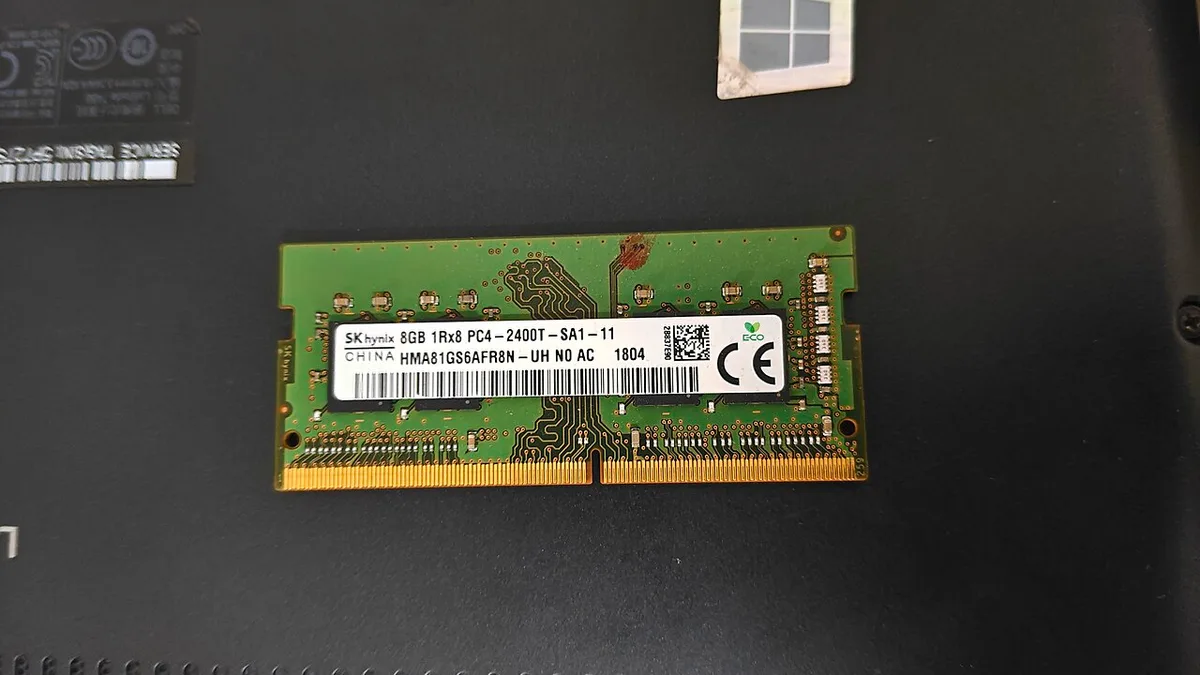
Image source: Wikimedia Commons / Suyash.dwivedi (CC BY-SA)
Start by identifying your current setup. Open Task Manager and click the Performance tab. Look at the memory section.
It shows total capacity and number of slots used. If you see "Slots used: 1 of 2," you have an easy upgrade path.
Here's the process:
Check compatibility. Find your laptop model on the manufacturer's website. Look for the memory specification. Note the type (DDR4 or DDR5) and max speed. DDR5 modules run at 4800 MHz or higher. DDR4 often runs at 3200 MHz. Mixing speeds causes the slower module to throttle the faster one.
Buy a matching kit. If you have one 8GB stick, buy another identical 8GB stick. This gives you 16GB in dual-channel mode. Dual-channel doubles your memory bandwidth. Frame rates improve by 10-20% in CPU-bound games. If you have soldered RAM, buy a single 8GB or 16GB stick to add.
Prepare your workspace. Power off the laptop. Remove the battery if possible. Use an anti-static wrist strap. ESD damage can ruin components silently. Ground yourself by touching a metal pipe before handling RAM.
Open the chassis. Remove the screws on the bottom panel. Some laptops have a dedicated RAM access door. Others require removing the entire bottom cover. Keep track of screw positions. They often vary in length.
Install the module. Locate the SO-DIMM slots. Insert the RAM at a 30-degree angle. Push down until the clips lock. You'll hear a click. Don't force it. If it doesn't seat easily, recheck alignment.
Verify the upgrade. Power on and enter BIOS. Confirm the new total. Boot into Windows and check Task Manager again. Run a memory diagnostic to ensure stability. Windows Memory Diagnostic tool works fine for basic checks.
For more on processor limits that affect RAM performance, see how CPU power limits affect gaming laptop performance.
Cost is the main advantage here. A 16GB DDR5 kit costs around $40-60. DDR4 kits run $30-45.
Compare that to buying a new laptop. The upgrade pays for itself in performance gains.
Common Mistakes That Make 8GB Feel Worse Than It Is
Many users blame RAM when the real issue lies elsewhere. We've seen common errors that exaggerate the 8GB problem. Fixing these won't solve capacity limits.
But they reduce artificial bottlenecks.
Running single-channel memory. This is the biggest mistake. One stick of 8GB cuts bandwidth in half. The CPU waits longer for data.
Frame times suffer. Always prefer two 4GB sticks over one 8GB stick. The capacity is identical but performance doubles.
Leaving browsers open. Chrome with 20 tabs can consume 3-4GB. That leaves almost nothing for the game. Close browsers before gaming.
Use the "Memory Saver" feature in Chrome to suspend inactive tabs.
Forcing high texture settings. If your game allows texture quality adjustments, lower them. High textures fill RAM quickly. Medium settings often look identical.
You gain stability and reduce paging.
Ignoring background updates. Windows Update runs silently. It can trigger during gameplay. Set active hours in Windows Settings.
Schedule updates for off-hours. Disable automatic updates if you game during peak times.
Using integrated graphics without BIOS tweaks. Some BIOS menus let you adjust VRAM allocation. Setting it too high starves system RAM. Set it to Auto or 512MB if you have a dGPU.
Let the system manage resources dynamically.
Skipping thermal maintenance. Dust buildup causes thermal throttling. The CPU downclocks to cool down. Memory bandwidth drops as a side effect.
Clean vents every 3-6 months. Use compressed air carefully.
These fixes help marginal cases. They won't make 8GB handle Cyberpunk 2077. But they prevent unnecessary suffering in lighter games.
For tips on monitoring your system, check how to monitor CPU usage while gaming on a laptop.
Final Verdict: Should You Buy, Keep, or Upgrade?
Here's our bottom-line recommendation based on real-world use.
Buy a new laptop only if: You're purchasing for the first time. Target 16GB minimum. Don't accept 8GB even at a discount.
The savings evaporate in frustration. Look for DDR5 with dual-channel configuration.
Keep 8GB if: You play exclusively esports at 1080p low settings. You close all background apps. You don't stream or multitask.
Your laptop has soldered RAM with no upgrade slot. In this narrow case, it works. Accept the limitations.
Upgrade immediately if: You have an open SO-DIMM slot. The cost is low. Performance gains are immediate.
You future-proof your machine. Most laptops from 2020 onward support 16GB or 32GB. Check if a gaming laptop CPU can be upgraded for related upgrade considerations.
Consider a desktop instead if: You have the space and budget. Desktops offer better value. You get more RAM, better cooling, and easier upgrades.
Laptops trade convenience for performance. Know your priorities.
Our research shows 16GB is the sweet spot for 2026 gaming. It handles current titles well. It leaves room for future games. 32GB is overkill for most gamers.
It benefits content creators and heavy multitaskers.
Don't let 8GB hold you back. The upgrade is cheap and simple. Your games will run smoother.
Your system will feel more responsive. It's one of the best investments you can make in a gaming laptop.
Frequently Asked Questions About Gaming Laptop RAM
Can I run Valorant with 8GB RAM?
Yes, Valorant runs fine on 8GB RAM. It's optimized for low-end systems. Expect 100+ FPS at 1080p medium settings.
Close background apps for best results. Discord and browsers consume memory that Valorant needs.
Does more RAM increase FPS in games?
More RAM increases FPS only when you're memory-limited. If you have 8GB and the game needs 12GB, adding RAM boosts FPS. If you already have 16GB, more RAM rarely helps.
It improves stability and 1% lows more than average FPS.
How do I check if my laptop RAM is upgradeable?
Check your laptop's manual or manufacturer website. Look for "memory" or "RAM" in the specs. Tools like CPU-Z show slots used and total capacity.
If slots show 1 of 2, you can add a stick. If it says 2 of 2 soldered, you cannot upgrade.
Is 8GB RAM enough for Minecraft with mods?
No, modded Minecraft needs 16GB. Vanilla Minecraft runs on 8GB. But modpacks like RLCraft or All the Mods consume 6-10GB alone.
Windows needs 3-4GB. You'll run out of memory and crash.
What's the difference between RAM and VRAM?
RAM is system memory shared by CPU and OS. VRAM is dedicated memory on the GPU. Games load textures into VRAM.
If VRAM fills, they spill to RAM. 8GB system RAM limits this overflow. See our guide on is 8GB VRAM enough for a gaming laptop for VRAM specifics.
Should I buy 32GB RAM for gaming?
No, 32GB is unnecessary for pure gaming. 16GB handles all current titles. 32GB benefits video editors and streamers. It costs more without performance gains in games. Save your money for a better GPU instead.