Why does my gaming laptop shut down while gaming? In most cases, it is a safety shutdown triggered by heat or power delivery. A true hard shutdown feels instant, with no blue screen and no save prompt.
That distinction matters because it points you toward thermal protection or power cutoff, not a normal Windows crash.
As of 2026, mobile CPUs often throttle near 95 to 100°C, while many GPUs trip near 83 to 90°C. Your charger also needs to match the laptop's rated wattage under load. We'll start with the fastest way to separate heat from power.
Why Your Gaming Laptop Suddenly Powers Off While Gaming
A sudden power-off is different from a freeze or crash. If the screen goes black and fans stop at once, Windows did not close cleanly. That usually means the embedded controller or processor protection circuit cut power.
Treat it like a hardware safety event, not a software bug.
The two most common triggers are overheating and power delivery. Overheating happens when the CPU, GPU, or VRMs cannot shed heat fast enough. Power delivery problems happen when the adapter, battery, or internal power path cannot supply the load.
Background apps, dust, and a weak battery can make either one worse.
Start by noting the pattern. Does it happen only in heavy games, only on battery, or only with a specific charger? That single detail often narrows the cause faster than random fixes.
If it happens during light use too, look beyond gaming load.
Heat vs Power: The Two Main Shutdown Triggers
Heat shutdowns usually build up over time. The laptop gets hot, fans get loud, then it cuts off during a demanding scene. Power shutdowns can feel more random and may happen even when temperatures look normal.
They are also more likely if the battery is weak or the charger is underpowered.
Thermal protection is designed to prevent permanent damage. Manufacturer thermal limits vary, but many mobile CPUs trip near 100°C. GPUs often protect themselves closer to 83 to 90°C.
If your readings spike fast, cooling is the first place to look.
Power problems are less obvious. A 180W adapter on a laptop that needs 230W can run fine at idle, then fail during a GPU load spike. A worn battery may also drop voltage when the system pulls peak power.
That is why gaming on battery often causes sudden cutoffs.
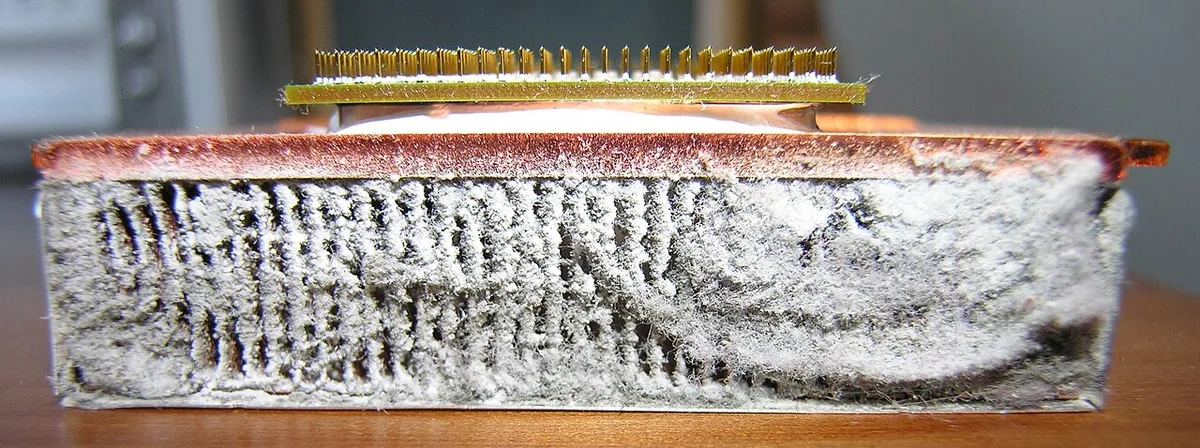
Image source: Wikimedia Commons / No machine-readable author provided. Audriusa assumed (based on copyright claims). (CC BY-SA)
First, Confirm It's a Hard Shutdown and Not a Crash
Before fixing anything, confirm the failure type. Open Windows Event Viewer and check System logs for Kernel-Power Event ID 41. That entry often appears after an unexpected shutdown, but it does not explain the cause.
It only confirms power was lost abruptly.
Next, check whether the laptop restarts on its own. A hard shutdown may leave it off until you press power again. A crash may show a blue screen, driver timeout, or automatic reboot.
If you see a BSOD, you are troubleshooting a software or driver issue, not a thermal trip.
You should also check temperatures with a monitoring tool before the next failure. Record CPU and GPU temps, fan RPM, and power draw. If temps hit the limit right before shutdown, heat is likely.
If power draw drops or the adapter disconnects first, look at power delivery.
Match Your Symptoms to the Likely Cause
Use the symptom pattern as a decision branch. If the shutdown happens only during heavy games, start with cooling and power limits. If it happens on battery or with a different charger, start with power delivery.
If it shuts off and will not power on right away, treat it as a protection or hardware fault.
| Symptom | Most Likely Cause | First Check |
|---|---|---|
| Shuts off only in demanding games | Thermal trip or power spike | Temps and adapter wattage |
| Shuts off on battery | Battery cutoff under load | Battery health report |
| Shuts off with third-party charger | Underpowered or unstable adapter | Charger rating and plug fit |
| Will not power on for a few minutes | Thermal or overcurrent protection | Vent blockage and charger |
If temperatures are normal and the adapter is correct, look deeper. VRMs can overheat even when CPU and GPU readings look okay. Background apps can also create CPU spikes that push a weak cooling system over the edge.
Check Task Manager before launching a game.
How to Fix Thermal Shutdowns Step by Step
Start with airflow. Put the laptop on a hard, flat surface and clear the vents. Soft surfaces block intake air and can raise temperatures fast.
If the vents are dusty, use short bursts of compressed air from the exhaust side.
Then clean properly if needed. Before opening the chassis, check your model's service manual and understand warranty limits. Use the right tools and avoid static discharge.
If you are unsure, a repair shop can clean and repaste it safely.
- Place the laptop on a hard table.
- Elevate the rear slightly for airflow.
- Clean vents with compressed air.
- Update GPU drivers with a clean install.
- Check fan curves in manufacturer software.
- Repaste CPU and GPU if temps remain high.
Thermal paste degrades over time, especially on factory paste that is two years old. Repasting can lower temperatures, but it is not always the first fix. Start with dust removal and fan behavior before opening the machine.
If temps drop but shutdowns continue, move to power checks.
How to Fix Power Delivery and Battery Cutoffs
Power problems need a different test path than heat. Start with the adapter because it is the easiest variable to swap safely. Check the printed wattage on the brick and compare it to the laptop's required rating.
A lower-rated adapter may charge at idle but fail during a GPU spike.
If you are unsure about matching wattage, use matching charger wattage guidance before buying anything. Also read about low-watt damage risk if the laptop has been running on a smaller charger for weeks. That can stress the charging circuit and shorten battery life.
Battery health matters even while plugged in. Run a battery report and look at cycle count and full charge capacity. If the battery is worn, the system may pull from it during load spikes.
That can cause a cutoff even with the adapter connected.
Use battery replacement steps if the report shows major wear. Also review battery health habits to reduce future stress. If the laptop loses charge while plugged in, that is another sign the adapter or battery path is weak.
USB-C charging has limits too. Many USB-C ports cannot deliver enough power for sustained gaming. Check USB-C gaming limits before relying on a dock or phone charger.
A proper barrel adapter is still the safer choice for most gaming laptops.
Test with the original charger on a stable wall outlet. Avoid long extension cords or loose power strips during testing. If shutdowns stop with the original adapter, the problem was power delivery, not cooling.
Mistakes That Turn a Small Fix Into a Bigger Repair
Most damage happens during rushed DIY. Opening the laptop without a service manual can strip screws or disconnect ribbon cables. Always find the manual first and follow the exact removal order.
Do not clean a hot laptop immediately after gaming. Let it cool so thermal paste and plastic parts are not stressed. Also avoid blowing air directly into fans in a way that spins them too fast.
That can damage bearings.
Repasting has its own risks. Too much paste can spill onto VRMs or capacitors. Too little paste leaves hot spots.
Use the right amount and clean the old paste fully before applying new paste.
Use safe opening steps if you plan to open the chassis. Keep an upgrade tool kit nearby so you are not forcing parts with the wrong screwdriver. Small mistakes here can bend heat pipes or crack solder joints.
Do not ignore battery warning signs. Swelling, heat, or a chemical smell means stop using the laptop. A damaged battery can be a fire risk.
In that case, professional replacement is the safer choice.
When to Stop DIY and Call the Manufacturer or Repair Shop
Stop DIY work if the laptop shuts down and then refuses to power on for several minutes. That can indicate thermal protection, overcurrent protection, or a failing power circuit. Repeated trips can damage components if you keep forcing restarts.
Also stop if temperatures look normal but shutdowns continue. VRMs may be overheating even when CPU and GPU readings seem acceptable. Diagnosing VRM heat usually needs better sensor access and repair experience.
A swollen battery is a clear stop point. Do not puncture, bend, or charge a swollen battery. Remove it only if the manual shows safe removal steps.
Otherwise, take it to a qualified repair shop.
Warranty matters too. Opening the chassis can void coverage on some models. Check the manufacturer's service terms before breaking seals.
If the laptop is under warranty, use official support first.
For electrical safety, rely on recognized standards and manufacturer documentation. UL product safety standards are one useful reference point for adapter and battery safety. If you smell burning or see melted plastic, unplug the laptop and do not use it.
Frequently Asked Questions
Why does my gaming laptop shut down while gaming even when plugged in?
It can still be a power problem. The adapter may be underpowered, the wall outlet may be unstable, or the battery may be worn. It can also be VRM overheating that does not show in basic CPU and GPU readings.
Check adapter wattage, battery health, and internal temperatures first.
Can a bad charger cause sudden shutdowns?
Yes. An underpowered or failing charger can drop voltage during GPU load spikes. That may trigger a hard shutdown even if the battery has some charge.
Use the original adapter or an exact wattage match. Avoid cheap third-party chargers with loose connectors.
Does overheating always shut down a laptop?
No. Many laptops throttle first, which lowers performance to stay cool. A shutdown happens when temperatures reach the protection limit or another part overheats.
Dust, blocked vents, and old thermal paste can push the system past that limit during gaming.
How do I check if my laptop is overheating?
Use a monitoring tool and watch CPU, GPU, and fan speeds during a game. Compare readings to the manufacturer's thermal limits. If temps rise quickly and the shutdown happens near the limit, cooling is likely the cause.
Clean vents and test again.
Is it safe to keep gaming after a thermal shutdown?
No. Repeated shutdowns can stress solder joints, batteries, and power circuits. Let the laptop cool fully and fix the cause first.
If it shuts down again, stop gaming and inspect cooling or power delivery before continuing.
Should I replace the battery if shutdowns happen on battery?
Maybe. First check battery health and cycle count. If the battery is heavily worn, replacement is reasonable.
If the battery is healthy, the issue may be power delivery, thermal protection, or background load. Do not replace parts until tests point to the cause.
3 thoughts on “Why Does My Gaming Laptop Shut Down While Gaming?”
Comments are closed.