A blue screen on a gaming laptop can look scary, but it is usually a clue. The stop code, recent changes, and symptoms matter more than the color. Start there.
As of 2026, many gaming laptops run hot under load, and heat can expose weak memory, storage, or drivers. You do not need special tools to begin. This guide walks you through a practical triage path before you reinstall Windows or replace parts.
how to fix gaming laptop blue screen errors
Check the stop code first. Update or roll back graphics drivers. Remove overclocks.
Test RAM and storage. Clean dust and check temperatures. Use Safe Mode for repairs.
Back up important files. Run SFC and DISM if Windows files look damaged.
Why Gaming Laptop Blue Screens Happen Differently Than Desktop BSODs
Gaming laptops pack a hot CPU and GPU into a small chassis. That changes how failures show up.
Desktops usually have more airflow, larger heatsinks, and easier part swaps. A gaming laptop has tighter thermal limits, shared power delivery, and less room for dust. Small changes can matter more.
If the laptop freezes before the blue screen, that points to a different path than a clean reboot with a stop code. Random freezes during play often connect to heat, power, or driver timing. Unexpected shutdowns while gaming can point to thermal protection or adapter limits.
OEM drivers also matter. A gaming laptop may use custom fan curves, power profiles, and GPU switching. Those can fail after a Windows update or driver change.
Check recent changes first. New RAM, a new SSD, a BIOS update, a driver update, or an undervolt can all trigger instability. If nothing changed, heat and hardware wear become stronger suspects.
The Stop Codes That Actually Change Your Next Move
The stop code is your first filter. Write it down exactly.
| Stop code | Likely direction | First move |
|---|---|---|
| VIDEO_TDR_FAILURE | Graphics driver or GPU | Roll back or clean reinstall GPU driver |
| WHEA_UNCORRECTABLE_ERROR | CPU, GPU, power, or firmware | Check temps, BIOS, and overclocks |
| MEMORY_MANAGEMENT | RAM or memory controller | Test RAM and remove XMP/EXPO |
| IRQL_NOT_LESS_OR_EQUAL | Driver conflict | Check Event Viewer and recent drivers |
| PAGE_FAULT_IN_NONPAGED_AREA | RAM, storage, or driver | Test RAM and SSD health |
| SYSTEM_THREAD_EXCEPTION_NOT_HANDLED | Driver or system file | Boot Safe Mode and review minidump |
If the same code repeats, treat it as a pattern. If codes change every time, look at heat, power, or unstable memory.
Event Viewer can show warnings before the crash. Look for display driver recovery, disk errors, or thermal events. A minidump can name the failing driver.
Manufacturer debugging documentation from Microsoft Learn can help you read it.
Do not reinstall Windows yet. The code usually tells you whether software or hardware is the better first bet.
What To Check Before You Change Anything
Start with observation. Do not open the laptop or change settings yet.
- Record the exact stop code and the time of the crash.
- Note what game or app was running.
- Check whether the laptop was on battery or AC power.
- Feel for hot air and listen for fan noise.
- Look for dust around vents.
- Check for a recent driver, BIOS, or Windows update.
Also check storage and memory basics. A nearly full SSD can cause Windows paging problems. Low free space can make a system unstable under load.
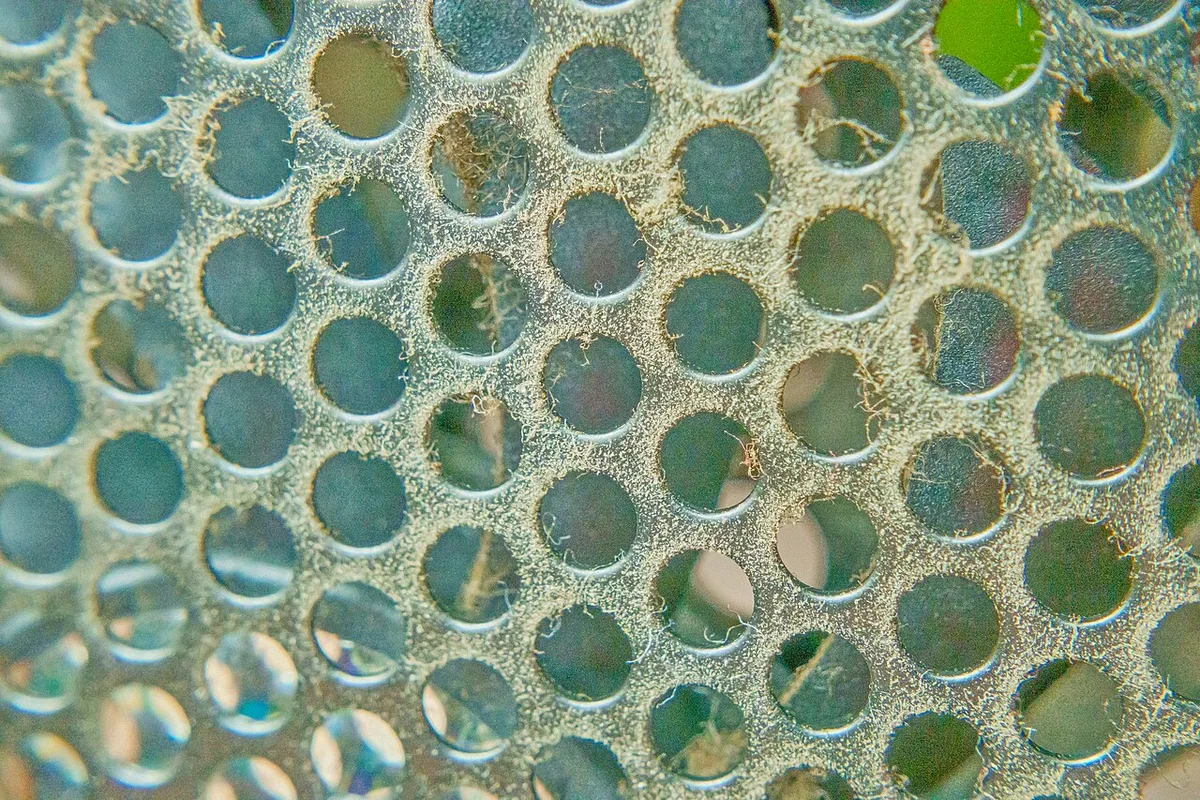
Image source: Wikimedia Commons / Junyu-K (CC BY-SA)
If the laptop shuts down only during long sessions, heat is a strong suspect. Cleaning dust from cooling fans can improve airflow. Thermal paste replacement timing matters if the laptop is older or heavily used.
Back up important files now. Blue screens can worsen if storage is failing. Use an external drive or cloud backup before deeper tests.
Decision Branch: Software, Driver, Thermal, Memory, or Storage
Use the symptoms to choose the next branch. This keeps you from chasing the wrong fix.
- If a blue screen started after a GPU driver update, roll back first.
- If it started after a BIOS update, check firmware settings and restore defaults.
- If it happens only in demanding games, check temperatures and fan behavior.
- If it happens at idle or during light use, suspect RAM, SSD, or Windows corruption.
- If it happens after installing new RAM, remove it and test the original configuration.
- If it happens on battery but not AC power, check power delivery and battery health.
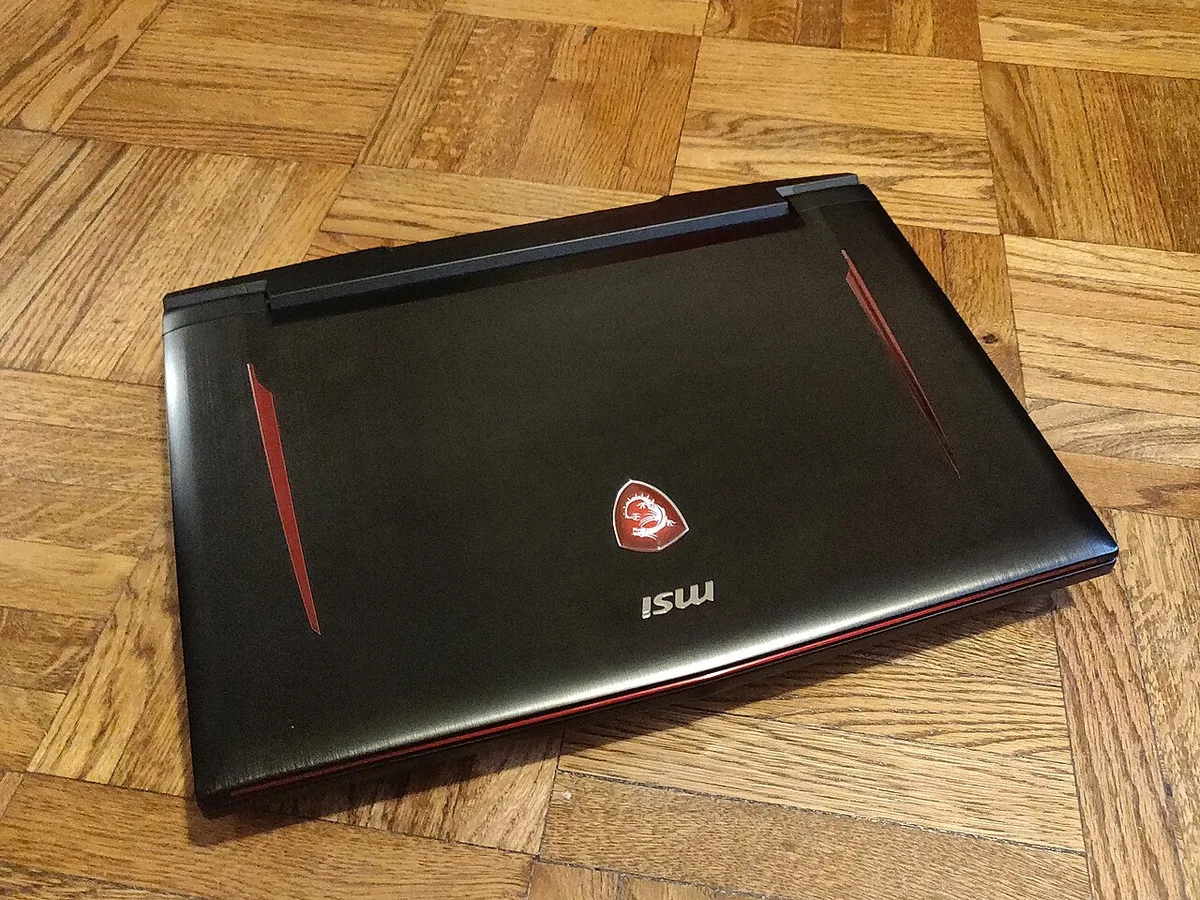
Image source: Wikimedia Commons / Kurt Kaiser
If temperatures are normal and the code is driver-related, stay in software. If temperatures are high or the code is WHEA_UNCORRECTABLE_ERROR, move to thermal and power checks.
If RAM or storage tests fail, stop guessing. Hardware replacement or warranty service becomes the better path. Opening the chassis safely may be needed for testing, so follow the service manual.
How to Fix Gaming Laptop Blue Screen Errors Step by Step
Work in order. Test after each change so you know what helped.
- Boot into Safe Mode if the laptop crashes during normal use.
- Open Device Manager and check for driver warnings.
- Roll back the graphics driver if the crash started after an update.
- If rollback fails, use DDU in Safe Mode, then install a clean driver.
- Run SFC and DISM to repair Windows system files.
- Remove overclocks, undervolts, and custom power settings.
- Set the laptop to a balanced power plan.
- Check SSD health with SMART data.
- Test RAM with MemTest86.
- Clean vents and fans if temperatures are high.
- Update BIOS only if the manufacturer lists a fix for your issue.
- Reinstall Windows as a last resort after backing up data.
If the laptop still crashes after all steps, hardware is likely failing. At that point, warranty service or a repair shop is the smarter move. Routine maintenance habits can reduce repeat crashes later.
When to Roll Back, Clean Reinstall, or Reset Windows
Roll back when the crash began right after a driver or Windows update. This keeps your settings and files intact. It is the fastest low-risk option.
A clean reinstall makes sense when rollback is unavailable or leaves broken files behind. Use DDU in Safe Mode, then install the manufacturer driver. This removes leftover profiles and conflicting versions.
Reset Windows is the last software step. Use it when system files stay damaged, malware persists, or crashes happen across many apps. Back up first.
Reset keeps files if you choose that option, but apps and drivers may need reinstalling.
| Option | Best for | Tradeoff |
|---|---|---|
| Roll back | Crash started after update | May not fix older corruption |
| Clean driver reinstall | GPU driver conflicts | Takes more time |
| Windows reset | Broad system instability | Reinstall apps and settings |
If crashes continue after reset, stop treating it as software.
Hardware Checks That Separate a Real Failure From a Bad Driver
Test hardware only after software branches fail. Start with memory.
Run MemTest86 and let it complete at least one full pass. Errors mean unstable RAM, bad slots, or bad settings. Remove XMP or EXPO first.
Test one stick at a time if possible.
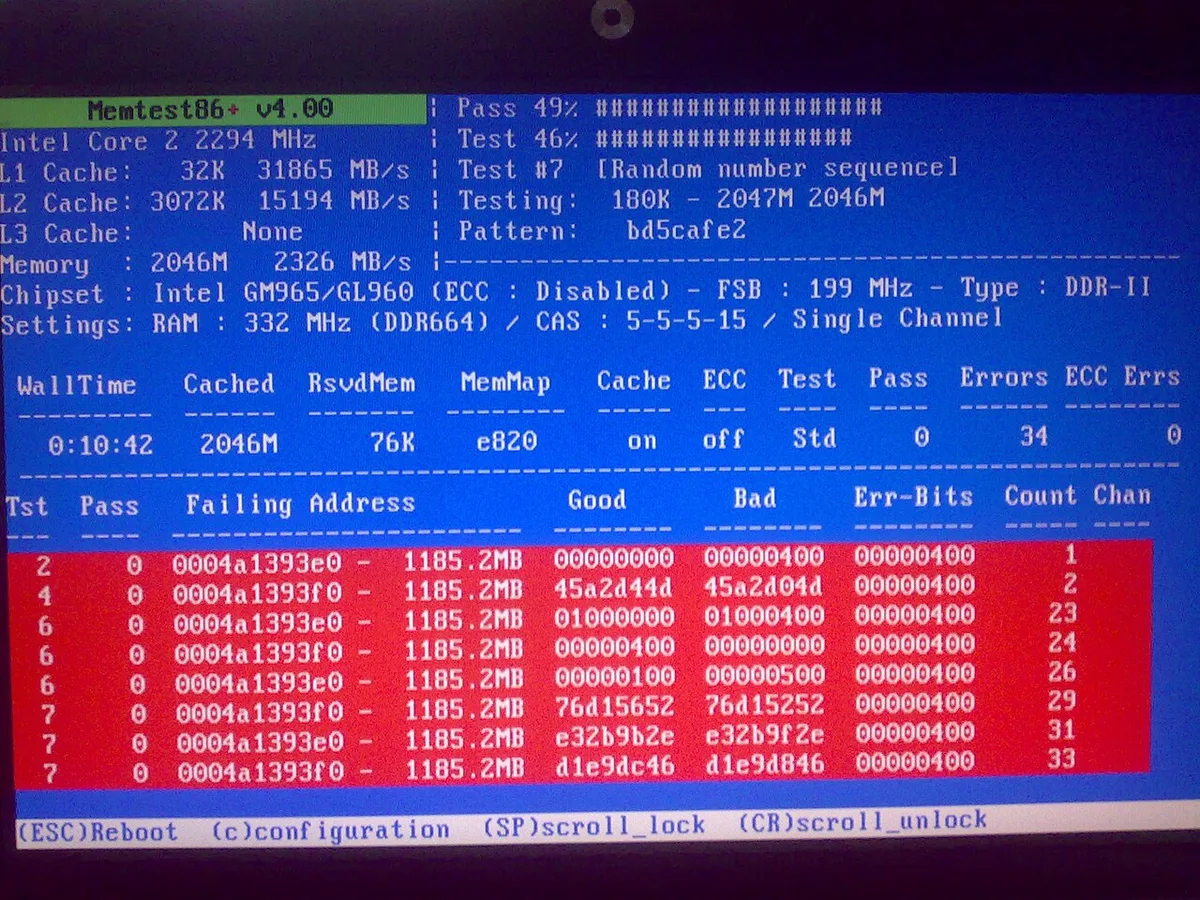
Image source: Wikimedia Commons / Samuel Demeulemeester, Chris Brady
Check SSD health next. Look for reallocated sectors, pending sectors, or high error counts. A failing drive can cause random stop codes.
Free space matters too. Keep at least 15 percent free on the system drive.
Then check power and thermals. A weak adapter can cause crashes under GPU load. High CPU or GPU temperatures can trigger protection.
Dust removal steps and thermal paste timing help if heat is the issue. Safe chassis access requires a service manual lookup first.
Common Mistakes That Make Blue Screens Worse
Avoid these traps.
- Installing random driver updater tools.
- Changing BIOS settings without a reason.
- Ignoring backups until the drive fails.
- Resetting Windows before checking RAM or storage.
- Running stress tests on an overheating laptop.
- Deleting crash dumps before reading them.
- Mixing RAM kits with different speeds or timings.
If you need service access, safe chassis access prevents cable and screw damage. Routine upkeep reduces repeat crashes over time.
Frequently Asked Questions
Can a blue screen mean my gaming laptop is dying?
Not always. One crash can come from a bad driver or heat. Repeated crashes with memory or storage errors are more serious.
Test before replacing parts.
Should I update BIOS to fix blue screens?
Only if the manufacturer lists a fix for your exact model and issue. A BIOS update can also introduce new problems. Read the release notes first.
Is it safe to keep gaming after a blue screen?
Pause heavy gaming until you find the cause. Repeated crashes can corrupt files or stress failing hardware. Back up data first.
Do I need to reinstall Windows for every blue screen?
No. Most cases resolve with driver fixes, system repair, or cooling work. Reinstall only after targeted checks fail.
Can heat alone cause blue screens?
Yes. High CPU or GPU temperatures can trigger instability or protection shutdowns. Clean vents and check fan behavior before replacing parts.
Final Decision Guide for Fixing Gaming Laptop Blue Screens
Start with the stop code. Then check recent changes, heat, and storage space. Move through software fixes before hardware swaps.
Use this simple order.
- Driver issue after update: roll back or clean reinstall.
- High heat: clean cooling and retest.
- Memory errors: replace or reseat RAM.
- Storage errors: replace the SSD.
- Still crashing: use warranty or repair service.
Battery health checks and upgrade compatibility checks help if you plan repairs. Thermal paste timing matters for older laptops. If the laptop is stable after one change, stop there and monitor for a week.
1 thought on “How to Fix Gaming Laptop Blue Screen Errors”
Comments are closed.