How to maintain a gaming laptop starts with symptoms, not a rigid checklist. Heat, dust, battery wear, and hinge stress all change the right fix. In our research, most problems show up before parts fail.
The goal is to catch them early and match the fix to the machine.
Manufacturer specifications often list safe CPU load temperatures below 95 C, while GPU limits vary by model. That single number can guide your next step. We will walk through the decision tree below.
You can then choose the safest maintenance path.
Why Gaming Laptops Need Different Maintenance
Gaming laptops push desktop-class heat through thin chassis and small fans. Dust collects fast, especially near exhaust vents. Batteries and hinges also take daily stress.
The maintenance plan should fit the machine, not a generic laptop guide.
Start with your model's service manual before opening anything. It shows screw locations, cable routing, and warranty notes. That one document can prevent stripped screws and broken clips.
| Part | Why it matters | Common warning |
|---|---|---|
| CPU and GPU | High heat and power load | Throttling, loud fans |
| Fans and vents | Dust blocks airflow | Hot chassis, temp spikes |
| Battery | Charge cycles age cells | Swelling, short runtime |
| Hinges | Repeated open and close | Cracks, lid wobble |
If your warranty still covers internal work, use authorized service. DIY work can save money, but only when the manual allows it. When in doubt, clean externally first and test again.
Start With Symptoms, Not a Checklist
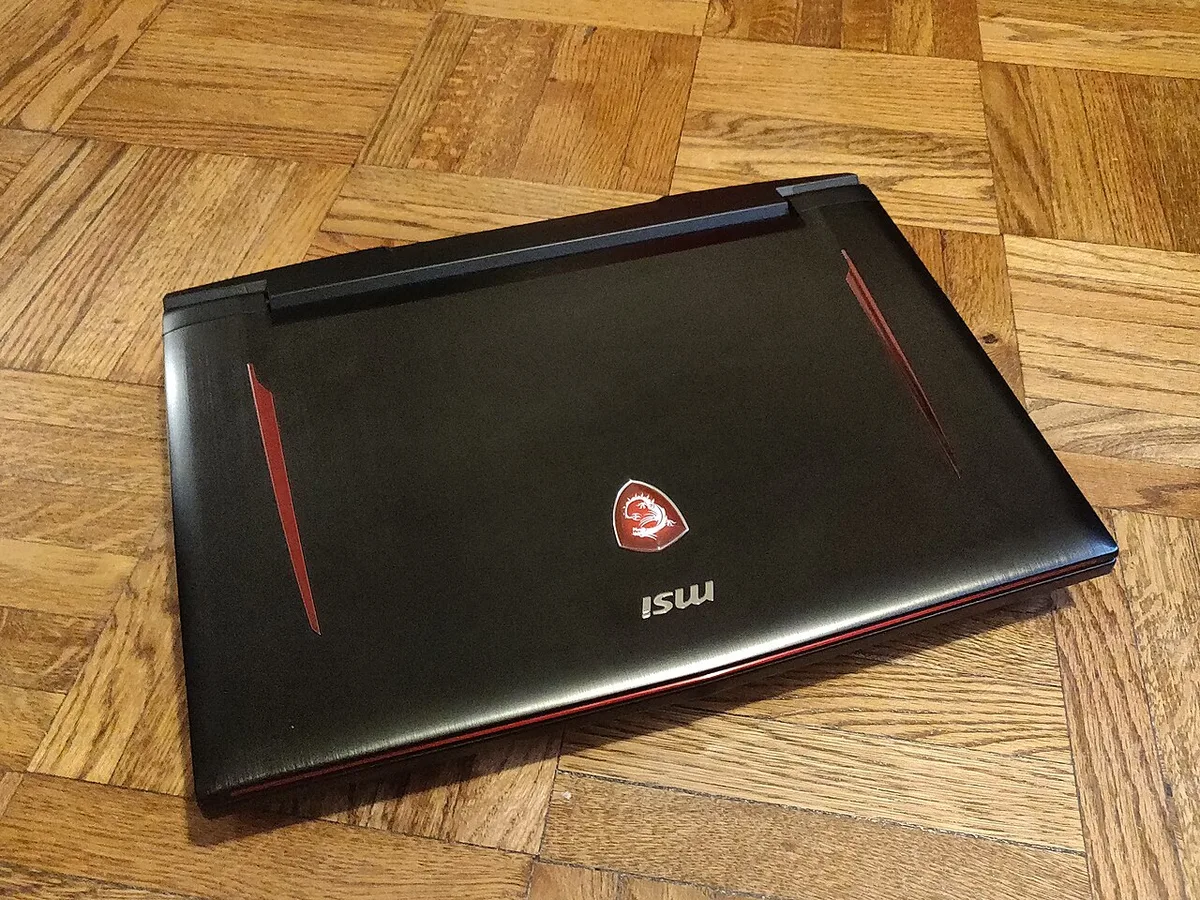
Image source: Wikimedia Commons / Kurt Kaiser
Do not start by taking the laptop apart. Start by watching what happens during a normal gaming session. Record temperatures, fan noise, battery behavior, and any crashes.
Those clues tell you which branch to follow.
- High CPU or GPU temps with loud fans: think dust, fan wear, or old thermal paste.
- FPS drops only after several minutes: think heat buildup and throttling.
- Battery drains fast at rest: think background load, battery health, or charger issues.
- Random shutdowns under load: think power delivery or severe overheating.
- Rattling or grinding noise: think fan bearing or debris.
A safe basic repair kit helps with external checks and light cleaning. If you open the chassis, follow a guide for opening it safely. Work on a clean table, remove the power adapter, and ground yourself before touching parts.
| Symptom | First check | Next step if it continues |
|---|---|---|
| Hot keyboard deck | Vent airflow and dust | Clean vents, retest |
| Loud fan at idle | Task Manager load | Update drivers, check fans |
| Fast battery drain | Battery health report | Adjust charge limit |
| Shutdown under load | Power adapter wattage | Stress test, inspect cooling |
Condition Variables That Change the Right Maintenance Plan
The same symptom can need different action. A one-year-old laptop in a clean room is not the same as a four-year-old laptop used on a bed. Conditions change dust, heat, and wear.
Age matters first. Newer machines may need only vent cleaning and software tuning. Older machines may need thermal paste, pads, or battery replacement.
Climate matters too. Hot rooms and dusty rooms shorten cleaning intervals.
Usage style also changes the plan. A streaming laptop runs CPU and GPU together for hours. A student laptop may only need light gaming and web work.
Travel adds hinge stress and port wear. Thin-and-light models often run hotter than thicker chassis.
| Condition | What it changes | Practical adjustment |
|---|---|---|
| Hot or humid room | Cooling efficiency | Clean vents more often |
| Dusty environment | Fan and vent buildup | Shorten cleaning interval |
| Daily gaming load | Heat cycles | Monitor temps weekly |
| Frequent travel | Hinges and ports | Use a padded case |
| Older battery | Charge retention | Set a charge limit |
Before any internal job, check compatibility for the exact model. Parts that fit one chassis may not fit another. That check saves time and prevents wrong orders.
Decision Branches: What to Do Based on What You See
Use if and then logic. Do not jump to repasting before simpler checks. Many laptops improve after dust removal and software cleanup.
Start with the lowest-risk branch.
- If temps are high and vents are dusty, clean the vents and fans first.
- If temps stay high after cleaning, inspect thermal paste and pads.
- If the fan rattles, check for debris before replacing the fan.
- If battery health is low, adjust charge habits before replacing the battery.
- If crashes happen only with one game, test drivers and game files first.
- If the charger gets very hot, verify the correct charger wattage.
For battery care, use smart charge habits. A charge limit can reduce long-term wear. If the battery swells, stop using the laptop and seek service.
That is a safety issue, not a routine task.
If temps drop after cleaning, you may not need internal work. If temps stay high, move to the next branch. Document each result.
That record helps if you later ask for service support.
Step-by-Step Maintenance That Fits Your Situation
Use a repeatable flow. It keeps you from skipping checks or doing risky work too soon. The steps below work for most gaming laptops, but your service manual comes first.
- Back up important files before any internal work.
- Check temperatures and battery health while gaming.
- Clean the exterior, vents, and keyboard with compressed air.
- Update GPU drivers, BIOS, and system firmware if needed.
- Test again before opening the chassis.
- If needed, open the chassis carefully and remove dust.
- Inspect thermal paste, pads, and fan condition.
- Reassemble, boot, and run a stress test.
- Record the date, parts, and results.
| Tool or material | Use | Notes |
|---|---|---|
| Compressed air | Dust removal | Short bursts, hold fan blades |
| Microfiber cloth | Chassis cleaning | Avoid liquids near vents |
| Phillips screwdriver | Panel removal | Match screw size |
| Thermal paste | CPU or GPU cooling | Use model guidance |
| Thermal pads | VRAM and VRMs | Match thickness |
Intel thermal guidance can help you understand safe operating ranges. Use it as a reference, not a universal rule. Your laptop maker's limits matter more.
If a step feels unclear, stop and use a service manual or authorized repair.
Thermal Paste, Pads, and Liquid Metal: What to Choose
Thermal paste does not last forever. It can dry, pump out, or lose contact after heat cycles. Thermal pads can compress or crack.
Liquid metal can lower temps, but it conducts electricity and can short nearby parts.
Use your model's service manual before choosing materials. It often lists paste type, pad thickness, and torque notes. If you cannot find those details, use standard paste and matching pads.
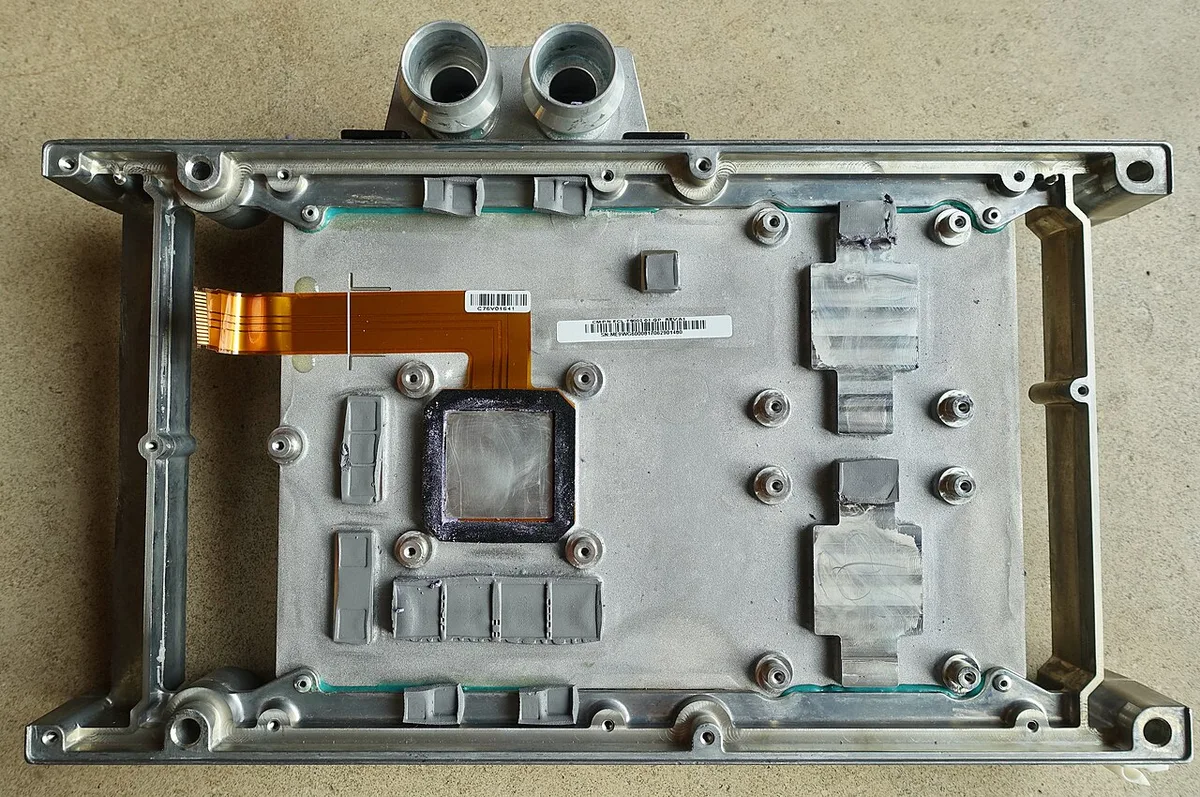
Image source: Wikimedia Commons / System76 (CC BY-SA)
When should you repaste?
Repaste when cleaning and fan fixes do not lower temps. Many gaming laptops need it every 12 to 24 months. Heavy daily gaming can shorten that interval.
- Standard paste: safest for most users and easy to clean.
- Thermal pads: best for VRAM, VRMs, and uneven gaps.
- Liquid metal: best for experienced users with exact manual support.
Is liquid metal worth the risk?
Liquid metal can improve thermal transfer. It also raises the risk of shorts, corrosion, and warranty issues. Use it only if the manual allows it and the application area is isolated.
| Material | Best for | Main caution |
|---|---|---|
| Standard paste | CPU and GPU dies | Reapply on schedule |
| Thermal pads | Memory and power parts | Match thickness |
| Liquid metal | Advanced cooling setups | Electrical short risk |
If you open the chassis, use a precision screwdriver set and follow a guide for opening it safely. Work slowly and keep screws sorted by location.
Battery, Storage, and Driver Care That Prevents Bigger Problems
Battery health drops with heat, full charge, and deep discharge. A charge limit can slow that wear. Many users set 80 percent for daily plug-in use.
That small habit can add months of useful life.
Check battery health before replacing anything. If wear is high, review battery replacement steps. If the laptop loses charge while plugged in, check charger wattage first.
A low-watt adapter may not cover gaming load.
What battery habits matter most?
Keep the battery cool and avoid constant 100 percent charge. Do not let it hit zero often. If it swells, stop using the laptop and seek service.
- Set a charge limit if the OEM app supports it.
- Use the correct charger wattage for gaming load.
- Keep vents clear so battery heat stays lower.
- Review charge-limit settings for your model.
How do storage and drivers affect stability?
A failing SSD can cause stutter, crashes, and boot issues. Run SMART checks and watch health percentage. Driver conflicts can also create black screens or FPS drops.
Update GPU drivers, then test before changing more.
| Area | What to check | Action if unhealthy |
|---|---|---|
| Battery | Cycle count and wear | Adjust habits or replace |
| SSD | SMART health and errors | Back up and replace |
| Drivers | GPU and chipset versions | Clean install, then retest |
| Charger | Wattage and cable condition | Match OEM spec |
For storage work, review SSD health checks before opening the chassis. For battery work, follow battery replacement steps only after basic checks fail.
Common Mistakes That Wreck Gaming Laptops
The biggest mistake is treating every problem as a paste problem. Dust and software issues are more common. Opening the laptop too early can damage clips, cables, and screws.
Another mistake is spinning fans with compressed air. That can damage bearings or generate voltage. Hold fan blades still with a plastic tool.
Also avoid liquids near vents and ports.
- Using the wrong screwdriver size.
- Mixing screws during reassembly.
- Applying too much thermal paste.
- Using liquid metal without isolation.
- Cleaning with household chemicals.
- Ignoring a swollen battery.
- Using an underpowered charger.
If temps drop after cleaning, stop there. If they do not, move to the next branch. That keeps risk low and saves money.
Real Scenarios: Matching the Right Fix to the Right Machine
A three-year-old laptop that hits 95 C after ten minutes likely needs dust removal and paste. A six-month-old laptop that runs hot may only need vent cleaning. The fix changes with age, dust, and load.
A laptop with a swollen battery needs service, not tuning. A laptop with hinge cracks needs mechanical repair. A laptop with FPS drops after twenty minutes needs thermal checks first.
Match the fix to the symptom and condition.
| Scenario | Likely cause | First action |
|---|---|---|
| Hot after two years | Dust and old paste | Clean, then repaste |
| Swollen battery | Cell failure | Stop use, service |
| FPS drops after twenty minutes | Thermal throttling | Check temps and vents |
| Loud fan on new laptop | Dust or fan curve | Clean and tune |
| Wobble hinge | Mechanical wear | Inspect hinge screws |
Travel and dust-heavy rooms change the schedule. Clean vents more often in those cases. Keep a padded case for transport.
Frequently Asked Questions
How often should I clean a gaming laptop?
Clean the exterior monthly and vents every one to three months. Dust-heavy rooms need shorter intervals. Internal cleaning depends on age and temps.
Always test before opening the chassis.
Can I use compressed air on fans?
Yes, but use short bursts and hold the fan blades still. Spinning fans can damage bearings. Keep the can upright to avoid liquid spray.
Work in a ventilated area.
Should I replace thermal paste every year?
Not always. Replace it when temps stay high after cleaning. Many laptops need it every 12 to 24 months.
Heavy gaming can shorten that window. Follow your service manual.
Is a cooling pad worth buying?
A cooling pad can help on soft surfaces. It is less useful on a hard desk. Elevation matters more than extra fans.
Choose one with stable height and airflow.
What should I do if my battery swells?
Stop using the laptop immediately. Do not puncture or compress the battery. Move it away from flammable items.
Contact the manufacturer or an authorized repair shop.
2 thoughts on “How to Maintain a Gaming Laptop and Extend Its Lifespan”
Comments are closed.