Can a gaming PC run professional creative software? Yes, in most cases it can, but the real answer depends on which app you use and how heavy your workloads get. A gaming PC built around a strong CPU, a GPU with enough VRAM, and 32 GB or more of RAM will handle video editing, design, and even 3D work without breaking a sweat.
The catch is that gaming PCs are tuned for burst performance, while creative software often demands sustained load for hours at a time.
Manufacturer specifications indicate that many creative apps list minimum and recommended requirements that overlap heavily with mid-to-high-end gaming builds. As of 2026, that overlap is wider than ever, especially with modern multi-core processors and hardware video encoders. The key is knowing where your specific workflow will bottleneck, then upgrading the right part before it becomes a problem.
can a gaming pc run professional creative software
Yes. A gaming PC can run professional creative software when its CPU, GPU, RAM, and storage meet the app's recommended requirements. Most gaming builds handle photo editing, video editing, and graphic design well.
Heavy 3D, VFX, and large render workloads need more VRAM, more RAM, and better cooling.
What Actually Determines Creative Performance on a Gaming PC
The short answer is sustained load. Gaming PCs are built to deliver high frame rates in short bursts. Creative software pushes the same parts for hours.
That difference changes everything.
Your CPU matters most for timeline scrubbing, effects, and export times. Your GPU matters most for rendering, color grading, and AI tools. RAM matters for large files and multitasking.
Storage speed matters for project loading and cache.
A gaming PC with a weak link in any of these areas will feel slow, even if the other parts are top tier. You don't need a workstation for most creative work. You need a balanced build with enough headroom.
The biggest mistake is assuming high gaming FPS equals fast creative performance. It doesn't. A GPU that crushes games at 1440p might still choke on 4K video timelines if it has only 8 GB of VRAM.
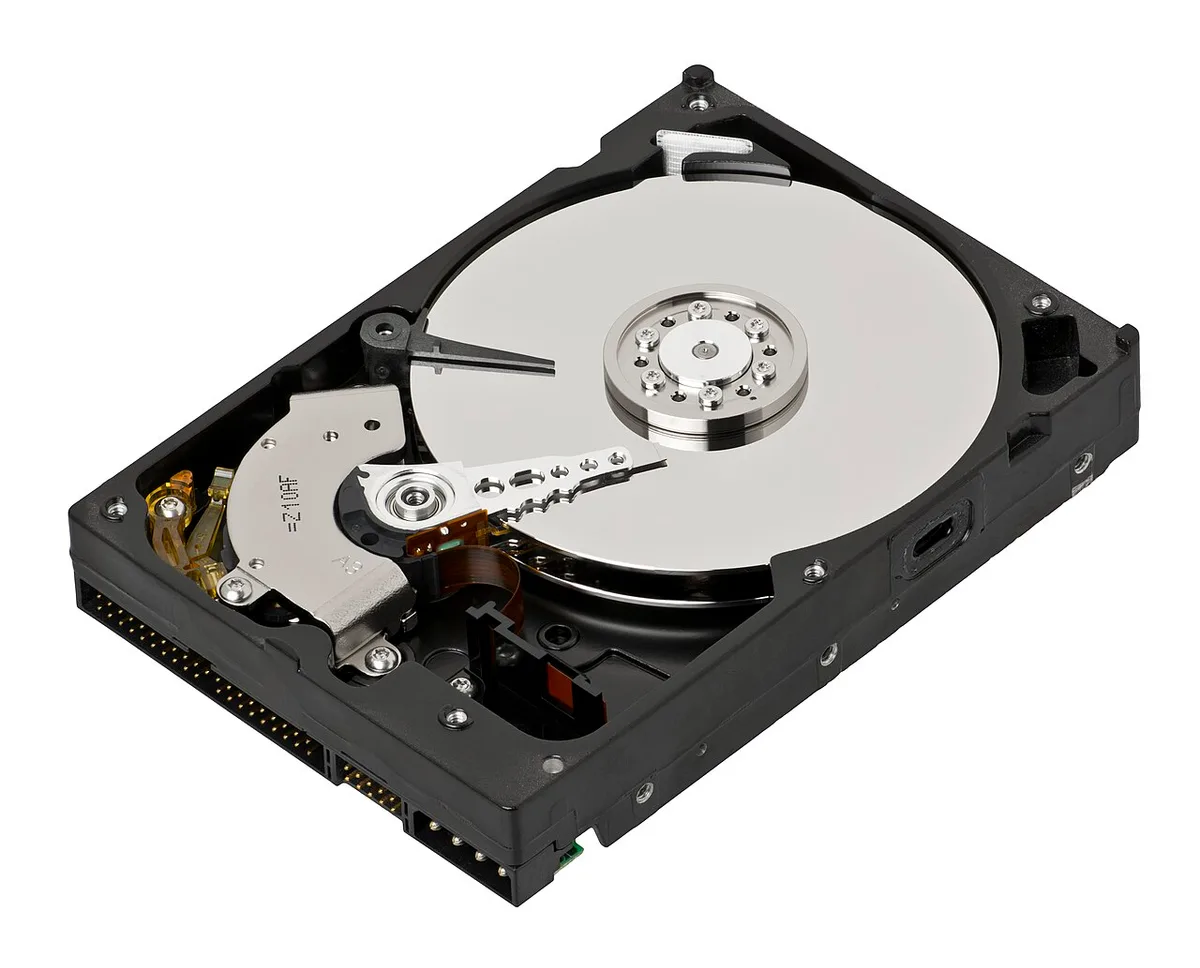
Image source: Wikimedia Commons / Evan-Amos (CC BY-SA)
The Parts That Matter Most for Creators
Not every component carries equal weight. Here is where your money should go, in order of impact.
CPU and Sustained Multi-Core Performance
Your processor drives timeline responsiveness, effect processing, and export speed. Look for high core counts and strong sustained all-core performance. A CPU that boosts high for 30 seconds but throttles after five minutes will ruin long renders.
For light work, 6 to 8 cores is fine. For video editing and motion graphics, 8 to 12 cores is the sweet spot. For 3D and VFX, 12 to 16 cores or more pays off.
Pay attention to thermal design power and cooling. Aggregate reviews report that many gaming builds throttle under sustained creative loads because stock coolers can't keep up. A good air cooler or liquid AIO changes that.
GPU, VRAM, and Hardware Encoding
The graphics card is the engine behind rendering, color grading, and AI features. VRAM capacity matters more than raw gaming performance for creative work. 8 GB handles basic editing. 12 to 16 GB covers most video and motion graphics work. 24 GB or more is needed for heavy 3D and VFX.
Hardware video encode and decode, like NVENC or Quick Sync, speeds up exports dramatically. Manufacturer specifications confirm that these encoders produce near-identical quality to software encoding at a fraction of the time.

Image source: Wikimedia Commons / Klystrode
RAM, Storage, and Memory Bottlenecks
RAM is where projects live while you work. 16 GB is the floor. 32 GB is the comfortable middle. 64 GB or more is for large 3D scenes, heavy compositing, and running multiple apps at once.
Storage speed affects how fast projects load and how smoothly large files scrub. NVMe SSDs deliver 3,000 to 7,000 MB/s. HDDs deliver around 150 MB/s.
That gap is night and day for video work.
A common trap is filling the boot drive with project files. Keep your OS and apps on one drive. Put active projects on a fast secondary NVMe.
Archive finished work on a larger, cheaper drive.
If you want to understand how these parts interact, read about how gaming PC components work together. A balanced build beats a lopsided one every time.
Which Gaming PC Setup Fits Your Creative Work?
The right setup depends on your workload. Here is how to match your build to your needs.
Branch 1: Light Creative Work and Photo Editing
Photo editing and light graphic design are forgiving. A mid-range gaming PC with 16 GB of RAM, an 8 GB GPU, and a fast SSD handles Adobe Photoshop, Lightroom, and Affinity Photo with ease. Color accuracy matters more than raw power here, so budget for a calibrated monitor.
Branch 2: Video Editing and Motion Graphics
Video editing pushes RAM, storage, and GPU VRAM hard. Aim for 32 GB of RAM, 12 to 16 GB of VRAM, and at least 1 TB of fast NVMe storage. Hardware encoding makes a huge difference in export times.
If you're shopping for a build, check what defines a mid-range gaming PC and whether it meets your editor's recommended specs.
Branch 3: 3D, VFX, and Heavy Rendering
This is where gaming PCs start to struggle. 3D rendering and VFX need 64 GB or more of RAM, 24 GB or more of VRAM, and strong sustained CPU performance. A high-end gaming PC can do it, but a workstation with ECC memory and certified drivers is more stable.
Image source: Wikimedia Commons / Screenshot by User:AHollender (WMF) (CC BY-SA)
For 3D artists, the choice between a gaming GPU and a workstation GPU comes down to driver stability and VRAM. Gaming GPUs offer better price-to-performance. Workstation GPUs offer certified drivers and more VRAM per dollar at the top end.
How to Check and Optimize Your Gaming PC for Creative Work
Before you buy anything new, audit what you have. Follow these steps.
- Check your software's minimum and recommended requirements.
- Identify your primary workload: editing, 3D, audio, or design.
- Monitor RAM usage during a typical project.
- Monitor VRAM usage during rendering or playback.
- Check CPU and GPU temperatures under sustained load.
- Test project load times from your current storage.
- Update GPU, chipset, and storage drivers.
- Optimize app settings: enable hardware acceleration, use proxy media for heavy video.
- Calibrate your monitor for color accuracy.
- Add RAM or upgrade storage if bottlenecks appear.
- Improve case airflow or replace thermal paste if throttling occurs.
- Set up a backup routine for project files.
For deeper guidance on what separates a gaming build from a standard desktop, see how a gaming PC differs from a regular desktop. That context helps you spot which parts are already creator-ready.
Real-World Scenarios: What Works, What Fails, and What to Avoid
Real-world results vary by workload, but patterns are clear. A gaming PC with 32 GB of RAM and an RTX 4070 handles 4K video editing in Premiere Pro or DaVinci Resolve smoothly. Timeline playback stays real-time with proxy media.
Exports finish in minutes thanks to NVENC.
The same machine struggles with complex 3D scenes in Blender or Maya. VRAM fills up fast. Render times stretch to hours.
The fix is either a GPU with more VRAM or offloading renders to the cloud.
Audio production is the easiest win. Music software is light on GPU demands. A gaming PC with 16 GB of RAM and a decent CPU handles large multitrack sessions with low latency.
The main concern is DPC latency from background processes, not raw power.
Common failures include running out of RAM mid-project, thermal throttling during long exports, and slow project loading from an HDD. These are all fixable with targeted upgrades.
The most expensive mistake is buying a high-end gaming GPU for 3D work without checking VRAM. A cheaper card with more VRAM often outperforms a faster card with less. Always match the spec to the workload, not the benchmark score.
If you're curious about other uses for your machine, explore what else a gaming PC can do beyond gaming. Creative work is just one of many strengths.
Gaming PC vs Workstation vs Mac for Creative Work
Choosing between these three paths isn't about which is "better." It's about which fits your specific workflow and budget. Each has distinct strengths that matter depending on what you create.
Where a Gaming PC Wins
A gaming PC offers the best price-to-performance ratio for most creators. You get high core counts, fast clocks, and powerful GPUs for less money than equivalent workstations. Upgrades are simple and cheap.
If you game at night and edit by day, this flexibility is unmatched.
Our research shows that for video editing and motion graphics, a well-built gaming rig often outperforms entry-level workstations in raw speed. The ability to swap parts means your system grows with your needs.
Where a Dedicated Workstation Excels
Workstations prioritize stability over peak speed. They use ECC (Error Correcting Code) memory to prevent data corruption during long renders. Certified drivers ensure software compatibility without crashes.
This matters if client deadlines depend on uptime.
For heavy 3D rendering or simulation work, workstation GPUs offer more VRAM per dollar at the top end. However, they cost significantly more upfront. Unless you need certified reliability for enterprise clients, a gaming PC usually suffices.
Where a Mac Holds Its Own
Apple Silicon Macs deliver incredible efficiency. Battery life is exceptional for laptops. Media engines handle ProRes and H.264/265 decoding faster than many PCs.
For photographers and indie filmmakers, the ecosystem integration is seamless.
But Macs lack upgradeability. You pay a premium for fixed specs. If you need Windows-only plugins or specific GPU acceleration not supported by Metal, a Mac won't cut it.
| Feature | Gaming PC | Workstation | Mac (M-Series) |
|---|---|---|---|
| Cost | Low to Medium | High | Medium to High |
| Upgradability | Excellent | Good | None |
| Stability | Variable | Certified | Very High |
| GPU Power | High | Specialized | Efficient |
| Best For | Hybrid users, gamers | Enterprise, 3D studios | Mobile editors, photographers |
If you're weighing options, consider what defines true power in a high-end build versus a mid-range setup. Sometimes spending less gets you further.
FAQs
Do I need a workstation GPU for video editing?
No. Most modern consumer GPUs like NVIDIA GeForce RTX cards have enough VRAM and encoder power for 4K and even 8K editing. Workstation GPUs shine in professional 3D visualization where certified drivers prevent crashes.
For standard video workflows, a gaming GPU saves you hundreds of dollars with negligible performance loss.
How much RAM do I really need for creative software?
Start with 32 GB. This handles multitasking and large project files comfortably. 16 GB is risky for video or 3D work as it causes swapping to disk, slowing everything down. Go to 64 GB only if you run complex simulations or massive compositing nodes.
Check your task manager during typical sessions to see actual usage before buying more.
Will my gaming PC crash during long renders?
It might if cooling is poor. Gaming PCs often throttle under sustained loads because stock coolers aren't designed for hours of 100% CPU utilization. Ensure you have adequate airflow or an aftermarket cooler.
Stable overclocks also help. If your system runs hot, reduce clock speeds slightly to maintain stability throughout the render.
Can I use a laptop for professional creative work?
Yes, but with caveats. Gaming laptops sacrifice battery life and thermal headroom for portability. They can handle lighter edits and design work well.
Heavy 3D rendering or long exports may cause significant throttling. Use a docking station with external monitors and storage to mitigate heat issues. Desktop replacement models perform better than thin ultrabooks.
Is color accuracy important for gaming monitors?
For casual gaming, no. For creative work, absolutely. Many gaming monitors oversaturate colors to look vibrant.
This misleads you during grading or printing. Look for monitors covering 95-100% DCI-P3 or Adobe RGB. Calibration tools help adjust gamma and white point.
Don't rely solely on default presets. Invest in a decent IPS panel with factory calibration reports.
Final Decision Guide: Should You Use a Gaming PC for Creative Work?
Stick with your gaming PC if you primarily edit video, design graphics, or produce music. The hardware is capable, affordable, and flexible. Upgrade RAM first, then storage speed, then GPU if needed.
Monitor temperatures closely during long tasks.
Consider a workstation if you need guaranteed stability for client work involving heavy 3D or scientific visualization. The cost of downtime outweighs the hardware savings. ECC memory and certified drivers provide peace of mind that consumer parts cannot match.
Choose a Mac if mobility and efficiency are your top priorities. The media engines handle video codecs beautifully. But accept that you’re locked into Apple’s ecosystem and pricing structure.
There’s no path to upgrade components later.
Ultimately, there is no single "best" machine. Match the tool to the job. Audit your current bottlenecks using the steps we outlined earlier.
Fix those specific gaps before replacing the whole system. A smart upgrade beats a blind purchase every time.
1 thought on “Can a Gaming PC Run Pro Creative Software? The Truth”
Comments are closed.