How to estimate the total cost of a gaming pc setup is really a budgeting problem, not a parts-list problem. Most people price the tower, then get surprised by the monitor, cables, tax, and cooling. The fix is to price the whole experience from day one.
A solid estimate starts with your target resolution and frame rate, then adds peripherals, power protection, software, and a 10 to 15 percent buffer. As of 2026, that buffer matters even more because GPU and memory prices can shift quickly. Let's walk through the full method step by step.
Why Most Gaming PC Cost Estimates Fall Short
The biggest mistake is treating the tower as the whole setup. A gaming PC is the tower plus everything that makes it usable, comfortable, and reliable.
If you only price the CPU, GPU, motherboard, RAM, storage, case, and power supply, your estimate will feel neat but incomplete. Then the monitor, keyboard, mouse, headset, desk, chair, cables, and surge protection land later like surprise bills.
Here is what usually gets missed:
- Operating system license and backup drive
- Monitor stand, arm, or mount
- Keyboard and mouse upgrades beyond basic bundles
- Headset, webcam, and microphone for voice chat
- Cooling upgrades for hot rooms or heavy loads
- UPS or surge protector for blackout protection
- Shipping, sales tax, and restocking risk
- Future upgrade headroom
A better estimate uses categories, not just parts. If you want a simple starting point, read our guide on setting a realistic build budget before you pick a single component.
Total Cost of Ownership: What Actually Goes Into a Gaming Setup
Total cost of ownership means the money you spend to buy, set up, and keep the system running. For a gaming PC, that includes the tower, display, input devices, audio, power protection, software, and electricity over time.
If you are choosing between a custom build and a ready-made system, compare the full package, not just the headline price. Our article on what a prebuilt system really includes can help you spot bundled value and bundled waste.
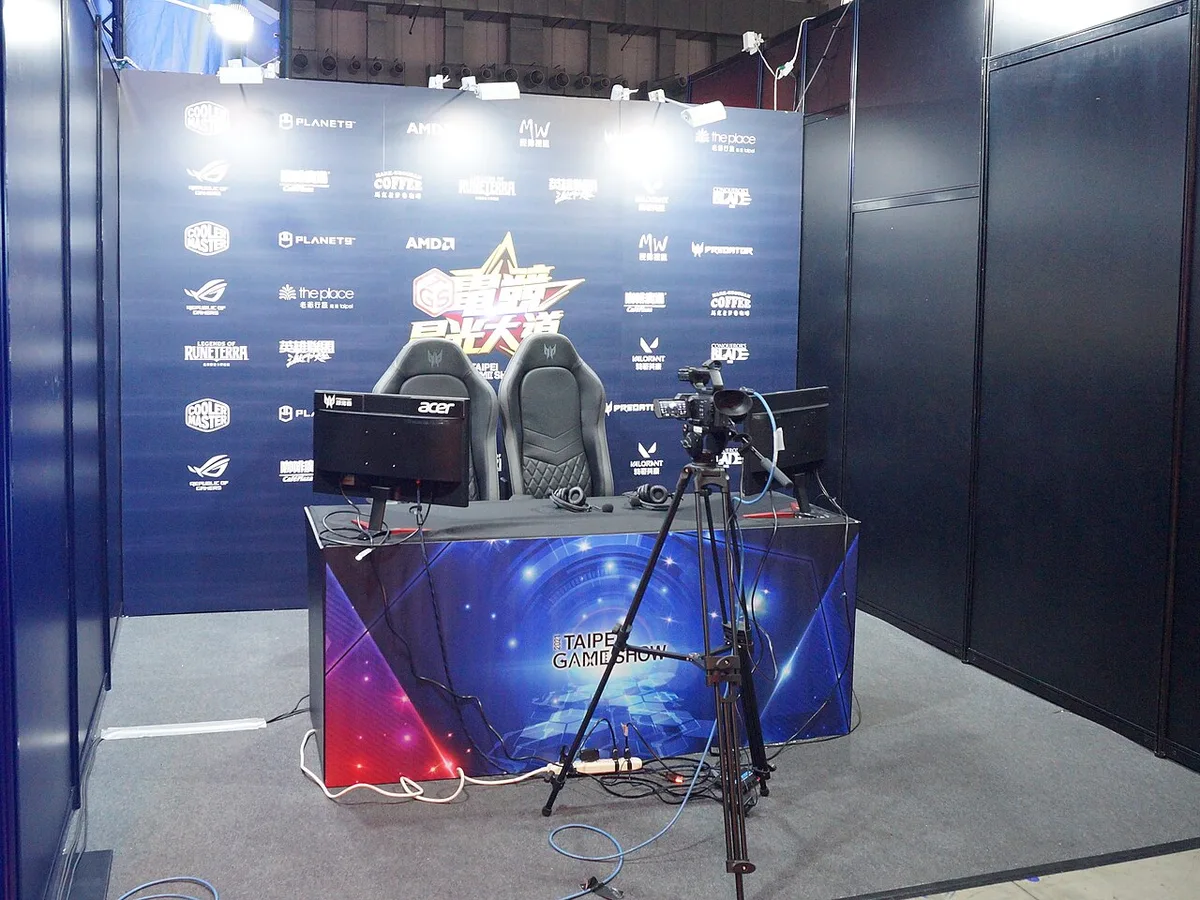
Image source: Wikimedia Commons / Solomon203 (CC BY-SA)
Use this simple cost map when you estimate:
| Cost area | What it includes | Common miss |
|---|---|---|
| Tower core | CPU, GPU, motherboard, RAM, storage, PSU, case, cooling | Buying an undersized PSU |
| Display | Monitor, cable, stand, mount | Ignoring resolution and refresh rate |
| Input and audio | Keyboard, mouse, headset, speakers | Replacing cheap gear later |
| Environment | Desk, chair, lighting, cooling | Poor ergonomics and heat buildup |
| Protection | Surge protector, UPS, warranty | No backup power for long sessions |
| Software | OS license, games, subscriptions | Forgetting activation costs |
| Running cost | Electricity, internet, upgrades | No monthly budget check |
A good estimate is not one perfect number. It is a range with a clear ceiling, a likely middle, and a hard floor.
Step 1: Define Your Target Resolution, FPS, and Budget Tier
Start with what you want to play and how you want it to feel. Your target resolution and frame rate decide almost everything else.
If you want 1080p esports at high frame rates, your GPU choice can stay modest. If you want 1440p AAA games with high settings, the GPU and cooling need more room. If you want 4K, the whole budget shifts upward fast.
Use this decision path:
- If you play competitive shooters, prioritize high refresh rate and low input lag.
- If you play story-driven AAA games, prioritize GPU power and VRAM.
- If you stream or create content, prioritize CPU cores, RAM, and storage.
- If you use VR, prioritize GPU performance and USB or display bandwidth.
- If you share the PC, prioritize storage space and user comfort.
Then set a budget tier:
- Entry level: smooth 1080p and basic esports
- Midrange: strong 1080p or solid 1440p gaming
- High end: high-refresh 1440p or 4K gaming
- Enthusiast: top settings, streaming, and future headroom
For a deeper breakdown of what each tier means, see our guide to mid-range gaming PCs and entry-level gaming PCs.
Component-by-Component Cost Breakdown
Now price each part on its own, then add it to the running total. This is where most estimates become honest.
CPU, GPU, and Motherboard
The CPU and GPU are the performance engine. The motherboard is the foundation that decides upgrade options and compatibility.
A common rule is to avoid pairing a high-end GPU with a weak CPU. That creates a bottleneck and wastes money. It is better to balance the build and leave room for a future GPU swap.
Check these before you buy:
- CPU socket matches the motherboard
- GPU length fits the case
- GPU power connectors match the PSU
- Motherboard has enough RAM slots and M.2 slots
- BIOS supports the CPU out of the box
If you are unsure about hardware basics, our Gaming PC Hardware 101 guide explains the terms in plain language.
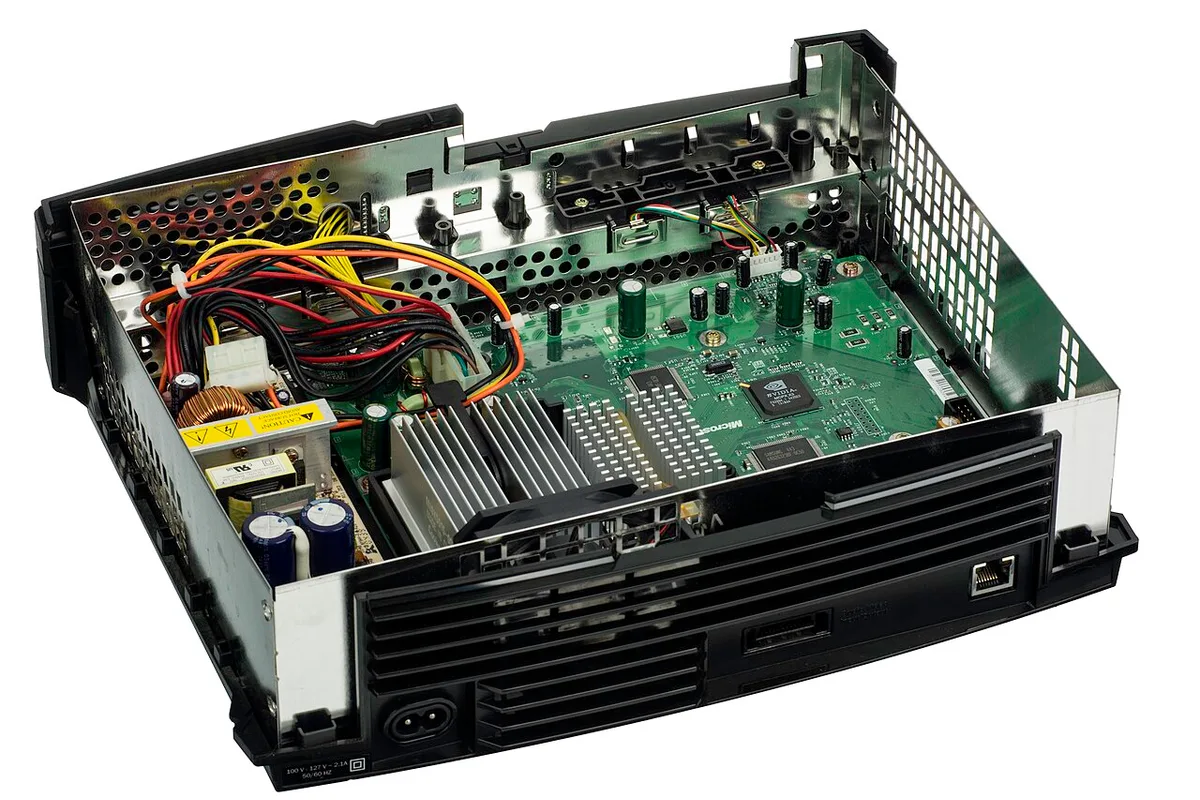
Image source: Wikimedia Commons / Evan-Amos
Memory, Storage, and Power Supply
RAM and storage are easy to underbuy. A gaming PC should have enough memory for your games and enough fast storage for updates and mods.
For the power supply, do not chase the cheapest unit. A low-quality PSU can risk the whole build. Look for a trusted safety certification, enough wattage, and headroom for future upgrades.
Practical checks:
- Match RAM generation to the motherboard
- Prefer NVMe storage for the main drive
- Keep SATA drives for bulk storage if needed
- Size the PSU above your estimated system draw
- Choose modular cables if your case is tight
Case, Cooling, and Cables
The case is not just looks. It affects airflow, noise, and upgrade space. Cooling keeps performance stable and parts healthy.
Cables are small but annoying if forgotten. Include front panel connectors, display cables, SATA cables, and any extension cables you need.
If you want a smaller desk footprint, compare compact gaming PCs and small form factor builds before you buy a large case.
Step 2: Build and Validate Your Parts List
Once you have a parts list, do not trust it until you test it against compatibility and price reality.
Follow this workflow:
- List every part with its current price.
- Add sales tax and shipping for your location.
- Run a compatibility check for socket, size, power, and memory.
- Verify PSU wattage with at least 20 percent headroom.
- Check return windows and warranty terms.
- Add a 10 to 15 percent buffer.
- Compare the total against your budget ceiling.
- Remove or downgrade parts if the total is too high.
- Recheck compatibility after every change.
- Save receipts and warranty documents.
If you are splitting money across parts, our guide on dividing a gaming PC budget between components gives a practical allocation method.
For electricity, check your local rate and estimate hours played per week. A midrange gaming PC might draw 300 to 500 watts under load, so the monthly cost depends on your utility rate and play time. Energy Star is a useful reference for efficiency expectations.
Use a table like this to validate your list:
| Check | Pass signal | Fail signal |
|---|---|---|
| Compatibility | All parts fit and connect | Socket, size, or power mismatch |
| Budget | Total is under ceiling | Hidden costs push it over |
| Cooling | Temps stay safe under load | Hot case or loud fans |
| Power | PSU has safe headroom | Near-max load or cheap unit |
| Value | Price matches performance goal | Overspending on one part |
A validated parts list is the difference between a confident purchase and a stressful build.
Step 3: New, Used, or Prebuilt: Choosing Your Buying Path
Your buying path changes both the upfront price and the risk level. New parts cost more, but they bring full warranties and easier returns. Used parts can cut costs, but they require careful inspection and sometimes extra fixes.
If you want full control over parts and upgrade paths, a custom built gaming PC is usually the better route. If you want convenience and one warranty, a prebuilt system can make sense, especially during sales.
Use this if/then guide:
- If your budget is tight, buy used CPUs or GPUs from trusted sellers.
- If you are a first-time builder, buy new parts to reduce risk.
- If you want a quiet or compact system, build it yourself so you control cooling and case size.
- If you lack time or tools, buy prebuilt and check the PSU and case quality first.
- If you plan future upgrades, avoid proprietary motherboards and power supplies.
Watch for hidden costs in each path. Used parts may need thermal paste, cables, or a BIOS update. Prebuilt systems may include bloatware, weak cooling, or a nonstandard power supply.
New builds may need extra fans or a better monitor stand.
Hidden Costs and Common Estimation Mistakes
Hidden costs are the reason many estimates feel wrong after checkout. Price the full setup, not just the tower, and your number becomes much more realistic.
Common misses include:
- Sales tax and shipping
- Operating system license
- Display cable, monitor arm, or desk
- Extra cooling, fans, or thermal paste
- UPS or surge protector
- Headset, webcam, and microphone
- Electricity and internet upgrades
- Restocking fees and return shipping
Common mistakes include:
- Buying a strong GPU with a weak CPU
- Ignoring case clearance for the GPU
- Choosing a cheap, uncertified power supply
- Forgetting the monitor in the budget
- Buying used parts without testing them
- Skipping the 10 to 15 percent buffer
- Planning no upgrade path
A quality power supply should carry a recognized safety mark such as UL Solutions certification. That small check can protect the entire build.
| Mistake | Better move |
|---|---|
| Price only the tower | Price peripherals and environment too |
| Buy the cheapest PSU | Buy a certified unit with headroom |
| Guess wattage | Calculate load and add buffer |
| Ignore returns | Check warranty and RMA terms |
| Forget upgrade space | Leave room for a future GPU |
Expert Tips for Getting More Performance Per Dollar
Small choices can stretch your budget without hurting the experience. Focus on balance, not just headline specs.
- Target the resolution you actually play, not the one that sounds impressive.
- Buy a solid midrange GPU instead of overspending on a flagship card.
- Use 16GB of RAM for most gaming, and add more only for heavy multitasking.
- Put your operating system and main games on NVMe storage.
- Use a good air cooler before jumping to liquid cooling.
- Buy used peripherals if they are easy to clean and test.
- Track prices for a few weeks before buying.
- Skip RGB if it pushes you over budget.
- Leave upgrade room in the case and power supply.
If your target is 1080p, our guide on spending for 1080p gaming can help you avoid overspending. If you also work or stream on the same machine, a dual-purpose gaming and work PC may justify extra CPU and RAM.
Efficiency matters too. Check your local electricity rate and estimate hours played per week. A more efficient power supply can lower long-term running costs.
Frequently Asked Questions
How much should a full gaming PC setup cost?
It depends on your target resolution, game library, and comfort needs. An entry setup costs less, while 1440p and 4K setups cost much more. Always include the monitor, keyboard, mouse, headset, cables, tax, shipping, and a buffer.
Should I build my own PC or buy prebuilt?
Build your own if you want control, better upgrade paths, and hands-on learning. Buy prebuilt if you want convenience, bundled support, and less setup time. Compare the full cost of each option before deciding.
What hidden costs do people forget most often?
People often forget sales tax, shipping, operating system licenses, cables, cooling, monitor mounts, desk gear, surge protection, and electricity. These can add a large amount to the tower price. Add them to your estimate from the start.
Is used hardware worth the risk?
Used hardware can save money, especially on CPUs and GPUs. The risk is lower if you buy from trusted sellers and test the part quickly. Avoid used power supplies unless you know their history.
How much PSU wattage do I need?
Calculate your CPU and GPU power draw, then add headroom. A safe estimate is usually 20 to 30 percent above your expected load. Quality and safety certification matter as much as wattage.
Can I upgrade later to save money now?
Yes, if you choose a platform with a clear upgrade path. Buy a case and power supply with extra room. Do not undersize the PSU or storage just to hit a lower number today.
Final Verdict: Your Decision Guide for Estimating Gaming PC Cost
Start with your target resolution and frame rate. Then price the tower, display, input devices, audio, desk gear, power protection, software, and running costs. Validate compatibility, add a buffer, and compare the total against your ceiling.
If the total is too high, downgrade the GPU tier, buy used peripherals, or delay nonessential upgrades. If the total is comfortable, keep upgrade headroom and protect the build with a certified power supply and surge protection.
The best estimate is not the lowest number. It is the number that matches your games, your room, and your budget without surprises later.