What extra costs are involved in owning a gaming pc? The build price is only part of the picture. Power, peripherals, games, upgrades, and maintenance can all add up.
A realistic budget starts with the full ownership cost.
Manufacturer specs show power supplies rated from 550W to 1000W, but real draw depends on load and settings. As of 2026, many owners also pay for monitors, storage, and subscriptions after the initial build. The sections below break those costs into clear decision branches.
what extra costs are involved in owning a gaming pc
Extra costs include electricity, peripherals, games, subscriptions, upgrades, maintenance, and internet. Electricity depends on wattage, hours played, and local rates. Peripherals include a monitor, keyboard, mouse, headset, and chair.
Upgrades replace the GPU, CPU, RAM, or storage over time. Maintenance covers cleaning, thermal paste, and repairs.
Which Extra Costs Actually Apply to Your Setup
Not every owner pays for every extra. Your use case decides which costs matter. A casual 1080p player has a very different cost path than a 4K streamer.
Use these if/then branches to narrow your budget:
- If you play a few hours a week, electricity stays modest.
- If you play daily, power and cooling matter more.
- If you stream or create content, add capture gear and storage.
- If you share the PC for work, add a better chair, monitor, and backup drive.
- If you upgrade every few years, set aside money now.
- If you buy used parts, budget for testing and possible replacement.
A simple way to plan is to group costs into three buckets. Fixed costs include the desk, chair, and base peripherals. Variable costs include power, games, and subscriptions.
Future costs include upgrades and repairs.
If you are still setting your base build budget, setting a realistic build budget helps before adding extras.
Electricity and Power Costs by Hardware Tier
Electricity is often the most overlooked cost. It is not just the PC. It is the monitor, speakers, router, and cooling in the room.
A basic 1080p system may draw roughly 200W to 350W under load. A strong 1440p system may draw 350W to 550W. A high-end 4K system may draw 550W to 800W or more.
Your actual bill depends on four things:
- System wattage under load
- Hours played each week
- Local electricity rate
- Monitor and room cooling use
For U.S. rate context, check the U.S. Energy Information Administration. For efficient components, review ENERGY STAR.
A rough formula is simple. Multiply system watts by hours played. Divide by 1000 to get kilowatt-hours.
Multiply by your local rate.
If your GPU and CPU are mismatched, you may pay for power without getting better results. dividing your budget across parts can reduce that waste.
Also watch idle draw. A PC left on all day can cost more than expected. Sleep mode, efficient monitors, and a quality PSU all help.
Peripherals, Furniture, and Desk Setup Costs
The PC is only one part of the station. Many buyers forget the gear around it. That can turn a good deal into a tight budget.
Common extras include:
- Monitor
- Keyboard
- Mouse
- Headset or speakers
- Desk
- Chair
- Webcam or microphone
- Controller
- Surge protector or UPS
- Cable management accessories
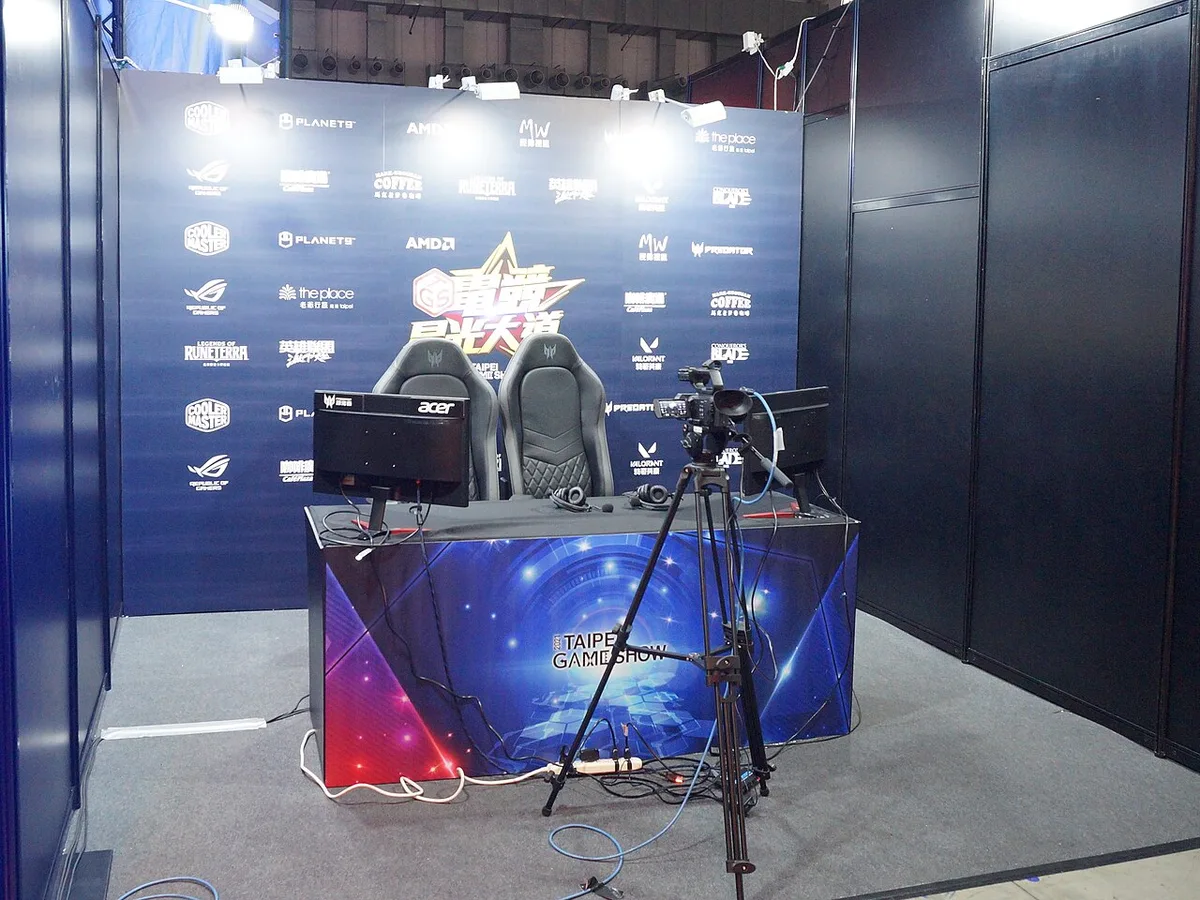
Image source: Wikimedia Commons / Solomon203 (CC BY-SA)
A 1080p monitor costs less than a 4K high-refresh panel. A basic keyboard costs less than a mechanical one. A simple chair costs less than an ergonomic model.
If your target is 1080p gaming, compare your full setup cost against a 1080p build budget. That keeps the monitor and GPU in balance.
Do not ignore desk space. A large case, wide monitor, and speakers need room. Poor layout can lead to extra spending on mounts, stands, or a new desk.
Games, Subscriptions, and Digital Extras
Game prices are easy to underestimate. One launch title is manageable. A library grows fast.
Digital extras can include:
- Full-price game purchases
- Season passes and DLC
- Subscription services
- Cloud saves or backup storage
- Voice chat or streaming tools
- Mod tools with paid assets
If you switch from console gaming, compare the full ecosystem. console subscription costs may look different from PC storefront pricing.
Storage is another hidden cost. Modern games can take 50GB to 150GB each. A small SSD fills quickly.
Plan for at least one larger drive if you keep many games installed.
Subscriptions can be useful. They can also become a monthly bill you forget. Review them every few months and cancel what you do not use.
Upgrades and Maintenance Over the Long Run
A gaming PC can last years, but parts age. The good news is that you can upgrade in stages. The risk is that one weak part forces a bigger spend.

Image source: Wikimedia Commons / FxJ
Common future costs include:
- New GPU for higher resolution or frame rates
- More RAM for newer games
- Larger SSD for game storage
- New CPU and motherboard platform
- PSU replacement after an upgrade
- Thermal paste replacement
- Fans or liquid cooling service
- Dust cleaning supplies
- Out-of-warranty repairs
If you build your own system, custom build paths can make upgrades easier. Standard parts, clear cable routing, and a roomy case all help.
Maintenance is cheap but important. Dust can raise temperatures. High temperatures can reduce performance.
Cleaning filters and fans every few months is low cost.
PSU planning matters. A cheap unit can limit future upgrades. A quality unit with headroom may cost more now but save money later.
For prebuilt owners, check upgrade access before buying. Some systems use proprietary parts. That can make simple upgrades harder and more expensive.
A Practical Cost-Planning Workflow Before You Buy
Start with the experience you want, not the parts you want. That keeps every extra cost tied to a real need.
Follow this workflow before you spend money:
- Pick your target resolution and refresh rate.
- Estimate your weekly play hours.
- List every peripheral you need now.
- Add games, subscriptions, and storage.
- Set an upgrade reserve.
- Add maintenance and protection costs.
If you want 4K gaming, plan for a stronger GPU, monitor, and PSU. If you want competitive esports, prioritize refresh rate and input latency. If you also work from the same machine, add comfort and backup storage.
Use this simple planning table:
| Cost bucket | What to include | When to revisit |
|---|---|---|
| Fixed setup | Desk, chair, monitor, keyboard, mouse | After major room or gear change |
| Variable use | Electricity, games, subscriptions | Every 3 months |
| Future upgrades | GPU, RAM, storage, platform | Every 6 to 12 months |
| Protection | Surge protector, UPS, warranty | After hardware changes |
If you expect to stream, add capture and audio costs early. Streaming-focused builds often need more storage and stronger upload support.
For dual-use machines, work and gaming combined can justify a better monitor and chair. That spending improves both gaming and daily productivity.
Common Gaming PC Cost Mistakes to Avoid
The biggest mistake is treating the build price as the total price. The second biggest is buying parts that do not match your goals.
Watch for these common errors:
- Buying a high-end GPU with a weak CPU
- Buying a 4K monitor for a 1080p system
- Skipping a quality PSU
- Ignoring desk and chair comfort
- Forgetting storage growth
- Letting subscriptions stack up
- Buying used parts without a return path
- Ignoring dust and airflow
- Skipping surge protection
- Upgrading one part without checking compatibility
If your CPU and GPU are mismatched, you pay for power you cannot use. Matching components to your budget prevents that problem.
Storage creep is another quiet cost. A few large games can fill a drive fast. Plan for a second SSD before you need it.
Prebuilt buyers should check upgrade access before purchase. Some systems use custom parts or tight layouts. That can make simple upgrades harder and more expensive.
Which Gaming PC Cost Path Fits Your Budget and Habits
Different players have different cost paths. Match the path to your habits, not just your wallet.
| Cost path | Best fit | Main extra costs | Upgrade style |
|---|---|---|---|
| Entry level | Casual 1080p play | Basic peripherals, modest power | Replace whole system later |
| Mid range | Most 1440p players | Better monitor, more storage | GPU and RAM first |
| High end | 4K or high refresh play | Strong PSU, cooling, desk setup | Staged component upgrades |
| Creator or streamer | Gaming plus content work | Capture, audio, storage, backup | Platform and storage upgrades |
If you play a few hours a week, keep the setup simple. A modest PC with a good monitor is often enough.
If you play daily, invest in comfort and cooling. A better chair and airflow can matter more than a small GPU bump.
If you build for 4K, 4K gaming systems need stronger power and cooling. Budget for that from day one.
If you prefer small setups, compact builds may need careful part selection. Space savings can raise cooling and component costs.
FAQ: Extra Costs of Owning a Gaming PC
What is the biggest hidden cost of a gaming PC?
Electricity and upgrades are often the biggest hidden costs. Power depends on wattage, hours played, and local rates. Upgrades depend on your resolution goals and game demands.
Peripherals can also surprise new owners.
How much does it cost to run a gaming PC per month?
It depends on your hardware and local rate. A 300W system used 2 hours daily for 30 days uses about 18 kWh. At $0.16 per kWh, that is roughly $2.88.
Higher-end systems and longer sessions cost more.
Do gaming PCs need expensive peripherals?
No. You can start with a basic monitor, keyboard, and mouse. Better gear improves comfort and response time.
Upgrade peripherals when your current ones limit the experience or wear out.
How often should you upgrade a gaming PC?
Many owners upgrade the GPU every 3 to 5 years. RAM and storage upgrades happen sooner. A full platform change may take 5 to 7 years.
Your game targets and budget decide the timing.
Are prebuilt gaming PCs more expensive to own?
Not always. Prebuilts can include warranty support and bundled parts. Custom builds may offer better upgrade flexibility.
Compare total cost, upgrade access, and warranty terms before choosing.
What maintenance does a gaming PC need?
Basic maintenance includes dust cleaning, filter checks, and fan inspection. Thermal paste may need replacement after several years. Keep the system in a clean, ventilated space.
That lowers heat and extends part life.