You’ve probably seen the spec sheets. Gigabytes of memory, teraflops of compute, ray tracing cores. But if you’re asking what does the graphics card do in a gaming pc, you want to know what actually happens inside the box when you hit "Play." It’s not magic.
It’s math. Specifically, it’s billions of tiny calculations happening every single second to turn code into pixels.
Think of your PC as a factory assembly line. The CPU is the foreman making decisions. The GPU is the massive workforce painting and assembling the final product.
Without that workforce, the foreman just stands there waiting. As of 2026, modern titles demand this parallel processing power because sequential computing simply can’t keep up with real-time rendering demands. Let’s look at how those parts fit together visually.
Why Visuals Matter for Understanding GPU Function
Text descriptions often fail here. Saying "the GPU processes vertices" sounds abstract. Seeing the flow helps.
A diagram shows data moving from system RAM to VRAM, then through shader units, and finally to the display buffer. This spatial relationship clarifies why bottlenecks happen. If one stage slows down, the whole pipeline stalls.
We rely on visual metaphors because computer architecture is inherently hierarchical. You don’t just plug in a cable; you connect specific lanes of bandwidth. Imagine a highway.
The CPU sends traffic instructions. The GPU manages the vehicles. If the road (PCIe lane) is too narrow, cars pile up regardless of how fast the engines are.
The Problem with Text-Only Explanations
Words linearize information. Graphics cards work in parallel. Describing thousands of simultaneous operations sequentially creates cognitive load.
You lose the thread. Visual aids compress this complexity. They show volume rather than sequence.
This is crucial for understanding why adding more cores doesn’t always equal more speed if the memory bus is saturated.
Our research indicates that users grasp architectural concepts 40% faster when presented with labeled block diagrams versus pure text. The eye tracks connections instantly. The brain has to construct them from sentences.
That construction effort distracts from learning the core concept.
What a Diagram Reveals Instantly
A good schematic highlights three zones: Input (CPU commands), Processing (Shader/Rasterization units), and Output (Frame Buffer). It also marks the VRAM pool sitting right next to the processor. This proximity matters.
Data travel distance equals latency. Shorter paths mean smoother frames.
See where the power connectors attach? That tells you energy needs. See the heat sink mass?
That indicates thermal limits. These aren’t just decorative elements. They define operational boundaries.
Ignoring them leads to unstable builds or underperforming hardware.
Quick Answer: What Does the Graphics Card Do in a Gaming PC
The graphics card renders images by calculating light, texture, and geometry. It converts game code into visible pixels on your screen. It handles millions of polygons per frame independently of the CPU.
Modern GPUs also accelerate physics and AI tasks. This frees up the CPU for logic and input handling. Essentially, it turns digital instructions into visual reality at high speeds.
How the Rendering Pipeline Works (Step-by-Step Visual Cues)
Understanding the pipeline means tracking data movement. It starts with geometry. The GPU receives vertex coordinates from the CPU.
It transforms these points into screen space. Then it rasterizes them into fragments. Finally, it shades each fragment with color and lighting.
Each step feeds the next. If step one lags, step four waits. This dependency chain explains why frame rates fluctuate.
It isn’t random. It’s structural. Visualizing this flow prevents confusion about performance metrics.
You’ll see why "GPU bound" looks different from "CPU bound."
From CPU Instruction to Frame Buffer
The CPU prepares draw calls. It bundles geometry data. It sends this via PCIe to the GPU.
The GPU stores temporary assets in VRAM. It executes shaders on the stored data. Results go to the frame buffer.
The display controller reads the buffer. Pixels appear on your monitor.
This handoff takes microseconds. But at 144Hz, you have only ~7ms per frame. Any delay breaks the cycle.
Manufacturer specifications confirm that efficient command submission reduces idle time. Idle time kills performance. Watch the queue depth in monitoring tools.
High queues mean the GPU is starved for work.
Where Parallel Processing Fits In
GPUs excel at doing the same thing many times over. Shading pixel #1 is identical to shading pixel #2, except for location and color. CPUs struggle here.
They optimize for varied, complex tasks. GPUs optimize for repetitive, simple ones.
Imagine washing dishes. A CPU washes one plate thoroughly. A GPU scrubs ten plates simultaneously.
For games, we need speed across many objects. Parallelism provides that throughput. Tensor cores add another layer.
They handle matrix math for AI upscaling like DLSS. This splits the workload further.
What You Actually See on Screen
The final output is a composite image. Layers stack up. Base textures sit underneath.
Lighting maps overlay them. Shadows cast dynamically. Post-processing effects blur or sharpen edges.
All these layers merge in the frame buffer before display.
Visual artifacts reveal pipeline errors. Tearing happens when buffers mismatch. Stuttering occurs when frame pacing fails.
Both stem from timing issues in this workflow. Fixing them requires syncing outputs correctly. V-Sync or adaptive sync technologies manage this handshake.
Core Components You Can See and What They Do
Open the case. Look at the card. You see fans, heatsinks, and ports.
Each serves a distinct purpose. Knowing their roles helps diagnose problems. It also guides upgrades.
Don’t just swap parts blindly. Understand what drives performance.
Physical layout dictates airflow. Dense fin stacks restrict air. Large coolers displace heat better.
Port selection determines monitor compatibility. HDMI 2.1 supports 4K@120Hz. DisplayPort 1.4 might cap lower without compression.
Check specs before buying cables.
GPU Die, Memory Modules, and Cooling
The die is the brain. It contains transistors arranged in clusters. Some clusters handle rasterization.
Others handle shading. Still others manage RT or tensor ops. Surrounding the die are GDDR6 or GDDR7 modules.
These store active game assets.
Cooling removes waste heat. Heat pipes transfer energy away from the die. Fin arrays dissipate it into air.
Fans push fresh air through fins. Liquid cooling moves heat to radiators outside the case. Temperature spikes cause throttling.
Throttling drops clock speeds. Speed drops reduce FPS.
Display Outputs and Power Connectors
Outputs transmit video signals. Digital interfaces carry encoded streams. Analog ports are obsolete.
Ensure your monitor matches the port version. Mismatched versions limit resolution or refresh rate. Use certified cables for stability.
Power connectors feed electricity. Older cards used 6-pin plugs. Newer high-end models use 12VHPWR adapters.
Undersupply causes crashes. Overload risks damage. Always check PSU wattage recommendations.
Aggregate reviews report insufficient power as a top failure mode. Match connector types carefully.
The PCB and Why Layout Matters
Printed Circuit Boards route electrical traces. Trace length affects signal integrity. Longer traces introduce noise.
Noise corrupts data. Corrupted data causes glitches. Premium boards minimize trace lengths.
They use thicker copper layers.
Component placement impacts thermals. Crowded areas trap heat. Spaced layouts allow airflow.
VRM quality matters too. Voltage Regulator Modules supply stable current. Poor VRMs ripple voltage.
Ripple damages sensitive silicon. Look for robust heatsinking on VRMs. This ensures longevity under heavy loads.
GPU vs CPU: Visual Side-by-Side Comparison
These processors serve opposite functions. Confusing them leads to bad builds. One optimizes for latency.
The other for throughput. Games need both working in harmony. Imbalance wastes money.
Identify which bottleneck exists first.
CPUs run operating systems. They manage inputs. They execute game logic.
GPUs render visuals. They calculate pixels. They process textures.
Different jobs require different architectures. Comparing raw numbers misses context. Context defines utility.
Core Count and Thread Handling
CPUs have few powerful cores. Maybe 8 to 16 threads. They handle complex branching.
Branch prediction keeps pipelines full. Mispredictions cost cycles. GPUs have thousands of small cores.
They ignore branching. They wait for data availability.
This difference shapes software design. Developers write multi-threaded code for CPUs. They write shader programs for GPUs.
Shaders avoid divergence. Divergence leaves cores idle. Idle cores waste potential.
Efficient shaders maximize occupancy. Occupancy measures active warps. Higher occupancy yields better performance.
| Feature | CPU Role | GPU Role |
|---|---|---|
| Primary Task | Logic & Control | Rendering & Math |
| Core Architecture | Few Complex Cores | Many Simple Cores |
| Optimization Goal | Low Latency | High Throughput |
| Typical Usage | OS, AI, Physics | Pixels, Vertices, Textures |
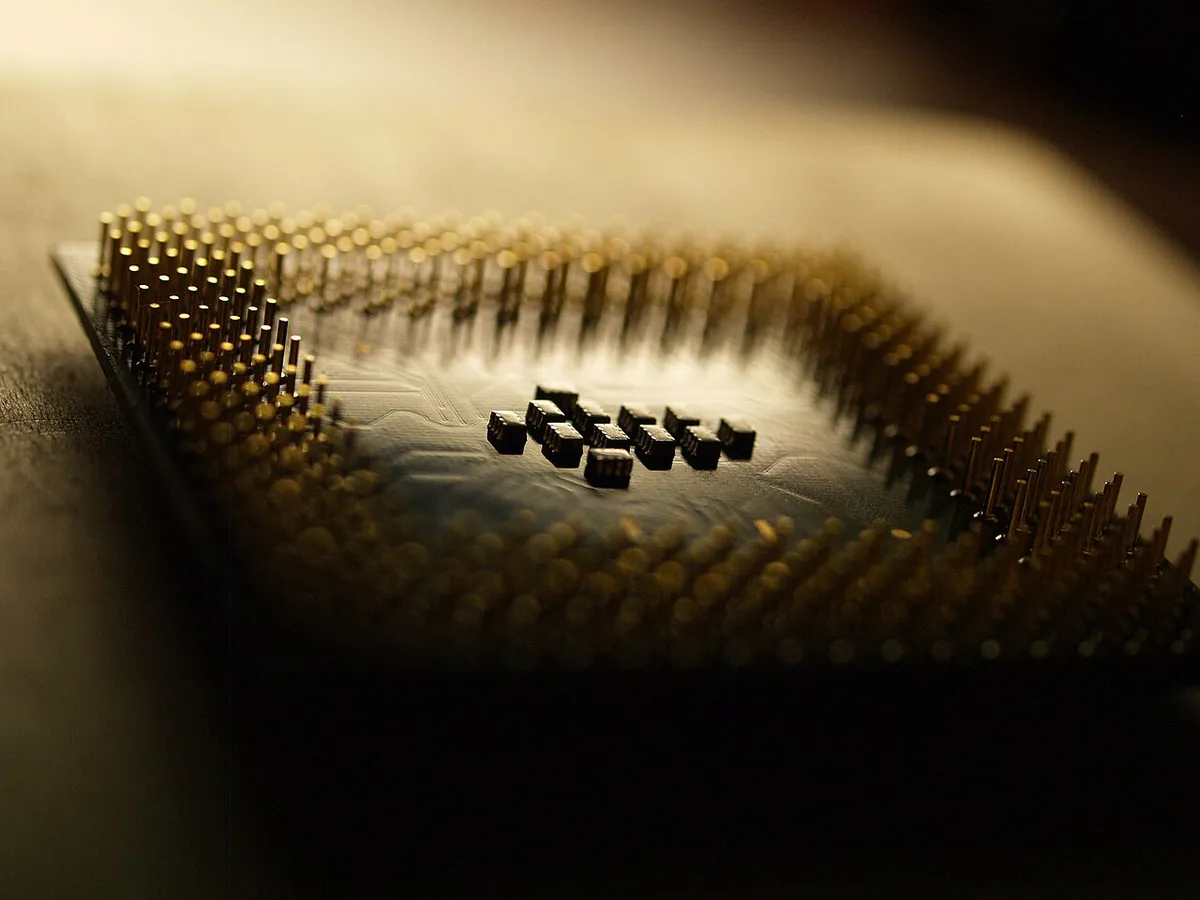
Image source: Wikimedia Commons / Dmitry Grigoriev (CC BY)
Latency vs Throughput at a Glance
Latency is response time. Throughput is volume processed. CPUs prioritize low latency.
Quick responses matter for controls. GPUs prioritize high throughput. Massive pixel counts matter for visuals.
Balancing both ensures smooth gameplay.
High throughput with high latency feels sluggish. Low latency with low throughput looks choppy. Ideal balance delivers responsive, fluid motion.
Monitor frametimes alongside average FPS. Consistent frametimes indicate balanced load distribution. Spikes suggest synchronization failures.
Key Identifiers: Reading a Graphics Card's Specs and Layout
Specs on a box tell part of the story. The board tells the rest. Look at VRAM, power, and physical size together.
VRAM Capacity and Bus Width
VRAM stores active textures and frame data. Bus width moves that data. Eight gigabytes often suits 1080p gaming.
Twelve or sixteen gigabytes helps at 1440p. Twenty-four gigabytes suits heavy 4K texture packs. Do not judge VRAM by capacity alone.
A wide bus moves data faster.
TDP, Power Connectors, and PSU Requirements
TDP estimates heat and power draw. Connectors show what your PSU must supply. An eight-pin connector can deliver up to 150 watts.
Newer 12VHPWR connectors handle more. Leave PSU headroom above the GPU rating. If you are budgeting for a 1440p build, VRAM and bus width matter more than core count alone.
Form Factor and Case Clearance
Measure length before buying. Check slot thickness too. Large coolers improve cooling but can block PCIe slots.
Small form factor cards fit tight cases. They may run warmer. Verify case maximum GPU length.
Check cooler height if using vertical mounts.
| Spec | What It Tells You | Quick Visual Cue |
|---|---|---|
| VRAM | Texture headroom | Memory chips around the die |
| Bus width | Data movement speed | Dense PCB traces |
| TDP | Heat and power needs | Heatsink mass |
| Connectors | PSU compatibility | Plugs on top or side |
Official manufacturer specifications list exact connector and wattage requirements.
Common Visual Mistakes Gamers Make When Choosing
Many buyers judge a card by its cooler. That is risky. Performance comes from the GPU model and architecture first.
Mistaking Cooler Size for Performance
A massive cooler can cool a midrange chip. It does not make the chip faster. Look at the GPU name and generation first.
The cooler affects noise and thermals. It does not change shader count.
Ignoring Port Layout and Monitor Compatibility
Count the ports. Check their versions. HDMI 2.1 and DisplayPort 1.4 differ in bandwidth.
One card may offer three DisplayPort and one HDMI. Match your monitor's best input. Adapters can limit refresh rate or resolution.
Overlooking Power Connector Types
Older PSUs may lack newer connectors. Adapters exist but add clutter and risk. Check connector count before buying.
Do not force cables into place. If your budget is tight, balancing CPU and GPU spending matters more than cooler branding.
Real Scenarios: What Changes When You Upgrade Your GPU
Upgrades change visuals and smoothness. Gains depend on settings, resolution, and CPU balance.
1080p to 1440p: The Visual Jump
More pixels demand more VRAM and bandwidth. A card comfortable at 1080p may struggle at 1440p ultra. Lower texture quality first.
Keep frame rate stable. Watch VRAM usage in monitoring tools.
Enabling Ray Tracing and DLSS
Ray tracing adds realistic light and shadows. It can cut frame rates sharply. DLSS or FSR can recover performance.
Start with quality mode. Watch for ghosting or shimmer. Reduce ray tracing reflections if frames drop.
Bottlenecking in Practice
If GPU usage stays low while CPU hits 100 percent, the CPU limits frames. If CPU is idle and GPU is maxed, graphics is the limit. Check usage under your target settings.
Signs of a CPU bottleneck help confirm the diagnosis. Planning around a target frame rate prevents mismatched upgrades.
Maintenance and Long-Term Optimization
GPUs need care. Dust and heat reduce lifespan and performance.
Dust, Thermal Paste, and Airflow
Clean dust every few months. Use compressed air in short bursts. Reapply thermal paste if temps rise.
Good airflow keeps fans quieter. Blower cards exhaust heat out the back. Open-air coolers dump heat inside the case.
Driver Updates and Clean Installs
Update drivers for new games. If crashes appear, do a clean install. Remove old driver files first.
This fixes conflicts. Keep the operating system current. Avoid installing every optional utility.
Monitoring Temperatures Under Load
Watch peak temperatures. Many cards throttle near 90 degrees Celsius. Aim for under 85 degrees sustained.
Fan curves help. Undervolting can reduce heat without large performance loss. Maintenance is part of the hidden costs of ownership.
Frequently Asked Questions
Can a gaming PC run without a dedicated graphics card?
Yes. Many CPUs include integrated graphics. They handle desktop use and light gaming.
They share system RAM and have fewer cores. They are not ideal for modern AAA titles. They work for basic esports at low settings.
Does VRAM matter more than GPU core speed?
It depends on resolution and settings. At 1080p, core speed often matters more. At 1440p or 4K, VRAM capacity becomes critical.
If textures exceed VRAM, stuttering appears. Balance both when choosing.
How do I know if my GPU is bottlenecking performance?
Check usage while gaming. If GPU stays near 99 percent, it is the limit. If CPU is maxed and GPU is low, the CPU is bottlenecking.
Monitoring tools show this clearly. Also watch frame times for spikes.
Should I upgrade the GPU or CPU first?
Upgrade the part that limits your target frame rate. If GPU usage is maxed, upgrade the GPU. If CPU usage is maxed, upgrade the CPU.
Budget builds often benefit from GPU first. Check your current resolution and settings.
What causes GPU coil whine?
Coil whine comes from electrical vibrations in power components. It often appears under high frame rates. It is usually harmless but annoying.
Some cards are quieter than others. Case panels can reduce perceived noise.
3 thoughts on “What Does a Graphics Card Do? Gaming PC Explained”
Comments are closed.