Figuring out how to monitor cpu usage while gaming shouldn't feel like rocket science. Most players just want to know if their rig is choking or cruising. But the wrong tool can actually slow you down, introducing lag when you need every millisecond of performance.
We've seen too many gamers rely on default settings that miss critical data. As of 2026, hardware complexity means a simple percentage bar rarely tells the whole story. You need to match your monitoring method to your specific goal, whether that's competitive play or deep troubleshooting.
Let's break down the right path for your setup.
How To Monitor CPU Usage While Gaming
The fastest way to check CPU load is using Windows Task Manager or Xbox Game Bar. These native tools require no installation and have negligible impact on frame rates. For detailed analysis, use HWiNFO64 paired with MSI Afterburner.
This combo offers per-core tracking and low-overhead overlays. Always close background apps first to ensure accurate readings during gameplay sessions.
Why Your CPU Monitor Might Be Lying to You
Most users assume a high CPU percentage equals a bottleneck. That's often false. Modern processors handle bursts efficiently.
Aggregate usage averages all cores together. A single-threaded game might spike one core to 100% while others sit idle. The average looks fine, but you still experience stuttering.
Another common issue is background interference. Discord, web browsers, and RGB control software consume cycles. If you don't account for these, your "gaming" load appears higher than it really is.
You're measuring system noise, not just game demand.
Thermal throttling also skews perception. When a chip hits its temperature limit, it reduces clock speed to protect itself. Usage might drop because the processor is doing less work per cycle.
Or it stays high while performance tanks. Without seeing frequency and temp alongside load, the number is meaningless.
Finally, sampling rate matters. Default monitors update once per second. Fast spikes between updates get missed entirely.
Competitive gamers need sub-second granularity to catch micro-stutters caused by sudden interrupts. Standard tools simply aren't built for that level of precision.
The Three Paths: Pick the Right Tool for Your Goal
Choosing a monitoring method depends entirely on what you need from the data. There is no universal best tool. Instead, there are three distinct workflows tailored to different user profiles and objectives.
| User Profile | Primary Goal | Recommended Path | Key Advantage |
|---|---|---|---|
| Casual Gamer | Quick sanity check | Native OS Tools | Zero install, zero overhead |
| Competitive Player | Real-time awareness | Low-Latency Overlay | Minimal FPS impact, instant feedback |
| Enthusiast/Troubleshooter | Deep analysis & logging | Diagnostic Suite | Granular sensor data, historical trends |
If you just want to confirm your PC isn't dying, stick to Path 1. It’s frictionless. If you’re playing ranked matches where input lag kills wins, Path 2 is non-negotiable.
You cannot afford heavy rendering processes stealing GPU resources.
For those building custom rigs or debugging crashes, Path 3 provides the forensic detail required. It logs everything to a file for later review. You wouldn't use this during active play due to potential disk write impacts, but it’s invaluable afterward.
Identify your primary pain point before installing anything. Do you suspect overheating? Go Path 3.
Do you see random frame drops? Try Path 2. Is your fan spinning up unnecessarily?
Start with Path 1. Matching intent to tool saves time and prevents unnecessary system strain.
Path 1: The Zero-Friction Check (Native Windows Tools)
Windows includes robust monitoring utilities that most people ignore. They are surprisingly effective for baseline checks. The two main options are Task Manager and Xbox Game Bar.
Both run at the OS level, meaning they bypass typical application overhead.
Using Task Manager Efficiently
Press Ctrl+Shift+Esc to open Task Manager. Navigate to the Performance tab. Click CPU.
Here you see total utilization and individual core graphs. This view helps spot uneven loads immediately. If one core is pinned at 100% while others are at 5%, you likely have a threading issue in the game engine.
Keep this window minimized or docked on a secondary monitor. Opening it full-screen steals focus and pauses some games depending on settings. Use the compact mode icon to keep it small.
Note that Task Manager samples data roughly every second. It misses rapid fluctuations. Treat it as a general indicator, not a precise instrument.
Leveraging Xbox Game Bar
Hit Win+G to summon the overlay. Pin the "Performance" widget to your screen. This displays CPU, GPU, RAM, and FPS in real-time.
Unlike Task Manager, it renders directly over the game window. It uses DirectX hooks, which adds minimal latency compared to external capture cards.
This method is ideal for laptops or single-monitor setups. You don't need a second display to watch stats. However, customization is limited.
You can’t choose specific sensors or change refresh rates easily. It’s designed for simplicity. If you need more than basic percentages, move to Path 2.
Both tools share a critical limitation: they don't log history automatically. Once you close them, the data is gone. You can't analyze a crash that happened ten minutes ago unless you were watching live.
For retrospective diagnosis, you’ll eventually need dedicated logging software. See our guide on identifying upgrade signs if baselines consistently look bad.
Path 2: The Competitive Edge (Low-Overhead Overlays)
Competitive gamers prioritize responsiveness above all else. Any added processing power distracts from the game. Therefore, the monitoring solution must be lightweight.
The gold standard here is MSI Afterburner combined with RivaTuner Statistics Server (RTSS).
Setting Up MSI Afterburner + RTSS
Install both programs. Launch MSIAfterburner. Go to Settings > Monitoring.
Enable "CPU Usage" and "CPU Temperature." Crucially, set the graph opacity to transparent if desired. Then enable "Show in On-Screen Display."
Switch to the RTSS interface. Configure the global hook settings to allow injection into your specific game executables. This ensures the overlay renders via DirectX/Vulkan rather than desktop composition.
Desktop composition introduces significant input lag. Direct rendering does not.
Adjust the polling rate. Default is often 1000ms. Lower it to 500ms or even 250ms for faster updates.
Beware: lower intervals increase CPU load slightly. Test stability first. If you notice micro-stutters, revert to 500ms.
Balance visibility against performance cost.
Alternative: Manufacturer Suites
NVIDIA App and AMD Adrenalin Edition offer built-in overlays. These are optimized specifically for their respective GPUs. Since the driver handles the rendering, overhead is theoretically near-zero.
Enable the performance overlay in the NVIDIA/AMD control panel. Customize metrics to show only CPU and FPS. Hide clutter like VRAM or power draw if irrelevant.
These suites are easier to configure than Afterburner. However, they lack granular control over positioning and font styles.
Use manufacturer tools if you value ease of use. Choose Afterburner if you need precise customization. Both paths avoid the heavy database writes associated with diagnostic loggers.
Keep an eye on power limits if temperatures rise unexpectedly despite low usage numbers.
Path 3: The Deep Dive (Diagnostic Logging & Analysis)
When problems persist, surface-level monitoring fails. You need historical data correlated across multiple sensors. HWiNFO64 is the industry standard for this depth.
It reads virtually every sensor exposed by modern motherboards and CPUs.
Configuring HWiNFO64 for Sensible Data
Launch HWiNFO64 in Sensors-only mode. This prevents the summary pane from consuming resources. Scroll to find CPU-specific entries.
Look for "Core Temperatures," "Package Power," and "Effective Clock Speeds."
Right-click any sensor line. Select "Add to Tray Icon" or "Configure." Ensure you’re capturing per-core usage, not just aggregate. Aggregate hides bottlenecks.
Per-core reveals them. Also, enable "Log to File" under the Logging menu. Set interval to 100ms for high fidelity.
Do not leave logging enabled during normal gaming. Disk writes can interrupt game threads. Only activate logging when reproducing a bug or stress-testing.
Save files locally. Cloud syncing during gameplay is risky and unnecessary.
Analyzing Post-Session Logs
Open the generated CSV file in Excel or specialized viewers like Grafana. Plot CPU usage against Frame Time. Spikes in frame time often correlate with CPU saturation or thermal throttling events.
Look for patterns. Does usage climb steadily? That suggests memory leaks or poor optimization.
Does it spike randomly? Likely background interrupts or scheduler issues. Compare successful runs against failed ones.
This workflow requires patience. It’s not for quick fixes. But it solves mysteries other tools miss.
Understanding integrated graphics behavior can also clarify why certain workloads shift load between CPU and iGPU unexpectedly.
Interpreting the Data: Usage vs. Bottlenecks vs. Thermals
Raw numbers only matter if you know what they mean. A 95% CPU reading doesn't automatically signal a bottleneck. It might mean your processor is working hard but keeping pace.
The key is correlating usage with frame times and clock speeds.
Bottlenecks show themselves through uneven frame pacing. If CPU usage stays high and frame times spike simultaneously, the processor is struggling. But if usage is high and frames stay smooth, you're simply using the hardware efficiently.
Context separates real problems from phantom concerns.
Thermal throttling complicates this further. When a CPU hits its thermal limit, it drops frequency to cool down. Usage might stay at 100% while performance tanks.
Without watching clock speeds alongside percentages, you'll misdiagnose the issue. Always monitor frequency and temperature together.
Single-threaded games behave differently than multi-threaded ones. Older titles often pin one core to 100% while others idle. Aggregate usage looks low, but that single core is maxed.
Per-core monitoring reveals these hidden constraints. Check individual core graphs before concluding your CPU is underutilized.
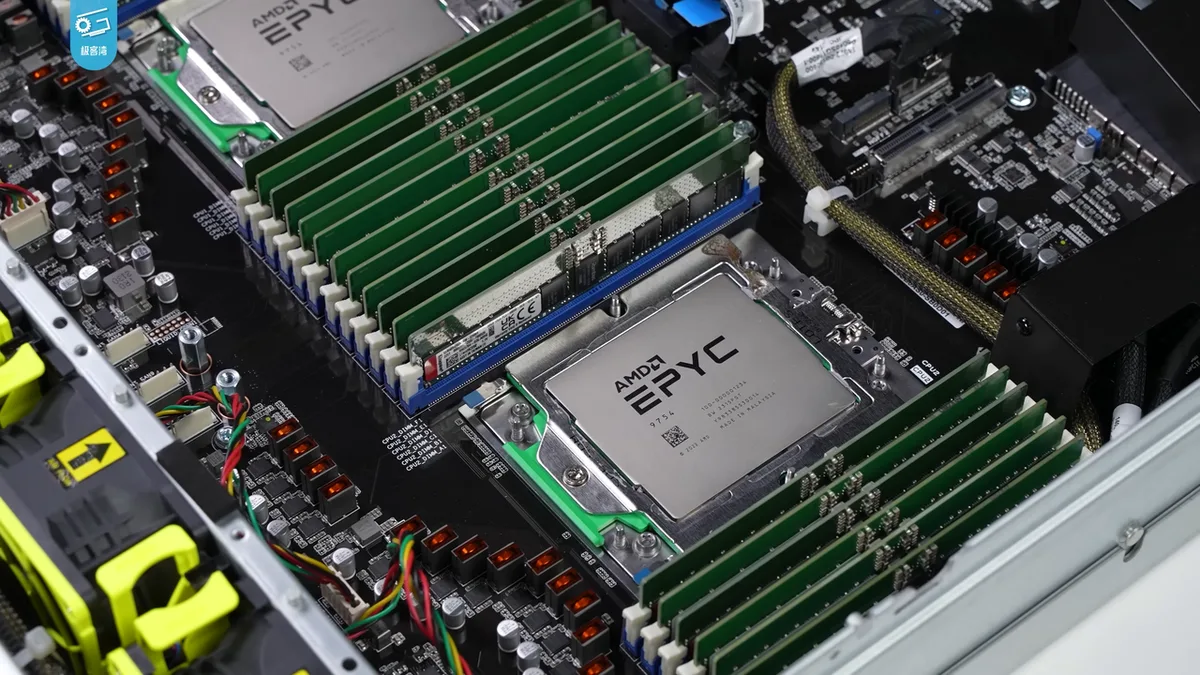
Image source: Wikimedia Commons / 极客湾Geekerwan (CC BY)
Our research shows that most misdiagnosed performance issues stem from ignoring per-core data. Aggregate percentages hide the truth. If you're seeing stutters despite "low" CPU usage, dig deeper into individual threads.
Manufacturer specs confirm that modern processors scale frequency dynamically based on per-core load, not just total package power.
Common Setup Mistakes That Skew Your Readings
Even the best monitoring tools produce garbage data when configured poorly. Several common mistakes lead gamers to false conclusions about their hardware. Fixing these issues often reveals that nothing was wrong in the first place.
Running monitoring software without closing background applications is the most frequent error. Chrome tabs, Discord overlays, and RGB utilities all consume CPU cycles. These inflate your baseline before you even launch a game.
Close everything non-essential before testing. Your readings will drop significantly, and you'll get a truer picture.
Another mistake is relying solely on aggregate CPU usage. Many users glance at the total percentage and assume everything is fine. But a 40% total might hide one core at 99%.
This creates micro-stutters that aggregate metrics miss entirely. Always enable per-core graphs in your monitoring tool of choice.
Overlay rendering mode matters more than people realize. Desktop composition mode adds input lag and skews frame time measurements. Always configure RTSS or manufacturer tools to use DirectX or Vulkan injection.
This renders the overlay directly within the game's graphics pipeline. The difference in measured latency can be substantial.
Sampling interval misconfiguration also causes problems. Default one-second intervals miss rapid spikes that last milliseconds. Competitive players need 250ms or faster intervals to catch these blips.
But shorter intervals increase monitoring overhead slightly. Find the balance that works for your specific hardware. Aggregate reviews report that 500ms offers the best compromise for most users.
Troubleshooting High CPU Spikes During Gameplay
Sudden CPU spikes during gameplay are frustrating and confusing. They cause stutters that ruin immersion. Diagnosing them requires systematic elimination of possible causes.
Start with the simplest explanations before diving into complex hardware issues.
Background process interference is the most common culprit. Windows Update, antivirus scans, and cloud sync services can trigger spikes. Open Task Manager during a spike and sort by CPU usage.
Identify the offending process. End it if safe. If it's a system service, investigate why it's running during gaming sessions.
Driver issues also cause intermittent CPU spikes. Outdated chipset or graphics drivers create scheduling conflicts. Update both through manufacturer channels, not just Windows Update.
Clean installation of GPU drivers often resolves mysterious CPU spikes. Use Display Driver Uninstaller (DDU) for thorough removal before reinstalling.
Thermal throttling produces a different spike pattern. Usage drops briefly, then surges as the CPU recovers. This cycle repeats every few minutes.
Monitor temperature alongside usage to confirm. If temps exceed 90°C on most modern processors, improve cooling. Reapply thermal paste if it's been over two years.
Power management settings can trigger spikes too. Windows Balanced power plan aggressively parks cores. This causes latency when unparking them during gaming.
Switch to High Performance or Ultimate Performance mode. Disable core parking through advanced power settings. This simple change eliminates many reported spike issues.
If spikes persist after these steps, check for hardware problems. Failing RAM modules cause CPU cache misses that spike usage. Run MemTest86 to verify memory integrity.
Also consider whether your CPU generation handles modern game engines efficiently. Older architectures struggle with newer threading models. Our guide on CPU generations explains how architecture affects gaming performance.
Final Decision Guide: Which Method Fits Your Rig?
Choosing the right monitoring approach depends on your hardware, goals, and tolerance for complexity. Use this decision framework to match your situation to the optimal method. No single solution works for everyone.
If you run a single monitor and play casually, native tools are sufficient. Xbox Game Bar provides enough data without installation. Don't overcomplicate your setup with third-party tools.
The performance overhead of simpler methods won't matter for your use case.
For competitive players with high-refresh monitors, Afterburner plus RTSS is the standard. The low overhead and customizable overlay justify the setup complexity. Prioritize minimal latency over detailed sensor data.
Your goal is awareness, not analysis.
Enthusiasts building or troubleshooting systems should use HWiNFO64. The granular data and logging capabilities are unmatched. Accept the learning curve.
Pair it with Afterburner for overlay display if you want both monitoring styles.
Laptop users face unique constraints. Thermal limits are tighter and battery life matters. Use manufacturer suites like NVIDIA App or AMD Adrenalin.
These are optimized for mobile power profiles. Avoid heavy logging tools that drain battery and generate heat.
If you suspect your CPU is the limiting factor, verify with bottleneck signs before upgrading. Monitoring data helps confirm suspicions but shouldn't be the sole decision driver. Combine readings with frame rate analysis and game-specific benchmarks.
Budget builders should focus on free tools first. Windows built-in utilities cost nothing and perform adequately. Only invest time in complex setups if problems persist.
Consider whether budget allocation would better serve gaming performance than premium monitoring software.
Frequently Asked Questions
Does monitoring CPU usage affect gaming performance?
Yes, but the impact varies by tool. Native Windows utilities add negligible overhead. Third-party overlays like Afterburner introduce 1-3% FPS reduction.
Diagnostic loggers can cause larger drops due to disk writes. Choose lightweight tools for competitive play. Disable logging during active gaming sessions.
Why does my CPU show 100% usage but games still lag?
100% usage on one core doesn't mean all cores are maxed. Single-threaded bottlenecks cause stuttering despite low aggregate percentages. Check per-core graphs to identify the issue.
Also verify that thermal throttling isn't reducing clock speeds. Frequency drops cause lag even when usage appears high.
Can I monitor CPU and GPU simultaneously?
Yes, most modern tools support simultaneous monitoring. MSI Afterburner displays both by default. NVIDIA App and AMD Adrenalin also show paired metrics.
Ensure your overlay isn't cluttered. Display only essential data: CPU usage, GPU usage, and frame rate. Too many metrics create visual noise.
Is HWiNFO64 safe for gaming systems?
Yes, it's widely trusted by enthusiasts and professionals. It reads sensors without modifying hardware parameters. However, always download from the official website.
Avoid third-party mirrors that might bundle malware. Run it in Sensors-only mode to minimize resource consumption during monitoring sessions.
How often should I monitor my CPU while gaming?
Most users only need occasional checks. Monitor when experiencing new stuttering or after hardware changes. Continuous overlay monitoring suits competitive players who want real-time awareness.
Casual gamers can check monthly during routine maintenance. Don't obsess over numbers that fluctuate normally.
What's the difference between CPU usage and CPU load?
Usage measures how busy the processor is executing tasks. Load refers to the queue of waiting processes. High usage with high load indicates insufficient processing power.
High usage with low load means the CPU is working hard but keeping up. Both metrics matter for accurate diagnosis.
1 thought on “How to Monitor CPU Usage While Gaming: A Simple Guide”
Comments are closed.