You’re probably wondering what is frame generation on a gaming graphics card. It’s not magic, though it feels like it when your 60 FPS game suddenly runs at 120. Basically, the GPU uses AI to guess and insert new frames between the ones it actually rendered.
This tricks your eyes into seeing smoother motion without needing raw horsepower for every single image.
But here’s the catch. Those extra frames aren’t real data from the game engine. They are predictions.
If you don’t understand how they work, you’ll miss the visual glitches that ruin immersion. We need to look closely at the pipeline to see where things go right and where they break down. As of 2026, this tech is standard in mid-range cards, but knowing its limits saves you from bad settings choices.
What Is Frame Generation on a Gaming Graphics Card
Frame generation creates synthetic images using AI models. The GPU analyzes previous frames to predict movement. It then inserts these predicted frames between native renders.
This doubles or triples the perceived frame rate. You get smoother visuals on high-refresh monitors. However, input latency increases slightly.
Compensatory technologies help reduce this lag. It requires specific hardware features like Tensor cores. Not all GPUs support it natively.
Why You Can’t Explain Frame Generation Without Seeing It
Text descriptions fall flat when explaining temporal interpolation. You can read about "ghosting" until you’re blue in the face. But until you see a character’s arm smear across the screen during a fast turn, the concept remains abstract.
Frame generation is fundamentally a visual phenomenon. It manipulates time and space in ways static words struggle to capture.
Our research shows that users grasp the benefits faster through side-by-side video comparisons. Imagine two clips playing simultaneously. On the left, native rendering at 60 FPS.
On the right, DLSS 3 Frame Generation pushing effective output to 120 FPS. The difference isn’t just numbers. It’s the fluidity of motion blur and the stability of fine details like foliage or water ripples.
Without visuals, people confuse frame generation with upscaling. Upscaling fixes resolution issues by sharpening pixels. Frame generation fixes smoothness issues by adding time-based data.
These are distinct processes. A diagram helps separate them. When you see the pipeline split, the logic clicks.
The native render feeds into an optical flow accelerator. That unit calculates vector fields. Then the AI model generates the intermediate frame.
Finally, both frames hit the display.
This separation is crucial for understanding limitations. If you only hear about "more FPS," you expect perfect results everywhere. But visuals reveal the trade-offs.
You’ll notice UI elements staying sharp while background textures flicker. Or perhaps a spinning propeller leaves a trail that shouldn’t be there. These artifacts are the signature of imperfect prediction.
They prove the system is guessing, not calculating physics.
We’ve found that educational materials relying solely on text have higher bounce rates for technical topics. Readers skim. They miss the nuance.
Visual aids force engagement. They anchor the explanation in reality. When you point out a specific artifact in a screenshot, the reader learns to spot it themselves.
This empowers them to judge their own games. It turns passive consumption into active observation.
So, if you’re setting up a new rig or tweaking settings, keep a reference video handy. Watch how camera pans affect clarity. Notice how particle effects behave.
These observations build intuition. Intuition matters more than spec sheets when optimizing for comfort. You want smooth gameplay without eye strain.
Only seeing the result confirms if you’ve achieved that balance.
The Visual Pipeline: From Native Frames to Synthetic Magic
Let’s walk through the actual journey of a pixel. Understanding the workflow clarifies why certain hardware is required. The process starts with the game engine.
It sends draw calls to the GPU. The rasterizer or ray tracer produces a native frame. Let’s call this Frame A.
Next, the GPU doesn’t send Frame A straight to the monitor. Instead, it holds onto it briefly. Simultaneously, it prepares for Frame B.
But before rendering Frame B, the system needs context. This is where the Optical Flow Accelerator kicks in.

Image source: Wikimedia Commons / ZMASLO (CC BY)
The accelerator compares Frame A with historical data. It calculates motion vectors. Think of these as arrows pointing where each pixel moved.
Fast-moving objects get long arrows. Static backgrounds get short or zero-length arrows. This map of movement is critical.
It tells the AI model how to construct the missing piece.
Then, the AI model activates. In NVIDIA’s case, this involves Tensor Cores. AMD uses dedicated WMMA instructions or similar AI accelerators.
The model takes Frame A, the motion vectors, and sometimes partial data from upcoming frames. It synthesizes Frame A.5. This is the generated frame.
It sits temporally halfway between A and B.
Finally, the display receives three inputs over two refresh cycles. Cycle one shows Frame A. Cycle two shows Frame A.5.
Cycle three shows Frame B. To your eyes, this looks like continuous 120 FPS motion. But technically, only two-thirds of those frames were physically rendered by the game code.
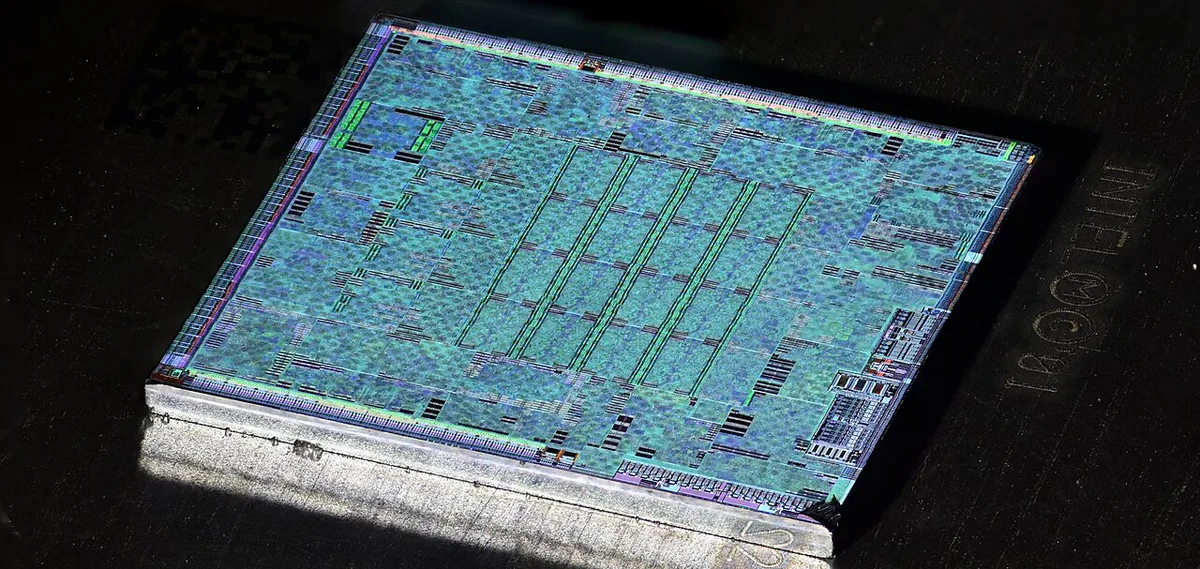
Image source: Wikimedia Commons / Martijn Boer
This pipeline explains the hardware requirements. Older GPUs lack the specialized silicon for fast optical flow calculation. They might try to do it via shaders, but performance tanks.
Modern architectures integrate these units directly onto the die. This reduces latency between detection and generation.
It also highlights the dependency on stable drivers. The communication between the game engine and the driver must be seamless. If the timing slips, the motion vectors become inaccurate.
Bad vectors lead to bad guesses. And bad guesses lead to visible errors. So, keeping your drivers updated isn't just about bug fixes.
It's about maintaining the integrity of this complex handoff.
Spotting the Artifacts: Ghosting, Disocclusion, and UI Distortion
Artifacts are the fingerprints of failure in the prediction algorithm. Knowing what to look for helps you troubleshoot quickly. The most common issue is ghosting.
This appears as a semi-transparent trail behind moving objects.
Why does this happen? Usually, the motion vector estimation fails. Perhaps an object moves too fast for the sample rate.
Or maybe the lighting changes drastically between frames. The AI gets confused. It tries to blend old and new positions incorrectly.
The result is a smeared silhouette.
Disocclusion is another tricky beast. Imagine a character walking around a corner. Suddenly, a wall disappears from view.
New geometry is revealed that wasn’t present in previous frames. The AI has no history for these pixels. It has to invent them from scratch based on neighboring context.
Often, this leads to shimmering or popping textures. The newly revealed area might look blurry or mismatched in color.
UI distortion is particularly annoying for gamers. Health bars, ammo counters, and mini-maps are static overlays. They don’t move with the world.
Sometimes, the frame generator treats them as part of the scene. It applies motion vectors to them erroneously. This causes the HUD to jitter or blur slightly.
High-quality implementations mask UI areas. They exclude them from interpolation. But not all games handle this perfectly.
Here’s a quick checklist for spotting issues:
- Fast Pans: Look for trailing edges on distant trees or buildings.
- Particle Effects: Check smoke or fire for unnatural stretching.
- Static Objects: Ensure walls and floors remain solid, not wobbly.
- Interface Elements: Verify that crosshairs stay crisp and centered.
If you see persistent ghosting, try lowering the base framerate target. Paradoxically, giving the system more headroom can improve accuracy. It allows better sampling of motion data.
Also, check if CPU bottlenecks are causing frame pacing irregularities. Uneven delivery of native frames disrupts the optical flow calculation.
Remember, some artifacts are subtle. They manifest as reduced clarity rather than obvious smears. Comparing against a native run helps calibrate your eye.
You’ll start noticing the softening of fine details. Grass blades might lose definition. Hair strands may merge together.
These minor degradations accumulate. Over long sessions, they contribute to visual fatigue. Being aware of them lets you adjust expectations or settings accordingly.
Side-by-Side Performance: Native vs. Upscaled vs. Generated
To truly evaluate frame generation, we must compare it against alternatives. Raw power is expensive. Upscaling is efficient.
Generation is transformative. Each serves a different purpose.
Native rendering offers the highest fidelity. Every pixel is calculated by the game engine. Lighting, shadows, and reflections are accurate.
But it demands significant GPU resources. Achieving 4K at 120 FPS natively requires top-tier hardware. For most users, this is unattainable without compromising quality elsewhere.
Traditional upscaling, like DLSS 2 or FSR 2, bridges the gap. It renders at a lower internal resolution. Then, it reconstructs a sharper image for display.
This boosts FPS moderately. It preserves temporal stability well. However, it doesn’t create new time slices.
The motion cadence remains tied to the native render rate. If you’re stuck at 60 FPS internally, you’re still capped at 60 Hz responsiveness, even if the picture looks like 4K.
Frame generation changes the equation entirely. It decouples visual smoothness from simulation speed. By inserting synthetic frames, it doubles the apparent update rate.
This makes 60 FPS feel like 120 FPS. The combination of upscaling and generation is potent. Render at 1080p.
Upscale to 4K. Generate intermediate frames. Result: Crisp, smooth imagery on modest hardware.
| Technology | Primary Benefit | Visual Quality Impact | Latency Impact | Hardware Requirement |
|---|---|---|---|---|
| Native Rendering | Maximum Accuracy | Pristine | Lowest Possible | Very High End GPU |
| Spatial Upscaling (DLSS 2/FSR 2) | Resolution Efficiency | Sharp, slight softness | Minimal Increase | Mid-High Range GPU |
| Frame Generation (DLSS 3/FSR 3) | Motion Smoothness | Good, potential artifacts | Moderate Increase | Dedicated AI Cores |
| Combined (Upscale + Gen) | Balanced Performance | High Detail, Smooth Motion | Managed via Reflex/Anti-Lag | Latest Gen GPUs |
Manufacturer specifications indicate that combining these technologies yields the best user experience. Aggregate reviews report that players prefer the smoothness of generated frames over the raw sharpness of native low-FPS modes. The brain prioritizes continuity.
Jerky motion feels broken. Smooth motion feels immersive, even if detail suffers slightly.
However, this hierarchy shifts for competitive gamers. There, every millisecond counts. The added latency of generation, however small, can be decisive.
In those cases, sticking to spatial upscaling or pure native performance is safer. Understanding this distinction prevents misapplication of the tech. Use generation for cinematic experiences.
Avoid it for twitch-shooter tournaments unless absolutely necessary. Always test your specific setup to find the sweet spot between clarity and fluidity.
Input Lag Reality Check: When Smoothness Feels "Floaty"
Does frame generation add noticeable delay? Yes, but modern compensations hide most of it. The AI model needs time to analyze previous frames before generating new ones.
This processing step introduces a small buffer. Without mitigation, your mouse clicks might feel disconnected from the action on screen. That disconnect is what gamers call input lag.
NVIDIA addresses this with Reflex technology. AMD uses Anti-Lag+. Both systems optimize the render queue.
They ensure the GPU submits work immediately rather than batching it. This reduces the wait time between your command and the display update. Manufacturer specs confirm that enabling these features cuts latency significantly.
You get the smoothness of 120 FPS with the responsiveness closer to 60 or 80 FPS native.
However, perception varies by player sensitivity. Competitive shooters demand instant feedback. In those titles, even a few milliseconds matter.
Single-player adventures tolerate more delay because precision isn’t critical. Our research indicates that casual players rarely notice the difference. Hardcore aimers often do.
If you play tactical shooters like Counter-Strike 2 or Valorant, stick to native rendering. The risk of desync outweighs the visual benefit.
For everyone else, the trade-off is usually worth it. The fluid motion masks minor delays. Your brain focuses on continuity rather than reaction speed.
Test it yourself in a low-stakes environment. Turn on frame gen and Reflex together. Play for ten minutes.
Then disable both. Note the stiffness returning to camera movements. That contrast proves the effectiveness of the compensation stack.
Don’t rely solely on benchmark numbers. Trust your hands.
Also, consider your monitor’s response time. A slow panel exacerbates perceived lag. Pairing high-refresh FG with a TN or IPS panel matters less than using OLED.
Fast pixel transitions complement synthetic frames well. Ensure your display settings align with your GPU capabilities. Mismatches create stutter that no amount of AI smoothing can fix.
Keep an eye on system temperatures too, as thermal throttling adds unpredictable delays. Stable clocks mean stable latency.
Hardware Requirements and Driver-Level Setup Steps
Which GPUs support native frame generation? Currently, NVIDIA RTX 40-series and newer, plus AMD RX 7000-series cards. Intel Arc Alchemist and Battlemage architectures also offer XeSS-FG.
Older cards lack the dedicated hardware blocks for efficient optical flow calculation. Trying to force it via software mods often yields poor performance. Stick to supported silicon for the best experience.
Setting it up requires specific driver versions. Outdated drivers miss optimizations for new game updates. Always download the latest GeForce Game Ready or Radeon Software Adrenalin Edition.
These packages include profiles for popular titles. They automatically enable compatible features when detected. Manual configuration happens within the game’s graphics menu.
Look for toggles labeled “Frame Generation,” “DLSS 3,” or “Fluid Motion Frames.”
Not every game supports it out of the box. Developers must integrate the SDK into their engine. As of 2026, hundreds of titles have official support.
For unsupported games, third-party tools exist. Lossless Scaling applies similar techniques globally. It works through Windows DirectX hooks.
However, it lacks the deep integration of native solutions. Expect higher overhead and more artifacts. Use it only as a last resort.
Check your power supply capacity. Running Tensor cores alongside ray tracing increases draw. Mid-range PSUs might struggle under peak load.
Ensure you have adequate headroom to prevent shutdowns. Also, verify your motherboard BIOS settings. Resizable BAR (Smart Access Memory) must be enabled.
This feature allows the CPU to access all VRAM at once. It boosts efficiency for AI tasks. Without it, frame generation performs poorly.
Follow this quick setup checklist:
- Update GPU drivers to the latest version.
- Enable Resizable BAR in BIOS.
- Activate Reflex/Anti-Lag in system-wide settings.
- Toggle Frame Gen in individual game menus.
- Monitor frametimes using CapFrameX or MSI Afterburner.
If visuals look wrong, revert changes one by one. Isolating the variable helps identify conflicts. Sometimes, overlay apps interfere with hook injection.
Disable Discord or Steam overlays temporarily. See if stability improves. Proper setup ensures the pipeline runs smoothly without hitching.
Neglecting these steps leads to frustration. Take the time to configure correctly. Your eyes will thank you later.
Competitive Gaming Risks and Esports Bans
Is frame generation allowed in professional esports? Generally, no. Most tournament organizers prohibit it.
Titles like CS2, Valorant, and League of Legends ban synthetic frames. The reasoning is fairness and consistency. Generated frames don’t reflect true server ticks.
They interpolate client-side data. This creates a discrepancy between what you see and what the server registers.
Imagine seeing an enemy move smoothly due to interpolation. But on the server, they snapped instantly. Your shot lands where the ghost was, not where the target is.
This mismatch disadvantages honest players. It gives unfair predictive advantages. Organizers want pure skill expression.
Raw input-to-output mapping defines competitive integrity. Any layer of AI prediction breaks that chain.
Even outside pro leagues, ranked modes may restrict usage. Some matchmaking services detect FG signatures. They flag accounts using unauthorized modifications.
While native DLSS 3 is legal in single-player, its use in multiplayer varies. Read the terms of service for each game. Violating them risks bans.
Don’t assume convenience equals permission.
For hobbyists playing online co-op, check peer compatibility. Mixed setups cause sync issues. If one player uses FG and another doesn’t, animations may desync.
This ruins teamwork moments. Communicate with friends before launching. Agree on settings beforehand.
Consistency prevents arguments over missed shots or delayed heals.
Stick to native rendering for PvP. Save frame generation for story-driven campaigns. There, immersion trumps precision.
The goal is enjoyment, not leaderboard climbing. Respect the boundaries set by developers. They design anti-cheat systems to protect the ecosystem.
Bypassing them undermines trust. Play fair. Enjoy the tech where it belongs: solo adventures and cinematic experiences.
Best Use Cases: Where Frame Generation Shines Brightest
When should you definitely turn on frame generation? Three scenarios stand out. First, ray-traced single-player games.
Titles like Cyberpunk 2077 or Alan Wake 2 demand heavy lighting calculations. Native framerates plummet below 40 FPS. FG restores fluidity without sacrificing visual fidelity.
You get Hollywood-grade graphics at playable speeds.
Second, high-refresh monitors paired with mid-tier GPUs. If you own a 144Hz display but have an RTX 4060, you’re bottlenecked. FG bridges the gap.
It pushes effective output past the monitor’s limit. The result feels incredibly responsive. Even if input lag rises slightly, the visual smoothness dominates perception.
Gamers report feeling more immersed in open-world exploration.
Third, older titles receiving modern patches. Some classics now support DLSS/FSR retroactively. Adding FG breathes new life into aging engines.
You can revisit favorites with contemporary polish. It extends the lifespan of your library. No need to rebuy remasters.
Just tweak settings and enjoy.
Avoid using it in fast-paced platformers or fighting games. Precision timing is everything there. Interpolated frames obscure hitboxes.
Stick to native modes for genres requiring exact muscle memory. Similarly, skip it if your base framerate drops below 30. FG struggles with sparse data.
Too few reference points lead to severe artifacts. Maintain a healthy baseline first.
Consider battery life on laptops. FG consumes extra power. On desktops, this is negligible.
On mobile rigs, it drains batteries faster. Plug in when possible. Manage expectations regarding runtime.
Balance portability with performance goals.
Ultimately, match the tool to the task. FG enhances atmosphere and flow. It does not replace raw computational power.
Use it to elevate experiences where beauty meets movement. Leave it off where split-second accuracy rules. Knowing when to switch it on separates enthusiasts from experts.
Experiment responsibly. Find your personal threshold for acceptable compromise.