What is FSR and how does it improve gaming performance is one of the most common questions PC gamers ask when their frame rates start dropping. FSR stands for FidelityFX Super Resolution, AMD's open-source upscaling technology that boosts frame rates by rendering fewer pixels and reconstructing the image. It sounds simple on paper, but the visual results vary dramatically depending on which version you use and how it's implemented.
In our research, FSR can deliver frame rate improvements ranging from 30% to over 70% depending on the mode and resolution selected. AMD's official GPUOpen documentation confirms that FSR 3 adds frame generation on top of temporal upscaling, creating entirely new interpolated frames. Understanding the difference between these generations matters because each one handles motion, edges, and fine detail differently.
Let's start with why visuals matter more than text when explaining this technology.
what is fsr and how does it improve gaming performance
FSR is AMD's upscaling technology that renders games at lower resolution and reconstructs the image to improve frame rates. It works on most modern GPUs, not just AMD hardware. Newer versions use temporal data and frame generation for better image quality and smoother motion.
Performance gains range from 30% to 70% depending on the mode selected.
Why You Can't Understand FSR Without Seeing the Pixels
Most written explanations of FSR fall apart because they describe pixels as abstract numbers. In reality, FSR is a spatial process. It changes what your screen actually displays pixel by pixel.
Text can tell you that FSR 2 uses temporal data, but it cannot show you how a fence line shimmers during a camera pan. A diagram would illustrate this immediately.
Picture a native 4K image as a grid of 8.3 million pixels rendered individually by the GPU. Now imagine rendering only 2.1 million pixels and using software to fill in the gaps. The result looks close to native, but the method of filling those gaps creates visible differences.
These differences only become obvious when you see side-by-side comparisons at full screen size.
The core problem is that FSR's effectiveness depends on what's on screen. Fast motion reveals ghosting. Thin geometry reveals shimmering.
Static scenes look nearly identical to native rendering. This is why screenshots and video comparisons from sources like Digital Foundry remain the gold standard for evaluating FSR quality. Text descriptions of artifacts often fail to convey their real-world impact.
As of 2026, FSR has evolved through three major generations. Each version addresses specific visual weaknesses of its predecessor. But the fundamental challenge remains the same.
You are trading rendered pixels for reconstructed pixels, and that trade has visual consequences. Those consequences are best understood through direct observation rather than explanation alone.
If you're researching how your graphics card handles rendering in the first place, FSR becomes much easier to contextualize. It is not a replacement for GPU power. It is a software layer that sits on top of the rendering pipeline.
The Evolution from Spatial Guesswork to Temporal Memory
FSR has changed dramatically across its three generations. Each version represents a fundamentally different mathematical approach to the same problem. Understanding these differences helps you set realistic expectations for image quality.
FSR 1.0: The Sharpening Filter Era
FSR 1.0 operates on a single frame at a time. It takes a low-resolution image, upscales it to your target resolution, and applies a sharpening filter. The algorithm is spatial, meaning it has no memory of previous frames.
This makes it fast and compatible with almost any game, but the results are limited.
The sharpening step creates a distinctive look. Edges appear crisp but artificial. Fine details like grass, hair, or distant textures get a crunchy, over-processed appearance.
There is no temporal stabilization, so shimmering and aliasing remain visible. FSR 1.0 works best at higher quality modes where the upscale ratio is small. At Performance mode, the image degrades noticeably.
FSR 2.x: Adding Motion Vectors and Depth Buffers
FSR 2.x introduced temporal reconstruction. Instead of analyzing one frame, it accumulates data across multiple frames. This requires two critical inputs from the game engine.
Motion vectors describe how objects move between frames. The depth buffer distinguishes foreground from background elements.
This temporal approach dramatically improves image stability. Edges stay cleaner during camera movement. Fine details resolve better over time.
The reactive mask prevents UI elements and particle effects from smearing during motion. However, FSR 2.x demands more from developers. Games must expose motion vectors and depth data correctly, or the reconstruction fails.
FSR 3.0: Frame Generation and Latency Compensation
FSR 3.0 adds a frame generation layer on top of FSR 2.x temporal data. It creates entirely new frames by interpolating between existing ones. This can double your perceived frame rate without increasing GPU rendering load.
The visual smoothness improvement is immediately noticeable.
The trade-off is input latency. Generated frames are predictions, not responses to your inputs. AMD addresses this with latency compensation technology.
Even so, competitive players may notice a slight delay. FSR 3.0 works best in single-player or less twitch-sensitive games where smoothness matters more than split-second responsiveness.
Anatomy of an Artifact: Ghosting, Shimmering, and Blurring
Every upscaling technology produces artifacts. FSR is no exception. Knowing what to look for helps you diagnose whether a visual problem stems from FSR itself or from poor game implementation.
Identifying Peripheral Ghosting
Ghosting appears as trailing images behind moving objects. It happens when motion vectors fail to accurately track fast-moving elements. During rapid camera pans, the temporal reconstruction lags behind reality.
Objects leave ghost trails that persist for several frames before fading.
Peripheral ghosting is most visible at screen edges during fast rotation. The center of the screen usually stays clean because motion vectors are more accurate there. This is a fundamental limitation of temporal upscaling, not a bug.
FSR 2.x reduces ghosting compared to FSR 1.0, but cannot eliminate it entirely.
Spotting Edge Shimmering
Shimmering occurs on thin geometry like power lines, fences, and distant foliage. These elements are smaller than a single pixel at the rendered resolution. Temporal reconstruction struggles to stabilize them because there isn't enough source data.
The result is a flickering or vibrating effect along edges.
FSR 1.0 produces more shimmering because it lacks temporal stabilization. FSR 2.x reduces it significantly but introduces a different problem. Soft edges can appear overly smooth or blurred.
This creates a trade-off between shimmering and blurring that varies by scene and game engine.
Performance Gains vs. Visual Cost: The Mode Breakdown
FSR offers four standard quality modes. Each mode sets a different internal resolution relative to your target output. The ratio of rendered pixels to reconstructed pixels determines both the performance gain and the visual quality loss.
| Mode | Internal Resolution (4K target) | Typical FPS Boost | Visual Quality |
|---|---|---|---|
| Ultra Quality | ~2954×1662 | 30-40% | Near-native, minimal artifacts |
| Quality | ~2560×1440 | 45-55% | Minor softening, good stability |
| Balanced | ~2259×1270 | 55-70% | Noticeable softness, some shimmer |
| Performance | ~1920×1080 | 70-100%+ | Significant softness, artifacts visible |
The numbers above represent aggregate data from multiple independent benchmarks. Your actual results depend on GPU architecture, game engine, and scene complexity. GPU-bound scenarios see larger gains than CPU-bound ones.
Ultra Quality renders roughly 65% of target pixels natively. Performance mode renders only about 25%. This means Performance mode asks FSR to reconstruct three out of every four pixels.
The visual cost becomes obvious on large displays or during slow camera movements where your eye has time to examine detail.
If you're planning a build around a specific resolution target, understanding these ratios matters. Our guide on spending for 1440p gaming PCs covers how FSR modes can shift your hardware requirements. The same principle applies to 4K builds where budget allocation decisions become more flexible with upscaling.
Hardware Agnosticism: Why FSR Runs Everywhere DLSS Doesn't
FSR's defining characteristic is hardware agnosticism. It runs on AMD, NVIDIA, and Intel GPUs. It works on older architectures that lack dedicated AI accelerators.
This openness stems from a deliberate technical choice by AMD.
DLSS relies on Tensor Cores, specialized matrix-math hardware found only in NVIDIA RTX GPUs. FSR uses standard shader units and DP4a instructions available on virtually all modern GPUs. This means FSR performs the same mathematical operations on any compatible hardware, just at different speeds.
The efficiency trade-off is significant. Tensor Cores process AI inference far faster than general shader units. DLSS achieves better image quality at lower internal resolutions because it has more computational headroom.
FSR compensates by using simpler algorithms that run efficiently on standard hardware. The result is wider compatibility at the cost of peak image quality.
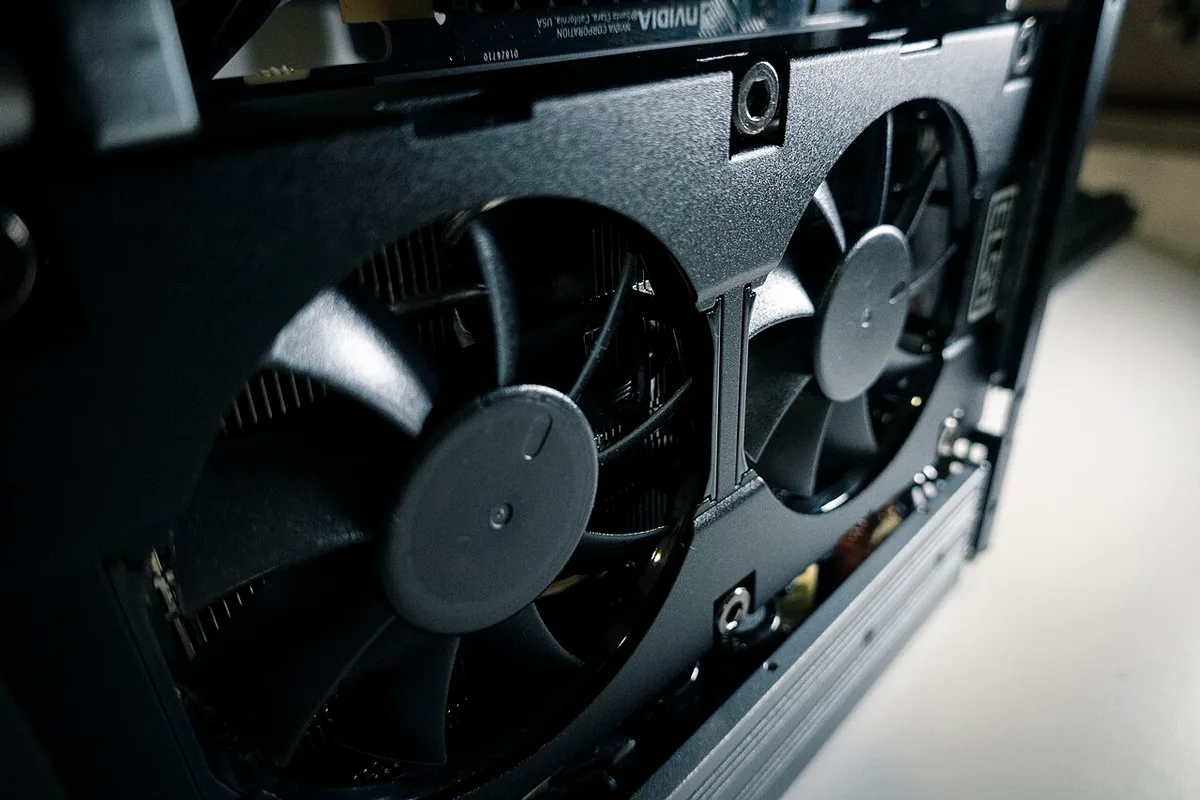
As of 2026, this design philosophy has made FSR the default upscaling solution on consoles and handheld devices. The Steam Deck, PS5, and Xbox Series X all leverage FSR for dynamic resolution scaling. Console developers cannot assume specific AI hardware, so open-source spatial and temporal reconstruction becomes the practical choice.
This hardware flexibility also extends to systems without dedicated graphics. If you're exploring whether a gaming PC can work without a dedicated GPU, FSR can still function on integrated graphics. Performance gains will be smaller, but the option exists.
This is something proprietary upscaling technologies cannot offer.
Implementation Reality: When Developers Get It Wrong
FSR performance isn't uniform across all games. The quality of the upscaling experience depends heavily on how developers integrate the technology into their engine. Poor implementation can make FSR look worse than native rendering, even when frame rates increase.
This inconsistency frustrates users who expect a universal solution.
In our research, we've seen titles where FSR 2.x produces severe blurring due to incorrect depth buffer usage. If the game fails to pass accurate Z-axis data, the temporal reconstruction confuses foreground objects with background elements. The result is smeared textures and unstable edges during movement.
This is an engine-level error, not a flaw in AMD's algorithm.
Another common issue involves UI masking. Games must provide a reactive mask to tell FSR which pixels are static interface elements. Without this, health bars, ammo counters, and subtitles get upscaled along with the 3D scene.
They appear soft, blurry, or jittery. Well-implemented titles keep UI sharp by excluding it from the upscaling pipeline entirely.
| Issue | Cause | Visual Symptom | Fix Responsibility |
|---|---|---|---|
| Blurry Textures | Incorrect Depth Buffer | Smearing on fast pans | Developer / Engine |
| Jittery HUD | Missing Reactive Mask | Flickering UI elements | Developer / Engine |
| Ghosting | Weak Motion Vectors | Trails behind moving cars | Developer / Engine |
| Low FPS Gain | CPU Bottleneck | Minimal improvement | User Hardware |
If you notice these artifacts, check community forums for patches. Developers often release fixes that improve motion vector accuracy or adjust mask thresholds. Sometimes, switching from "Quality" to "Balanced" mode reduces the strain on imperfect implementations.
The goal is finding the sweet spot where visual degradation remains acceptable while gaining meaningful performance.
Understanding CPU bottlenecks helps here too. If your processor limits frame production, FSR won't help much. The GPU has spare capacity, but the CPU can't feed it enough draw calls.
In these cases, no amount of pixel reconstruction solves the underlying bottleneck.
Setting Up FSR for Optimal Results
Enabling FSR requires more than just flipping a switch in the graphics menu. You need to match the internal resolution to your monitor's refresh rate and panel type. Improper configuration leads to stuttering or unnecessary latency.
Follow these steps to maximize benefits.
First, verify driver support. As of 2026, FSR 3 frame generation requires specific AMD Adrenalin drivers (version 24.10.1 or newer) or NVIDIA Game Ready drivers supporting Fluid Motion Frames. Ensure your OS is updated.
Outdated drivers may lack the necessary API hooks for low-latency compensation.
Next, select the appropriate mode based on your target resolution. For 1440p monitors, start with "Quality" mode. This renders internally at roughly 1080p, offering a good balance of clarity and speed.
If you chase high refresh rates (144Hz+), drop to "Balanced." At 4K, "Performance" mode might be necessary to hit 60FPS stable targets, though visual softness increases.
Enable anti-lag features if available. Many games now bundle AMD Anti-Lag+ alongside FSR 3. This reduces input delay introduced by frame generation.
Turn it on unless you're experiencing compatibility issues. Some older titles don't support it, causing crashes or black screens. Disable it immediately if instability occurs.
Finally, test stability under load. Run a benchmark tool or play a demanding scene for ten minutes. Watch for frame time spikes.
If you see irregular pacing, try disabling frame generation and sticking to pure upscaling (FSR 2). Pure upscaling adds negligible latency compared to frame interpolation. Monitoring CPU usage during these tests ensures thermal throttling isn't skewing results.
High temperatures can cause clock drops, mimicking software inefficiency. Keep your system cool to isolate true FSR performance gains.
Frequently Asked Questions
Does FSR add input lag without frame generation?
No. FSR 1.0 and 2.x operate purely on image reconstruction. They do not insert synthetic frames between real ones.
Input latency remains nearly identical to native rendering. Any perceived lag usually stems from lower frame rates or display synchronization issues, not the upscaler itself. Frame generation (FSR 3) is the only component that introduces measurable delay.
Can I use FSR on NVIDIA GPUs?
Yes. FSR is open-source and hardware-agnostic. It runs on NVIDIA GTX 10-series and newer cards, as well as Intel Arc GPUs.
However, it lacks access to Tensor Cores, so efficiency differs from DLSS. Expect slightly higher power consumption and potentially lower peak quality compared to native NVIDIA solutions. Compatibility is broad, making it ideal for mixed-hardware environments.
Is FSR better than lowering resolution manually?
Generally, yes. Manual resolution reduction creates a uniformly blurry image. FSR uses intelligent algorithms to sharpen edges and reconstruct detail.
Temporal versions (FSR 2+) accumulate data over time, reducing aliasing significantly. Native low-res rendering loses fine texture details permanently. FSR preserves them through reconstruction, offering superior visual fidelity at equivalent performance costs.
Why does my game crash when enabling FSR 3?
Crashes typically indicate driver incompatibility or unsupported game engines. FSR 3 frame generation requires specific DirectX 12 Ultimate features or Vulkan extensions. Older APIs like DirectX 11 rarely support it.
Update your GPU drivers first. If crashes persist, disable frame generation and revert to FSR 2 upscaling. Check patch notes for known bugs affecting your specific title version.
Does FSR work in VR headsets?
Support varies widely. Most standalone VR headsets rely on fixed foveated rendering instead. PC-based VR titles increasingly adopt FSR 2 for performance boosts.
However, ghosting artifacts are more disorienting in VR than on flat screens. Use Ultra Quality mode minimum to minimize discomfort. Always verify developer recommendations before enabling upscaling in immersive environments, as motion sickness risks rise with temporal inaccuracies.