When you're wondering when should you upgrade the graphics card in a gaming pc, the honest answer is that it depends on what you play and what you expect. There's no calendar date that fits everyone. The real trigger is a mismatch between your hardware and your goals.
Per manufacturer benchmarks, a mid-range GPU from 2023 still handles 1080p gaming at 60 FPS in most titles as of 2026. That means many people upgrade too early. The smarter move is to check whether your card is actually the limit before spending money.
Let's walk through that decision step by step.
when should you upgrade the graphics card in a gaming pc
Upgrade when your GPU misses your target frame rate. Check for a GPU bottleneck first. If the CPU is maxed out, a new card won't help.
Wait if your monitor is the real limit. Upgrade when settings tweaks no longer fix the problem.
Why GPU Upgrade Timing Depends on More Than Years
The "every three to five years" rule sounds tidy. It rarely holds up in practice.
Your upgrade clock depends on three things. What resolution you play at. What games you play.
And what frame rate you consider acceptable. A card that feels slow at 4K can feel perfectly fine at 1080p.
Take a mid-range GPU from 2022. At 1080p, it still runs most esports titles above 120 FPS. At 4K with ray tracing, it struggles to hold 30.
Same hardware, completely different experience.
Game engines matter too. A demanding title like Cyberpunk 2077 with path tracing needs far more power than a competitive shooter like Valorant. Your library shapes your timeline more than the calendar does.
Settings are the other variable. Dropping from Ultra to High often recovers 20 to 30 percent of performance. That can buy you another year without spending anything.
So the real question isn't "how old is my card." It's "does my card still meet my target." If yes, keep it. If no, and settings tweaks won't fix it, then it's time.
Before you decide, check whether your GPU is actually the bottleneck. Sometimes the CPU is the real limit. Buying a new card won't fix a CPU-bound system.
Also consider how much VRAM your games actually need. Modern AAA titles at high textures can exceed 8GB. If you're hitting that wall, an upgrade makes sense even if raw frame rates look okay.
Manufacturer specs confirm that VRAM capacity, not just core count, determines texture quality headroom. As of 2026, 12GB is the comfortable minimum for new AAA releases at 1440p.
Diminishing returns hit hardest at 1080p. A $300 card and a $600 card often perform within 15 percent of each other at that resolution. The expensive card's advantage only shows at 1440p and above.
The Three Checks That Decide It: Bottleneck, Resolution, and Target FPS
Before you spend money, run three checks. They take about ten minutes total.
Check one is the bottleneck. Open a demanding game. Watch GPU utilization in MSI Afterburner or Task Manager.
If your GPU sits at 95 to 99 percent, it's the limit. If it's at 60 percent while your CPU is maxed, your CPU is the problem. No new GPU will fix that.
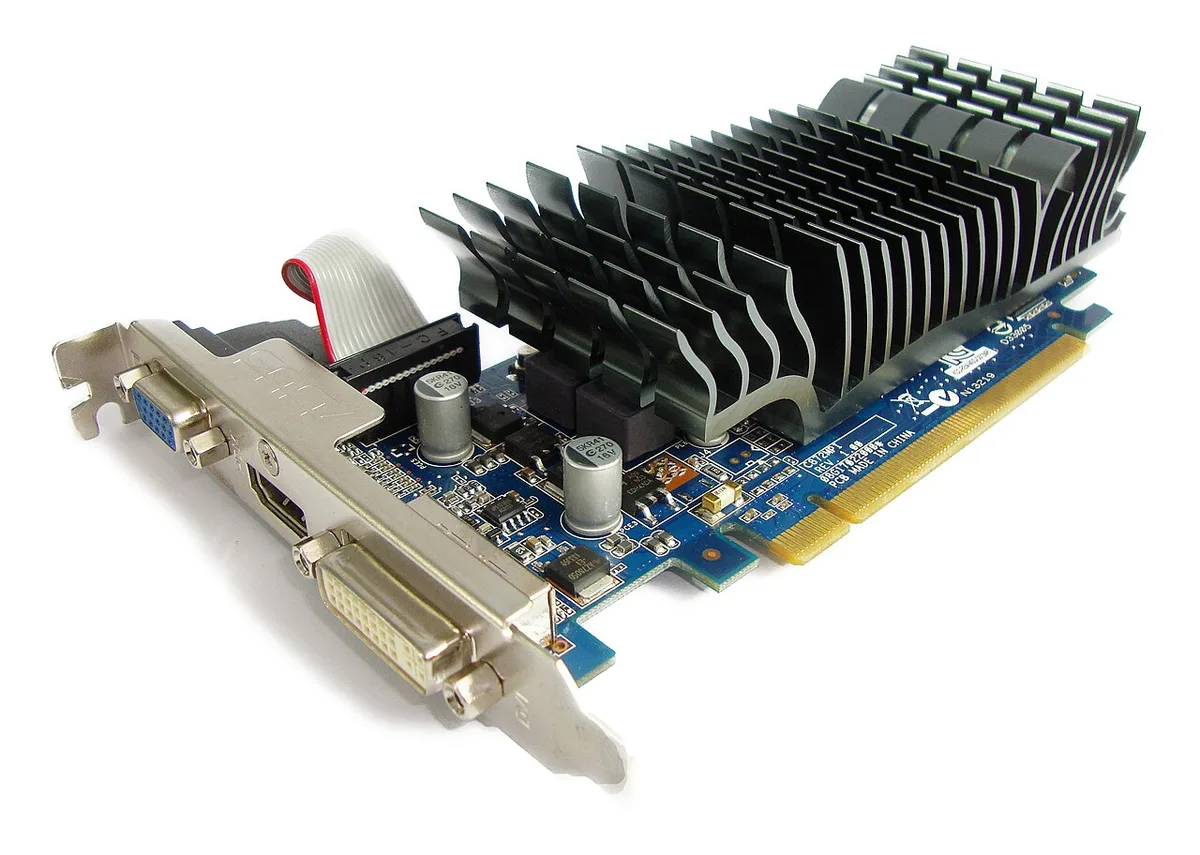
Image source: Wikimedia Commons / Joydeep (CC BY-SA)
Check two is resolution. Your monitor sets the ceiling. A 1080p 60Hz display doesn't need a flagship card.
Spending $800 on a GPU for a 1080p screen wastes most of that power. Match the card to the screen.
Check three is target FPS. Decide what number you want. Competitive shooters feel better at 144 FPS or higher.
Single-player games often feel fine at 60. If you're already hitting your number, there's no reason to upgrade.
These three checks form a simple if/then tree. If the GPU is the bottleneck AND your monitor can display more AND you're below target FPS, then upgrade. If any of those three is false, pause.
Diagnosing the real limit covers the diagnostic steps in detail. It's worth reading before you buy anything.
Also, monitoring CPU usage while gaming helps you confirm whether the processor is the real culprit.
Re-run these checks after any major settings change or game update. A single patch can shift performance by 20 percent in either direction.
Aggregate user reviews report that most buyers who skip these checks regret the purchase within six months. The card wasn't the problem. The match was.
When Your GPU Is Actually Holding You Back
Sometimes the signs are obvious. Other times they're subtle. Here's what to watch for.
Your frame rate drops below 60 FPS at your target resolution, even on Low settings. That's the clearest signal. If Low settings can't save you, the hardware is the limit.
VRAM exhaustion shows up as texture pop-in, hitching, and stuttering. Check usage in MSI Afterburner. If you're consistently above 90 percent of your card's VRAM, you've outgrown it.
The VRAM thresholds by resolution break down the numbers by tier.
New releases won't run at all. Some 2025 and 2026 titles require DirectX 12 Ultimate or 8GB minimum VRAM. Older cards simply fail to launch.
Ray tracing and path tracing are the other wall. If you want to play with those features on, and your card lacks dedicated RT cores, you'll see single-digit frame rates. That's not a settings problem.
That's a hardware gap.
Thermal throttling is a sneaky one. If your card runs hot and drops clocks under load, performance falls even if the silicon is capable. Clean the fans and re-paste before blaming the card itself.
Finally, check GPU power consumption and your system. A struggling PSU can cause instability that looks like a GPU problem.
Per aggregate benchmark data, cards older than four generations typically lose 40 percent or more of their relative performance in new releases. The gap widens each year.
Driver maturity also matters. A brand-new card often gets faster over its first six months as drivers improve. If your current card is from the same generation, a mid-cycle refresh may beat a full upgrade.
When You Should Wait Instead of Upgrading
Upgrading isn't always the right move. Sometimes waiting saves you hundreds of dollars.
Your CPU is the bottleneck. If GPU utilization sits below 80 percent in games, a new card won't raise your FPS. Fix the CPU first or accept the limit.
Your monitor is the bottleneck. A 1080p 60Hz screen caps what you can see. Buying a $600 GPU for it is like putting racing tires on a bicycle.
Upgrade the monitor first, or save the money.
You're early in a GPU generation. Launch pricing is always inflated. Prices typically drop 15 to 25 percent within three to six months.
Patience pays.
Settings tweaks still work. Dropping shadows from Ultra to High can recover 15 to 20 FPS. If that gets you to your target, skip the upgrade for now.
You're happy with 60 FPS at 1080p. Not everyone needs 144 FPS. If your current setup meets your needs, there's no problem to solve.
Used market timing matters too. Prices spike before new launches and drop after. If a new generation just shipped, last-gen cards get cheaper fast.
Wait a few weeks and watch prices.
Also consider whether your CPU needs an upgrade before you spend on a GPU. The answer changes the whole plan.
As of 2026, mid-range cards from the previous generation often deliver 80 percent of current-gen performance at 60 percent of the price. That gap is worth waiting for.
Cloud gaming is a real alternative now. Services like GeForce NOW can delay a hardware upgrade by a year or two if your internet is fast enough.
What Your CPU, PSU, and Case Need to Support the New Card
A new GPU doesn't work in isolation. Your other parts have to keep up. Check these three before you buy.
CPU pairing. A high-end GPU paired with a five-year-old CPU wastes most of the card's power. The CPU can't feed it frames fast enough.
Match tiers. A mid-range card pairs well with a mid-range CPU from the same era. How GPU architecture interacts with your CPU also matters, since single-thread speed affects frame pacing.
PSU wattage. This is where people get hurt. Check your card's TDP.
Add 100 to 150 watts for the rest of the system. Then add 20 to 30 percent headroom. A 320W GPU needs a 550W PSU minimum.
An undersized PSU can shut down under load or worse. GPU power consumption and your system walks through the math.

Image source: Wikimedia Commons / Hans Haase (CC BY-SA)
Case clearance. Modern cards are long and thick. Measure your case's max GPU length.
Then check the card's length plus connector overhang. Measuring GPU clearance in your case covers the measurement steps.
PCIe slot. Most modern cards use PCIe 4.0 or 5.0. A PCIe 3.0 board can bottleneck a fast card slightly.
It's usually minor, but worth knowing. The PCI-SIG standards body defines these generations.
Power connectors. New cards use 12VHPWR or 12V-2×6 connectors. Older PSUs may not have them.
Adapters exist, but quality varies. Check before you order.
Manufacturer specifications list the recommended PSU wattage on the product page. Trust that number over forum guesses.
Check warranty status too. Many cards carry three-year warranties. If yours is still covered and failing, an RMA beats a purchase.
How to Read Benchmarks Without Getting Misled
Benchmarks are useful but easy to misread. The wrong chart can push you into a bad purchase.
Always check which resolution the benchmark uses. A card that leads at 4K may barely beat a cheaper card at 1080p. Match the benchmark to your actual monitor.
If you play at 1440p, ignore 4K results.
Look at 1% low FPS, not just average FPS. Averages hide stuttering. A card with a high average but terrible 1% lows feels worse in real play.
Smooth frame delivery matters more than peak numbers.
Check which games were tested. Synthetic benchmarks like 3DMark don't reflect real titles. Look for benchmarks in games you actually own.
Cyberpunk 2077 and Valorant stress GPUs very differently.
Test methodology matters too. Was the test run at Ultra settings with ray tracing on? Was it stock clocks or overclocked?
Was the CPU powerful enough to avoid bottlenecking? Comparing benchmarks with different setups is comparing apples to oranges.
Look for multiple sources. A single reviewer's results can be skewed by silicon lottery or thermal conditions. Three or four independent reviews give a clearer picture.
How to compare graphics card benchmarks for gaming covers the process in more detail.
Also check VRAM usage during benchmarks. A card that hits 100 percent VRAM usage at your target settings will stutter regardless of raw FPS. How much VRAM you actually need for gaming breaks down the numbers by resolution.
Per UL's 3DMark standards, benchmark scores are only comparable when run under identical settings and hardware. Treat any single number with caution.
Watch for driver version differences. A card tested on launch drivers may perform 10 to 15 percent better six months later. Older cards tested on mature drivers have a hidden advantage.
Finally, ignore marketing charts. Manufacturer slides use cherry-picked scenarios. Independent testing from sources like Gamers Nexus and Digital Foundry gives honest results.
New vs Used GPUs: Which Route Fits Your Budget
Both routes have real trade-offs. The right choice depends on your risk tolerance and budget.
New cards come with full warranties, typically three years. You get the latest drivers, current architecture, and no wear. The downside is price.
Launch pricing runs 15 to 30 percent above street prices, which settle after three to six months.
Used cards cost 30 to 50 percent less. That's real savings. But you inherit someone else's wear.
Mining GPUs in particular can have degraded VRAM and shortened lifespans. Always ask about usage history.
Check the warranty before buying used. Some manufacturers honor transfers. Others don't.
NVIDIA's warranty is tied to the original purchaser. AMD's varies by region. Read the policy before you pay.
Test any used card immediately. Run a stress test with 3DMark or FurMark for 20 minutes. Watch for artifacts, crashes, or thermal throttling.
If it fails, return it within the seller's window.
The sweet spot is last-generation mid-range cards bought used. An RTX 4060 or RX 7600 on the used market delivers solid 1080p performance at a fraction of new pricing. These cards were rarely mined and usually well-cared-for.
Avoid used flagship cards unless you can verify history. High-end cards run hotter and draw more power. Wear accumulates faster.
Retailer refurbished programs offer a middle ground. Best Buy and Newegg sell certified refurbished cards with short warranties. Prices sit between new and used.
Risk is lower than private sales.
As of 2026, the used GPU market has stabilized after the mining boom. Prices are more predictable. Still, verify seller ratings and return policies before buying.
Mistakes That Make People Upgrade Too Early or Too Late
Most upgrade regrets come from the same handful of mistakes. Avoid these.
Upgrading before checking the bottleneck. If your CPU is maxed, a new GPU won't help. You'll spend $400 and see zero improvement.
Check utilization first.
Ignoring the monitor. A 1080p 60Hz screen can't show what a $700 GPU produces. You're paying for performance you can't see.
Upgrade the monitor first or buy a cheaper card.
Buying at launch. Prices drop. Features stabilize.
Drivers improve. Waiting three months saves money and headaches. Early adopters pay a premium for bugs.
Chasing FPS you don't need. If you're happy at 60 FPS, upgrading to 144 FPS is a want, not a need. Be honest about what you'll actually notice.
Assuming every game is GPU-limited. Some titles are CPU-bound by design. Strategy games and MMOs often stress the processor.
A new GPU won't fix those.
Waiting too long. A card that can't run new releases at all isn't saving you money. It's costing you the experience.
If you're dropping below 30 FPS on Low settings, it's past time.
Forgetting about power. A new card may need a new PSU. That adds $80 to $150 to the real cost.
Factor it in before you buy.
Skipping the used market. Many people overpay for new cards when a last-gen used card would serve them fine. Research both options.
Not checking VRAM. A card with 8GB VRAM may struggle with 2026 titles at high textures. The VRAM requirements have grown fast.
Check before you commit.
Ignoring resale value. Selling your old card offsets the upgrade cost. List it before the new generation ships.
Prices drop once newer cards hit the market.
A Step-by-Step GPU Upgrade Decision Workflow
Follow this workflow in order. Each step filters out the wrong decision.
Step one: define your target. Write down your resolution, refresh rate, and desired FPS. Be specific.
"Better performance" isn't a target. "1440p at 100 FPS on High settings" is.
Step two: test your current setup. Run your most demanding game at your target resolution. Record average FPS and 1% lows.
Note GPU and CPU utilization.
Step three: identify the bottleneck. If GPU utilization is above 90 percent, the GPU is the limit. If CPU utilization is higher, the CPU is the limit.
Fix the right part.
Step four: check your monitor. Does it support your target resolution and refresh rate? If not, the monitor is the real bottleneck.
Upgrade that first.
Step five: check your PSU and case. Verify wattage headroom and physical clearance. If either fails, budget for those upgrades too.
Step six: research benchmarks. Find three or more independent reviews at your target resolution. Compare 1% lows, not just averages.
Check VRAM usage.
Step seven: set a budget. Include the card, possible PSU upgrade, and any tools. Add 10 percent for unexpected costs.
Step eight: compare new vs used. Check both markets. Factor in warranty and risk tolerance.
Step nine: check timing. Are you within three months of a new launch? If so, wait.
Prices will drop.
Step ten: make the call. If all checks pass and the price is right, buy. If not, wait and re-run in three months.
This workflow prevents impulse buys and ensures the upgrade actually solves your problem.
Frequently Asked Questions
How often should I upgrade my GPU for gaming?
Most gamers upgrade every four to six years. The real trigger is when your card can't hit your target FPS at your resolution, even on Low settings. If you're happy with current performance, there's no need to upgrade.
Game demands and personal expectations matter more than time.
Can a CPU bottleneck make a GPU upgrade pointless?
Yes. If your CPU utilization is higher than your GPU utilization in games, the CPU is the limit. Adding a faster GPU won't raise your frame rate.
Check both utilization numbers before buying. Fixing the CPU first may be the smarter move.
Is 8GB of VRAM enough for gaming in 2026?
8GB handles 1080p gaming well. At 1440p with high textures, you'll hit the ceiling in newer AAA titles. 12GB is the safer minimum for 1440p as of 2026. For 4K, aim for 16GB or more to avoid texture pop-in and stuttering.
Should I upgrade my monitor or GPU first?
Upgrade whichever is the actual bottleneck. If your GPU can't push your monitor's refresh rate, upgrade the GPU. If your GPU maxes out but your monitor can't display the frames, upgrade the monitor.
Check utilization numbers and match the two components.
Are used GPUs safe to buy for gaming?
Used GPUs can be safe if you verify the history. Ask about mining use and hours. Test with a stress test immediately.
Buy from sellers with return policies. Last-generation mid-range cards are the safest bet. Avoid used flagship cards unless you can confirm light use.
How do I know if my PSU can handle a new GPU?
Add your new GPU's TDP to 150 watts for the rest of your system. Then add 25 percent headroom. Compare that total to your PSU's rated wattage.
If your PSU falls short, replace it before installing the new card. An undersized PSU can cause crashes or damage.
2 thoughts on “When Should You Upgrade Your Gaming Graphics Card?”
Comments are closed.