Choosing a motherboard for a gaming PC feels overwhelming the first time. There are dozens of models across multiple chipsets, and the spec sheets read like alphabet soup. But the decision actually comes down to a handful of clear questions about your CPU, your case, and your budget.
Get it right and your build runs cool, stable, and upgradeable for years. Get it wrong and you'll face compatibility headaches, thermal throttling, or money wasted on features you never touch. This guide walks through each decision step by step so you can pick with confidence.
how to choose a motherboard for a gaming pc
Start with CPU socket and chipset compatibility. Match the form factor to your case. Check VRM quality for your CPU's power needs.
Pick DDR4 or DDR5 based on your RAM. Compare features against your actual budget. Skip features you will not use.
Why Motherboard Choice Actually Matters for Gaming
The motherboard is the backbone of your gaming PC. It connects your CPU, GPU, RAM, storage, and power supply into one working system. Pick the wrong one and you'll hit compatibility walls, thermal throttling, or wasted money on features you never touch.
Many first-time builders treat the motherboard as an afterthought. They spend big on a graphics card, then grab the cheapest board that fits the socket. That approach works sometimes.
But it often leads to a CPU that won't POST, RAM stuck below advertised speeds, or a VRM that runs hot during long gaming sessions.
Here's the truth. The motherboard doesn't directly raise your frame rate. What it does is enable or limit everything else.
A solid board gives your CPU stable power, your GPU a full-speed PCIe lane, your RAM room to hit its XMP profile, and your storage fast NVMe access. A weak board bottlenecks all of that silently.
For gaming specifically, three things matter most. First, socket and chipset compatibility with your chosen CPU. Second, VRM quality and cooling for sustained loads.
Third, form factor and PCIe layout that fits your case and GPU length.
As of 2026, the platform landscape has settled into two main camps. AMD's AM5 socket supports Ryzen 7000, 8000, and 9000 series processors with DDR5 memory. Intel's LGA1851 socket covers Core Ultra 200S (Arrow Lake) chips, while LGA1700 still serves 12th through 14th Gen Intel processors with both DDR4 and DDR5 options.
Your motherboard choice locks in your upgrade path for years. AM5 is officially supported through at least 2027 per AMD's roadmap. Intel typically changes sockets every two generations.
That difference alone can save you hundreds on a future CPU upgrade.
The rest of this guide walks through each decision point so you can match the board to your build, your budget, and your goals without overspending or undershooting.
AMD AM5 vs Intel LGA1700/LGA1851: The Socket Decision
Your CPU choice determines your socket. Your socket determines your motherboard. So this is really a CPU decision first, and a board decision second.
But the two are locked together, and each platform has real trade-offs worth understanding.
AMD's AM5 platform uses DDR5 memory exclusively. It supports Ryzen 7000, 8000, and 9000 series chips. The key selling point is platform longevity.
AMD committed to supporting AM5 through at least 2027, meaning a B650 or X670E board bought today could run a future Ryzen chip with just a BIOS update.
Intel's LGA1700 platform covers 12th, 13th, and 14th Gen Core processors. It offers flexibility because many boards support both DDR4 and DDR5 memory. That matters if you're reusing older RAM from a previous build.
Intel's newer LGA1851 socket serves Core Ultra 200S (Arrow Lake) chips and requires DDR5 exclusively.
Here's how the chipsets break down within each platform.
For AMD AM5:
- B650 and B850 are the sweet spot for most gamers. They support PCIe 4.0 or 5.0, multiple M.2 slots, and enough VRM power for mid-range Ryzen chips.
- X670E and X870E are the enthusiast tier. They add PCIe 5.0 for both GPU and storage, more USB ports, and stronger VRMs for high-end Ryzen 9 processors.
For Intel LGA1700:
- B760 is the budget-friendly option. It handles mid-range Core i5 and i7 chips well but limits overclocking.
- Z790 is the enthusiast choice. It unlocks CPU overclocking, supports faster memory, and offers more PCIe lanes and connectivity.
For Intel LGA1851:
- B860 and Z890 are the current options, with Z890 offering full overclocking support.
The practical difference comes down to upgrade flexibility and RAM reuse. If you have DDR4 from an older build, an LGA1700 board with DDR4 support saves you money. If you want the longest upgrade runway, AM5 is the safer bet.
If you want the newest Intel architecture, LGA1851 is your path.
One thing to watch. Intel's 13th and 14th Gen chips had widely reported instability issues tied to voltage and microcode. Intel released fixes through BIOS updates, but you should verify the board ships with updated firmware or supports easy BIOS Flashback.
This is where understanding CPU generations and why they matter for gaming becomes essential before you buy.
ATX vs Micro-ATX vs Mini-ITX: Matching Form Factor to Your Case
Form factor is where many builds go wrong. You pick a board, then discover it doesn't fit your case. Or it fits but leaves no room for your GPU.
The three main sizes each serve different build goals.
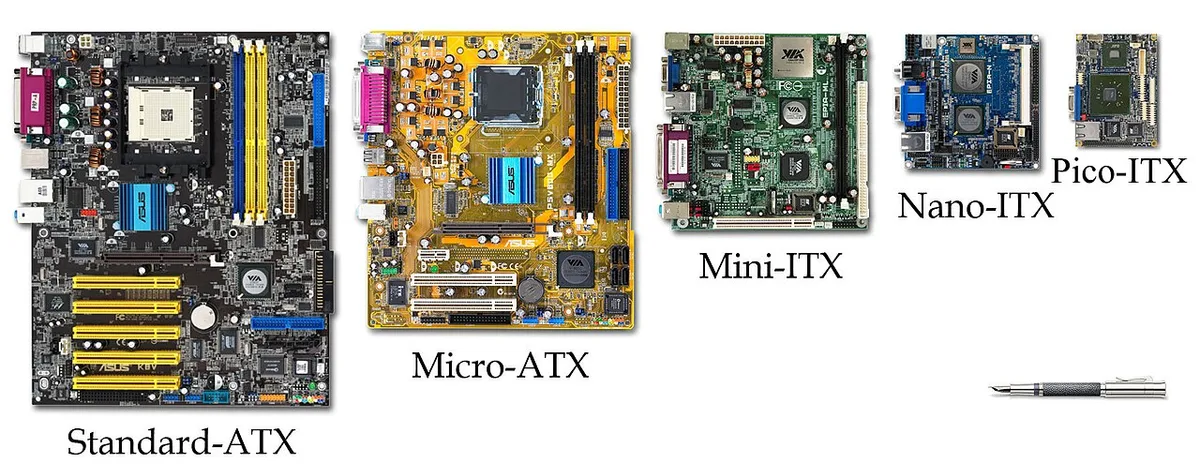
Image source: Wikimedia Commons / VIA Gallery from Hsintien, Taiwan (CC BY)
ATX is the standard. It measures 12 x 9.6 inches and offers the most expansion slots, M.2 slots, and fan headers. Most mid-tower and full-tower cases are built for ATX.
If you're building a standard gaming PC with a full-size GPU and multiple drives, ATX is the default choice.
Micro-ATX is smaller at 9.6 x 9.6 inches. It typically has fewer PCIe slots and M.2 slots but costs less. Many budget and mid-range boards come in this size.
It fits in most mid-tower cases and some compact cases. The trade-off is expansion room. You might get only two M.2 slots and two RAM slots instead of four.
Mini-ITX is the smallest at 6.7 x 6.7 inches. It fits in small-form-factor cases and usually has one PCIe slot and two RAM slots. These boards often cost more per feature because cramming everything onto a tiny PCB is harder.
Mini-ITX builds look clean but run hotter and are harder to cable-manage.
Here's a quick comparison of what each form factor offers.
| Form Factor | Typical Size | PCIe Slots | M.2 Slots | RAM Slots | Best For |
|---|---|---|---|---|---|
| ATX | 12 x 9.6 in | 3-4 | 3-4 | 4 | Standard builds, max expansion |
| Micro-ATX | 9.6 x 9.6 in | 2-3 | 2-3 | 2-4 | Budget builds, compact mid-towers |
| Mini-ITX | 6.7 x 6.7 in | 1 | 2-3 | 2 | Small-form-factor, portable PCs |
Before buying, check your case's supported motherboard sizes. Also verify how much GPU clearance your case provides because a large triple-fan GPU can block M.2 heatsinks or front panel connectors on smaller boards. ATX gives you the most breathing room.
Mini-ITX demands careful planning.
VRM Quality, Power Delivery, and Thermals
The VRM converts 12V power from your PSU into the precise voltage your CPU needs. Cheap VRMs run hot, deliver unstable power, and can throttle your CPU during sustained gaming loads. This is one area where the spec sheet doesn't tell the whole story.
VRM quality is measured by phase count, MOSFET current rating, and heatsink design. A board with 8 phases of 60A MOSFETs and a small heatsink will struggle with a Ryzen 9 or Core i9. A board with 12 phases of 90A MOSFETs and a large finned heatsink handles the same chip with ease.
Manufacturer specs sometimes list phase counts that include doublers, so look for independent reviews that measure actual VRM temperatures under load.
For gaming, you don't need an extreme overclocking board. But you do need a VRM that stays under 80 degrees Celsius during sustained loads. Aggregate reviews and thermal testing consistently show that budget B-series boards paired with high-end CPUs run 15 to 25 degrees hotter than mid-range boards with better heatsinks.
Practical guidance by CPU tier:
- Ryzen 5 / Core i5 (65W TDP): Any B-series board with basic heatsinks works fine.
- Ryzen 7 / Core i7 (105W TDP): Look for 10+ phases with decent heatsinks. Avoid the cheapest B-series options.
- Ryzen 9 / Core i9 (120W+ TDP): Step up to a mid-range or high-end board with robust VRM cooling. Don't pair a flagship CPU with a budget board.
The CPU thermal throttling guide covers how heat affects performance in detail. VRM heat is a major contributor that many builders overlook. If your CPU drops clocks during long sessions, check VRM temps in HWiNFO before blaming the cooler.
Also consider how GPU power consumption affects your overall system. A high-wattage GPU plus a hungry CPU stresses both the VRM and your PSU. Make sure your power supply has enough headroom for both.
DDR4 vs DDR5 and Memory Speed Limits
Memory type is decided by your socket and chipset, not by preference. AM5 and LGA1851 require DDR5 exclusively. LGA1700 gives you a choice between DDR4 and DDR5 depending on the specific board model.
This is one of the last platform decisions where you can save real money by reusing old parts.
DDR5 offers higher bandwidth and larger capacity per stick. As of 2026, mainstream DDR5 runs at 5600 to 6400 MT/s out of the box, with overclocked kits reaching 8000 MT/s and beyond. DDR4 tops out around 3600 to 4000 MT/s for most gaming builds.
The real-world gaming difference between fast DDR4 and entry-level DDR5 is small, often 3 to 5 percent. But DDR5's higher bandwidth helps in CPU-bound scenarios and future-proofs your build.
The bigger issue is motherboard memory support. Not every board runs every speed. A budget B650 board might support DDR5-5600 officially but struggle to boot a DDR5-6400 kit even with XMP enabled.
Check the board's QVL (Qualified Vendor List) for your specific RAM kit before buying.
Key memory considerations:
- Max capacity: Most gaming boards support 128GB (4 x 32GB) or 192GB (4 x 48GB) of DDR5. You'll likely use 16GB or 32GB for gaming.
- Memory slots: Four slots give you upgrade flexibility. Two slots are common on Mini-ITX and some budget boards.
- XMP and EXPO: These profiles let you run RAM at advertised speeds with one BIOS setting. AMD boards use EXPO. Intel boards use XMP. Make sure your board supports the profile type your RAM uses.
- Daisy chain vs T-topology: High-end boards route memory traces differently for better overclocking. This only matters if you're pushing extreme speeds.
If you're reusing DDR4 from an older build, an LGA1700 board with DDR4 support is the smart play. You'll save $60 to $100 on RAM. Just verify the board doesn't have DDR5 slots you'll never use.
Some LGA1700 boards ship in both DDR4 and DDR5 variants, so double-check the model number.
For gaming, 32GB of DDR5-6000 is the current sweet spot. It handles modern games, background apps, and light streaming without bottlenecking. Going beyond 32GB rarely helps frame rates today but gives headroom for future titles.
PCIe, M.2 Slots, and Storage Expansion
Your motherboard's PCIe and M.2 layout determines how many drives you can run and at what speeds. For gaming, storage speed affects load times and texture streaming. A fast Gen 4 NVMe drive on a Gen 4 M.2 slot loads games noticeably faster than a SATA SSD.
Most modern gaming boards offer two to four M.2 slots. But not all slots are equal. Some run at PCIe 4.0 x4 speeds.
Others run at PCIe 3.0 or share bandwidth with SATA ports. Check the manual's lane configuration table before buying. A common frustration is discovering that using the second M.2 slot disables two SATA ports due to lane sharing.
The GPU slot matters most. Your graphics card needs a full PCIe x16 slot running at Gen 4 or Gen 5 speeds. Most boards provide this on the top slot.
But if you install a second GPU or a capture card, the second slot may drop to x8 or x4 speeds. For gaming, x16 is ideal but x8 on Gen 4 still delivers near-full performance.
Key storage considerations:
- M.2 slot count and PCIe generation per slot
- Whether slots share lanes with SATA ports
- Heatsink quality on M.2 slots (Gen 4 and 5 drives run hot)
- SATA port count for older drives or optical drives
A practical tip. If you plan to run a Gen 5 SSD, verify the board has a dedicated Gen 5 M.2 slot with a substantial heatsink. Gen 5 drives throttle without proper cooling.
Many mid-range boards advertise Gen 5 support but include a thin heatsink that can't keep up.
For most gamers, two M.2 slots at Gen 4 speeds is plenty. One for your OS and games. One for overflow storage.
Understanding how to compare graphics card benchmarks for gaming helps you decide whether your GPU will actually benefit from Gen 5 storage or if Gen 4 is sufficient.
Side-by-Side: Budget vs Mid-Range vs High-End Boards
Price tiers tell you a lot about what you're getting. But the labels matter less than the specific features. A $120 board and a $400 board can both run the same CPU.
The difference is in VRM quality, connectivity, and longevity.
Budget boards ($100 to $160) cover the basics. They support your CPU, provide two M.2 slots, and include standard rear I/O. VRMs are adequate for mid-range chips but may run warm with high-end processors.
You'll typically get 2.5GbE Ethernet, basic audio, and no WiFi. These boards make sense for 1080p gaming builds with a Ryzen 5 or Core i5.
Mid-range boards ($180 to $280) hit the sweet spot for most gamers. Better VRMs with proper heatsinks. Three or four M.2 slots.
WiFi 6E or 7. More USB ports including USB 3.2 Gen 2. Some include PCIe 5.0 for the GPU slot.
These handle Ryzen 7 and Core i7 chips without thermal issues. This is where most builders should land.
High-end boards ($300 and up) add features most gamers won't use. 10GbE Ethernet. Thunderbolt 4. Extreme VRM designs for overclocking.
More M.2 slots with Gen 5 support. Premium audio codecs. These make sense for streamers, content creators, or overclockers pushing their hardware to the limit.
Here's a direct comparison.
| Feature | Budget ($100-160) | Mid-Range ($180-280) | High-End ($300+) |
|---|---|---|---|
| VRM Quality | Basic, may run warm | Solid, good cooling | Extreme, overbuilt |
| M.2 Slots | 2 | 3-4 | 4-5 |
| WiFi | Usually none | WiFi 6E or 7 | WiFi 7 |
| Ethernet | 2.5GbE | 2.5GbE | 2.5GbE or 10GbE |
| USB Ports | 4-6 rear | 6-8 rear | 8-10 rear |
| PCIe 5.0 GPU | Rarely | Sometimes | Usually |
| Best For | 1080p, budget builds | 1440p, most gamers | 4K, creators, overclockers |
The honest truth. Most gamers should buy mid-range. The $100 you save going budget often costs you in thermal performance and upgrade flexibility.
The $150 you spend going high-end buys features you'll rarely touch. Spend the difference on a better GPU or more RAM instead.
Best Motherboard for Each Type of Gamer
Different builds demand different boards. Here's how to match your motherboard to your gaming style and budget.
Budget 1080p gamer. You're running a Ryzen 5 or Core i5 with a mid-range GPU. A B650 or B760 board in the $110 to $150 range handles this perfectly. Look for two M.2 slots, basic VRM heatsinks, and 2.5GbE.
Skip WiFi if you use Ethernet. Don't overspend here. The money is better spent on your GPU.
Mid-range 1440p gamer. This is the most common build. Ryzen 7 or Core i7 with a strong GPU. A B650E, B850, or Z790 board in the $180 to $260 range gives you solid VRMs, three M.2 slots, WiFi 6E, and good USB connectivity.
This tier handles sustained gaming loads without thermal issues. It also leaves room for a future CPU upgrade on the same socket.
High-end 4K gamer. You're running a Ryzen 9 or Core i9 with a flagship GPU. An X670E, X870E, or Z790 board in the $300 to $450 range provides the VRM power and cooling these chips demand. You'll also want PCIe 5.0 for both GPU and storage, plus robust I/O for peripherals.
Check how to pick the right GPU for your gaming PC to make sure your board and GPU are properly matched.
Small-form-factor builder. Mini-ITX boards in the $200 to $350 range. You'll pay a premium for the compact size. Expect two RAM slots, one PCIe slot, and two M.2 slots.
VRM quality varies, so check thermal reviews specifically for SFF cases where airflow is limited. Cable management is tighter, so look for good header placement.
Streamer or content creator. You need more than gaming performance. Look for boards with strong audio codecs, plenty of USB ports for capture cards and peripherals, and 2.5GbE or better for streaming. A mid-range to high-end ATX board fits here.
Extra M.2 slots help with recording storage.
Step-by-Step Selection Checklist and Mistakes to Avoid
Follow this checklist in order. Each step narrows your options until one clear choice remains.
- Choose your CPU first. This determines your socket and chipset.
- Confirm your case's supported form factors and GPU clearance.
- Decide on RAM type. DDR4 for reuse on LGA1700. DDR5 for AM5 and LGA1851.
- Set your budget. $100 to $160 for budget. $180 to $280 for mid-range. $300+ for high-end.
- Check VRM quality for your CPU's TDP. Read thermal reviews, not just phase counts.
- Verify M.2 slot count and PCIe generation match your storage plans.
- Confirm BIOS version supports your CPU out of the box. Look for BIOS Flashback if not.
- Check rear I/O port count against your peripherals.
- Verify WiFi and Ethernet match your network setup.
- Cross-reference your RAM kit against the board's QVL.
Common mistakes that waste money or cause headaches:
- Buying a high-end board for a budget CPU. The features go unused and the money is wasted.
- Pairing a flagship CPU with a weak VRM board. Thermal throttling kills performance.
- Ignoring BIOS compatibility. An older board without a BIOS update won't boot a newer CPU.
- Forgetting about form factor. A Mini-ITX board won't fit in a standard ATX case without adapters.
- Overlooking lane sharing. Your second M.2 slot might disable SATA ports you need.
- Buying DDR5 when you have DDR4 to reuse. Check your existing RAM before choosing a socket.
- Skipping VRM thermal reviews. Phase count alone doesn't tell you if the VRM runs cool.
One more trap. Some boards advertise PCIe 5.0 support for the GPU slot but only run at x8 speeds. That's fine for current GPUs but could limit future ones.
Read the fine print on lane configuration.
FAQs
What is the most important factor when choosing a motherboard for gaming?
CPU socket compatibility is the most important factor. Your motherboard must support your chosen processor's socket and chipset. Without this match, nothing else matters.
After compatibility, focus on VRM quality and form factor.
Do I need a PCIe 5.0 motherboard for gaming?
No. Current GPUs run perfectly fine on PCIe 4.0. PCIe 5.0 offers headroom for future graphics cards but no measurable gaming benefit today.
A PCIe 4.0 board saves money without sacrificing performance. Consider Gen 5 only if you plan to keep the board for five or more years.
Can I reuse my old DDR4 RAM with a new motherboard?
Yes, but only with specific boards. LGA1700 motherboards come in DDR4 and DDR5 variants. AM5 and LGA1851 require DDR5 exclusively.
If you have DDR4 to reuse, choose an LGA1700 board with DDR4 support. Check the model number carefully since DDR4 and DDR5 versions look identical.
How much should I spend on a gaming motherboard?
Most gamers should spend $180 to $280. This range delivers solid VRMs, multiple M.2 slots, WiFi, and good I/O. Budget builds can work with $100 to $160 boards.
Spending over $300 only makes sense for overclocking, streaming, or high-end 4K builds.
What happens if my motherboard BIOS doesn't support my CPU?
Your system won't POST. The fans spin but nothing displays on screen. Some boards include BIOS Flashback, which lets you update firmware without a CPU installed.
Others require an older compatible CPU to flash first. Always verify BIOS support before buying, especially with newer processors.
Is WiFi on a motherboard worth it?
Yes if you can't run Ethernet. WiFi 6E and 7 on mid-range boards perform well for gaming. But wired Ethernet still offers lower latency and more stable connections.
If your router is nearby, skip WiFi and save $20 to $40. If you need wireless, make sure the board includes it rather than buying a separate adapter.
4 thoughts on “How to Choose the Right Motherboard for Your Gaming PC”
Comments are closed.