What motherboard ports should a gaming pc have is one of the most overlooked questions when building a rig. Most gamers focus on the GPU and CPU, then realize too late that they're short on USB ports or missing a DisplayPort. The right port mix keeps your desk clean and your peripherals running at full speed.
As of 2026, even budget boards ship with USB 3.2 Gen 2 and 2.5GbE Ethernet as standard. The real difference between tiers comes down to port count, USB-C bandwidth, and whether Wi-Fi is built in. Let's break down which ports actually matter for your build.
what motherboard ports should a gaming pc have
A gaming PC needs at least four rear USB Type-A ports and one USB Type-C. Add 2.5GbE Ethernet and three audio jacks. Include Wi-Fi 6E or Wi-Fi 7 if you game wirelessly.
Front panel USB-C and two internal M.2 slots round out the setup. Board display outputs only matter with integrated graphics.
Why Motherboard Ports Matter More Than You Think
Ports are the unsung heroes of every gaming build. You can have the fastest GPU on the market, but if your motherboard only gives you two rear USB ports, you'll be reaching for a hub before you finish plugging in your mouse, keyboard, and headset dongle. The core role of the motherboard extends well beyond holding your CPU and RAM.
It routes data, power, and display signals between every component in your system.
Think about what sits on your desk right now. Most gamers run a mouse, keyboard, headset, controller, and webcam at minimum. That's five USB devices before you even think about a capture card or external drive.
Add a high-refresh monitor and you need the right display output too.
The port layout also affects cable management and desk clutter. A board with well-spaced rear ports and a front USB-C header lets you route cables cleanly through your case. Poor port placement forces awkward cable runs that block airflow or look messy.
Motherboard manufacturers group ports into tiers based on price. Budget boards around $120 to $180 typically offer six to eight rear USB ports total. Mid-range boards from $200 to $350 bump that to ten or more, often adding USB-C and 2.5GbE.
Premium boards above $400 throw in Thunderbolt 4, 10GbE, and extra M.2 slots.
Getting this right the first time saves you from buying add-in cards or USB hubs later. Those workarounds cost money and introduce latency or bandwidth limits you wouldn't have with native ports.
The Rear I/O Ports That Actually Matter for Gaming
The rear I/O panel is where you'll plug in almost everything. These ports sit on the back of your motherboard and pass through the case's rear cutout. Getting this panel right matters more than any single spec on the box.
Start with USB Type-A. You want at least four rear ports running USB 3.2 Gen 1 or faster, which delivers 5 Gbps. That covers your mouse, keyboard, headset dongle, and controller without bandwidth congestion.
Many budget boards mix in two USB 2.0 ports for older devices. That's fine for a wireless receiver, but don't plug a fast SSD into one.
USB Type-C on the rear panel is increasingly essential. A single USB-C port running USB 3.2 Gen 2 at 10 Gbps handles modern controllers, fast external drives, and phone charging. Some mid-range boards offer USB 3.2 Gen 2×2 at 20 Gbps, which is ideal for portable NVMe enclosures.
Ethernet matters even if you prefer Wi-Fi. A 2.5GbE port is now standard on mid-range boards and gives you lower latency than any wireless connection. Competitive gamers still plug in a cable for ranked matches.
If you stream or transfer large files to a NAS, 2.5GbE pays for itself immediately.
Audio jacks round out the rear panel. Three 3.5mm jacks (line-out, line-in, mic) cover most headsets. Optical S/PDIF output lets you connect a soundbar or AV receiver digitally.
Onboard audio codecs from Realtek handle gaming audio well enough that most gamers skip a dedicated sound card.
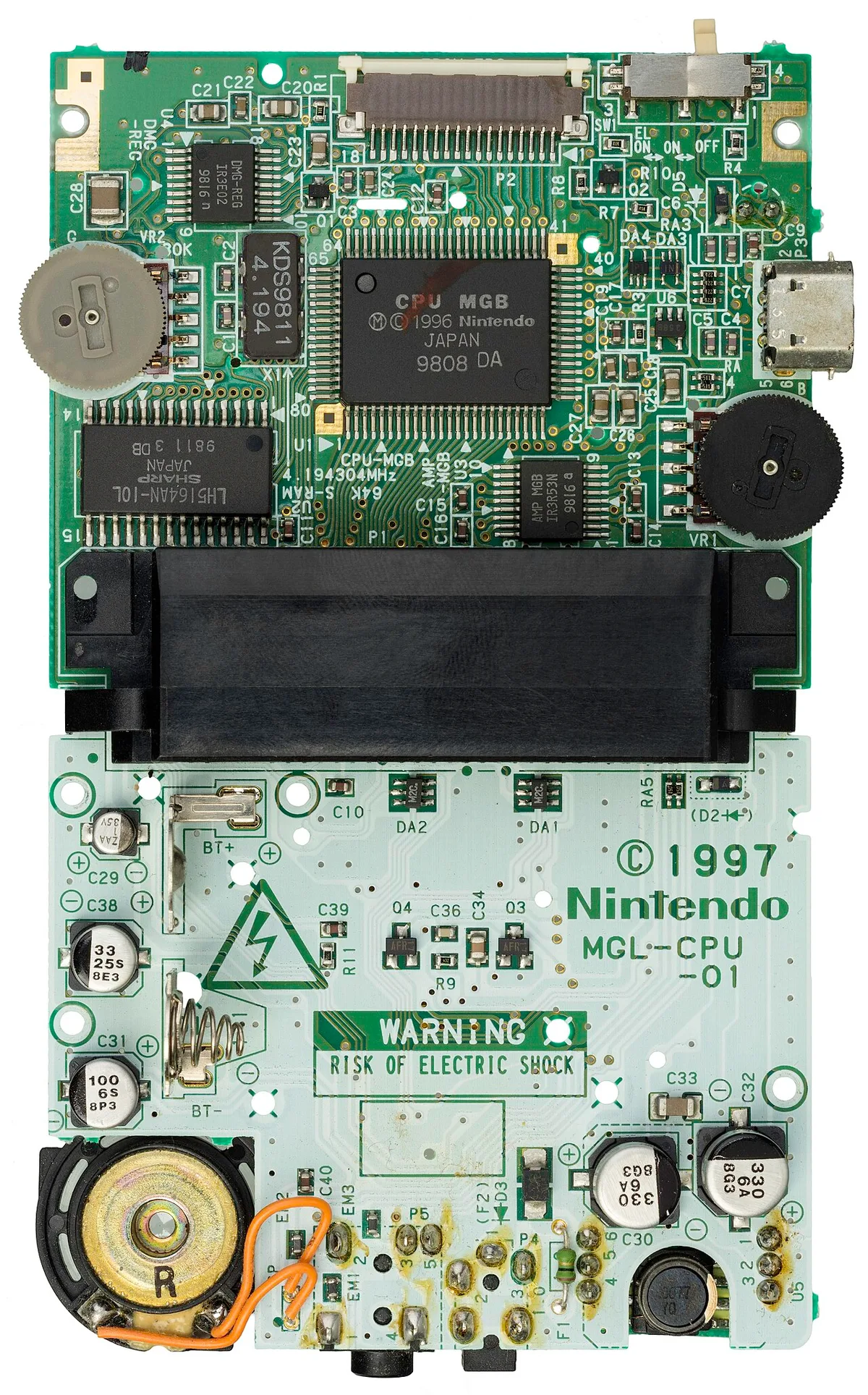
Image source: Wikimedia Commons / Evan-Amos
Wi-Fi and Bluetooth antennas connect to rear SMA connectors on boards with built-in wireless. Wi-Fi 6E and Wi-Fi 7 are the current standards as of 2026. Bluetooth 5.3 or newer supports wireless headsets and controllers with lower latency than older versions.
Internal Headers: The Ports Hidden Inside the Case
Internal headers are ports on the motherboard surface that connect to your case's front panel and other components. They're easy to overlook during a build, but they determine how you interact with your PC daily. Picking the right board means checking these headers before you buy.
Front panel USB headers are the big one. Your case's front USB-A and USB-C ports connect here. USB 3.0 headers (often labeled USB 3.2 Gen 1) provide 5 Gbps to front ports.
USB 3.2 Gen 2 headers push that to 10 Gbps. Some newer cases include a front USB-C port that needs a dedicated Gen 2 header. If your board lacks that header, your front USB-C port won't work at full speed.
Front panel audio headers connect your case's headphone and mic jacks to the motherboard's audio codec. This matters if you use front-panel headphones. Audio quality here depends on the board's codec and shielding, so check reviews if front audio is important to you.
The form factor you choose directly affects how many internal headers fit on the board. ATX boards have room for everything. Micro-ATX and Mini-ITX boards trim headers to save space, which can mean fewer fan connectors or no second M.2 slot.
Fan and pump headers control your cooling. Most boards include four to eight fan headers. AIO liquid coolers need a dedicated pump header that runs at full voltage.
RGB and ARGB headers let you sync lighting across fans, strips, and RAM. Check whether your case and cooler use 3-pin ARGB or 4-pin RGB, since they're not interchangeable.
PCIe slots and M.2 slots are technically internal connectors too. The number of PCIe slots that are actually useful depends on your GPU size and whether you need a capture card or Wi-Fi card. M.2 slots for NVMe SSDs have become standard, with most boards offering two or three.
Front panel connectors for power, reset, and activity LEDs round out the internal header list. These tiny pins are fiddly to install but essential. Many modern boards include a consolidated front panel connector that simplifies this step.
USB Speed Tiers: From Gen 1 to Thunderbolt 4
USB naming is a mess. The USB Implementers Forum has renamed standards multiple times, so the same port might be called USB 3.0, USB 3.1 Gen 1, or USB 3.2 Gen 1 depending on when the board was manufactured. All three mean the same thing: 5 Gbps.
Here's what actually matters for gaming. USB 3.2 Gen 1 at 5 Gbps handles mice, keyboards, and controllers without issue. These devices use tiny amounts of bandwidth.
Even a 1000Hz polling rate mouse barely registers on a 5 Gbps connection.
USB 3.2 Gen 2 at 10 Gbps is the sweet spot for external storage and fast peripherals. A portable NVMe SSD reaches its full speed on a Gen 2 port. Gen 2×2 at 20 Gbps doubles that, but compatible devices are still rare as of 2026.
USB4 and Thunderbolt 4 both deliver 40 Gbps over USB-C. Thunderbolt 4 requires an Intel or AMD-certified controller, which adds cost. It supports daisy-chaining monitors, external GPUs, and high-speed docks.
For most gamers, Thunderbolt is overkill unless you edit video or run multiple high-res displays from a laptop dock.
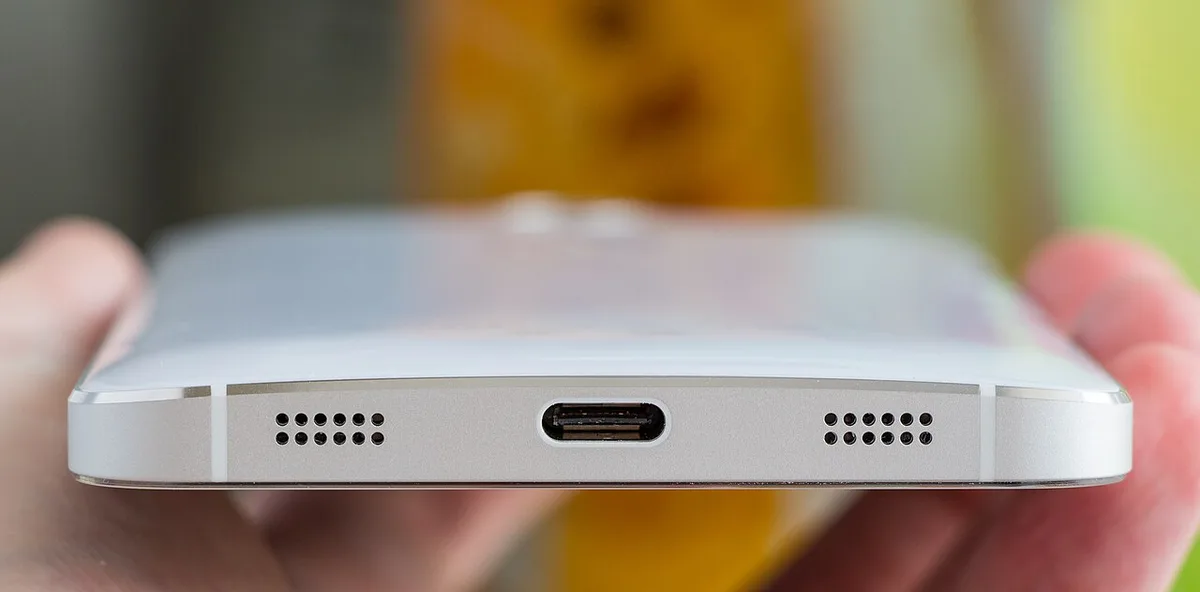
Image source: Wikimedia Commons / Ilya Plekhanov (CC BY-SA)
The PCIe lane budget on your board determines how many high-speed ports you get. A board with more PCIe lanes allocated to USB controllers can offer more Gen 2 or Thunderbolt ports. Budget boards share bandwidth across multiple ports through a hub controller, which can bottleneck when you plug in several fast devices at once.
Check the motherboard manual for port bandwidth allocation. Some boards list which ports share a controller. If you plan to run a fast external drive and a capture card simultaneously, put them on ports from different controllers.
Front panel USB speed matters as much as rear. A case with a front USB-C port only reaches full speed if the board's header supports it. Verify the header type before buying.
A Gen 1 front header on a Gen 2 case port is a common mismatch that wastes money.
Networking: Ethernet vs Wi-Fi on Gaming Boards
Wired Ethernet still wins for competitive gaming. A 2.5GbE port delivers consistent sub-millisecond latency that Wi-Fi can't match in a congested environment. If you play ranked shooters or fighting games, plug in a cable.
The difference shows up in hit registration and input response.
Wi-Fi has closed the gap for casual and single-player gaming. Wi-Fi 6E and Wi-Fi 7 offer theoretical throughput above 1 Gbps, which exceeds most home internet plans. The real benefit is convenience.
No cable runs across the room, and you can move your PC without re-routing Ethernet.
The chipset capabilities on your board determine which networking features are available. Intel boards often include Intel I225 or I226 2.5GbE controllers, which have mature drivers and low CPU overhead. AMD boards frequently use Realtek RTL8125 controllers, which perform similarly in gaming but occasionally need driver updates.
Wi-Fi modules vary by board tier. Budget boards skip Wi-Fi entirely, saving $15 to $25. Mid-range boards include Wi-Fi 6E with a bundled antenna.
Premium boards offer Wi-Fi 7 with wider 320 MHz channels and Multi-Link Operation, which bonds multiple bands for lower latency.
Bluetooth comes bundled with Wi-Fi on most boards. Bluetooth 5.3 supports wireless headsets and controllers with improved range and stability over older versions. If you use wireless peripherals, built-in Bluetooth saves a USB dongle and frees up a port.
Consider your internet plan before paying for premium networking. A 10GbE port is useless on a 1 Gbps internet connection. 2.5GbE future-proofs you for multi-gig plans, which are becoming available in more regions as of 2026. Wi-Fi 7 matters most if you have a Wi-Fi 7 router and a congested wireless environment.
For streamers, 2.5GbE handles simultaneous gaming and uploading without hiccups. 10GbE only makes sense if you transfer large files to a NAS or edit video on network storage. Most gamers never need it.
The choice between Ethernet and Wi-Fi isn't either-or. A board with both gives you flexibility. Use wired for competitive sessions and wireless for casual play or when you move your setup.
That flexibility is worth the $20 to $30 premium over a Wi-Fi-less board.
Display Outputs: When Motherboard Video Ports Still Matter
Motherboard display outputs only work when your CPU has integrated graphics. Install a discrete GPU and those ports usually go dark, routing all video through the graphics card instead. They still earn their place for troubleshooting, budget builds, and multi-monitor setups.
Integrated graphics from Intel and AMD let you run a display without a dedicated GPU. This matters for budget gaming PCs where every dollar goes toward the graphics card. It also helps when your GPU dies and you need to diagnose the system or update BIOS.
HDMI 2.1 on the motherboard supports 4K at 120Hz and 8K at 60Hz. DisplayPort 1.4 handles 4K at 144Hz with DSC compression. DisplayPort 2.0 pushes even higher, though few motherboards include it as of 2026.
These specs matter if you run high-refresh monitors from integrated graphics.
Multi-monitor gamers sometimes use motherboard outputs alongside GPU outputs. This works only if your CPU has integrated graphics and the board allows simultaneous output. Check the manual before planning this.
Most boards disable motherboard outputs automatically when a GPU is detected.
For most gamers with a discrete GPU, motherboard display ports are backup tools. They matter for BIOS updates, troubleshooting, and SFF builds where GPU space is tight. If you're choosing between two otherwise identical boards, don't pay extra for better display outputs unless you actually need them.
The key takeaway: match your display output needs to your CPU and GPU combo. A Ryzen X3D processor with no integrated graphics makes motherboard display ports useless. An Intel Core i5 with UHD graphics and a mid-range GPU gives you flexibility.
Ports by Budget Tier: What You Get at Each Price
Port count scales directly with price. Knowing what each tier offers helps you avoid overpaying or underspending on connectivity.
| Tier | Price Range | Rear USB Ports | USB-C | Ethernet | Wi-Fi | M.2 Slots |
|---|---|---|---|---|---|---|
| Budget | $100-$180 | 6-8 (2x USB 2.0) | Rare | 1GbE | Usually no | 1-2 |
| Mid-range | $200-$350 | 8-10 | 1x Gen 2 | 2.5GbE | Wi-Fi 6E | 2-3 |
| Premium | $400+ | 10-12 | 2x Gen 2/Thunderbolt | 2.5-10GbE | Wi-Fi 7 | 3-5 |
Budget boards around $100 to $180 cover the basics. You get enough USB ports for a standard gaming setup, 1GbE Ethernet, and one or two M.2 slots. Wi-Fi is usually absent.
This tier works fine for gamers who plug in a cable and use wired peripherals.
Mid-range boards from $200 to $350 are the sweet spot for most gamers. You gain USB-C on the rear panel, 2.5GbE Ethernet, Wi-Fi 6E, and an extra M.2 slot. The port count jumps to eight or more rear USB ports.
Front panel USB-C headers become standard at this tier.
Premium boards above $400 add Thunderbolt 4, 10GbE, Wi-Fi 7, and four or more M.2 slots. Rear USB ports often include two USB-C connections. These boards target streamers, content creators, and enthusiasts who need maximum connectivity.
The jump from budget to mid-range delivers the most value per dollar. You gain USB-C, faster Ethernet, and Wi-Fi for roughly $80 to $120 more. The jump from mid-range to premium costs $150 or more for features most gamers never use.
Consider your peripherals before choosing a tier. A gamer with a wired mouse, keyboard, and headset fits fine on a budget board. Add a capture card, external SSD, and wireless controller, and mid-range becomes necessary.
Mistakes Gamers Make When Picking a Motherboard
Buying a board without counting your USB devices first is the most common mistake. Gamers plug in everything on day one, then discover they need a hub. Count your peripherals before shopping.
Add two spare ports for future devices.
Ignoring front panel headers causes frustration later. You buy a case with a front USB-C port, then find your board only has a USB 3.0 header. Your front port works at half speed or not at all.
Match case headers to board headers before buying either.
Assuming all USB-C ports are equal leads to disappointment. A USB-C port running Gen 1 at 5 Gbps is barely better than USB-A. Check the spec sheet for the actual speed.
Gen 2 at 10 Gbps is the minimum worth paying for on a gaming board.
Overlooking PCIe lane sharing bites builders later. Installing a second M.2 SSD can disable a PCIe x16 slot or drop your GPU to x8 mode. The board manual lists these trade-offs.
Read the PCIe allocation chart before adding storage.
Skipping the manual's port diagram leads to wasted time during the build. Some boards place USB ports in unexpected locations. Others share bandwidth between specific ports.
Five minutes reading the manual prevents an hour of troubleshooting.
Buying Wi-Fi on a board when you already have a good router and Ethernet cable nearby wastes money. If your PC sits next to your router, skip Wi-Fi and save $20 to $30. Put that money toward a better GPU or more RAM.
Choosing a board for Thunderbolt when you don't own Thunderbolt devices is another trap. Thunderbolt adds $50 to $100 to the board price. Unless you use Thunderbolt docks, external GPUs, or fast storage, it's wasted money.
Final Recommendation: Building Your Port Checklist
Start with your peripherals list. Write down every USB device, display, and network connection you need. Add two spare USB ports for future devices.
This list becomes your minimum port requirement.
Match your CPU to your display needs. If your processor has integrated graphics, motherboard display outputs give you flexibility. If not, budget for a GPU with enough display outputs.
Don't pay for motherboard video ports you can't use.
Set your Ethernet speed based on your internet plan and usage. 2.5GbE covers almost every gamer. 10GbE only matters for NAS transfers and video editing. 1GbE is acceptable for budget builds on slow internet plans.
Choose Wi-Fi based on your setup location. A PC next to the router doesn't need Wi-Fi. A PC across the house benefits from Wi-Fi 6E or 7.
Built-in Bluetooth saves a USB dongle if you use wireless peripherals.
Verify front panel compatibility before buying your case and board together. Check that the case's front USB-C port matches the board's header speed. Confirm the case includes the right connectors for your board's front panel pins.
Check PCIe lane allocation in the manual. If you plan to add a capture card, sound card, or second GPU, verify those slots stay active. Some boards disable slots when M.2 drives are installed.
Here's a quick checklist to take shopping:
- Four or more rear USB Type-A ports at Gen 1 or faster
- One rear USB-C port at Gen 2 or better
- 2.5GbE Ethernet minimum
- Wi-Fi 6E or better if you need wireless
- Two M.2 slots for NVMe storage
- Front panel USB-C header matching your case
- Four or more fan headers for cooling
- BIOS flashback button for easy recovery
Frequently Asked Questions
How many USB ports does a gaming PC need?
Most gamers need six to eight USB ports total across front and rear. That covers mouse, keyboard, headset, controller, and webcam with two spares. Competitive gamers with capture cards or external drives may need ten or more.
Budget boards often fall short here, so count your devices before buying.
Is USB-C necessary on a gaming motherboard?
USB-C is not strictly necessary, but it's highly recommended as of 2026. Modern controllers, headsets, and external drives increasingly use USB-C. A rear USB-C port at 10 Gbps future-proofs your build for the next five years.
Front panel USB-C is equally useful for charging phones and connecting portable drives.
Does a gaming PC need Wi-Fi on the motherboard?
No. A wired Ethernet connection delivers lower latency and more consistent speeds. Wi-Fi on the motherboard is convenient for PCs far from the router.
If your PC sits next to your router, skip Wi-Fi and save money. Add a USB Wi-Fi adapter later if your situation changes.
What is 2.5GbE Ethernet and do I need it?
2.5GbE Ethernet runs at 2.5 gigabits per second, 2.5 times faster than standard 1GbE. Most home internet plans don't exceed 1 Gbps yet, so the benefit is local network speed. Gamers transferring files to a NAS or streaming to multiple devices benefit most.
It's becoming standard on mid-range boards and worth having.
Do motherboard display outputs work with a graphics card installed?
Usually no. Most motherboards disable onboard display outputs when a discrete GPU is detected. Some boards allow simultaneous output if the CPU has integrated graphics, but this varies by manufacturer.
Check your manual. For troubleshooting, you can often re-enable motherboard outputs in BIOS.
What motherboard ports matter most for streamers?
Streamers need extra USB ports for capture cards, webcams, and audio interfaces. A rear USB-C port at 10 Gbps or higher handles fast external storage. 2.5GbE or better Ethernet supports simultaneous gaming and uploading. Wi-Fi 6E or 7 provides wireless backup if your wired connection drops mid-stream.
1 thought on “What Motherboard Ports Should a Gaming PC Have?”
Comments are closed.