If you're building a gaming PC and wondering whether wireless is "good enough," the answer depends on your router, walls, and latency tolerance. Onboard Wi-Fi means the wireless radio is built into the motherboard instead of added later. That convenience can be great, but it is not automatically the best choice for competitive play.
As of 2026, many mid-range and high-end boards ship with Wi-Fi 6E or Wi-Fi 7 modules, plus Bluetooth for peripherals. Manufacturer specifications indicate real-world speeds and latency vary more by placement and interference than by the box rating. Let's walk through how it works and when to trust it.
what is onboard wifi on a gaming motherboard
Onboard Wi-Fi is a wireless network module built into the motherboard. It connects to antennas on the rear I/O panel. It removes the need for a separate adapter.
It can also include Bluetooth. Performance still depends on router distance and interference.
How the Module, Antenna, and Bands Work Together
Onboard Wi-Fi is usually a small M.2 module, often in an E-key or A+E-key slot. Some boards use CNVi, where part of the radio logic lives in the chipset and the module handles the wireless front end. Either way, the antenna is the part you actually see on the rear I/O panel.
The antenna shape and placement matter more than many builders expect. A magnetic-base antenna sitting on the desk can outperform one folded behind a metal case. If your case is close to a wall, rotating the antenna can change signal strength fast.
Most gaming boards now support 2.4 GHz, 5 GHz, and sometimes 6 GHz. The 2.4 GHz band reaches farther but is crowded. The 5 GHz band is usually better for gaming.
The 6 GHz band can be excellent when your router and region support it.
Image source: Wikimedia Commons / Evan-Amos

Image source: Wikimedia Commons / NASA
Before buying, check M.2 slot planning so storage and Wi-Fi do not fight for space. It also helps to understand the board's core role before judging any single feature.
When Onboard Wi-Fi Is the Smart Choice (and When It Isn't)
If your router is in the same room, onboard Wi-Fi is often enough for casual and ranked play. If your router is two floors away, expect higher latency and more packet loss. If you can run Ethernet cleanly, wired is still the safer gaming choice.
If you rent and cannot drill or route cable, onboard Wi-Fi plus a good antenna position is practical. If you move your PC to LAN parties, built-in Wi-Fi saves a slot and a dongle. If your case has poor airflow near the rear I/O, heat can make wireless performance less stable.
If you play competitive shooters, test ping during peak hours. If you only play single-player or co-op, a slightly higher ping may not matter. If your board uses an older Wi-Fi 5 module, a PCIe adapter or USB dongle may be a better upgrade path.
When choosing a board, treat Wi-Fi as one feature among many, not the deciding factor.
Onboard Wi-Fi vs PCIe Adapter vs Ethernet for Gaming
| Option | Best For | Main Tradeoff |
|---|---|---|
| Onboard Wi-Fi | Clean builds, laptops-style desktop convenience | Antenna placement and module quality vary by board |
| PCIe Wi-Fi adapter | Upgrading an older board | Uses a PCIe slot and may need its own antenna |
| USB Wi-Fi dongle | Quick fixes and temporary setups | Easy to bump, often weaker antennas |
| Ethernet | Competitive gaming and stable latency | Requires cable routing |
Onboard Wi-Fi wins on convenience. It needs no extra card and keeps the build tidy. PCIe adapters can be stronger if the board's module is weak or outdated.
USB dongles are the easiest fallback but usually the least consistent.
Ethernet still beats Wi-Fi for lowest ping and packet loss. Wi-Fi 6E and Wi-Fi 7 close the gap, but walls and neighbor networks still matter. If your PCIe slot budget is tight, onboard Wi-Fi has a clear advantage.
The Specs That Actually Affect Your Ping and Throughput
The headline number on the box is not the whole story. A Wi-Fi 7 label does not guarantee low ping in a crowded apartment. Look at the supported bands, antenna design, and whether the board uses a current Intel or MediaTek module.
| Spec | Why It Matters | Practical Check |
|---|---|---|
| 5 GHz support | Lower congestion than 2.4 GHz | Use 5 GHz for gaming if available |
| 6 GHz support | More clean channels | Requires Wi-Fi 6E or newer router |
| Antenna type | Better signal and aiming | Prefer removable high-gain antennas |
| Bluetooth version | Peripheral stability | 5.2 or newer is common now |
| Security standard | Network safety | WPA3 is preferred |
The Wi-Fi Alliance certifies interoperability for each generation, but your router must support the same features. A Wi-Fi 7 board with a Wi-Fi 5 router will fall back to older speeds. Also check chipset features because some boards share bandwidth or slot resources.
For gaming, latency consistency matters more than peak download speed. A stable 300 Mbps connection with low jitter usually feels better than a faster but spiky link. Test with your actual game server, not just a speed test.
Common Mistakes That Quietly Ruin Wireless Gaming Performance
Many wireless problems come from setup, not the module itself. Aggregate user reviews often blame the board when the antenna or band choice is the real issue.
Common mistakes include leaving the antenna in the box, folding antennas behind a metal case, using 2.4 GHz for ranked matches, running USB 3.0 devices right next to the antenna, skipping driver updates, and ignoring router channel congestion.
A simple fix list helps:
- Connect both antenna leads fully.
- Place the antenna above desk level.
- Switch to 5 GHz or 6 GHz for gaming.
- Move USB hubs away from the antenna.
- Update drivers from the board or module maker.
- Reboot the router and PC after changes.
If ping spikes only at night, neighbor traffic may be the cause. If spikes happen all day, check physical placement first.
| Mistake | Symptom | Fix |
|---|---|---|
| Antenna not connected | No signal or weak signal | Attach both leads |
| USB 3.0 nearby | Intermittent lag | Move devices away |
| 2.4 GHz gaming | High ping | Use 5 GHz or 6 GHz |
| Old driver | Drops or slow speeds | Update from maker |
Setup and Optimization Workflow From Unboxing to First Match
Start before installing Windows if possible. Manufacturer documentation usually recommends connecting antennas first, then enabling the module in BIOS.
Follow this workflow:
- Mount the motherboard and connect both antenna leads.
- Position the antenna away from the case and wall.
- Enter BIOS and confirm the Wi-Fi module is enabled.
- Install the latest driver from Intel, MediaTek, or the board maker.
- Connect to your 5 GHz or 6 GHz network.
- Set router QoS for your gaming PC if available.
- Run a ping test to your game server.
- Play one unranked match and check stability.
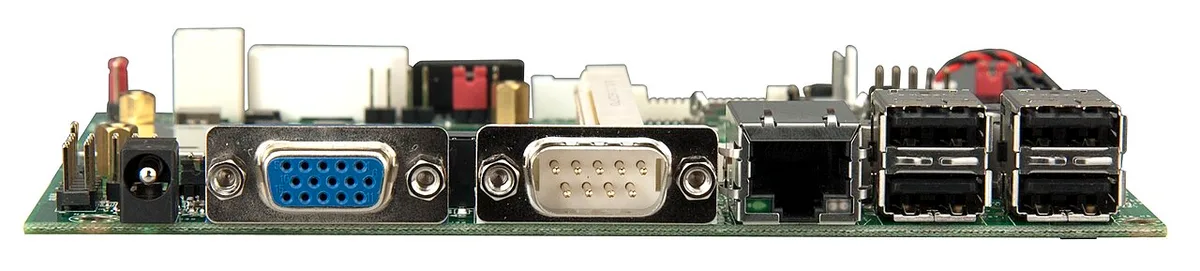
Image source: Wikimedia Commons / VIA Gallery (CC BY)
| Step | Typical Time | Notes |
|---|---|---|
| Antenna install | 2-5 min | Do before first boot |
| BIOS check | 2-3 min | Look for wireless enable option |
| Driver install | 5-10 min | Use maker site, not old disc |
| Network test | 5 min | Test during busy hours |
Per the Wi-Fi Alliance, certified gear should work across brands, but features like 6 GHz need both router and client support. See Wi-Fi Alliance for certification basics.
Real Gaming Scenarios: Apartment, LAN Party, and Competitive Play
If you live in an apartment, use 5 GHz or 6 GHz and avoid 2.4 GHz for matches. If your building has concrete walls, move the antenna closer to the router side of the room. If speeds drop at night, change the router channel.
If you go to LAN parties, onboard Wi-Fi keeps your PCIe slots free. If the event network is crowded, bring Ethernet if allowed. If you must use wireless, connect early and test before your first match.
If you play competitive shooters, Ethernet is still the safer option. If wireless is your only option, optimize placement and use a clean 5 GHz channel. If your ping stays high after tuning, a PCIe adapter or better router may help.
| Scenario | Best First Move | Fallback |
|---|---|---|
| Small apartment | Use 5/6 GHz and tune channel | Move antenna or router |
| LAN party | Test network early | Bring Ethernet cable |
| Competitive play | Use Ethernet if possible | Optimize wireless placement |
FAQs About Onboard Wi-Fi on Gaming Motherboards
Is onboard Wi-Fi good enough for gaming?
Yes, for many players, especially on 5 GHz or 6 GHz with good antenna placement and a nearby router. For competitive play, wired Ethernet usually gives lower and more consistent ping. Aggregate reviews also show placement matters more than the Wi-Fi generation label.
Does onboard Wi-Fi use a PCIe slot?
No. It is built into the motherboard. That is one reason it helps keep a gaming build clean and saves PCIe slots for graphics cards or capture devices.
You also avoid extra cables and separate driver stacks. It is especially useful in smaller cases.
Why is my onboard Wi-Fi slow?
Common causes include 2.4 GHz use, poor antenna placement, USB interference, router distance, and crowded channels. Start with placement and band selection before replacing hardware or buying an adapter. Test during busy evening hours too.
That reveals real congestion.
Can I upgrade onboard Wi-Fi later?
Sometimes. If the module is in an M.2 slot, you may replace it with a compatible module. Some boards use CNVi designs, so check the manual first and confirm antenna leads match.
Compatibility is not guaranteed. Read the board specs carefully.
Does onboard Wi-Fi include Bluetooth?
Many gaming boards include a combo module with Bluetooth. Check the specs, since budget models may omit it or use an older version. Bluetooth can share the 2.4 GHz band with Wi-Fi.
That can affect wireless headset stability.
Final Verdict: Should You Rely on Onboard Wi-Fi?
If your router is close and your antenna placement is good, onboard Wi-Fi is a solid choice for most gaming. If you play competitive matches, Ethernet still gives the safest latency. If your board has an older module, compare upgrade costs before trusting wireless for serious play.