what is bios flashback on a gaming motherboard? It is a recovery-style firmware update feature that lets a compatible motherboard rewrite its UEFI firmware using only a USB drive and power. You do not need a working CPU, RAM, or graphics card for the process.
That matters when a new processor is not supported by the BIOS currently stored on the board.
Manufacturer documentation usually calls for a FAT32-formatted USB drive, a specific BIOS filename, and a stable power source. Flashing can take several minutes, and the board may reboot more than once before it finishes. As of 2026, the exact steps still vary by board family, so the manual matters more than any generic checklist.
Let's break down what the feature does and when it actually helps.
Why a New CPU Can Leave Your Gaming Motherboard Stuck at POST
POST stands for power-on self test. It is the early startup phase where the board checks core hardware before loading an operating system. If the installed CPU is newer than the firmware's CPU support list, the board may light up but never reach display output.
This is common during platform transitions. A new Ryzen or Core processor can physically fit the socket while the board's older BIOS lacks the required microcode. That is why socket compatibility is only the first check, not the whole story.
Common signs include:
- Fans spin, but there is no display output
- The debug LED stops at CPU or BOOT
- A previously working board fails after a CPU swap
- The CPU is not listed in the board's support table
What BIOS Flashback Actually Does (In Plain Terms)
BIOS Flashback writes a new firmware image to the motherboard's flash memory without relying on the installed processor. On supported boards, the feature uses a dedicated rear I/O USB port and a small Flashback button. The board reads the BIOS file from USB and programs it directly.
Think of it as a last-resort update path. It is not meant for casual weekly updates. It is meant for recovery, compatibility fixes, and situations where the normal BIOS update tools cannot run.
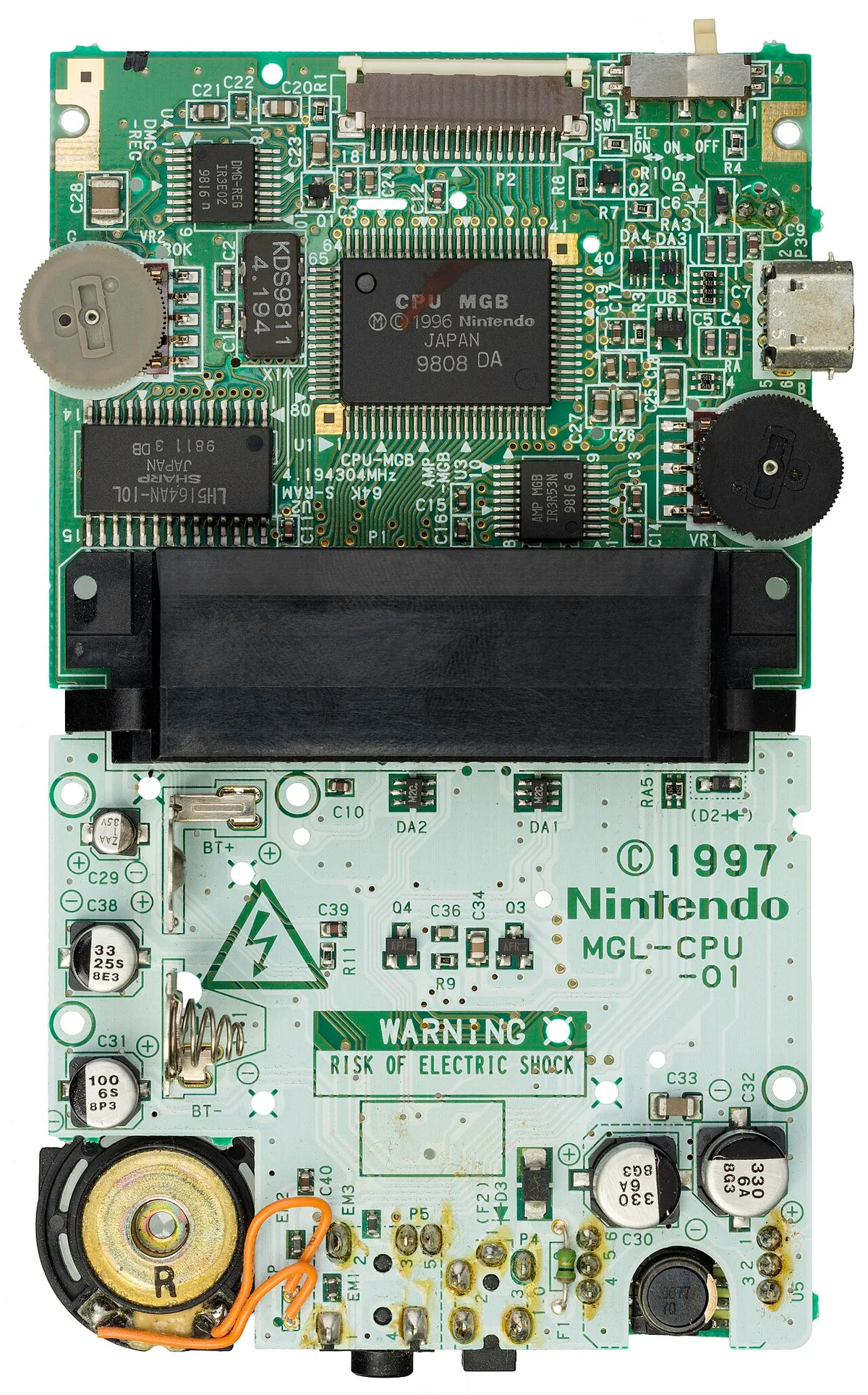
Image source: Wikimedia Commons / Evan-Amos
Key points:
- It updates UEFI firmware, not Windows or drivers
- It can work with no CPU installed
- It requires the exact BIOS file for that board model
- It depends on a supported USB format and filename
- The UEFI specification is maintained by the UEFI Forum
If you are still choosing a platform, look closely at recovery features before buying, because not every budget board includes CPU-less flashing.
How BIOS Flashback Works Differently From a Normal BIOS Update
A normal BIOS update runs through firmware menus, Windows utilities, or vendor tools after the system boots. BIOS Flashback bypasses that software layer. It uses a small controller on the board to read the USB file and flash the firmware.
That difference matters. A normal update assumes the board can POST and load tools. Flashback assumes the opposite.
It is slower, more sensitive to file naming, and less forgiving of mistakes.
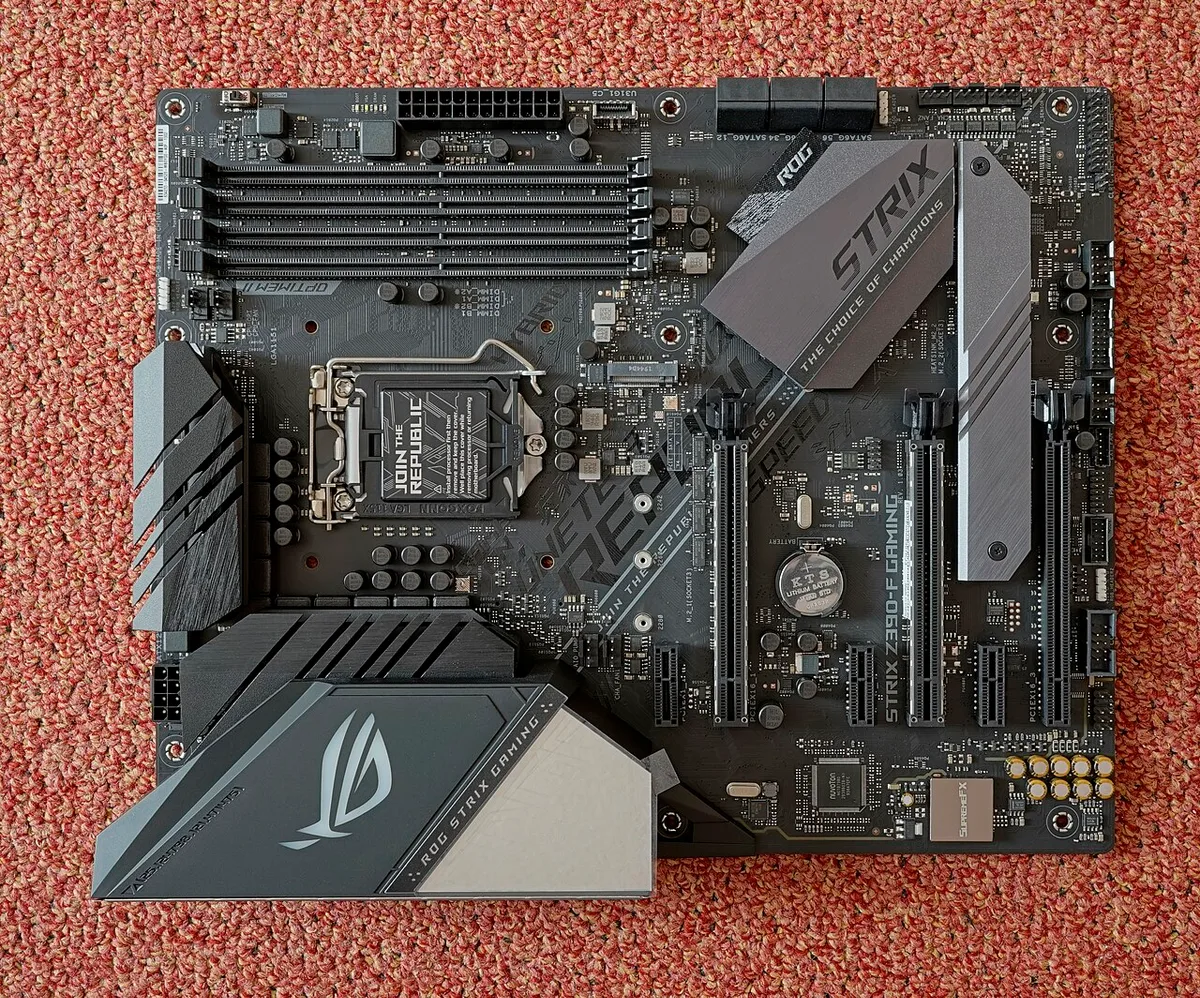
Image source: Wikimedia Commons / PantheraLeo1359531 (CC BY)
| Method | Needs working CPU | Runs from | Best for | Main risk |
|---|---|---|---|---|
| In-BIOS updater | Yes | Firmware menu | Routine updates | Interrupted power |
| Windows updater | Yes | Operating system | Convenience | OS crash during flash |
| BIOS Flashback | No | Board controller | Recovery and CPU support | Wrong file or filename |
Flashback is powerful, but it is still firmware surgery. If the board already boots normally, a standard update is usually simpler. Chipset-level features can also affect which recovery tools are available on your model.
What Your Board Needs for BIOS Flashback to Work
Do not assume every motherboard has this feature. Many mid-range and high-end boards do, but entry-level models may not. Check the rear I/O panel and manual before planning a build around it.
Typical requirements include:
- A dedicated Flashback USB port, often marked on the I/O shield
- A Flashback button, sometimes on the rear panel
- A BIOS file downloaded from the exact motherboard support page
- A FAT32-formatted USB drive
- A stable power supply during the entire flash
- The correct renamed BIOS filename, if the vendor requires it
USB drive size can matter. Some boards are picky with very large drives or drives with multiple partitions. A small, clean FAT32 drive is the safer choice.
If your build is still in the planning stage, board size and layout can affect which ports and buttons are easy to reach.
For CPU compatibility details, use the AMD support portal or your processor vendor's official documentation alongside the motherboard's CPU support list.
When to Use BIOS Flashback: The Decision Branches
Use BIOS Flashback when the normal path is blocked. Do not use it as a shortcut for routine maintenance. The decision usually comes down to one question: can the system boot far enough to run a normal updater?
If the system will not POST after a CPU upgrade, use Flashback to install a BIOS that supports the new processor.
If the system boots normally, use the standard BIOS update tool instead.
If a previous BIOS update failed and the board is stuck, use Flashback as recovery.
If the board does not have a Flashback button or dedicated port, use another recovery method or contact support.
If you are testing a beta BIOS, only use Flashback when the vendor specifically recommends it.
| Situation | Recommended action | Why |
|---|---|---|
| New CPU not supported | Use BIOS Flashback | Adds microcode without a working CPU |
| Board boots normally | Use standard updater | Lower risk and easier rollback |
| Failed update or boot loop | Use BIOS Flashback | Recovery path bypasses normal boot |
| No Flashback hardware | Use dual BIOS, jumper, or support | Feature is not available |
| Experimental beta BIOS | Follow vendor instructions | Beta firmware may not be stable |
A gaming motherboard is more than a socket and slots. If you are unsure why recovery matters, review what the motherboard actually does before attempting firmware changes.
How to Use BIOS Flashback Step by Step
The exact process varies by manufacturer, but the general workflow is consistent across most boards. Always check the manual for your specific model before starting. Never guess the filename or port.
Follow these steps in order:
- Visit the motherboard support page and download the latest BIOS for your exact model
- Extract the downloaded archive to find the BIOS file
- Rename the file if the manufacturer requires it, often to a specific short name
- Format a USB drive as FAT32 with no extra partitions
- Copy the BIOS file to the root directory of the USB drive
- Power off the system and unplug it from the wall
- Insert the USB drive into the designated Flashback port on the rear I/O
- Press and hold the Flashback button for about three seconds
- Watch the status LED for blinking activity
- Wait until the LED stops blinking and turns solid or off
- Power on the system and verify the BIOS version in firmware setup
- Clear CMOS if the system behaves oddly after the update
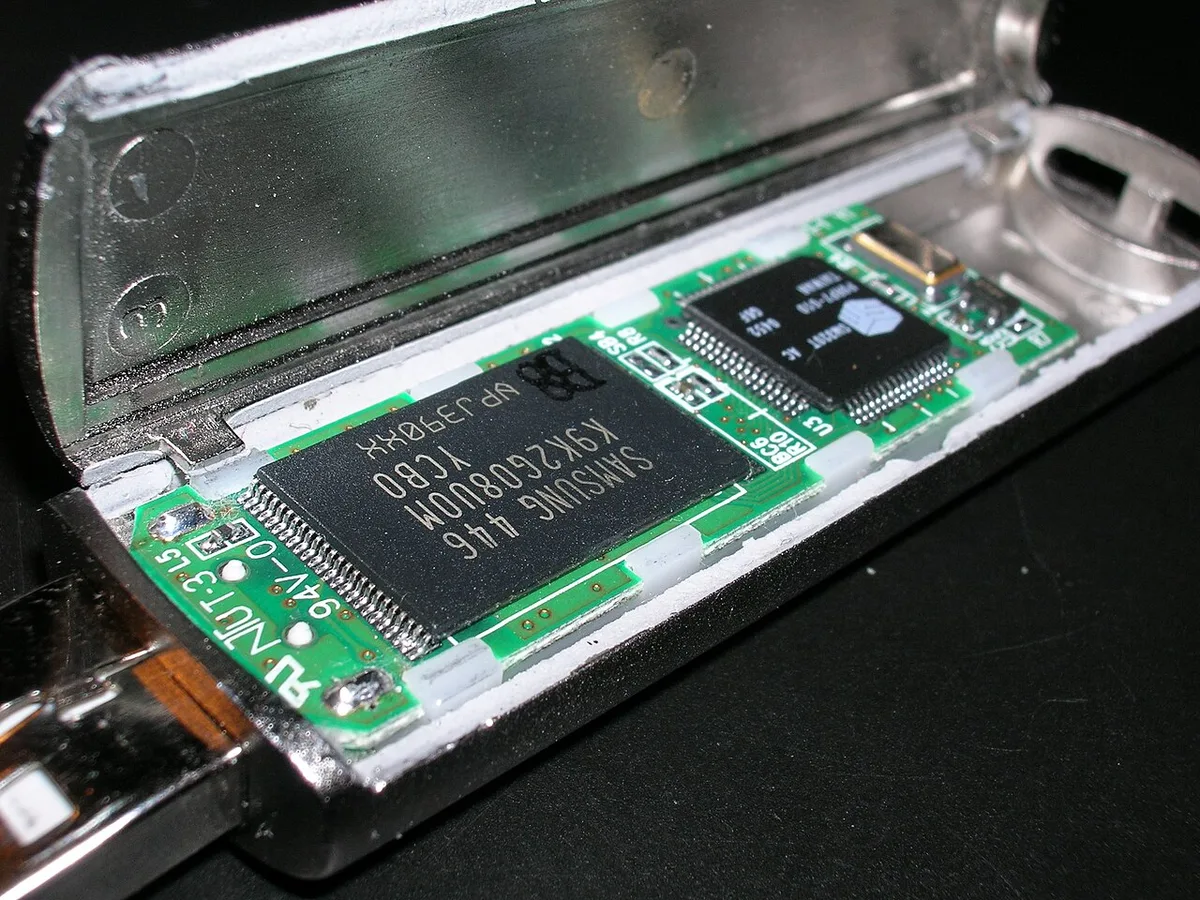
Image source: Wikimedia Commons / Nrbelex (CC BY-SA)
The LED is your progress indicator. A slow blink usually means flashing is in progress. A solid light or no light often signals completion.
If the LED blinks rapidly or stays solid from the start, the file may be wrong or the USB drive may not be recognized.
Do not touch the power button during flashing. Do not remove the USB drive. Wait at least ten minutes before assuming failure.
Some boards reboot multiple times during the process.
If your board will not POST after this, try clearing CMOS. If that fails, recheck the filename and USB format. A second attempt with a different USB drive often solves detection issues.
BIOS Flashback vs. Other Recovery Methods
BIOS Flashback is one of several recovery paths. The right choice depends on what hardware your board has and what went wrong. Each method has different requirements and risks.
Dual-BIOS boards store a backup firmware image. If the primary BIOS fails, the board switches to the backup automatically. This is the most seamless recovery method, but it only exists on select models.
A BIOS recovery jumper works on some older boards. You short a specific pair of pins while powering on, which forces the board to read a recovery file from USB. This requires knowing the exact jumper location and pinout.
Manufacturer RMA is the fallback when no recovery feature works. If the flash chip itself is damaged or the firmware is completely corrupted, professional repair or replacement may be the only option.
| Method | Hardware needed | Skill level | Best scenario | Limitation |
|---|---|---|---|---|
| BIOS Flashback | Dedicated button and port | Low | CPU-less update or recovery | Not available on all boards |
| Dual-BIOS | Backup flash chip | None | Automatic recovery from bad flash | Only on select models |
| Recovery jumper | Jumper pins and manual | Medium | Older boards without Flashback | Easy to short wrong pins |
| RMA or repair | None | None | Bricked board with no recovery | Takes time and may cost money |
| Temporary CPU | Compatible processor | Medium | Boards with no Flashback feature | Requires sourcing a CPU |
For most modern gaming motherboards, Flashback is the fastest DIY recovery option. It avoids the need to borrow or buy a temporary processor. That saves both time and money.
If your board lacks Flashback entirely, check the manual for dual-BIOS or recovery jumper instructions. Some vendors also offer a crisis recovery mode through USB. The ASUS support site documents these methods for their board families.
Common BIOS Flashback Mistakes That Brick Boards
Most Flashback failures come from simple mistakes, not hardware defects. The board is doing exactly what you told it to do. The problem is usually the file, the USB drive, or the power state.
Here are the most common errors:
- Downloading the BIOS for a different board model or revision
- Skipping the rename step when the vendor requires it
- Using an NTFS or exFAT USB drive instead of FAT32
- Leaving the BIOS file inside a folder instead of the root directory
- Using a USB drive with hidden partitions or recovery tools
- Pressing the button too briefly or too long
- Powering off or rebooting during the flash
- Flashing a beta BIOS without understanding the risks
- Ignoring LED blink patterns that signal an error
A wrong filename is the number one cause of failure. Some boards look for a specific eight-character name like "BIOS.ROM" or a model-specific string. If the file does not match, the board ignores it and the LED may blink rapidly to indicate rejection.
USB drive compatibility is the second most common issue. Very large drives, especially those above 32 GB, can cause detection problems. A small 8 GB or 16 GB drive formatted cleanly as FAT32 is the safest choice.
Power stability matters too. A sudden outage during flashing can corrupt the firmware. Using a UPS during the process is cheap insurance.
If you live in an area with frequent power flickers, do not skip this step.
If the flash fails, do not panic immediately. Try a different USB drive, reformat, and recheck the filename. Many boards that appear bricked are actually just rejecting a bad file.
BIOS Flashback FAQs
Does BIOS Flashback work without a CPU installed?
Yes. That is the main purpose of the feature. The board's Flashback controller reads the USB file and programs the firmware independently of the CPU.
You still need power to the board, but no processor, RAM, or graphics card is required.
How long does BIOS Flashback take?
Most flashes complete in two to five minutes. Some boards take up to ten minutes. The LED blink pattern is your guide.
Wait until the LED stops blinking or turns solid before powering on. Rushing the process risks corruption.
Can BIOS Flashback fix a bricked motherboard?
Sometimes. If the firmware is corrupted but the flash chip is intact, Flashback can often restore it. If the chip itself is damaged or the board has a hardware fault, Flashback will not help.
In that case, RMA or professional repair is the next step.
Does every gaming motherboard have BIOS Flashback?
No. Many mid-range and high-end boards include it, but budget models often do not. Check the rear I/O panel for a dedicated port and button.
The manual and spec sheet will confirm availability.
What USB format works best for BIOS Flashback?
FAT32 is the standard requirement across most vendors. NTFS and exFAT are usually not supported. Use a small drive, ideally 8 GB to 16 GB, formatted cleanly with no extra partitions.
Remove any old files before copying the BIOS.
Is BIOS Flashback safe to use?
It is safe when done correctly. The risks come from wrong files, wrong filenames, power loss, and interrupting the process. Follow the manual exactly and use stable power.
For general firmware safety guidance, see the Intel support center for processor-level microcode context.
Final Verdict: When BIOS Flashback Is the Right Call
BIOS Flashback earns its place on a gaming motherboard when the normal update path is blocked. It is the right tool for CPU compatibility updates, failed flash recovery, and boards that will not POST. It is not the right tool for routine maintenance or casual curiosity.
If your board has the feature and you follow the manual exactly, it is one of the most useful recovery tools available. The key is preparation. Get the right file, the right name, the right USB format, and stable power.
Then let the board do its job.
If your board lacks Flashback, do not force it. Use dual-BIOS, a recovery jumper, or contact the manufacturer. Firmware recovery is not a place for shortcuts.
For builders planning a new system, factor recovery features into the motherboard selection process. A board with Flashback can save a build when a CPU upgrade goes sideways. That peace of mind is worth more than a few dollars saved on a cheaper model.
1 thought on “What Is BIOS Flashback on a Gaming Motherboard?”
Comments are closed.