How many case fans does a gaming pc need? Most gaming builds land between three and five fans, but the right number depends on your case size, your parts, and how hot your room gets. There's no universal answer, and that's actually good news for your wallet and your ears.
Manufacturer specifications from Intel and AMD list max CPU junction temperatures around 100°C, which is your safety ceiling, not your target. Your fan count should keep you well below that under load. Let's walk through the decision step by step so you can size it right the first time.
how many case fans does a gaming pc need
Most gaming PCs need three to five case fans. Small cases need one or two. Large cases can use six or more.
Match the count to your case size and parts. More fans only help if airflow stays balanced.
Why "How Many Case Fans" Has No Single Answer
Every build is different. A compact mini-ITX box with a single fan and a mid-tower stuffed with six fans can both run cool. The difference is what sits inside and how air moves through.
Heat is the real enemy. Your CPU and GPU dump heat into the case, and that heat has to leave somehow. Fans move it out, but the amount of heat depends on your parts.
A low-power build with a 65-watt CPU and no dedicated GPU barely needs airflow. A high-end rig with a 250-watt GPU and an overclocked CPU needs serious ventilation. Same question, totally different answer.
Case design matters too. Some cases have mesh front panels that let air in freely. Others use solid glass panels that choke intake.
A glass-front case with two fans can run hotter than a mesh case with the same two fans.
Room temperature is the last piece. A PC in a 20°C room has an easy job. The same PC in a 30°C summer room fights harder.
In our research, builders in warm climates often need one more fan than the spec sheet suggests.
So the honest answer is conditional. We'll use if-then logic through the rest of this guide. You'll land on a number that fits your actual build.
If you want the full breakdown, see how case size affects airflow for a deeper look. For dust control, see how dust filtration works in a gaming pc case.
The Short Answer: Typical Fan Counts by Build Type
Here's the quick reference most builders start from. Treat these as baselines, not rules.
| Case size | Typical fan count | Intake / exhaust split |
|---|---|---|
| mini-ITX | 1 to 2 | 1 intake, 1 exhaust |
| micro-ATX | 2 to 3 | 2 intake, 1 exhaust |
| mid-tower | 3 to 4 | 2 to 3 intake, 1 to 2 exhaust |
| full-tower | 4 to 6 | 3 intake, 2 to 3 exhaust |
Most mid-tower gaming PCs run three or four fans. That's the sweet spot for a standard build with one GPU. Small form factor (SFF) builds usually get by with one or two.
Full towers with multiple GPUs or custom loops can justify five or six.
Many cases ship with two or three fans already installed. Check the box before buying more. You may only need to add one.
Full towers sometimes include four from the factory.
Fan size changes the math too. A 140mm fan moves more air than a 120mm at the same RPM. If your case supports 140mm up front, use it.

Image source: Wikimedia Commons / Warren LeMay from Chicago, IL, United States
If you're choosing a case, see what a mid-tower gaming pc case offers and how a small form factor pc case changes airflow. Both shape your fan count more than any other single choice.
How Airflow Works Inside a Gaming PC Case
Think of your case as a wind tunnel. Cool air enters from the front and bottom. Hot air exits from the rear and top.
That's the basic path.
Intake fans pull cool air in. Exhaust fans push hot air out. You want more intake than exhaust for positive pressure.
That keeps dust out because air escapes through gaps instead of being sucked in.
Negative pressure does the opposite. More exhaust than intake pulls air through every crack. That brings dust in fast.
We don't recommend it for most gaming builds.
Neutral pressure balances both. It works but offers no dust benefit. Most builders skip it.
The path matters as much as the count. Front-to-back airflow is standard. Bottom-to-top works too.
Side intake is rare and usually weak.
Your CPU cooler and GPU fans also move air. They don't replace case fans, but they help. A tall air tower cooler can disrupt the path if it blocks top exhaust.
Tidy cables help here too. See how to manage cables in a gaming pc case so nothing blocks the stream.
Per Noctua's published fan-placement guidance, matching intake and exhaust within one fan keeps turbulence low. For a deeper look at case layout, check what the best case layout for a gaming pc looks like. Layout and fan count work together.
The Variables That Decide Your Fan Count
Here's the decision tree in plain language. Walk through these one at a time.
- CPU thermal design power (TDP). Under 100 watts, two or three fans usually suffice. Over 150 watts, plan for four or more.
- GPU heat output. A 150-watt GPU adds one fan's worth of heat. A 300-watt GPU can need two extra.
- Case panel type. Mesh fronts breathe. Solid glass fronts need more intake fans to compensate.
- Room temperature. Above 28°C ambient, add one fan to whatever the spec suggests.
- Overclocking. Pushing voltage raises heat fast. Add a fan and check temps.
- AIO liquid cooler. A 240mm or 360mm radiator replaces two or three case fans at the top. Don't double-count them.
- Fan curves. PWM control lets you run fewer fans harder when needed. Set curves in BIOS before judging temps.
If two or more of these push high, round up. If none do, round down. That's the whole method.
Intel and AMD publish max junction temps near 100°C for most consumer CPUs. Stay 15 to 20 degrees below that under load. For choosing the case itself, see how to choose the right gaming pc case for your build.
The case sets your ceiling.
Fan Count by Case Size and Build Type
Let's get specific. These are the counts we see work in real builds.
Mini-ITX and SFF. One intake, one exhaust. That's it.
Space is tight. Pick high-static-pressure 120mm fans. If your case allows 140mm, use it for more airflow at lower RPM.
SFF airflow is the hardest to get right, so test before finalizing.
Micro-ATX. Two intake, one exhaust. Good for budget and mid-range builds.
Add a third intake only if you run a hot GPU. Watch for cable clutter in tight spaces.
Mid-tower. This is where most gamers land. Three to four fans total.
A common winning layout is two front intake plus one rear exhaust. Add a top exhaust if your GPU runs hot. Mesh-front mid-towers often do fine with three.
Full-tower. Four to six. Big cases have more volume to move.
Use three intake up front and two to three exhaust up top and rear. Full towers also give you room for a 360mm AIO without stealing case fan slots.
Dual-chamber cases split components. They often need fewer fans per chamber because heat doesn't mix. See what a dual chamber gaming pc case is for how that changes things.
How case size affects gaming pc airflow is worth reading before you commit to a count. Bigger isn't always better if the fans can't reach the hot spots.
Recommended Fan Layouts That Actually Work
The simplest winning layout is two front intake fans and one rear exhaust. This gives positive pressure and a clear front-to-back path. It works for most mid-tower gaming builds with one GPU.
For hotter builds, add a top exhaust. That pulls heat off the CPU and GPU directly. Three intake, two exhaust is a strong setup for high-end rigs.
Bottom intake helps GPU-heavy systems. The GPU sits low and dumps heat downward. A bottom fan feeds it fresh air before it overheats.
Not every case has bottom mounts, so check first.
Here's how common layouts compare:
| Layout | Fans | Best for | Pressure |
|---|---|---|---|
| 2 in, 1 out | 3 | Budget and mid-range builds | Positive |
| 3 in, 2 out | 5 | Hot CPUs and GPUs | Slightly positive |
| 2 in, 2 out | 4 | Balanced noise and cooling | Neutral |
| 1 in, 1 out | 2 | SFF and compact cases | Neutral |
AIO radiators change the layout. A top-mounted 240mm or 360mm radiator acts as exhaust. Don't add separate top fans on top of it.
The radiator fans do the work.
Front-mounted radiators act as intake. They pull cool air through the radiator into the case. That warms the air slightly but keeps the CPU cool.
It's a fair trade for most builds.
Match your layout to your case. Front panel mesh makes intake easy. Solid glass fronts choke air, so you may need an extra intake fan.
If you're unsure how many slots you have, check how many fans your case can support before buying.
If your case supports 140mm up front, use it. Bigger fans move more air at lower RPM. That means less noise for the same cooling.
How to Install, Test, and Tune Your Airflow
Start with the fan arrows. Every fan has small arrows on the frame showing airflow direction. Point intake fans inward.
Point exhaust fans outward. Get this wrong and you fight yourself.
Mount fans with the included screws. Don't overtighten. Vibration causes noise.
Use rubber mounts or pads if your case supports them.
Connect to motherboard headers first. Most boards have three to five fan headers. If you run more fans than headers, use a fan hub or splitter.
Don't exceed the header's amperage rating. Check the manual.
Route cables before closing up. Tidy cables keep air moving freely. See how to manage cables in a gaming pc case for a clean path.
Set fan curves in BIOS next. A good curve keeps fans quiet at idle and ramps up under load. Start with a flat curve at 30 percent until 60°C, then ramp to 100 percent at 80°C.
Adjust from there.
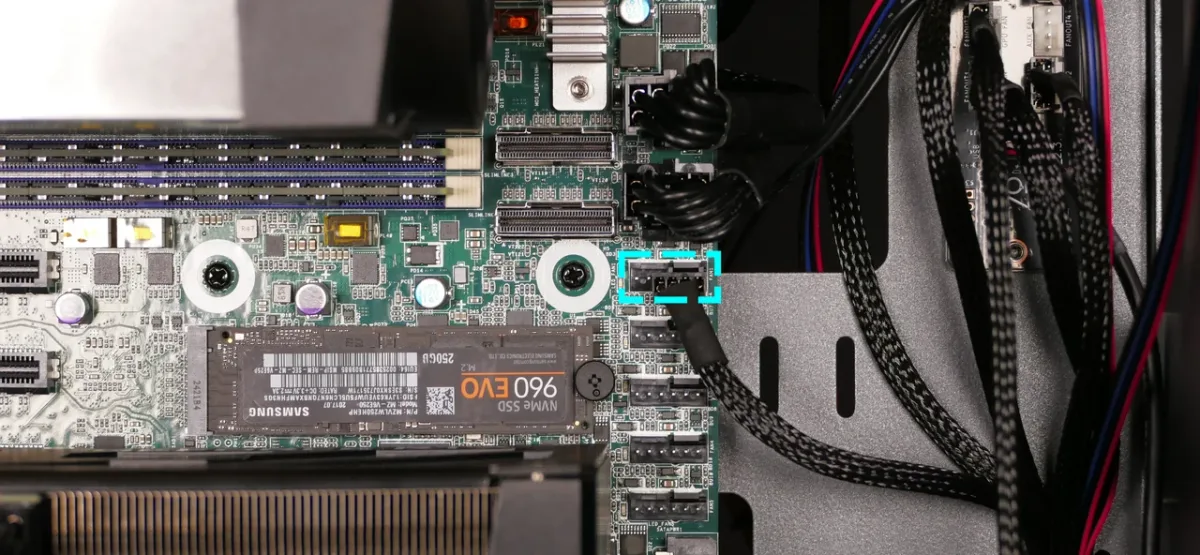
Image source: Wikimedia Commons / System76 (CC BY-SA)
Stress test to verify. Run a CPU stress tool like OCCT or Prime95 for 15 minutes. Run a GPU stress test like FurMark.
Watch temps in HWiNFO or MSI Afterburner.
CPU should stay under 85°C. GPU should stay under 85°C hotspot. If either climbs higher, add a fan or fix the airflow path.
Per Intel's published thermal specifications, most consumer CPUs throttle near 100°C, so staying below 85°C leaves safe headroom.
Check fan RPMs while testing. If a fan spins at max but temps still climb, airflow is blocked or the fan is too weak. Swap to a higher static pressure model.
Also verify your CPU cooler fits before finalizing. See how to check cpu cooler clearance in a pc case to avoid surprises.
Tune over a week. Play your usual games and watch temps. Adjust curves until noise and cooling feel right.
Small changes beat big ones.
Common Fan Setup Mistakes That Hurt Cooling
Reversed fans are the most common error. An intake fan mounted backward pulls air the wrong way. Always check the arrow on the frame.
One reversed fan can ruin a whole layout.
All exhaust, no intake is another trap. Builders add fans everywhere without thinking about direction. That creates negative pressure and sucks dust through every gap.
Aim for more intake than exhaust.
Cable clutter blocks airflow. A bundle of wires in front of a fan kills its output. Route cables behind the motherboard tray.
Use zip ties or velcro straps.
Overcrowding small cases backfires. Four fans in a mini-ITX case can create turbulence instead of flow. Two well-placed fans beat four crammed ones.
Ignoring dust filters lets grime in. Filters slow airflow slightly but keep internals clean. Clean them monthly.
See how dust filtration works in a gaming pc case for the details.
Buying RGB over performance is a real mistake. RGB fans often move less air than plain models at the same price. Pick fans by CFM and static pressure first.
Add lighting later if you want it.
Mounting fans too close to walls or carpet chokes intake. Leave at least a few inches of clearance. Raise the case on a stand if needed.
Forgetting to set fan curves leaves fans at full speed all the time. That's loud and unnecessary. Spend ten minutes in BIOS.
Your ears will thank you.
What Case Fans Actually Cost
Budget 120mm fans run $8 to $15 each. Brands like Arctic and Thermalright offer solid airflow at that price. These are fine for most builds.
Mid-range fans cost $15 to $25. Noctua, be quiet!, and Corsair sit here. You get better bearings, lower noise, and longer life.
Worth it if your PC runs long sessions.
Premium fans hit $25 to $40. These often include RGB and premium bearing designs. Cooling gains are small over mid-range.
Buy them for looks or silence, not raw performance.
140mm fans cost slightly more than 120mm. The airflow gain is worth the extra few dollars. If your case supports 140mm, use it.
Here's a rough cost guide:
| Tier | Price per fan | Examples | Best for |
|---|---|---|---|
| Budget | $8 to $15 | Arctic, Thermalright | First builds |
| Mid-range | $15 to $25 | Noctua, be quiet!, Corsair | Daily gaming |
| Premium | $25 to $40 | Corsair iCUE, Lian Li UNI | Show builds |
A typical mid-tower needs three to four fans. Budget build: $25 to $45 total. Mid-range build: $45 to $100.
Premium build: $100 to $160.
Don't buy all fans at once if you're unsure. Start with the case's included fans. Add one or two aftermarket fans only if temps demand it.
Test first.
Fan hubs add $15 to $30 if you need more headers. Splitters cost $5 to $10. Factor that into your budget.
Noctua publishes detailed spec sheets with CFM and static pressure for every model. Use those numbers to compare before buying. If you're sizing a bigger build, see what a full tower gaming pc case offers.
Full towers need more fans, so budget accordingly.
Frequently Asked Questions
How many fans should a gaming PC have at minimum?
One intake and one exhaust is the bare minimum. That works for low-power builds in cool rooms. Most gaming PCs need at least three for safe temps under load.
Start with two if budget is tight, then add a third if temps climb.
Is it better to have more intake or exhaust fans?
More intake than exhaust. That creates positive pressure, which keeps dust out. A common split is two intake to one exhaust.
Negative pressure pulls dust through every gap and clogs filters fast.
Do RGB fans cool worse than non-RGB fans?
Sometimes. RGB fans spend part of their budget on lighting hardware. At the same price, a non-RGB fan often moves more air.
Check CFM and static pressure specs before buying. The gap is small on premium models.
Can too many fans hurt cooling?
Yes. Cramming fans into a small case creates turbulence. Air bounces around instead of flowing.
Two well-placed fans beat four poorly placed ones. Match fan count to case volume and heat output.
Should I use 120mm or 140mm fans?
Use 140mm when your case supports them. They move more air at lower RPM, so they're quieter. 120mm fits more cases and costs less. Many builders mix both: 140mm up front, 120mm in back.
How do I know if I need more fans?
Check temps under load. CPU above 85°C or GPU above 85°C hotspot means you need better airflow. Also listen for fans running at max constantly.
That's a sign the system is struggling. Add one fan and retest.
1 thought on “How Many Case Fans Does a Gaming PC Really Need?”
Comments are closed.