What causes thermal throttling in a gaming pc is simple: a part gets too hot, then drops its clock speed to protect itself. You usually notice stutter, lower FPS, or fans ramping up hard after a few minutes of play.
Manufacturer specifications set those limits. Intel lists a maximum junction temperature near 100 C for many consumer CPUs, while AMD and GPU makers publish their own limits. The real fix depends on which part is hot and why.
What Thermal Throttling Looks Like During Gaming
Thermal throttling rarely looks like an instant crash. It usually shows up as a slow fade in performance. Your average FPS may stay decent, but the 1 percent lows drop and frame pacing gets rough.
You can spot it by watching clock speed during a long match or benchmark. If CPU or GPU clocks fall after heat builds up, throttling is likely active. Fans may also get loud while performance drops.
Common signs include:
- Sudden FPS drops after 5 to 15 minutes
- Stutter during sustained firefights or heavy scenes
- CPU or GPU clock speed falling under load
- High temperatures with lower than expected performance
- Loud fans that do not fix the stutter
Heat soak matters here. A cooler can handle short bursts but fail during long sessions. That is why a quick benchmark may look fine while a two hour gaming session does not.
Why Thermal Throttling Happens in a Gaming PC
A gaming PC makes heat. The CPU, GPU, VRMs, and SSD all convert electrical power into heat. If the cooling system cannot move that heat away fast enough, temperatures climb until the part hits its safety limit.
Thermal throttling is the built in protection. The part lowers frequency, voltage, or power draw to stay under its maximum temperature. It is protecting the hardware, not breaking it.
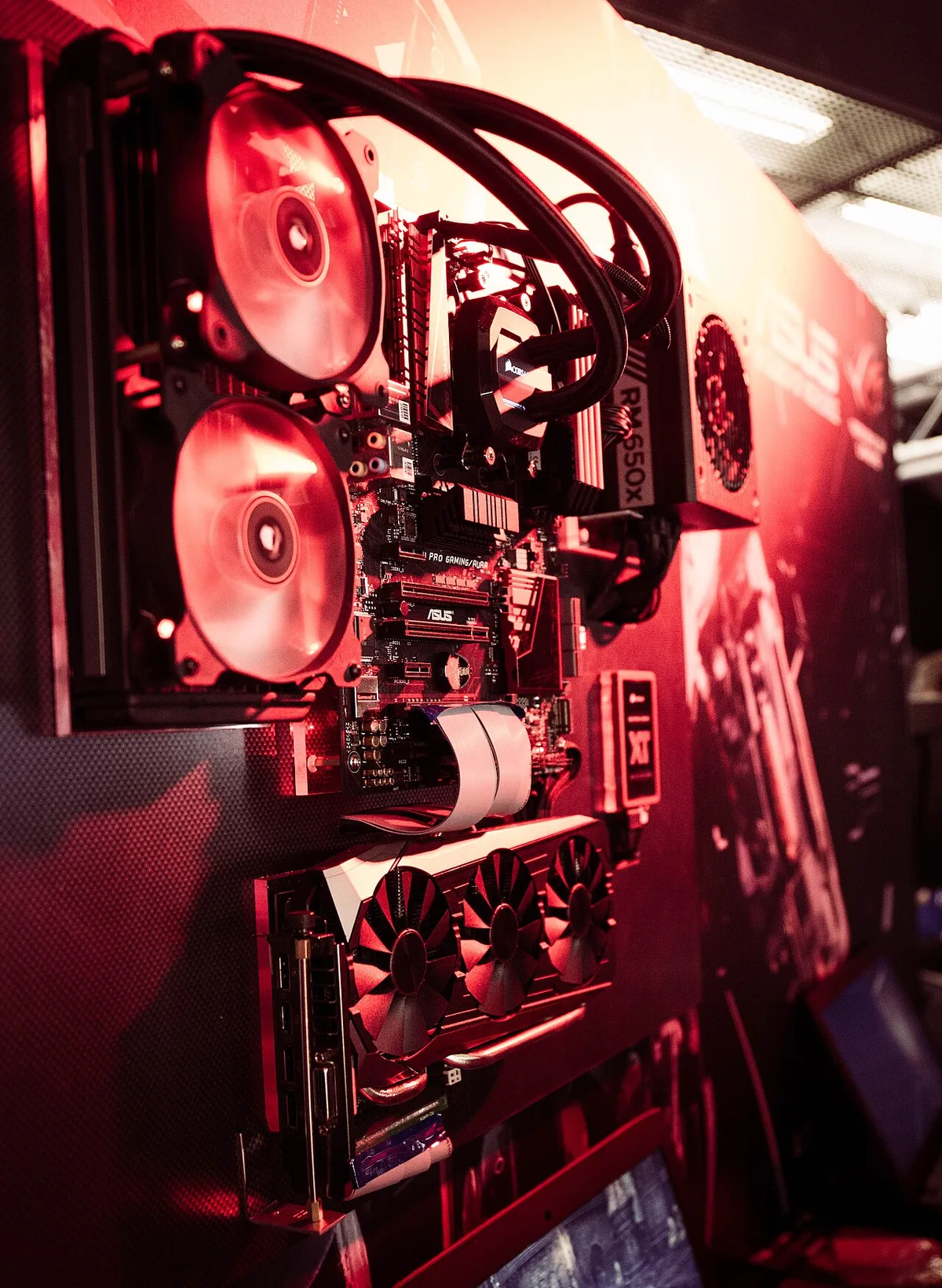
Image source: Wikimedia Commons / Maxime Rossignol maxoor
The main causes are usually straightforward. Poor airflow, an undersized cooler, old thermal paste, dust buildup, high ambient room temperature, and aggressive boost behavior all reduce thermal headroom. A loose cooler mount can do the same thing.
Cooling also affects stable gaming performance. A system with good cooling can hold boost clocks longer, which helps frame rates stay smooth. If you want the deeper link between cooling and frame rates, our guide on how cooling affects gaming performance explains it well.
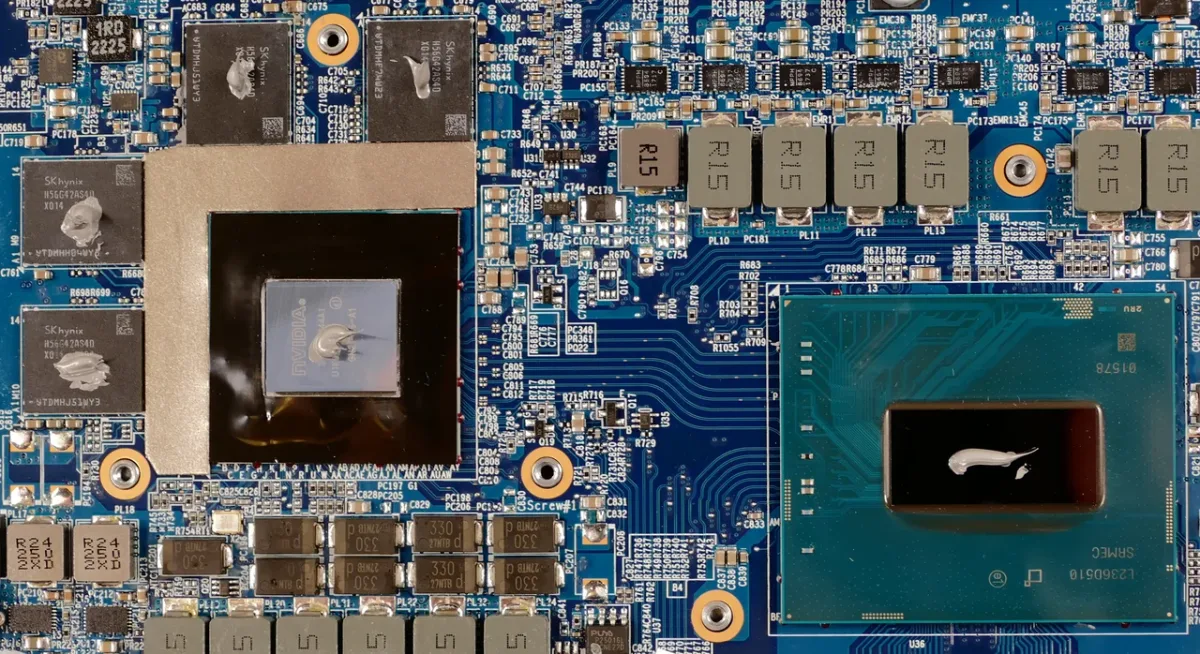
Image source: Wikimedia Commons / System76 (CC BY-SA)
Thermal paste matters because it fills microscopic gaps between the CPU or GPU and the cooler. If it dries out or pumps out, heat transfer gets worse even if the cooler looks fine. Manufacturer specifications for thermal interface materials usually list conductivity in W per mK, but real results depend on mount pressure and surface contact.
The Conditions That Change the Real Cause
The same symptom can come from different problems. That is why context matters. Use these if then checks to narrow it down.
- If temperatures rise slowly over months, check dust filtration and old thermal paste.
- If temperatures spike immediately, check cooler mounting and fan speed.
- If the CPU is hot but the GPU is cool, focus on CPU cooling and case exhaust.
- If the GPU is hot but the CPU is cool, focus on GPU airflow and radiator placement.
- If both are hot, the case may have poor airflow or high ambient temperature.
- If a laptop throttles, check vents, dust, and cooling pad use before blaming the game.
- If throttling happens only in summer, room temperature is likely a major factor.
- If throttling happens only after long sessions, heat soak is the likely cause.
Ambient temperature is easy to ignore. A PC that runs fine at 20 C may struggle at 30 C. Small rooms, poor ventilation, and summer heat can remove the safety margin your cooler needs.
Case airflow matters too. A good fan placement can pull cool air over the CPU and GPU and push hot air out. If you are unsure where intake and exhaust should go, our guide to fan placement for gaming PCs is a useful next step.
CPU, GPU, VRM, or SSD: Which Part Is Actually Throttling?
Not every hot part throttles the same way. You need to match the symptom to the component. A quick table helps.
| Component | Common sign | Likely cause |
|---|---|---|
| CPU | Clocks drop during sustained load | Cooler too weak, old paste, poor case exhaust |
| GPU | FPS drops after heat builds up | Poor GPU airflow, clogged heatsink, high ambient temp |
| VRM | Clocks drop even when CPU temps look okay | Weak VRM cooling, bad case airflow, high power draw |
| SSD | Game stutter or slow loading under sustained use | Missing heatsink, poor M.2 airflow, high drive temp |
CPU throttling is often the easiest to spot. Most monitoring tools show core clocks and package temperature. If clocks fall while temperature hits the limit, the CPU is protecting itself.
GPU throttling can be trickier. The GPU core may stay under its limit while the hot spot or VRAM temperature climbs. Some cards boost less when VRAM gets hot.
That can feel like random FPS drops even when average GPU usage looks normal.
VRMs are easy to miss. They feed power to the CPU or GPU, and they can overheat under sustained load. If your CPU temperature looks safe but clocks still drop, check VRM temperatures if your board reports them.
SSD throttling usually affects loading and asset streaming more than raw FPS. A hot NVMe drive can slow down during long game sessions or large file transfers. A simple heatsink and better airflow often fix it.
How to Trace the Cause Step by Step
Start with monitoring before you open the case. Guessing wastes time and can lead to unnecessary upgrades.
- Check temperatures at idle and under load.
- Watch CPU and GPU clock speeds during a real gaming session.
- Note fan speeds and pump speed if you use liquid cooling.
- Compare performance before and after heat builds up.
- Check dust filters and visible dust buildup.
- Inspect cooler mounting and cable airflow.
- Review fan curves and power limits in BIOS or GPU software.
- Retest after each change.
If clocks drop only after heat builds up, you have a cooling problem. If clocks drop while temperatures look normal, look at power limits, driver issues, or background load.
A good airflow plan helps you trace heat path issues. Cool air should enter near the front or bottom and exit near the rear or top. If cables block that path, even a strong cooler can struggle.
Our guide on planning airflow in a gaming PC case covers that layout logic.
Cooler clearance also matters. A tower cooler that does not fit properly may be tilted or poorly mounted. Checking CPU cooler clearance before buying or reinstalling a cooler prevents that mistake.
Use one change at a time. Clean dust first, then retest. Adjust fan curves next, then retest.
Repaste only if the earlier steps do not help. This keeps the diagnosis honest and avoids throwing money at the wrong part.
If you use liquid cooling, verify pump speed and radiator fans. A failing AIO pump can cause high temperatures even with clean fans. If you are choosing between air and liquid cooling, our comparison of air cooling and liquid cooling can help you decide what fits your build.
Fixing Thermal Throttling Based on the Real Cause
Fix the cause, not the symptom. If dust is blocking intake, a new cooler will not help much. If paste is dry, cleaning alone will not restore heat transfer.
Start with the cheapest checks. Clean dust filters, verify fan spin, and confirm pump speed on AIO units. Then adjust fan curves and airflow before spending money.
If temperatures stay high after cleaning, repaste the CPU or GPU. Use a small amount and even mount pressure. For laptops, repasting can help, but access and warranty matter.
Undervolting is another strong option. It reduces heat without lowering performance much. Many modern CPUs and GPUs support safe voltage offsets through manufacturer tools.
If cooling hardware is undersized, upgrade it. Match the cooler to the chip's power draw. A good airflow plan helps any cooler work better, so plan airflow in the case before buying parts.
If you are on air cooling, choose a better air cooler that fits your CPU's sustained power.
If VRMs are hot, improve case airflow around them. Sometimes a small fan over the VRM heatsink helps. If the motherboard design is weak, a bigger cooler may not solve it.
For liquid cooling, check the pump and radiator. A dead pump can make temps spike fast. If you are choosing between air and liquid, our guide to choosing an AIO liquid cooler for a gaming PC can help you size it right.
Common Thermal Throttling Mistakes That Waste Time
Do not replace parts before diagnosing. Many people buy a bigger cooler when the real issue is dust or a bad mount.
Other mistakes include:
- Ignoring VRM temperatures
- Running fans at max speed all the time
- Using too much thermal paste
- Forgetting to remove plastic from a new cooler
- Over tightening cooler screws
- Assuming one hot component explains everything
Fan placement matters. Intake and exhaust should work together, not fight each other. If you are unsure, place intake and exhaust fans with a clear path through the case.
It also helps to know how many case fans you really need before adding more.
Liquid metal is risky. It conducts electricity and can short nearby components if it spills. Most gamers do not need it.
Also avoid cheap thermal pads that do not match thickness. A pad that is too thin may not contact the chip. A pad that is too thick can block proper mounting.
Retest after every change. If you clean, repaste, and change fans at once, you will not know what fixed it.
Temperature, Clock, and Power Thresholds to Watch
Use thresholds as guides, not panic triggers. CPU and GPU limits vary by model. As of 2026, many consumer CPUs throttle near 95 to 100 C, while GPUs often throttle around 83 to 90 C depending on design.
| Metric | What to watch | Why it matters |
|---|---|---|
| CPU package temp | Near 90 C and rising | Less headroom before throttling |
| GPU hot spot temp | Above core temp by a wide margin | Possible cooler contact issue |
| GPU VRAM temp | High under load | Can reduce boost behavior |
| Clock speed | Drop during sustained load | Direct sign of throttling |
| Power draw | Near TDP limit | May trigger power throttling |
| Fan or pump speed | Unexpected drop | Cooling failure sign |
Clock speed is the clearest signal. If clocks fall while temperature rises, thermal throttling is likely. If clocks fall while temperature stays low, check power limits or drivers.
GPU hot spot temperature can run hotter than the average core temperature. A large gap may mean poor cooler contact or degraded paste.
Power limits matter too. Some systems throttle from wattage, not heat. That is why a 120 W CPU may hold clocks while a 200 W CPU drops under the same cooler.
For official limits, check manufacturer thermal specifications. GPU makers publish similar guidance on their official support pages.
FAQs About Thermal Throttling in Gaming PCs
Can thermal throttling damage a gaming PC?
No, thermal throttling is a safety feature. It lowers performance to keep temperatures under control. Long term heat can still wear parts faster, so fix the root cause if it happens often.
Does thermal throttling lower FPS?
Yes, it can lower FPS and hurt 1 percent lows. The effect is usually worse in long sessions than in short benchmarks. Stable clocks matter more than peak clocks for smooth gameplay.
How do I know if my CPU or GPU is throttling?
Watch clock speed during a real gaming session. If clocks drop while temperature rises, throttling is likely. Monitoring tools can show both temperature and frequency in real time.
Is undervolting safe for gaming PCs?
Yes, when done carefully. Use small voltage offsets and test stability. If the system crashes, return to default settings and try a smaller change.
Why does my PC throttle only after 10 minutes?
That points to heat soak. The cooler handles short bursts but cannot keep up during sustained load. Improve airflow, clean dust, or upgrade cooling.
Which Fix to Try First: A Practical Decision Guide
Use the cheapest fix first. If the PC is dusty, clean it. If temps are high after cleaning, repaste.
If clocks still drop, adjust airflow and fan curves.
If you use a stock cooler on a high power CPU, upgrade the cooler. Check cooler clearance first so the new part fits. For small cases, airflow planning matters even more.
If the GPU is the problem, improve intake near the GPU and clear cable clutter. A cooler with better contact may help if the card runs hot at the core.
If both CPU and GPU run hot, fix case airflow before replacing parts. Better fan placement can solve more than people expect.
If nothing helps, consider a full cooling upgrade. Choose air or liquid based on case size, noise tolerance, and budget. Do not buy based on looks alone.
Decision summary:
- Dusty system: clean and retest.
- High temps after cleaning: repaste.
- Hot VRMs: add airflow.
- Weak stock cooler: upgrade.
- Laptop: clean vents and use a cooling pad.