You're mid-match, gunfire loud, and then the audio drops to nothing before it snaps back. Figuring out how to fix audio cuts out during gaming on a gaming laptop feels like chasing a ghost, because the cutout seems random. But it almost never is random.
The sound is dropping for a reason, and that reason is usually something you can find and fix.
Most of these dropouts trace back to power management and audio drivers, not broken hardware. Microsoft's own audio troubleshooting guidance points to drivers and default-device settings as the first things to check. Per manufacturer specs, a gaming laptop's audio codec, often a Realtek chip, runs fine until a Windows update or a heat spike throws it off.
So before you change a single setting, it helps to understand why the sound is dropping in the first place.
How to Fix Audio Cuts Out During Gaming on a Gaming Laptop
Audio cuts out during gaming on laptops from drivers, power settings, or heat. Start by setting the correct default output device in Windows sound settings. Then update or roll back the audio driver.
Next, switch to a high-performance power plan and clear dust from the vents. If those fail, test a USB DAC or a different headphone jack.
Why Audio Cuts Out During Gaming on a Gaming Laptop
An audio dropout is any moment the sound cuts to silence or stutters, then comes back. During gaming it usually hits when your laptop is under the most load. That timing is the biggest clue, because it points at heat, power, and drivers.
Here are the usual causes, roughly in order of how often they're to blame:
- Power management. Windows slows idle audio hardware to save battery, and it doesn't always wake it back up in time.
- Audio drivers. A bad update or a generic driver can drop the stream under load.
- Thermal throttling. When the CPU and GPU get hot, the whole system slows, and audio buffers can underrun.
- Wrong output device. Sound may hop between speakers, HDMI, and your headset.
- Loose hardware. A worn 3.5mm jack or a failing USB port cuts the signal.
If the audio fully drops and returns, start with power and drivers. If it crackles or pops instead, that's often a separate issue, closer to what we cover in our guide on speakers that crackle under load. Either way, every cause here has a quick, free fix.
Check the Default Audio Device and Windows Sound Settings
This is the fastest fix, so try it first. If your laptop keeps switching outputs, Windows may be sending game audio to the wrong place.
Start here:
- Right-click the speaker icon and open Sound settings.
- Under Output, pick the device you actually want: headphones, speakers, or the monitor over HDMI.
- Click your device, then disable any audio enhancements. Enhancements like Dolby or spatial sound sometimes cause dropouts.
- Scroll to Advanced and turn off "allow applications to take exclusive control." Games sometimes grab the device and won't let go.
If sound still drops, set your format to a safe value. Under your output device, set the sample rate to 48 kHz and 16-bit, which is what most games expect. Higher rates look nicer but stress the audio stack more.
As of 2026, most gaming laptops run Windows 11, where all of this lives under Settings, then System, then Sound. Microsoft's official sound troubleshooting guide walks through the same checks if a menu looks different on your build.
Wrong device or an aggressive enhancement causes a surprising share of "random" cutouts, and this check costs you two minutes.
Update or Roll Back Audio Drivers
Drivers are the software that lets Windows talk to your audio chip, usually a Realtek or an OEM-branded codec. When they glitch, sound stutters or drops under load. The fix is either a clean reinstall or a rollback, depending on when the problem started.
Open Device Manager, expand "Sound, video and game controllers," and find your audio device. From there:
- If the cutouts started right after an update, right-click the device, choose Properties, then Driver, then Roll Back Driver.
- If there's no rollback option, download the latest driver straight from your laptop maker's support page. Realtek also posts reference drivers on its official download page, though the OEM version is usually the safer match.
Should you update or roll back? Update if the problem is new and lines up with a recent Windows patch. Roll back if things were fine last week and broke after an update.
One more angle: drivers sometimes fail to reload after the laptop wakes from sleep. The same sleep-resume gremlins hit other hardware too, and we cover a common one in our guide on post-sleep hardware hiccups. A quick reboot after waking often restores audio until the next fix lands.
Switch Power Plans and Control Thermal Throttling
Power settings and heat are the two things most likely to make audio drop mid-game. Thermal throttling is when your laptop slows itself down to cool off, and audio is often the first thing to feel it.
Start with power. On battery, Windows trims power to save charge, and that can starve the audio hardware. Plug in, then open Settings, System, Power, and pick the best-performance mode.
That alone fixes a lot on plugged-in machines.
Then tackle heat:
- Make sure the vents aren't blocked. A laptop on a bed or couch chokes its own airflow.
- Clean dust from the fans every few months.
- Consider a cooling pad for long sessions.
Here's a rough guide to temps:
| Component | Healthy under load | Throttle risk |
|---|---|---|
| CPU | up to 90°C | 95°C and above |
| GPU | up to 85°C | 90°C and above |
Heat doesn't just throttle the CPU. It can make audio buzz too, which we break down in our guide on buzzing that creeps in as temps rise. And if your laptop runs warm even at idle, check the standby settings we cover in standby modes that trap heat.
Test External Audio Adapters and Headphone Jacks
If drivers, settings, and heat all check out, the fault may sit in the output hardware itself. This is where you separate a software problem from a physical one. The idea is simple: swap the output path and see if the cutouts follow.
First, test the 3.5mm jack. Wiggle the plug gently. If sound cuts with movement, the jack is worn or dirty.
If audio only plays on one side, that's a failing connection, and we cover it fully in our fix for a jack that only works on one side.
Then try a USB audio path. A USB headset or a small USB DAC (digital-to-analog converter) bypasses the internal jack entirely.
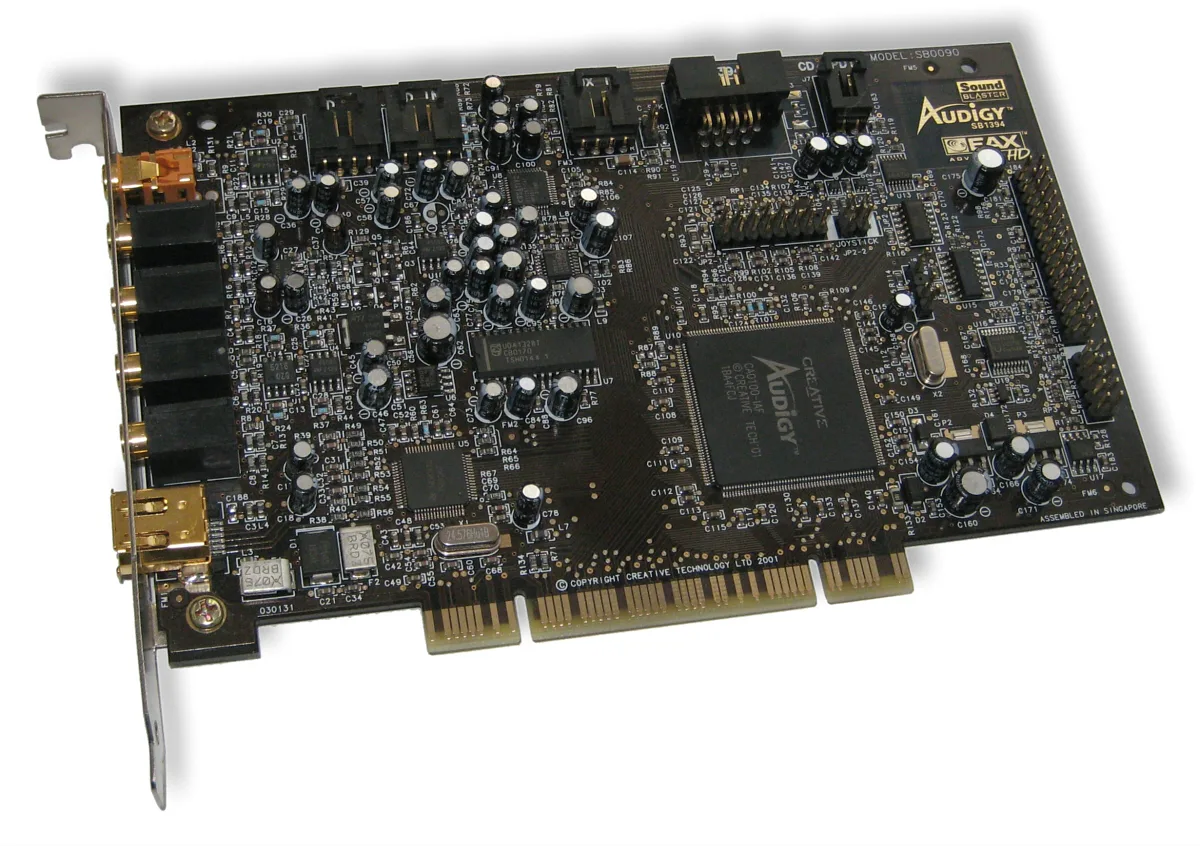
Image source: Wikimedia Commons / Geekfield (CC BY-SA)
Here's how to read the result:
- Cutouts gone with a USB DAC? The internal audio hardware is the problem, not your software.
- Cutouts still there on USB too? Go back to drivers and power settings.
A USB adapter is a cheap way to confirm the diagnosis and often a permanent fix. They run from about 20 to 80 dollars, far less than a motherboard repair.
Mistakes That Make Audio Dropouts Worse
Many gamers make a few simple errors that turn a minor glitch into a persistent problem. These mistakes usually involve settings that look harmless but actually stress the audio stack.
- Running on battery power. Windows trims power to the audio chip when you're not plugged in, and that can cause dropouts.
- Leaving audio enhancements enabled. Dolby, DTS, and spatial sound add processing that can buffer underrun under load.
- Using the wrong output device. If Windows switches between speakers, HDMI, and your headset, sound can cut out.
- Ignoring driver updates. A stale driver can't handle the high sample rates some games demand.
- Overclocking the CPU or GPU without checking thermals. Extra heat triggers throttling, and audio is often the first casualty.
When several of these settings are wrong at once, the audio buffer can't keep up, and the sound stutters. Fixing one helps, but fixing all of them usually eliminates the problem.
To check each one, open Settings, System, Sound, and verify the output device. Then open Device Manager and confirm the driver version matches the OEM release. Finally, plug in your charger and set the power plan to best performance.
Avoiding these five errors solves a large share of cutouts without any hardware changes. A quick reboot after making these changes can also clear lingering audio glitches. If the cutouts persist, the decision guide below helps you narrow the cause.
Step-by-Step Decision Guide for Fixing Audio Cutouts
Start with the simplest fix and work up. This order keeps you from wasting time on hardware when a setting is the real culprit.
The following decision guide walks you through each condition in order.
Set the correct default output device in Sound settings and turn off audio enhancements. If the cutout stops, you're done.
If it continues, open Device Manager, right-click your audio device, and choose Roll Back Driver. If that option is missing, download the latest driver from your laptop maker's support site.
Still cutting? Plug in your charger and switch the power plan to best performance. Then check that the vents are clear and the fans spin freely.
If the problem persists, run a stress test while monitoring CPU and GPU temperatures. If either exceeds 90°C, clean the fans and reapply thermal paste.
Test with a USB DAC or a different headphone jack. If the audio is stable on USB, the internal hardware is failing.
Finally, check for a BIOS update from the manufacturer. A firmware fix can resolve audio quirks that drivers can't.
Follow these steps in order, and you'll isolate the cause without guesswork. Before opening the laptop, disconnect power and ground yourself to avoid static damage.
FAQs
Why does my audio cut out only when I game?
When you game, the CPU and GPU run hot and draw more power. Windows may also switch power states, and the audio driver can lose its buffer under that load. The result is a brief silence or stutter that only appears during heavy use.
Checking power settings and driver updates usually resolves it.
Can a USB audio adapter fix the problem?
A USB DAC or USB headset bypasses the internal audio chip and jack. If the cutouts disappear when you switch to USB, the internal hardware is likely failing. If they persist, the issue is probably software or power related.
USB adapters are an inexpensive way to test and often serve as a permanent fix.
How do I know if my audio driver is the cause?
Open Device Manager and check the driver version against the one on your laptop maker's support page. If they differ, or if the driver is flagged with a warning, it's suspect. Rolling back or reinstalling often clears the issue.
You can also test by installing a generic Realtek driver to see if stability improves.
What power plan should I use to prevent dropouts?
Select the High Performance power plan when you're gaming. This plan keeps the CPU and GPU at full speed and prevents Windows from throttling the audio hardware. Avoid Battery Saver or Balanced mode during intense sessions.
Plug in your charger to maintain consistent power delivery.