That faint buzz the second you plug your USB-C charger into a gaming laptop is maddening. How to fix USB-C charging that causes buzzing noise on a gaming laptop isn't about buying new gear first. It's about finding which link in the power chain is misbehaving.
Most cases trace back to a short list of usual suspects.
Most of that noise sits between 20 kHz and 50 kHz, right at the edge of what people can hear. That's why some folks notice it and others don't. The USB Power Delivery standard, published by the USB Implementers Forum, governs how your charger and laptop agree on voltage, and a shaky handshake there often shows up as buzz.
Let's break down what's really going on.
How to Fix USB-C Charging Causes Buzzing Noise on a Gaming Laptop
USB-C charging buzz usually traces to one faulty link in the chain. Start with the brick, then the cable, outlet, and port. Swap one part at a time to find the culprit.
A loose port, a bad cable, or a ground loop causes most buzz. If the noise follows the charger, swap in a certified unit.
Why Your Gaming Laptop Buzzes During USB-C Charging
Gaming laptops pull serious power, and that current pushes through tiny coils, capacitors, and transformers inside the charger and the machine. When electricity flows through those parts, they vibrate at high frequencies. Your ear reads that as a buzz, whine, or faint crackle.
This is usually harmless. It's called coil whine, and it happens when copper windings physically flex under changing current. Better units damp it well.
Cheaper ones let it sing.
So how do you tell normal from a real fault? Run a quick if/then check:
- If the buzz is faint, steady, and only shows up under heavy load, it's likely normal coil whine.
- If it's loud, crackly, or changes when you wiggle the cable, treat it as a real problem.
- If it shows up on one charger but not another, the charger is your culprit.
- If it follows the wall outlet, suspect a grounding issue.
Heat makes it worse. As your GPU and CPU ramp up mid-match, the power stage works harder and the whine climbs in pitch. A stuck profile can keep it going nonstop, so it's worth checking your performance profile settings.
Here's the reassuring part. Buzzing alone rarely means your laptop is dying. It's an electrical noise problem, not a hardware death sentence.
The trick is narrowing down where it starts.
USB-PD, Coil Whine, and Ground Loops: What's Really Making the Noise
Three culprits cause nearly every case. Let's define each so you can spot it fast.
USB Power Delivery (USB-PD) is the handshake standard that lets your charger and laptop agree on voltage. It steps up through 5V, 9V, 15V, and 20V based on demand. When that negotiation stutters, the power stage chatters and you hear it.
Coil whine is the sound of electromagnetic coils vibrating. It's most obvious when current changes quickly, like when your GPU mode and power draw spike mid-frame.
A ground loop is different. It's an unwanted current path that forms when your charger, laptop, and mains ground aren't at the same potential. That gives you a low hum rather than a high whine, and it's common in older homes with ungrounded outlets.
Telling them apart matters because the fix differs for each:
| Symptom | Likely cause | Typical pitch |
|---|---|---|
| High whine under load | Coil whine | 20 to 50 kHz |
| Low hum, always present | Ground loop | 50 to 120 Hz |
| Buzz tied to plug wiggle | Loose port or cable | Varies |
EMI (electromagnetic interference) ties these together. Regulators like the FCC set Part 15 limits on how much interference a device can emit. Cheap cables and bricks often cut corners there, which is why they buzz more.
Step-by-Step: Find the Source Before You Buy a New Charger
Work through these steps in order. Each one narrows the field, so don't skip ahead. You'll need about 20 minutes, plus a second charger or cable if you have one.
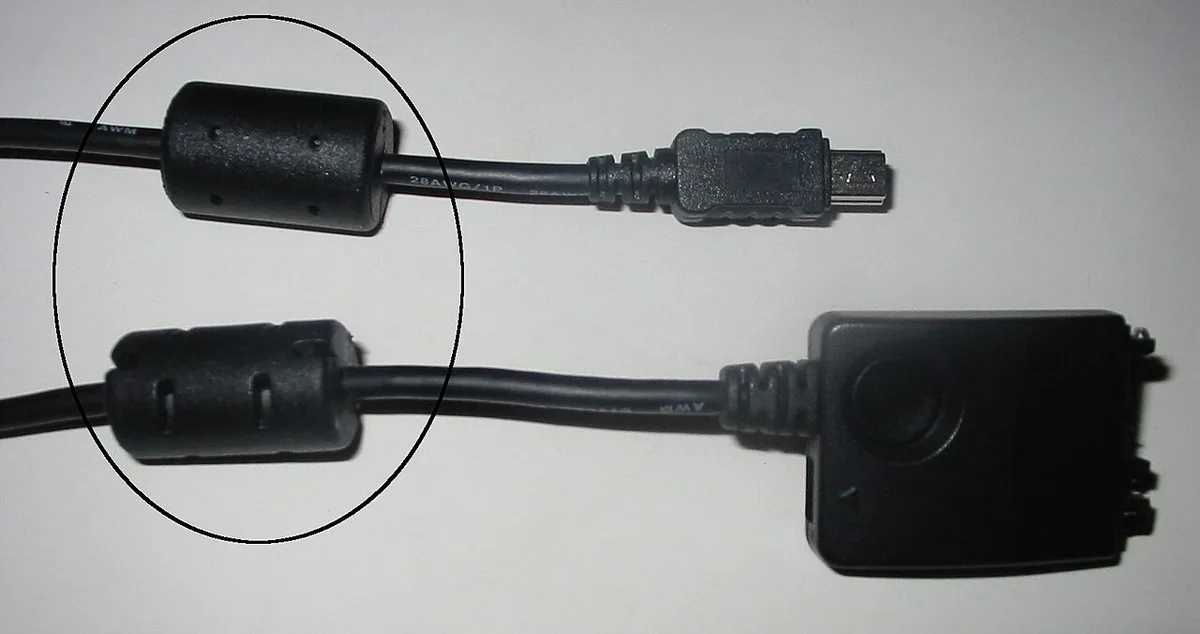
Image source: Wikimedia Commons / Wikimedia Commons contributor (CC BY-SA)
Step 1: Test With a Minimal Load
Unplug every peripheral and close background apps. Buzz that fades at idle points to load-driven coil whine, not a dead port.
Step 2: Swap the Charger Brick
If you have another compatible USB-C charger, try it. When the noise follows the brick, you've found your culprit.
Step 3: Test a Different Wall Outlet
Move to a grounded outlet in another room. If the hum disappears, you're dealing with a ground loop or bad home wiring.
Step 4: Inspect the USB-C Port
Shine a light inside the port. Look for bent pins, dark oxidation, or lint. A loose fit that lets the plug wiggle causes arcing buzz.
Step 5: Try a Shielded Cable With a Ferrite Core
Swap in a quality cable, ideally one with a built-in ferrite choke. Cheap unshielded cables act like antennas and amplify noise.
Step 6: Check GPU Load While the Noise Happens
Watch your GPU load and clock speed as the buzz starts. A spike that lines up with the noise confirms coil whine tied to power draw.
Decision Point: Replace the Cable, Brick, or Port
If the noise followed the cable, replace the cable. If it followed the brick, replace the charger. If it lives inside the laptop and you're still under warranty, contact support before opening the chassis yourself.
Common Mistakes That Make the Buzzing Worse
Most people make the same few errors, and they usually cost money or time. Avoid these and you'll solve the buzz faster.
- Buying a new charger before testing the old one. You might replace a fine brick and keep the real problem.
- Ignoring the cable. A worn or unshielded cable causes buzz as often as the brick does, yet it's the cheapest thing to swap.
- Using a charger with too little wattage. If your laptop needs 180W and you plug in a 65W brick, the power stage strains and whines under load.
- Chasing coil whine that isn't a fault. Faint, steady whine under heavy load is normal and rarely worth voiding a warranty over.
- Skipping the outlet test. A ground loop from an ungrounded socket gets blamed on the laptop all the time.
One sneaky mistake involves software. When multiple control apps fight each other, they can push conflicting power limits to the CPU and GPU. That constant up-and-down current makes the whole power stage buzz more.
Another is parking your laptop on a soft surface. Blocked vents force the fans and power delivery to work harder, which raises pitch and volume. Keep it on a hard, flat desk.
Finally, stop yanking the cable out at an angle. That slowly loosens the port, and a loose USB-C connection is a classic source of crackling noise.
OEM Charger vs Third-Party GaN Brick: Which Fixes the Noise
In our research, this comes down to build quality more than brand. Here's how the two stack up.
An OEM (original equipment manufacturer) charger is the brick that shipped with your laptop. It's tuned for your exact power profile, so the USB-PD handshake stays smooth and coil whine is usually minimal. The trade-off is bulk and a higher price.
A third-party GaN (gallium nitride) brick is smaller, lighter, and often cheaper. Modern GaN units run cooler and switch faster. As of 2026, quality GaN chargers have mostly closed the noise gap, though budget units still buzz.
| Factor | OEM charger | Third-party GaN |
|---|---|---|
| Noise level | Usually low | Low to moderate |
| Size and weight | Bulkier | Compact |
| Price | Higher | Lower |
| Compatibility | Guaranteed | Check wattage |
| Efficiency | Good | Often better |
Who should pick which?
- Choose OEM if your laptop is under warranty, if you want zero guesswork, or if the buzz clearly came from a failing stock brick.
- Choose third-party GaN if you travel, want a smaller brick, or just need a spare. Match the wattage and look for USB-IF certification.
Match the wattage first, always. A gaming laptop pulling 200W needs a 200W or higher supply, no matter the brand. Underpowering causes the exact whine you're trying to kill.
If your laptop leans on software profiles, keep its OEM performance app set correctly so the brick and machine agree on how much power to draw.
Safety Warnings and Warranty Risks for USB-C Power Troubleshooting
USB-PD negotiation failures can trigger laptop built-in overvoltage protection. When the BMS detects voltage outside safe limits, it cuts power immediately. This shutdown protects battery health but leaves you without charge.
Always use chargers within the laptop's specified wattage range to avoid these triggers.
Damaged cable insulation creates shock and fire risk. Exposed conductors can short against metal ports or nearby surfaces. If you see any fraying or bare wire, replace the cable immediately.
Do not attempt electrical tape repairs on power cords carrying over 100 watts.
Opening your gaming laptop to inspect the USB-C port may void manufacturer warranty. Most OEMs consider internal component access as warranty-voiding action. Check your service documentation before removing any screws or labels.
When in doubt, contact support rather than disassembling.
Ground loop issues rarely cause dangerous faults, but they indicate improper earthing in your wall circuit. Persistent humming with tingling at the chassis warrants an electrician visit. Do not ignore shock sensations while touching the laptop during charging.
FCC Part 15 limits electromagnetic interference for consumer devices. Certified chargers pass these tests; cheap imports often do not. Look for the USB-IF certification mark when buying replacements.
Uncertified units may exceed interference limits and cause system instability.
Quality matters more than price for power delivery safety. A thirty-dollar certified brick protects better than a ten-dollar no-name unit. Your laptop's power intake represents serious energy, and proper equipment ensures that energy stays safe.
Consumer reports consistently show higher failure rates with uncertified power accessories. Independent testing groups rate certified units significantly more reliable for sustained gaming loads.
Frequently Asked Questions About USB-C Charging Buzz
Why does my gaming laptop buzz when I plug in the USB-C charger?
The buzz usually comes from coil vibration inside the charger or laptop power stage. High current flow through copper windings creates magnetic fields that make parts physically shake. This is harmless coil whine, not a failure.
It often gets louder during gaming when power draw peaks.
Is coil whine dangerous for my laptop long-term?
No, coil whine alone does not damage hardware. The components continue functioning fine despite the noise because electromagnetic vibration doesn't degrade electrical connections. Only if the buzz changes pitch suddenly or gets significantly louder over several weeks should you investigate further.
Monitor it regularly but don't panic about routine whining.
Can a cheap USB-C cable cause buzzing noise?
Yes, Yes, a cheap unshielded cable often acts like an antenna and picks up electromagnetic interference from nearby components. Thin internal wires struggle to carry high current cleanly, which forces the power stage to work harder and whine louder. A quality shielded cable with proper gauge conductors eliminates that path.
If swapping cables makes the buzz stop, the original cable was the problem.
How do I tell if the buzz is a ground loop or coil whine?
Ground loop hum stays steady and constant no matter what your laptop is doing. Coil whine rises and falls with GPU and CPU load, getting louder during a game. Plug into a different outlet first; if the noise follows the charger, suspect coil whine.
If it only appears at one outlet, you likely have a grounding issue.
Should I replace the charger or the cable first?
Start with the cable because it costs less and fails more often. Test with a known-good shielded cable before spending money on a new brick. If the buzz continues with a different cable, then swap the charger.
Most cable buzzes disappear with a simple replacement.
Will a ferrite core on the USB-C cable stop the buzzing?
A ferrite choke suppresses high-frequency EMI on the cable's exterior, which can quiet buzz that enters through the power line. It works best when paired with a shielded cable rather than as a standalone fix. Slide the core close to the laptop end for maximum effect.
It won't fix a damaged port or a failing charger, though.
1 thought on “Stop USB‑C Charging Buzz on Your Gaming Laptop”
Comments are closed.