You're mid-match, the fans are screaming, and your frame rate just tanked. That's the moment most people start wondering whether a cooling pad can actually save the session or if it's just another gadget collecting dust on the desk.
The honest answer is that it depends on your laptop, the pad, and how they fit together. Some setups see a real drop in temperature. Others see almost nothing.
Let's walk through exactly how to tell which camp you're in.
can a cooling pad lower gaming laptop temperatures
Yes, but only when the cooling pad's fans align with your laptop's intake vents and your internal cooling isn't already maxed out. Expect a realistic drop of 2 to 8 degrees Celsius under sustained load. If the fans blow where no vents exist, or your laptop's thermal paste is degraded, the pad won't help much.
Why Gaming Laptops Get So Hot in the First Place
Gaming laptops cram a powerful CPU and GPU into a space barely bigger than a textbook. That density means heat has nowhere to go fast. The cooling system inside has to pull heat away from the chips and push it out through tiny exhaust vents, all while running on a fraction of the airflow a desktop tower gets.
Most of the heat comes from the CPU and GPU running at full load during games. These chips can push 65 to 150 watts of thermal design power (TDP) depending on the model. The heat pipes and vapor chamber spread that heat across a small heatsink, and internal fans blow air through the fins to carry it away.
When the system can't keep up, the chips hit their thermal ceiling and throttle, dropping clocks to protect themselves.
The Bottleneck: Internal Cooling Limits
Your laptop's internal cooling is the real bottleneck. The fans are small. The heatsink fins are thin.
And the vents are often partly blocked by dust or the desk surface itself. Even a well-designed laptop can only do so much when the ambient air around it is already warm.
Ambient Air and Surface Conditions
Where you set the laptop matters more than people think. A soft bed or couch blocks bottom intake vents completely. A warm room adds degrees before the laptop even starts working.
As of 2026, many gaming laptops still vent from the bottom, which makes surface choice critical.
Can a Cooling Pad Actually Lower Your Laptop's Temperatures?
Yes, a cooling pad can lower gaming laptop temperatures, but only under the right conditions. The pad adds external airflow that supplements what the internal fans already do. It's not a replacement for good internal cooling.
Think of it as a helper, not a fix.
When the pad's fans line up with the laptop's intake vents, they push cooler room air directly into the cooling system. That lowers the temperature of the air reaching the heatsink, which lowers chip temperatures. Manufacturer specs and aggregate user reviews suggest a realistic drop of 2 to 8 degrees Celsius during gaming sessions.
Larger drops usually mean the laptop was running on a soft surface before, blocking its own airflow.
The Short Answer
If your laptop has bottom intake vents and the pad's fans match them, you'll likely see a modest but real improvement. If your laptop vents from the sides or rear only, or the pad's fans miss the vents, the benefit is minimal or zero.
What "Lower" Really Means Here
A 3 degree drop might not sound like much, but it can be the difference between sustained boost clocks and thermal throttling. Even small gains keep the GPU running at higher frequencies for longer. That translates to smoother frame rates, especially in long sessions.
How Cooling Pads Work (And Where They Hit Their Limits)
Cooling pads come in two main types: active and passive. Active pads have built-in fans that push air upward into the laptop. Passive pads are just stands with mesh or perforated surfaces that let air circulate naturally.
Each works differently, and each has clear limits.
Active pads draw power from a USB port. The fans spin at speeds ranging from 1000 to 3000 RPM depending on the model. They push air through the laptop's bottom vents, feeding the internal cooling system with cooler air.
The best ones let you adjust fan speed and position. The worst ones blow air at spots with no vents, adding noise and USB power draw for nothing.
Passive pads rely on elevation and airflow. By lifting the laptop and using a mesh surface, they let the internal fans pull in cooler room air more easily. They're quieter and use no power, but the temperature drop is smaller.
They're often enough for light gaming or office work, not heavy loads.
Active Cooling Pads (Fan-Based)
Active pads are the ones most people buy for gaming. They work best when fan placement matches the laptop's intake vents. Fan size matters too.
Larger fans move more air at lower speeds, which means less noise. Smaller fans spin faster and louder for the same airflow.
Passive Cooling Pads (Stands and Mesh)
Passive pads are simpler. They elevate the laptop, open up airflow underneath, and keep the bottom from sitting flat on a desk. The temperature drop is usually 1 to 3 degrees.
That's modest, but it's free of noise and power draw.
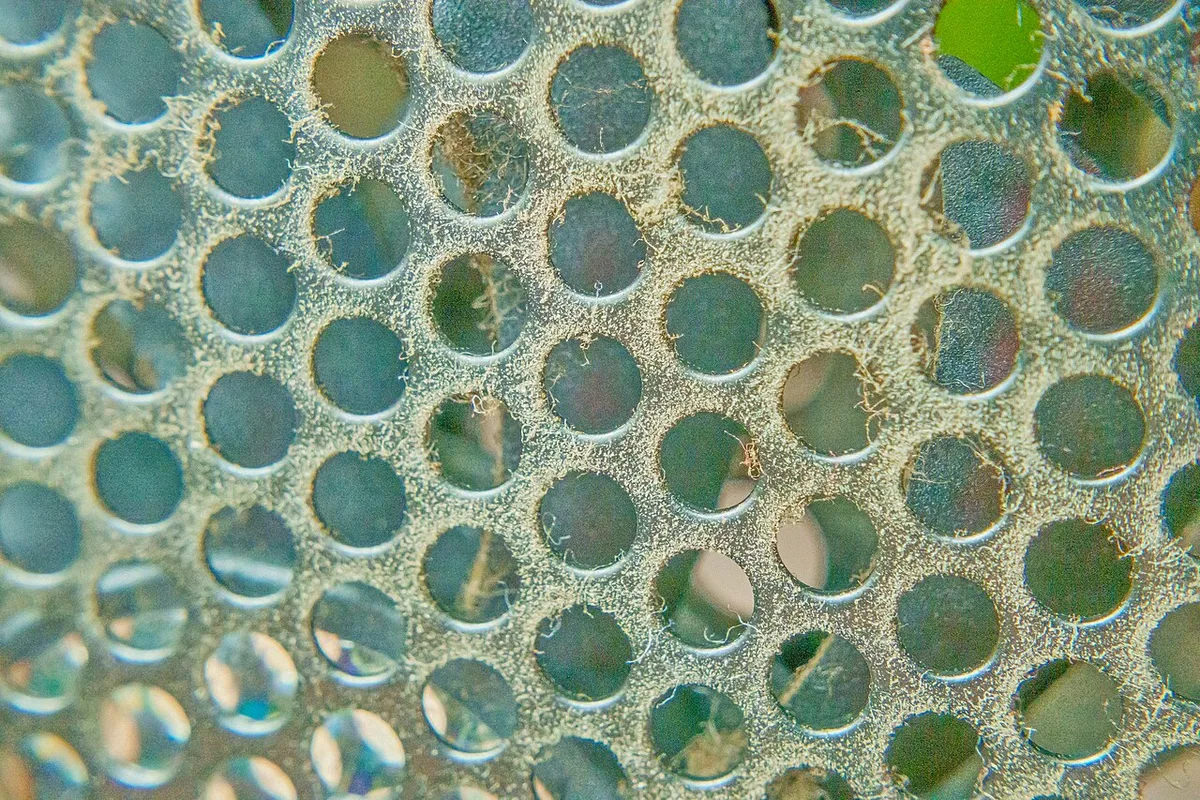
Image source: Wikimedia Commons / Junyu-K (CC BY-SA)
The Physics: Intake vs. Exhaust
Here's where most people get confused. Laptops pull air in through intake vents and push it out through exhaust vents. A cooling pad should feed the intakes, never block the exhausts.
If the pad's fans push air into an exhaust vent, they fight the internal fans and can trap heat inside. That's worse than no pad at all.
What Separates a Useful Cooling Pad From a Useless One
Not all cooling pads are equal. Some are well-engineered tools. Others are cheap plastic with a fan stuck in the middle.
The difference comes down to a few key features that determine whether the pad actually helps.
Fan placement is the single most important factor. A pad with fans in the wrong spots is useless no matter how fast they spin. After that, fan size and speed determine airflow volume.
Build material affects heat transfer. And USB power draw can subtly impact performance on some laptops.
Fan Placement and Alignment
This is the make-or-break feature. Before buying, check your laptop's bottom panel. Find the intake vents, usually grilles or mesh areas.
Then compare with the pad's fan positions. If they don't overlap, the pad won't help. Some pads have adjustable fans that slide into position, which is a real advantage.
Fan Size, Speed, and Airflow (CFM)
Airflow is measured in cubic feet per minute (CFM). Larger fans at lower RPMs move more air with less noise. A 140mm fan at 1500 RPM outperforms a 90mm fan at 2500 RPM in both airflow and noise.
Look for pads that list CFM ratings and keep noise under 40 dBA if possible.
Build Materials and Top Surface
Metal top plates transfer heat better than plastic. A mesh or perforated surface lets air pass through freely. Solid plastic surfaces trap heat and reduce the pad's effectiveness.
Some pads include a dust filter, which helps but needs regular cleaning.
USB Power Draw and Passthrough
Active pads draw 5 volts from a USB port, typically 0.5 to 2 amps. That's a small but real power draw. On some laptops, it can slightly reduce available power for the CPU or GPU.
Pads with USB passthrough ports let you plug in other devices, which is convenient. Just don't overload the port.
How to Tell If a Cooling Pad Will Help Your Specific Laptop
This is the decision tree part. You don't need to guess. You can figure out in about 15 minutes whether a cooling pad will help your laptop.
It comes down to five steps that anyone can follow.
The key is testing, not assuming. Your laptop's vent layout, your room temperature, and your internal cooling condition all matter. A pad that works great for one laptop does nothing for another.
Follow these steps before spending money.
Step 1: Find Your Laptop's Intake Vents
Flip your laptop over. Look for grilles, mesh panels, or slotted areas on the bottom. These are intake vents.
Side and rear vents are usually exhausts. Some laptops have intake on the sides too. Check the manufacturer's manual if you're unsure.
Step 2: Match the Pad's Fans to Those Vents
Look at the cooling pad's fan positions. Compare them to your intake vents. They should overlap significantly.
If the pad has adjustable fans, great. If not, the fans need to land on the vents by default. This step alone filters out most bad purchases.
Step 3: Check for Exhaust Blockage
Make sure the pad doesn't cover or block any exhaust vents. Rear and side exhausts must stay completely clear. If the pad's edge or body blocks them, heat gets trapped.
That's worse than no pad.
Step 4: Run a Before-and-After Test
Use a temperature monitoring tool like HWMonitor, MSI Afterburner, or Core Temp. Play the same game for 20 minutes without the pad and note the CPU and GPU temps. Then do the same with the pad.
Compare the numbers. A drop of 2 degrees or more means it's helping. Less than that, and it's not worth the cost or noise.
Step 5: Decide Based on the Numbers
If you see a real drop, keep the pad and clean its filters regularly. If not, return it and try a different approach. Undervolting, repasting, or a simple laptop stand might work better for your setup.
The numbers tell the truth, not the marketing.
If you want to go deeper on the underlying problem, our guide on why gaming laptops get so hot breaks down the root causes. And if you're curious about thermal throttling, that's worth reading before you spend money on any cooling accessory. For a broader look at improving gaming laptop cooling, that guide covers everything from cleaning to undervolting.
Cooling Pads vs. Other Ways to Cool Your Laptop
A cooling pad is only one tool in the kit. Sometimes a simpler fix beats it. The right choice depends on your laptop's design, your budget, and how much effort you want to put in.
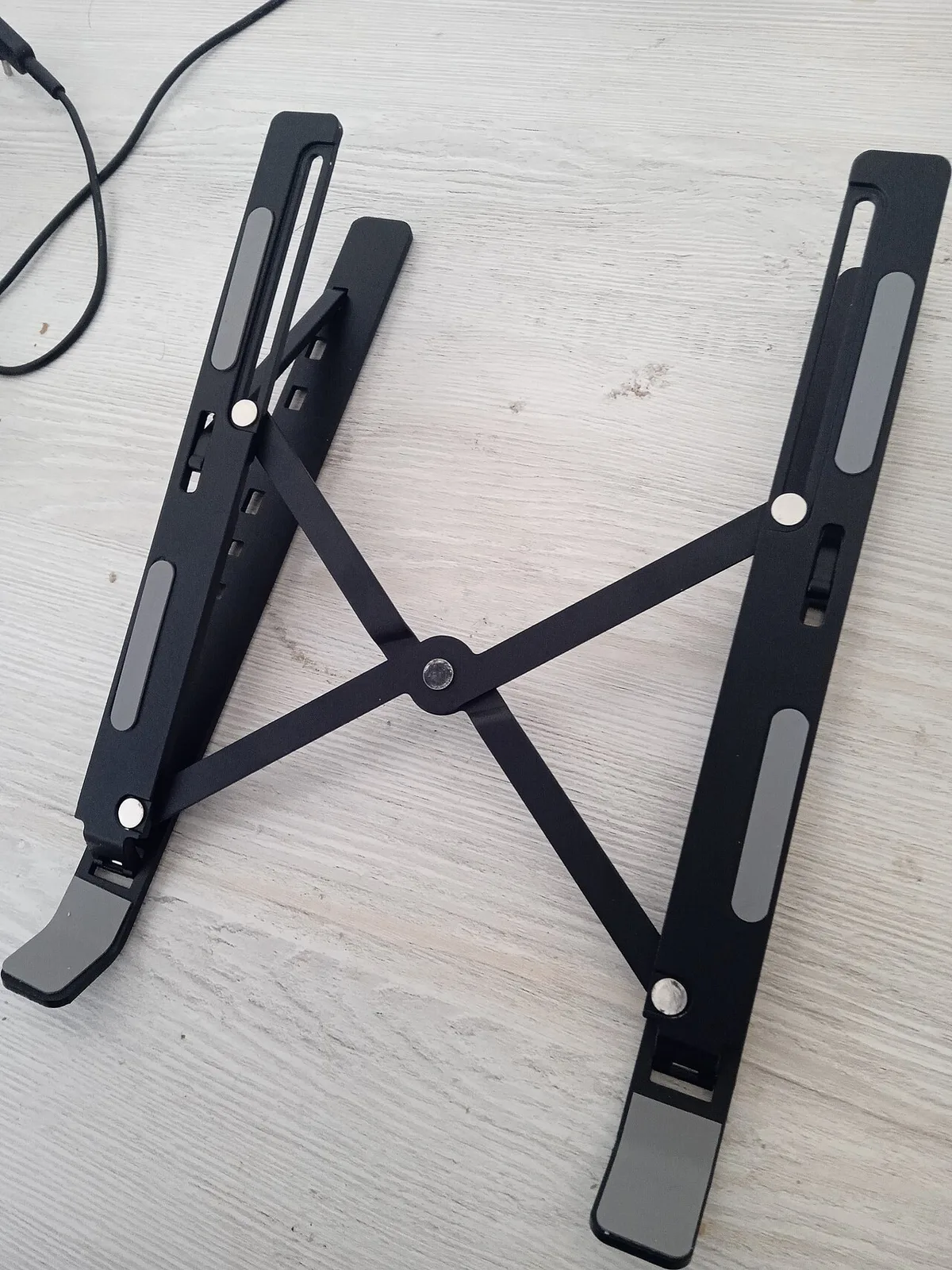
Image source: Wikimedia Commons / Solijon Solayev (CC BY-SA)
| Method | Typical Drop | Cost | Effort | Best For |
|---|---|---|---|---|
| Cooling pad | 2 to 8°C | $20 to $60 | Low | Bottom-intake laptops |
| Laptop stand | 1 to 3°C | $15 to $40 | Low | Quiet desks |
| Undervolting | 3 to 10°C | Free | Medium | CPU and GPU headroom |
| Repasting | 5 to 15°C | $10 to $30 | High | Older laptops |
| Vacuum cooler | 5 to 12°C | $30 to $80 | Medium | Rear-exhaust models |
Cooling Pad vs. Laptop Stand
A stand lifts the laptop and opens airflow underneath. It's quieter and uses no power. The drop is smaller, but it's enough for light gaming or office work.
Use a stand when noise matters more than raw cooling.
Cooling Pad vs. Undervolting
Undervolting lowers voltage to the CPU or GPU. Less voltage means less heat and less power draw. It's free and often beats a pad.
If you're comfortable with software like ThrottleStop or MSI Afterburner, try this first.
Cooling Pad vs. Repasting
Repasting replaces the dried thermal paste between the chip and heatsink. It's the biggest fix for older laptops. It requires opening the laptop, which can void warranty.
Do it only if the laptop is out of warranty and running hot at idle.
Cooling Pad vs. Vacuum Cooler
A vacuum cooler sticks to the exhaust vent and pulls hot air out. It helps rear-exhaust laptops where a pad can't. It's louder and costs more.
Use it when the exhaust is the bottleneck, not the intake.
Manufacturer specs from Intel and AMD list the thermal limits for each chip. Knowing those limits helps you judge whether a fix is worth the effort. If you want to go beyond hardware, custom fan curves can squeeze out more cooling.
Mistakes That Waste Your Money or Make Things Worse
Most cooling pad failures come from buying before checking. The pad isn't always the problem. The setup is.
Avoid these common errors and you'll save money and frustration.
- Buying before checking vent placement. A pad with fans in the wrong spots does nothing.
- Blocking exhaust vents. This traps heat and raises temperatures.
- Expecting double-digit drops. Real gains are 2 to 8 degrees. Anything more is rare.
- Ignoring degraded thermal paste. A pad can't fix a dried-out thermal layer.
- Using the pad on a soft surface. It still blocks airflow even with fans running.
- Never cleaning the dust filter. Clogged filters choke airflow over time.
If temps stay high after a pad, check the fast cooling fixes before buying more gear.
Pro Tips for Getting the Biggest Temperature Drop
Small tweaks stack up. Combine a few and you'll see better results than any single fix alone. These tips come from aggregate user feedback and manufacturer guidance.
- Elevate and align. Raise the laptop and match fans to intake vents.
- Clean dust filters and vents regularly. Do it every few months.
- Combine with undervolting. A pad plus lower voltage beats either alone.
- Monitor with the right tools. Use HWMonitor, MSI Afterburner, or Core Temp.
- Keep the room cool. Ambient temperature sets the floor for everything.
- Check safe CPU temps and safe GPU temps so you know what you're chasing.
If you notice signs of throttling, act early. Throttling means the system is already protecting itself.
Real-World Scenarios: When It Helps vs. When It Doesn't
Real outcomes vary. Here are four common setups and what to expect from each. Use these as a quick if-then guide before you buy.
Scenario 1: Bottom-Intake Gaming Laptop on a Desk
If the laptop has bottom intake vents and the pad's fans align, expect a 3 to 6 degree drop. This is the best case. The pad feeds cooler air straight into the cooling system.
Frame rates stay more stable during long sessions.
Scenario 2: Side-Exhaust Laptop With Bottom Vents
If air intakes from the bottom and exhausts from the sides, a pad can still help. Expect a smaller drop, around 2 to 4 degrees. Keep the pad clear of side vents.
Partial alignment is better than none.
Scenario 3: Rear-Exhaust-Only Laptop
If the laptop vents only from the rear, a cooling pad won't help much. The intakes are usually on the sides or bottom rear. A pad that covers the bottom can block exhaust or push air nowhere useful.
Try a vacuum cooler or undervolting instead.
Scenario 4: Gaming on a Bed or Couch
If you game on soft surfaces, a pad helps even if fan alignment is imperfect. Lifting the laptop off the fabric restores airflow. The drop can be 4 to 8 degrees just from fixing the surface problem.
A simple stand often does the same job for less.
Frequently Asked Questions
Do cooling pads work for all gaming laptops?
No. They help most when the laptop has bottom intake vents and the pad's fans align with them. Laptops that vent only from the rear or sides see little to no benefit.
Check your vent layout before buying.
How many degrees can a cooling pad drop?
Expect 2 to 8 degrees Celsius under sustained load. Larger drops usually mean the laptop was on a soft surface before. Manufacturer claims of 10 to 15 degrees are optimistic and rare in real use.
Are expensive cooling pads worth it?
Sometimes. Higher prices buy better fan alignment, quieter operation, and sturdier builds. A $25 pad with well-placed fans beats a $60 pad with misaligned ones.
Match the pad to your vents first, then compare features.
Can a cooling pad damage my laptop?
Not if used correctly. The risk comes from blocking exhaust vents or overloading a USB port. Keep exhausts clear and don't chain too many devices off one port.
Follow the laptop maker's power guidance.
Should I use a cooling pad and undervolt together?
Yes. They address different parts of the problem. The pad improves airflow.
Undervolting reduces heat at the source. Together they often deliver the biggest stable drop without opening the laptop.
2 thoughts on “Can a Cooling Pad Lower Gaming Laptop Temps?”
Comments are closed.