If you want to know how to improve gaming laptop cooling, start with airflow and heat transfer, not gimmicks. Most heat problems come from blocked vents, dust, dried thermal paste, or power settings that push the CPU and GPU too hard. Fixing those basics often lowers temperatures more than buying accessories.
Manufacturer specifications indicate many gaming CPUs and GPUs begin thermal throttling near 95 to 100 degrees Celsius under sustained load. That means your frame rate can drop even when the laptop looks fine on the outside. As of 2026, the safest approach is still a layered one: clean, elevate, tune, then open the chassis only if needed.
how to improve gaming laptop cooling
Clean vents and fans first. Elevate the laptop for airflow. Use a cooling pad with bottom intake.
Tune power limits and fan curves. Repaste only if temps stay high.
Why Gaming Laptops Overheat Faster Than You Expect
Gaming laptops pack desktop-level power into a thin chassis. That design leaves little room for large heatsinks or wide airflow paths.
Heat comes from three main places. The CPU, the GPU, and the power delivery parts around them. All three can heat the keyboard deck and palm rest.
Ambient room temperature matters too. A laptop in a 28 degree Celsius room starts much closer to its thermal limit than one in a 20 degree room.
Dust makes it worse. Over time, dust mats against heatsink fins and fan blades. That reduces airflow and raises temperatures.
Beds and couches are common culprits. Soft surfaces block bottom intakes. The fans then pull warm air back into the chassis.
The Quick Wins That Fix Cooling Before You Open the Case
Start with the easy wins. These take minutes and carry little risk.
- Place the laptop on a hard, flat surface.
- Keep at least a few inches of space behind and beside it.
- Clean exterior vents with compressed air.
- Raise the rear edge with a stand.
- Lower screen brightness if the chassis runs hot.
- Close background apps before gaming.
A cooling pad can help, but only if it matches the vent layout. Bottom-intake pads help laptops with bottom vents. Side-intake designs may not help much.
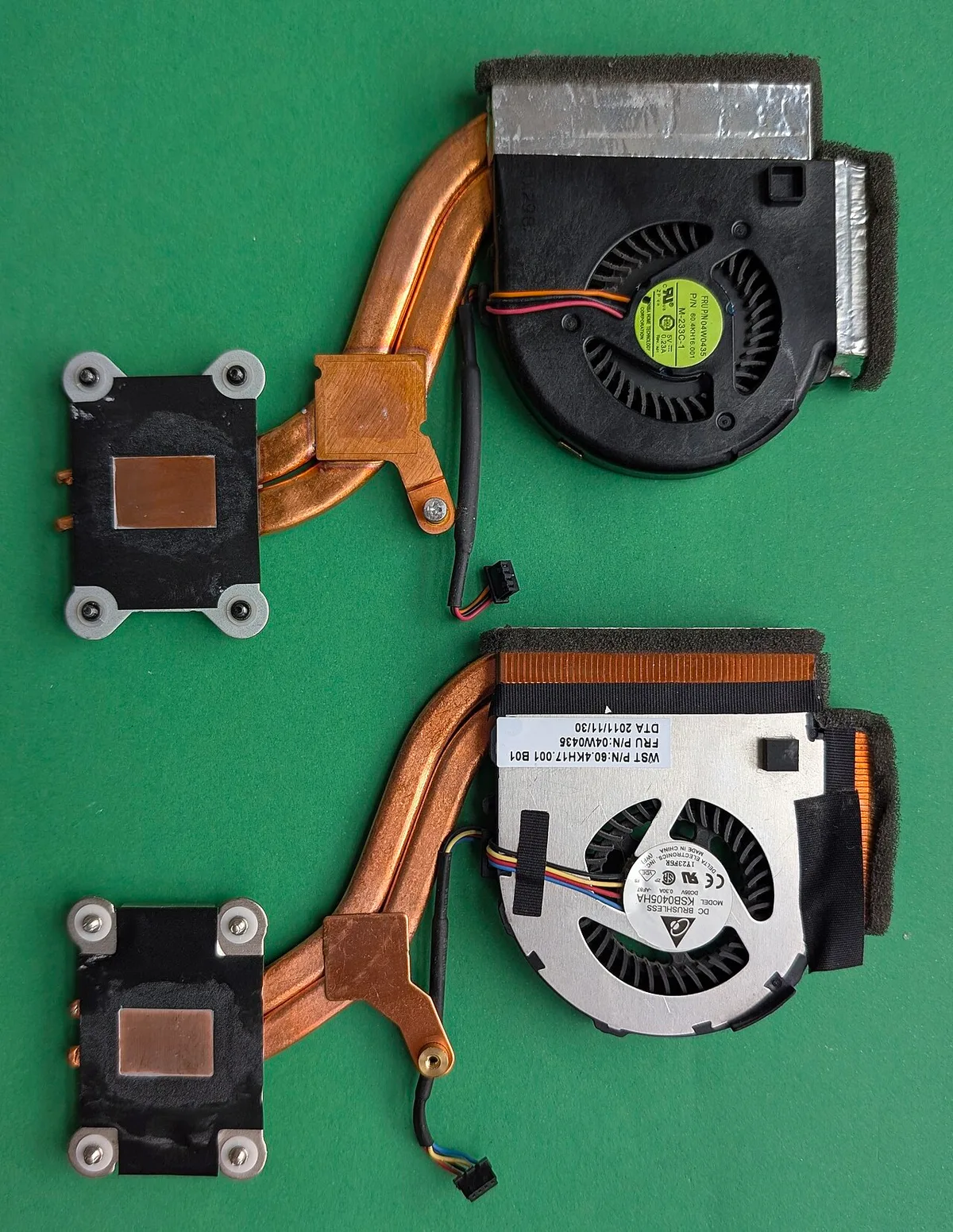
Image source: Wikimedia Commons / Siarhei V (CC BY-SA)
Fan behavior also matters. Many laptops run quiet until load spikes. Then fans ramp late and temperatures climb fast.
Use the OEM control app to set a balanced or performance fan profile before gaming.
If you also tune storage or memory later, check storage upgrades and memory upgrades while the chassis is already open.
What Actually Drives Laptop Temperatures: CPU, GPU, and Thermal Design
The CPU and GPU generate most of the heat. Thermal design power, or TDP for CPUs and TGP for GPUs, tells you how much heat the cooling system must move.
A 45 watt CPU and 115 watt GPU can produce a lot of heat in a small space. The heatsink must move that heat to the fins, then fans must push air through them.
Thermal paste sits between the chip and heatsink. It fills tiny gaps and improves heat transfer. Old paste dries, pumps out, or loses contact pressure.
Thermal pads handle VRAM and voltage regulator modules. These parts do not always touch the heatsink well. Wrong pad thickness can create gaps or pressure points.
Heat pipes and vapor chambers spread heat across the fins. More pipes are not always better. Contact quality and fan airflow matter just as much.
As of 2026, aggregate reviews report that repasting can drop CPU temperatures by a noticeable margin when factory paste was poorly applied. Results vary by model, paste, and application method.
Which Cooling Fix Fits Your Situation: A Decision Branch
Use this simple branch logic before buying tools or opening the laptop.
If temps are high only on a bed or couch, elevate the laptop and clean vents. Do not open it yet.
If temps are high everywhere and fans sound dusty, clean the fans and heatsink fins. Start with exterior cleaning, then consider internal cleaning if safe.
If temps spike early in a game, lower power limits or use an undervolt. Software tuning can reduce heat without hardware changes.
If temps stay high after cleaning and tuning, repaste the CPU and GPU. Check thermal pads at the same time.
If the laptop is still under warranty, prefer software fixes and external airflow. Opening the chassis may void coverage depending on the brand.
If you are unsure about disassembly, stop and use an authorized service center. A cooling fix is not worth damaging the motherboard.
When upgrading other parts, it can help to review RAM slots and dual-channel memory before reassembling.
Step-by-Step Cooling Improvements From Easiest to Most Involved
Follow this order. Each step gives you a chance to stop early.
- Baseline test first. Run a game or stress test for 15 minutes. Record CPU and GPU temperatures.
- Clean exterior vents. Use short bursts of compressed air. Keep the fan from spinning too fast.
- Elevate the rear. A stand improves intake and exhaust airflow.
- Add a cooling pad. Match it to bottom or side vents.
- Set fan curves. Use OEM software or a trusted tuning tool.
- Undervolt the CPU or GPU. Start small and test stability.
- Lower power limits. Reduce sustained heat while keeping playable performance.
- Clean internally. Remove dust from fans and heatsink fins.
- Repaste the CPU and GPU. Use the correct amount and pressure.
- Replace thermal pads. Match thickness to the original spec.
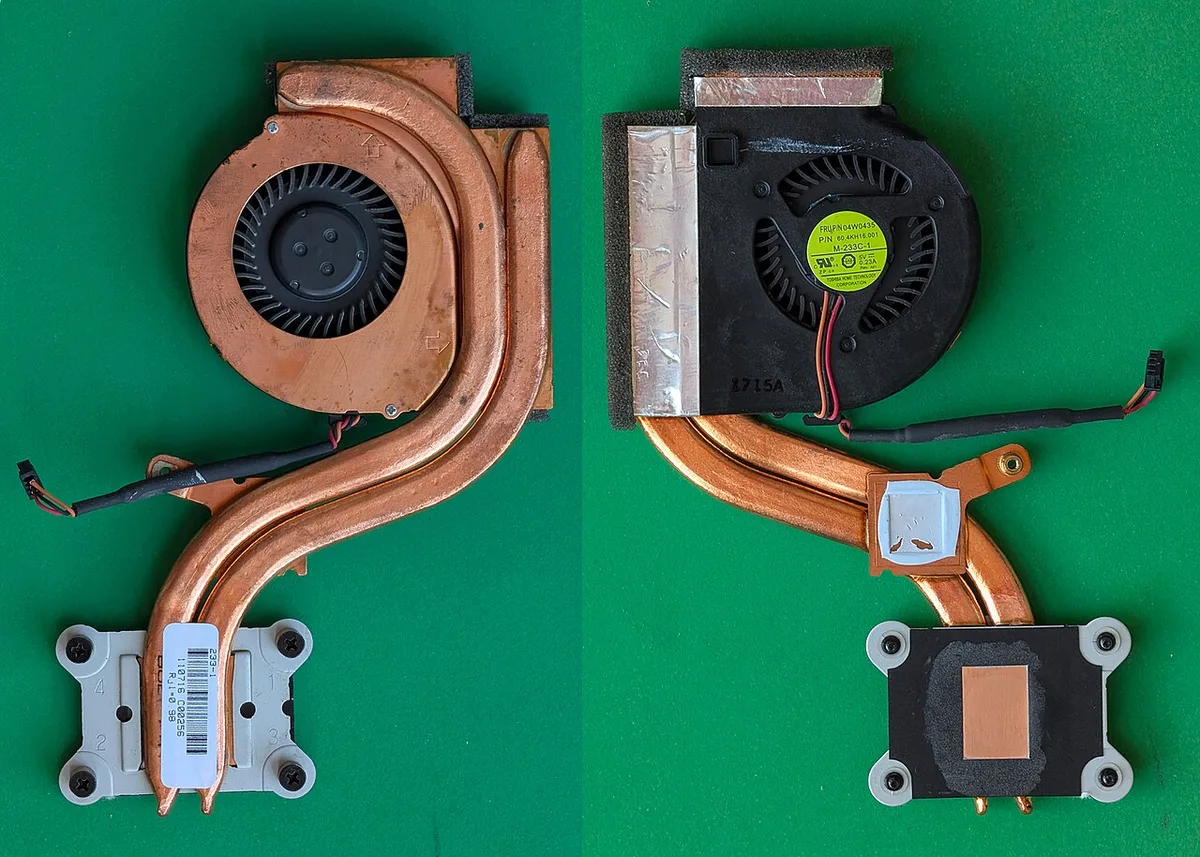
Image source: Wikimedia Commons / Siarhei Besarab (CC BY-SA)
After each change, test again. Compare temperatures, fan noise, and frame rate stability. Do not change five things at once.
If something goes wrong, you will not know which step caused it.
For official thermal limits and cooling guidance, check Intel and AMD specifications for your exact processor. OEM service manuals are also the safest source for disassembly steps.
Software Tuning That Actually Works: Undervolting, Power Limits, and Fan Curves
Software tuning can drop temperatures without touching hardware. It works by reducing voltage or power draw while keeping performance stable.
Undervolting lowers the voltage sent to the CPU or GPU. Less voltage means less heat and often less fan noise. Start small, around 50 millivolts, and test stability with a stress test.
Power limits cap sustained wattage. Lowering PL1 or TGP reduces heat buildup during long sessions. You may lose a few percent of peak performance, but frame rate stability often improves.
Fan curves control when fans speed up. Set them to ramp earlier and more gradually. This prevents sudden temperature spikes.
Use trusted tools for each brand. Intel Extreme Tuning Utility works for many Intel CPUs. AMD Ryzen Master handles Ryzen chips.
MSI Afterburner covers most GPUs. OEM apps like Armoury Crate or MSI Center also work well.
Test after every change. Run a 15 to 20 minute stress test. Watch for crashes, freezes, or clock drops.
If stable, save the profile.
Avoid stacking changes at once. Undervolt first. Then adjust power limits.
Then tune fans. This keeps troubleshooting simple.
Thermal Paste vs Liquid Metal vs Pads: Choosing the Right Material
The right thermal material depends on your skill level and laptop design. Each option has tradeoffs.
Standard thermal paste is the safest choice. It is easy to apply and forgiving. Most users should stick with it.
Liquid metal conducts heat better. It can drop temperatures several degrees more than paste. But it is electrically conductive and risky.
It can short components if it migrates. Only experienced users should consider it.
Thermal pads handle VRAM and VRMs. They come in thicknesses like 0.5mm, 1.0mm, and 1.5mm. Match the original thickness exactly.
Too thick creates pressure. Too thin leaves gaps.
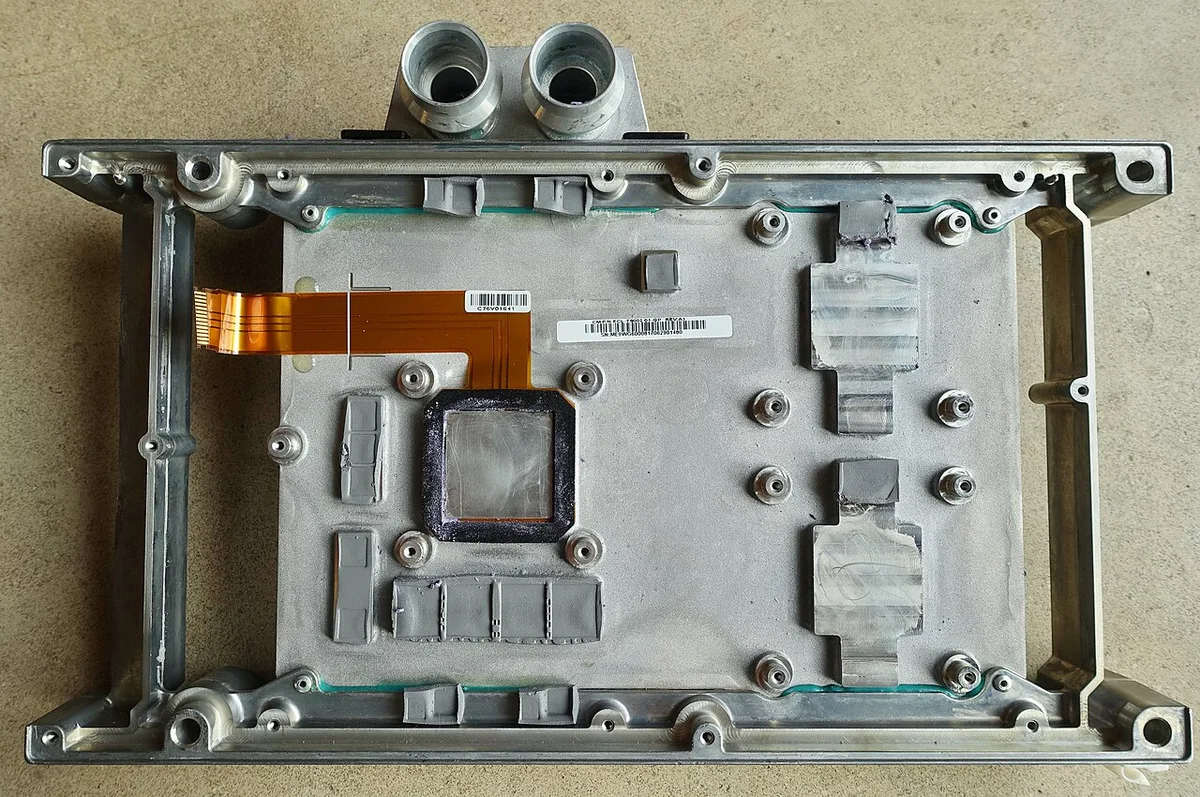
Image source: Wikimedia Commons / Steve Jurvetson from Los Altos, USA (CC BY)
Paste quality varies. Look for thermal conductivity ratings above 8 W/mK for good performance. Higher numbers help, but application technique matters more than brand.
When repasting, clean old paste fully with isopropyl alcohol. Apply a small amount, about the size of a grain of rice. Let the heatsink pressure spread it evenly.
Do not use too much. Excess paste can ooze onto surrounding components.
If you are also upgrading storage or memory during the same teardown, review SSD upgrade steps and RAM speed checks before reassembling.
Common Cooling Mistakes That Make Heat Worse
Some fixes actually increase temperatures. Avoid these common errors.
- Using too much thermal paste
- Blocking vents with stickers or skins
- Running the laptop on soft surfaces
- Ignoring dust buildup for months
- Setting fans to minimum speed
- Applying liquid metal without insulation
- Skipping stress tests after changes
- Using the wrong thermal pad thickness
Over-pasting is the most common mistake. Extra paste acts as an insulator, not a conductor. It traps heat instead of moving it.
Blocking vents is easy to overlook. Laptop skins, stickers, or dust covers can restrict airflow. Check all intake and exhaust points.
Soft surfaces like beds and couches choke bottom intakes. Always use a hard surface or a stand. Even a thin book can help in a pinch.
Another mistake is tuning without testing. A stable undervolt on one laptop may crash another. Always validate with a real workload.
Ignoring dust is also costly. Dust mats on heatsink fins over time. Even a thin layer reduces airflow significantly.
Clean every few months if you game daily.
Safety, Warranty, and When to Stop DIY
Safety comes first. Lithium batteries can puncture or catch fire if mishandled. Disconnect the battery before internal work when possible.
Electrostatic discharge can damage components. Use an anti-static strap or ground yourself before touching internals.
Liquid metal requires special care. It is electrically conductive. Insulate surrounding components with tape or liquid metal barriers.
Never use it near exposed capacitors.
Warranty terms vary by brand. Some manufacturers allow RAM and SSD upgrades without voiding coverage. Others may void warranty for any chassis opening.
Check your service manual before starting.
Stop DIY if you encounter any of these:
- Stripped screws
- Cracked heatsink mounts
- Battery swelling
- Unknown connector types
- Liquid metal near exposed circuits
If the laptop is under warranty and running hot, contact the manufacturer first. Many brands will service cooling issues at no cost. Use authorized service centers for complex repairs.
For official safety standards on electrical accessories, refer to UL guidelines. OEM service manuals remain the most reliable source for model-specific disassembly.
Frequently Asked Questions
Does a cooling pad actually work for gaming laptops?
Yes, but results vary. Cooling pads help most when they align with bottom intake vents. They can drop temperatures by a few degrees.
They will not fix bad internal cooling or dried thermal paste.
How often should I repaste a gaming laptop?
Every two to three years is reasonable for most users. Heavy daily gaming may require more frequent repasting. Watch for rising temperatures as a signal.
Is undervolting safe for my gaming laptop?
Undervolting is generally safe when done carefully. It reduces voltage, not increases it. Start small and test stability.
Avoid extreme offsets that cause crashes.
Can I use liquid metal on any gaming laptop?
No. Liquid metal is risky and not recommended for most users. It is electrically conductive and can damage components.
Only experienced users with proper insulation should attempt it.
Why is my gaming laptop still hot after cleaning?
Dust may remain inside the heatsink. Thermal paste may be dried out. Power limits might be too high.
Or the room temperature may be too warm. Try repasting and lowering power limits next.
Should I disable turbo boost to reduce heat?
Disabling turbo boost lowers temperatures but also reduces performance. It is a good option for casual gaming or quiet operation. For competitive play, tuning power limits is usually better.