How to fix a gaming laptop keyboard not working starts with one question: is the fault full, partial, or intermittent? That answer tells you whether to check software first or open the chassis.
Manufacturer service manuals show that many failures trace to driver conflicts, loose ribbon cables, or debris under keycaps. As of 2026, most OEM replacement keyboards cost $30 to $120, so careful diagnosis matters. This guide stays focused on diagnosis and safe repair steps.
how to fix a gaming laptop keyboard not working
Test the keyboard in BIOS and with an external USB keyboard. If it works in BIOS but not Windows, reinstall HID drivers and remove conflicting software. If it fails in BIOS, reseat the ribbon cable and clean contacts.
Replace the keyboard only after those checks.
Why Gaming Laptop Keyboards Fail by Symptom Pattern
A dead keyboard is not one problem. It is a symptom cluster.
- Every key is dead: check power, driver, and the ribbon cable.
- One row or column is dead: suspect a matrix line or cable damage.
- A few keys chatter or repeat: look for debris, worn contacts, or software debounce issues.
- RGB lights work but no input registers: the backlight circuit is fine, but the key matrix is not.
- It works in BIOS but not Windows: treat it as a software or driver fault first.
If you need a broader diagnostic path, our guide on diagnosing laptop hardware problems covers the same isolation mindset.
How the Key Matrix, Ribbon Cable, and Embedded Controller Work
The keyboard is a grid. Each key sits at the crossing of a row wire and a column wire. Pressing a key closes that crossing, and the keyboard controller reads the grid.
The ribbon cable carries those signals to the motherboard. It is thin, so it can loosen after heat, vibration, or chassis work.
The Embedded Controller, or EC, translates key presses into standard USB Human Interface Device, or HID, signals. The USB Implementers Forum defines the HID class that Windows uses.
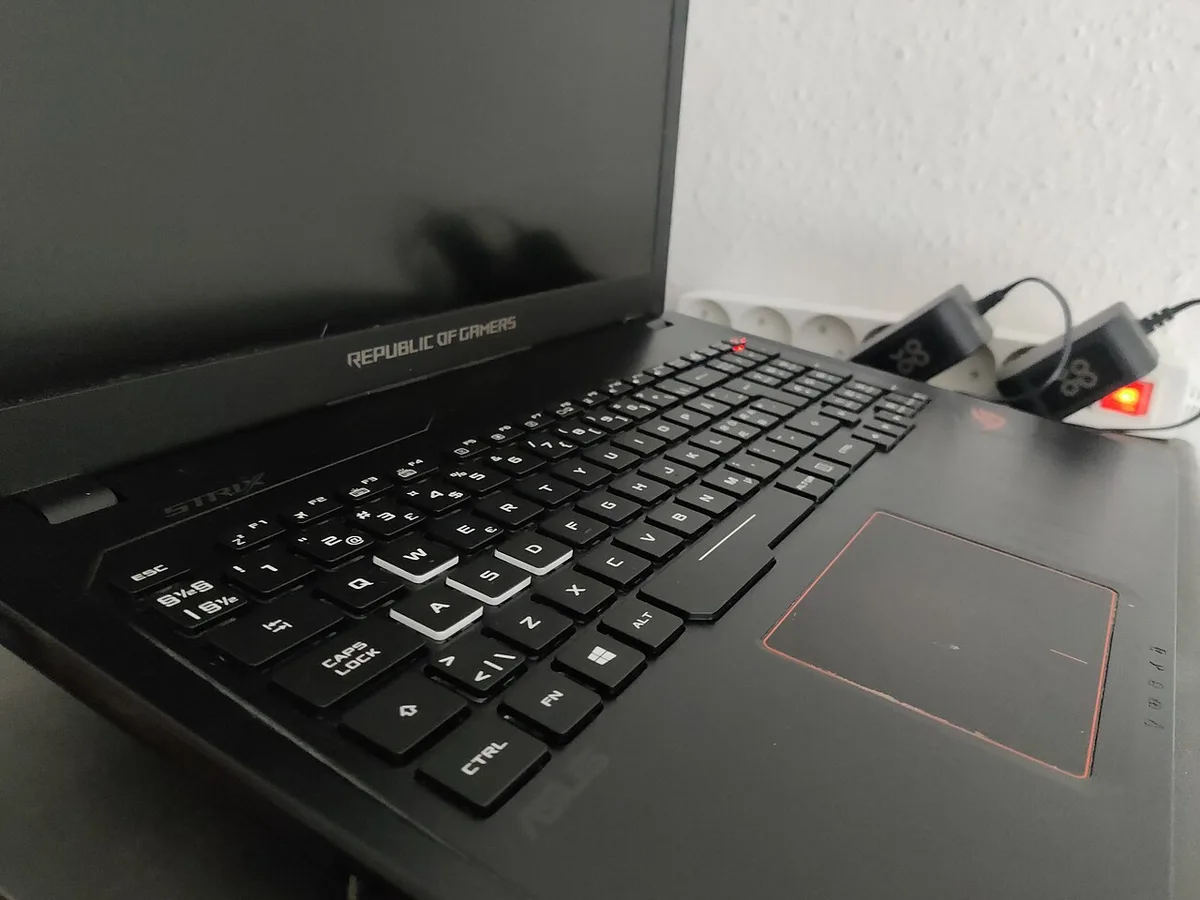
Image source: Wikimedia Commons / .mw-parser-output .template-designermadsen-source{border:1px solid #a2a9b1;background-color:#f8f9fa;display:grid;padding-left:4em;padding-right:4em;grid-template-columns:1fr 8fr;grid-template-rows:1fr;grid-column-gap:4em}.mw-parser-output .tdm-flex-container-center{width:100%;margin:0px;padding:0px;display:flex;justify-content:center;flex-direction:row}.mw-parser-output .template-designermadsen-source .tdm-avatar{display:flex;justify-content:center;flex-wrap:wrap;flex-direction:column;width:100%;margin-top:1em;margin-bottom:1em}.mw-parser-output .template-designermadsen-source .tdm-avatar img{border:1px solid #a2a9b1;padding:0.25em 0.25em}.mw-parser-output .template-designermadsen-source .tdm-attributes{width:100%;display:flex;flex-direction:column;justify-content:center;margin-top:1em;margin-bottom:1em}.mw-parser-output .template-designermadsen-source .tdm-attributes p{width:100%;margin-top:0.5em;margin-bottom:0.5em}@media only screen and (max-width:764px){.mw-parser-output .template-designermadsen-source{grid-template-columns:1fr;grid-template-rows:1fr 1fr;grid-column-gap:0px}.mw-parser-output .template-designermadsen-source .tdm-avatar{}.mw-parser-output .template-designermadsen-source .tdm-attributes{justify-content:center;text-align:center}} Author: Kent Madsen Designermadsen Flickr Deviantart (CC BY-SA)
The 60-Second Triage: Software or Hardware?
Start with isolation. Do not open the laptop yet.
- Plug in an external USB keyboard.
- Restart and enter BIOS or UEFI.
- Test keys in BIOS.
- Boot Windows and test again.
- Boot Safe Mode and test again.
| Test result | Most likely cause | First action |
|---|---|---|
| Works in BIOS, fails in Windows | Driver, software, or Fast Startup | Reinstall HID driver |
| Fails in BIOS too | Hardware, cable, or EC | Reseat ribbon cable |
| External keyboard works everywhere | Internal keyboard path only | Inspect internal hardware |
If the keyboard works in BIOS, do not replace parts yet. Save the hardware branch for later.
Software Fixes for Driver, Firmware, and Fast Startup Problems
Start with the least invasive fixes. Back up important files first, especially before firmware work. Our guide on backing up before repair is a good preflight step.
Reinstall or Roll Back the HID Keyboard Driver
Open Device Manager and expand Keyboards. Uninstall the HID Keyboard Device, then restart. Windows will reinstall it automatically.
If the issue started after an update, roll back the driver instead. Use the manufacturer's driver page when possible.
Remove Conflicting Keyboard Software
Gaming laptops often run Armoury Crate, Razer Synapse, or Corsair iCUE. These can grab keyboard control and break standard input.
Uninstall or pause them, then test again. If you want help understanding that software, see our guide on using manufacturer control software.
Disable Windows Fast Startup and Reset the Embedded Controller
Fast Startup can leave the keyboard controller in a bad state. Disable it in power settings, then shut down fully.
For an EC reset, disconnect power and the battery if possible, then hold the power button for 30 to 60 seconds. Reconnect and test.
If firmware seems suspect, follow safe update steps in our guide on updating BIOS safely.
Hardware Fixes: Cleaning, Reseating, and Replacing Parts
Only open the chassis after software checks fail. Power down, unplug, and disconnect the battery first.

Image source: Wikimedia Commons / Wikimedia Commons contributor
Safety Steps Before Opening the Chassis
Use an anti-static wrist strap if you have one. Work on a grounded, clean surface. Keep screws sorted by location.
If you see a swollen battery, stop and seek service. Do not puncture it.
Clean Debris and Sticky Keys With Compressed Air and IPA
Remove keycaps with a puller if your model allows it. Use short angled bursts of compressed air. Do not tilt the can too far, because liquid propellant can damage contacts.
For sticky residue, use 90 percent or higher isopropyl alcohol on a cotton swab. Let it dry fully before testing.
Reseat the Ribbon Cable and Inspect for Corrosion
Open the keyboard connector latch gently. Remove the ribbon cable, inspect it for tears, then reseat it fully and lock the latch.
Look for green or white corrosion near the connector. That usually points to liquid damage and may need board-level repair.
Replace the Keyboard or Individual Switches
Some gaming laptops use hot-swappable switches. Most use a full membrane or scissor-switch keyboard assembly.
Match the OEM part number, not just the laptop model. ANSI, ISO, and JIS layouts differ by region. Expect $30 to $120 for the part and 30 to 90 minutes for careful installation.
DIY Repair vs Authorized Service vs External Keyboard
DIY repair makes sense for debris, sticky keys, loose ribbon cables, and confirmed driver faults. It costs less and keeps your data in place. It also carries the most risk if you skip safety steps.
Authorized service is the better route for liquid damage, swollen batteries, or a laptop still under warranty. Technicians can inspect the motherboard and EC, not just the keyboard.
An external USB keyboard is the fastest stopgap. It does not fix the internal fault, but it keeps you working while you decide. It is also the right fallback for tournament travel or coursework deadlines.
| Option | Best for | Typical cost | Main risk |
|---|---|---|---|
| DIY repair | Debris, cable, driver issues | $0 to $120 | Warranty or ESD damage |
| Authorized service | Liquid damage, complex faults | $80 to $200+ | Turnaround time |
| External keyboard | Temporary use | $15 to $60 | No internal fix |
Before committing to repair, compare the keyboard cost against the whole machine. Our guide on whether repair still makes sense helps frame that call.
Replacement Costs, Part Numbers, and Repair Timeframes
Costs vary by brand and layout. As of 2026, most OEM keyboard assemblies fall between $30 and $120. Labor at a shop often adds $80 to $200 or more.
Timeframes are usually short. A careful DIY replacement often takes 30 to 90 minutes. Mail-in service commonly takes one to two weeks, including shipping.
Always match the part number, not just the model name. Layouts differ. ANSI is common in the US, ISO in much of Europe, and JIS in Japan.
A wrong layout will fit physically but type the wrong symbols.
Use the manufacturer service manual to find the exact part number. Check the cable pitch too. Many gaming laptops use 0.5 mm or 1.0 mm ribbon cables, and they are not interchangeable.
If the keyboard works as a standard HID device in Windows, the fault is less likely to be a protocol issue. The USB Implementers Forum HID specification defines that interface.
Common Mistakes That Turn a Small Keyboard Fault Into a Big One
Most keyboard damage happens during diagnosis, not during normal use. Avoid these errors.
- Opening the chassis before backing up important files.
- Forgetting to disconnect the battery before internal work.
- Forcing the ribbon cable latch instead of lifting it gently.
- Using too much liquid when cleaning contacts.
- Tilting a compressed air can and spraying propellant.
- Mixing screws and stripping threads on reassembly.
- Skipping ESD protection on dry days.
- Replacing the whole keyboard for a single software fault.
- Ignoring corrosion after a spill.
- Buying a keyboard with the wrong regional layout.
If you need a preflight checklist, our guide on backing up before repair covers the first step.
Final Decision Guide Based on Your Symptom Pattern
Use the symptom pattern to choose the next move. Do not jump to replacement first.
- If every key is dead in BIOS, reseat the ribbon cable and inspect for corrosion.
- If it works in BIOS but not Windows, reinstall the HID driver and remove conflicting software.
- If one row or column is dead, inspect the cable and matrix path before replacing parts.
- If keys chatter or repeat, clean the contacts and check debounce settings.
- If RGB lights work but input does not, treat it as a matrix or controller fault.
- If liquid was spilled, power down immediately and seek professional service.
- If the laptop is under warranty, use authorized service before opening it.
- If the part is cheap and the laptop is out of warranty, DIY replacement is reasonable.
- If you need input today, use an external keyboard while you decide.
When the fault points to broader hardware trouble, our guide on diagnosing laptop hardware problems is the next stop.
Frequently Asked Questions About Gaming Laptop Keyboards
How do I know if my gaming laptop keyboard problem is software or hardware?
Test it in BIOS and Safe Mode. If it works there but fails in normal Windows, suspect drivers, software, or Fast Startup. If it fails in BIOS too, suspect the cable, matrix, or controller.
An external keyboard helps confirm which path is broken.
Can I use an external keyboard while fixing the built-in one?
Yes. A USB keyboard works immediately and does not depend on the internal keyboard path. It is a good temporary fix during diagnosis or replacement.
Keep it connected until the internal keyboard passes repeated testing.
How much does it cost to replace a gaming laptop keyboard?
Most OEM parts cost $30 to $120. Professional labor often adds $80 to $200 or more. DIY replacement avoids labor but requires careful disassembly.
Always verify the part number and layout before ordering.
Will opening my laptop void the warranty?
It depends on the brand and region. Some manufacturers allow user upgrades but restrict chassis work. Liquid damage is often excluded regardless.
Check your warranty terms before opening the case, especially on newer systems.
What should I do after a liquid spill on the keyboard?
Power down immediately and unplug the charger. Do not keep testing keys. Disconnect the battery if you can do so safely.
Then seek service, because corrosion can spread beyond the keyboard.
Why does only one row of keys stop working?
A single row or column often points to a broken matrix line or damaged ribbon cable. It can also follow impact or liquid damage. Reseat the cable and inspect for corrosion before replacing the full keyboard.