If you want to know how to check gaming laptop screen color accuracy, start with the panel type, the tools you have, and the kind of games or work you do. A quick visual check can catch a bad tint, but it cannot tell you whether reds, greens, and skin tones are actually correct. The right method depends on whether you need a fast answer or a measured result.
A useful target is Delta E, which measures how far a displayed color is from the intended color. For color-critical work, many professionals aim for an average Delta E below 2, while factory tuning on gaming laptops can land closer to 3 or 4. As of 2026, that gap still matters because HDR modes, wide color gamuts, and Windows color profiles can change what you see from one app to the next.
Why Gaming Laptop Color Accuracy Is Harder to Trust Than It Looks
Gaming laptop screens are built for speed, brightness, and thin designs first. Color accuracy is often a secondary goal, even on expensive models. That is why two laptops with the same panel name can look slightly different out of the box.
Panel lottery is the first issue. Manufacturers source panels from multiple suppliers, and tuning can vary by batch. One unit may look balanced while another leans cool or warm.
Factory calibration is the second issue. Some laptops ship with a color profile already applied. Others rely on generic settings and leave the panel close to its raw state.
A wide gamut panel can also look oversaturated in SDR games unless it is clamped to sRGB.
Ambient light and viewing angle matter too. A glossy screen can boost perceived contrast in a dark room. An IPS panel can shift color when viewed from the side.
These effects are real, but they are not the same as panel inaccuracy.
If you are comparing hardware while troubleshooting, it helps to keep the whole system in mind. Color checks pair well with tasks like checking memory speed or finding open memory slots, because both affect how a laptop performs and feels in daily use.
What Decides How You Should Test Your Panel
The best test path depends on five conditions. Use these as a simple decision tree.
- If you only want to know whether the screen looks acceptable, use a free visual test and Windows settings.
- If you edit photos, video, or game assets, use a colorimeter and create an ICC profile.
- If you play HDR games, test both SDR and HDR separately.
- If the laptop has an OLED or mini-LED panel, expect stronger contrast and different white point behavior.
- If you return laptops often, measure before the return window closes.
Panel type is the biggest variable. IPS panels usually have stable angles and good sRGB coverage. OLED panels offer deep blacks but can shift white point at low brightness.
Mini-LED can be bright and contrasty, but local dimming may affect uniformity.
Your goal also matters. Competitive players may care more about motion clarity and response time. Creators need predictable color.
Casual players may only want a screen that is not tinted or washed out.
Lighting changes results. Test in the room where you actually use the laptop. A bright desk lamp can hide a warm tint.
A dark room can make a cool panel feel harsh.
Graphics mode can matter as well. On hybrid systems, the active GPU path can affect color handling in some setups. If colors look different after switching graphics modes, that is worth checking alongside your calibration.
Pick Your Path: Visual Check, Colorimeter, or Full Calibration
You have three realistic options. Each one answers a different question.
Visual check
A visual check uses test images, gradients, and real game scenes. It is fast, free, and good for catching obvious problems. It cannot measure Delta E or gamut coverage.
Best for: casual gaming, quick setup, and pre-return screening.
Colorimeter check
A colorimeter measures color patches and reports gamut coverage, gamma, white point, and Delta E. It gives you numbers instead of guesses. It costs money, but it is the most practical route for most users.
Best for: creators, frequent laptop buyers, and anyone who wants reliable results.
Full calibration
Full calibration means measuring the panel, building a profile, and applying it in Windows. It can improve accuracy, but only if the panel has enough native gamut and stable brightness.
Best for: photo editing, video work, and color-critical gaming content.
If you only need a basic check, do not buy hardware yet. If you need repeatable results, a colorimeter is the sensible middle ground. Full calibration is worth it when the laptop is your main editing machine.
How to Run a Free Visual and Software Color Check
Start with the basics before you spend money. This process catches many bad units.
- Update the display driver and Windows.
- Set brightness to a comfortable level, often around 120 to 160 nits for SDR.
- Open Windows Color Management and confirm the active profile makes sense.
- Disable game-level color filters and vendor color modes.
- View test images with gradients, skin tones, and near-black details.
- Check for color shift by tilting the screen and viewing from the side.
- Compare the laptop to a trusted monitor if you have one.
Look for banding in gradients. Look for crushed shadows. Look for a blue, green, or yellow tint in white areas.
A good panel should show smooth transitions and neutral grays.
Test in SDR first. Then test HDR if the laptop supports it. HDR can remap brightness and color, so a good SDR result does not guarantee a good HDR result.
If the screen looks wrong only in one game, check that game's color settings. Some titles have their own gamma sliders, saturation controls, or HDR toggles. Those can override your system profile.
For a broader hardware check, you can also review tasks like switching graphics modes or troubleshooting integrated graphics taking over. Those issues can change brightness, color handling, and which GPU is driving the display.
How to Measure and Fix Color with a Colorimeter
A colorimeter is the most reliable way to move from guessing to measuring. The exact software depends on the device, but the workflow is similar.
- Let the laptop warm up for 20 to 30 minutes.
- Set the panel to its normal brightness.
- Place the colorimeter flat against the screen.
- Run the calibration software and choose a target, such as sRGB or DCI-P3.
- Measure the color patches.
- Review gamma, white point, and Delta E.
- Save and apply the ICC profile.
- Recheck the results after applying the profile.
Warm-up matters because brightness and color can drift when a cold panel first turns on. Ambient light should stay stable during the test. A changing room light can throw off the reading.
Choose the right target. If you play mostly SDR games, sRGB is usually the safer target. If you work with HDR video, DCI-P3 or a wider target may be more relevant.
Do not force a wide gamut panel into a profile that does not match your work.
After calibration, verify the numbers. A good result usually means an average Delta E near or below 2, a gamma close to 2.2, and a white point near 6500K. These are common targets, not universal laws, and manufacturer guidance may differ.
If results are poor, check the profile is actually active. Windows can ignore or replace profiles after updates. Some vendor apps also override color settings.
Reapply the profile and test again.
If you are evaluating a new machine, measure early and keep the report. A saved baseline helps if you need a warranty claim. It also gives you a reference point when Intel Arc graphics in laptops or other hardware variables enter the picture.
What Good Numbers Look Like: Delta E, Gamut, Gamma, and White Point
Delta E measures the distance between the color a panel shows and the color it should show. A lower number means better accuracy. For everyday gaming, an average Delta E below 3 is usually fine.
For color-critical work, aim closer to 1 or 2.
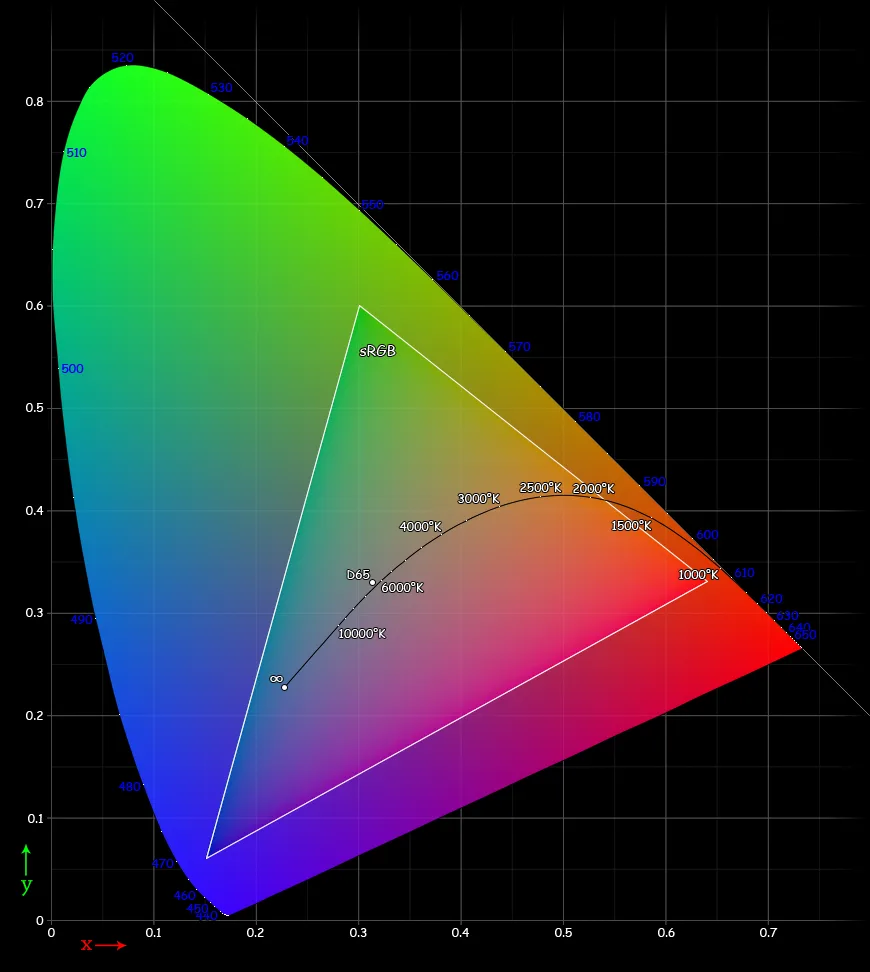
Image source: Wikimedia Commons / Spigget (CC BY-SA)
Color gamut tells you how many colors the panel can display. sRGB is the baseline for most games and web content. DCI-P3 is wider and common for HDR. Adobe RGB is mainly for print and photo work.
Gamma controls how brightness ramps from black to white. A target of 2.2 is standard for most content. If gamma is too high, shadows look crushed.
If it is too low, the image looks washed out.
White point sets the color of pure white. 6500K is the common target for neutral white. A panel that runs at 7500K will look cool and blue. One at 5500K will look warm and yellow.
Here is a quick reference for typical targets:
| Metric | Good for Gaming | Good for Editing | Notes |
|---|---|---|---|
| Average Delta E | Below 3 | Below 2 | Lower is better |
| Gamma | 2.2 | 2.2 | Check near-black detail |
| White point | 6500K | 6500K | D65 standard |
| sRGB coverage | 95%+ | 100% | Most games use sRGB |
| DCI-P3 coverage | 80%+ | 95%+ | Useful for HDR |
One thing to watch: a panel can cover 100% sRGB and still have poor accuracy. Coverage measures range, not precision. Delta E tells you whether the colors land in the right spot inside that range.
If you are also evaluating storage or memory while checking your display, tools like a storage upgrade guide can help you plan the full machine check in one session.
Mistakes That Make Your Color Results Meaningless
Most bad results come from setup errors, not bad panels. Avoid these common mistakes.
- Testing before the panel warms up. Cold panels can read 10 to 15 percent off on brightness and white point.
- Leaving ambient light uncontrolled. A lamp behind you can tint the measurement.
- Using the wrong color target. Testing a wide gamut panel against sRGB without clamping will inflate error numbers.
- Forgetting to check the active ICC profile. Windows sometimes reverts to a generic profile after updates.
- Trusting game settings over system calibration. In-game gamma sliders override your profile.
- Comparing to an uncalibrated monitor. Your reference screen might be the inaccurate one.
- Ignoring panel uniformity. Center readings can look great while corners shift badly.
One more trap: HDR mode. HDR uses a different color pipeline than SDR. A laptop that looks great in SDR can look oversaturated or dim in HDR.
Test both separately.
If your colors look different after switching graphics modes, check whether the active GPU changed. On hybrid systems, the display output path can vary. That connects to broader issues like integrated graphics taking over or hybrid graphics mode behavior.
Final Decision Guide: Which Method Fits You
Use this decision tree to pick your path.
If you only want to know whether the screen looks acceptable, run the free visual check. It takes 15 minutes and costs nothing.
If you edit photos, video, or game assets, buy or borrow a colorimeter. Measure before and after calibration. Keep the report for warranty claims.
If you play HDR games, test both SDR and HDR separately. A good SDR result does not guarantee good HDR.
If you are choosing between laptops before buying, check reviews that include measured Delta E and gamut coverage. Panel lottery means your unit may differ, but measured data gives you a baseline.
If you already own the laptop and suspect a defect, measure it. A saved report is your evidence for a return or warranty claim.
If you are also checking storage or memory while evaluating the machine, resources like how to check RAM speed or whether 16GB is enough can help you assess the full system at once.
Frequently Asked Questions
Can I check color accuracy without a colorimeter?
Yes. Use Windows Color Management, test images, and gradient patterns to spot tints, banding, and crushed shadows. This method is free and fast.
It cannot measure Delta E or gamut coverage, but it catches obvious problems.
What is a good Delta E for a gaming laptop?
An average Delta E below 3 is acceptable for gaming. Below 2 is better for editing. These are common targets, not universal standards, and manufacturer guidance may differ.
Does a 100% sRGB panel mean accurate colors?
No. Coverage measures range, not precision. A panel can display all sRGB colors and still place them in the wrong spots.
Delta E tells you whether the colors are accurate within that range.
Should I calibrate a gaming laptop screen?
Calibrate if you edit content or want consistent results. If you only game casually, a visual check may be enough. Calibration helps most when the panel has enough native gamut and stable brightness.
Why does my screen look different in HDR?
HDR uses a separate color pipeline from SDR. Brightness, gamut, and tone mapping all change. Test HDR on its own and adjust game settings and Windows HDR independently.
How often should I recalibrate?
Recalibrate every 3 to 6 months if you use the laptop for color-critical work. For casual gaming, once after purchase is usually enough unless the screen drifts visibly.