How to check ram and motherboard compatibility starts with the platform, not the kit. You can buy fast memory, but the board and CPU decide what actually runs. A quick spec check saves money and failed boots.
This guide walks through the decision branches that matter.
Manufacturer specifications and QVL lists give the real limits. JEDEC baseline speeds often differ from XMP or EXPO targets. As of 2026, DDR4 and DDR5 platforms are not interchangeable.
We'll show what to verify before you buy.
how to check ram and motherboard compatibility
Check the motherboard's DDR generation first. Match the CPU's supported memory speed. Confirm capacity and slot order in the manual.
Enable XMP or EXPO in BIOS. Test stability with MemTest86.
Why RAM and Motherboard Compatibility Trips People Up
Most mistakes happen because people shop by speed first. The box says 6000 MT/s, so it must be better. But the board may not support that kit at all.
The CPU's memory controller also has limits.
RAM is not like storage. You cannot just plug in any module and expect full speed. The board's chipset, BIOS, and slot layout all matter.
Even two kits with the same speed can behave differently.
Small errors add up fast. Wrong slot population can leave you in single-channel mode. A mixed kit can downclock to the slowest stick.
An old BIOS can fail to train a newer kit.
The fix is simple. Check the platform first, then the memory. That order prevents most buying mistakes.
The Compatibility Variables That Actually Decide the Answer
Start with five variables. DDR generation, CPU support, board QVL, capacity, and slot population. If one is wrong, the kit may not POST.
If two are wrong, troubleshooting gets messy.
Use this quick check before buying.
| Variable | What to verify | Where to check |
|---|---|---|
| DDR generation | DDR4 or DDR5 | Board manual, CPU specs |
| Speed rating | MT/s and XMP/EXPO | QVL, CPU memory support |
| Capacity | Per slot and total | Board manual |
| Population order | Which slots to fill | Board manual |
| Voltage | 1.2V, 1.35V, or 1.4V | RAM label, QVL |
Do not trust the sticker alone. Cross-check the motherboard manual and the CPU's official memory support. For Intel platforms, Intel ARK is a useful starting point.
For AMD, check the processor's memory specifications and AGESA notes.
A matched kit is safer than loose sticks. Kits are tested together for timing and rank. Mixed sticks can work, but they often fall back to slower JEDEC defaults.
Decision Branch: DDR4 vs DDR5 vs Legacy Platform Lock-In
This is the first hard branch. DDR4 and DDR5 use different keying notches. They will not seat in the wrong socket.
So the board decides the generation, not your preference.
If your board has DDR4 slots, buy DDR4. If it has DDR5 slots, buy DDR5. There is no adapter that makes this safe or practical.
Legacy DDR3 belongs to older platforms and should stay there.
Intel's recent mainstream platforms split by generation. Some boards are DDR4-only, while others are DDR5-only. AMD's AM4 platform uses DDR4.
AMD's AM5 platform uses DDR5. That makes platform choice and memory choice a package deal.
Use this if/then logic:
- If the board says DDR5, choose a DDR5 kit.
- If the board says DDR4, choose a DDR4 kit.
- If the CPU and board disagree, follow the board's slot type.
- If you are reusing old RAM, confirm the exact generation first.
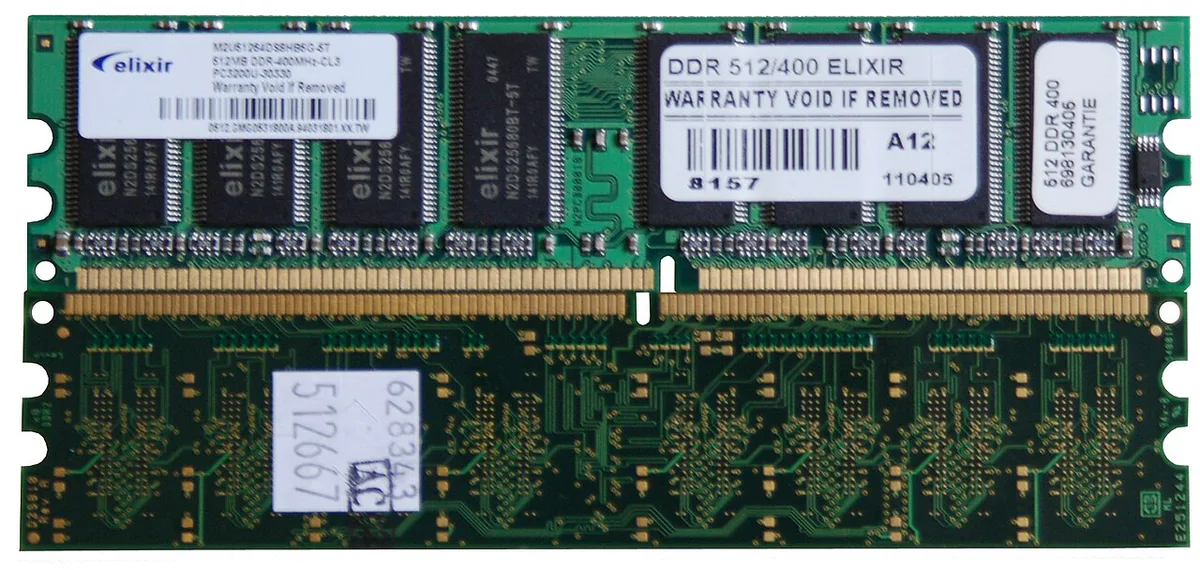
Image source: Wikimedia Commons / Wikimedia Commons contributor (CC BY-SA)
DDR5 is not automatically better for every user. It costs more in many markets and needs a compatible platform. DDR4 can still be the smarter buy for budget builds.
The right choice depends on the socket already on your desk.
Decision Branch: Speed, Latency, and What Your CPU Can Actually Run
Speed is where marketing gets loud. A 7200 MT/s kit sounds amazing. But the CPU's integrated memory controller may not run it cleanly.
The board's QVL matters more than the box.
Speed is measured in MT/s. Latency is measured in CAS latency, such as CL30 or CL36. A lower CL is not always better if the speed is much lower.
Bandwidth and latency work together.
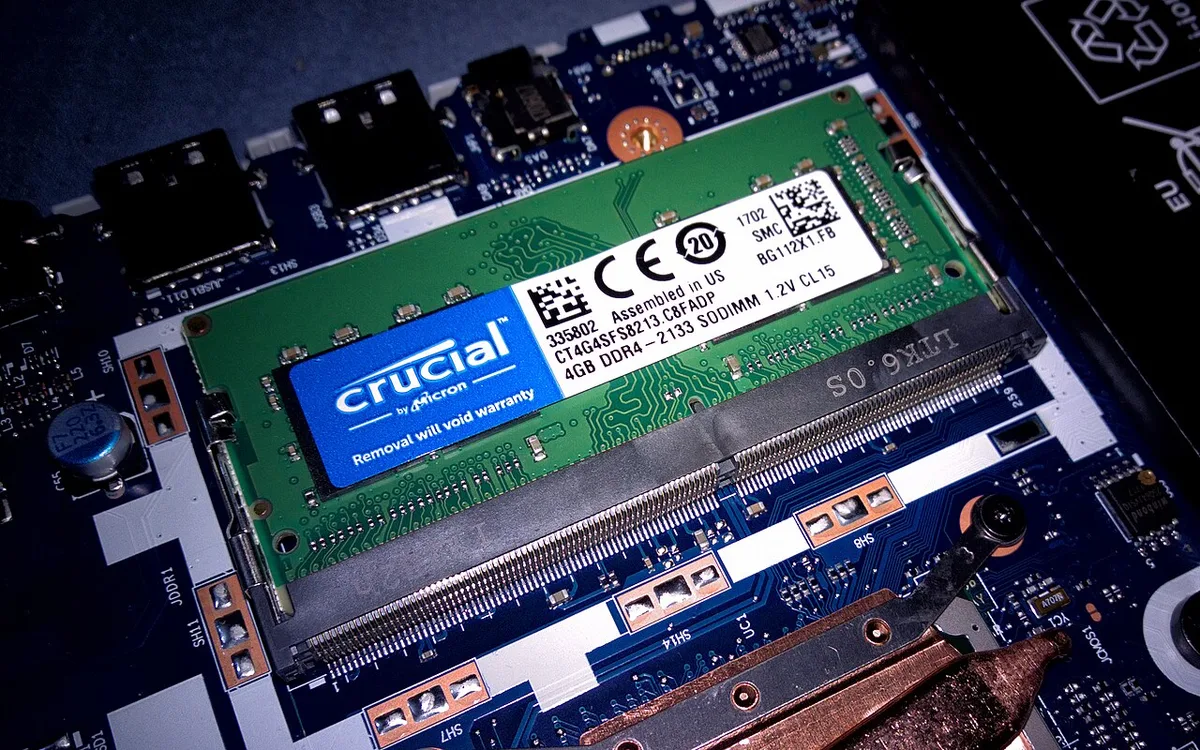
Image source: Wikimedia Commons / Diego Torres Silvestre (CC BY)
Use this branch:
- If the kit is on the QVL, start there.
- If the kit is not on the QVL, check the CPU's max supported speed.
- If you want XMP or EXPO, confirm the profile voltage is supported.
- If the CPU is older or lower tier, favor a modest speed kit.
A practical example helps. A board may list support for DDR5-5600. A 6400 kit might still boot, but only at 5600 unless the CPU and board can train higher.
In real builds, stability matters more than a spec-sheet peak.
For gaming, dual-channel often beats a small speed jump. For content work, capacity and stability usually matter more. For overclocking, expect to test each step by hand.
JEDEC speeds are the safe baseline. XMP and EXPO are overclocked profiles. They are not guaranteed on every CPU and board combination.
Treat them as a target, not a promise.
Decision Branch: Capacity, Channels, and Slot Population Order
Capacity is not just total gigabytes. It is also how the memory is arranged. Two 16GB sticks in dual-channel can outperform one 32GB stick in single-channel.
Most mainstream boards use dual-channel. Some high-end desktops use quad-channel. Laptops usually use two SO-DIMM slots.
Always check the manual's population diagram.
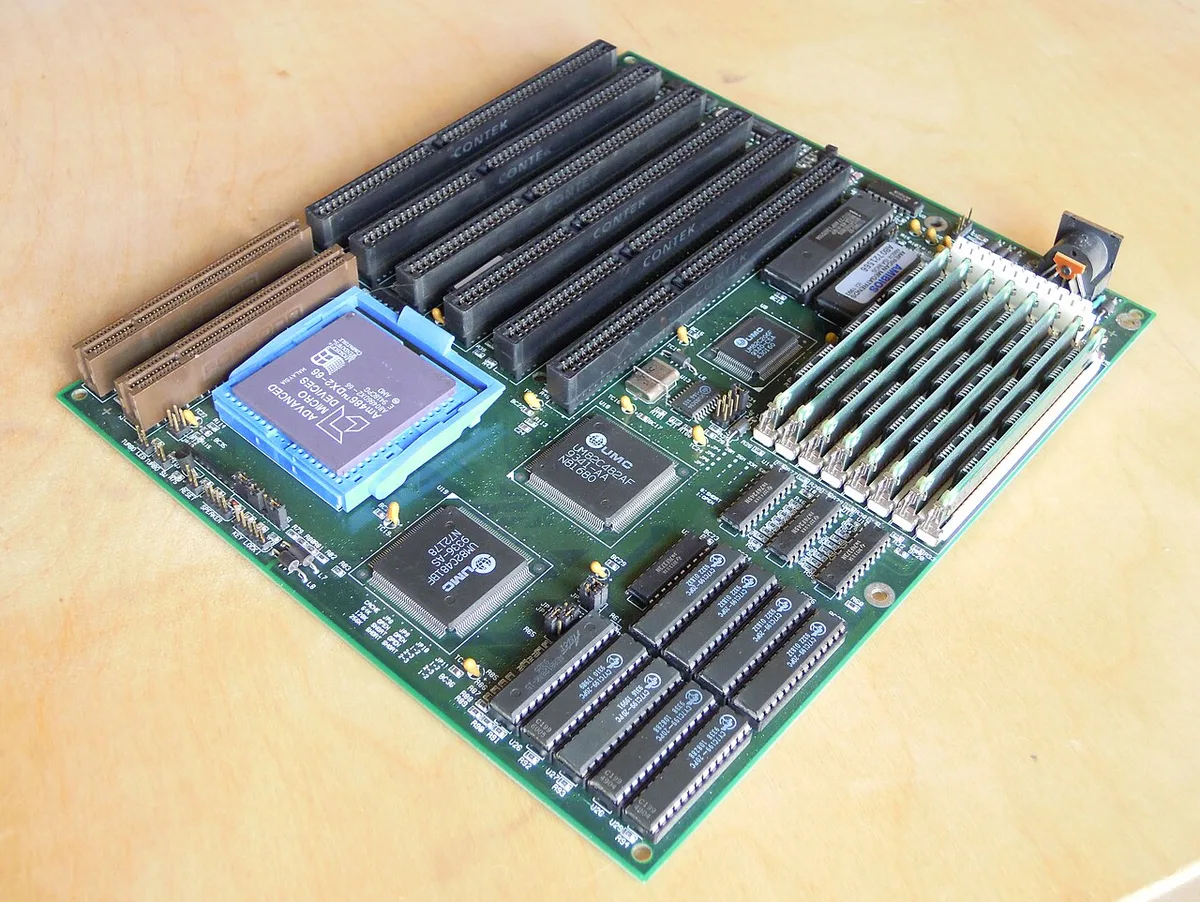
Image source: Wikimedia Commons / AVRS (CC BY-SA)
Follow this order:
- Fill the recommended slots first, often A2 and B2.
- Add a matched kit, not random leftover sticks.
- Keep capacities equal across channels.
- Check max capacity per slot, not just total board support.
Rank matters too. Single-rank and dual-rank kits can behave differently at high speeds. A board may handle one better than the other.
The QVL usually notes this.
If you reuse old RAM, expect limits. Mixing a new kit with an old stick can force slower timings. It can also disable XMP.
For a clean upgrade, replace the whole set.
ECC is another branch. Workstation and server boards may require ECC. Most gaming and consumer boards use non-ECC.
Do not mix ECC and non-ECC. If you are unsure, check the board's supported memory type before buying.
We've also seen builders chase capacity and ignore airflow. High-voltage kits in tight cases can run warm. Good case airflow planning helps keep memory stable during long workloads.
If you are planning a new build, choosing the right case can make RAM cooling and cable routing easier too.
Recommended Actions: The Exact Compatibility Check Workflow
Start with the platform. Then check memory support. Then confirm layout.
This order prevents most bad purchases.
Step 1: Confirm Platform and DDR Generation
Read the motherboard manual first. Find the supported memory type and slot count. Match it to the CPU socket and chipset.
If the board is DDR5, buy DDR5. If it is DDR4, buy DDR4.
If you are reusing old RAM, check the old kit's label. Match the generation exactly. Do not guess from the box size or color.
Step 2: Cross-Check the QVL and CPU Memory Support
The QVL lists kits tested by the board maker. Start there if you want the safest path. Then check the CPU's official memory support.
Intel ARK and AMD product pages are useful starting points.
A kit not on the QVL is not always bad. It may still work at JEDEC speed. But high-speed XMP or EXPO profiles are less predictable.
If you need guaranteed speed, prefer a QVL-listed kit.
Step 3: Verify Capacity, Rank, and Population Order
Check the manual's population diagram. Fill the recommended slots first. Keep capacities equal across channels.
A 2x16GB kit is usually safer than two random 16GB sticks.
Check max capacity per slot. Also check rank support if you are using high-density modules. Some boards handle single-rank kits better at high speed.
Others prefer dual-rank kits.
Step 4: Enable XMP/EXPO and Stress Test
Enter BIOS and enable the memory profile. Save and reboot. If it fails, clear CMOS and try again.
Then run MemTest86 or Windows Memory Diagnostic.
A short test is not enough. Run at least one full pass. If the system crashes during heavy work, drop the speed or tighten the timings.
Good airflow also helps during long tests, so keep case airflow planned before pushing high-speed kits.
Mistakes That Cause No-POST, Downclocking, or Instability
Most failures come from simple checks skipped. Watch for these common errors.
- Buying DDR4 for a DDR5 board, or the reverse.
- Trusting a speed sticker without checking the QVL.
- Mixing kits with different capacities or timings.
- Filling the wrong slots and landing in single-channel mode.
- Forgetting to update BIOS before installing newer RAM.
- Enabling XMP on a CPU that cannot train the profile.
- Reusing old RAM without checking voltage or rank.
- Ignoring heat buildup in cramped cases.
If the system will not POST, remove all but one stick. Test each slot. This isolates a bad module or slot.
If one stick works alone but not together, the kit or population order is likely the problem.
Matched Kit vs Reusing or Mixing Existing RAM
A matched kit is the safer choice. It is tested as a set. Timings, rank, and voltage are aligned.
Reusing old RAM can save money, but it adds risk.
| Option | Best for | Main risk |
|---|---|---|
| Matched kit | New builds, gaming, stability | Higher upfront cost |
| Reused kit | Budget upgrades | Speed fallback or no POST |
| Mixed sticks | Temporary fixes | Downclocking and instability |
If you mix memory, expect the slowest stick to set the pace. The system may also disable XMP. For a clean upgrade, replace the whole set.
If you keep old RAM, test it alone first.
FAQs
Can I use DDR4 RAM in a DDR5 motherboard?
No. The keying notch is different. The module will not seat correctly.
Always match the board's supported generation.
Will XMP always run at the advertised speed?
No. XMP is an overclocked profile. The CPU and board must train it successfully.
If they cannot, the system falls back to JEDEC speed.
Is dual-channel always better than single-channel?
Usually yes for gaming and productivity. Two matched sticks give more bandwidth. One stick can still work, but performance often drops.
Can I mix RAM brands or sizes?
Sometimes, but it is not ideal. Mixed kits often downclock. For best stability, use a matched kit with equal capacity and speed.
Do I need to update BIOS for new RAM?
Often yes. Newer kits may need newer firmware. Check the board maker's support page before installing high-speed memory.
Is ECC worth it for gaming?
No. Most gaming boards use non-ECC memory. ECC matters more for workstations and servers where data integrity is critical.
Final Decision Guide: Pick the Right RAM Without Guessing
If the board is DDR4, buy DDR4. If it is DDR5, buy DDR5. Then check the QVL.
Then match capacity to your workload. Then populate slots in the manual's order.
If you want the safest result, buy a matched kit on the QVL. If you want to save money, reuse only after testing each stick alone. If you want top speed, confirm the CPU can train it before you pay extra.