Figuring out how to check cpu and motherboard compatibility trips up more builders than it should. You match the socket, buy the parts, and then discover the board needs a BIOS update you can't even do without the new CPU installed. It's a frustrating loop, and it's avoidable.
The short version: compatibility is a chain, not a single check. Socket, chipset, BIOS version, VRM capacity, cooler mount, and RAM generation all have to line up. As of 2026, platforms like Intel LGA1700 and AMD AM5 each support multiple CPU generations, but only within specific chipset and firmware limits.
Let's walk through each layer so you can verify a combo before you spend a dollar.
how to check cpu and motherboard compatibility
To check CPU and motherboard compatibility, match the socket first. Then confirm the chipset supports that CPU generation. Verify the required BIOS version.
Check VRM power delivery, cooler mounting, and RAM generation. Always use the motherboard manufacturer's CPU support list. Never rely on the socket alone.
Why CPU and Motherboard Compatibility Is Trickier Than It Looks
Socket matching is where most people stop. It's also where most compatibility mistakes start. Two parts can share a socket and still refuse to work together.
The reason is that a socket is just a physical connection. It defines pin layout and mounting holes. It says nothing about whether the motherboard's chipset can talk to that CPU generation, or whether the firmware knows the CPU exists.
OEM boards add another trap. A Dell or HP motherboard may use a standard socket, but the BIOS is locked down. You might drop in a compatible CPU and get nothing but a black screen.
VRM capacity is the silent killer. A low-end board can physically accept a high-end CPU. Under sustained load, the voltage regulator modules overheat and throttle the chip.
The system runs, but performance craters.
Cooler mounting catches people too. Intel switched socket dimensions between LGA1700 and LGA1851. AMD moved from AM4 to AM5.
Your old cooler bracket may not fit even when the socket name sounds familiar.
Then there's the BIOS chicken-and-egg problem. You buy a new CPU that needs a newer BIOS. The board won't POST with the new CPU to let you update it.
Some boards solve this with BIOS Flashback. Many don't.
The takeaway is simple. Compatibility is a checklist, not a glance. Every layer has to pass, or the build fails.
The Short Answer: Match the Socket, Then Check Everything Else
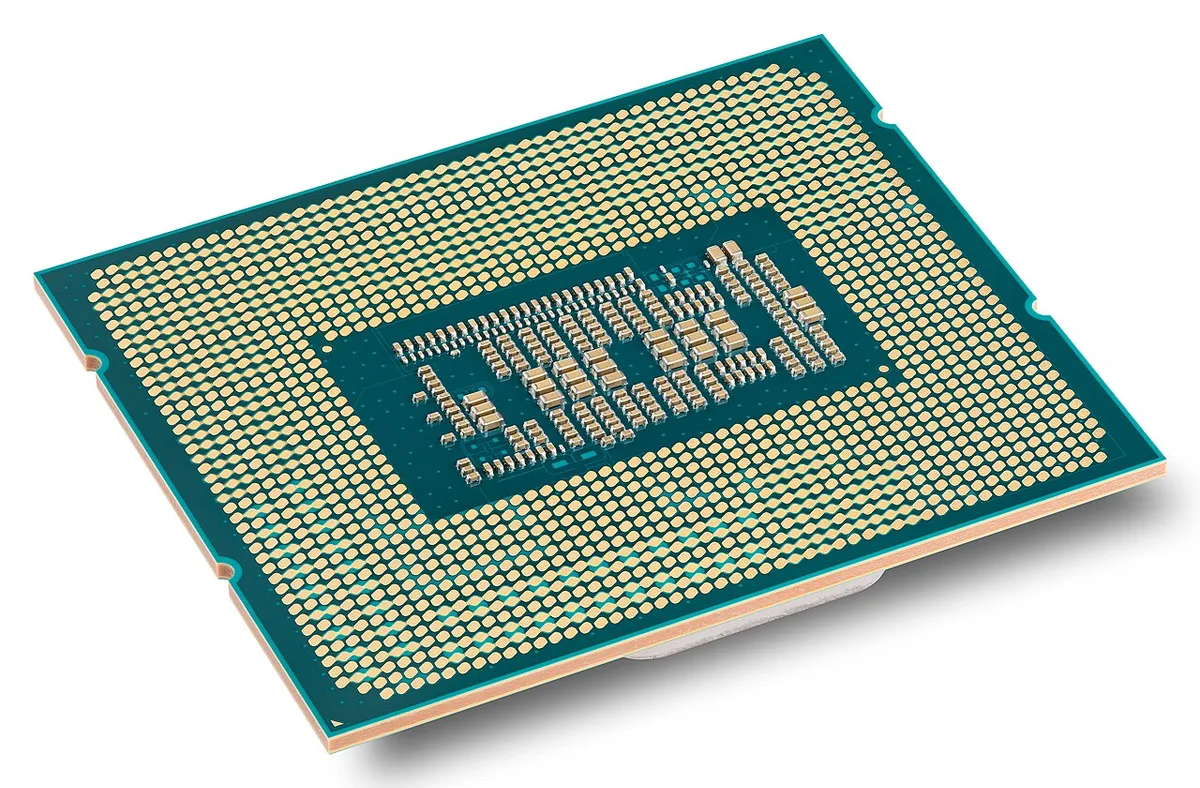
Image source: Wikimedia Commons / Eric Gaba (Sting, fr:Sting) (CC BY-SA)
Socket compatibility is necessary. It is never sufficient on its own. Treat it as the first gate, not the final answer.
Here's the order that actually works:
- Match the CPU socket to the motherboard socket exactly.
- Confirm the motherboard chipset lists your CPU generation as supported.
- Check the manufacturer's CPU support list for your exact CPU model.
- Verify the required BIOS version and whether your board already has it.
- Check VRM and power delivery against the CPU's TDP or PPT rating.
- Confirm cooler mounting holes match the socket.
- Confirm RAM generation matches, DDR4 or DDR5.
- Check storage and PCIe needs against available slots.
If any item fails, stop. Don't buy yet. The fix is either a different board, a different CPU, or a BIOS update.
One practical tip: keep the cooler clearance question in mind while planning. A compatible CPU means nothing if the cooler won't fit the case. Our guide on cooler clearance limits walks through that check step by step.
How Compatibility Actually Works: Socket, Chipset, BIOS, and VRM
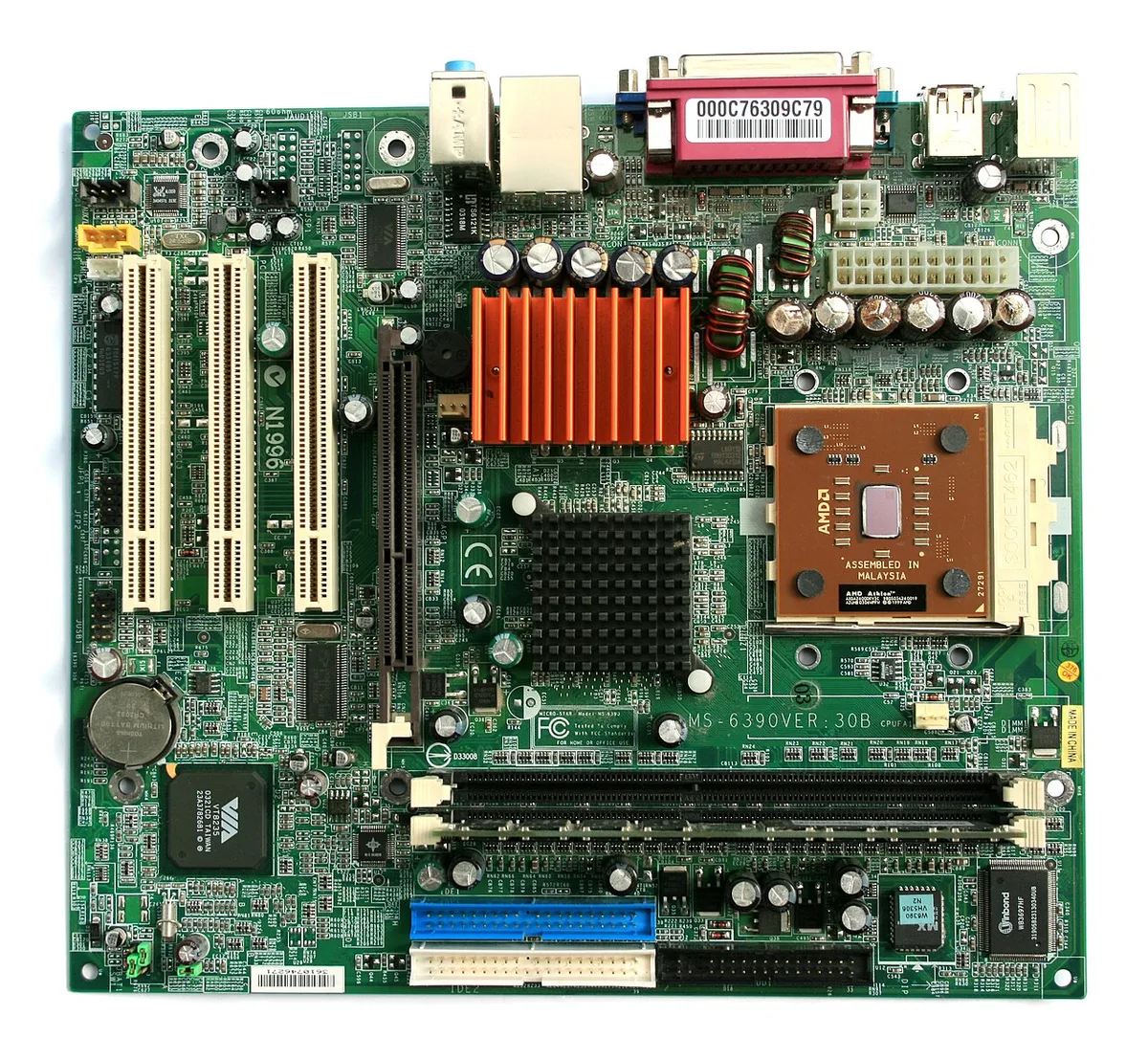
Image source: Wikimedia Commons / Jonathan Zander(Digon3)” (CC BY-SA)
Four layers decide whether a CPU and motherboard will work. Each layer filters out combos that passed the previous one.
Socket. This is the physical interface. Intel uses LGA, where pins sit on the motherboard. AMD uses PGA on older chips and LGA on AM5.
The socket name must match exactly. LGA1700 is not LGA1851. AM4 is not AM5.
Chipset. The chipset is the motherboard's traffic controller. It determines which CPU generations the board can support and which features are available. A Z790 board supports 12th, 13th, and 14th Gen Intel Core.
A B660 board may only support 12th and 13th Gen. Always check the chipset's CPU support range.
BIOS. Firmware is where the magic lives. A board can have the right socket and chipset but ship with firmware too old to recognize a newer CPU. Manufacturers publish CPU support lists that pair each CPU with a minimum BIOS version.
Intel's official ARK database and AMD's product specifications are the authoritative starting points for CPU details.
VRM. Voltage regulator modules convert power for the CPU. More phases and higher current ratings mean better support for power-hungry chips. A 65W CPU on a basic board is fine.
A 125W or 170W CPU on that same board is asking for thermal trouble. Aggregate reviews of budget boards running high-TDP chips consistently report throttling under sustained load.
These four layers work in sequence. Pass all four and you have a working platform. Miss one and you have an expensive paperweight.
The 5-Point Compatibility Checklist
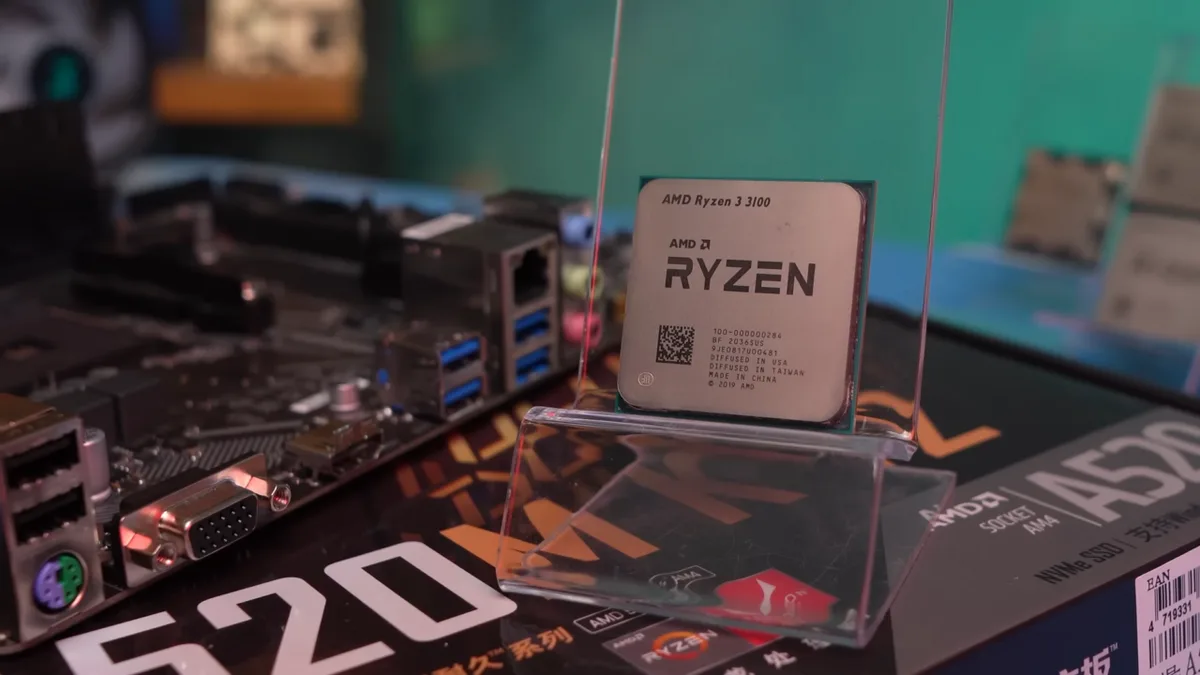
Image source: Wikimedia Commons / Мой Компьютер (CC BY)
Use this checklist before every purchase or upgrade. It takes about ten minutes and saves hours of troubleshooting.
| Check | What to Verify | Where to Find It |
|---|---|---|
| Socket | Exact socket name matches | CPU box and motherboard spec sheet |
| Chipset | Supports your CPU generation | Motherboard product page |
| BIOS | Minimum version listed for your CPU | Manufacturer CPU support list |
| VRM | TDP or PPT within board rating | Board reviews and spec sheet |
| Cooler | Mounting holes match socket | Cooler spec sheet |
Run through it in order. Socket first, then chipset, then BIOS, then VRM, then cooler. Each check narrows the field.
A few details that trip people up:
- Motherboard revisions matter. A board labeled B550 might have revision 1.0 and 1.2 variants with different VRM layouts. Check the revision printed on the box.
- BIOS version numbers can be confusing. A board shipped in 2023 might already include the update you need. Check the sticker on the box or the BIOS screen before assuming you must update.
- RAM generation is binary. DDR4 boards don't take DDR5. DDR5 boards don't take DDR4. There is no adapter.
- PCIe lanes vary by chipset. A CPU might support 20 lanes while the board only wires 16 to the GPU slot. Check if you plan to run multiple GPUs or NVMe drives.
If you're planning a full build, airflow deserves a spot on the same checklist. Our walkthrough on airflow planning covers how case layout affects cooling performance.
Step-by-Step: How to Check Compatibility for Your Build
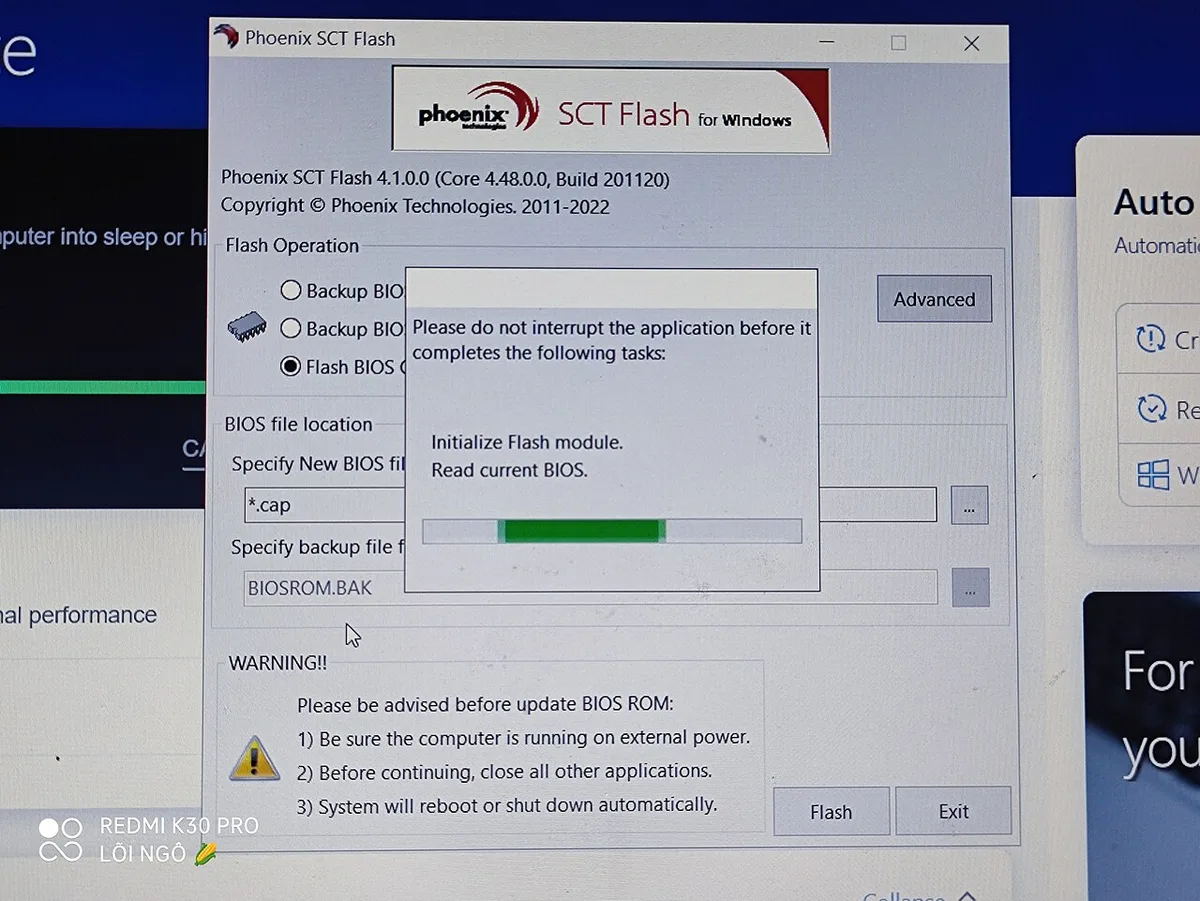
Image source: Wikimedia Commons / Miyako Fujimiya
Follow these steps in order. Skipping steps is how people end up with returns.
Write down your exact CPU model. Include the full name, like Intel Core i5-14600K or AMD Ryzen 7 7800X3D. Don't trust shorthand.
Write down your exact motherboard model and revision. The revision is usually printed on the box or the board itself.
Check the socket. Compare the CPU's socket to the board's socket. If they don't match, stop here.
Open the motherboard manufacturer's CPU support list. Search for your exact CPU model. If it's not there, the board won't support it, period.
Note the minimum BIOS version required. Compare it to the version installed on your board. You can check this in the BIOS screen or on the box sticker.
If you need a newer BIOS, check whether the board supports BIOS Flashback. This lets you update without a CPU installed. If not, you'll need a compatible older CPU to perform the update.
Check VRM capacity. Look at board reviews for thermal data with your CPU class. A board rated for 65W chips will struggle with 125W chips.
Check cooler mounting. Confirm your cooler includes the right bracket for the socket. Many coolers ship with multiple brackets. Verify before buying.
Check RAM. Confirm the board supports your RAM generation and speed. Check the QVL if you're running high-speed kits.
Check storage and expansion. Count M.2 slots, SATA ports, and PCIe slots. Make sure your planned drives and cards fit.
Verify case fit. A compatible CPU and board still need a case that fits both. If you're choosing a case for a liquid-cooled build, our guide on case selection for liquid cooling covers the key measurements.
Double-check everything before checkout. Re-read the CPU support list one more time. Manufacturers update these lists occasionally, and a board that didn't support a CPU last month might now.
After purchase, install carefully. Connect power, boot to BIOS, and verify the CPU is recognized. Run a stability test and monitor temperatures.
If anything looks off, recheck the checklist before assuming a hardware defect.
One more consideration for the overall build: case fan requirements vary by layout and cooling method. Our piece on case fan requirements helps you size cooling for the platform you've chosen. And if you're running a large GPU alongside a high-TDP CPU, check GPU clearance so both fit without interference.
Decision Branches: New Build, Upgrade, OEM, or Used Parts
The right path depends on what you're starting with. Each scenario changes which checks matter most.
If you're building from scratch, choose the platform first. Pick Intel or AMD based on budget and software needs. Then pick a chipset tier that matches your CPU's power and feature requirements.
Only after that do you shop for a specific board.
If you're upgrading an existing PC, start with the motherboard's CPU support list. Find your board model, open the manufacturer's list, and search your candidate CPU. If it appears, note the required BIOS version.
If it doesn't appear, that board is a dead end for that CPU.
If you're working with an OEM desktop from Dell, HP, or Lenovo, expect restrictions. OEM boards often use standard sockets but lock the BIOS. Power connectors may be proprietary.
Cooling may be tuned for the original CPU only. In that case, a platform swap usually makes more sense than a CPU swap.
If you're buying used parts, verify everything twice. Check the motherboard revision, not just the model name. Ask the seller for the BIOS version.
Inspect the CPU pins or lands for damage. Used combos can save money, but only when the support list confirms the match.
One more branch: if your current board supports the new CPU only after a BIOS update, check for BIOS Flashback. Without it, you'll need a compatible older CPU to perform the update. That adds cost and complexity.
Common Compatibility Mistakes That Waste Money
Most compatibility failures come from skipping one check, not from bad luck.
- Matching the socket and stopping there. Socket match is step one, not the finish line.
- Ignoring the BIOS requirement. A board with the right socket and chipset still won't POST without the right firmware.
- Overloading a weak VRM. A high-TDP CPU on a budget board may run, but it will throttle under load.
- Buying the wrong RAM generation. DDR4 and DDR5 are physically different and not interchangeable.
- Assuming cooler reuse. Socket changes between generations often require a new mounting bracket.
- Forgetting OEM limits. A standard socket doesn't mean an unlocked BIOS.
- Trusting seller descriptions on used parts. Always verify the model and revision yourself.
- Overlooking motherboard revisions. Two boards with the same name can have different VRM layouts.
- Missing PCIe lane limits. A board may support fewer lanes than the CPU provides, limiting GPU or NVMe performance.
The cheapest mistake to avoid is the BIOS one. Check the support list before you buy, not after the parts arrive.
Platform Choices Compared: Intel vs AMD and Socket Generations
The platform you pick determines your upgrade path for years. Here's how the current options compare.
| Platform | Socket | RAM | Typical Use Case |
|---|---|---|---|
| Intel 12th-14th Gen | LGA1700 | DDR4 or DDR5 | Budget to high-end, broad board choice |
| Intel Core Ultra (newer) | LGA1851 | DDR5 | Newer platform, fewer budget boards |
| AMD AM4 | AM4 | DDR4 | Mature, affordable, strong value |
| AMD AM5 | AM5 | DDR5 | Current AMD platform, longer upgrade path |
Intel's LGA1700 covers three generations, which makes it flexible. But the newer LGA1851 platform requires DDR5 and new boards, so it's a bigger jump.
AMD's AM4 is the value king. It supports a huge range of CPUs and cheap DDR4. The downside is that it's a dead-end platform with no future CPU releases.
AMD's AM5 is the forward-looking choice. It requires DDR5 and starts at a higher price, but it promises a longer support window. For a new build with a 3-to-5-year horizon, AM5 usually wins.
For upgrades, AM4 still makes sense if you already own it. A cheap CPU drop-in can extend a system's life by years. For new builds, the choice comes down to budget and how long you plan to keep the platform.
If you're weighing cooling for either platform, our comparison of air versus liquid cooling breaks down the tradeoffs.
FAQs
Can a CPU fit the socket but still not work?
Yes. Socket match is physical only. The chipset, BIOS, and VRM must also support that CPU.
A board can accept a chip and still refuse to POST or throttle under load.
Do I need a BIOS update for every new CPU?
Not always. If your board already has a BIOS version that supports the CPU, no update is needed. Check the manufacturer's CPU support list for the minimum version required.
Is AM5 better than AM4 for upgrades?
For a new build, AM5 has a longer future. For an existing AM4 system, upgrading the CPU is still cost-effective. The right answer depends on what you already own.
Can I use DDR4 on an AM5 board?
No. AM5 requires DDR5. DDR4 and DDR5 use different slots and are not interchangeable.
The same applies to Intel's newer LGA1851 platform.
What if my motherboard doesn't list my CPU?
Then it's not supported. Don't buy that combo. The CPU support list is the final authority, not the socket or chipset name.
How do I check VRM without specs?
Look at board reviews with thermal testing. Aggregate reviews report VRM temperatures under load. If a board runs hot with a mid-range chip, skip it for high-TDP CPUs.
Final Decision Guide: Buy, Upgrade, or Walk Away
Run the checklist one final time before spending money. If every item passes, buy with confidence.
If the socket matches but the BIOS is missing, decide whether BIOS Flashback is available. If yes, update first. If no, you'll need a loaner CPU or a different board.
If the VRM is too weak for your CPU, walk away from that board. A cheaper chip or a better board is the fix, not a bigger cooler.
If you're on an OEM system, weigh the cost of a platform swap against a simple CPU drop-in. Sometimes the answer is a whole new build.
If every check passes and the price is right, you've got a compatible combo. Install carefully, verify POST, and monitor temps. That's how you avoid the compatibility trap.